
WO Priority
As to effectively organize the activities pending scheduling, specific priority assignment rules for WO shall be defined. Therefore, given a set of schedulable activities, if the scheduling process extracts WOs meeting the conditions (filter) set, the system will prioritize their scheduling; if not, the WOs will all be handled according to the same modalities.
MAIN MENU → CONFIGURATION → SCHEDULING OPTIMIZATION → WO PRIORITY
The System displays the following window:
|
|
|---|
|
Figure - Priority rules List |
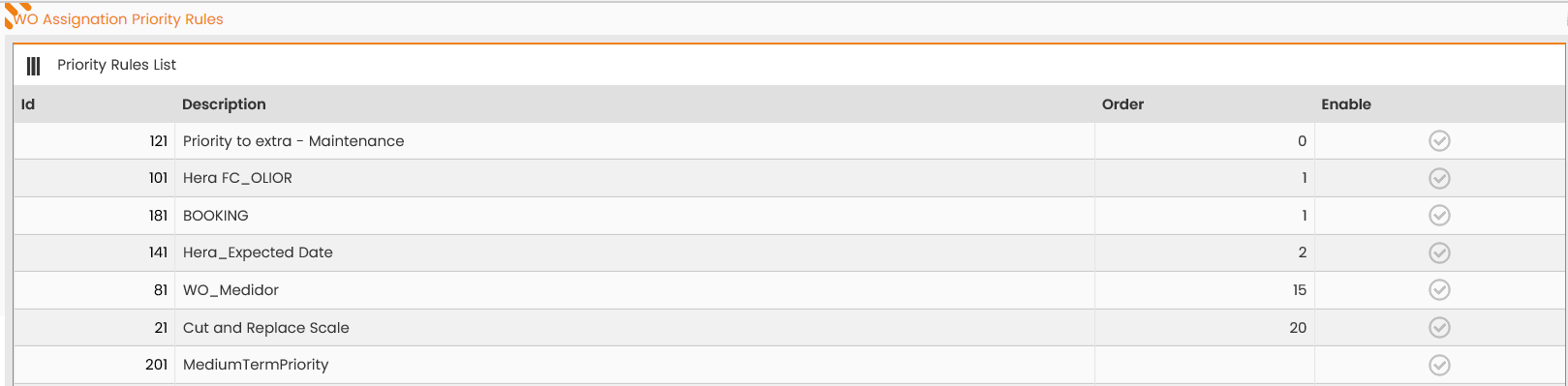
The main section of the window provides the ‘Priority Rules List’ table, reporting the rules already registered in the system.
Click the row, corresponding to a specific value, to access the section for editing the datum:
|
|
|---|
|
Figure - WO Priority Assignment rule |
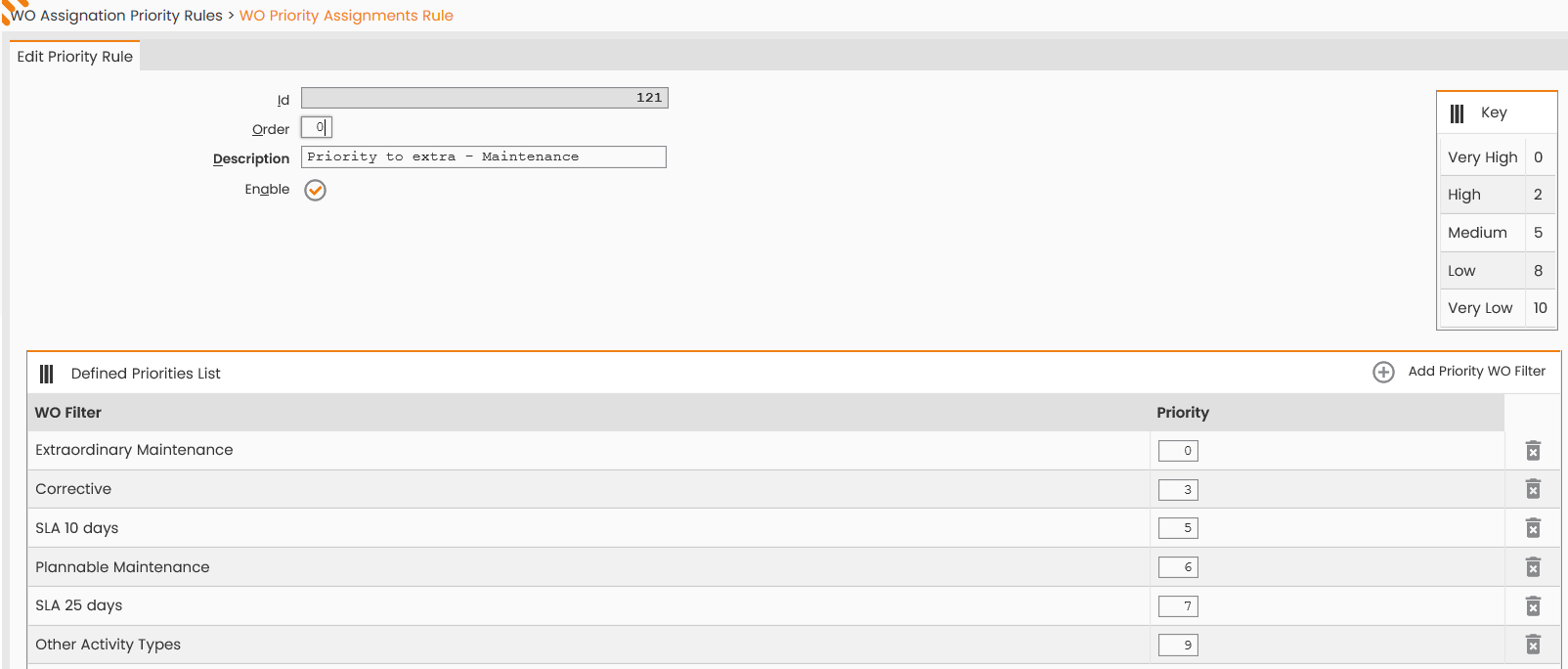
The window allows the following actions:
-
editing the Priority Rule Description or Organization values;
-
editing the rule display mode (‘Active’ flag);
-
deletion one/different priorities by clicking the 'DELETE' button beside the specific record in the ‘List of Set Priorities’ table;
-
editing a given set priority by clicking the specific record in the ‘List of Set Priorities’ table, accessing the following window which allows to edit both the corresponding WO Filter and the priority set.
|
|
|---|
|
Figure - WO Filter Priority |
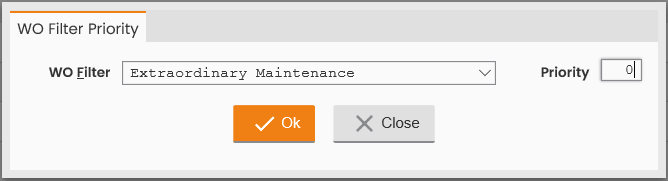
To confirm the made editing, click the 'OK’ button; otherwise click the 'CLOSE' one.
-
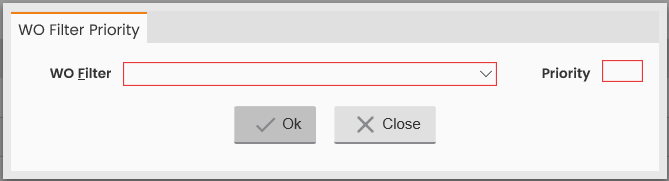
Add one or different priorities by clicking the'ADD PRIORITY WO FILTER' button provided beside the header in the ‘List of Set Priorities’ table, at the top right.
The system displays the following window, for the system user to specify the WO Filter, to choose among the values; previously registered in the system and the priority (numeric one) to assign to all the WOs complying with the Filter set.
|
|
|---|
|
Figure - Add Priority WO Filter |
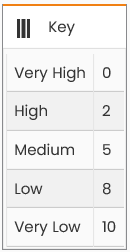
For an order to be considered as high-priority, the identifying filter, it shall be defined according to the lowest possible priority. Reported below is the legend of the priority levels:
|
|
|---|
|
Figure - legend of the priority levels |
To confirm the insertion of the new priority for the specified filter, click the'OK’ button; otherwise click the 'CLOSE’ one.
If a specific WO complies with more than one WO Filter associated with different priority levels, the system will assign the lowest priority during the scheduling process.
To confirm the editing, made to the specific WO Priority Assignment Rule, click the 'SAVE’ button; to close the window, click the 'CLOSE' button in the Operations sub-menu.
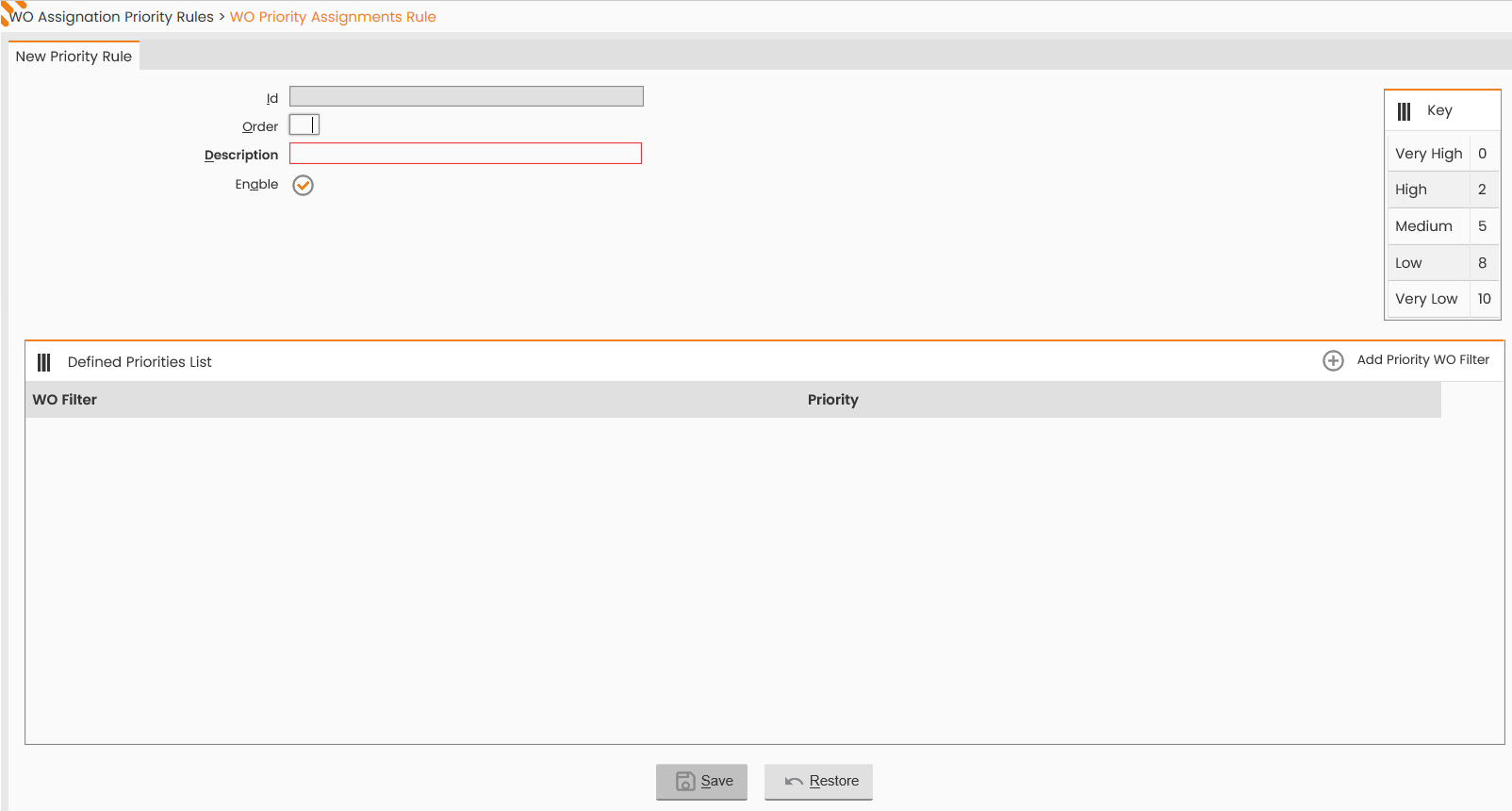
The Operations sub-menu at the bottom provides the 'NEW PRIORITY RULE' function which allows to define a new WO Priority Assignment Rule, setting the information reported in the figure below:
|
|
|---|
|
Figure - New Priority rule |
-
Description;
-
Organization;
-
Active, flag;
-
Priority on WO Filters through the ‘Add Priority WO Filter’ function, detailed in this paragraph.
To confirm the insertion of the new WO Priority Assignment Rule, click the 'SAVE’ button; to close the window, click the 'CLOSE' button in the Operations sub-menu.