
Scheduling Models
This section details the functions, required for defining scheduling Models/templates.
The System provides for two scheduling levels. Upon configuring the given context, Virtual Scheduling Simulation may be provided, thus shifting from the virtual daily plan to the real one; additionally, the Real Scheduling may be managed to generate the scheduling on the real daily plan:
-
Simulation environment / “virtual” world;
-
Actual scheduling environment / “real” world.
The first is functional to set up the scheduling simulations based on rules and organizational models which may be alternative or complementary among them and which are used to determine the actual periodic assignment (usually on a daily basis) in the real plan.
The logics and management of the virtual world are based on the scheduling Model, which identifies an organizational model for simulating the planning of the resources of a specific OC in a given period in time.
MAIN MENU → CONFIGURATION → SCHEDULING OPTIMIZATION → SCHEDULING MODELS
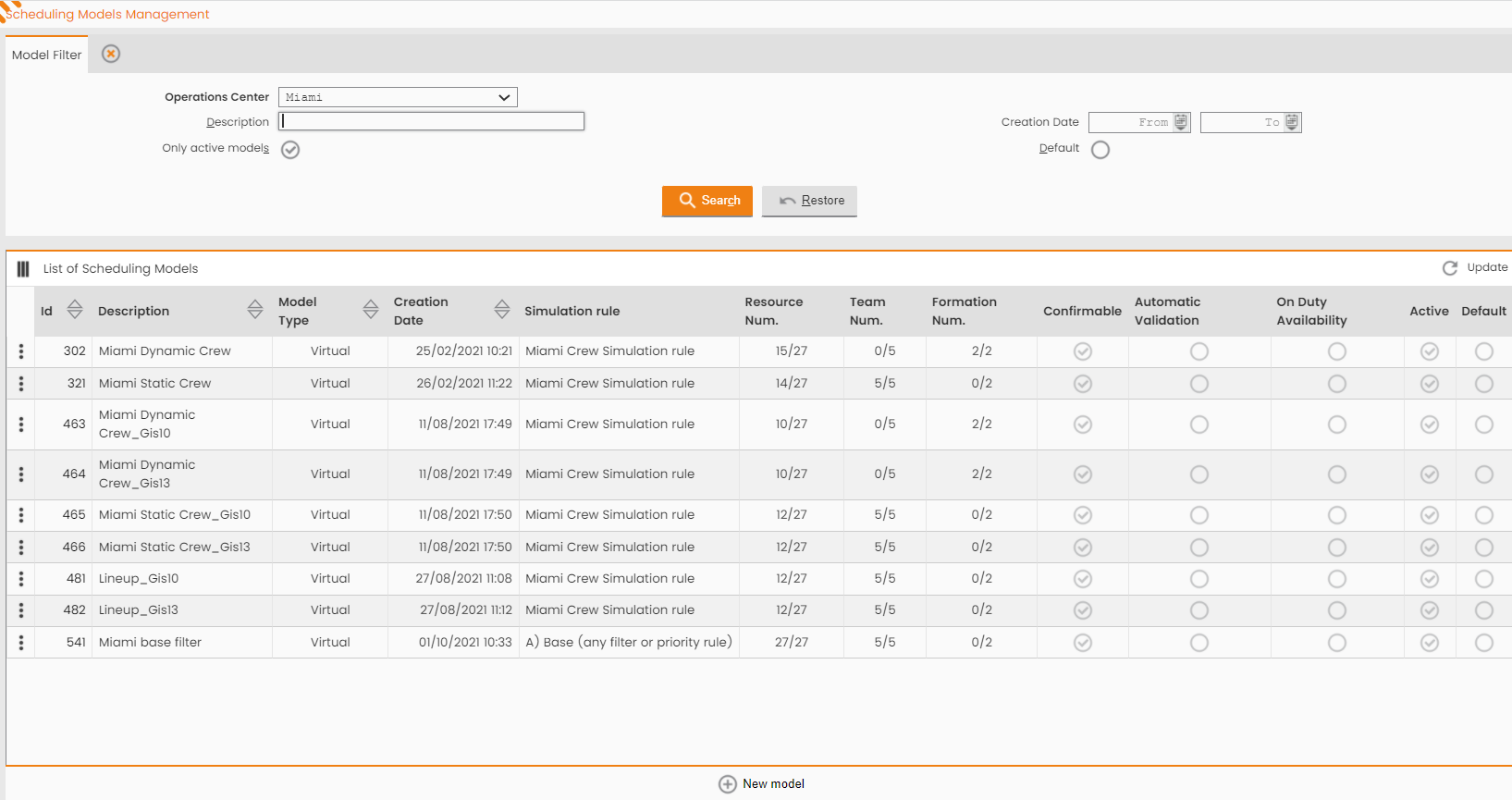
The System displays the following window:
|
|---|
|
Figure - Scheduling Models Management |
The top section provides the window for template search based on the following filters:
-
Template description;
-
Template creation date, from - to;
-
Active templates only, flag;
-
Operations Center, mandatory;
-
Default, flag.
The bottom section lists the Models already defined and searched.
Click a Model in the ‘Scheduling Models List’ table to access the editing window of a specific record.
The Operations sub-menu provides the 'NEW MODEL' function for setting a new scheduling template.
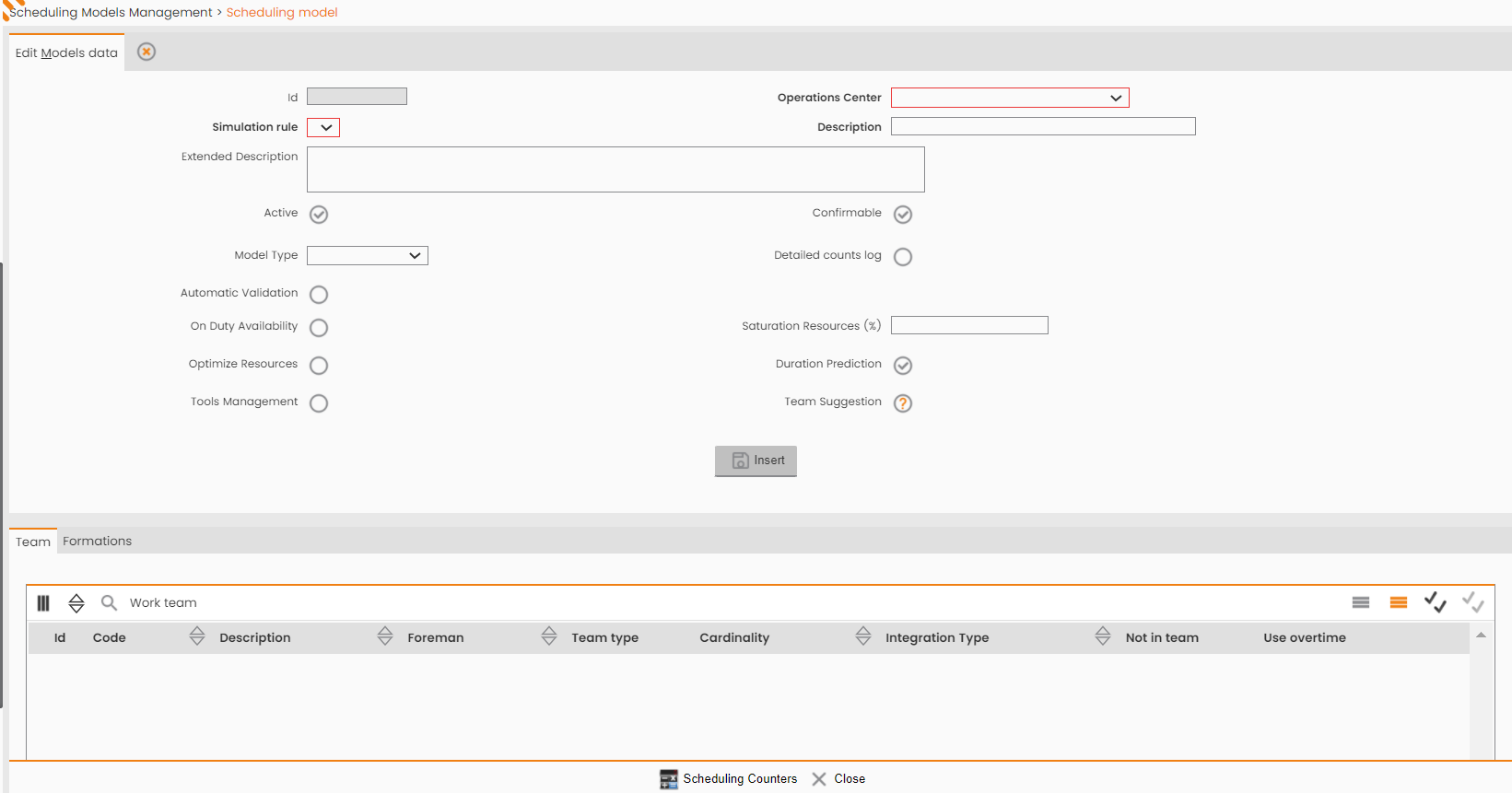
The System displays the following window:
|
|---|
|
Figure - New Scheduling Model |
To define a new template the following data shall be entered:
-
Operations Center, mandatory;
-
Simulation Rule, mandatory and to choose among the ones previously registered in the System for the specific OC considered;
-
Template Description, mandatory;
-
Optional Extended Description;
-
Active, flag determining whether the template is active;
-
To Crystallize (Confirmable), flag determining whether any specific or massive (i.e., involving all resources) crystallization actions (scheduling transfer from virtual to real plan) are enabled for the template considered, in terms of the virtual daily plan;
-
Model Type: currently, the virtual Model is managed, only;
-
Detailed counts log, flag enabling the 'Detailed Count' Log for the scheduling made;
-
On Duty Availability: assign tasks to technicians during on call avaibility;
-
Automatic Validation, flag determining whether, for the Model considered, the scheduling transmission to the mobile devices, matches the template crystallization stage;
-
Default, flag for scheduling resources and selected activities in the real plan, skipping the virtual plan scheduling;
-
Tools Management: NOT USED
-
Optimize resources, upon completing all the scheduling steps defined in the Template, the Optimize and Integrate actions are performed for each resource associated with the Model. In the case of many resources and orders requiring optimization, the standard use scenario will imply rough overall scheduling and detailed local optimization;
-
Resource saturation (%): use the percentage of involved resources
-
Duration Prediction: enable to AI prediction feature
-
Team Suggestion: enable AI Team Suggestion feature
Upon entering the data, the Model is created through the 'INSERT’ button.
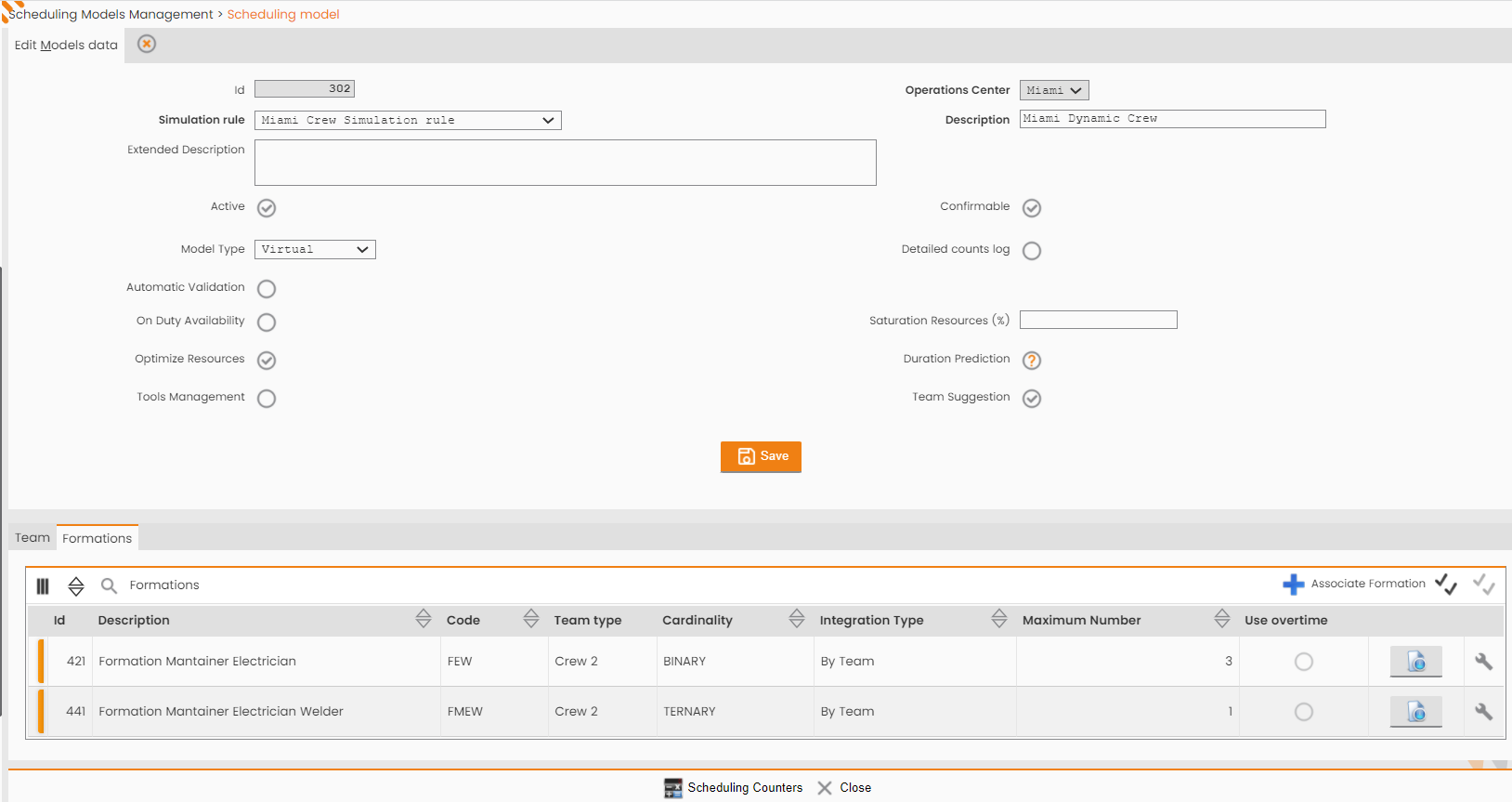
The bottom section will then be filled out as shown in the following figure:
|
|---|
|
|
|
Figure - Scheduling Model creation |
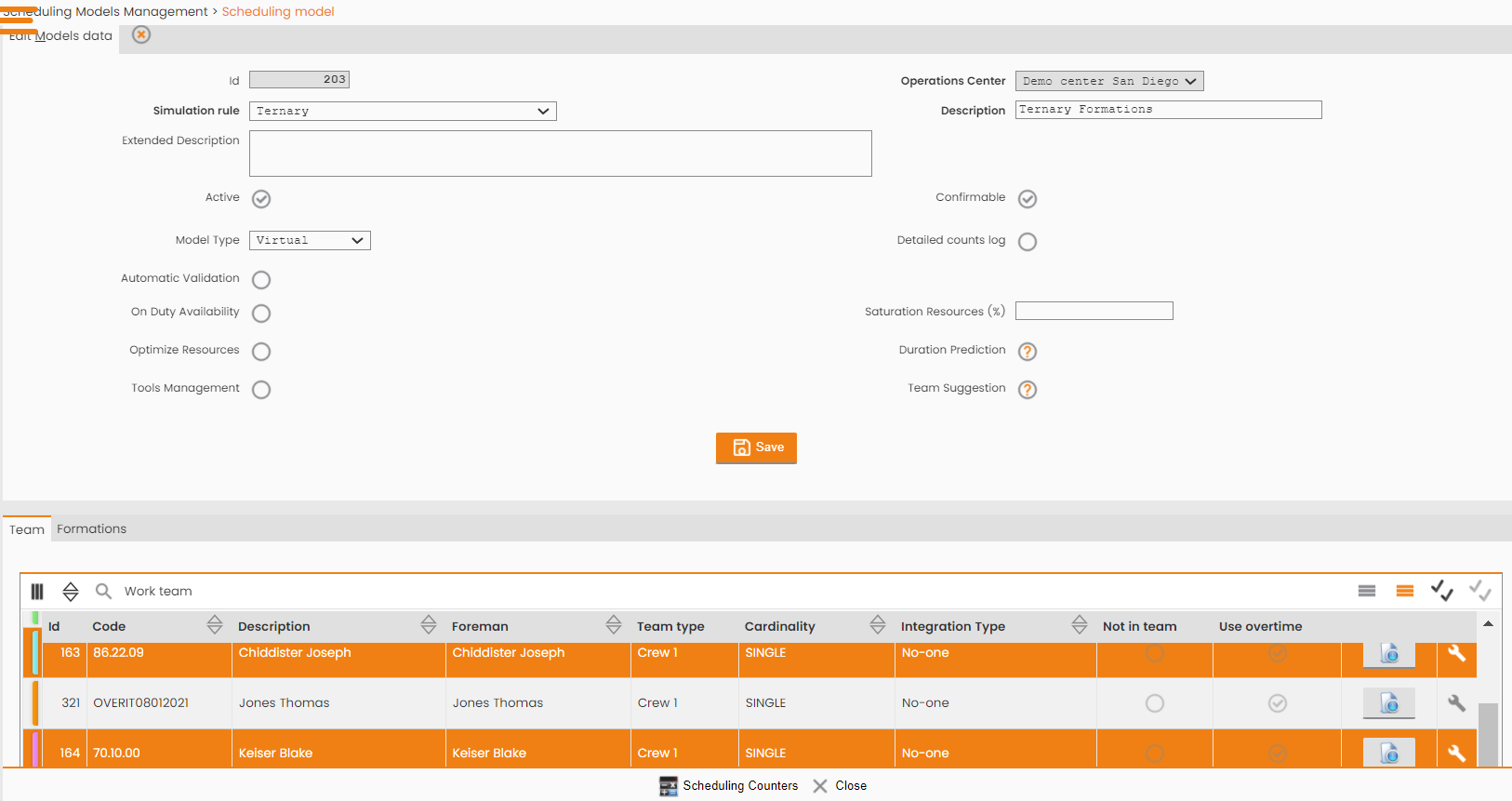
The first tab Work Team lists all the teams available for the OC. The chosen teams subject to the scheduling shall be selected and identified by a different color (orange).
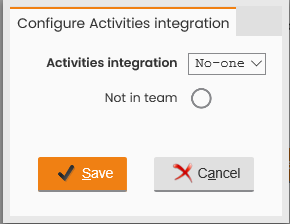
Each of them may be authorized to overtime, by clicking the ‘Toggle Uses Overtime’ button (the ‘Select All’ and ‘Deselect All Overtime Use’ functions are also available) and the activity integration may be configured by clicking the ‘Configure’ button. The window displayed by the system requires to specify the Activity Integration field (‘No’ Activity Integration= None (unique value): no activities are added with respect to the team ones to assign to the team) and the Not in Team flag (Not in team as 'true', the technician is transferred to VRP as 'team' and is not taken in charge for dynamic teams composition; Not in team as 'false', the technician is transferred to VRP as 'Worker' and is taken in charge for dynamic teams composition).
|
|
|---|
|
Figure - Configure Activities Integration |
The second tab Formations allows to associate the Model with Formations:
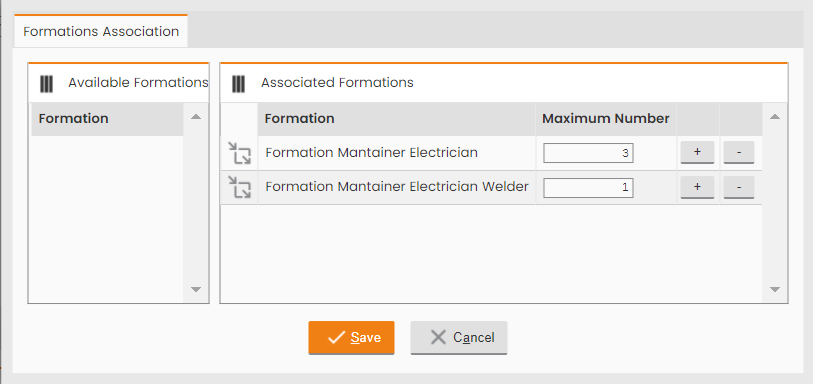
To associate a Formation the user shall click the 'Associate Formation' button available in the header of the ‘Formations’ table. The system displays the following window:
|
|---|
|
Figure - Formations Association |
For associating formation types by dragging those reported in the ‘Available Formations’ table on the left and dropping them in the ‘Associated Formations’ table on the right. Now the System will require to specify the peak, which is the maximum number of teams to generate/instantiate based on the formation type in this template.
To save the association of formations with the scheduling template, click the 'SAVE' button; otherwise, to close the window, click the 'CANCEL’ button.
As for the Work Team tab, each Formation may be authorized to overtime, by clicking the 'Toggle Uses Overtime' button (the ‘Select All’ and ‘Deselect All Overtime Use’ functions are also available) and the activity integration may be configured by clicking the ‘Configure’ button.
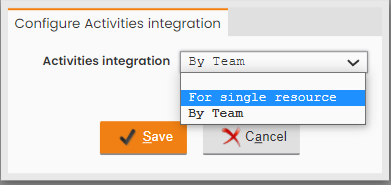
The window, displayed by the system, requires to specify the Activity Integration field. To choose between:
-
‘By Team’ Activity Integration = By Team: the System assigns to the Team additional interventions to perform in Team, even though the corresponding configuration would require the performance by a single resource team;
-
‘By Single Resource’ Activity Integration = By Single Resource: the System assigns to each member of the team the integration activities to be managed independently by each resource for performing additional interventions with respect to the team ones.
|
|---|
|
Figure - Activities Integration |
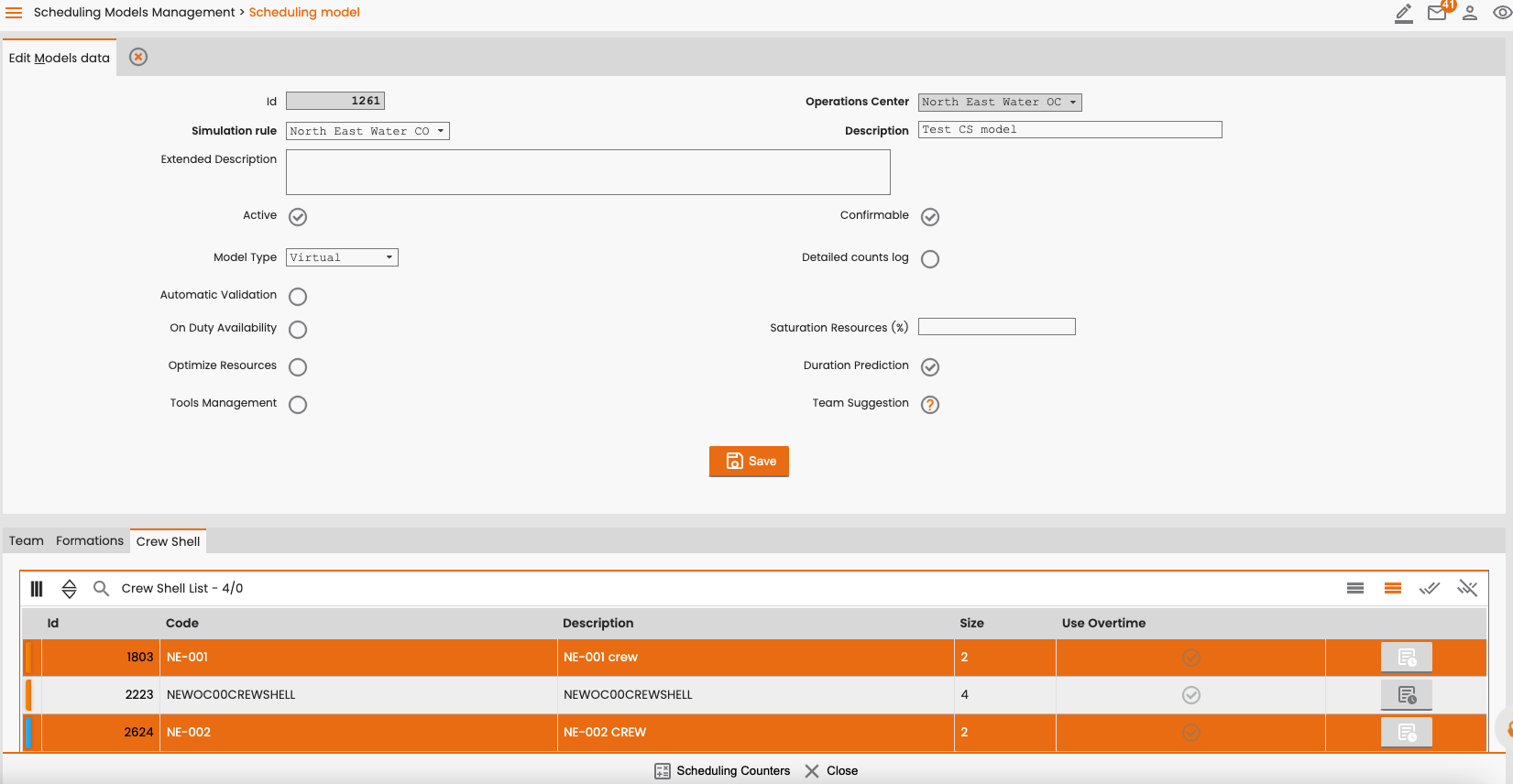
The third tab Crew Shells lists all the crew shells available for the OC. The chosen crew shell subject to the scheduling shall be selected and identified by a different color (orange).
Each of them may be authorized to overtime, by clicking the ‘Toggle Uses Overtime’ button (the ‘Select All’ and ‘Deselect All Overtime Use’ functions are also available).
Currently the Crew Scell tab is available only for scheduling models having a "Virtual" model type.
|
|---|
|
Figure - Activities Integration |
The teams, either fixed or dynamic, are allocated over the entire work shift. Therefore, if the activities compatible with a given selected team are not enough for saturating the entire work shift, the system will allow to “ integrate” the teams’ work day with activities having a cardinality lower than the team’s one, according to two modalities:
-
Integration by the team;
-
Integration by a single resource.
With the Integration by Team mode, the resources will keep on working in the team over the residual work shift schedule, possibly performing activities that require lower cardinality and thus “under-employing” one or many resources.
On the contrary, the second modality is based on the assignment of activities to single operators, who will perform them independently from other technicians.
Finally, the third integration modality is available to dynamic teams, which requires to divide the large team into many sub-teams with lower cardinality, implementing the logics, previously detailed in terms of dynamic team composition. However, the new sub-teams shall only consist of technicians, belonging to the original team, the one with higher cardinality.
|
|
|---|
|
Figure - Sub-teams Integration |
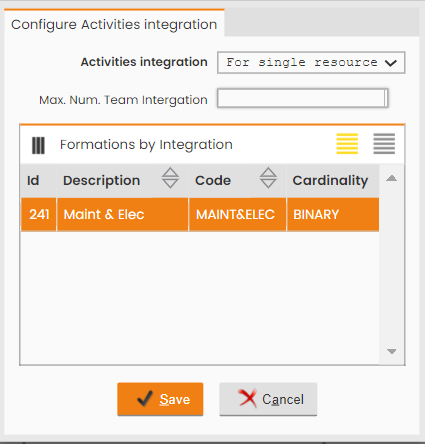
In this new and last scenario, the activities may be assigned to a sub-team of the original team, as to enhance the efficiency of resources and increase the planned solutions. In this scenario, a large team may be divided into n-sub-teams with lower cardinality as to optimize the overall effort of resources, binding the maximum number of “sub-formations” to create, based on a given team. This may result in many benefits, the first being the reduction in the number of vehicles to be used by the team , which may be limited.
Integration is not available for crew shells.
To save the creation of the new scheduling template, click the 'SAVE’ button; to close the window, click the 'CLOSE' button in the Operations sub-menu.
The Operations sub-menu provides the ‘Scheduling Counters’ function which allows to count the number of orders falling into a given category, for simulation purposes.
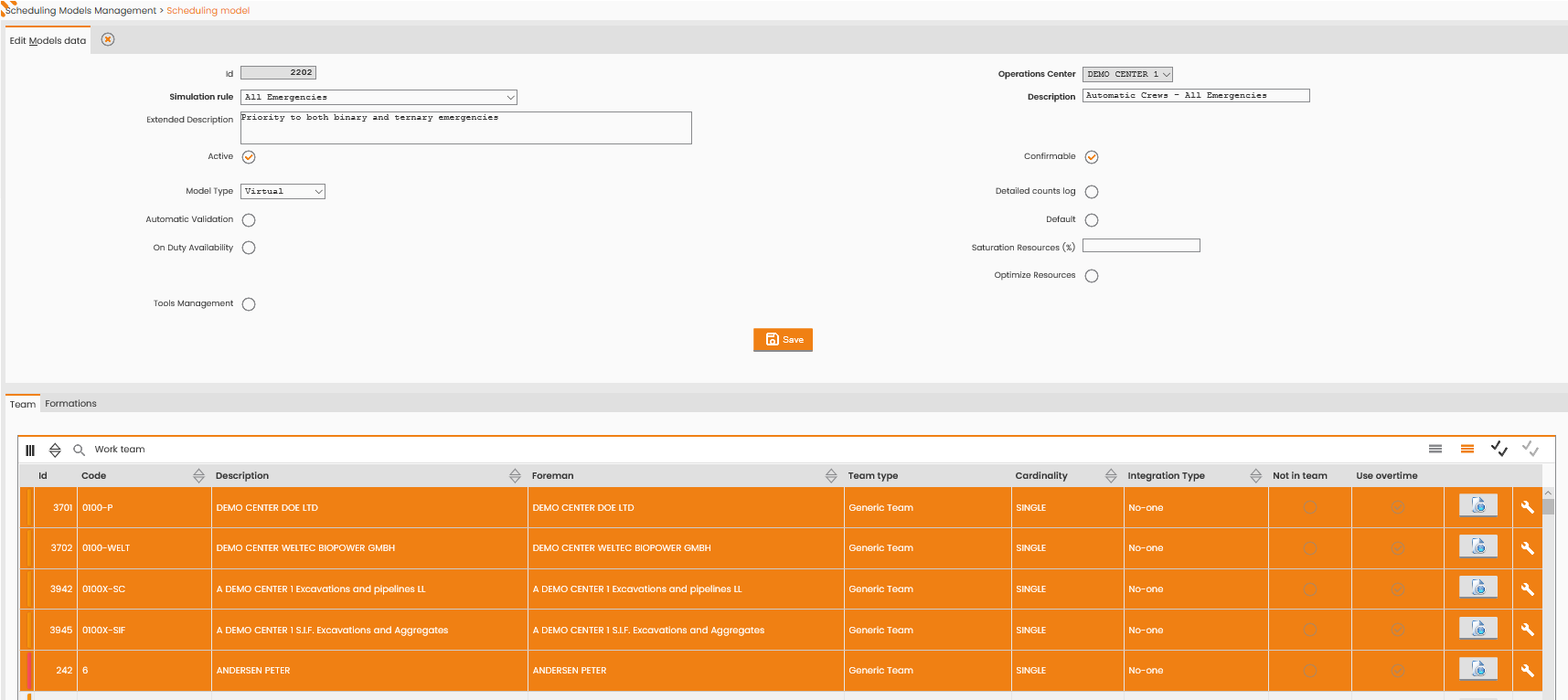
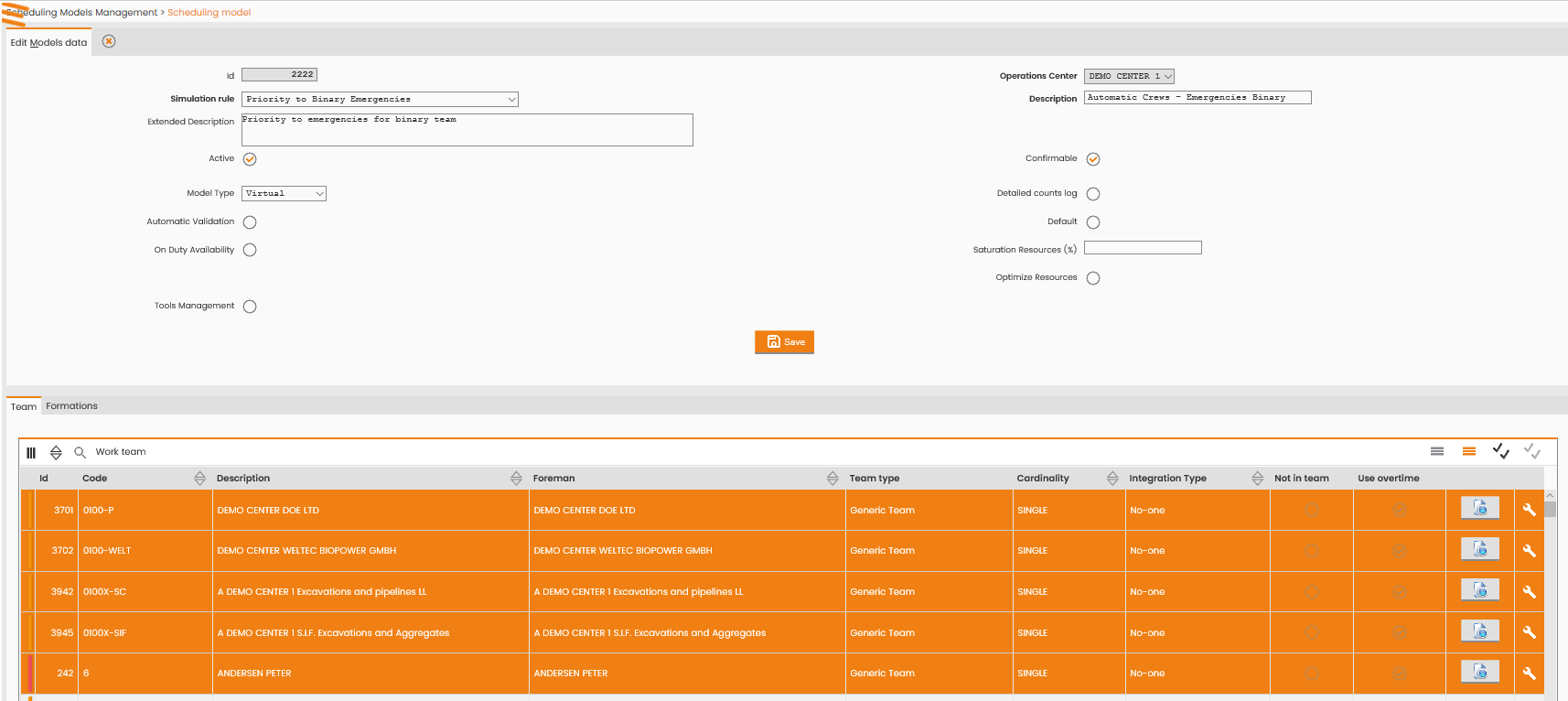
Two Scheduling Models have been identified as Reference Templates, which serve as an example for the automatic team composition mechanism. Both of them will consider all available technicians and also two different formations:
-
a Binary formation the System may instantiate twice, at most (as to limit the number of teams to create);
-
a Ternary formation with two possible instances at most, which may be divided into sub-crews.
Further Reference Models can be configured based on the following guidelines.
|
|
|---|
|
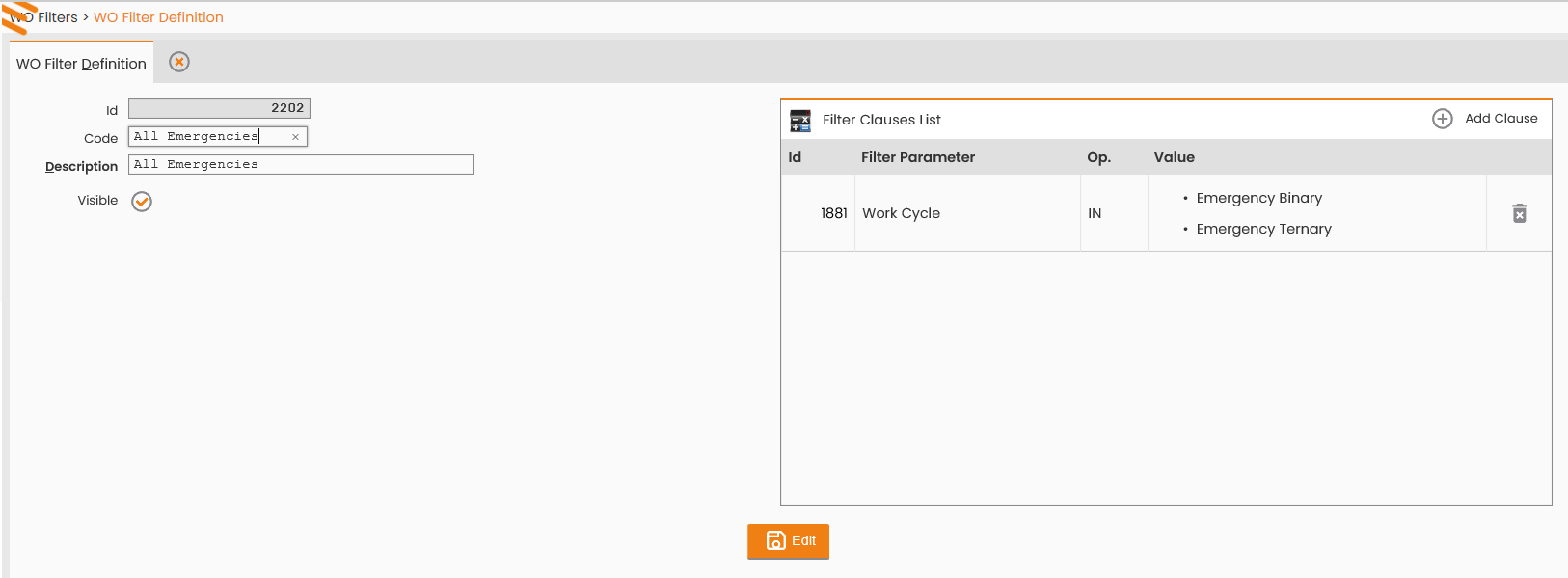
Figure - All emergencies |
|
|---|
|
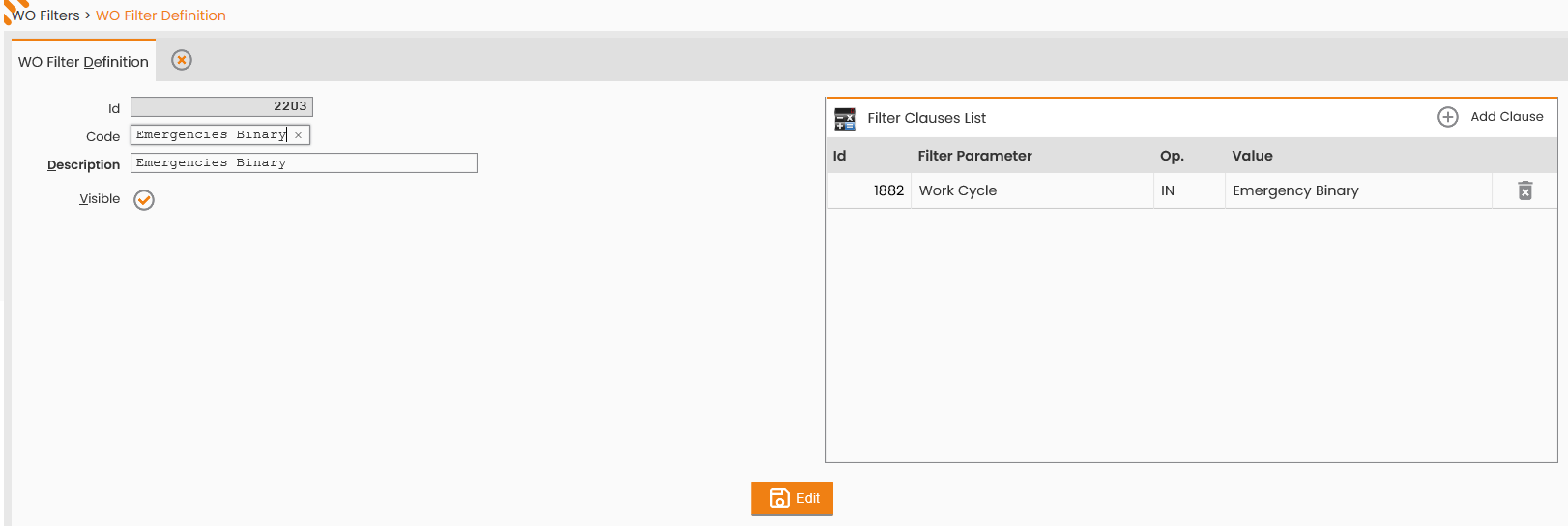
Figure - Emergency Binary |
The two Models rely on two different scheduling rules:
-
The first Model (Emergency Binary) relies on a rule which gives high priority to those emergencies needing the intervention of a binary team;
-
The second Model (All Emergencies) relies on a different rule that prioritizes all emergencies (both for binary and ternary teams).
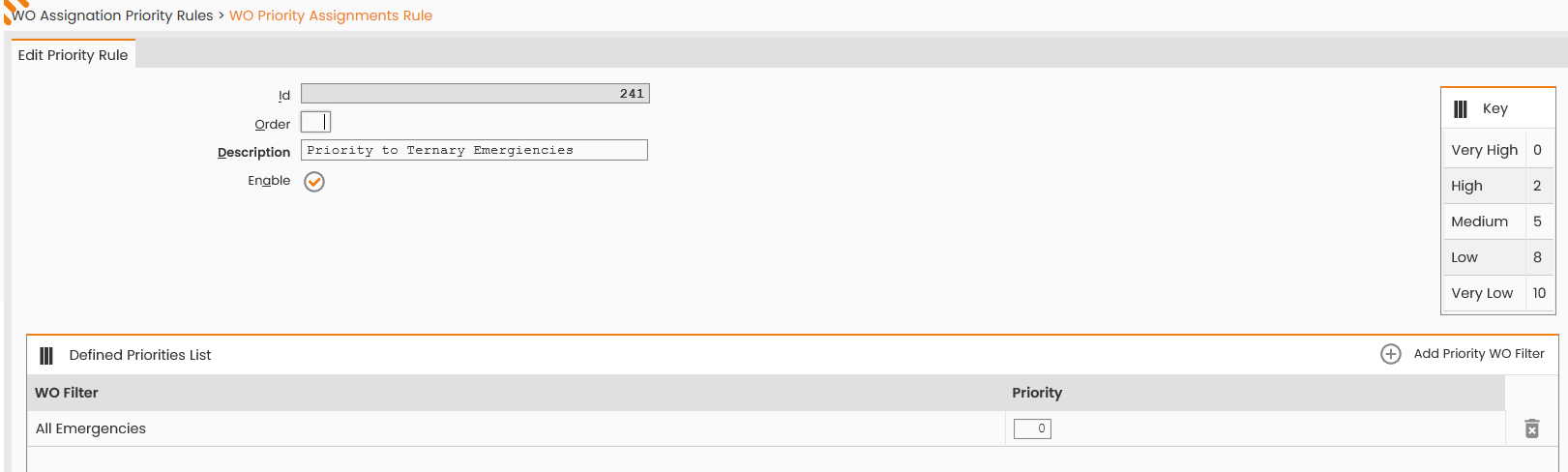
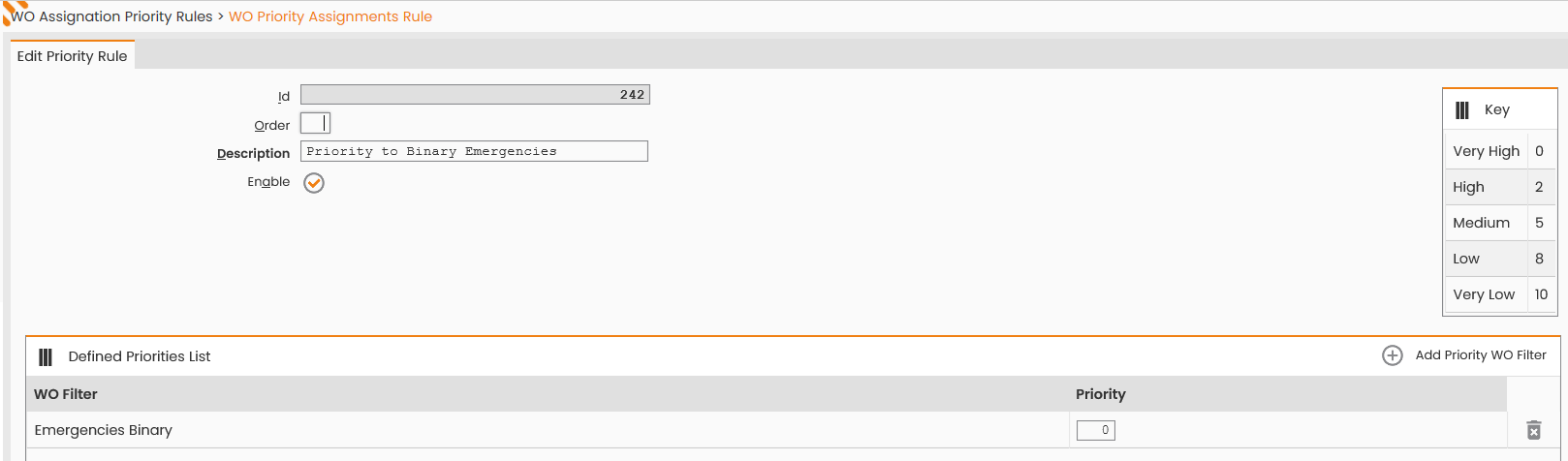
In order to manage such scheduling rules, two priority rules have been defined based on two work order cycles (one associated with the work order with binary cardinality and the other one associated with the ternary cycle work order).
The Simulation Rule has been associated with the Priority Rule with the 'work cycle' parameter used as Filter Clause (work cycle value IN (Binary Emergency and Ternary Emergency)). The Scheduling Model prioritizes the scheduling of binary and ternary teams and, upon completing this process, it will schedule the single resources.
|
|
|---|
|
Figure - Priority Rule |
|
|
|---|
|
Figure - WO Filter |
The Simulation Rule has been associated with the Priority Rule with the parameter 'work cycle' used as Filter Clause (work cycle value IN Emergency Binary). The Scheduling Model gives high priority to the scheduling of the binary teams and, after completing this phase, it tries to schedule the single resources.
|
|
|---|
|
Figure - WO Assignment rule |
|
|
|---|
|
Figure - WO Filter definition |
Scheduling Counters
The Scheduling Counters are aimed at monitoring the work orders which are processed, sent to the scheduler, planned and/or discarded either through scheduling logs (expert user) or through a training dashboard to easily access and consult by all users.
This function mainly relies on the dynamic filter mechanism already provided by the WFM for defining alerts and themes, for selecting orders from a list and classify them by priority.
To define a counter, the following steps are required:
-
definition of the filter (in the Scheduling Counters context);
-
definition of the counter and association with the scheduling Model.
Upon clicking the Scheduling Counters function the following window is displayed:
|
|
|---|
|
Figure - Scheduling Counter |
The top section reports the summary form of the scheduling Model used to retrieve the function. The reported data are:
-
Operations Center;
-
Model Description.
The bottom section reports all the Counters already registered in the System for the specific scheduling Model. For each Counter, the WO Filter, the Assignment Type and the Log Type are reported.
Herein the main counters managed during the processing:
-
Counter - Number of Booking activities;
-
Counter - Number of Locked activities;
-
Counter - Number of Saturation activities;
-
Caricamento Attività Preassegnate;
-
Counter - Number of Excluded Activities due to the WO Filter;
-
Counter - Number of Excluded Activities due to Skills;
-
Counter - Number of Excluded Activities due to Scheduling Areas;
-
Counter - Number of Excluded Activities due to Manadatory Technicians;
-
Counter - Number of activities sent to Gisware;
-
Counter - Number of activities not sent to Gisware;
The Operations sub-menu provides the 'WO Filters' function for defining the WO Filters referring to the ‘Scheduling Counters’ scenario. For further details, please refer to the following section.
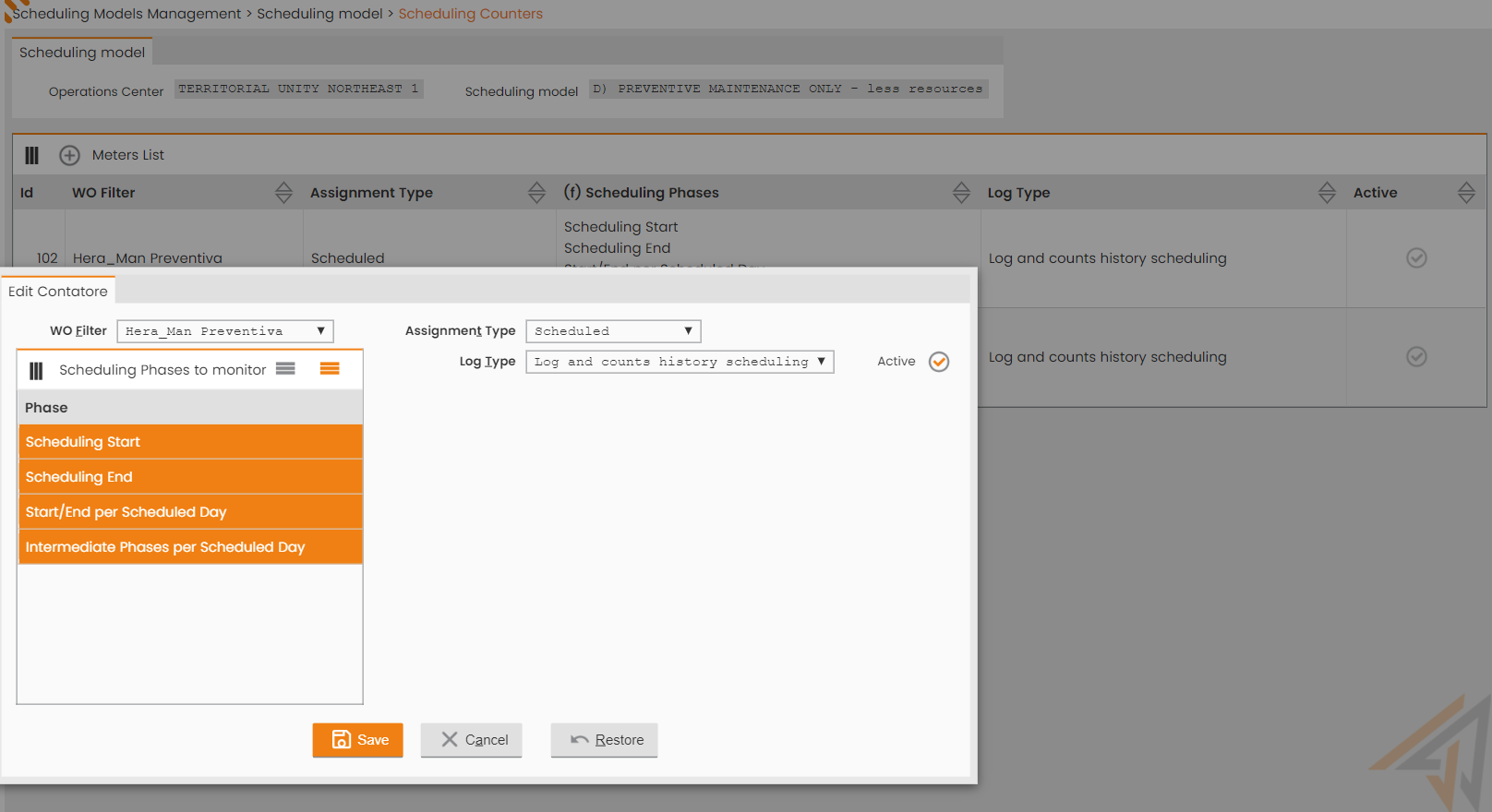
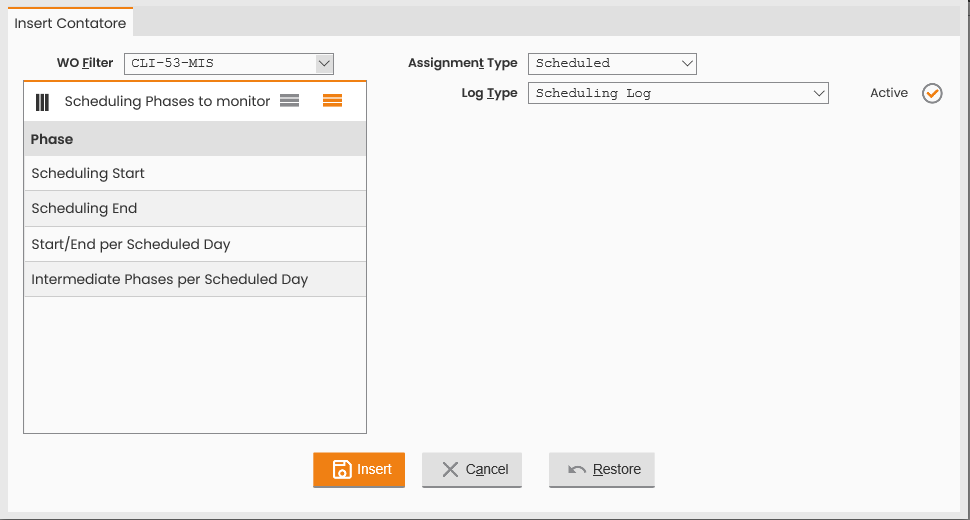
The header of the ‘Counters List’ table provides the ‘New Counter’ function (red box in the previous figure) which allows to define a new Scheduling Counter to associate with the specific Scheduling Model and with the different scheduling processing stages. The accessed window is:
|
|
|---|
|
Figure - WO Filters |
The data to point out for defining a new Scheduling Counter are:
-
WO Filter, mandatory, to choose among the WO Filters referring to the ‘Scheduling Counters’ scenario available in the System (see the following section in this paragraph). It represents the WO Filter used by the counter: the counter will, therefore, calculate the orders complying with such filter
-
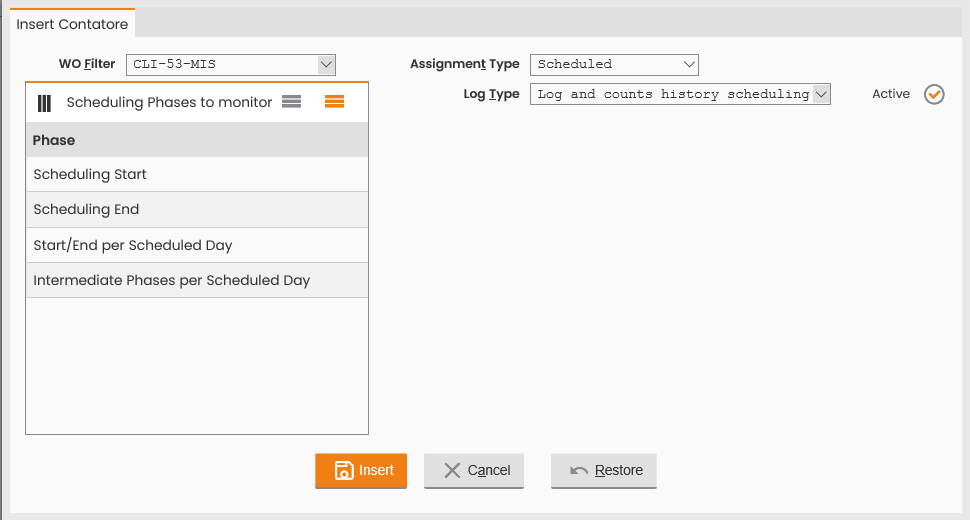
Log Type, mandatory, display mode of the totals calculated by the counter. Possible values are:
-
Scheduling Log: the totals are only shown in the scheduling log (available for consulting to admin or expert users who can read such log);
-
Log and scheduling totals Archive: the totals are archived in a chart and are available for consulting through a simplified window.
-
-
Assignment Type, mandatory. The counter only evaluates the orders complying with the assignment set. The values to be possibly selected are:
-
Assigned: the counter only evaluates assigned orders;
-
Not Assigned: the counter only evaluates not assigned orders;
-
Debriefed.
-
-
Scheduling Stages to Monitor, multiple selection fields for pointing out the processing stages monitored by the counter. The following stages are reported:
-
Scheduling Start: start of the scheduling as a whole;
-
Scheduling End: end of the scheduling as a whole;
-
Scheduling Day Start/End: start and end of each scheduling day (for scheduling involving many days); if the scheduling only refers to one day the stages will match the scheduling start and end;
-
Scheduling Day Intermediate Stages: intermediate processing stages for each scheduling day.
-
-
Visible, flag.
To confirm the insertion of the WO Filter, click the 'SAVE’ button; to close the window, click the 'CLOSE' button in the Operations sub-menu.
In order to calculate a same given type of orders (WO Filter) in different situations, many counters shall be defined which rely on the same filter, as shown below:
|
|
|---|
|
Figure - Insert Counter - Scheduling Log Type |
|
|
|---|
|
Figure - Insert Counter - Log and Counts history scheduling |
Application example:
Access the Scheduling Management section and select a Scheduling Model, await processing interval and click the SEARCH button:
|
|
|---|
|
Figure - Running processes |
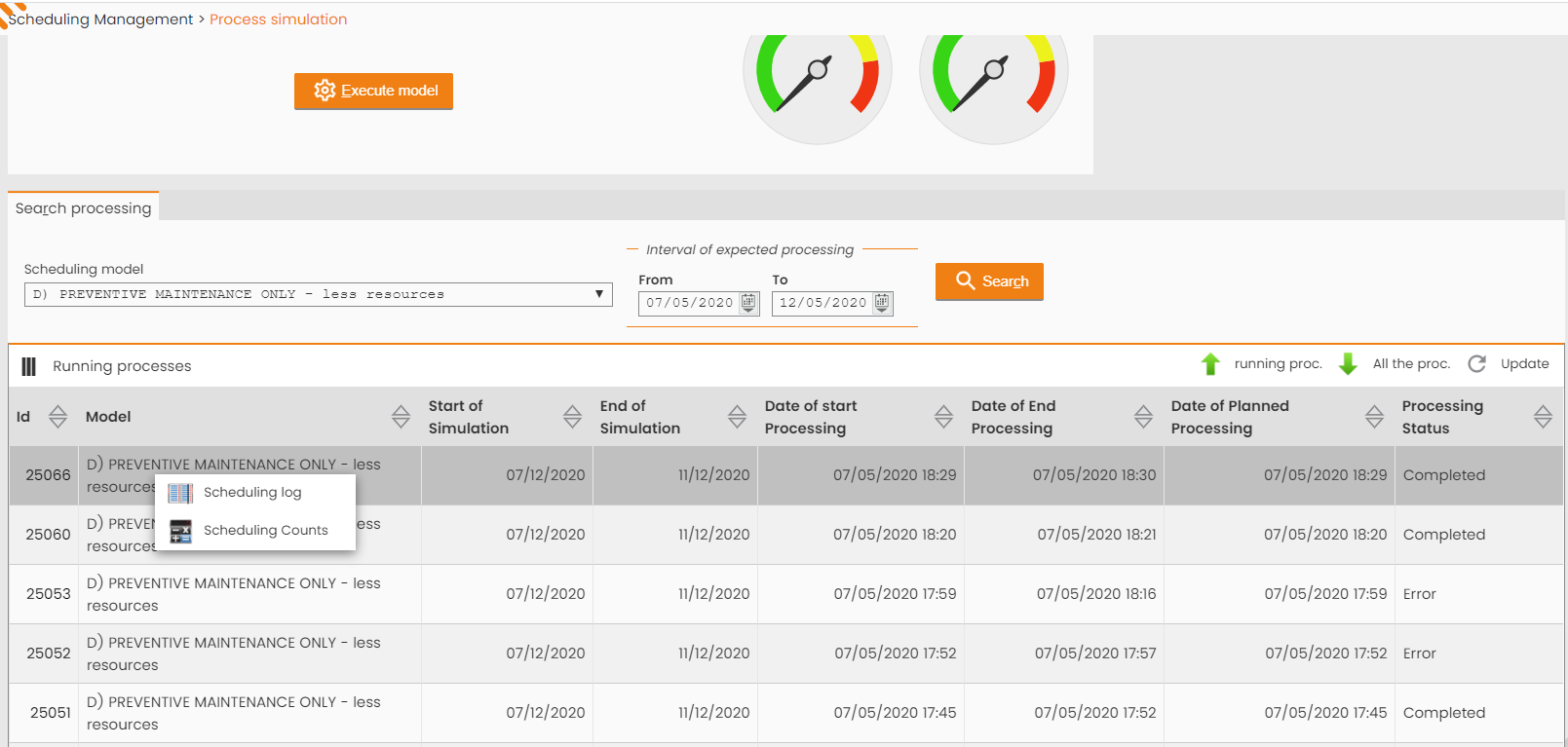
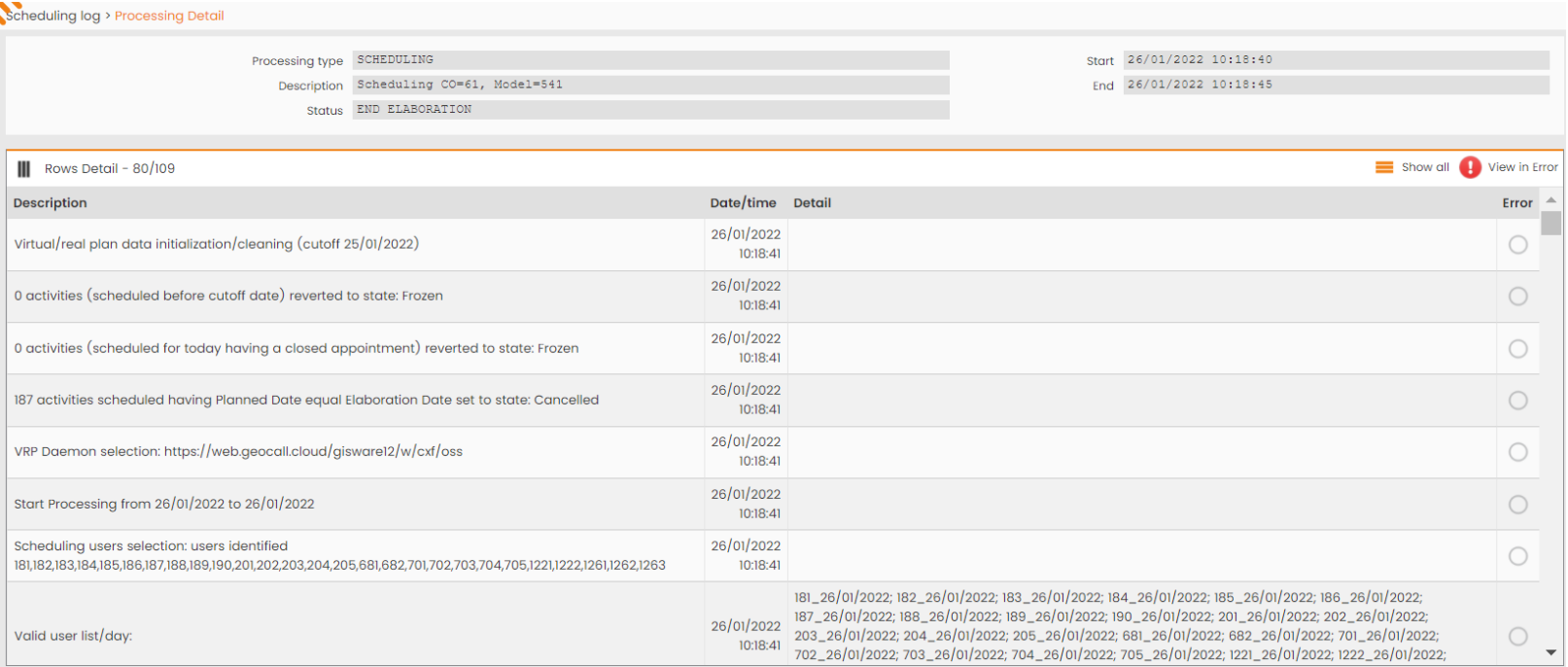
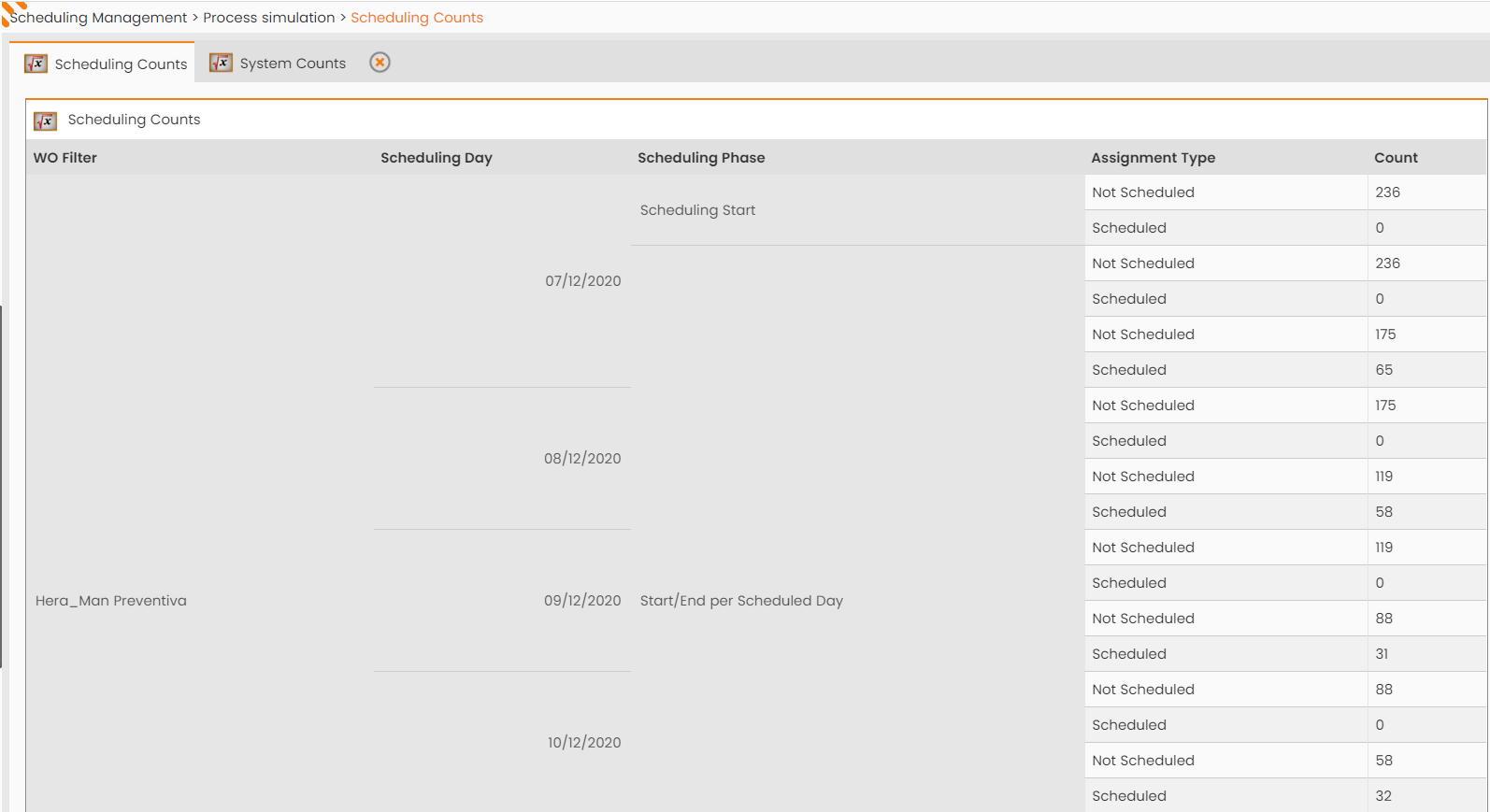
Right-click the specific process run and access the Scheduling Log or the Scheduling Totals.
|
|
|---|
|
Figure - Scheduling Log example |
|
|
|---|
|
Figure - Scheduling Counts example |
WO Filters
Shown below is the window accessed by the user (similar to the previous one but referring to a different scenario/application scenario):
|
|
|---|
|
Figure - WO Filters List |
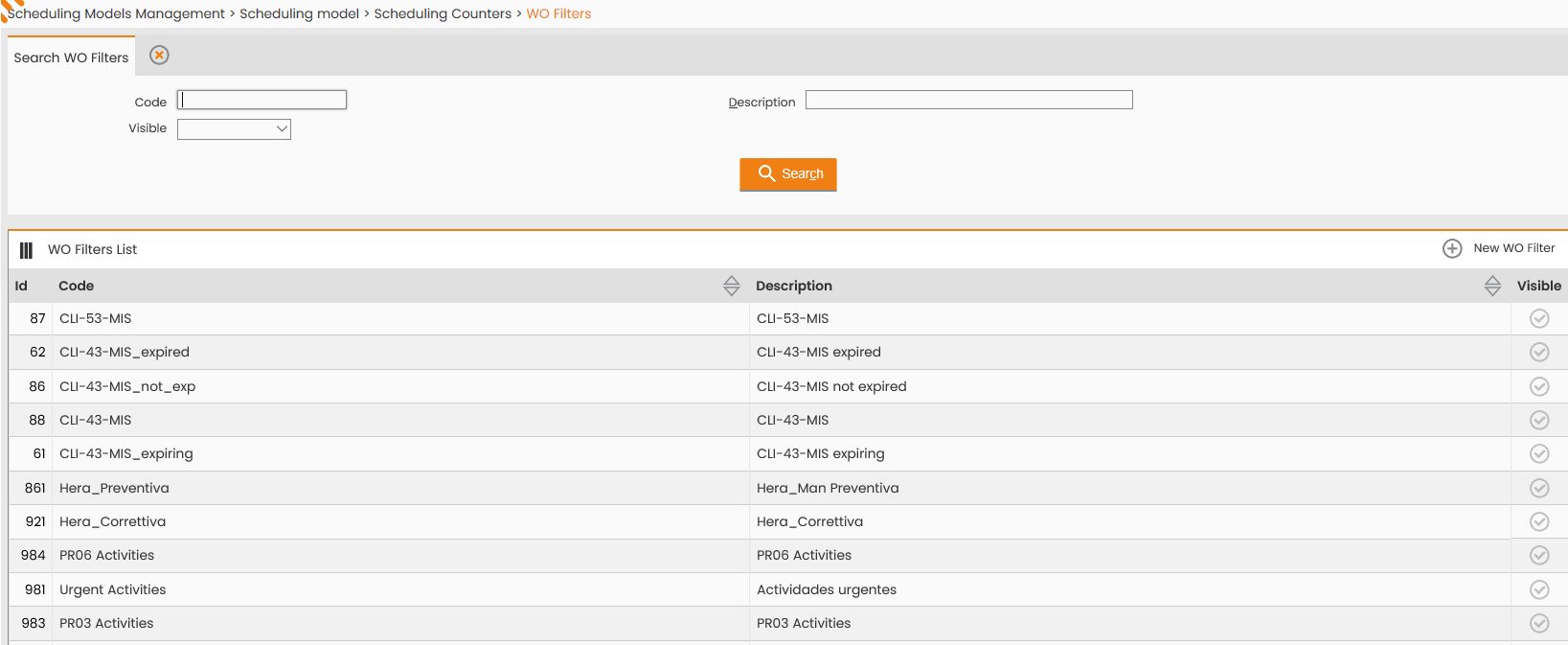
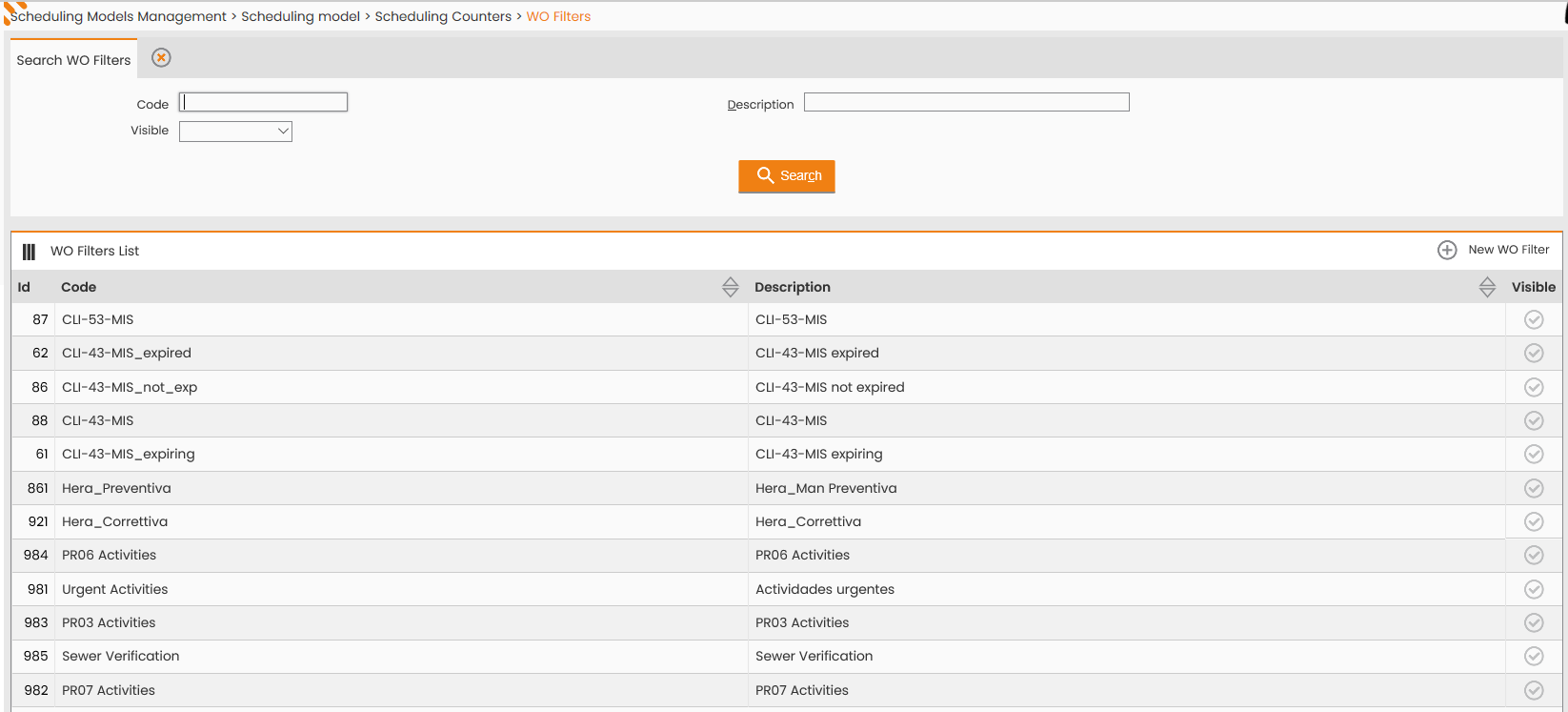
The section at the top provides the form for searching the WO Filters associated with the ‘Scheduling Counters’ scenario and already registered in the system. The available filter criteria are:
-
Code;
-
Description;
-
Visible.
The bottom section reports all WO Filters associated with the ‘Scheduling Counters’ scenario already registered in the system and filtered to this purpose.
Click the row corresponding to a specific value to access the section for editing the datum (figure below).
|
|
|---|
|
FIgure - Editing WO Filter |
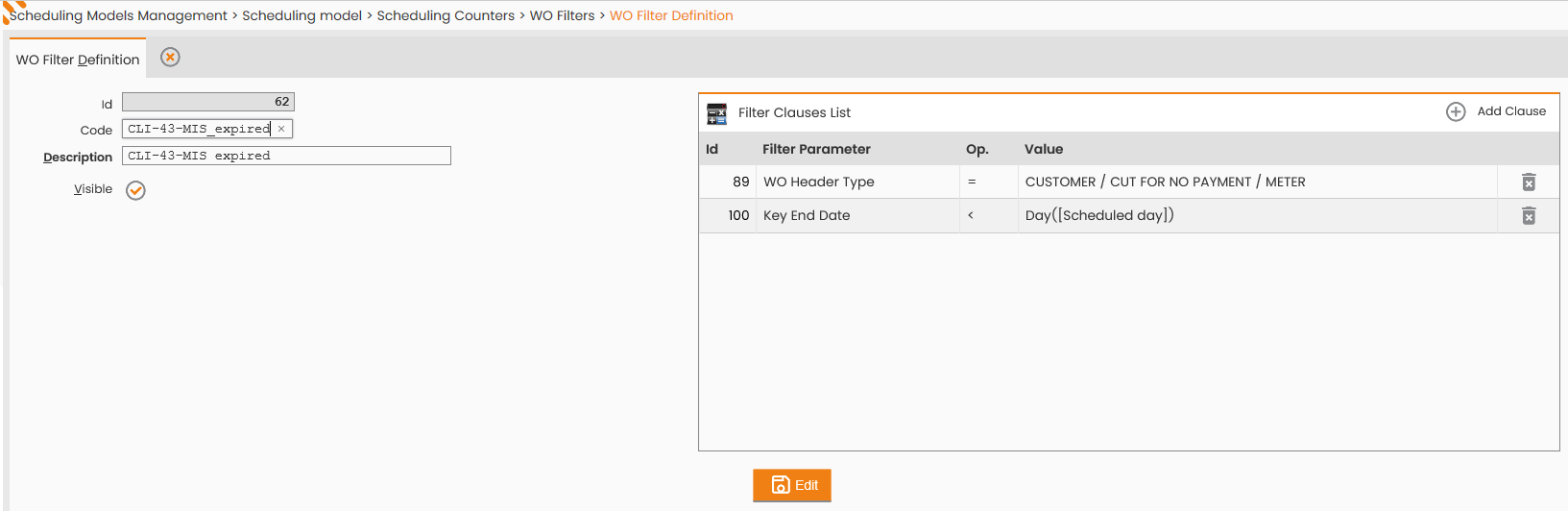
The window allows the following actions:
-
editing the Code or Filter Description values;
-
editing the filter display mode (‘Visible’ flag);
-
deletion one/different filter clauses by clicking the 'DELETE CLAUSE' button beside the specific record in the ‘List of Filter Clauses’ table;
-
addition one/different filter clauses by clicking the 'ADD CLAUSE' button beside the specific record in the ‘List of Filter Clauses’ table.
The System displays the following window:
|
|
|---|
|
Figure - Filter Clause |
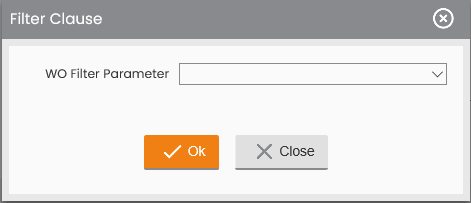
For the system user to select a specific WO Filter Parameter. Depending on the parameter set, the system will fill out the ‘Operator’ field with different values (please refer to the following example figures):
i.e.: 1)
|
|
|---|
|
Figure - WO Filter Parameter ie 1 |
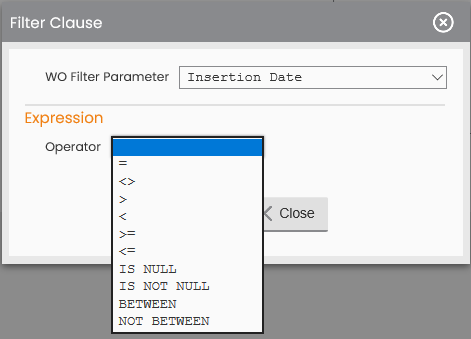
i.e. 2)
|
|
|---|
|
Figure - WO Filter Parameter ie 2 |
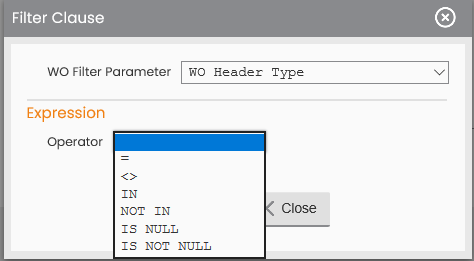
In further detail, upon defining a WO Filter Parameter the system user will fill out the ‘Operator’ field, selecting one of the following options, which will differ based on the specified parameter type:
|
|
|---|
|
Figure- Operators Domain |
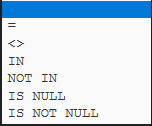
Depending on the selected value, the System will suggest the compiling of further fields; detailed examples below:
-
Parameter: WO Header Type and Operator: =
|
|
|---|
|
Figure - Parameter: WO Header Type and Operator: = |
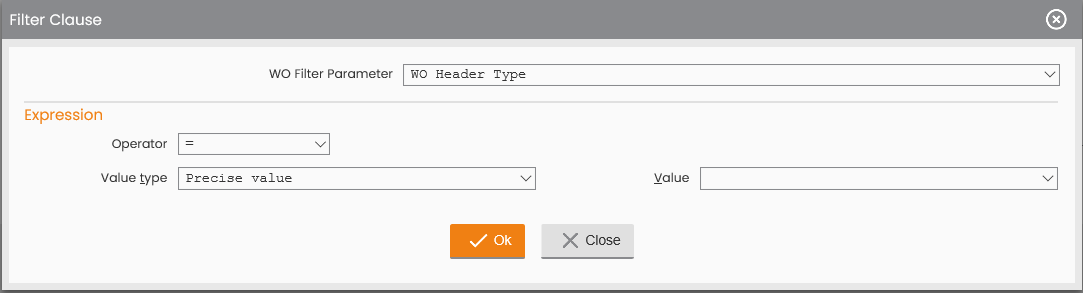
-
Parameter: WO Header Type and Operator: NOT IN or IN.
|
|
|---|
|
Figure - Parameter: WO Header Type and Operator: NOT IN or IN. |
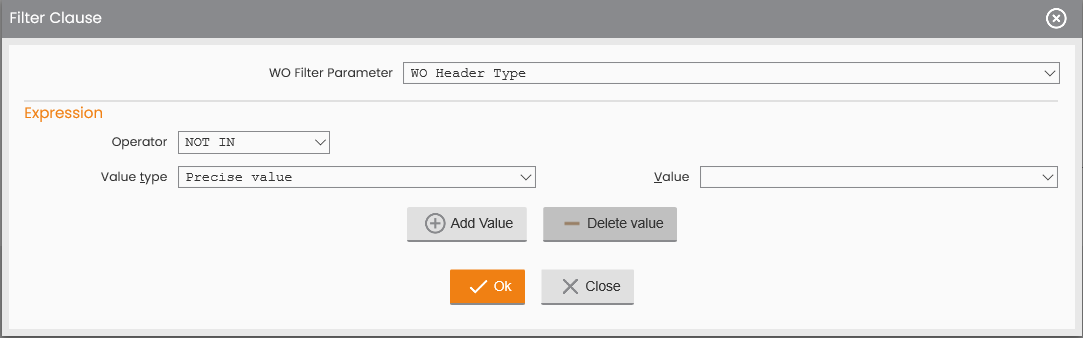
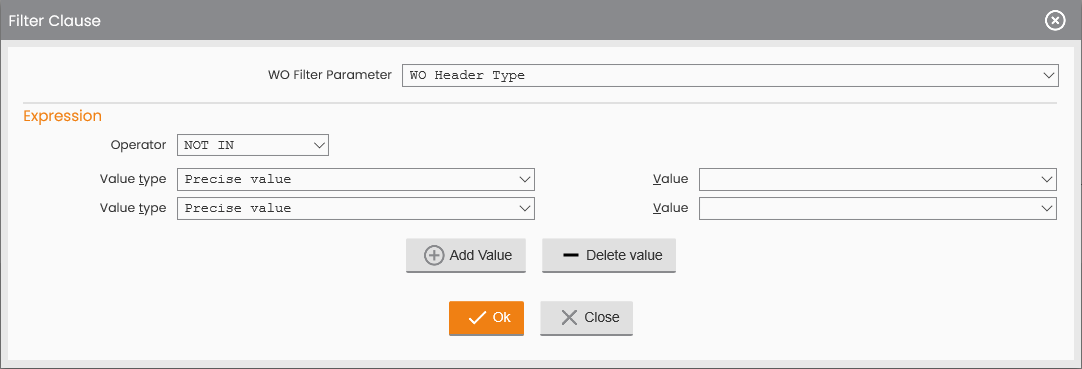
Click the ‘Add Value’ button to enter a new comparison record in the expression, as shown below:
|
|
|---|
|
Figure - Filter Add value |
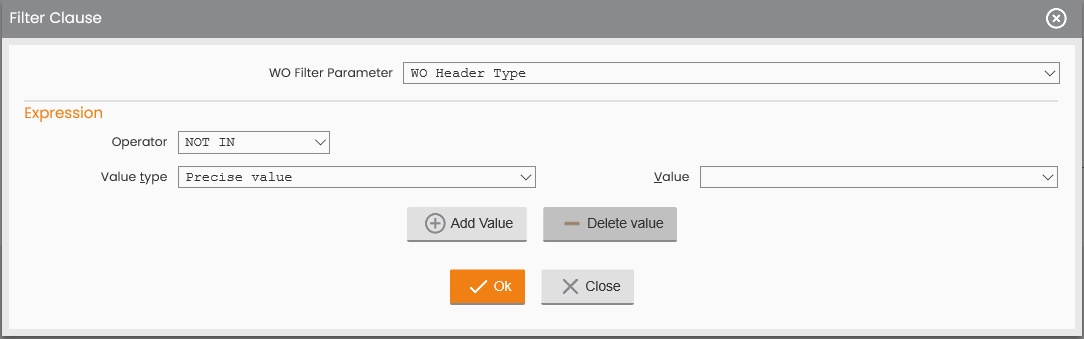
Click the 'Delete Value' button to delete the last comparison record from the list in the expression, as shown in the following figure:
|
|
|---|
|
Figure - Delete Value |
-
Parameter: Insertion Date and Operator: =
|
|
|---|
|
FIgure - Parameter: Insertion Date and Operator: = |
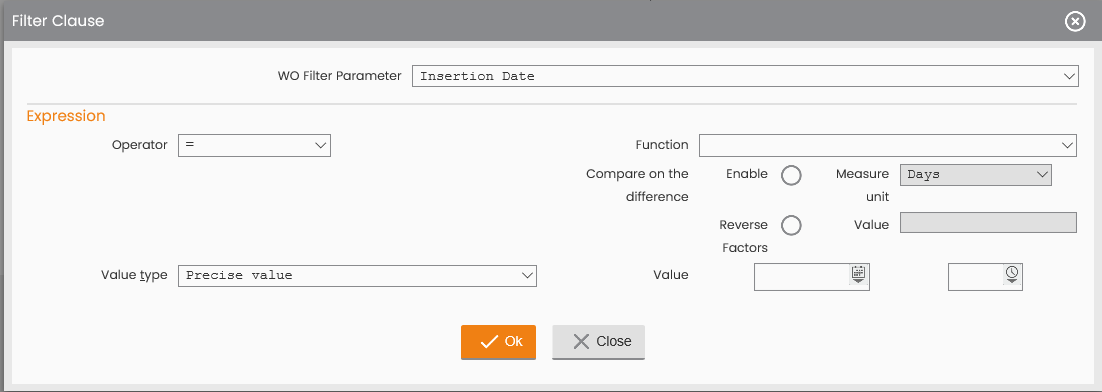
In case of active 'Difference Comparison' the following is displayed:
|
|
|---|
|
Figure - Activation of 'Difference Comparison' |
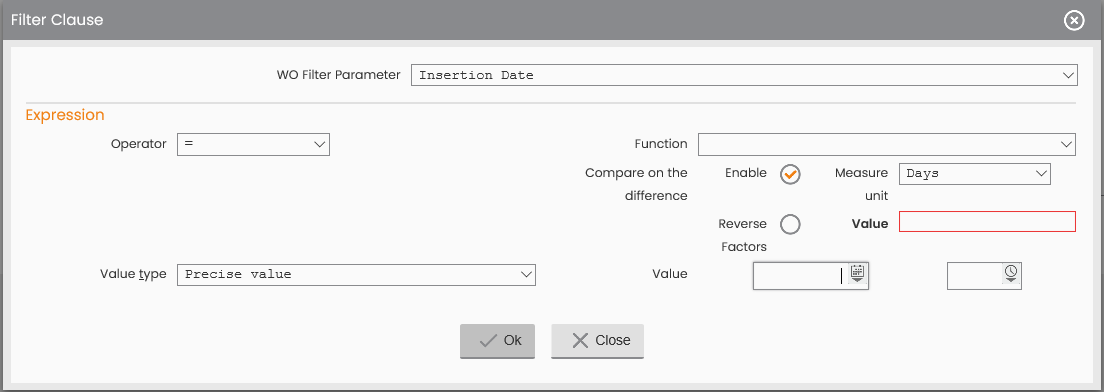
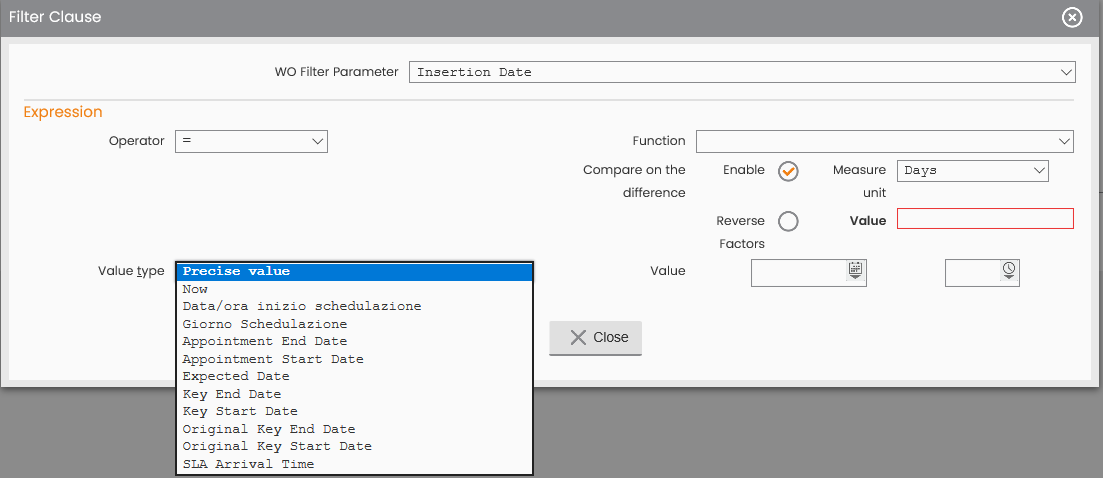
The System suggests to compile the following fields:
-
Comparison on Difference, if enabled this flag will require to fill out the following fields: Measurement Unit, Value, Invert Operandi;
-
Value type to choose between:
-
Punctual Value, if it is the user to define the comparison Value. In this case, the System will require to fill out the Value field;
-
Further Features referring to the Value Type the specific WO Filter parameter belongs to (in the example they are dates).
-
|
|
|---|
|
Figure - Value Type to choose |
-
Parameter: Insertion Date and Operator: BETWEEN or NOT BETWEEN
|
|
|---|
|
Figure - Parameter: Insertion Date and Operator: BETWEEN |
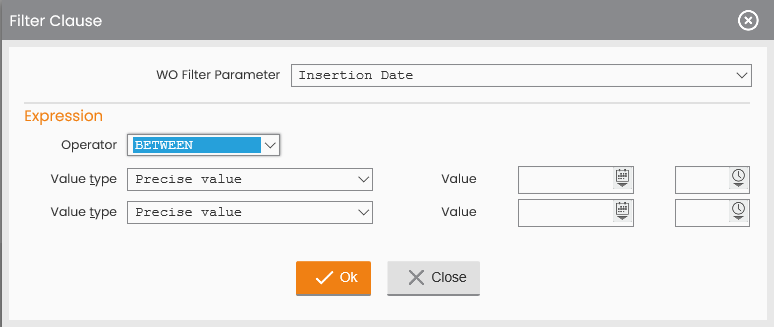
For each WO Filter, many clauses may be defined. In further detail, for being included in the WO List defined by the filter, the specific WO shall comply with each of the following clauses set.
To confirm the specific clause defined, click the 'OK’ button or the 'CLOSE' one.
To confirm the editing made to the WO Filter, click the 'MODIFY’ button; to close the window, click the 'CLOSE' button in the Operations sub-menu.
In the header of the ‘WO Filters List’ table, the ‘New WO Filter’ function is supplied:
|
|
|---|
|
Figure - WO Filters List |
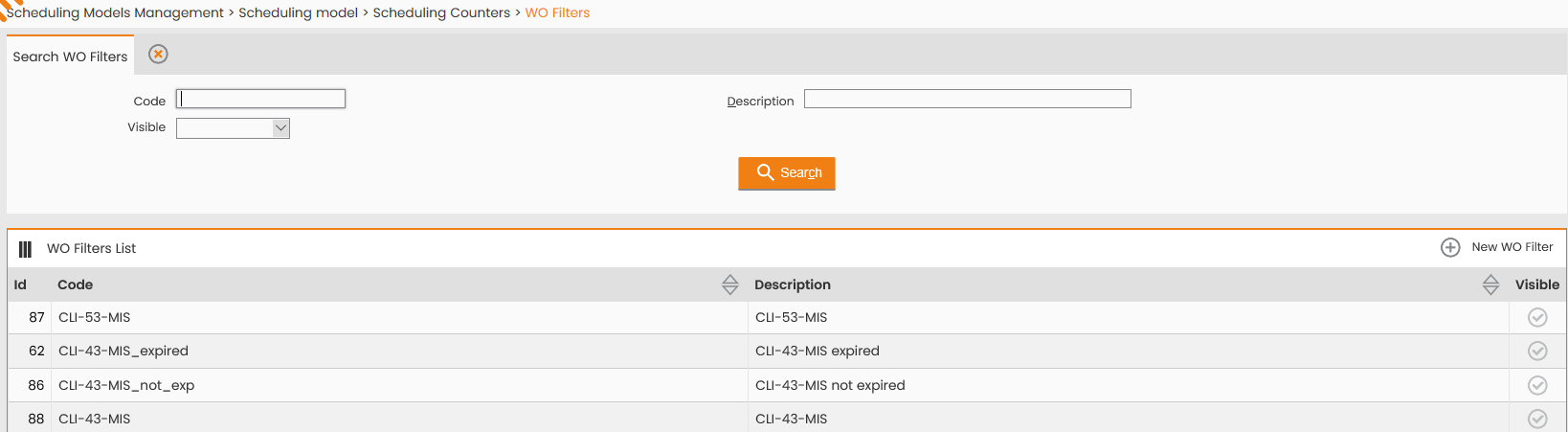
this function allows to define a new WO Filter, setting the information reported in the figure below:
|
|
|---|
|
Figure - WO Filter Definition |
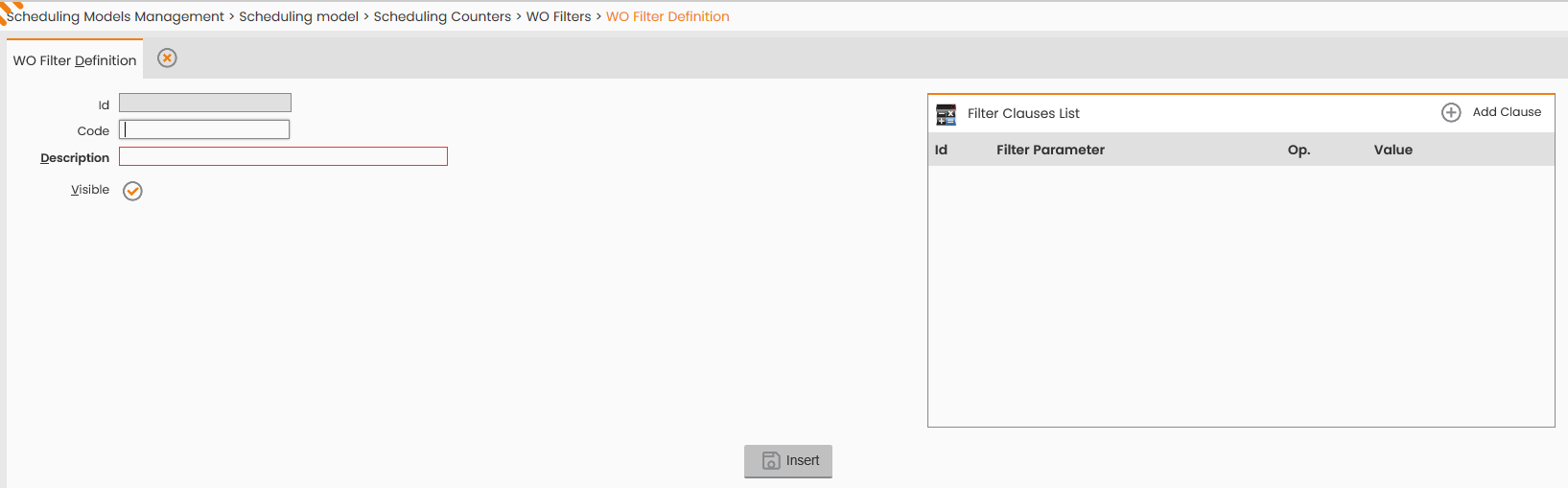
-
Code;
-
Description, mandatory;
-
Visible, flag;
-
Reason, through the 'ADD CLAUSE' function detailed in the previous paragraph.
To confirm the insertion of the WO Filter, click the 'INSERT’ button; to close the window, click the 'CLOSE' button in the Operations sub-menu.
Different conditions may be applied to a given rule/filter. The example shows two clauses: one referring to the WO Header Type and the other to the Reference End Date; the rule will allow to prioritize the scheduling of those orders having that specific header and with reference end date following to the scheduling date.
|
|
|---|
|
Figure - Filter Clauses List |
