
Table of Contents
Introduction
Real-time reprocessing allows to rielaborate the daily resources plan in real-time by adding, removing and/or integrating it with activities present in the schedulable activities list or moving activities between resources according to certain logic that can be defined during the configuration phase of the Scheduling Model. The performed and cancelled activities are un-scheduled from the Daily Plan. Furthermore, lower priority activities can be replaced by higher priority ones.
The reprocessing is only available for the management of single resources and static teams and it's executed for the current day.
At the beginning of the overall process, the Reassess and Update function is executed:
-
Does not set any limits to the end of the working hours of the resource/team;
-
Does not set any limits to the hours of the interventions in the processing, that is those the resource/team have taken charge of for the day;
-
Does not re-process the day if the resource is offline;
-
Does set the constraint to keep the intervention execution sequence as it was defined prior to the processing.
Immediately after, the real-time reprocessing phase allows to:
-
Reassess/update the time distribution of interventions, as a result of manual actions (considering the lunch break). Manual actions can be reassessed and changed;
-
Consider the last GPS location of resources;
-
Reassess/update the time distribution of the remaining interventions of the day, considering the time passing, executed interventions and canceled interventions;
-
Remove activities beyond the working shift (If the parameter 'Exchange activities only if not feasible' is active: if the resources cannot do some activities assigned for several reasons (like they have no time to do the activity because it overcomes the work shift), those activities will be assigned to other resources during the current scheduling):
-
Consider the incoming new activities with higher priority.
If the pre-assigned activities go beyond shift hours, during Real Time processing the system tries to consider only the fixed activities. If the scheduled activities are not included in the shift, the resource is not updated and is not subject to real time. If fixed hours are included in the shift, the technician is subject to real time and extra-hour activities are unscheduled.
Real-Time scheduling models are almost like Virtual models, both are characterized by some rules that define the inclusion and priority of the activities in the list of orders to be assigned, and a number and a type of resources to be considered during the scheduling. In both cases it is possible to associate some “Simulation Rules” allowing to determine the priorities assigned to the activities and eventually their selection filters, necessary to exclude certain activities from the scheduling process. Therefore, most of the configurations explained in the previous sections are used also to configure Real-Time scheduling models. In this section will be explained the differences between the two models, underlining the additional features offered by the Real-Time Model.
Configuration
At the Fixed Data (Table ASYSTEMSETTING) and Operation Center (Table AOPERATIONCENTER) level there are configuration parameters of the reprocessing process, the reprocessing process then takes the configuration information first on the Operations Center and, if not present, goes to look for them on the Fixed Data.
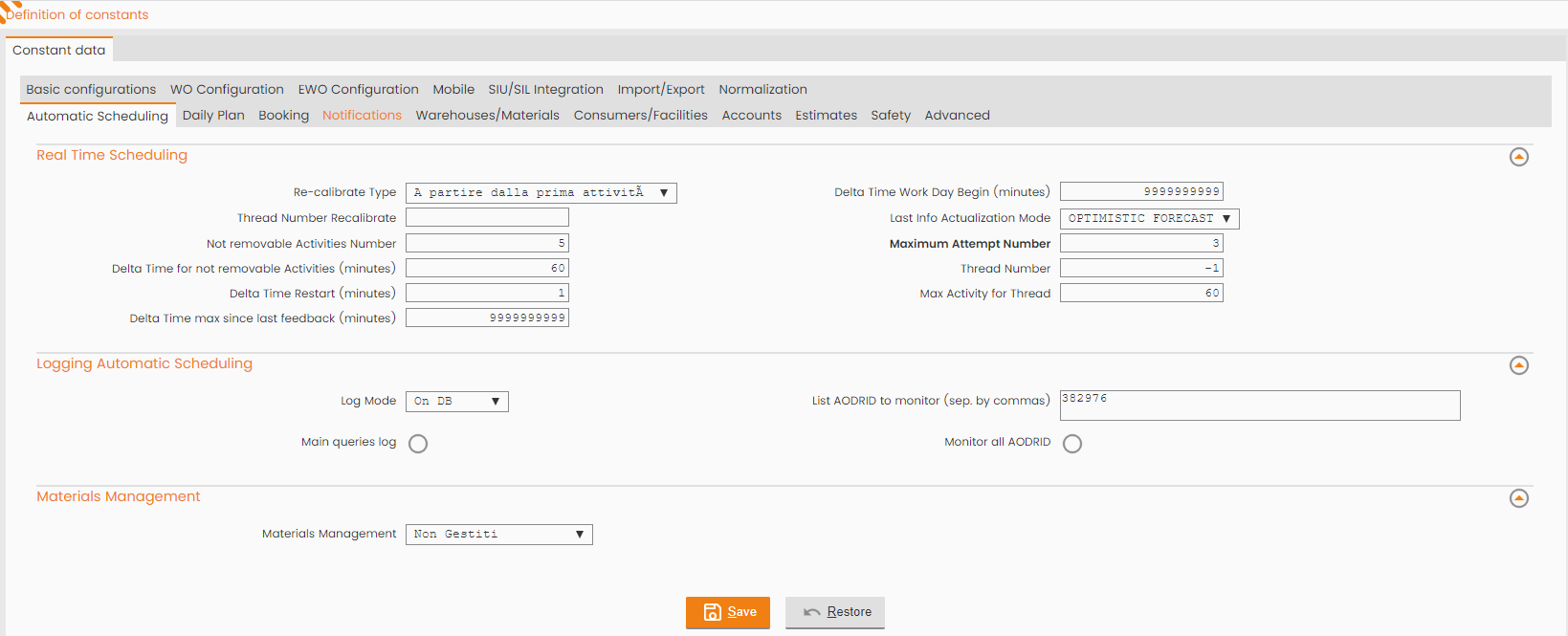
In the Fixed Data, a suitable section has been prepared for the configuration of the interface parameters.
To define the same parameters on the Operation Center level there is no special mask, it is necessary to act on the DB when it is necessary to overwrite the standard behavior (defined in the Fixed Data System).
|
|---|
|
Figure - Fixed Parameters setting |
The attributes and their meaning are detailed below:
-
Recalibrate Type:
-
Starting from the first activity (default): the updating and determination process of the predefined activities (PREFIX_ORDINATE) operates by taking into account the activities starting from the first planned and not yet executed/in charge according to the current scheduling (regardless of what the last accounted activity is).
-
Starting from the last outcome: the updating and determination process of the predefined activities (PREFIX_ORDINATE) operates considering the activities starting from the first one planned and not yet executed/in charge after the last accounted activity
-
-
Thread Number Recalibrate: number of available threads to use in the recalibrate process;
-
Not removable Activities Number: number of activities to not remove from the single technician in the real time process. The rielaboration process keeps as prefixed (PREFIX_ORDINATE) the number of activities equal to the maximum between Nnoremove and those included in the DTnoremove interval. Default = 2;
-
Delta Time for not Removable Activities (minutes) (DTnoremove): the time parameter (expressed in minutes) that determines which assignments in charge of the resource/team cannot be removed from the same by the automatic scheduling (they must remain assigned to the team/resource, and in the order currently expected) because they have a scheduled start between now and now + DTnoremove, the rielaboration process keeps as prefixed (PREFIX_ORDINATE) the number of activities equal to the maximum between Nnoremove and those included in the DTnoremove interval. Default = 60 min
-
Delta Time Restart (minutes) ((DTripartenza): the time parameter expressed in minutes. In real time processing, the start of the day is set as the current time plus the delta indicated in this parameter. It allows the technician to have time to leave for the new schedule. Default = 15 min
-
Delta Time max since last feedback (minutes) (DTultimainfo): the time parameter (expressed in minutes) works to exclude from the processing resources/teams for which there is no received feedback from the field for more than DTultimainfo minutes. If the last data from the field from the resource are not sufficiently updated there is the risk of having too "old" info to be able to base the new planning on them. Default = 120 min
-
Delta Time Work Day Begin (minutes) (DTiniziogg): time interval to be considered for each technician work shift, in real time process. All resources with work shift beyond the set time interval are excluded during real time processing. Default = 30 min
-
Last Info Actualization Mode:
-
OPTIMISTIC FORECAST (default): the update process performs as "if we are in the instant when the last synchronization took place".
-
CAUTION PREVIEW: the update process performs as "the last synchronization happened exactly now". Real time is performed as if the last synchronization took place now (CAUTION). Always and only within the same day and within the delta feedback (defined at the level of fixed data and at the level of the Operations Center). The residual time of the activity in charge is equal to the planned duration.
-
-
Maximum Attempt Number: number of attempts available for each scheduled Real Time execution (due to unexecuted final commit)
-
Thread Number: number of available threads to use in the Real Time process;
-
Max Activity for Thread: maximum number of activities to consider in each thread;
-
List AWOOID to monitor (sep. by commas): List of Work Order- Operation IDs to trace in the VRP Log
-
Monitor all AWOOID: it allows to trace all Work Order- Operation Ids in the VRP Log
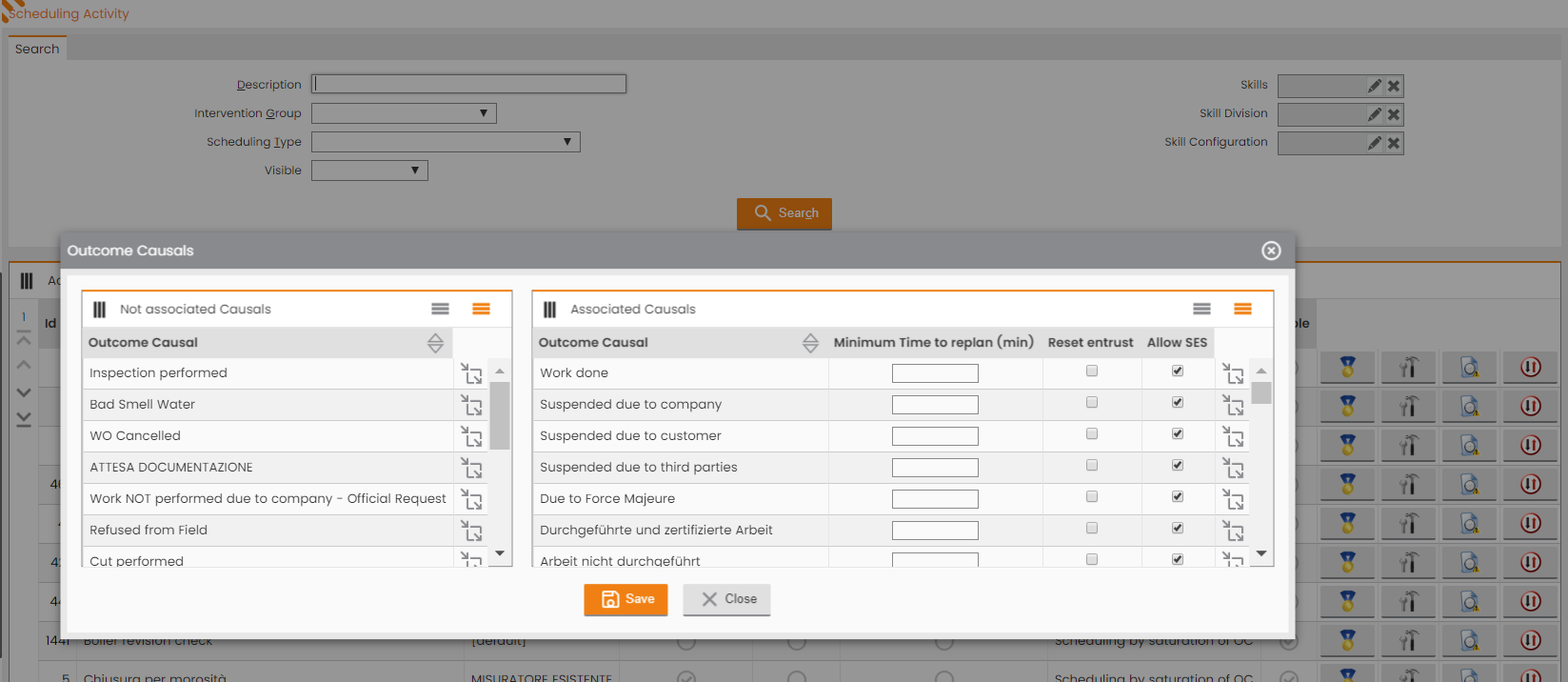
In addition, FSM allows managing an intervention rescheduling time that can be managed according to the type of work order (Activity) and intervention outcome.
This scenario occurs every time, at the end of the work shift, the technician has not been able to execute and finalize all the work orders assigned to him, and therefore these orders should be rescheduled and assigned to another technician on shift.
System path: Scheduling Configuration/Services/Activity
|
|
|---|
|
Figure - Minimum time to replan |
The Real-Time rielaboration model
Usually, for each Operations Center there is one real-time model (LTMO = 3).
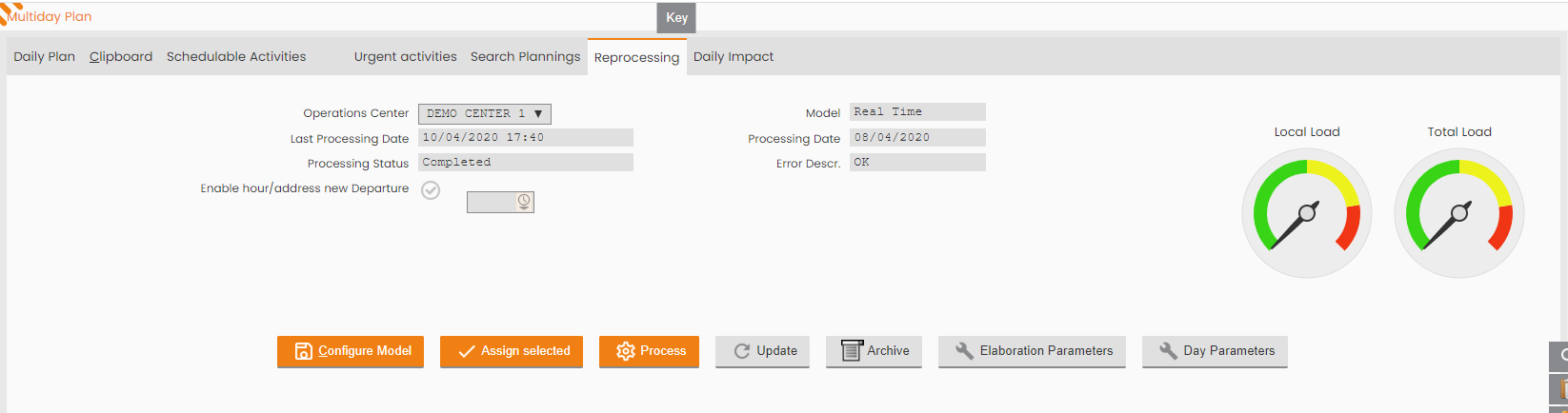
From the Daily/Multiday Plan, selecting the Reprocessing Tab, it is possible to add or modify the configuration of the real-time model associated with the selected Operations Center.
|
|---|
|
Figure - Real time reprocessing |
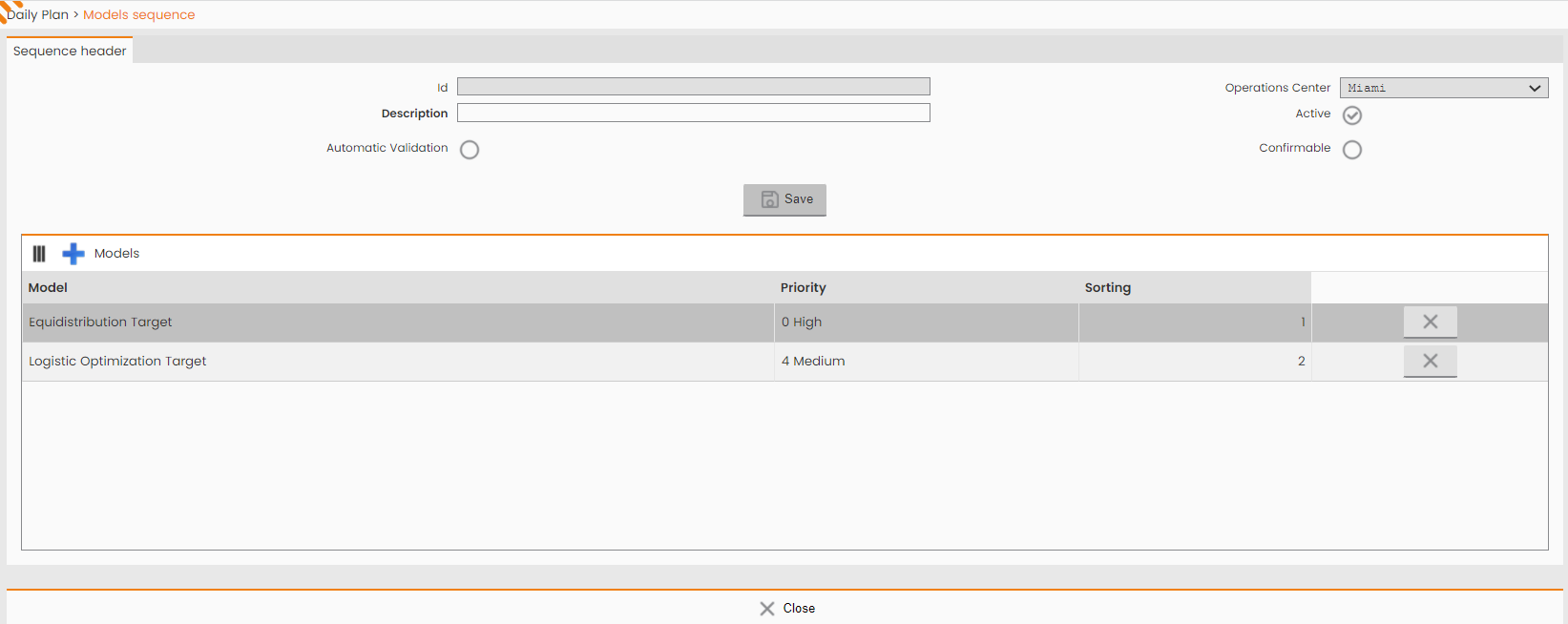
By clicking on Configure Model, it's possible to set up the Real time Scheduling Model or the Sequence (cluster of Scheduling Models processed one after the other).
|
|
|---|
|
Figure - Sequence of Scheduling Models |
Real-time Scheduling Models can be used only for the single resources, the static teams and not for the Formations (dynamic teams).
Real-time Scheduling Models can be used only for daily activities.
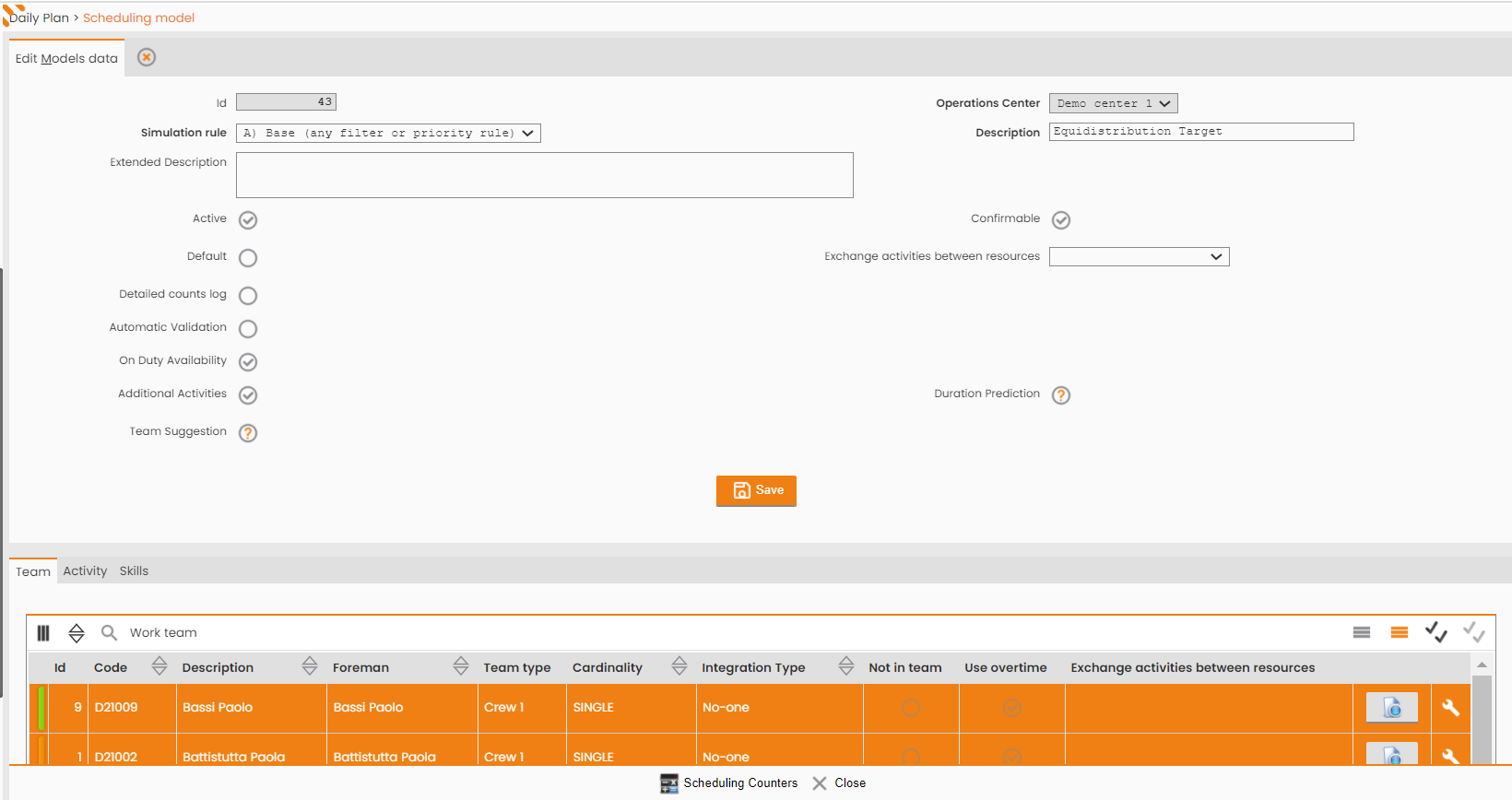
The structure of the Scheduling Model has been integrated with the following fields:
-
Enables exchange activities between resources (the field managed in the Scheduling Model: 'Exchange Activities between resources'):
-
Yes: it is possible to exchange activities between resources except those who are fixed to be done only from a specific resource.
-
No: activities already planned to be done from a specific resource will not be removed except the work shift is shorter than the time the activities require to be finished. The activities removed from the daily plan of the resource will not be assigned to another resource during the current scheduling but they will be ready to be assigned in the following scheduling.
-
Only if not feasible: if the resources cannot do some activities assigned for several reasons (like they have no time to do the activity because it overcomes the work shift), those activities will be assigned to other resources during the current scheduling.
-
Never Remove: this is the most restrictive option. All activities planned for a specific resource must remain in charge to be done from the specific resource even if it isn’t possible because of the lack of time or because the resource doesn’t have the skills to do it.
-
-
Additional Activities: if enabled, it allows to add activities to the current assignments.
-
Team Suggestion: if enabled, it allows to use AI feature for assignment phase;
-
Duration prediction: if enabled, it allows to use AI feature for the intervention's duration definition.
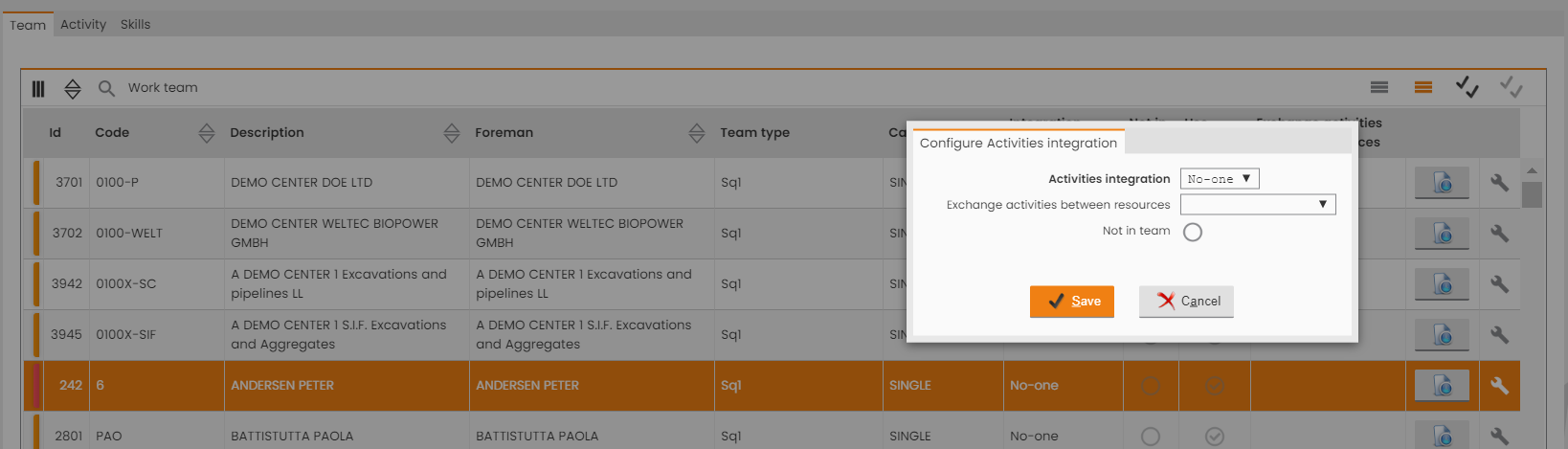
This behavior can be configurated according to 3 levels:
-
At (general) model configuration level;
|
|
|---|
|
Figure - Editing Scheduling Model |
-
At the configuration level of the resource on the model;
|
|---|
|
Figure - Configure Activities integration |
-
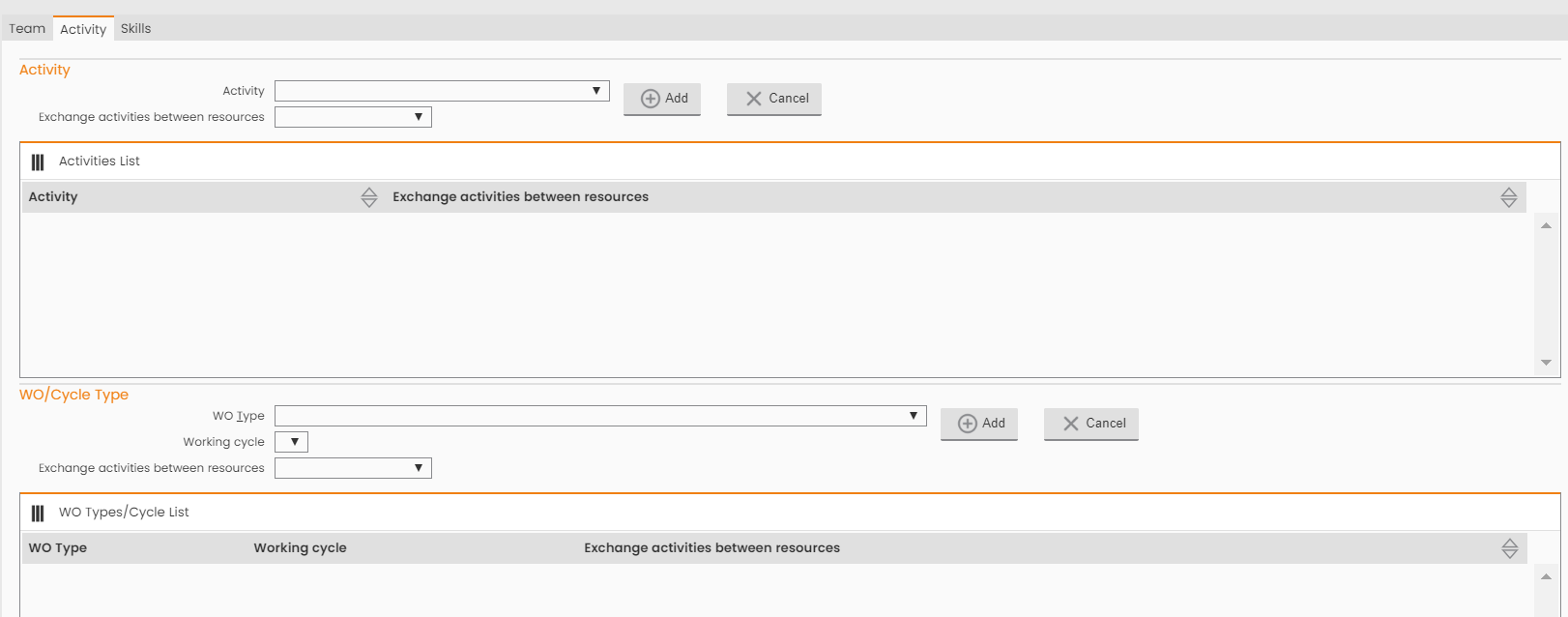
At the configuration level by type of activity in terms of:
-
WO Type / Cycle Type;
-
Activity.
-
|
|---|
|
Figure - Activities Configuration |
This Tab generally allows to define the Filters for selecting the activities and cycles to be considered in the Model.
You can decide not to allow changing some activities basing on:
-
The type of the activity;
-
the Working Order type and Working Cycle;
-
Skills Tab: which allows you to select only the resources that have the indicated skills.
In addition, you can:
-
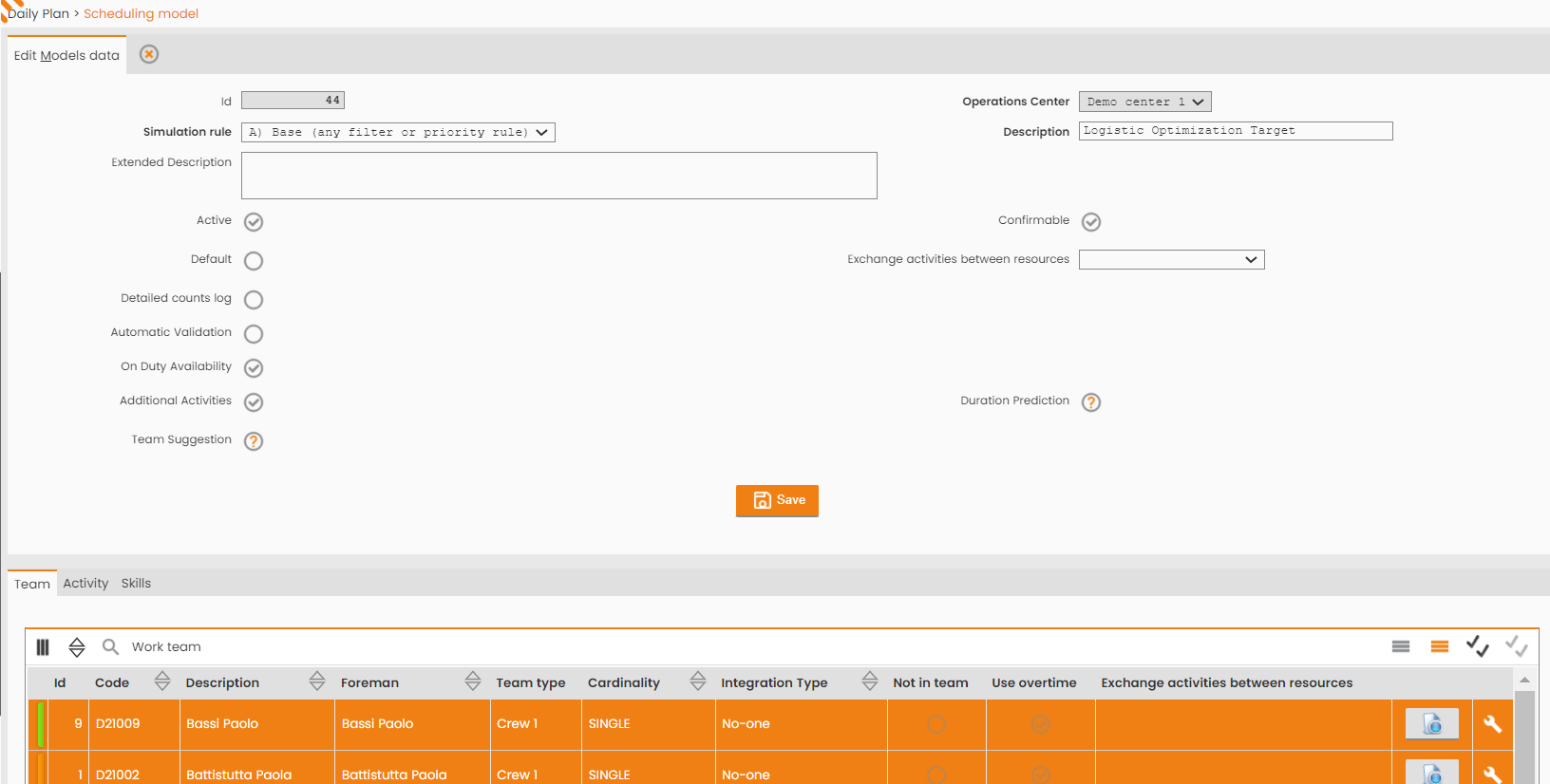
activate/deactivate the integration of the day with Additional Activities (Field managed in the Scheduling Model: 'Additional Activities'):
-
Yes: the rielaboration integrates the resource's day with any additional activities selected from the schedulable activities list;
-
No: the rielaboration does not integrate the working day of the resource but exchanges only activities between them according to the defined rules of the activity exchange.
-
|
|
|---|
|
Figure - Scheduling Model parameters |
-
Enable/Disable model crystallization (Field managed in the Scheduling Model: 'Confirmable').
-
Yes: at the end of the rielaboration the new planning is automatically crystallized on the Real Daily Plan for validation.
-
No: at the end of the rielaboration the new planning is not crystallized on the Real Daily Plan, the rielaboration, therefore, has only a simulation purpose.
-
-
Enable/Disable automatic model validation (Field managed in the Scheduling Model: 'Automatic Validation').
-
Yes: at the end of the rielaboration, the automatic validation of the Daily Plan will be done to make the new planning available on Mobile devices.
-
No: at the end of the rielaboration it will be necessary to carry out the manual validation of the Daily Plan to make the new planning available on Mobile devices.
-
-
Definition of the simulation rule:
The simulation rules are defined in the "Automatic Scheduling" section and associated with the different Operations Centres. They can be associated with each Simulation rule:-
WO priority rules;
-
WO selection filters;
-
Branch REAL TIME activation
MAIN MENU → TOOLS → SYSTEM → ADVANCED MANAGEMENT → VRP
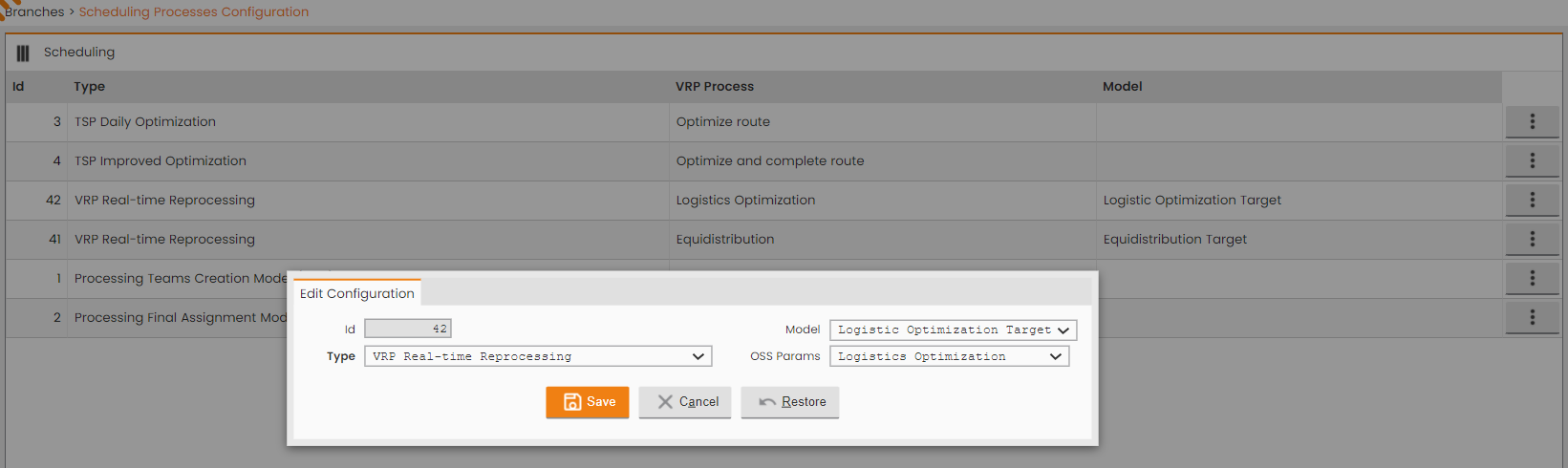
For the specific Branch, it's mandatory to associate a VRP Model to the Real time reprocessing:
|
|
|---|
|
Fig - Association of VRP Model to the Real time reprocessing |
Associate OC with VRP Daemon
MAIN MENU → TOOLS → SYSTEM → ADVANCED MANAGEMENT → VRP → ASSOCIATE OC-DAEMON
|
|
|---|
|
Figure - Associate OC with VRP Daemon |
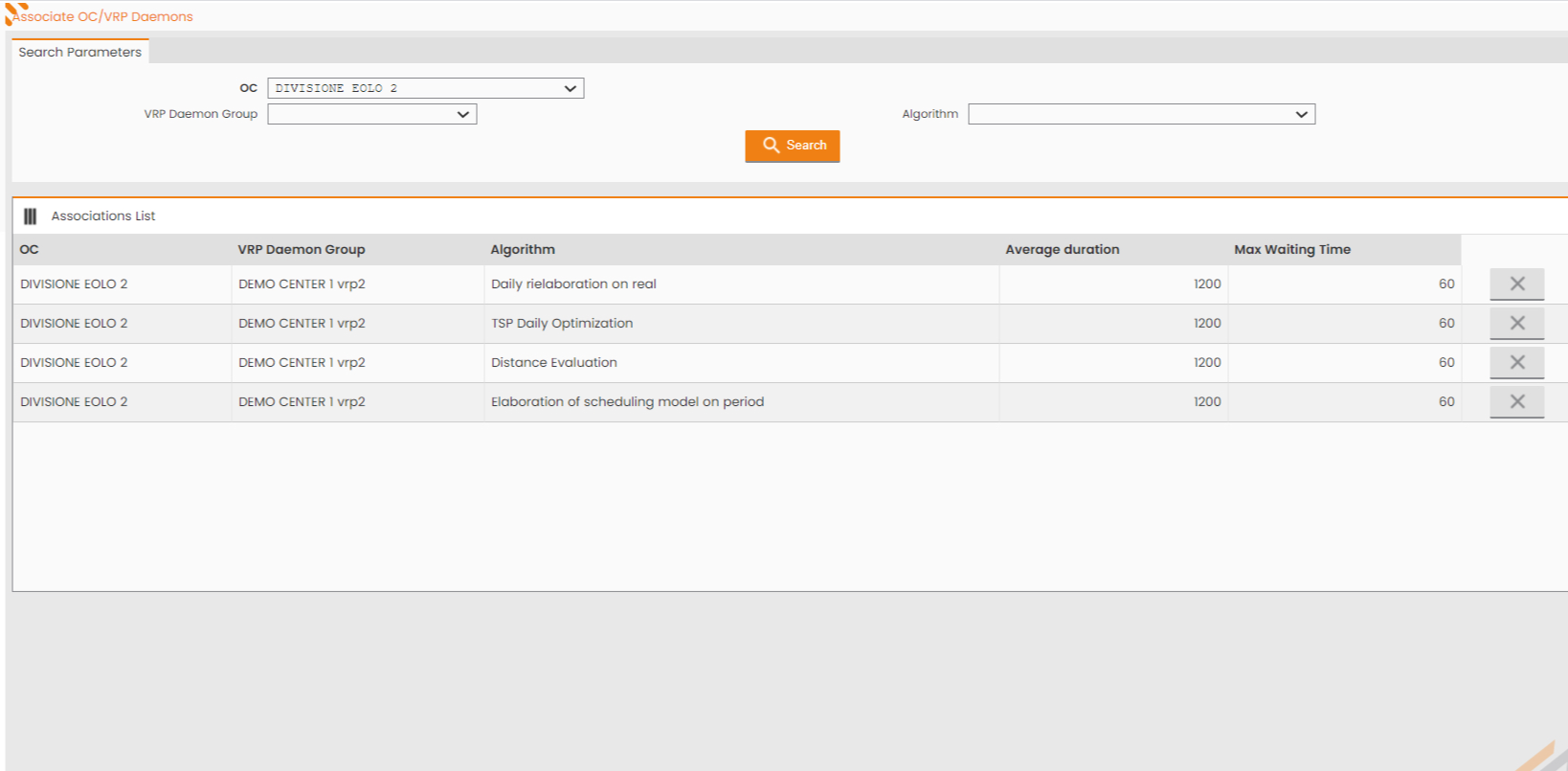
By clicking the 'New' button, in the Operations section on bottom left, you can associate the OC with VRP Daemon and the related Alghoritm (Daily rielaboration on real).
Manual Elaboration
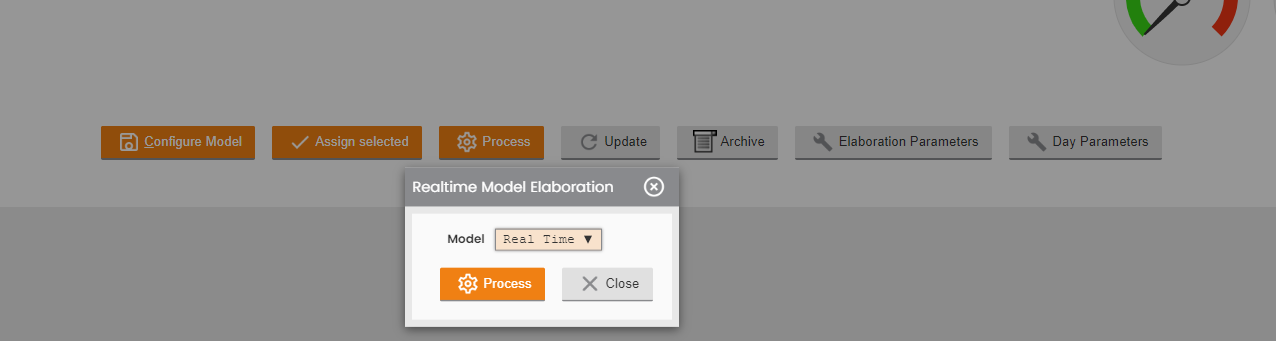
From the Daily Plan Monitor, by selecting the Rielaboration Tab, it is possible to launch an asynchronous real-time elaboration using the basic settings of the previously configured scheduling model. Click the 'PROCESS' button, indicate the Model and process.
|
|---|
|
Figure - Scheduling Model manual processing |
Automatic Elaboration
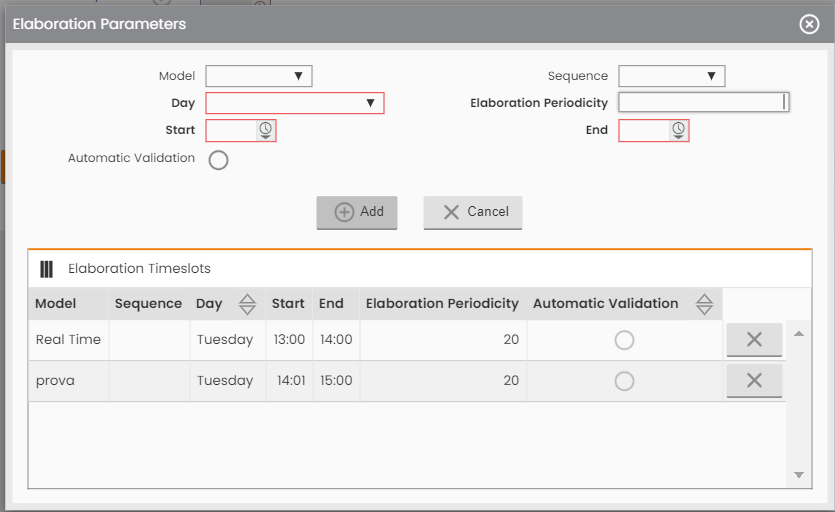
From the Daily Plan Monitor, by selecting the Reprocessing Tab, it is also possible to define an automatic processing calendar by clicking on the 'Elaboration Parameters' button.
In the automatic elaboration configuration panel it is, therefore, possible to define an elaboration calendar, in particular:
-
series of bands are defined for the different days/types of day;
-
to each band they associate:
-
an "Elaboration Periodicity" value, indicating how many minutes within each band the real model must turn (with the constraint that it is >= 20 min). The periodicity is calculated from the end of the previous elaboration;
-
"Automatic Validation" flag that overwrites the behavior defined for the scheduling model.
-
|
|---|
|
Figure - Elaboration Parameters |
The automatic "Intra Day Elaboration" task, which runs every minute (Continuous Queue), adds processing in the queue only if:
-
there is not already a pending reprocessing for that Operations Center;
-
there is a scheduling band corresponding to the current time;
-
the date and time of the last revision for the model in question is less than the current time minus the set Elaboration periodicity.
Planning elaboration on the current day
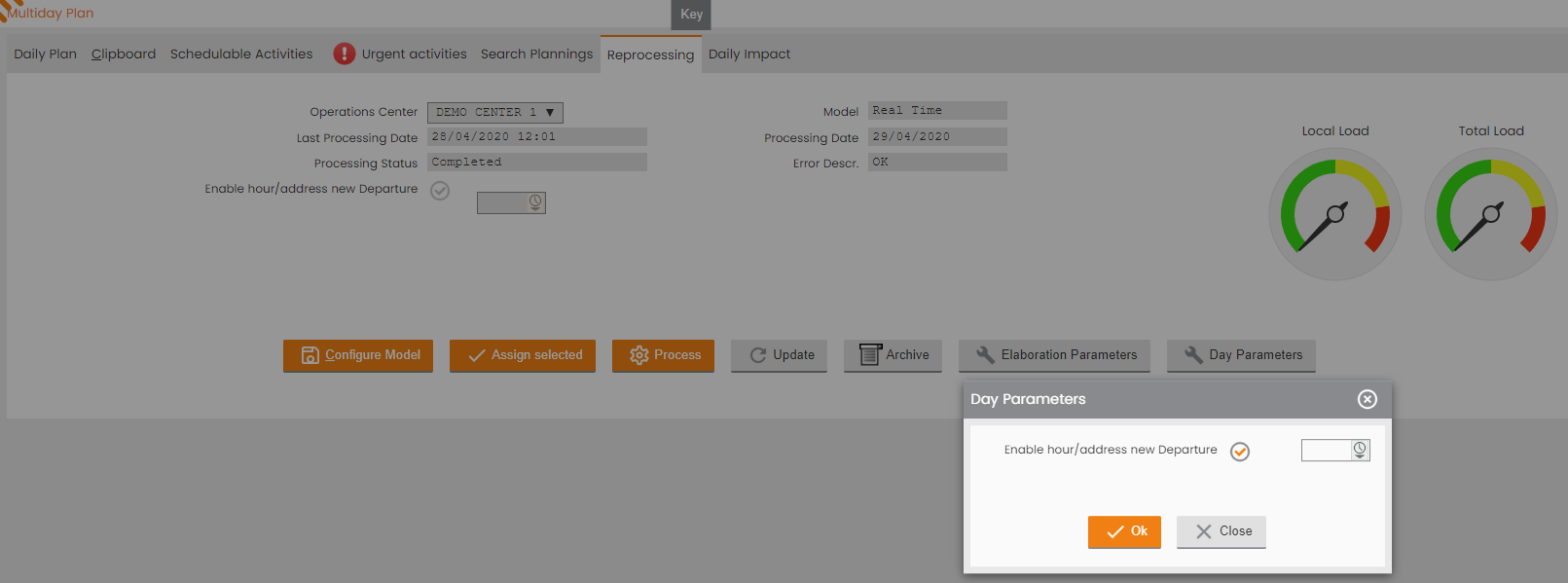
From the Daily Plan Monitor, by selecting the Reprocessing Tab, it is also possible to schedule a time of the current day to start real-time processing by clicking the 'Day Parameters' button.
|
|---|
|
Figure - Day Parameters |
Rielaboration History and Instant Comparison Daily Plan
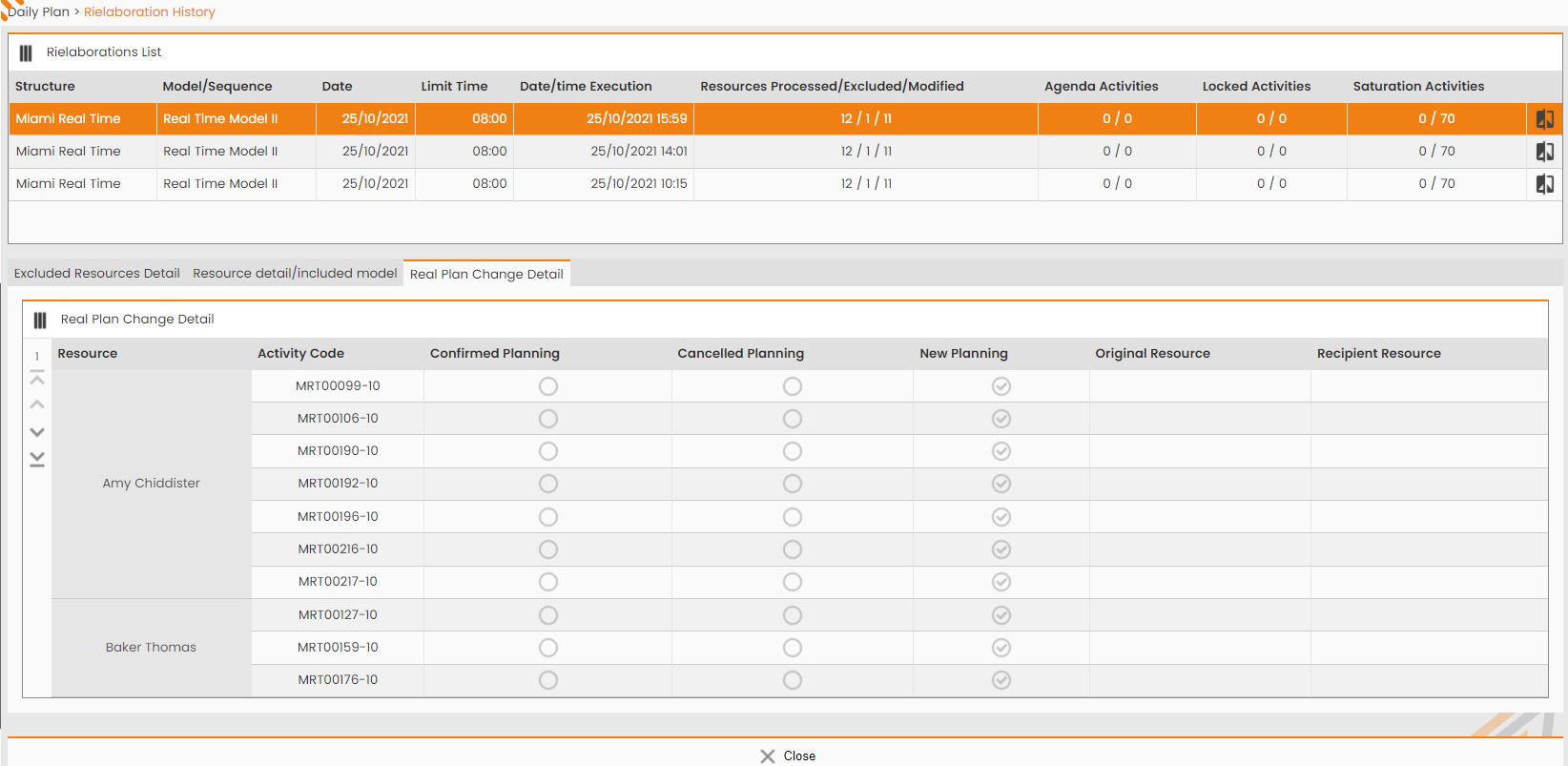
From the Daily Plan Monitor, by selecting the Reprocessing Tab, it is possible to monitor the result of the real-time rielaboration of the selected day by accessing the processing history (Archive button):
|
|
|---|
|
Figure - Rielaborations List |
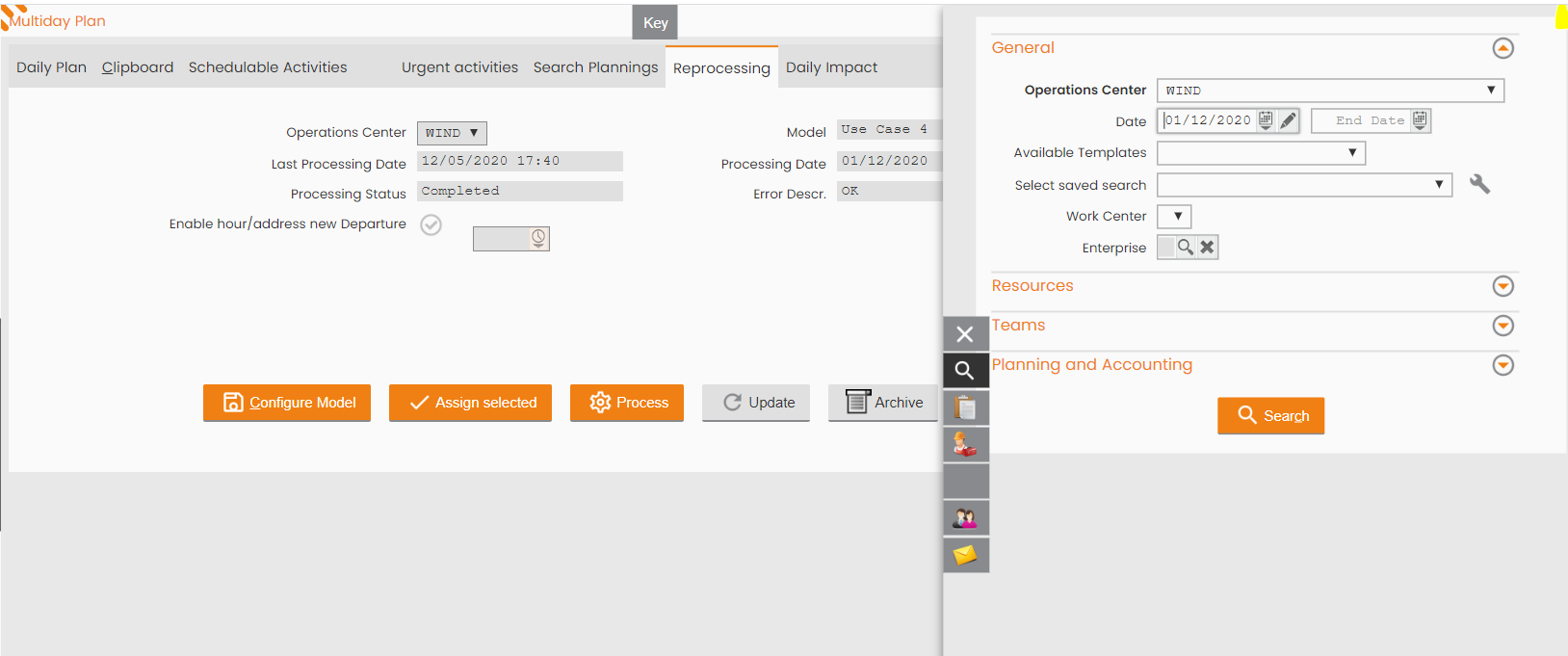
Another example:
|
|---|
|
Figure - Searching another example |
|
|---|
|
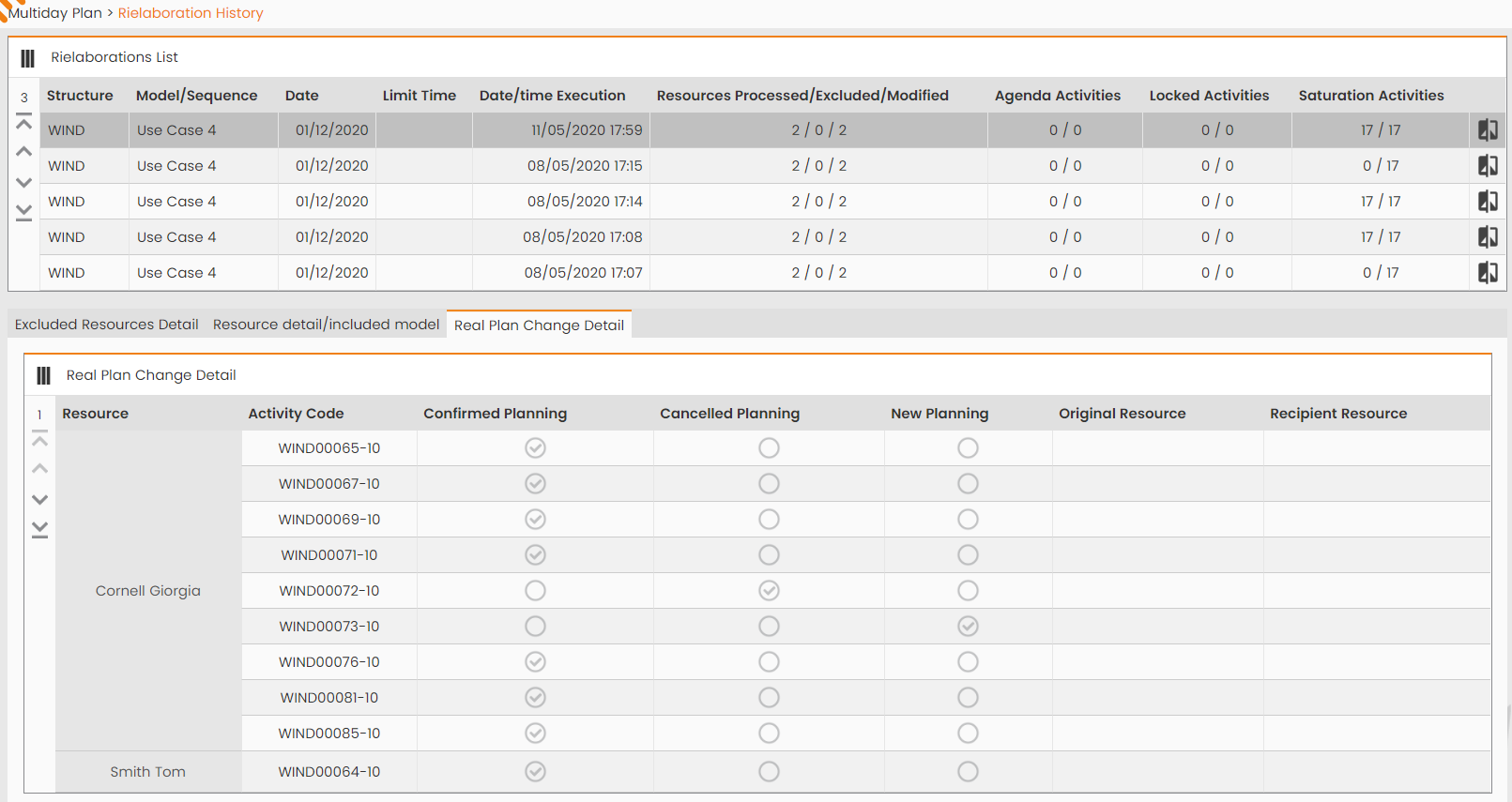
Figure - Real Plan Change details |
The rielaboration history mask shows the Rielaboration list sorted by decreasing Date/time Execution (from the most recent to the oldest) for the selected day. The history excludes any reprocessing records that have gone wrong (visible only in the logs).
The Rielaboration list includes the following information:
-
Operations Center;
-
Used Real-time scheduling model;
-
Rielaboration date;
-
Limit Time;
-
Date/time execution;
-
Number of resources Processed/Excluded/Modified by reprocessing;
-
Number of Booking (Agenda activities) on the Daily Plan before and after the rielaboration;
-
Number of Locked activities present on the Daily Plan before and after rework;
-
Number of saturated activities on the Daily Plan before and after reprocessing;
-
Snapshot of the rielaboration.
Resource detail/included model
Selecting a line from the Rielaboration list, the following information is shown in the section below:
-
the reasons that led to the possible exclusion of some resources from the reprocessing;
-
the details of the changes made to the resource planning elaborated.

|
|---|
|
Figure - Resources detail |
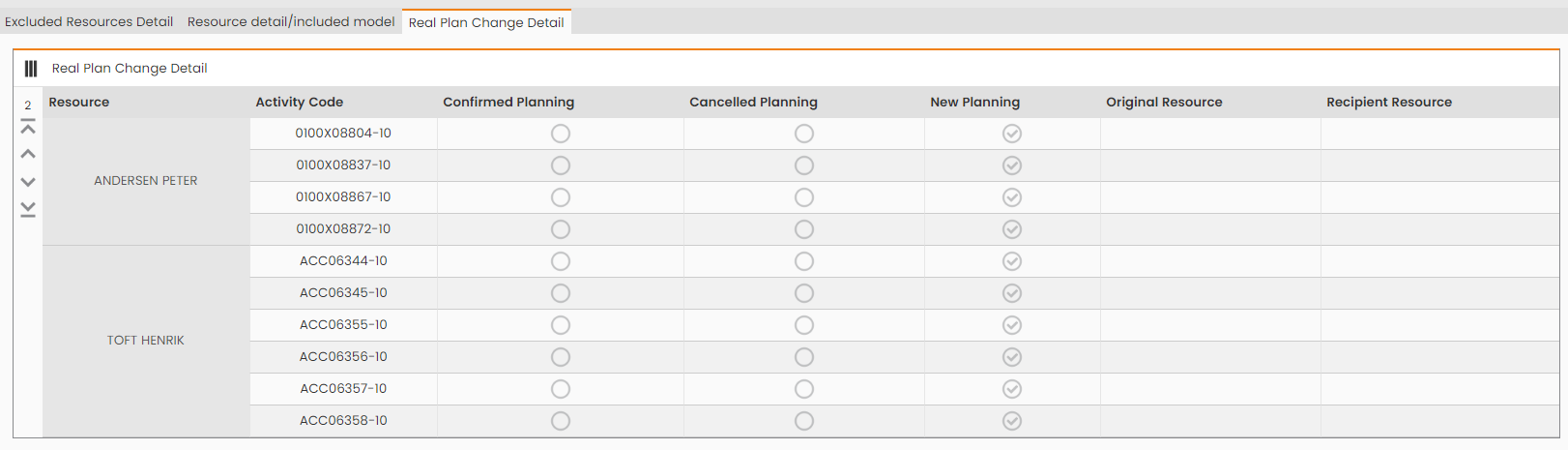
-
Specifically, the following situations may occur:
-
assignment of a new task to a resource previously assigned to another resource;
-
assignment of a new task to a resource previously unassigned to anyone;
-
confirmation of the planning of an activity;
-
canceled planning from a resource;
-
canceling an activity from a resource and assigning it to another resource.
-
|
|---|
|
Figure - Real Plan change detail |
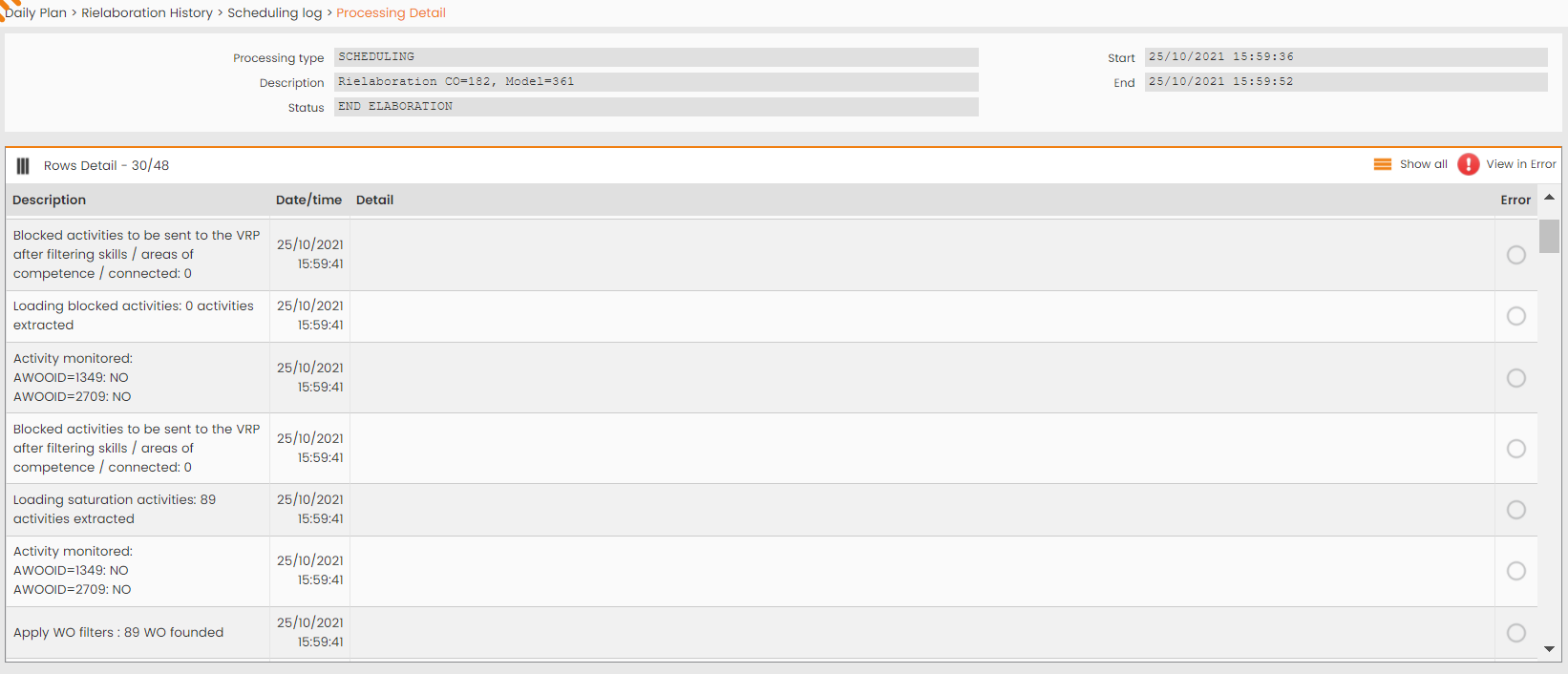
Right-click on the single history record to access the Scheduling Log:
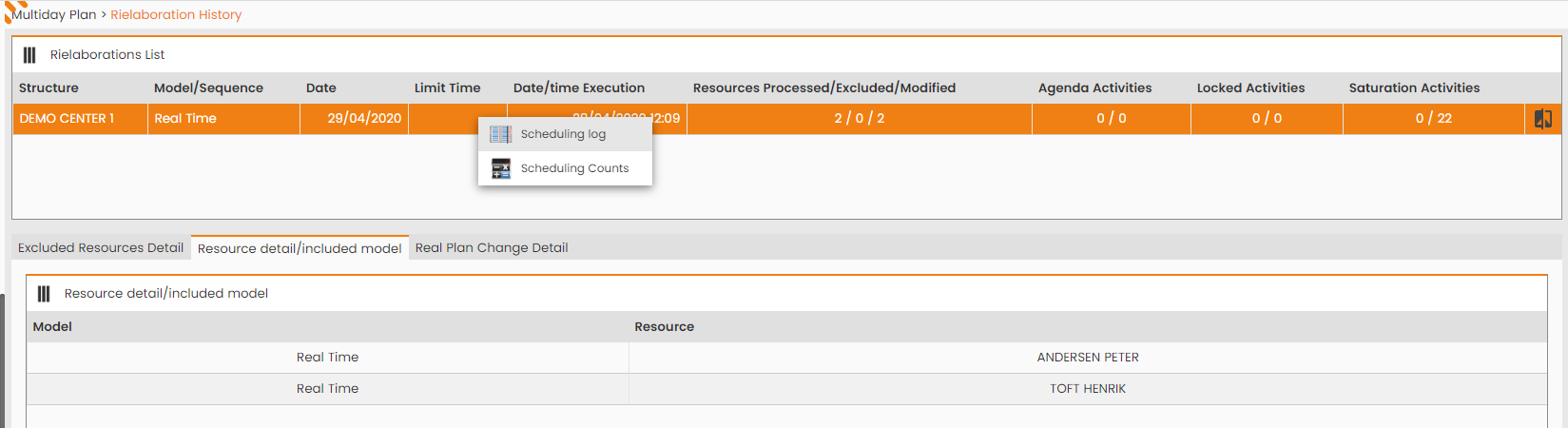
|
|---|
|
Figure - Scheduling Log activation |
|
|
|---|
|
Figure - Scheduling Log |
Daily Plan instant comparison
The real-time rielaboration process before and after the rielaboration of the Daily Plan creates two snapshots, ex. two copies of the Daily Plan, which can then be compared to verify the actual operation of the rielaboration itself.
From the Rielaboration List History, right-clicking on the single history record it is possible to access the snapshots comparison mask of the Daily Plan.
When comparing the snapshots, the evidence is given of the orders present in the Resources' Daily Plan before and after the rielaboration.
Rielaboraton Process
The process of rielaboration is divided into the following macro phases:
-
Demon selection;
-
loading the resources subject to reprocess (whose last synchronization occurred less than DTultimainfo minutes before the current time);
-
loading the corresponding activities already assigned and elaboration of 'Schedule update/Recalibrate' process:
-
removal of allocations for all that has been completed in the meantime;
-
identification of the first Nnoremove prefixed activities (PREFIX_ORDINATE);
-
-
identification and characterization of the potential additional activities for the only resources that are available:
-
certain additional activities, consisting of:
-
Activities Agenda not assigned on the day;
-
Locked On Date activities not assigned on the day.
-
-
additional activities at saturation determined as follows:
-
the first selection on the basis of the score determined as for virtual models to which the following conditions are added:
-
at least a certain time delta defined for the type of header of the order must have elapsed since the last result;
-
the maximum number of the partial outcomes for the day must not have been exceeded;
-
there must be no pending action (annulment).
-
-
the second selection considering for each resource/team of the rielaboration a certain number of additional activities close to the base points of the resource day and its pre-assigned activities
-
-
-
the Gisware (VRP) call;
-
saving the results.
Functionality of Schedule Update/Recalibrate
The Functionality of Schedule Update/Recalibrate is a variant of the "Optimize Route" function designed for the following purposes:
-
on future days: as a result of manual actions, re-evaluate the distribution of the interventions considering the lunch break (cut/paste actions on the daily plan, in fact, do not consider the lunch break);
-
on a day in real-time:
-
re-evaluating/updating the time distribution of the interventions following manual actions (considering lunch break);
-
re-evaluate/update the time distribution of the residual interventions for the day considering the passage of time, interventions performed, etc.removing of all the activities already cancelled.
-
removing of all already performed activities.
-
The difference between "Optimize Route" and 'Schedule Update' is that for the second one:
-
there is no limit on the end of the working time of the resource/team;
-
there is no constraint on the timetables of the interventions subject to the processing or those in charge of the resource/team for the day;
-
there are only constraints for the maintenance of the execution sequence interventions as defined in the initial situation or before processing.
Un-availabilty
Pay attention that after assigning a new un-availability (that covers the same time frame related assigned activities to be performed) to a technician, the 'Optimize', 'Optimize and Integrate' and 'Update/Recalibrate' features don't automatically unschedule the activities already assigned to him. In order to unschedule the activities, it's necessary a manual action of the dispatcher.