
Virtual/Simulation Daily Plan
The system user right-clicks the Daily Plan related to the simulation and accesses the window providing the functionalities required for managing the OC Virtual Daily Plan, which reports the scheduling of activities referring to the specific simulation and involving the operational resources. The Virtual Daily Plan represents the control dashboard of the potential scheduling of activities/resources available to the Planner Technician of the Operations Center. Such plan may be confirmed as a whole or in part (subset of scheduled resources) to create the actual scheduling of one or several working days for the OC. The confirmation of a Virtual Plan (crystallization action) results in the actual scheduling, displayed in the Real Daily Plan.
|
|
|---|
|
Figure - Virtual Daily Plan |
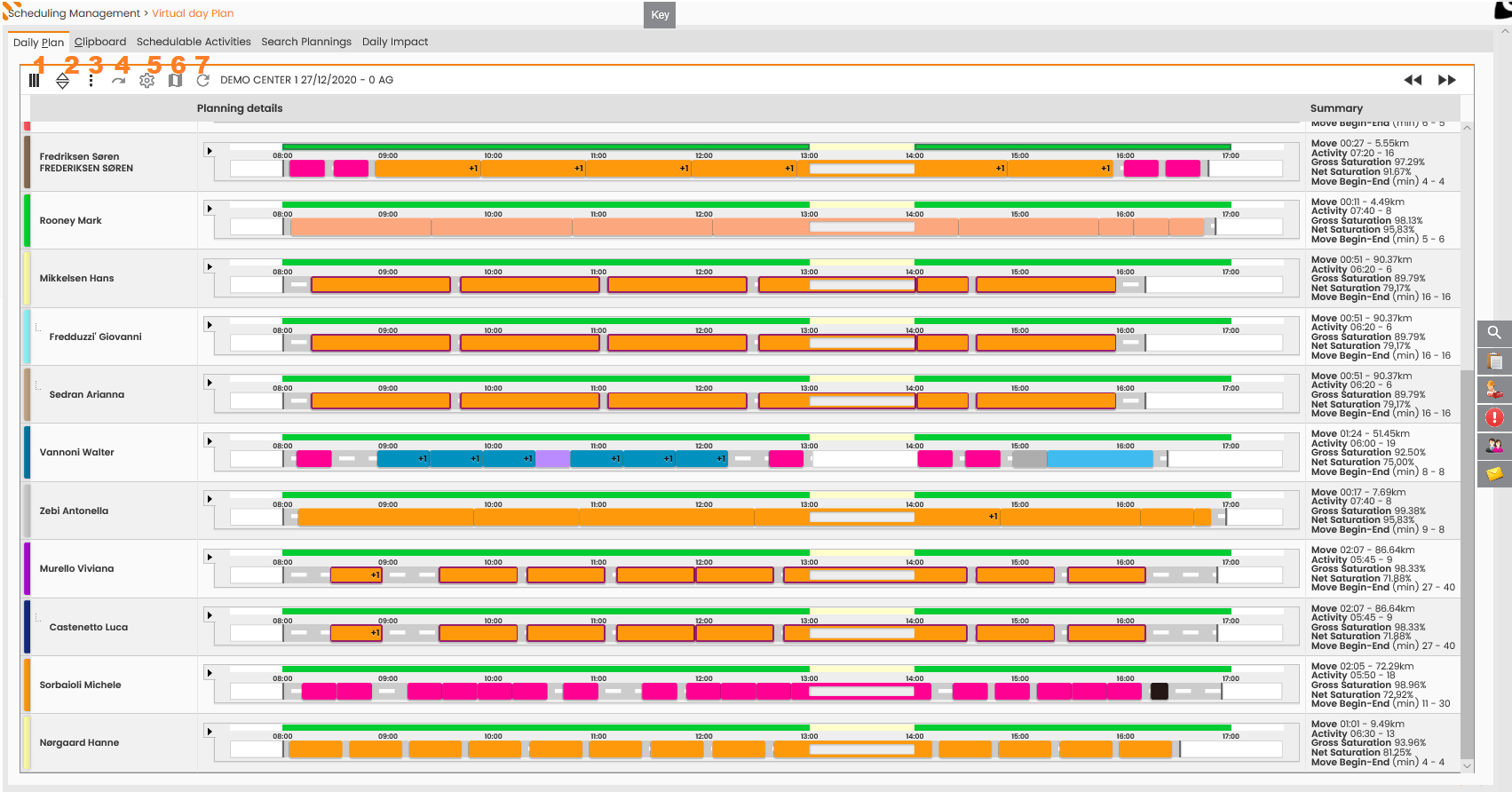
The page is organized as to provide different tabs in the top section:
-
Daily Plan;
-
Clipboard;
-
Schedulable Activities;
-
Search Scheduling;
-
Daily Impact.
All five tabs are managed in the Real Plan, too. Except for the Daily Plan Tab, presenting given peculiarities in terms of supported functionalities (to be detailed further on), the remaining tabs provide the same functions reported in the Real Plan. For further details, please refer to the ‘Daily and Multi-Day Plan’.
Furthermore, the page provides swipe up panels, to access from the right section of the window:
-
Generic Filter Settings;
-
Quick Menu: Urgent Activities;
-
Quick Menu: Schedulable Activities;
-
Quick Menu: Clipboard;
-
Quick Menu: Resources;
-
Quick Menu: Messages.
The six panels are detailed in the 'Daily and Multi-Day Plan’ chapter.
The Operations sub-menu provides the following functions:
-
Saturation Dashboard, reference KPI for resource saturation;
-
Activity Report, to create a document in .xls format referring to the work orders scheduled on a given day of the daily plan considered;
-
Work Teams Monitor, to access the window for viewing/managing the teams on a given day.
-
Close, for closing the Virtual Daily Plan and display again the Scheduling Management window.
Daily Plan Tab
The Daily Plan Tab reports all the functionalities referring to the Scheduling, supported by the real Daily Plan. All functions related to debriefing and progress of orders are not displayed in the Virtual Daily Plan.
The Daily Plan Bar: displayed in the box at the center of the figure; it provides the following buttons:
-
The columns button (Figure - Virtual Daily Plan, Icon 1), to open the sub-menu with the columns to display in the plan of resources; the user may display all columns or select given specific ones, by ticking them:
-
Resource Selection: to display the box at the left of each resource and select it for team assignment;
-
Row without description: it displays the name of the specific resource;
-
Summary: to view the column referring to the resume of the scheduling for the specific resources;
-
Progress Status: to view the column detailing the progress status of the activities reported in the plan of each resource.
-
-
The sorting button (Figure - Virtual Daily Plan, Icon 2), to determine the organization of resources in the daily plan. The resources can be organized in the plan according to:
-
Resource’s Surname: alphabetic order, increasing/decreasing;
-
Resource’s Organization: increasing/decreasing order defined according to the ‘Organization’ value associated with each resource in the corresponding master data;
-
Organization by Shift Start schedule (increasing/decreasing).
-
-
The Configure Monitor button (Figure - Virtual Daily Plan, Icon 3), to open the Daily Plan sub-menu;
|
|
|---|
|
Figure - Monitor Configuration |
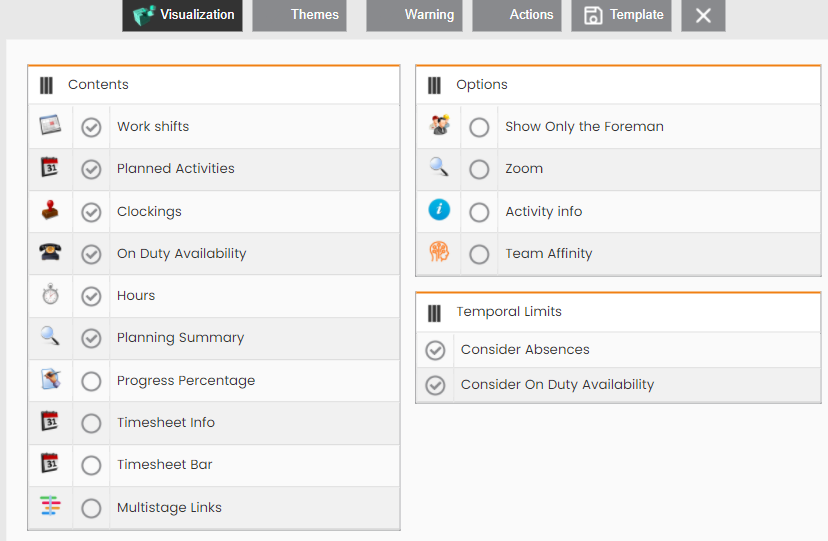
The data referring to the debriefing are not displayed (reported in the Daily Plan).
-
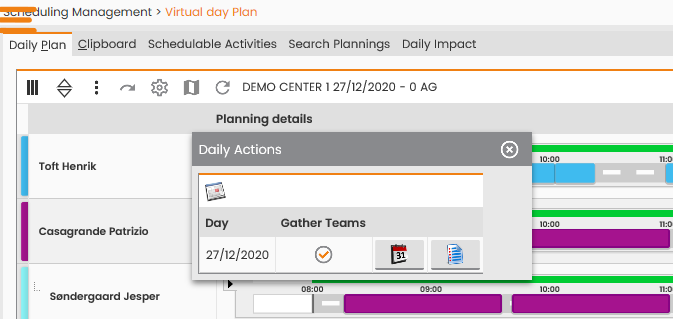
The Daily Action button (Figure - Virtual Daily Plan, Icon 4), to define the actions to apply to a given day in the Daily Plan (for further details, please refer to the Actions on Day section reported in the 'Daily and Multi-Day Plan’ chapter).
|
|
|---|
|
Figure - Daily Actions |
-
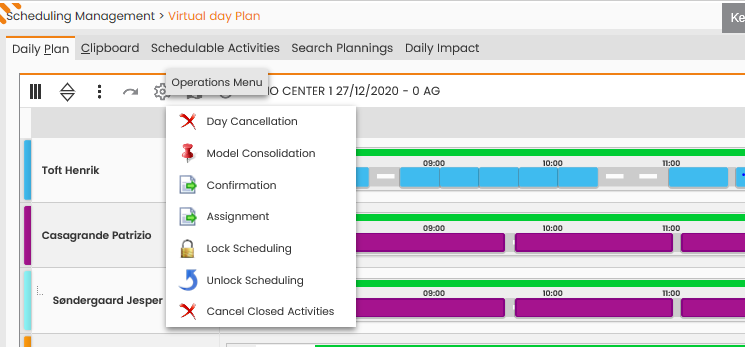
The Operations Menu button (Figure - Virtual Daily Plan, Icon 5) allows to perform the following functions:
|
|
|---|
|
Figure - Operations Menu |
-
Cancel Day simulation, to delete the scheduling of all resources for the day considered (the activities are not copied in the clipboard) in te virtual plan;
-
Model Consolidation, to stabilize the model and fix the key dates of the orders included in a specific scheduling time-frame, as to limit the scheduling to such dates for any further processing;
-
Confirmation (Crystallization), to confirm and report the activities scheduled to all resources (not associated with any scheduling in the Real Plan, yet) on a given day in the corresponding Real Daily Plan;
-
Assignment, to pre-assign the activities to resources. After this action on virtual plan, the user (in the Real plan) by right-clicking ‘Available Time slot’ and selecting Details-Assignment Detail and it will display the assigned activities;
-
Lock Scheduling, to lock the scheduling in the simulation plan. The next simulations processings will not change the locked assignments;
-
Unlock Scheduling, to unlock the assignments for all resources, that had been locked in the previous simulation process;
-
Cancel Closed Activities, to delete the activities debriefed by the plan;
-
the Open Map button (Figure - Virtual Daily Plan, Icon 6) allows to enable the map in the plan (for further details please refer to the Map/Cartography Menu section reported in the 'Daily and Multi-Day Plan’ chapter).
|
|
|---|
|
Figure - Virtual Daily Plan with Map |
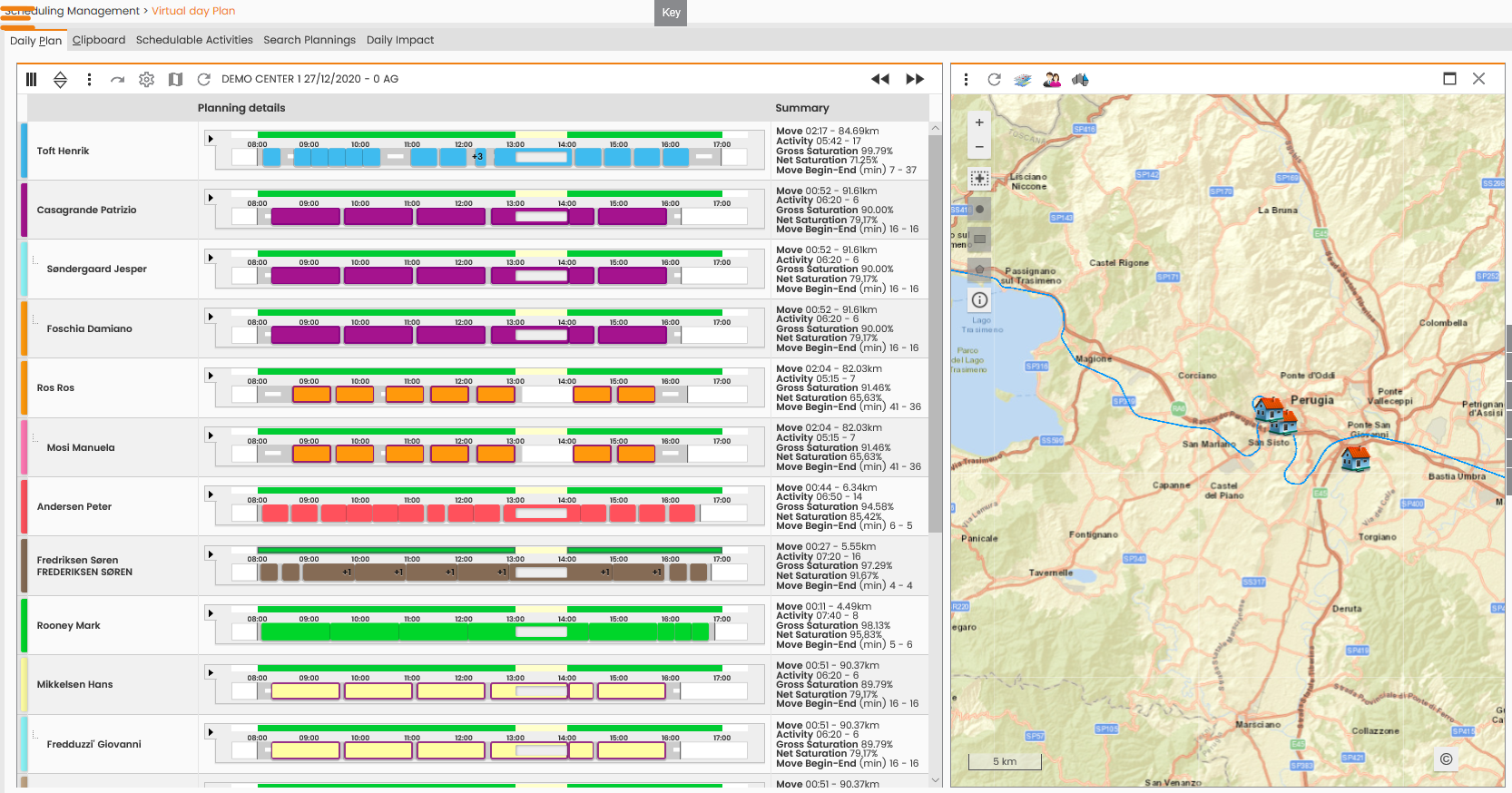
-
the 'Update’ button (Figure - Virtual Daily Plan, Icon 7), to refresh the window for displaying the Daily Plan;
Resources’ Daily Plans: displayed in the 'Daily Plan’ box at the center; it reports the list of the resources/teams active in the day selected through the search filter and the corresponding scheduling bar with the availability schedule represented by a green line (further allowed colors are grey, light blue and dark green). The resources’ plan gives access to four sub-menu to enable right-clicking the following, respectively:
-
right-click the resource’s name to display the supported functionalities:
|
|
|---|
|
Figure - Resource Options |

-
right-click any point in the availability bar to display the supported functionalities:
|
|
|---|
|
Figure - Options related availability bar |
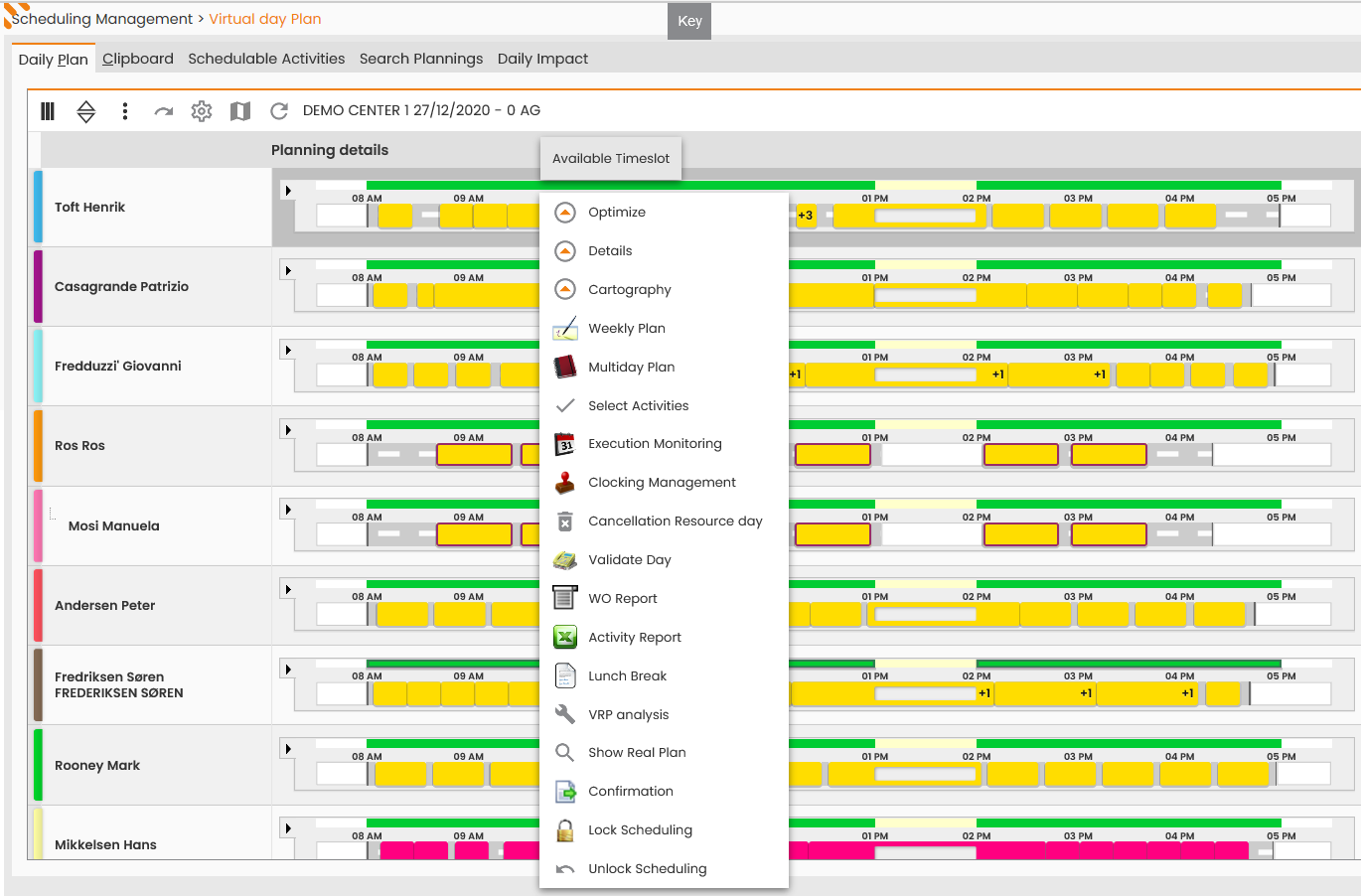
In addition to the functionalities supported by the Real Plan, the Virtual Plan provides the following:
-
Show real Plan: to shift to the real plan view for the specific resource;
-
Confirmation; to crystallize the virtual plan for the specific resource;
-
Lock Scheduling, to lock the day for the specific resource; in case of days locked due to simulation processing, the assignments will be NOT edited in the next simulations;
-
Unlock Scheduling, to unlock the assignments for all resources, that had been locked in the previous simulation process;
Right-click the scheduling bar the following supported functionalities are displayed:
|
|
|---|
|
Figure - Options planning bar |

The supported functionalities are the same as the real plan. For further details, please refer to the ‘Daily and Multi-Day Plan’ chapter.
-
Right-click a scheduled activity to display the supported functionalities:
|
|
|---|
|
Figure - Options related to the single planned activity |
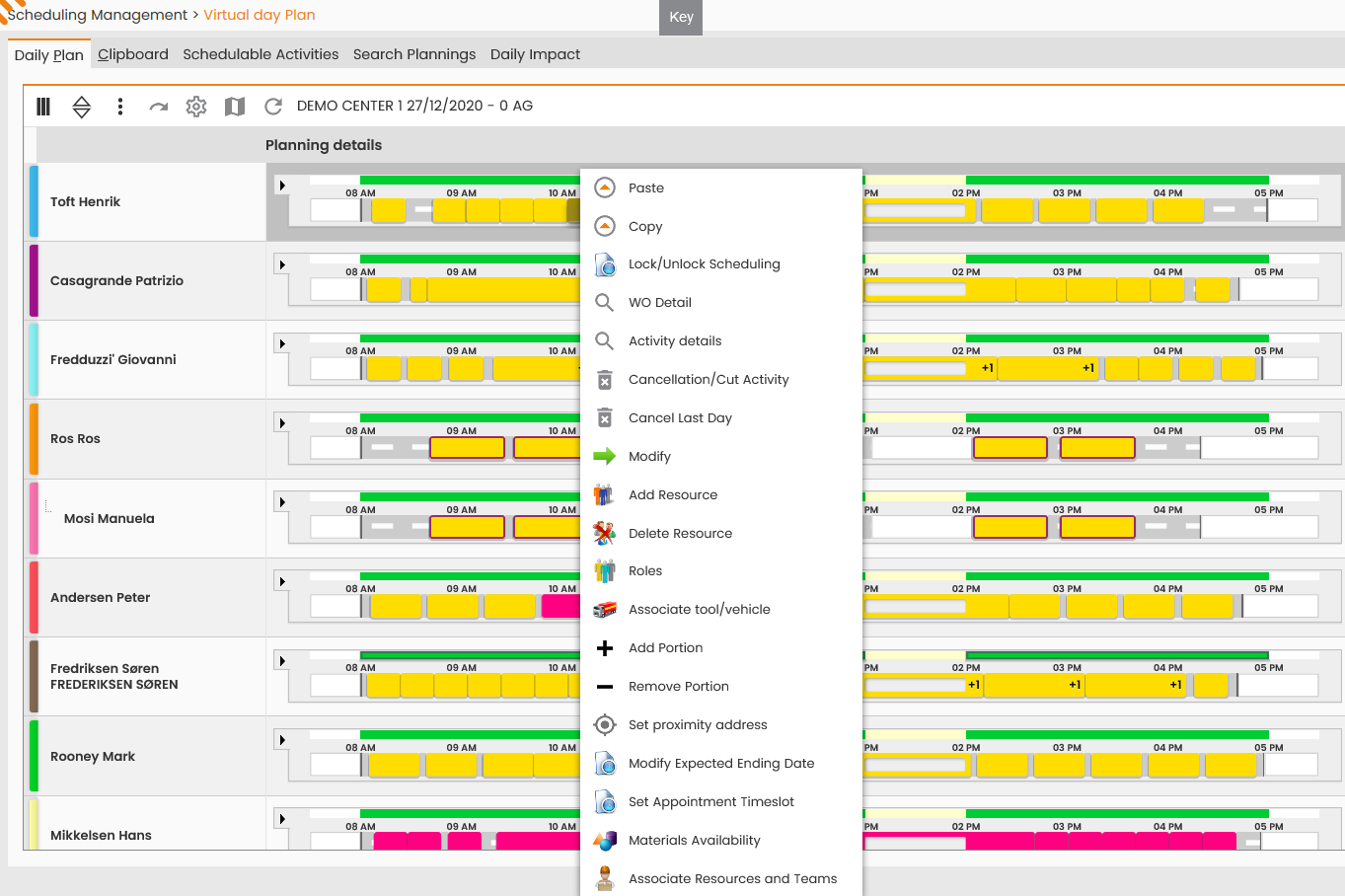
In comparison with the real plan, the following function has been added:
-
Lock/Unlock Scheduling;
n comparison with the real plan, the following unnecessary function is not reported:
-
Accounts debriefing;
Mouseover a scheduled activity and the available Tooltip will show all data useful for scheduling the subject:
|
|
|---|
|
Figure - Tooltip related to the single planned activity |
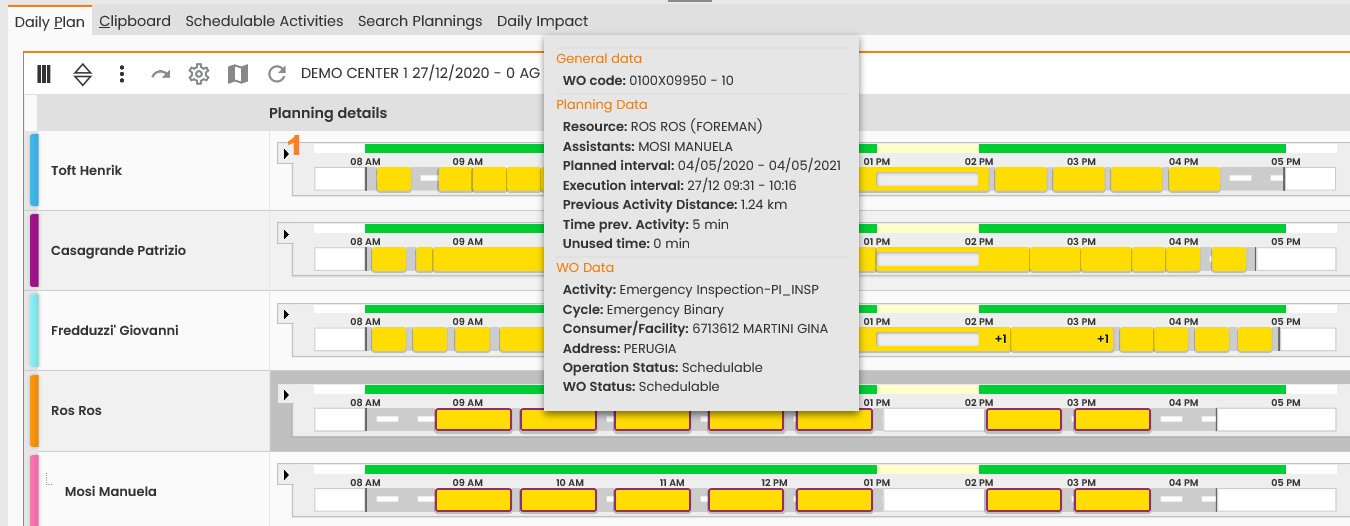
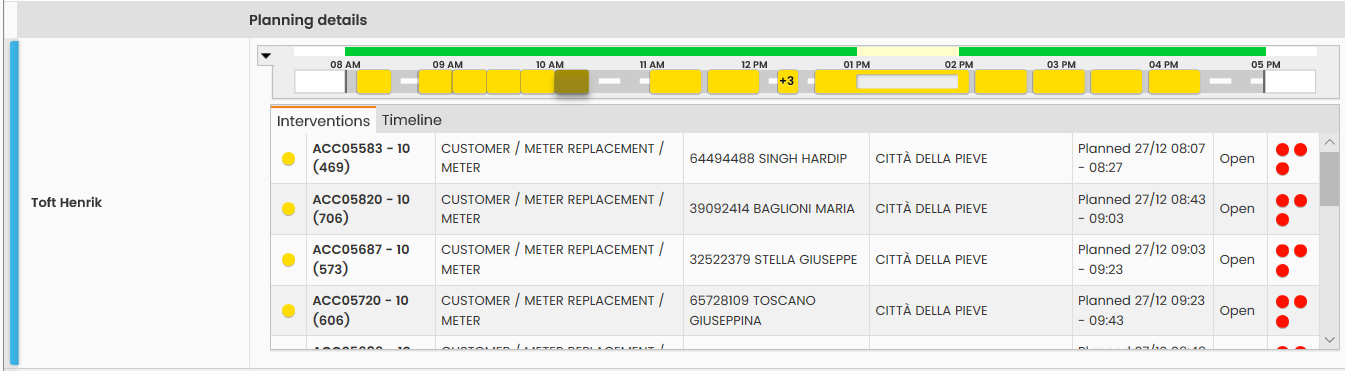
As detailed in the 'Daily and Multi-Day Plan’ chapter, to view the scheduling details click the arrow at the left (Figure - Tooltip related to the single planned activity, Icon 1) of the scheduling bar:
|
|
|---|
|
Figure - Planning details |
In addition to these core features, each virtual day plan provides:
-
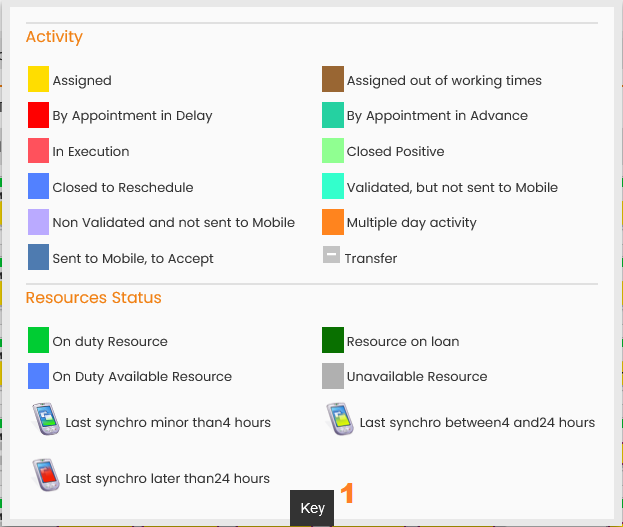
Legend: displayed beside the Legend button (Figure - Virtual Daily Plan Legend, Icon 1), at the center of the page. The button is always available in any of the tabs the daily plan consists of and allows to open a retractable menu to view the main colors of the activities and the symbols possibly displayed on the daily plan (see Legend section).
|
|
|---|
|
Figure - Virtual Daily Plan Legend |
-
'Scheduling Details': this section consists of the following bars:
-
the unavailability cause;
-
the slot type (available/lunch break);
-
the working calendar for the available/unavailable day and/or time slot, always visible and highlighted in the blue section of the previous figure: it is graphically represented by the green band which defines the resource’s availability slot. Different shades of green are used to point out the resource’s loan to a different Operations Center (see Legend), while the beige band defines the lunch break. Any permits or resource unavailability will be displayed in grey. If the Resource/Team works over multiple shifts crossing the day selected through the filter, the availability bar will report the available schedules of all such shifts.
-
The scheduled activities bar, always available for view and highlighted in the orange section of the previous figure: it represents the sequence of the activities scheduled for the resource/team and the corresponding displacement time from one activity to another. Through this section the user will access the functionalities to manually edit the plan. The activities and the displacement time from intervention to another / intermediate waiting time (i.e., lunch break), are represented through colored bars, yellow, grey and white ones, with length proportional to their duration. In further detail, activities are represented by small rectangles of different colors, depending on the specific case considered (detailed in the Legend) and on the activated Theme.
-
Please note that team activities are represented with a thicker border, as shown below, and the name of the other team components is reported in the generic resource’s tooltip.
Crystallization
Crystallization is the action (performed manually by the User or automatically by the system on the Virtual Daily Plan) which confirms, entirely or in part, the scheduling defined in a simulation and transfers the data on the Real Plan.
The action may be invoked with reference to a specific day in the Virtual Plan:
-
for all the OC resources with scheduling within the day - model considered;
-
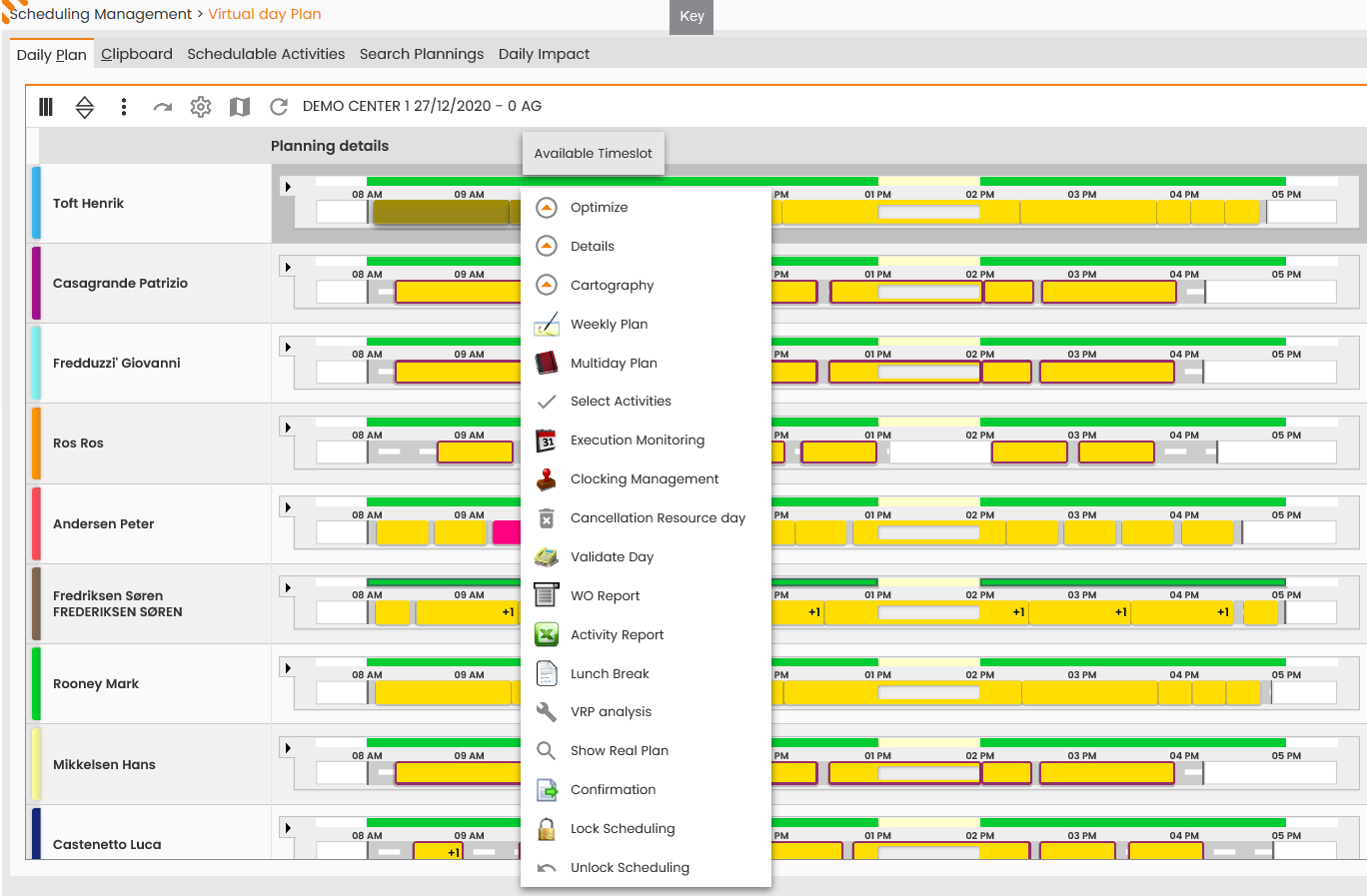
For a single OC resource with scheduling within the day - model considered (function available in the context menu displayed when right-clicking the scheduling of the operational resource):
|
|
|---|
|
Figure - Validate Day for the single Resource |
The System proceeds with the crystallization of the day/resource, upon user confirmation of the following message: The operation will cause to crystallize the activities of the entire work center for the selected day. Continue?
And of the following message (displayed when clicking OK): The requested action will crystallize day: X. Continue?
Upon clicking 'PROCEED' the system highlights the crystallization to the user with the following message: ‘Activity crystallization completed’
The action is only applied to those resources with no assignment in the Real Plan, yet for the day subject to Crystallization.
If selecting the functionality in association with an already crystallized day/resource, the system will return the following message:
'Scheduling available in the Real Plan for XXX resources on the day being crystallized. The requested action will cause the integration of such scheduling with the assignments of this model. Continue?’
in case of resources with no scheduled activities, the System will return the following message: ‘There are no activities to crystallize for the selected day’.
If the crystallization action (addressing a single resource or many resources) implies activities to be scheduled over several working days (prior or following), the System will confirm all the days considered, including the further activities scheduled on such days.
Upon performing the Crystallization, the System will also check that the ongoing action does not include any activities already scheduled in the Real Plan, following to:
-
crystallization actions of further models, prior to the ongoing one;
-
manual scheduling on the Real Plan.
As to evaluate whether the activity considered should be canceled from the Virtual Plan being crystallized or from the Real Plan.
The Crystallization action will cause the following:
-
status upgrade to CRYSTALLIZED for the days/resources subject to the action;
-
status upgrade to SCHEDULED for the work orders operations (activities to saturate) subject to this action;
The resource/s and crystallized day/s display the available slot in the Virtual Daily Plan colored in red.
Display Real Plan
The Display Real Plan function is available in the Virtual Daily Plan and allows to access the Real Daily Plan of the OC/resource, to then view the overall Real Plan of the Operations Center.
This option is provided in the context menu displayed when right-clicking the operational resource scheduling details:
The accessed window of the Real Daily Plan is pre-compiled with the data of the resource the specific option was retrieved for, as to view the related scheduling in real-time.
This window also allows to view the entire daily plan referring to the OC/Day, by editing the filter represented by the resource and clicking the ‘SEARCH’ button.
Lock/ Unlock Scheduling
The processing of a scheduling model will cause the massive cancellation of all assignments having a scheduling date subsequent or equal to the lower end of the simulation processing time-frame (subject to previous manual/automatic scheduling), except for those assignments (days/resources) previously “frozen/locked” as to avoid their editing.
The Lock Scheduling option (and the Unlock Scheduling counteraction) is therefore intended to lock the editing of verified daily assignments which are deemed as definitive, though not crystallized, yet (i.e., due to scheduling referring to the following weeks, with respect to the current date).
The Lock Scheduling may be requested on a given Virtual Plan day for all the operational resources of an OC (lock of the entire day).
A possible application case of this functionality is:
-
processing over weekly and monthly time frames excluding already scheduled and verified intermediate days or single days/resources, which imply activities involving external entities.
The Lock option is only available in the Virtual Plan for future days and is only referred to the Model it was required for.
If the lock refers to a day with an activity distributed over different working days (previous or following), the System (upon warning the User) will lock all days impacted by the scheduling.
The Lock Scheduling action causes the status to upgrade to LOCKED for the days/resources subject to the action;
This applies to the Unlock Scheduling function, too.
Model Consolidation
The Strengthen/Consolidation Model function allows to stabilize the specific scheduling model; in further detail, it provides for fixing the key dates of the orders scheduled within a given time frame, as to limit the scheduling within such dates in future processing.
The system provides this option in the header of the table reporting the Virtual Daily Plan.