
Scheduling Management
This section provides the functions required for managing the “virtual world” which allows to view and edit the scheduling originating from the processing of the different Models and compare them.
For each scheduling Model in the daily and weekly plan, this section displays the allocation of activities to the different resources based on the processing and on a set of the data, related to the resources’ effort (in time) and saturation. Furthermore, the user is provided with a set of tools for the cartographic view and manual editing of the proposed scheduling.
MAIN MENU → FEATURES → SCHEDULING OPTIMIZATION → AUTOMATIC SCHEDULING → SCHEDULING MANAGEMENT
|
|---|
|
FIgure - Scheduling Management |
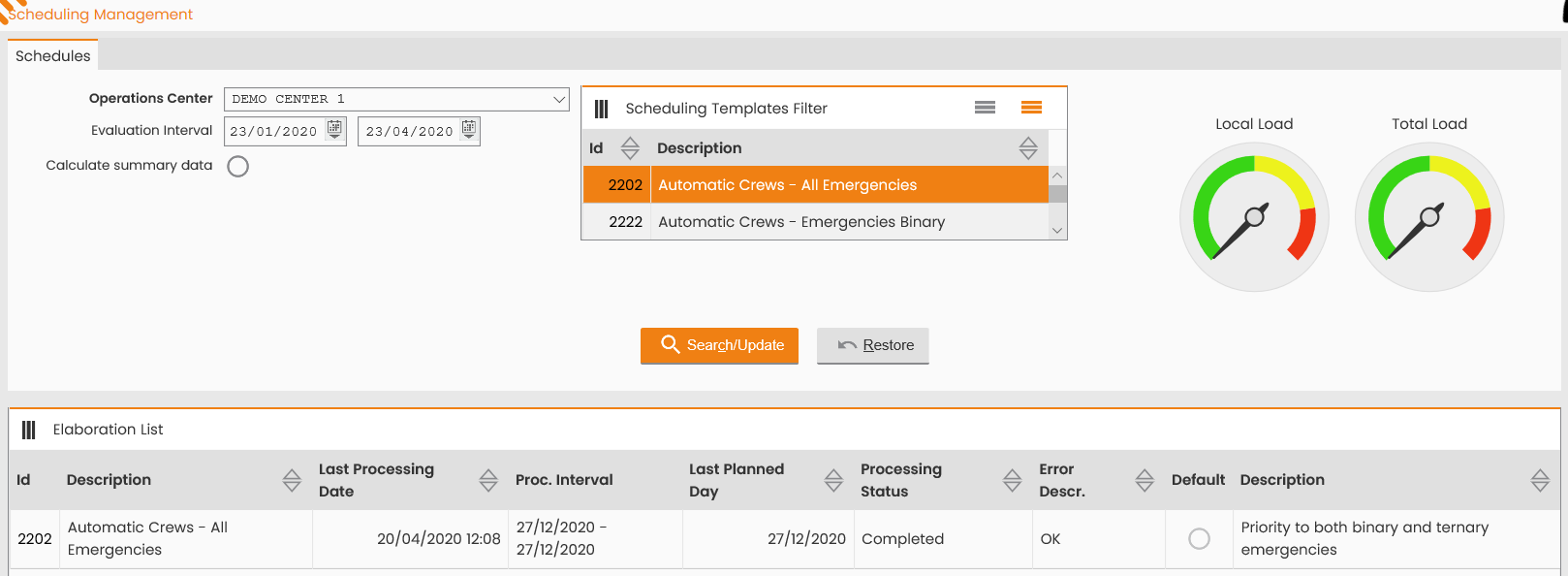
The page is organized as to report in the top section the form for searching the Processing of Scheduling Models and select:
-
Operations Center, mandatory;
-
Evaluation interval, From - To, for the corresponding assessment;
-
Scheduling Models Filter, multiple-choice field to choose among the scheduling Models (virtual model and gap-filling model), defined and associated with the specific OC;
-
Calculate Summary Data, flag.
Select 'SEARCH/UPDATE' to fill out the bottom section with the data referring to the Models processing, based on the search criteria set. For each simulation, the following data are reported:
-
Model description;
-
last processing date;
-
processing period;
-
last scheduled day in the virtual plan;
-
processing status:
-
completed;
-
running;
-
error;
-
pending.
-
-
error description;
-
Default, flag identifying whether the Model is defined as a ‘by default’ one (flag=1 in the corresponding master data).
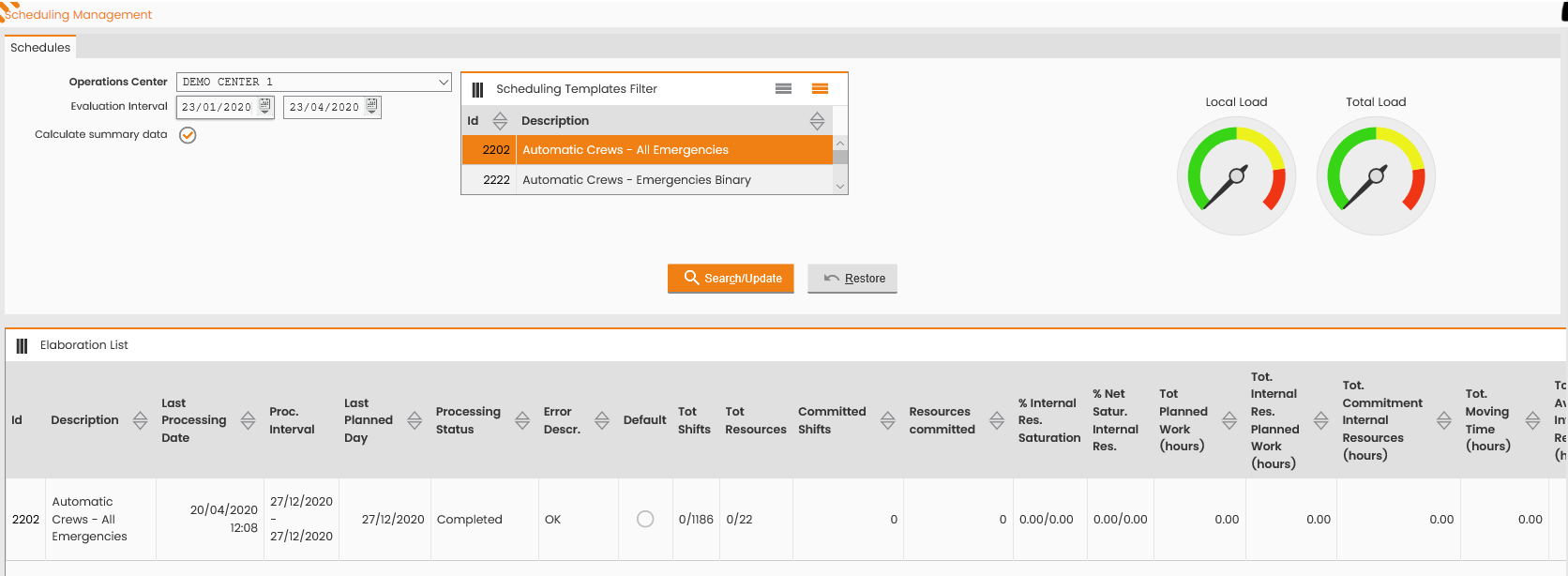
Furthermore, by selecting the ‘Calculate Summary Data’ flag.
|
|---|
|
Figure - Activation of the Calculate Summary data flag |
A wider set of data will be displayed for each simulation in the considered evaluation period. Reported below are an example and the data list:
-
Perc. of in-house resources saturation;
-
Net Perc. of in-house resources saturation;
-
Total work scheduled;
-
Total work scheduled to in-house resources;
-
Total effort of in-house resources;
-
Total Displacement Time;
-
Total availability of in-house resources;
-
Distance traveled;
-
Delayed Activities;
-
Number of resources in overtime;
-
Tot. overtime;
-
Assigned saturation activities;
-
Assigned locked activities;
-
Total assigned activities;
-
Total activities assigned to in-house resources;
-
Total unassigned saturation activities;
-
Total unassigned locked activities on date;
-
Total unassigned locked activities on expired date.
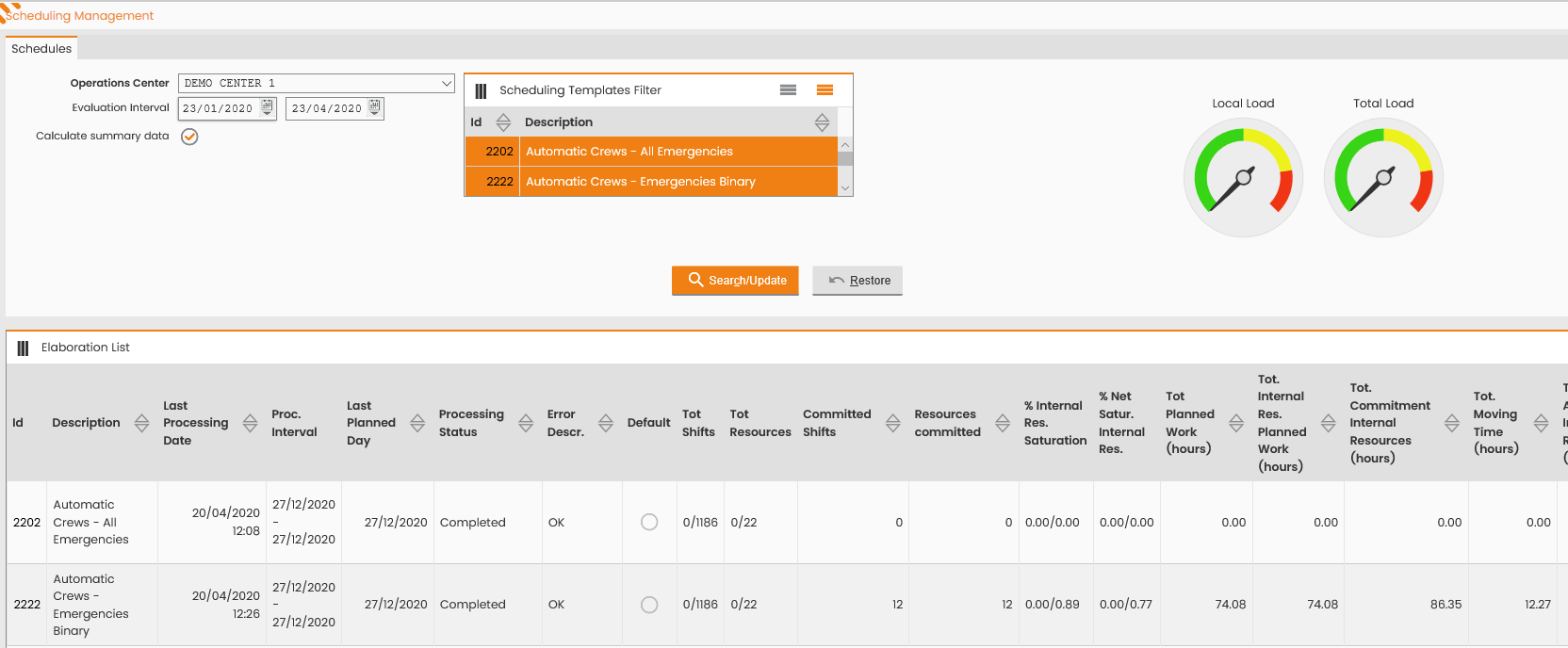
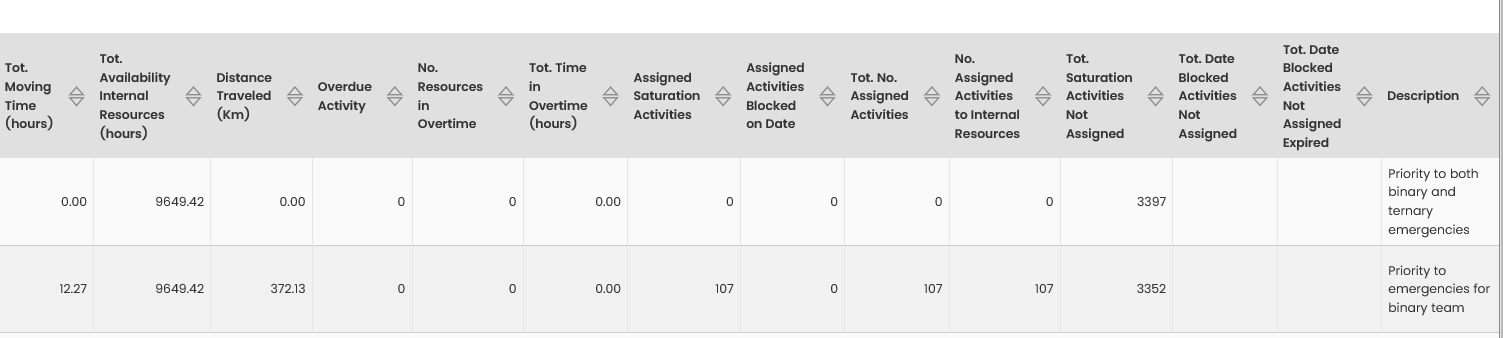
Reported below is an example on the evaluation parameters of a simulation, useful for comparing two simulations.
Select two or many ‘Model Filters’:
|
|---|
|
Figure - Selection of Model Filters |
|
|---|
|
Figure - Parameters useful for comparing two simulations |
The compared data are:
-
Perc. of in-house resources saturation: ratio between used time and availability time; it represents the occupation percentage of in-house resources in a given period, the occupation time being the time required for performing activities and for displacements;
-
Net Perc. of in-house resources saturation: ratio between used time and availability time; it represents the occupation percentage of in-house resources in a given period, only considering the performance of activities;
-
Total work scheduled: total activities time in hours scheduled to resources (activity hours only, net of displacements);
-
Total work scheduled to in-house resources: total activities time in hours scheduled to in-house resources (activity hours only, net of displacements);
-
Total effort of in-house resources: total activity and displacement time in hours for the in-house resources (total of Total Scheduled Work and Total Displacement Time);
-
Total Displacement Time: total displacement time in hours for in-house resources;
-
Total availability of in-house resources: total presence time in hours during which the in-house resources are available, net of the lunch break and of any unavailabilities;
-
Distance traveled: total km traveled in a given period by the in-house resources;
-
Delayed Activities: total delayed agenda activities or delayed assigned activities locked on a given date (with respect to the scheduled time slot);
-
Number of resources in overtime: in-house resources with activities exceeding the resource availability schedule or starting before the resource working day begins;
-
Tot. overtime total effort time for the resource prior/following to the availability schedule;
-
Assigned saturation activities: total saturation activities assigned to in-house resources in a given period;
-
Assigned locked activities: total locked activities assigned to in-house resources in a given period;
-
Total assigned activities: total activities assigned to resources in a given period;
-
Total activities assigned to in-house resources: total activities assigned to in-house resources in a given period;
-
Total unassigned saturation activities: number of saturation activities and not assigned within the reference Model;
-
Total unassigned locked activities on date: number of locked activities in the day and not assigned within the reference Model;
-
Total unassigned locked activities on expired date: number of expired locked activities not assigned within the reference Model;
Through these data, the user will evaluate and compare simulations launched with different parameters, in terms of used resources and list subject to scheduling.
Right-click any simulations and the ‘Processing List’ table to run the following:

|
|---|
|
Figure - Options for each simulation |
-
Process New Simulation (Options for each simulation, Icon 4): to access the window for processing a simulation for the Model over a given time frame;
-
Automatic Processing Calendar (Options for each simulation, Icon 1): to access the window for defining the scheduled processing plan of a simulation;
-
Schedule Automatic Processing (Options for each simulation, Icon 1): to access the window to enqueue a simulation processing;
-
Daily Plan (Options for each simulation, Icon 2): to access the virtual daily plan referring to the simulation Model;
-
Multi-Day Plan (Options for each simulation, Icon 2): to access the virtual multi-daily plan referring to the simulation Model;
-
NOTE: The multi-day Virtual Plan opens for the duration of the processed period; if this range exceeds
company.fsm.dailyplan.virtualPlanMaxDateInterval, the initial display is capped at the first processed day plus the parameter value, though dispatchers can manually adjust the displayed interval afterwards.
-
-
Weekly Plan (Options for each simulation, Icon 3): to access the virtual weekly plan referring to the simulation Model.
Process New Simulation
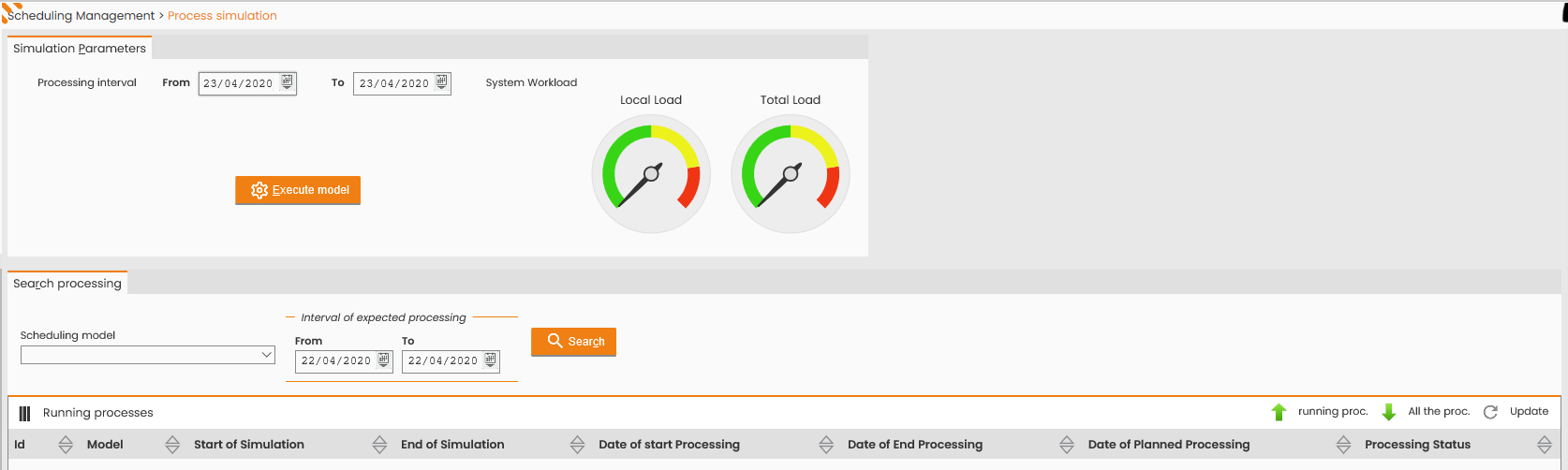
Upon selecting a simulation, the system user will right-click the Process New Simulation option and will access the following window for launching a new accurate processing of the specified period.
The accessed window is:
|
|---|
|
Figure - Process new Simulation |
The top section of the Process Simulation window provides a dedicated sub-section for launching new processing; the user will identify the period for processing the Model and then select the 'Execute Model’ option. The System will return the following message:
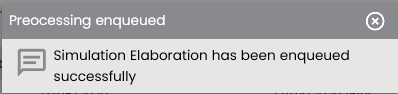
|
|---|
|
Figure - Message Processing enqueued |
and fill out the 'Running Processing' with the data referring to the Model/time parameters specified in the launch phase

|
|---|
|
Figure - In progress Process enqueued |
Upon finalizing the processing and updating the page by clicking the ‘SEARCH’ or ‘UPDATE’ buttons, the System will upgrade the processing status field to ‘Completed’, if the processing was successful:

|
|---|
|
Figure - Completed Process enqueued |
Furthermore, it will update the data reported in the ‘Processing List’ table available in the Scheduling Management window which the user will access by clicking the 'CLOSE' button provided in the Operations sub-menu of the Process Simulation window.
If any scheduling is already available for the days subject to processing, the System will cancel it and request the user’s confirmation through the following pop-up:
The simulation action for the required time frame will cancel the scheduling resulting from previous Model processing (days: 6/10/2013). Continue?
If there are operators with days locked in between the days subject to processing, the System will not edit their scheduling and will request the user’s confirmation through the following pop-up:
For the selected Model and time frame there are ‘frozen’ days - resources, not undergoing any rescheduling through the requested processing (6/10/2013). Continue?
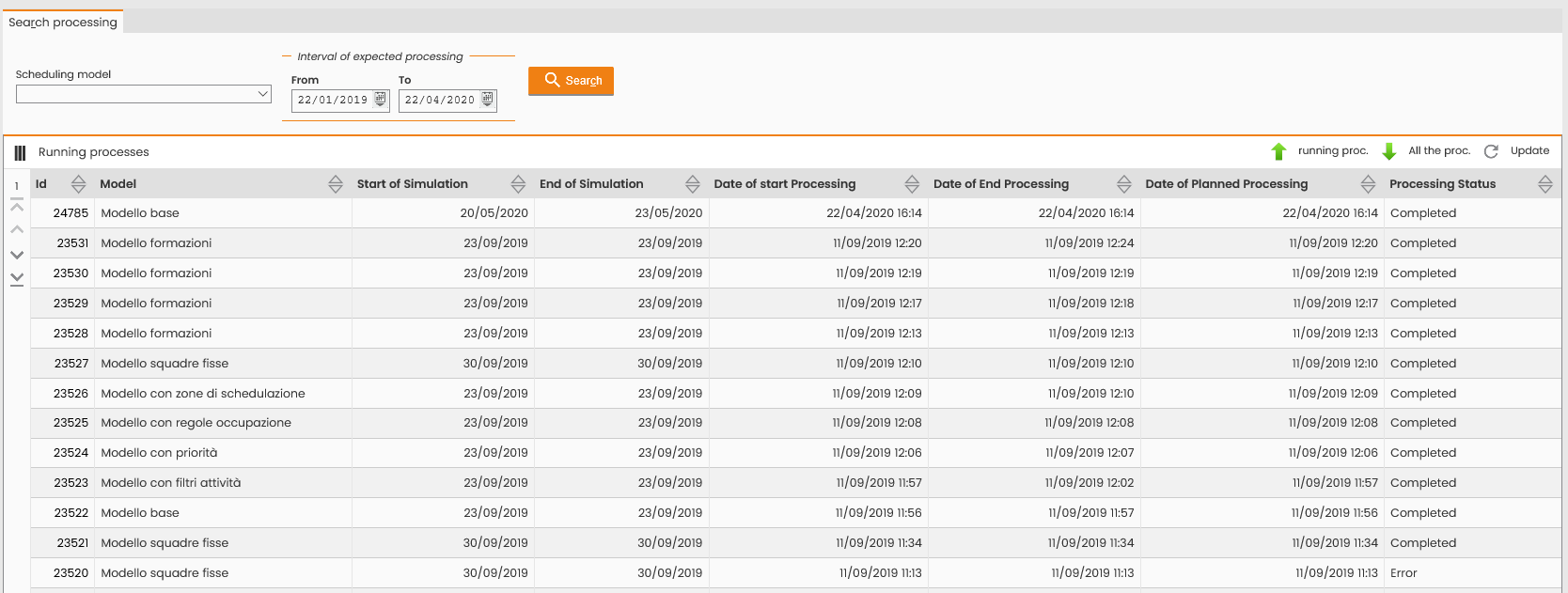
The bottom section of the Process Simulation window lists all the processing according to a given time frame and possibly specifying a given Model:
|
|---|
|
Figure - Process Simulation window lists |
The following is displayed for each processing:
-
the Model;
-
the simulation start day (‘from’ value of the specified processing interval): first day subject to scheduling for the processing;
-
the simulation end day (‘to’ value of the specified processing interval): last day subject to scheduling for the processing;
-
the start date for the simulation processing: processing start date/time set by the System;
-
the end date for the simulation processing: processing end date/time set by the System;
-
the expected processing date (relevant parameter for automatically scheduled processing);
-
the processing status:
-
completed: the processing launched ended successfully;
-
running: ongoing automatic processing for the Model; no parallel processing or manual editing is available (view-only);
-
in error: during the Model processing an error occurred which prevented from finalizing the process (keeping as valid the scheduling resulting from previous processing). The error cause is specified;
-
pending: The last processing required (“manual” or “launched automatically”) has not been launched yet, while waiting for the necessary resources. The System automatically launches it based on set time intervals (1 or 2 minutes).
-
Right-click any of the rows in the ‘Running Processing’ table and the System will provide the following functions:

|
|---|
|
Figure - Options single processed simulation |
-
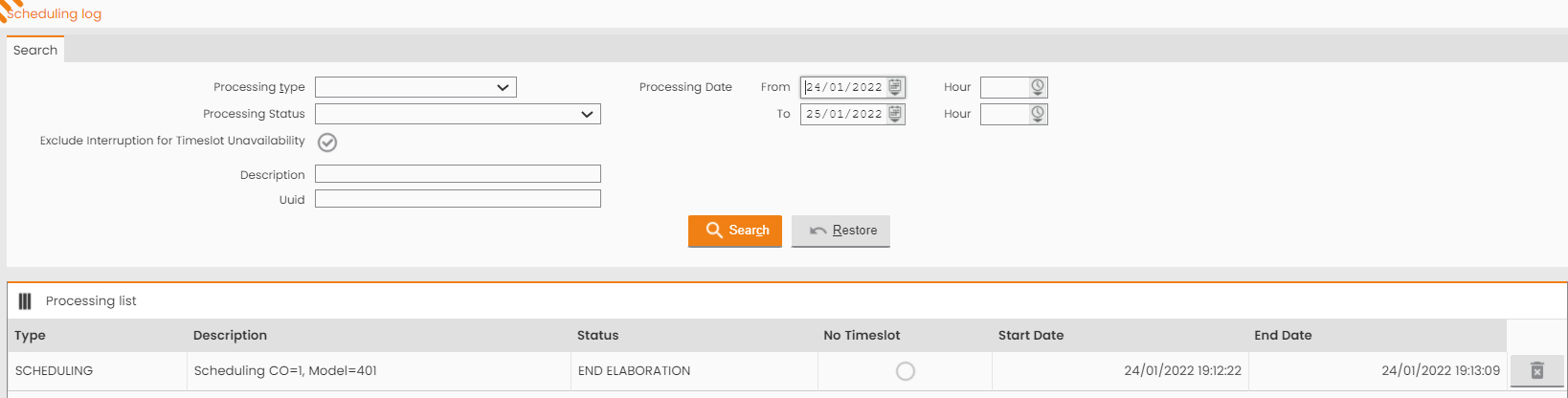
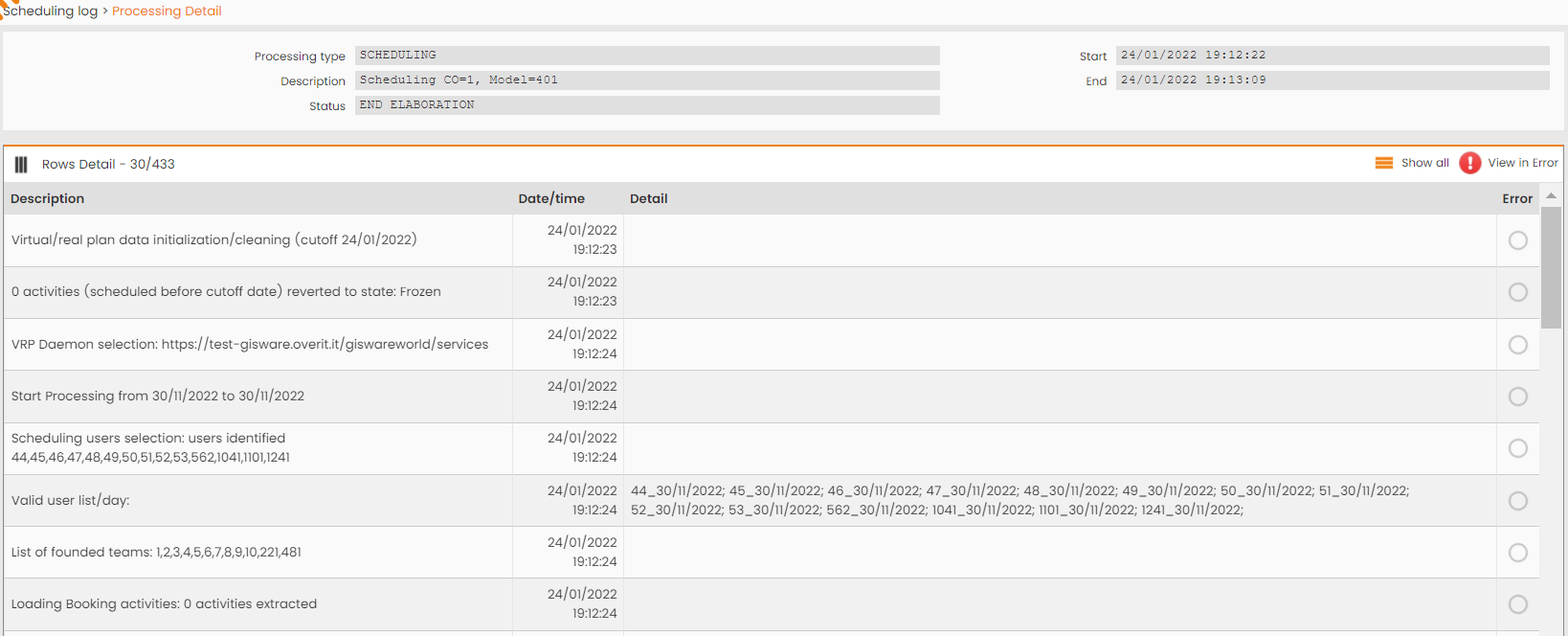
Scheduling Log, to access the window for viewing the specific processing:
|
|---|
|
Figure - Scheduling Log |
Click the row in the ‘Processing List’ table to access the window for viewing each processing in detail, with the totals reported in a dedicated table for each stage of the processing enabled to the calculation (the intermediate stages show a comparison between the activities processed in the specific stage and those calculated by the counter and comply with the filter associated with the counter):
|
|
|---|
|
|
-
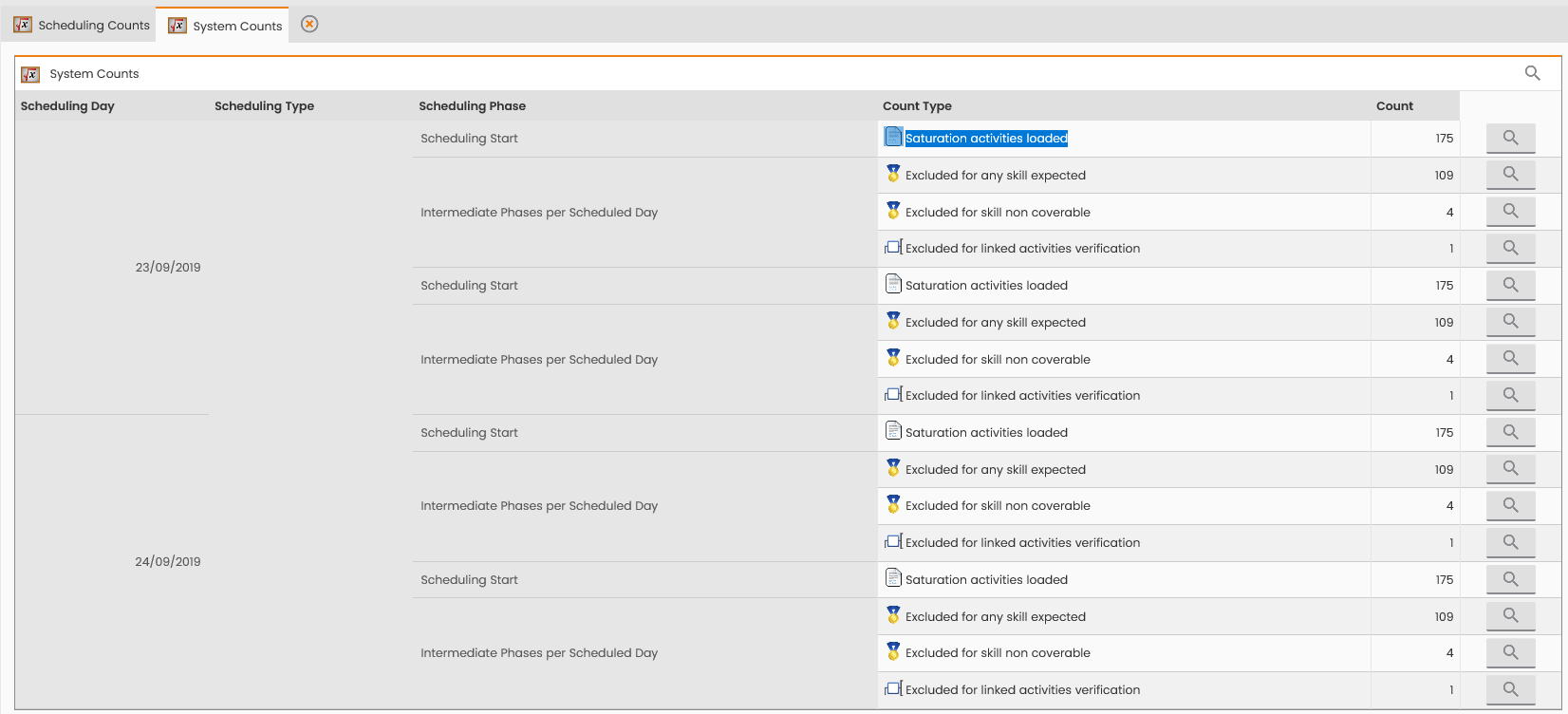
Scheduling Totals, to access the window for viewing the totals calculated by the System for each Model stage and scheduling day, in table format:
|
|---|
|
Figure - Scheduling Totals |
Automatic Processing Calendar
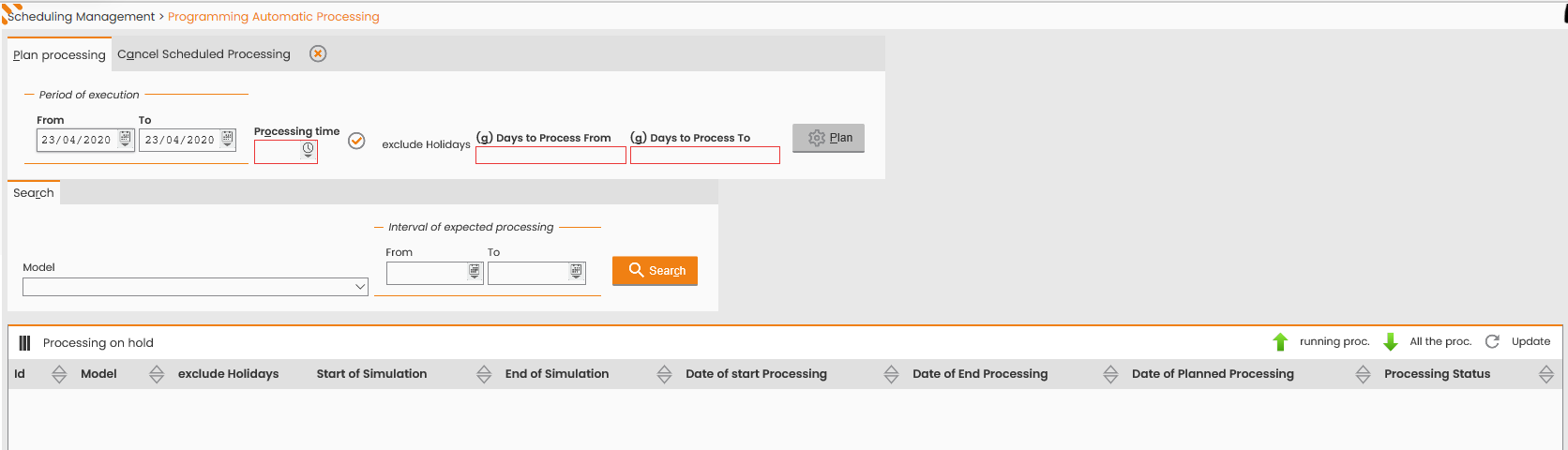
By selecting the given simulation and right-clicking the Automatic Processing Calendar option, the system user will access the following window for scheduling the planned automatic processing referring to a specific scheduling Model. The user can parameterize the day/time in which the System shall automatically process the specific Model.
The accessed window is:
|
|---|
|
Figure - Automatic processing |
The accessed window consists of two tabs: Plan Processing and Cancel Scheduled Processing.
The top section of the Plan Processing tab, provides the window for the scheduling of a new processing. To enter new scheduling of automatic processing the user shall fill out the following fields:
-
Performance period, (from - to), mandatory, specifying the days in which the simulation shall be processed;
-
Performance schedule, mandatory, specifying the time at which the simulation shall be processed;
-
Exclude holidays, flag for avoiding the simulation processing on holidays
-
Days to process from... to..., mandatory, specifying the first and last day to be scheduled by the System adding the value of the present day.
To confirm the insertion, click the 'PLAN' button.
The section at the bottom of the page, shared by both the Plan Processing and Cancel Scheduled Processing tabs, lists all the processing, whether scheduled or not, performed and ongoing, according to the same criteria detailed in the previoue section.
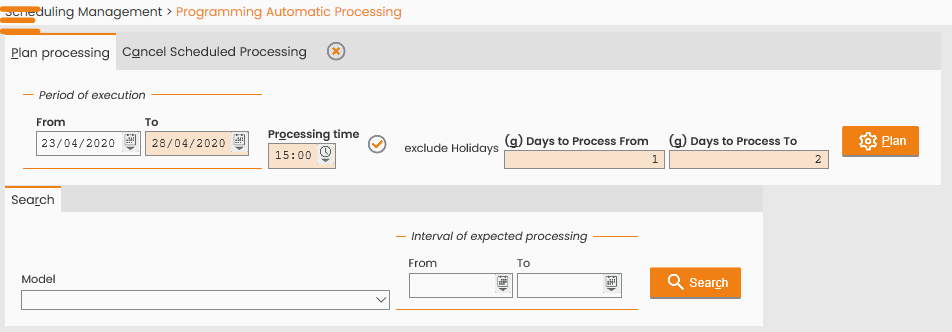
By filling out the fields as shown below, the automatic processing is scheduled every day from 23 April to 28, excluding those considered as holidays by the OC (Saturday 25 and Sunday 26) at 15:00; each processing will schedule the two working days following to the processing, based on the request of processing days from 1 to 2.
|
|---|
|
Figure - Automatic processing Calendar |
Listed below are the processing entered:

|
|---|
|
Figure - Processing on hold |
The top section of the Cancel scheduled processing tab, allows the user to delete previously scheduled processing, specifying their time frame in the following window and selecting the CANCEL option.
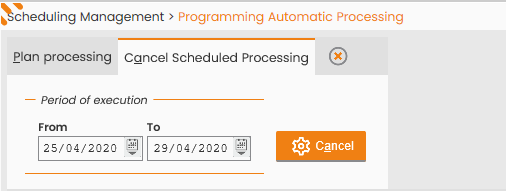
|
|---|
|
Figure - Cancel Option |
Following to this operation, the scheduled processing listed in the ‘Pending Processing’ table available at the bottom of the window and in ‘Pending’ status, will be no longer available.
Schedule Automatic Processing
By selecting a given simulation and right-clicking the Schedule Automatic Processing option, the system user will access the following window for scheduling the planned automatic processing referring to a specific scheduling Model.
The accessed window is:
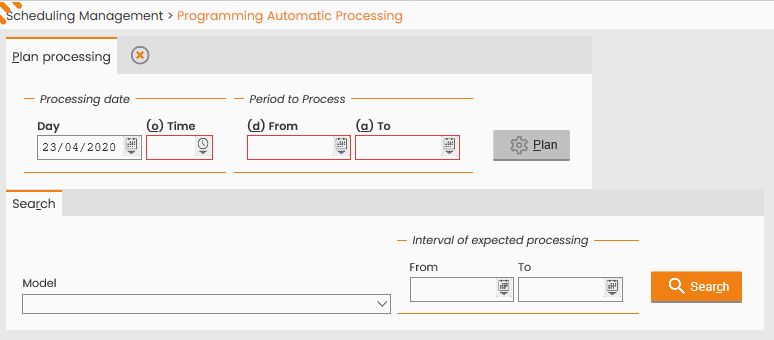
|
|---|
|
Figure - Schedule Automatic Processing |
The top section provides the Plan Processing tab for the user to schedule a new processing in a given moment and for the specified period. To enter a new processing the user shall fill out the following fields:
-
processing date, mandatory, specifying the day on which the simulation shall be processed;
-
processing schedule, mandatory, specifying the time at which the simulation shall be processed;
-
period to process: from – to, mandatory, specifying the day/s in which the System shall perform the scheduling.
To confirm the insertion of the processing, click the 'PLAN' button.