
Virtual Weekly Plan
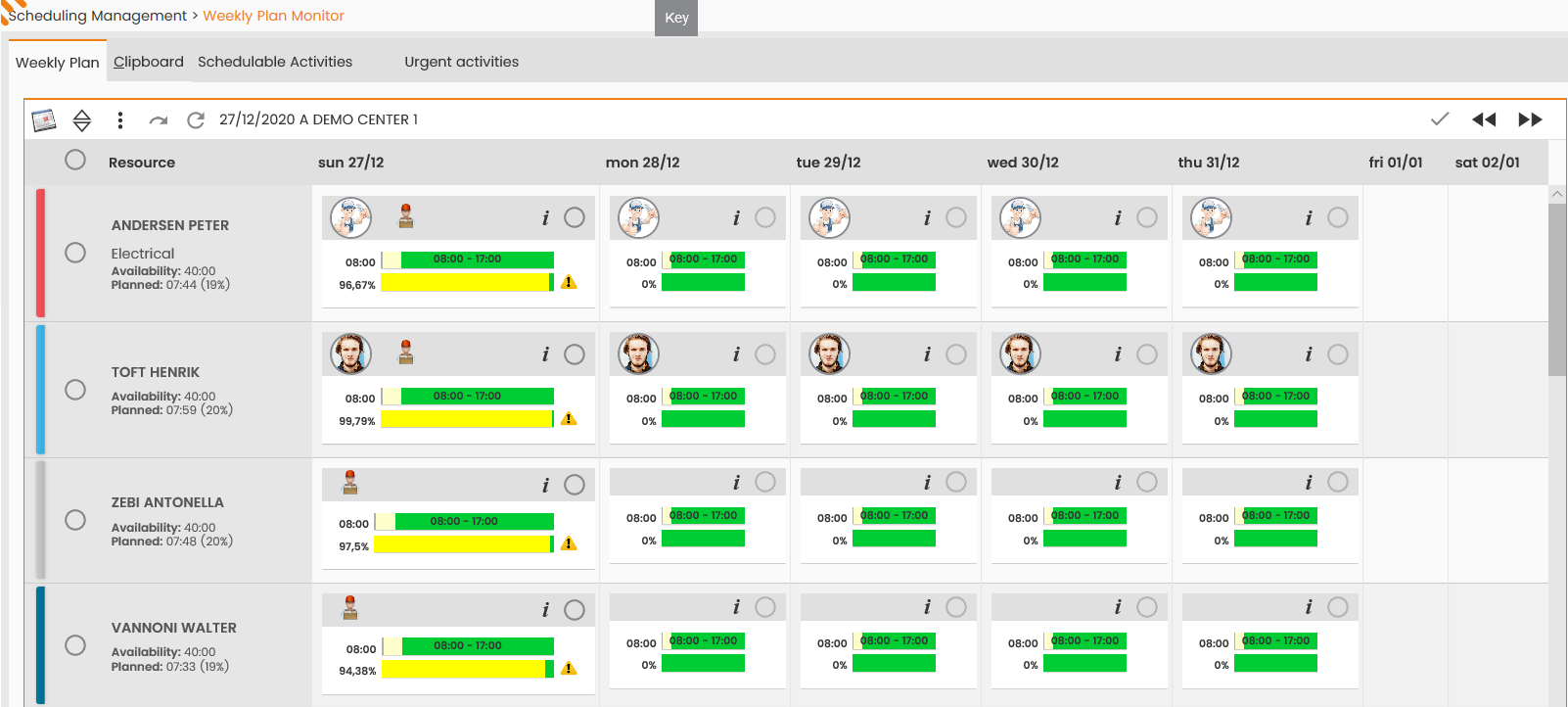
The Weekly Plan function is provided when right-clicking a specific simulation in the ‘Processing List’ table of the Scheduling Management window; it allows to access the following window, supplying the functions required to view the possible weekly scheduling of the activities/resources available to the Operations Center’s Planner Technician.
|
|
|---|
|
Figure - Virtual Weekly Plan |
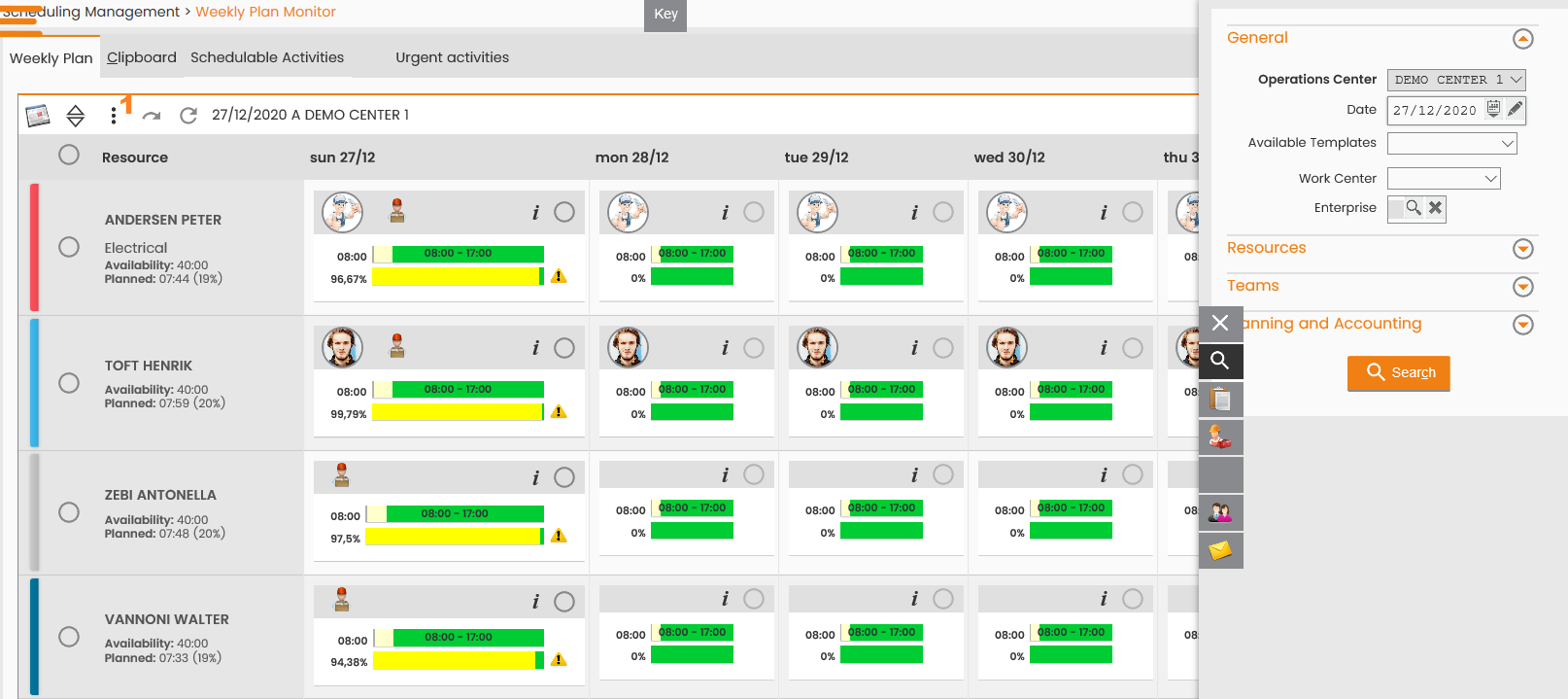
At the right, the form is displayed for searching the resources to display in the weekly plan, possibly defining the start date. In further detail, the user shall rely on the following criteria to search the data:
-
Operations Center: to select the operations center to display;
-
Work Center: to select the work center to display;
-
Date: to define the start date of the week to display;
-
Company: to select the external company and filter only the resources belonging to the company;
-
Resource Section with:
-
Resources: to select one or different resources to display;
-
Resource Management: to filter resources by management;
-
Skill: to filter the resources to display by their skills;
-
Scheduled Resources: to filter and display only those resources with scheduled activities in the weekly plan;
-
Resources with ongoing activities: to filter and display only those resources with activities in charge and/or being performed;
-
External resources: to display external resources, only (belonging to any companies);
-
Resources On Call: to filter and display only those resources who are available on call during the week;
-
Resources on shift: To filter and display only the resources who clocked in and are on shift;
-
Operational Resources: to filter and display only recently synchronized resources marked as operational;
-
Manned Facility: to filter by controlled Facilities;
-
Guarding Resources: to filter by supervising resources;
-
-
Team Section with:
-
Team: to select one or different teams to display;
-
Team Type: to filter teams and display a specific team type, only;
-
Typical Configuration
-
By Team Only: to filter only the resources with activities by the team;
-
Defined team: to filter and display only those resources with a team previously defined in the system;
-
Single Resources Included.
-
-
Click the "Search" button in the main section to report the resources and the scheduling data in the different week days (7 days from the Date specified in the filter):
|
|
|---|
|
Figure - Search Menu |
The first column reports the resources’ names, the corresponding color associated with the resource, the cell for selecting the resource (for team assignment of activities) and given resume data on the overall week displayed:
-
Availability: it reports the number of available hours for the resource over the displayed week;
-
Scheduled: it reports the number of hours and the corresponding percentage of the scheduled activities over the displayed week (with the scheduling time).
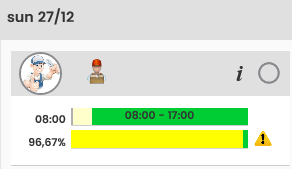
For each day providing a defined calendar for the resource, specific colored bars are displayed. Their display depends on the view settings, to configure through this menu by clicking the Options button (Figure - Search Menu, Icon 1), to be detailed further on in this paragraph:
|
|
|---|
|
Figure - Resource single day details |
-
the first bar ("Availability Bar") represents the available slot for the resource in the specific day and may acquire the following colors:
-
green: specifying the availability time frame;
-
blue: specifying the on the call-availability time frame;
-
beige: specifying the lunch break duration;
-
gray: specifying the unavailability duration.
-
-
the second bar ("Scheduled Bar") represents the resource saturation in terms of scheduled activities with respect to the availability of the resource throughout the day and may acquire the following colors:
-
yellow: specifying the engagement/saturation portion for the resource (in terms of the scheduled activities);
-
Red: specifying a saturation exceeding 100% (in terms of scheduled activities with respect to the work shift);
-
green: specifying the resource free time (with no scheduled activities).
-
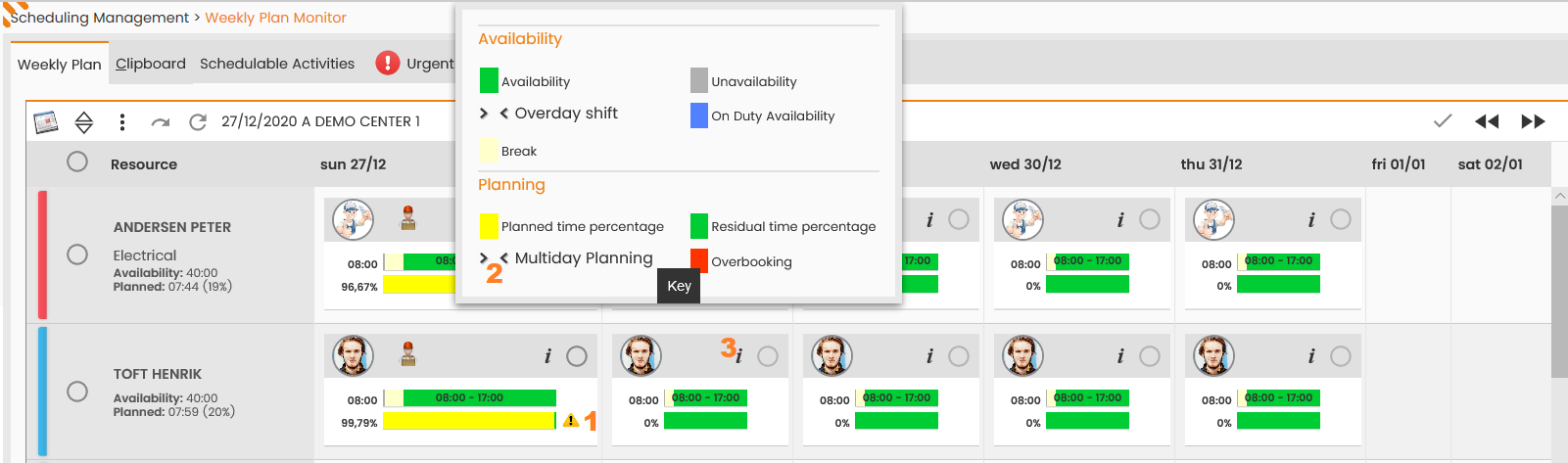
As to simplify the comprehension of colors and symbols reported in the weekly plan, a Legend is provided when clicking the KEY button:
|
|
|---|
|
Figure - Virtual Weekly Plan Legend |
In addition to the availability and the scheduled bar, for the real plan the display of the bar relating to the debriefed activities can also be activated (as reported in the image below):
|
|
|---|
|
Figure - Virtual Weekly Plan |
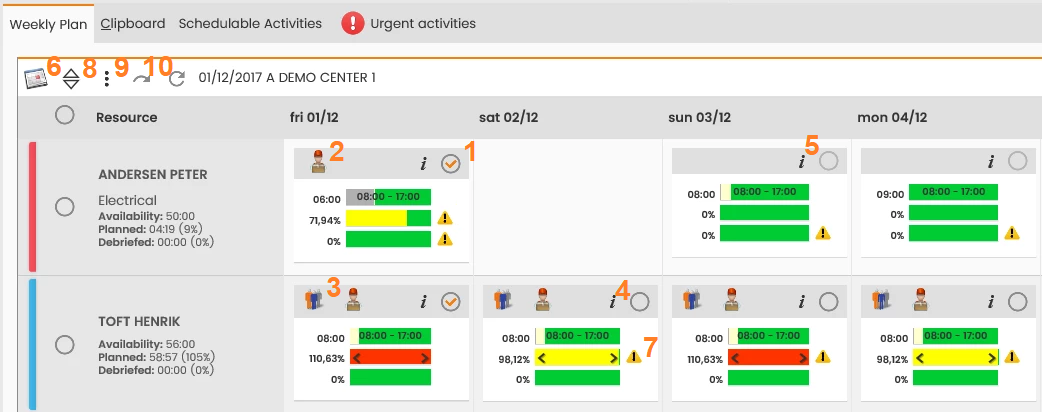
Besides the bars referring to scheduled and debriefed, the following icon may be displayed:
-
the icon Alerts (Figure - Virtual Weekly Plan, Icon 7) determines there are warning messages regarding the scheduling (useful to the Operations Center Planner Technician who manages the assignment of activities to the resources); to view the messages, click the specific alert icon:
|
|
|---|
|
Figure - Warning message example |

Beside the bars referring to scheduled, debriefed and clocking, the following icon may be displayed:
-
The icon (Figure - Virtual Weekly Plan Legend, Icon 2) points out the availability of a shift and/or of overnight scheduling.
For each day/resource, the following is available:
-
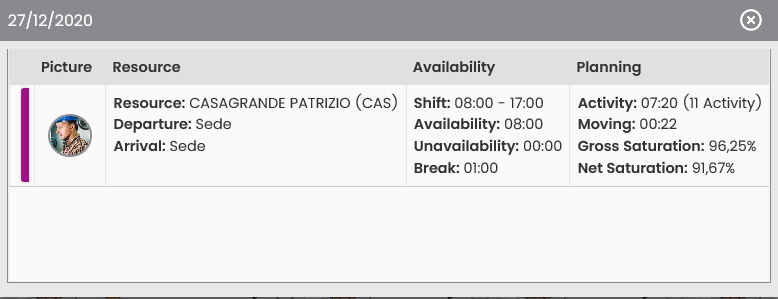
the icon (Figure - Virtual Weekly Plan Legend, Icon 3) for the detailed view of the scheduling of the selected day. Upon clicking the icon a panel opens with the following information:
-
Resource’s name and departure/arrival point;
-
Availability:
-
Work Shift;
-
Total availability;
-
Total unavailability;
-
Lunch break duration.
-
-
Scheduling:
-
Total duration of activities and total number of activities;
-
Total duration of displacement;
-
Gross Saturation: ratio between scheduled activities and the resource availability during the day (including displacements);
-
Net Saturation: ratio between scheduled activities and the resource availability during the day (excluding displacements).
-
-
-
|
|
|---|
|
Figure - Planning details |
-
the Validate button (Figure - Virtual Weekly Plan, 4), allows to validate the scheduling of activities within the day of the selected resource; upon clicking the box, the system displays a confirmation message to the user on the validation made and the icon changes to (Figure - Virtual Weekly Plan, Icon 1) (which determines the shift was validated).
If there are no activities to validate in the day considered, the box is gray and cannot be selected (Figure - Virtual Weekly Plan, Icon 5).
-
For each day presenting scheduled activities, one of the two following icons is displayed:
-
the icon (Figure - Virtual Weekly Plan, Icon 2), identifying the resource works as a single resource and is the team leader;
-
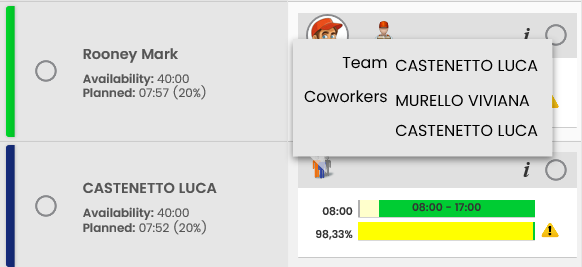
the icon (Figure - Virtual Weekly Plan, Icon 3), identifying the resource works in a team. Click the icon to view the list of involved resources (Figure - Team composition).
-
|
|
|---|
|
Figure - Team composition |
The top section always reports the following buttons:
-
the Columns button (Figure - Team composition, Icon 6), to select the columns to display;
-
the Sorting button (Figure - Sorting Options, Icon 1), which organizes the table based on:
-
Resource’s Surname;
-
Resource Organization (defined in the user master data);
-
Work Center.
-
|
|
|---|
|
Figure - Sorting Options |

-
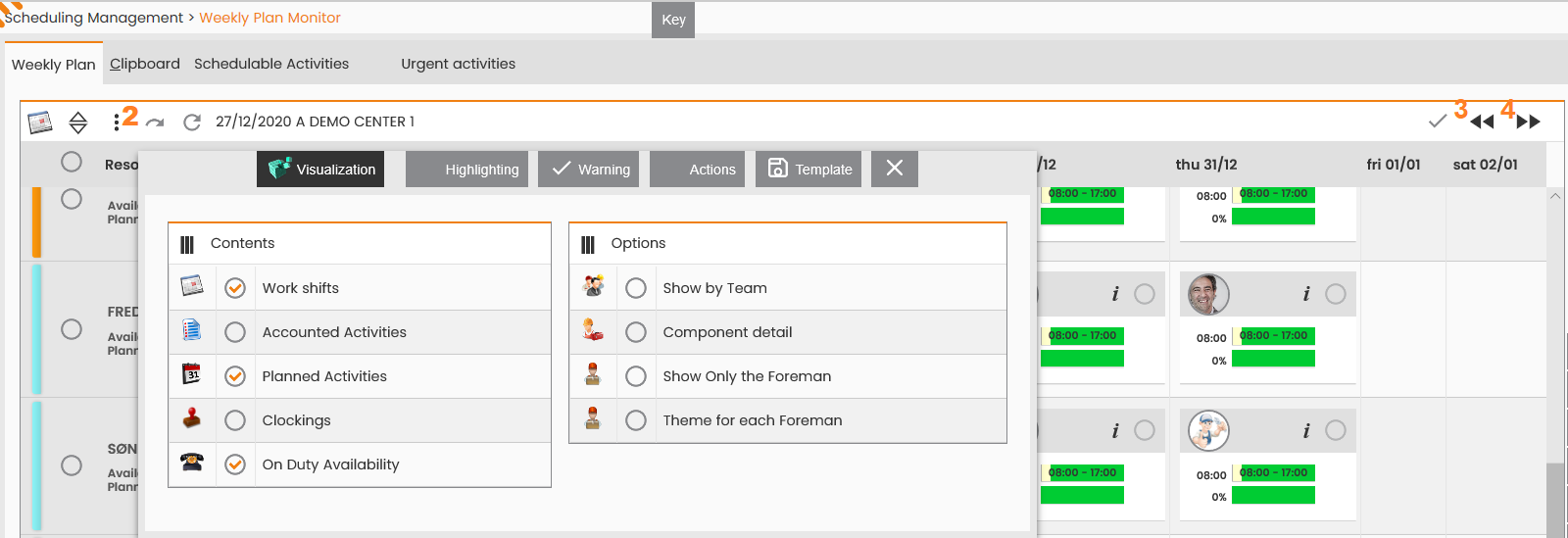
the Options button (Figure - Configuration Monitor, Icon 1) allows to set a range of display parameters and to highlight the results reported in the table. Specifically, when clicking the Visualization button the following panel is displayed, divided into two sections:
|
|---|
|
Figure - Configuration Monitor |
-
View: reporting a set of functionalities to enable/disable; specifically, the following elements may be displayed or not:
-
Shifts: to enable/disable the availability bar;
-
Scheduled Activities: to enable/disable the bar of scheduled activities;
-
On Call-Availability.
-
Furthermore, the following options may be enabled or disabled:
-
View by teams: to enable/disable the view mode related to the teams:
|
|
|---|
|
Figure - Display by Team |
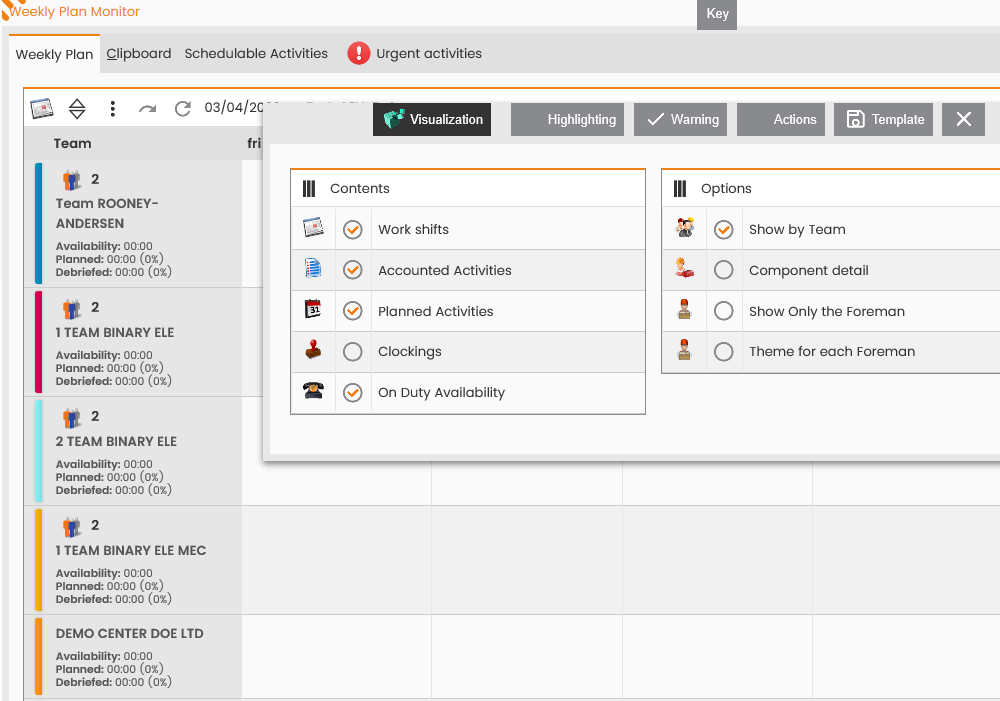
-
Members Details: co-worker detailed view
|
|
|---|
|
FIgure - Display by team composition |
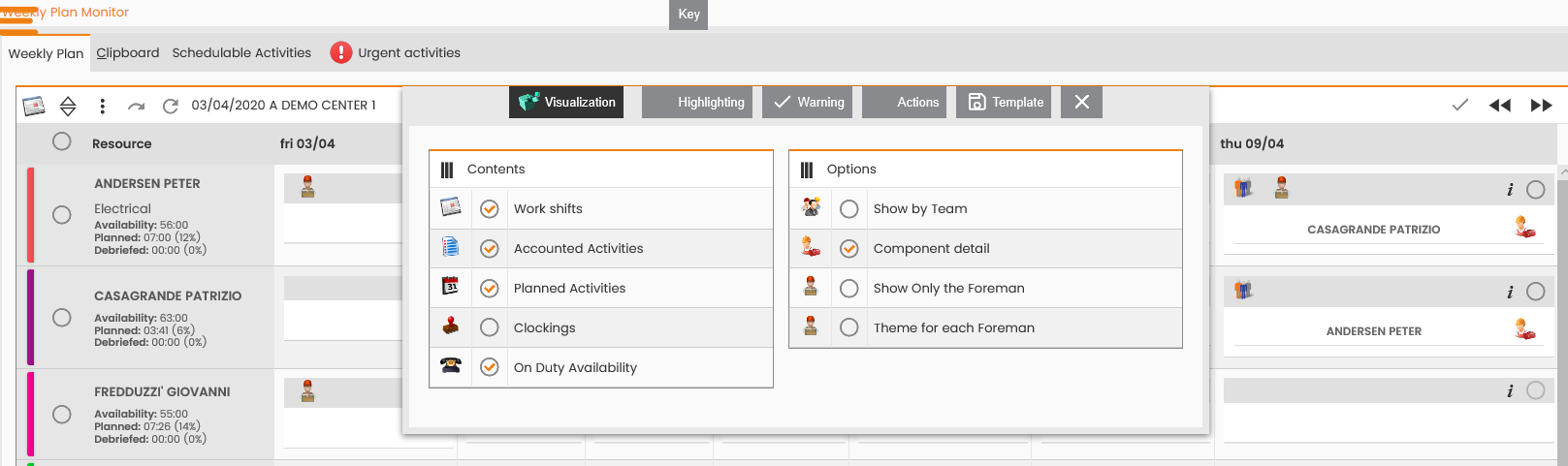
-
Show team leader, only: showing only the activities assigned to team leaders;
-
Theme by team leader: to color the scheduled bar according to the team leader’s color;
-
Warning: if active it only displays the cells reporting warning messages;
-
Availability: filtering is provided to highlight the slots/resources with given available hours;
-
Scheduling: filtering is provided to highlight the slots with given scheduled hours and gross/net saturation;
-
Debriefing: filtering is provided to highlight the slots with given debriefed activities/hours and gross/net debriefing percentage;
-
Clocking: filtering is provided to highlight the slots/resources with given of hours (or a corresponding percentage) declared as shift hours;
-
Highlighting: to highlight the scheduling of the different days through dedicated filters; specifically:
-
To enable the selected highlighting options, click the “Apply” button; to disable them, click the “Disable” button.
|
|
|---|
|
FIgure - Highlighting Options |
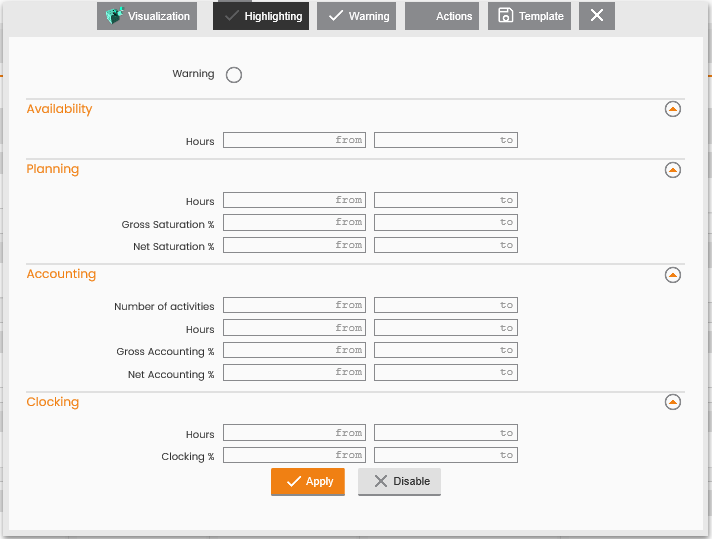
-
Warning: to select the warnings to display in the weekly plan (available for view when clicking the Alert icon (Figure - Configuration Monitor, Icon 7)). Reported below are a few examples:
|
|
|---|
|
Figure - warnings composition |
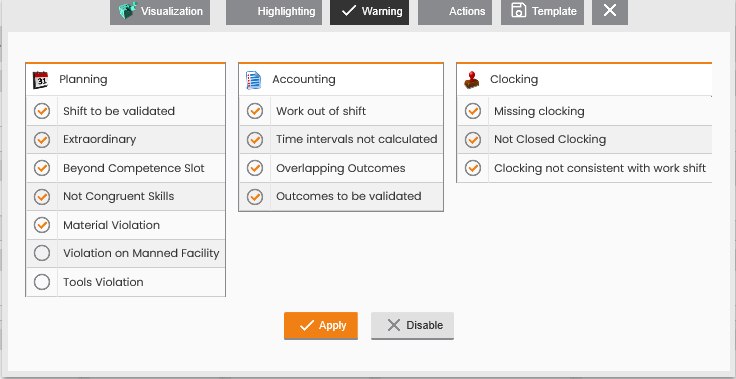
-
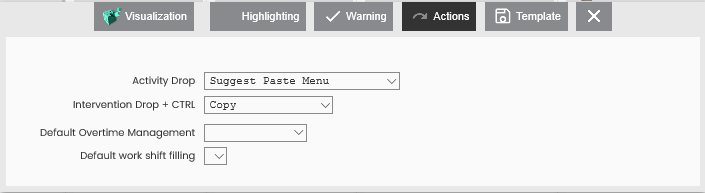
Actions: to define the system’s behavior when executing given specific actions in the weekly plan, specifically:
-
Drop Activity: to determine the action the system shall undertake when performing the drag-and-drop of the activity in the weekly plan; the following options are available by default:
-
Suggest paste menu: the menu with the complete set of pasting options is proposed;
-
Paste: automatic pasting in the plan;
-
Paste with preview: automatic pasting with preview;
-
Paste by team: automatic pasting by the team;
-
Paste by single resource: automatic pasting by a single resource.
-
-
Drop Interventions + CTRL: to determine the action the system shall undertake when performing the drag-and-drop of the activity in the weekly plan while clicking the CTRL button; the following options are available by default: what should I copy/duplicate?
-
Copy;
-
Copy Special;
-
Duplicate.
-
-
Default Overtime Management: to choose the management modalities of resources’ overtime; the following options are available by default:
-
No overtime: the overtime is not managed;
-
Single Shift: the overtime is managed within the resource’s shift.
-
-
Shift Filling By Default.
-
|
|
|---|
|
Figure - Actions configuration |
-
Template: to save the profiles/models with the settings of the Display, Highlighting, Warning and Action tabs.
The following settings are available:
-
Description: specifying the name of the model to configure;
-
Default: specifying whether the model shall be enabled by default upon opening the plan;
-
Settings available for view to all users: specifying whether the model is public, available for view to anyone, or private and therefore only displayed to its creator user.
Choose the Template to apply from the drop-down menu provided.
|
|
|---|
|
FIgure - Template configuration |
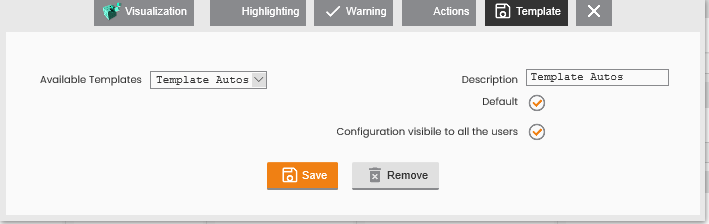
To add a new Template upon selecting the settings of the different tabs, select the first empty record among those displayed and then fill out the further fields (description is mandatory). Click “Save” to save the new Template which will be immediately displayed in the pull-down list of available Templates.
To delete a Template, please select it from the drop-down menu and click “Delete”. To continue, the user is required to confirm the deletion.
-
the Daily Actions button (Figure - Daily Actions, Icon 1) allows to perform actions referring to a specific day; upon clicking it, a panel is displayed with the list of the days reported in the weekly plan with a set of buttons.
|
|
|---|
|
Figure - Daily Actions |
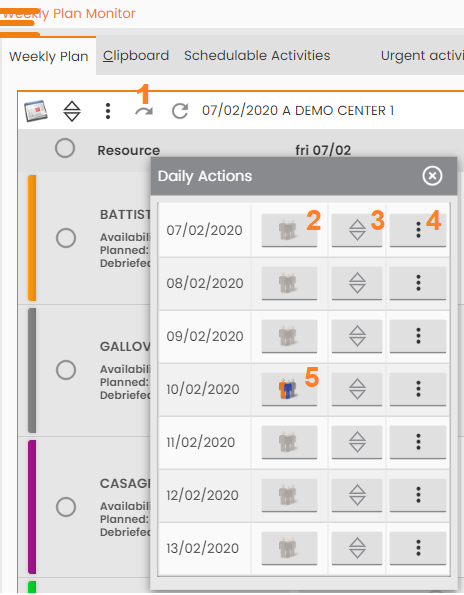
The button (Figure - Daily Actions, Icon 2) and (Figure - Daily Actions, Icon 5) allow to enable or disable the grouping of resources by the team (for the selected day).
The button (Figure - Daily Actions, Icon 3) allows to determine the organization of resources for the selected day; the user may choose among the following organization criteria:
-
Availability (increasing/decreasing);
-
Scheduled (increasing/decreasing).
The (Figure - Daily Actions, Icon 4) button allows to select one of the two actions:
-
Confirm Day: to crystallize the selected day for validating the scheduling and make available the orders to download by synchronizing the mobile device.
-
Cancel Day: to cancel all scheduled activities related to the selected day (action only available if the activities have not been taken over/executed, yet).
From the top-right menu:
-
the (Figure - Configuration Monitor, Icon 3) icon allows to crystallize the overall weekly plan displayed;
-
the (Figure - Configuration Monitor, Icon 4)
icon allows to shift to the previous or following week.
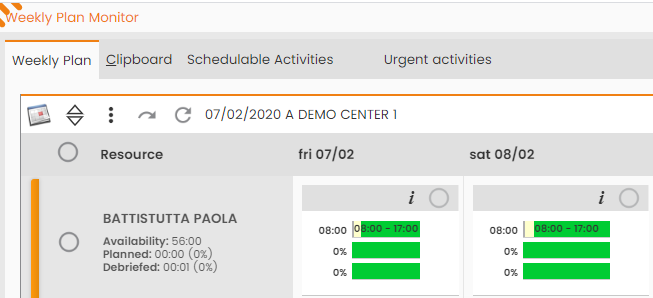
In addition to the weekly tab (as seen for the daily plan) there are given additional tabs, specifically:
-
Clipboard;
-
Schedulable Activities;
-
Urgent Activities.
|
|
|---|
|
Figure - Weekly Plan Monitor Tabs |
The same tabs are also displayed in the side panel (like the one in the daily plan) which, in addition to the search filters section, provides the following:
-
Clipboard,
-
Schedulable Activities,
-
Urgent Activities (only in case of urgent activities to assign),
-
Resources,
-
Messages.
|
|
|---|
|
Figure - Virtual Weekly Plan Search |
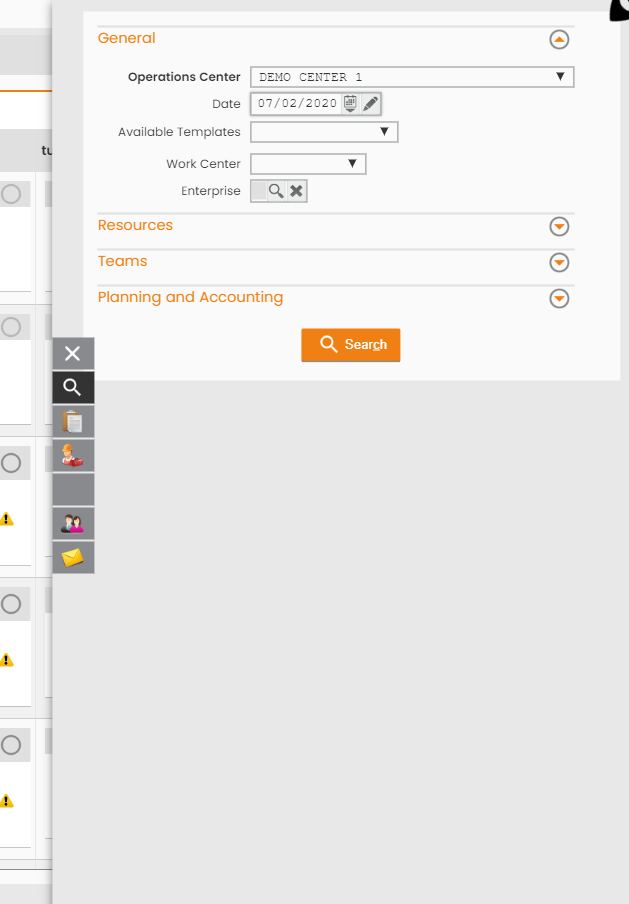
Their functioning is similar to that of the daily plan (see Daily and Multi-Day Plan chapter).
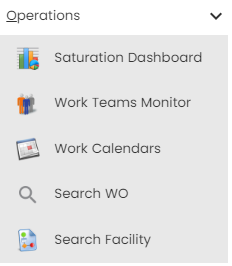
In the Operations sub-menu of the 'Weekly Plan Monitor' the following functionalities are provided:
|
|
|---|
|
Figure - Operations |
-
Saturation Dashboard: to access the Dashboard creation window; access path: “Monitoring”, “Saturation Dashboard”. (For further information on this function, please refer to the Analytics chapter) pre-filling out the filters with the data available in the weekly plan (operations center and date).
-
Work Teams Monitor: to access the Teams Weekly Monitor, available from ‘Scheduling Settings’, ‘Resources Management’, ‘Teams Monitor’. (For further information on this function, please refer to the Team Management chapter) pre-filling out the filters with the data available in the weekly plan (operations center and date).
-
Work Calendars: to access the Work Calendar Definition window, available from ‘Scheduling Settings’, ‘Resources Management’, ‘Work Calendars’. (For further information on this function, please refer to the Calendar Master Data and Work Shift Matrix chapter) pre-filling out the filters with the data available in the weekly plan (operations center and date).
-
WO Search: to access the WO search window, available from ‘WO List', ‘Search WO’. (For further information on this functionality, please refer to the Work Orders Management-WO Search chapter).
-
Search Facilities: to access the Search User/Facility section, available from ‘Facility Management’, ‘User/Facility Resume’, (for further information on this functionality, please refer to the Asset and Client Management-Search Facilities chapter).