
Daily Engagement
The present section allows to define the rules for the daily engagement of operational resources (for example, the user may define that only 20% of interventions shall be related to a specific WO).
MAIN MENU → CONFIGURATION → SCHEDULING OPTIMIZATION → DAY OCCUPATION
This menu provides two functions in the Operations submenu, as detailed in the paragraphs to follow:
-
WO Groups;
-
Daily Engagement/Occupation Rules.
WO Groups
This section allows to define the WO Groups: for example, the user may create a group named ‘Meter Replacement’ to include all the WO, related to the execution of such activity.
Upon clicking the WO Groups function, the following window is displayed:
|
|
|---|
|
Figure - WO Groups Management |
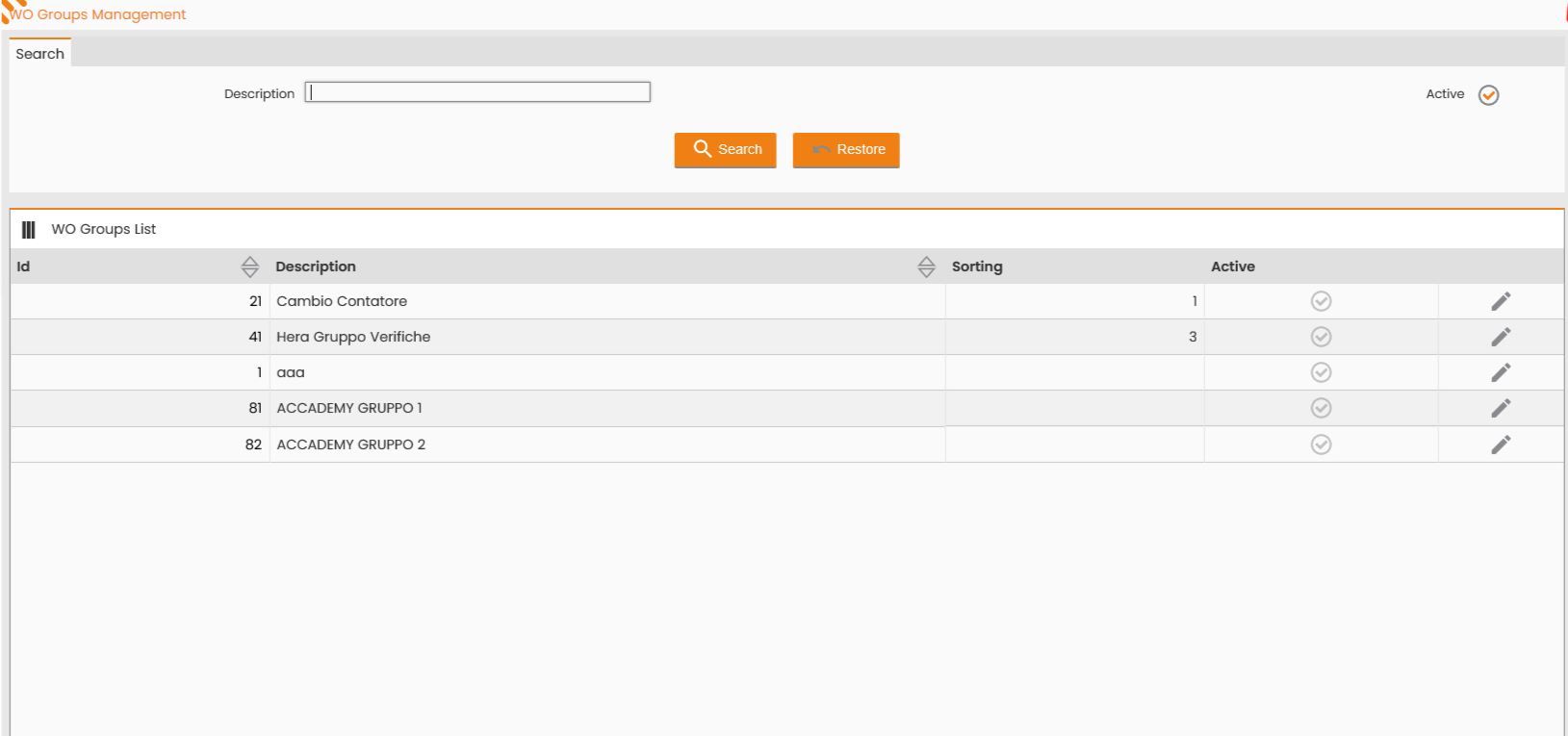
At the top, the window presents the form for searching the WO Groups. The available search criteria are by Description and by Active flag.
Upon selecting the SEARCH control, the bottom section displays the data related to the WO groups, according to the search criteria set.
By clicking each row in the ‘List of WO Groups’ table, the corresponding details may be viewed. The following window is displayed:
|
|
|---|
|
Figure - WO Group |
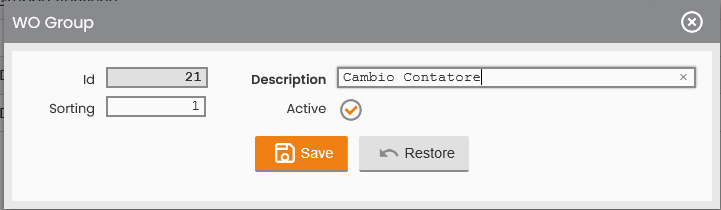
The window allows to edit values such as Description, Sorting and Active flag.
To confirm the editing, click the SAVE button; to close the window, click the RESTORE button.
Beside each row in the ‘List of WO Groups’ table, the EDIT button marking the ‘Associate WO Types’ is displayed. The following window is displayed:
|
|
|---|
|
Figure - Editing WO Group |
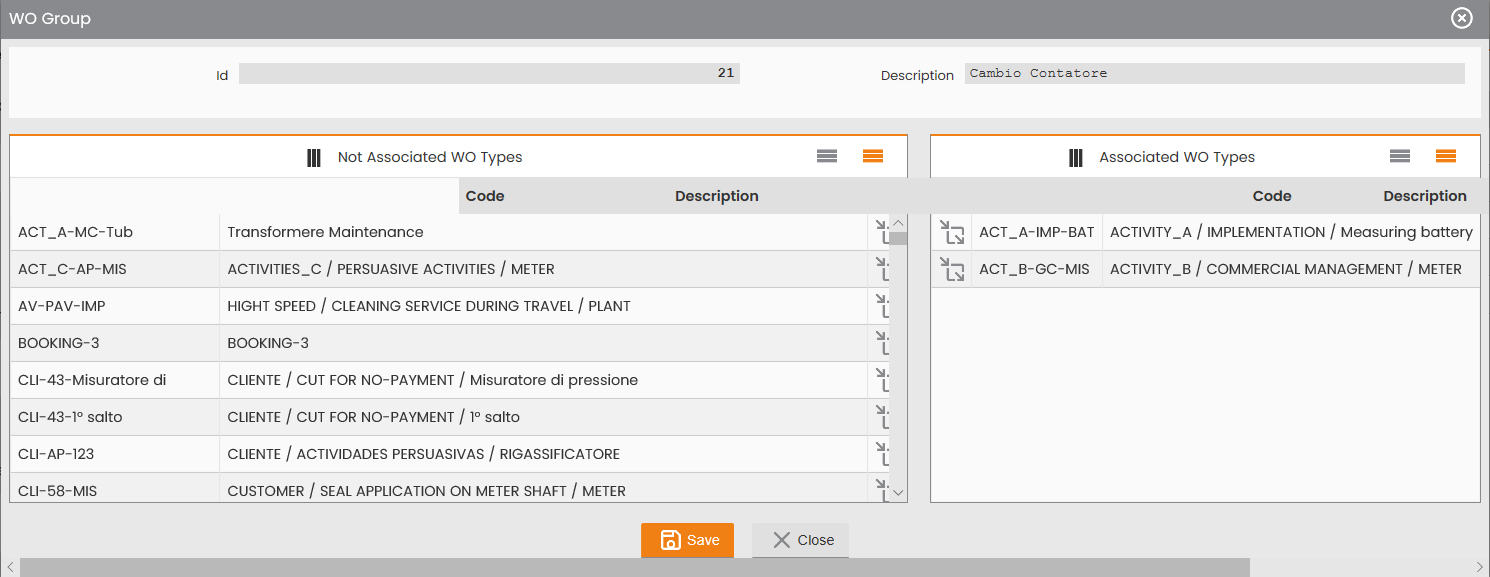
To associate specific WO Types with a WO Group, drag the related row from the ‘Non-associated WO Types’ left table to the ‘Associated WO Types’ right table, then click the SAVE button to confirm. Vice versa, to disassociate the WO Types, drag the related row from the ‘Associated WO Types’ right table to the ‘Non-associated WO Types’ left table, then click the SAVE button to confirm.
The NEW WO GROUP function in the Operations submenu allows to define a new WO Group, prior to the association with WO Types, as described above.
To define a new WO Group, the user shall specify:
-
Description, mandatory;
-
Sorting;
-
Visible, flag.
|
|
|---|
|
Figure - New WO Group |
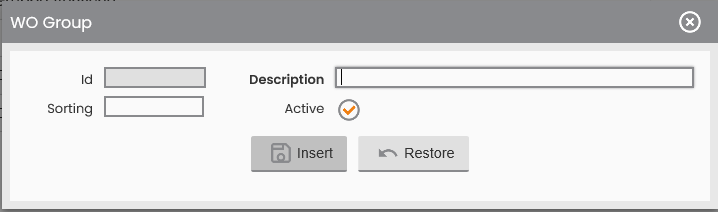
To confirm the input of the new WO Group, click the INSERT button; to close the window, click the RESTORE button.
Daily Engagement Rules
The Daily Engagement Rules function allows to associate rules with the WO Groups registered in the system.
There may be three types of rules:
-
Absolute: the finite number of activities the WO Group can execute in one day.
-
Time: the minutes that have to be dedicated to executing the activities in the WO Group in one day.
-
Percentage: the percentage of working hours that have to be dedicated to executing the activities in the WO Group.
Upon clicking the Day Employment/Occupation Rules function, the following window is displayed:
|
|
|---|
|
Figure - Employment Rules |
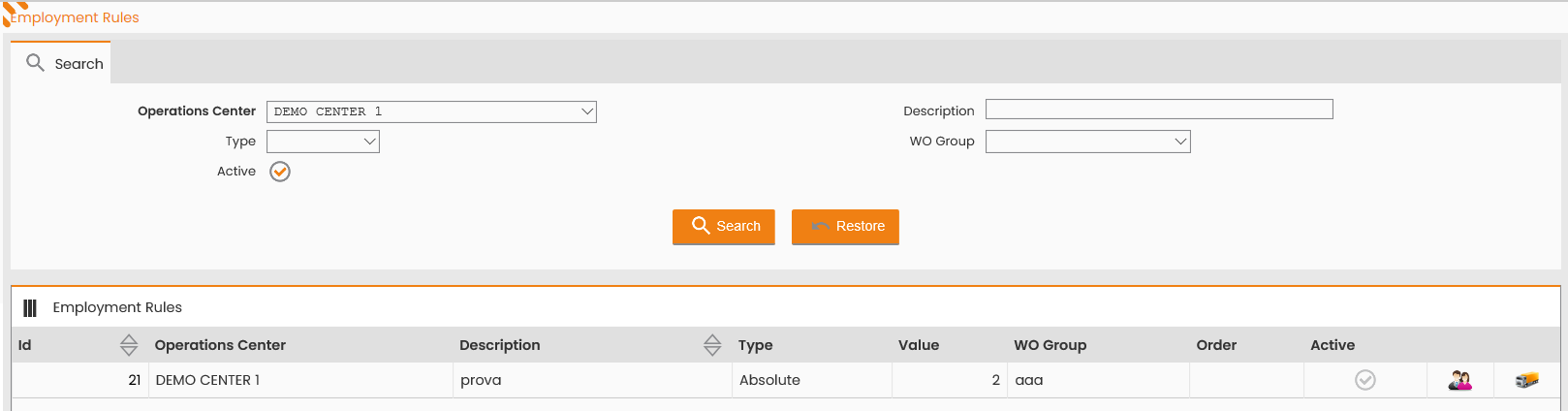
At the top, the window presents the form for searching the Daily Engagement Rules. The available search criteria include:
-
Operations Center, mandatory;
-
Description;
-
Type, to choose from Absolute, Time and Percentage;
-
WO Group, to choose from those registered in the system;
-
Active, flag.
Upon selecting the SEARCH control, the bottom section displays the data related to the engagement rules, according to the search criteria set.
By clicking each row in the ‘List of Engagement Rules’ table, the corresponding details may be viewed. The following window is displayed:
|
|
|---|
|
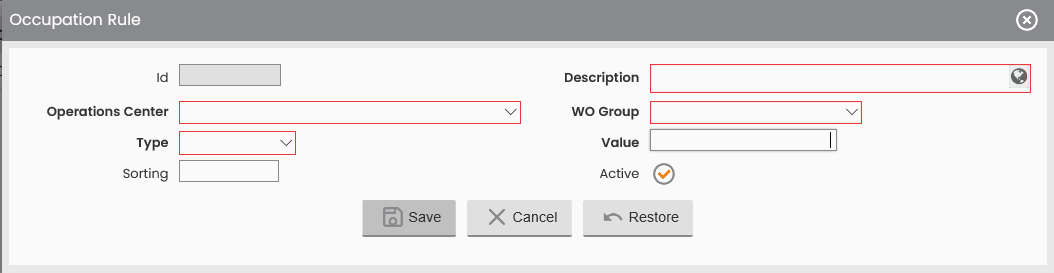
Figure - Occupation Rule |
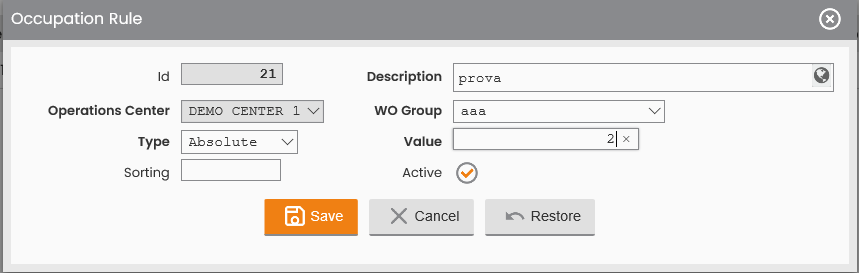
The window allows to edit the following entries:
-
Rule Description;
-
WO Group;
-
Rule Type;
-
Value;
-
Sorting;
-
Active, flag.
To confirm the editing made to the specific Engagement Rule, click the SAVE button; to close the window, click the CANCEL button.
Beside each row in the ‘List of Engagement Rules’ table, the buttons related to the following features are displayed:
-
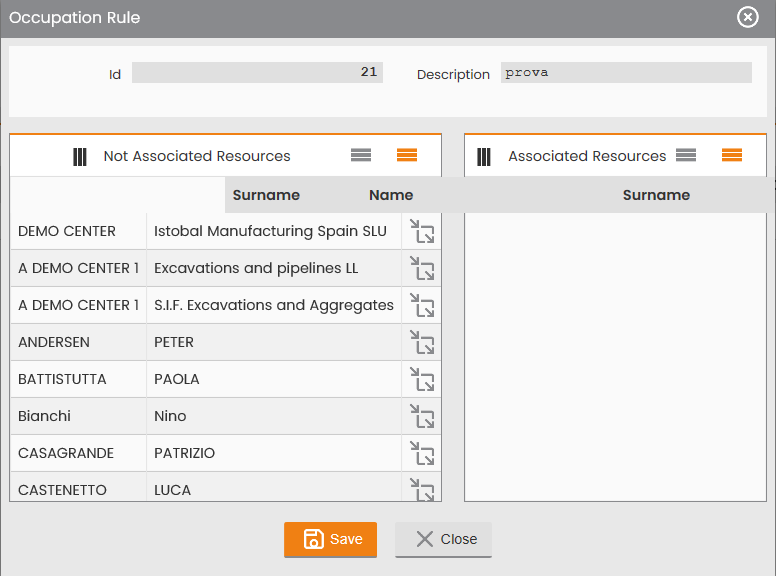
Associate Resources button: to define the resources belonging to the Operations Center the rule was created for, and affected by the very rule. To associate specific resources with a Rule, drag the related row from the ‘Non-associated Resources’ left table to the ‘Associated Resources’ right table, then click the SAVE button to confirm. Vice versa, to disassociate the resources, drag the related row from the ‘Associated Resources’ right table to the ‘Non-associated Resources’ left table, then click the SAVE button to confirm.
|
|
|---|
|
Figure - Occupation Rule, Associate Resources |
-
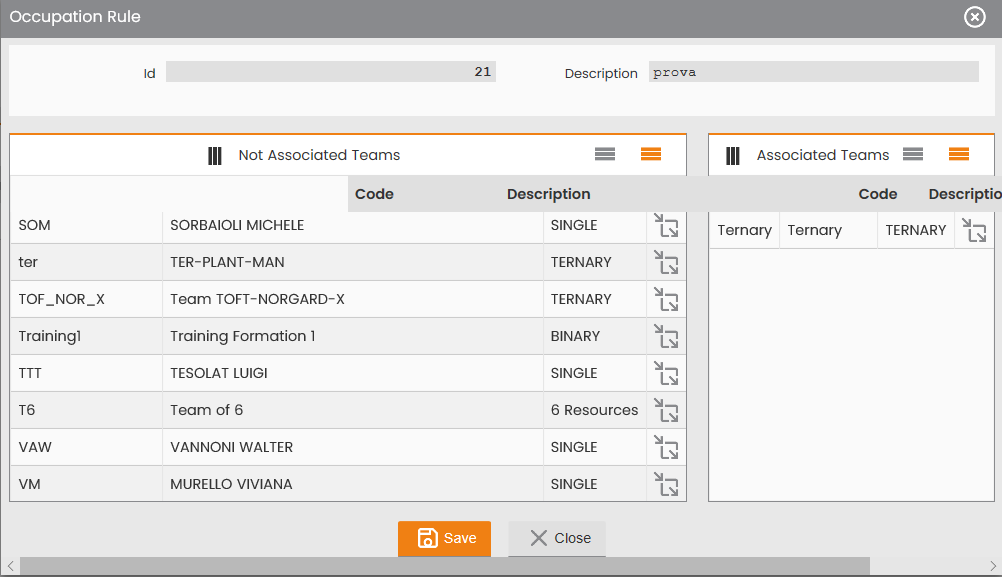
Associate Teams button: to define the teams belonging to the Operations Center the rule was created for, and affected by the very rule, similarly to the previous feature. To associate specific teams with a Rule, drag the related row from the ‘Non-associated Teams’ left table to the ‘Associated Teams’ right table, then click the SAVE button to confirm. Vice versa, to disassociate the teams, drag the related row from the ‘Associated Teams’ right table to the ‘Non-associated Teams’ left table, then click the SAVE button to confirm.
|
|
|---|
|
Figure - Occupation Rule, Associate Teams |
The NEW RULE function in the Operations submenu allows to define a new Daily Engagement Rule, prior to the association with the resources and the work teams, as described above.
To define a new Daily Engagement Rule, the user shall specify:
-
Description, mandatory;
-
Operations Center, mandatory;
-
WO Group, mandatory, to choose from those registered in the system;
-
Type, mandatory, to choose from Absolute, Time and Percentage;
-
Value, mandatory;
-
Sorting;
-
Active, flag.
|
|
|---|
|
Figure - New Occupation Rule |
To confirm the input of the new WO Group, click the SAVE button; to close the window, click the CANCEL button.