
Calendar
In the Calendar menu, a specifically authorized user may search the processing related to the automatic scheduling, both executed and still pending execution, in order to verify the number of processing procedures launched for each model, as well as possibly evaluate the outcome of the executed scheduling.
MAIN MENU → FEATURES → SCHEDULING OPTIMIZATION → AUTOMATIC SCHEDULING → CALENDAR
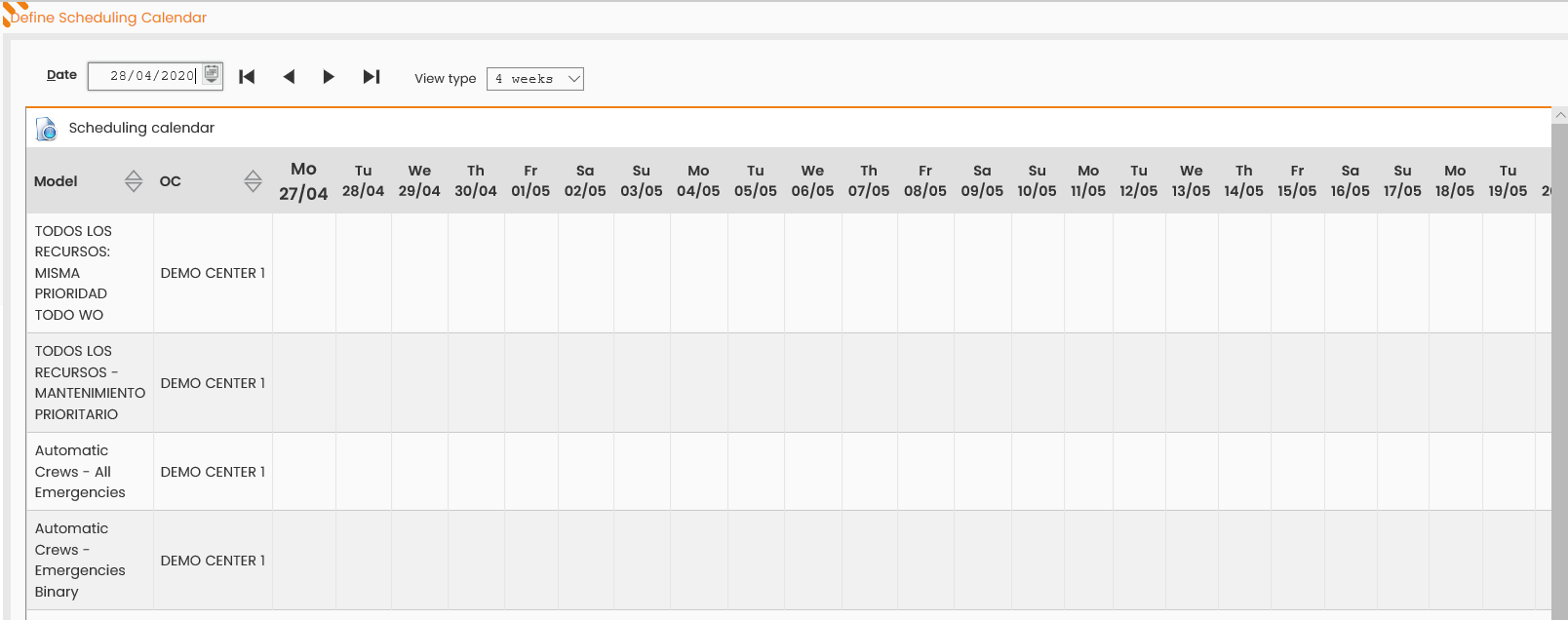
The following window is displayed:
|
Figure - Define Scheduling Calendar |
The header presents:
-
Date to start displaying the scheduling calendar. The system populates the ‘Scheduling Calendars’ table from the week that includes the indicated date (default field value is ‘present date+1’, editable);
-
View Type, to choose from the 1 Week, 2 Weeks, 4 Weeks, 8 Weeks, 1 Month and 2 Months values (default field value is ‘4 Weeks’, editable).
The form to search the scheduling calendar is displayed in the slide-out tab on the right, and includes the following fields:
-
Operations Center;
-
Models, to choose one or more Scheduling models. Upon clicking the magnifier icon, the following window is displayed. The ‘List of Models’ table includes all the models in the system, each one with its reference Operations Center.
Upon selecting the SEARCH control in the search form, the bottom section displays the data related to the scheduling calendar, according to the search criteria set.
In further detail, the ‘Scheduling Calendar’ table provides direct information on:
-
The processing status of the automatic scheduling of a specific model, relying on a colored bar beside each cell/processing:
-
Green = completed;
-
Yellow = pending;
-
Red = error (or canceled).
-
-
The processing date and the reference period of the processing;
-
The presence of multiple processing on the same day, thanks to the symbol 'To expand' displayed in the right corner of a specific cell.
By moving the mouse over a cell/processing, the system displays a tooltip with the basic information on the given processing:
-
Model processing date;
-
Start and End Date of the scheduling period.
By right-clicking the cell corresponding to the processing in the table, the following controls are displayed, as detailed below:
-
Schedule Elaboration;
-
Plan Elaborations;
-
Delete Elaboration;
-
Cancel Elaborations;
-
Scheduling Log;
-
Scheduling Counts;
-
Expand and Collapse.
Schedule Elaboration
By right-clicking the Schedule Elaboration control in a given cell/processing in the ‘Scheduling Calendar’ table, the user may access the window for scheduling a new specific processing of the model for a given moment and the indicated period.
To enter the new processing the user shall fill out the following fields:
-
Processing date and time, specifying the day and time in which the simulation shall be processed;
-
Processing period: From – To, specifying the day/s in which the System shall proceed with the scheduling.
To confirm the input of the processing, click the PLAN button; the processing just entered is then displayed in the ‘Scheduling Calendar’ table beside the processing date.
In case there is another model processing for the same day, the system displays the following confirmation message: click the OK button to continue, click the X button to close.
Plan Elaborations
By right-clicking the Plan Elaborations control in a given cell/processing in the ‘Scheduling Calendar’ table, the user may access the window for scheduling the planned automatic processing of a specific scheduling model. The user can parameterize the day/time in which the System shall automatically process the specific model.
To enter the new scheduling of automatic processing the user shall fill out the following fields:
-
Execution period From - To, specifying the days in which the simulation shall be processed, and possibly adding the specific days to consider in such period;
-
Processing hours, specifying the time at which the simulation shall be processed;
-
Processing parameters: Days to process From - To, specifying the first and last day to be scheduled by the System adding the value of the current day;
-
Exclude holidays, flag for avoiding the simulation processing on holidays;
-
Exclude days before holidays, flag for avoiding the simulation processing on days before holidays.
To confirm the input, click the PLAN button; the processing just entered is then displayed in the ‘Scheduling Calendar’ table beside the processing date.
Delete Elaboration
The Delete Elaboration control is an available option in the menu displayed by right-clicking a given cell/processing in the ‘Scheduling Calendar’ table, allowing the system user to delete the specific processing not executed, yet.
Upon selecting the Delete Processing feature for a given cell/processing, as in the figure above, the system will delete the processing.
Cancel Elaborations
The Cancel Elaborations control is an available option in the menu displayed by right-clicking a given cell/processing in the ‘Scheduling Calendar’ table, allowing the system user to cancel the processing scheduled in a specific time interval and not executed, yet.
Scheduling Log
The Scheduling Log control is an available option in the menu displayed by right-clicking a given cell/processing in the ‘Scheduling Calendar’ table. It provides access to the Scheduling Log window and automatically displays the summary data of the specific automatic scheduling considered, in the ‘Processing List’ table.
Scheduling Counts
The Scheduling Counts feature is an available option in the menu displayed by right-clicking a given cell/processing in the ‘Scheduling Calendar’ table, allowing to monitor the orders that are processed, dispatched for scheduling, scheduled and/or rejected. It provides access to a dedicated window displaying the totals, similarly to the Scheduling Log, only reporting the data in a table.
Expand/Collapse
The Expand and Collapse controls are available options in the menu displayed by right-clicking a given cell/processing in the ‘Scheduling Calendar’ table. They allow the user to expand or collapse a specific cell (marked with the 'to expand' symbol in the right corner), to respectively view the automatic processing scheduled or executed in a given day, or minimize the view of the automatic processing previously expanded.