
Day Saturation
The present section allows to define the rules for the daily saturation of operational resources so that their schedule is not 100% saturated but there is time left to manage any extra activities. Such rules may be defined:
-
In absolute terms;
-
As a percentage.
In terms of hours reduction, the user may indicate how many minutes (absolute) or the time percentage (percentage) to cut from the actual schedule of the resources, so that only the remaining time may be used for automatic scheduling.
MAIN MENU → CONFIGURATION → SCHEDULING OPTIMIZATION → DAY SATURATION
This menu provides two functions in the Operations submenu, as detailed in the paragraphs to follow:
-
Day Saturation Rules;
-
Associate Saturation Rules.
Day Saturation Rules
Upon clicking the Day Saturation Rules function, the following window is displayed:
|
|
|---|
|
Figure - Day Saturation rules |
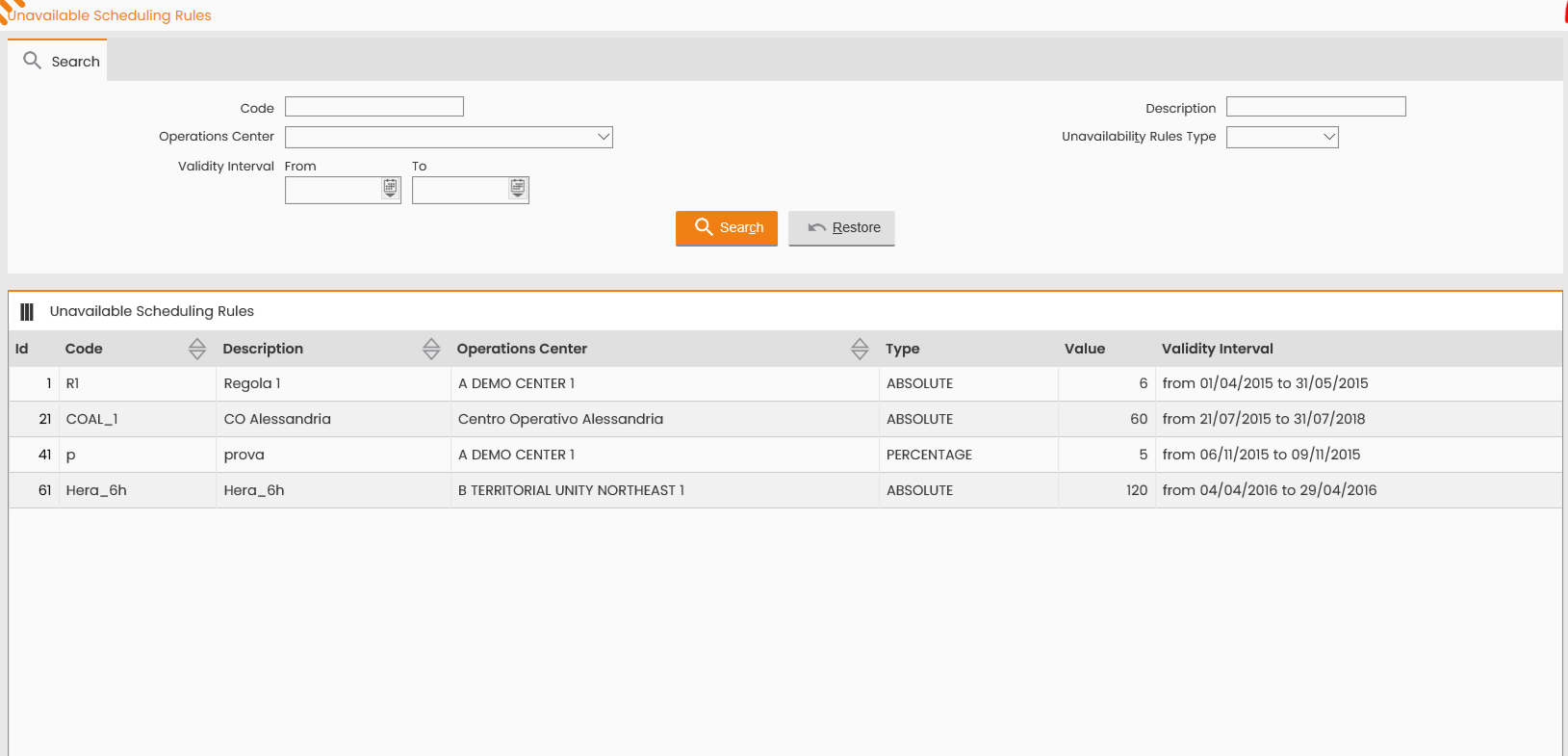
At the top, the window presents the form for searching the Unavailable Scheduling/Day Saturation Rules. The available search criteria include:
-
Code;
-
Description;
-
Operations Center;
-
Unavailability Rules Type;
-
Validity Interval From - To.
Upon selecting the SEARCH control, the bottom section displays the data related to the day saturation rules, according to the search criteria set.
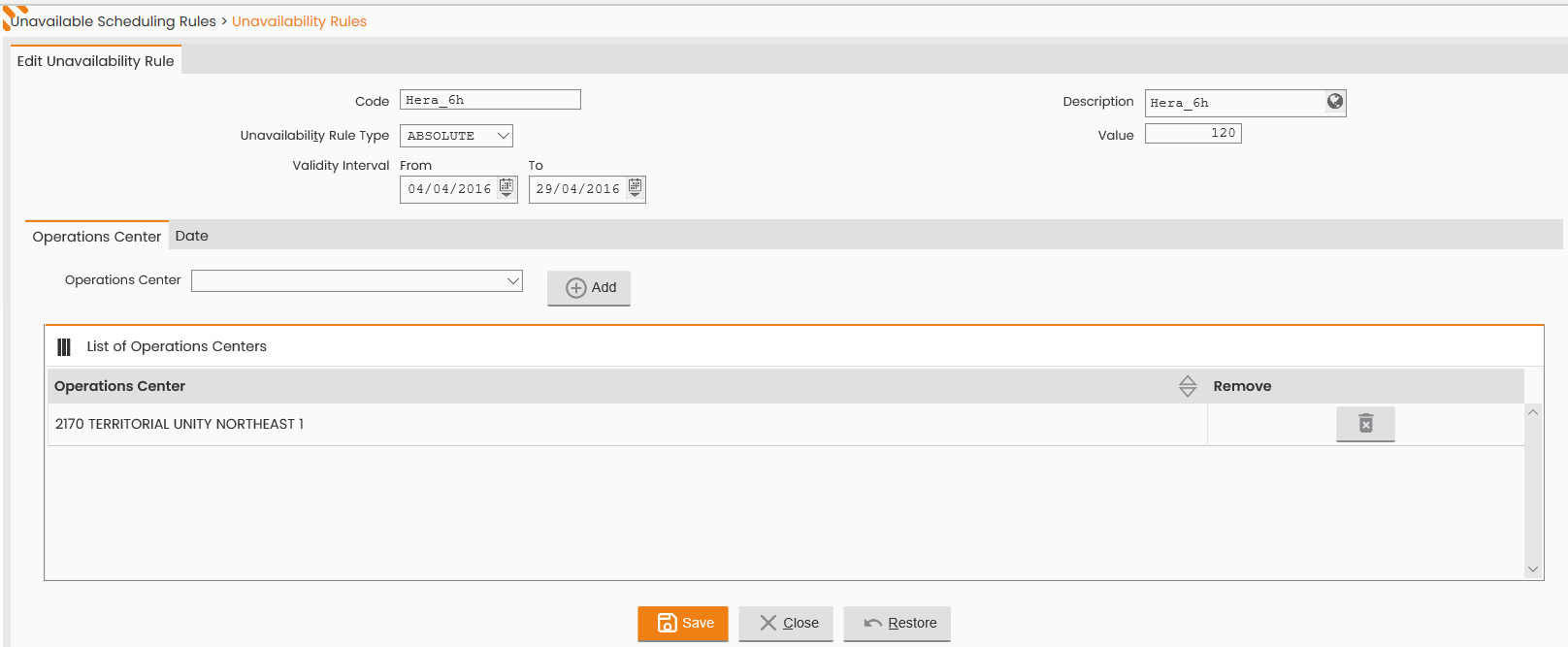
By clicking each row in the ‘List of Unavailable Scheduling Rules’ table, the corresponding details may be viewed. The following window is displayed:
|
|
|---|
|
Figure - Editing of Unavailability Rule |
|
|
|---|
|
Figure - Editing of Unavailability Rule, Date definition |
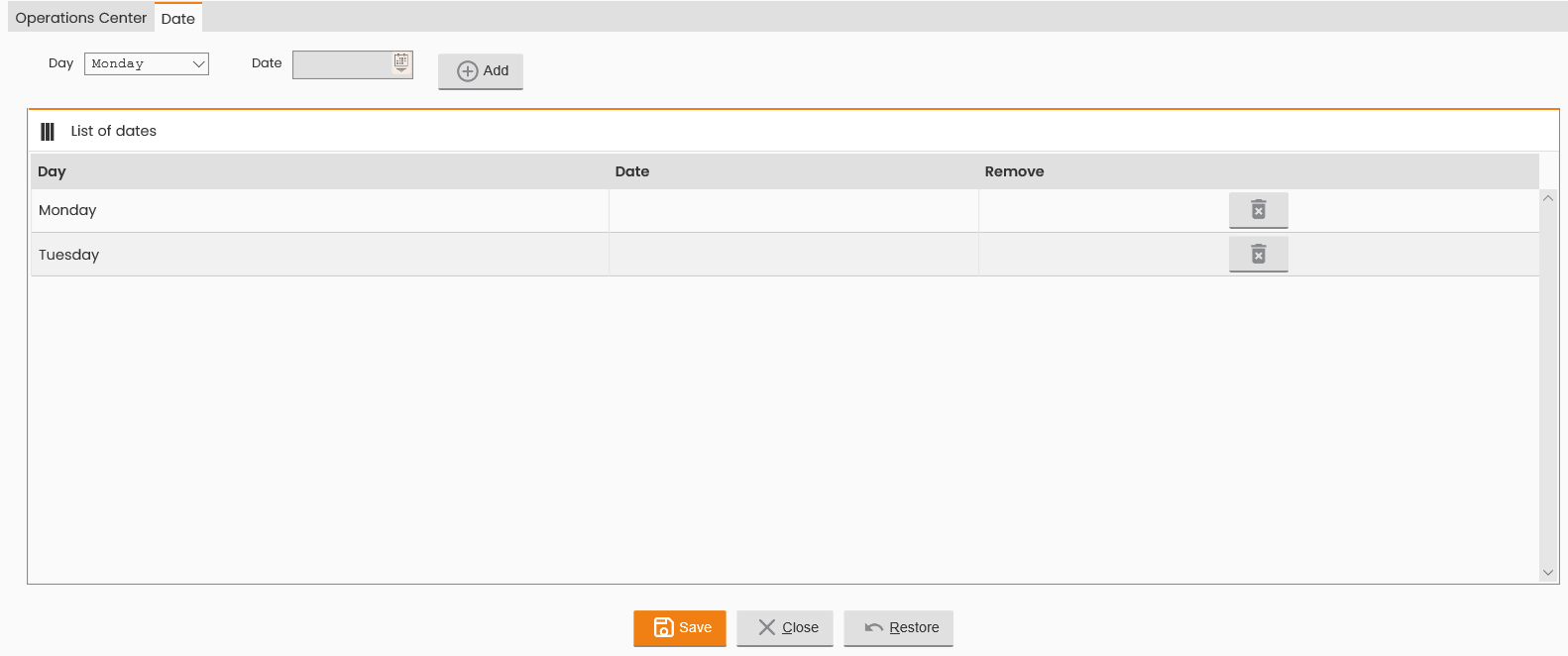
The window allows the following actions:
-
Editing of the Rule Code or Description values;
-
Editing of the Unavailability Rules Type;
-
Editing of the validity interval and value;
-
Deletion or addition of an Operations Center by selecting it from the dedicated field and clicking the ADD button. The record entered is then displayed in the ‘List of Operations Center’ table;
-
Deletion or addition of a Date by selecting a given day from the dedicated field and, if required, by clicking the ADD button. The record entered is then displayed in the ‘List of Dates’ table.
To confirm the editing made to the specific Unavailability Rule, click the SAVE button; to close the window, click the CLOSE button.
The Operations submenu provides the NEW RULE function for setting a new Unavailability Rule:
|
|
|---|
|
Figure - New Unavailability Rule |
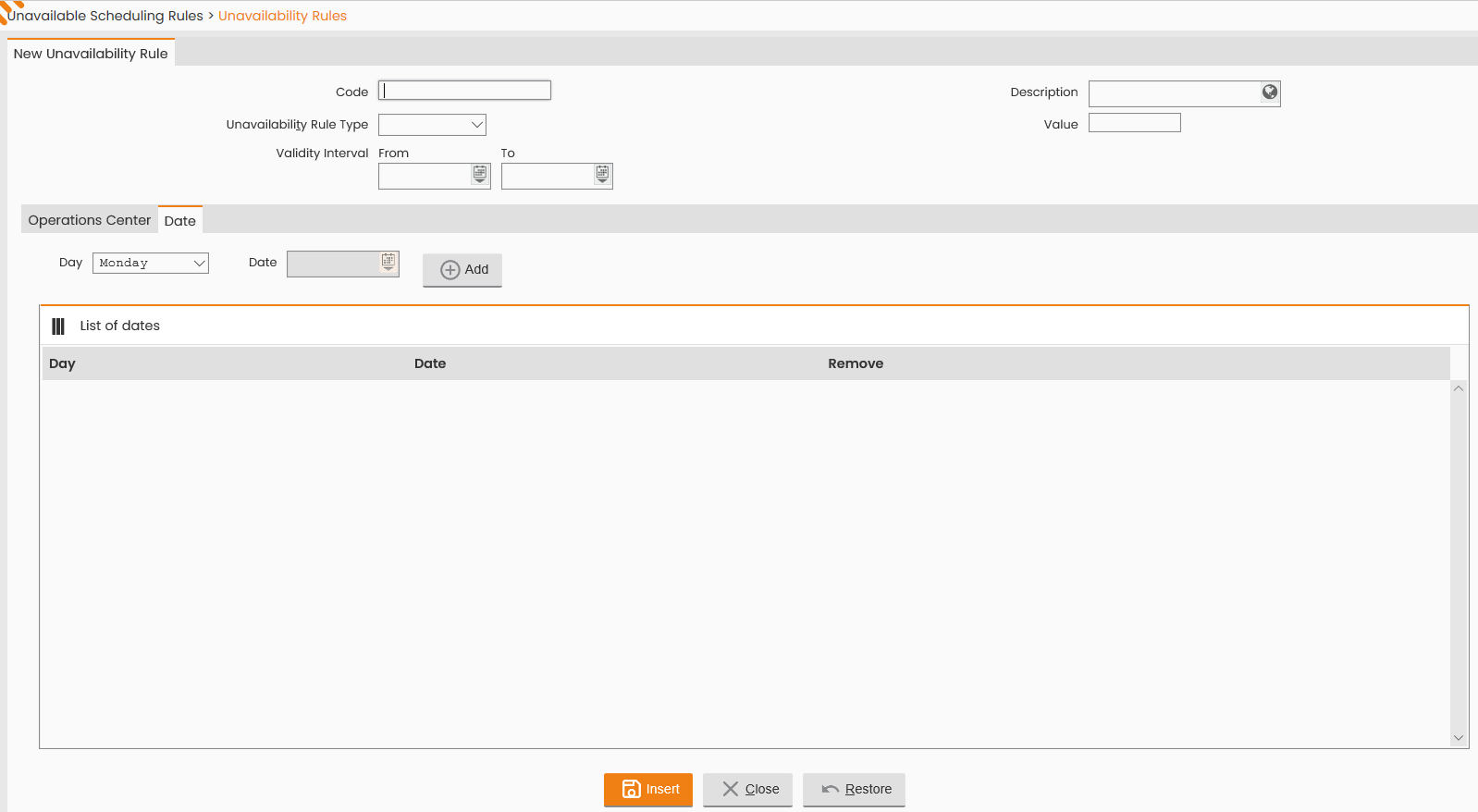
The following field shall be compiled:
-
Code;
-
Description;
-
Unavailability Rules Type, to choose between Percentage or Absolute;
-
Value;
-
Validity Interval: From - To;
-
Operations Centers, the rule shall be applied to, to select one by one from the dedicated field and by clicking the ADD button. The record entered is then displayed in the ‘List of Operations Centers’ table;
-
Days/dates in which the saturation rules shall be active: the specific days shall be selected one by one from the dedicated field and a date shall be indicated (if the Date option is specified) by clicking the ADD button. The record entered is then displayed in the ‘List of Dates’ table. As alternative, it's possible to define days of the week or 'Festive days' or 'Day before holiday'.
To confirm the input of the new Day Saturation Rule, click the INSERT button; to close the window, click the CLOSE button.
After defining the specific day saturation rule, it shall be associated with the operational resources/teams it will be applied to (please refer to the following paragraph).
Associate Saturation Rules
As previously mentioned, in order for a day saturation rule to be applied, it shall be associated with the operational resources/teams of the Operations Centers it was defined for.
Upon clicking the Associate Saturation Rules function, the following window is displayed:
|
|
|---|
|
Figure - Associate Saturation Rule |
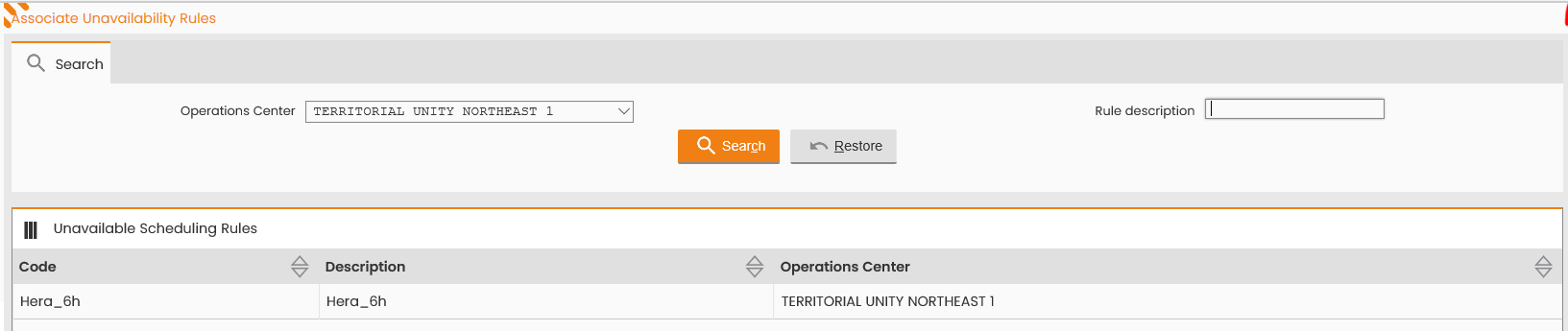
At the top, the window presents the form for searching the associations of unavailability scheduling/day saturation rules. The available search criteria include:
-
Rule Description;
-
Operations Center.
Upon selecting the SEARCH control, the bottom section displays the data related to the association of day saturation rules, according to the search criteria set.
By clicking each row in the ‘List of Associations of Unavailable Scheduling Rules’ table, the corresponding details may be viewed. The following window is displayed:
|
|
|---|
|
Figure - Editing of Unavailability Rule |
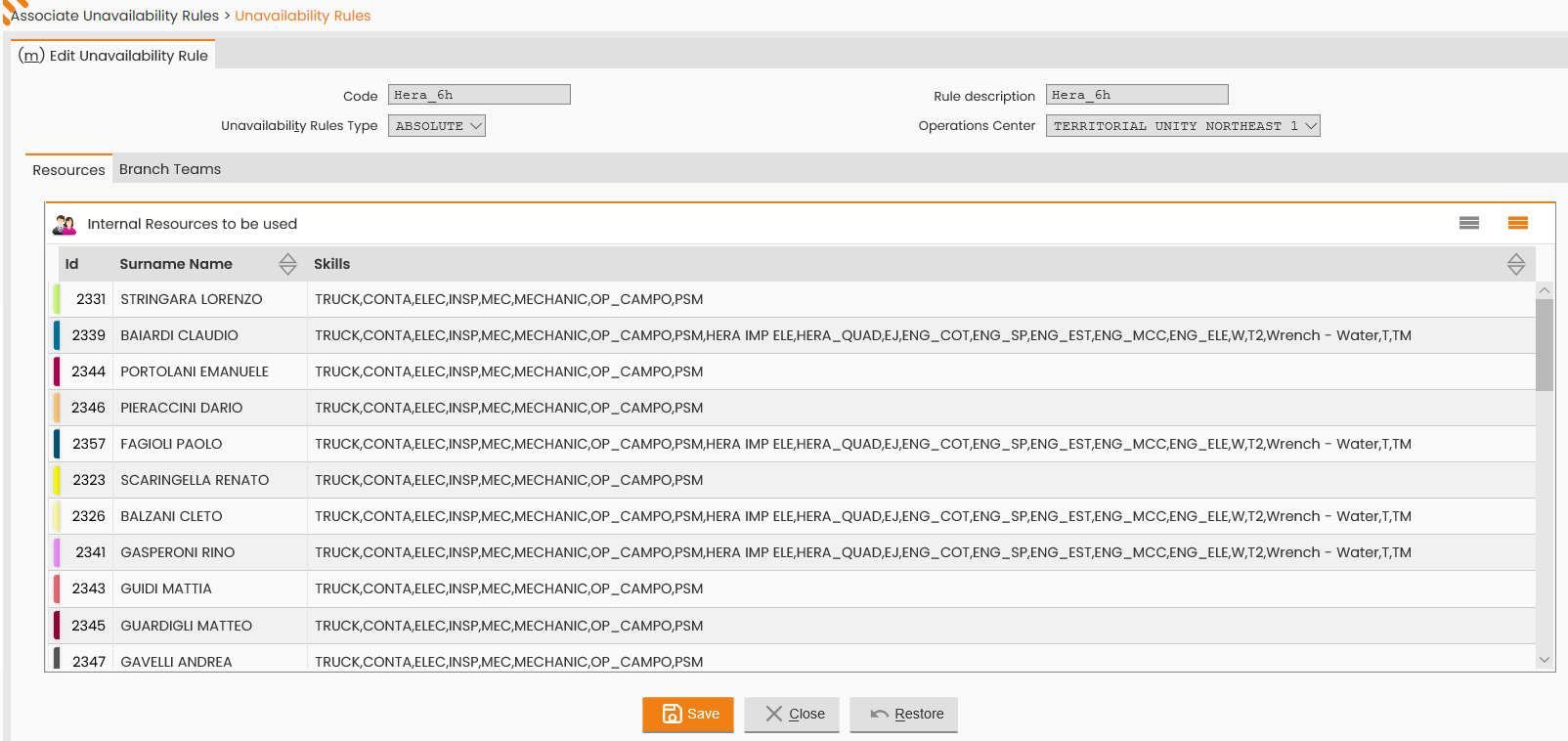
The window allows to select/edit the resources and the teams previously associated with the day saturation rules by selecting them in the ‘Internal Resources To Be Used’ and ‘Work Team’ tables, respectively in the ‘Resources’ and ‘Branch Teams’ tabs.
To confirm the editing made to the specific Unavailability Rule, click the SAVE button; to close the window, click the CLOSE button.
Please note that more than one-day scheduling rule may be associated with an Operations Center, so that different rules may be defined for different resources associated with the same Operations Center.