WO Filters
This section allows to define the parameters for processing the list of the works, the scheduling algorithm relies on, including the specific processing of the activities, reported in the list.
In further detail, this section provides a tool for the creation of the filters to use for the priority rules definition on the specific Work Order types. For example, the priority of a planned maintenance Work Order, referred to a specific Facility, may be different from that of planned maintenance WO, referred to a Customer. Reference Table: LWOFILTERPARAMETER
MAIN MENU → CONFIGURATION → CONSTRUCTOR MANAGEMENT → WO FILTERS
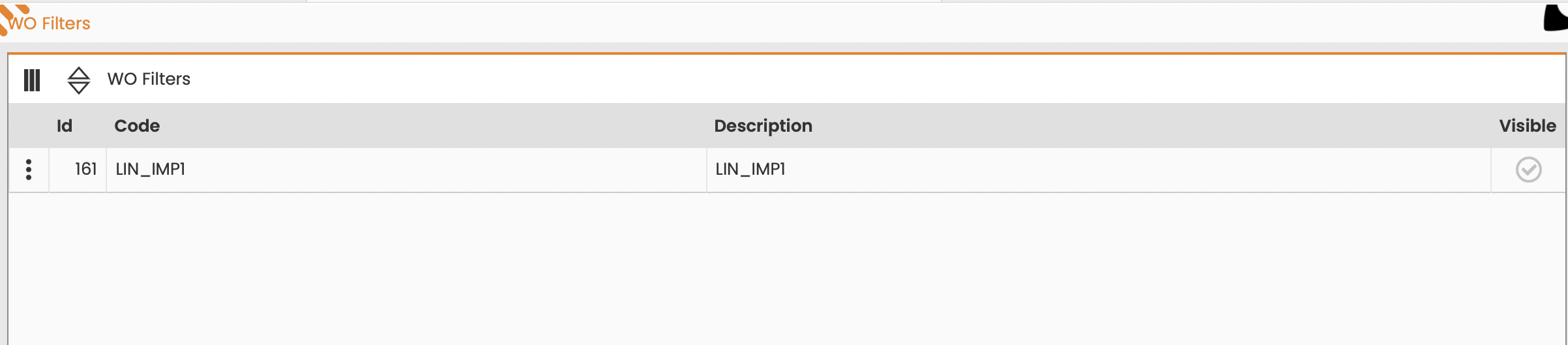
The System displays the following window:
|
|---|
|
Figure - WO Filters List |
The section at the top provides the form to search the WO Filters previously registered in the system. The search may be performed filtering by:
-
Code;
-
Description;
-
Visible.
The section at the bottom lists the WO Filters provided by the system, based on the set search criteria.
Click the row, corresponding to a specific value, to access the section for editing the datum (figure below).
|
|---|
|
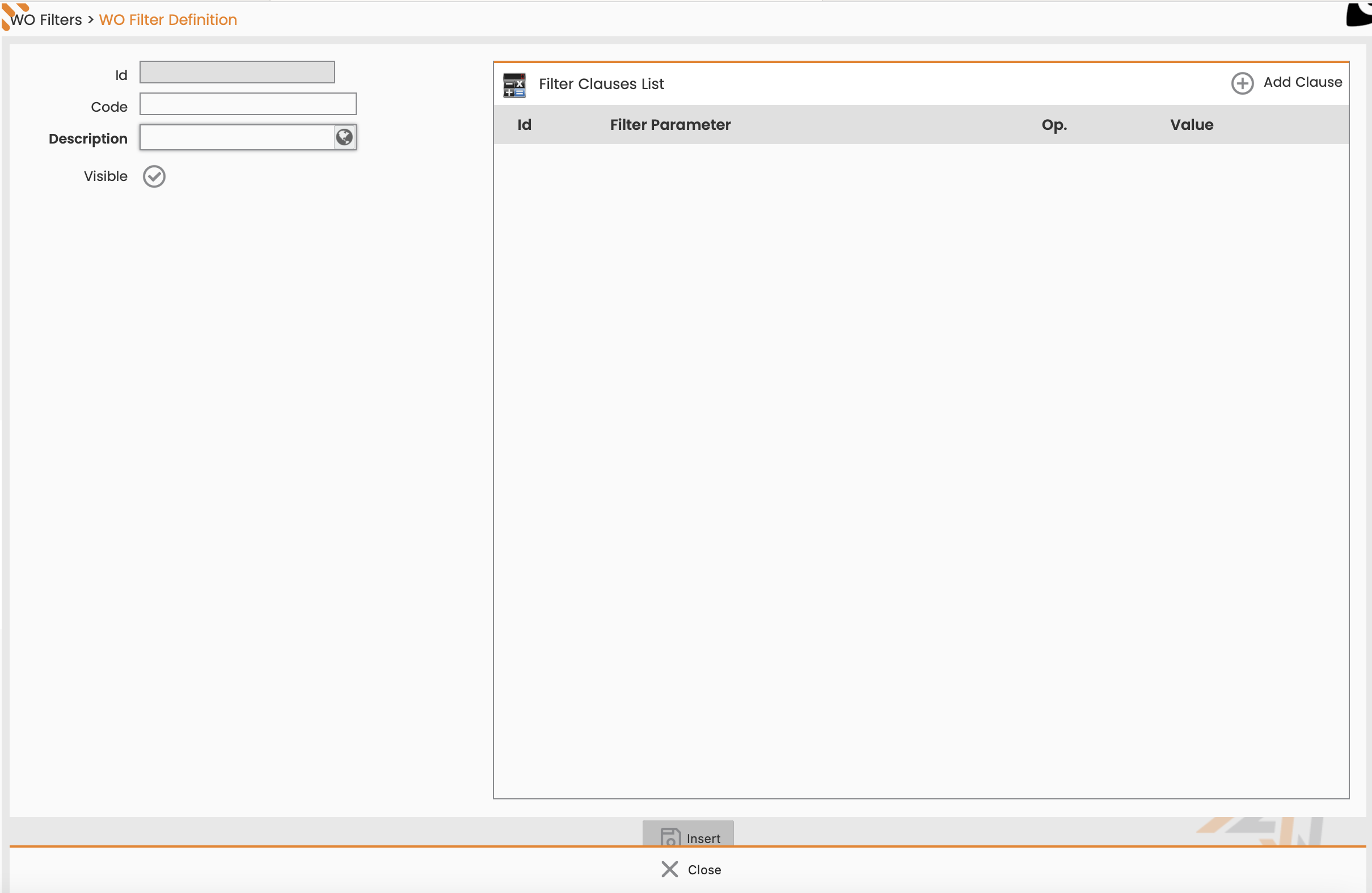
Figure - New Filter Creation |
The window allows the following actions:
-
editing the Code or Filter Description values;
-
editing the filter display mode (‘Visible’ flag);
-
deletion one/different filter clauses by clicking the 'Delete Clause' button, provided by the specific record in the ‘List of Filter Clauses’ table;
-
addition one/different filter clauses by clicking the 'Add Clause' button, provided by the specific record in the ‘List of Filter Clauses’ table (The Clauses are managed in 'AND').
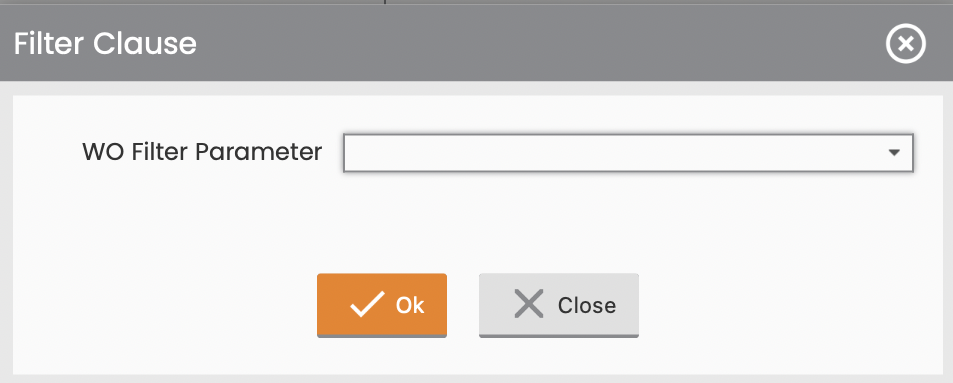
The System displays the following window:
|
|---|
|
Figure - Filter Clause definition |
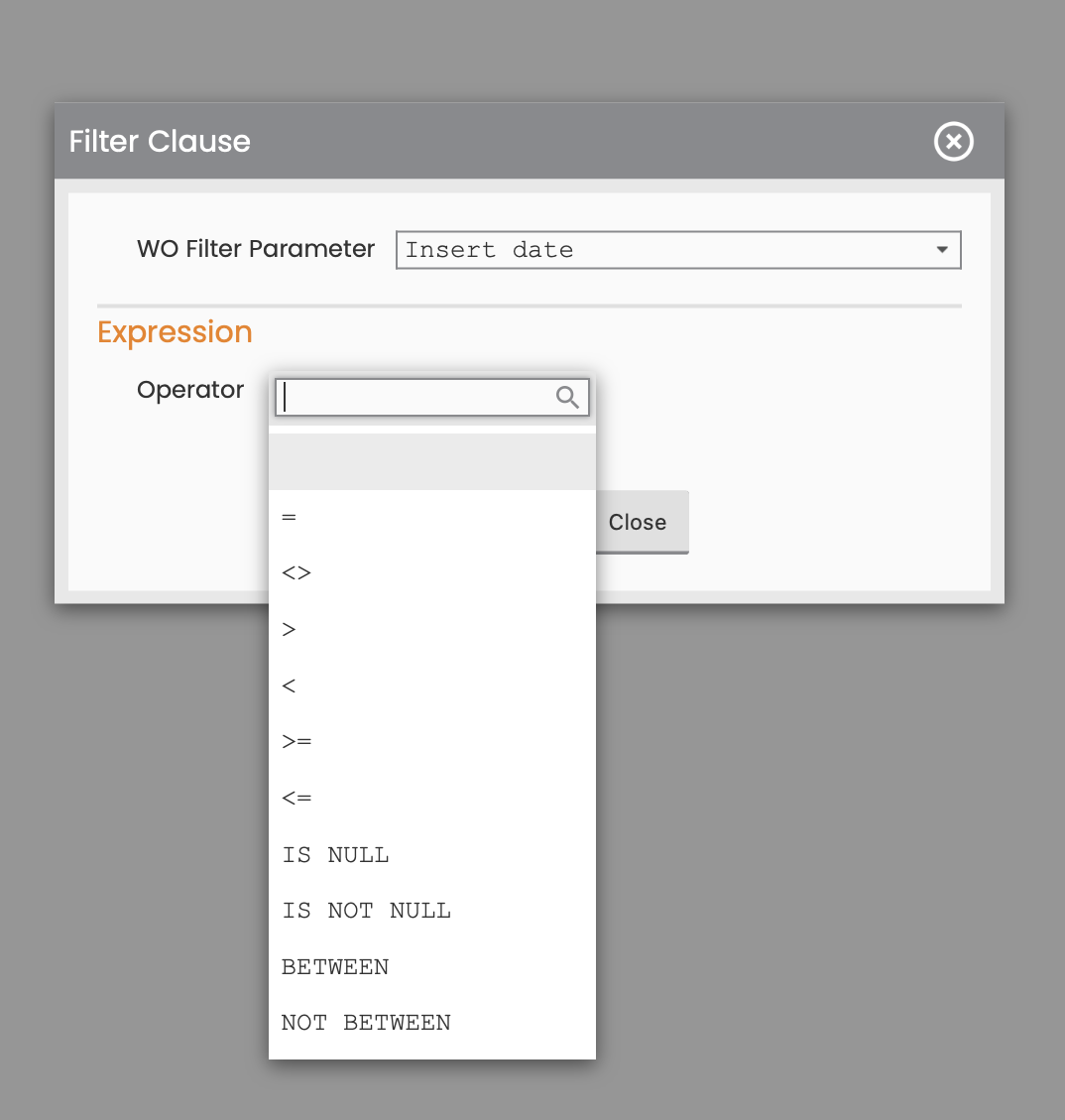
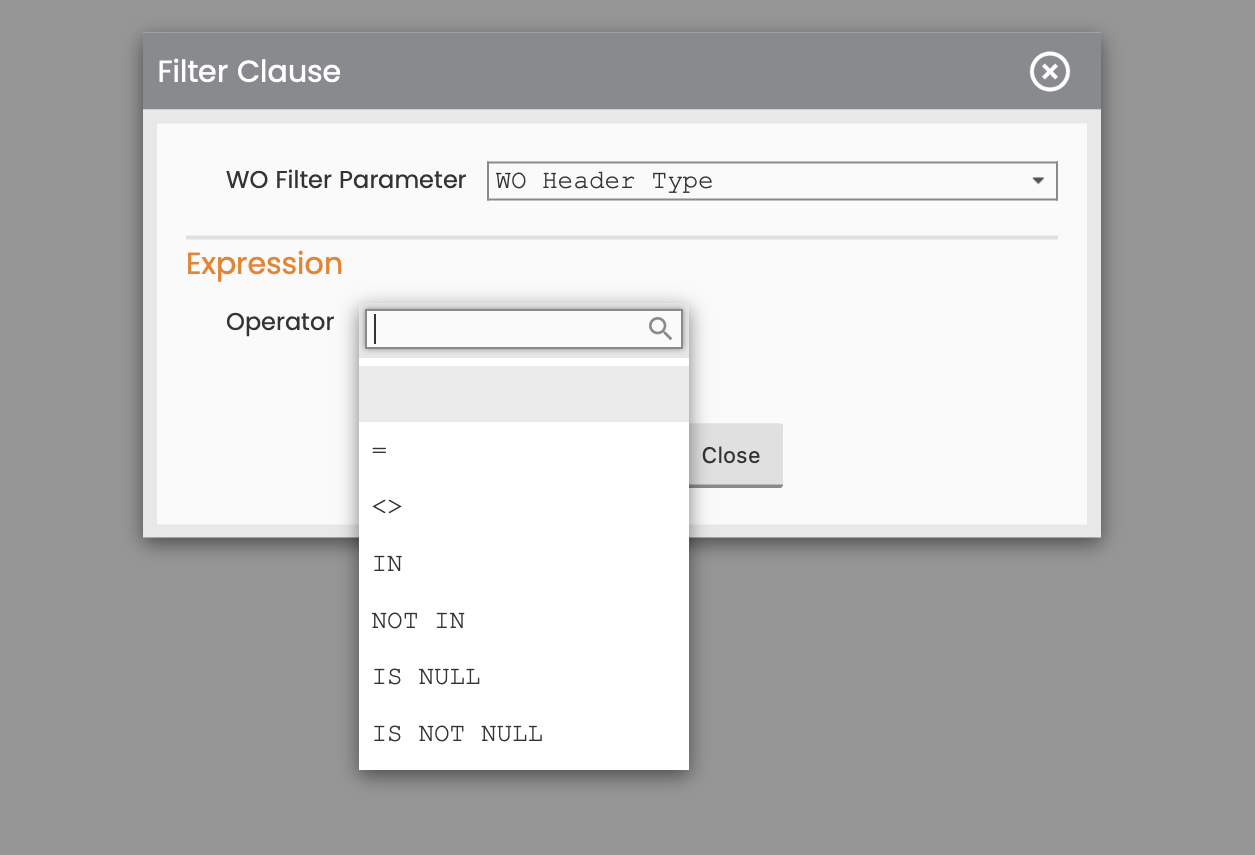
for the system user to select a specific WO Filter Parameter. Depending on the parameter set, the system will fill out the ‘Operator’ field with the different values (please refer to the following example figures):
ex. 1)
|
|---|
|
Figure - Parameter example 1 |
ex. 2)
|
|---|
|
Figure - Parameter example 2 |
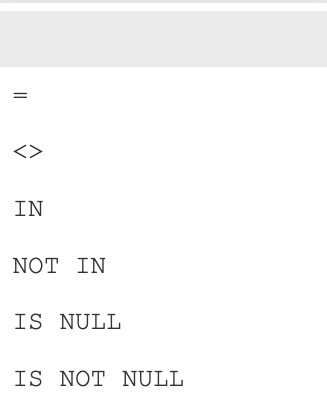
In further detail, upon defining a WO Filter Parameter the system user will fill out the ‘Operator’ field, selecting one of the following options, which will differ based on the specified parameter type:
|
|---|
|
Figure - Operators Domain |
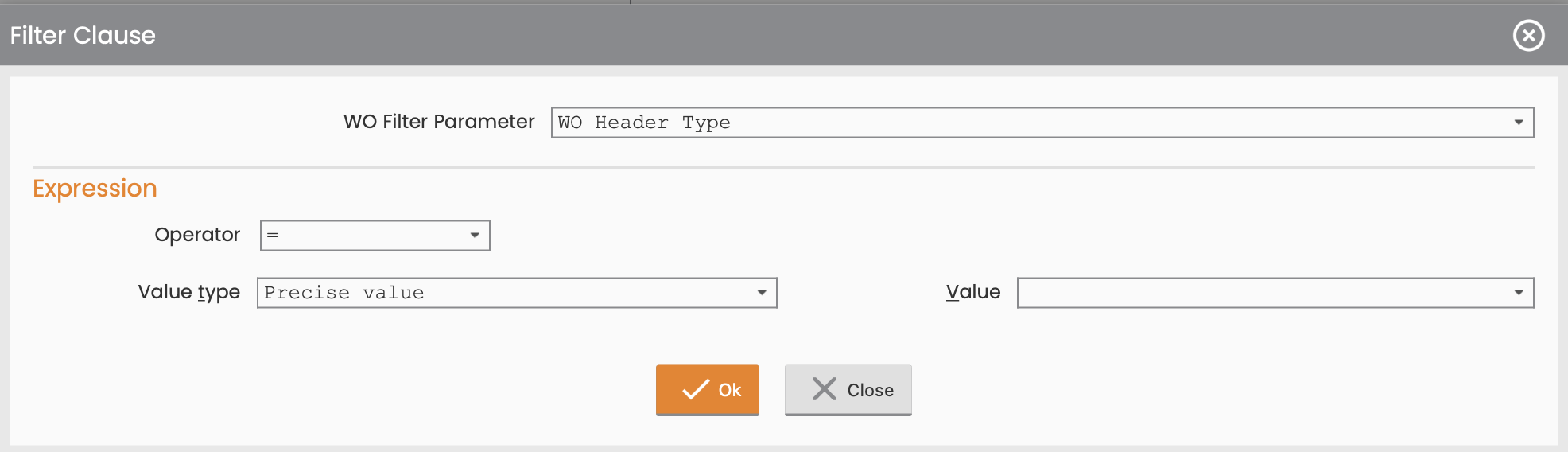
Depending on the selected value, the System will suggest the compiling of the further fields; detailed examples are below:
-
Parameter: WO Header Type and Operator: =
|
|---|
|
Figure - Filter Clause example |
-
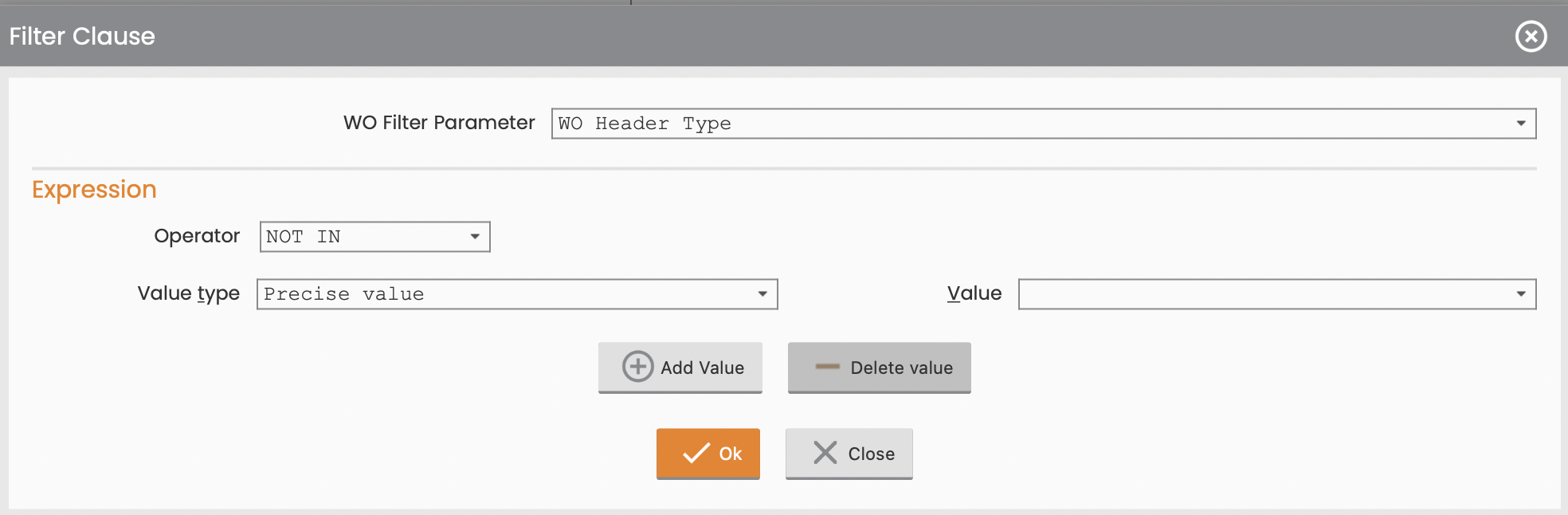
Parameter: WO Header Type and Operator: NOT IN or IN.
|
|---|
|
Figure - Filter Clause example |
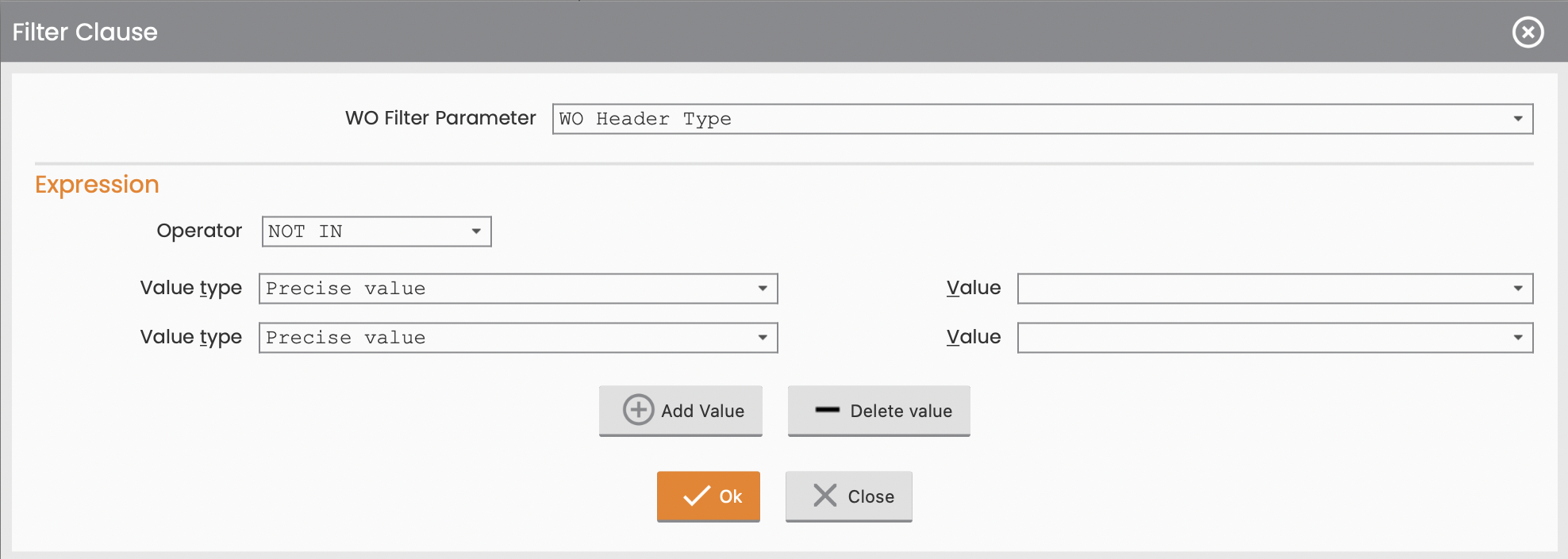
Click the ‘Add Value’ button to enter a new comparison record in the expression, as shown below:
|
|---|
|
Figure - Add Clause |
Click the 'Delete Value' button to delete the last comparison record from the list in the expression, as shown in the following figure:
|
|
|---|
|
Figure - Delete clause |
-
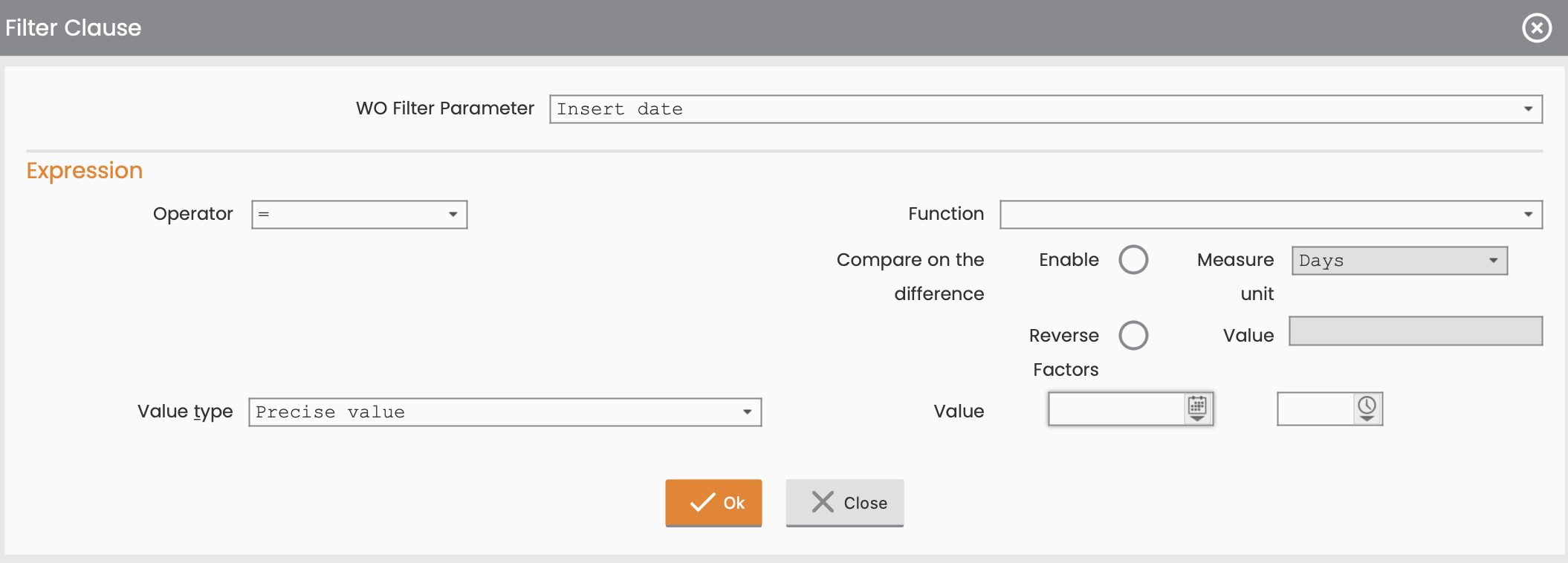
Parameter: Insertion Date and Operator: =
|
|---|
|
Figure - Filter Insertion Date |
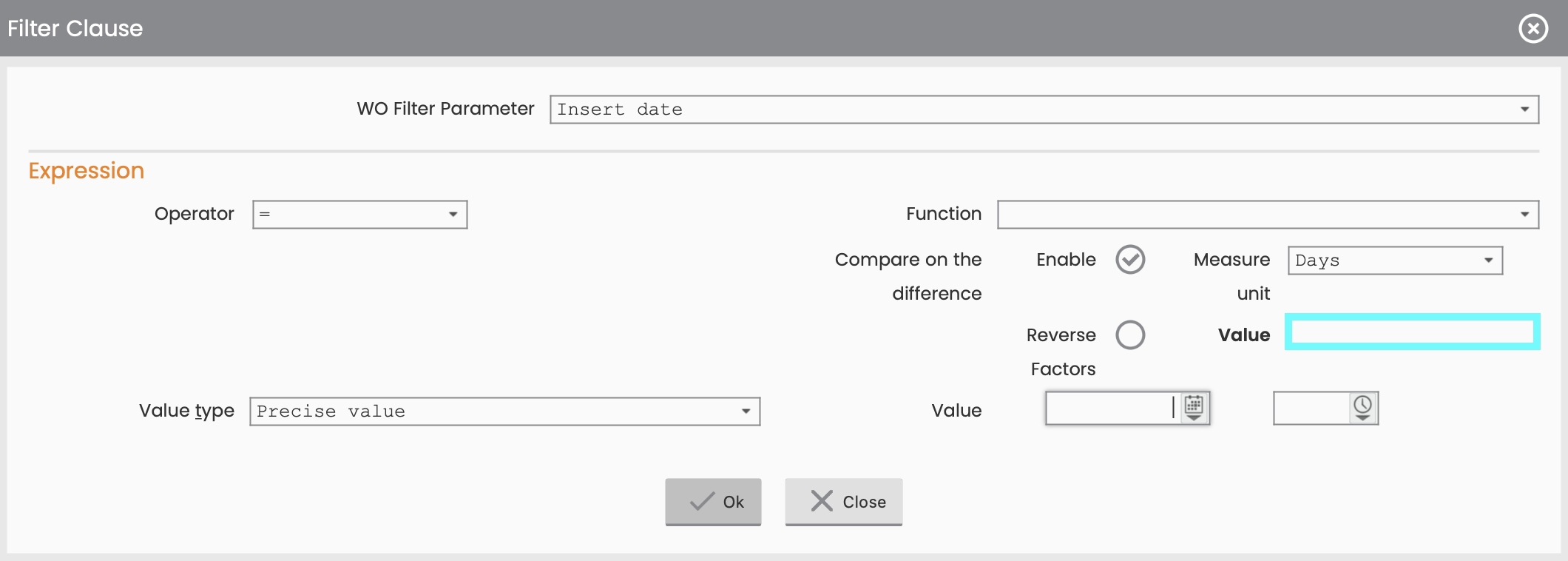
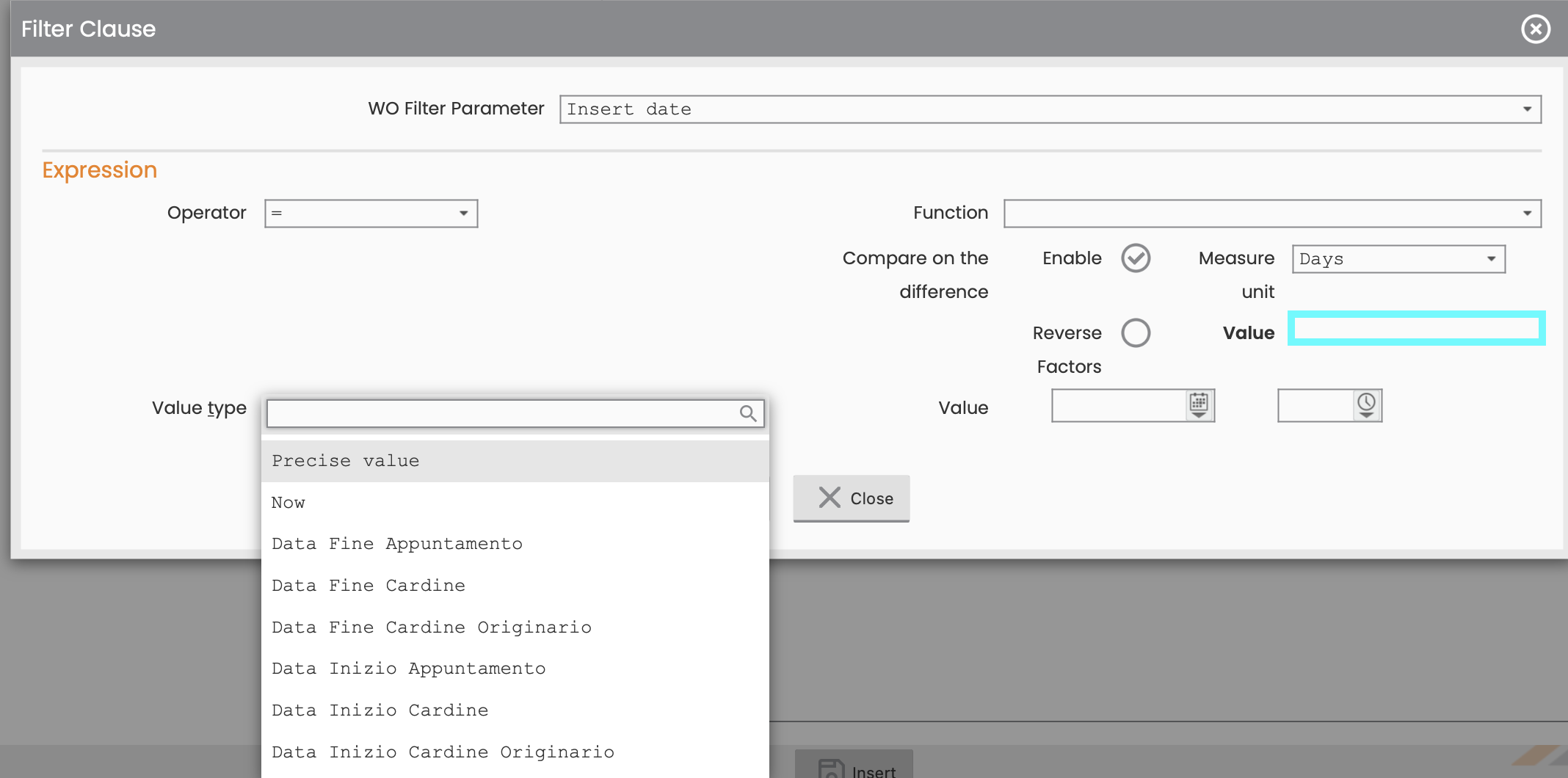
In the case of active 'Difference Comparison' the following is displayed:
|
|---|
|
Figure - Enable Comparison on Difference |
The System suggests to compile the following fields:
-
Compare on the difference, if this flag is enabled, it will be required to fill out the following fields: Measure Unit, Value, Revers Factors.
-
Value type to choose between:
-
Punctual Value, if it is the user to define the comparison Value. In this case, the System will require to fill out the Value field;
-
Further Features referring to the Value Type, the specific WO Filter parameter belongs to (in the example they are dates).
-
|
|---|
|
|
-
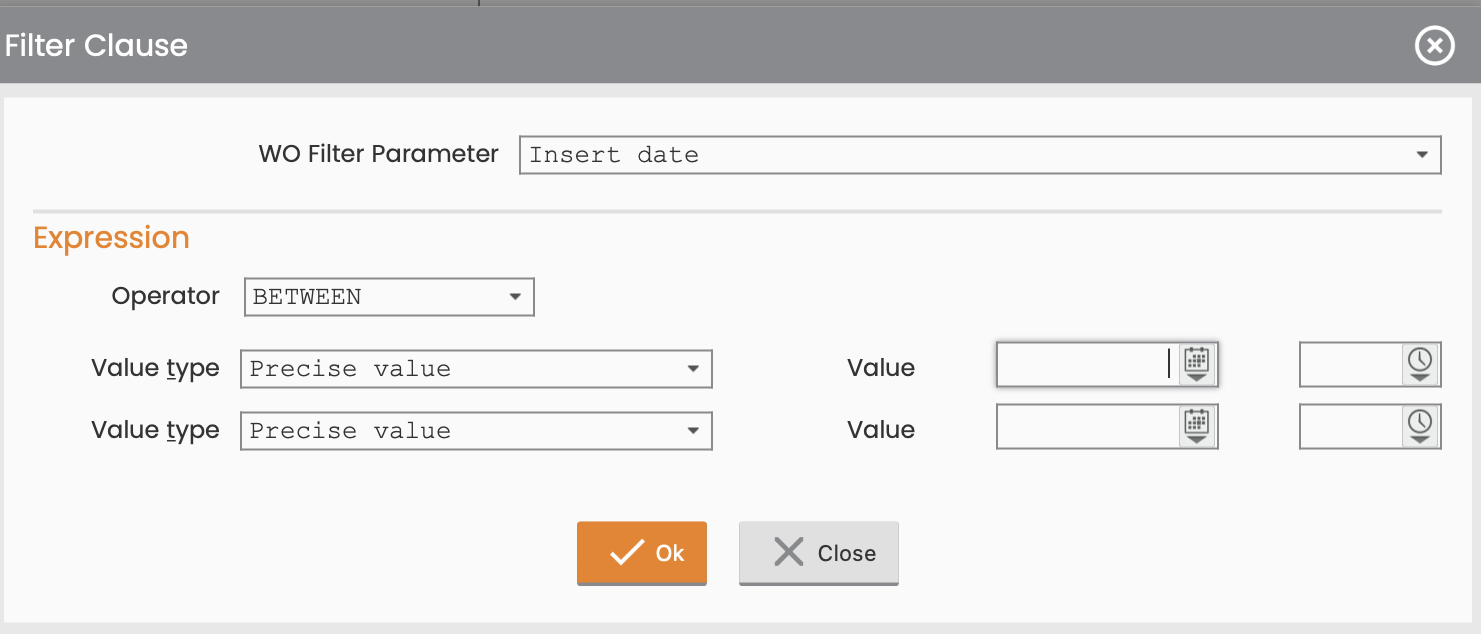
Parameter: Insertion Date and Operator: BETWEEN or NOT BETWEEN
|
|---|
|
Figure - Insertion Date and Operator BETWEEN |
For each WO Filter, many clauses may be defined. In further detail, for being included in the WO List defined by the filter, the specific WO shall comply with each of the following clauses set.
To confirm the specific clause defined, click the 'OK’ button or the 'CLOSE' one.
To confirm the editing made to the WO Filter, click the 'MODIFY’ button; to close the window, click the 'CLOSE' button in the Operations sub-menu.
Besides the header of the ‘WO Filters List’ table at the top-right, the ‘New WO Filter’ function is supplied:
|
|
|---|
|
Figure - WO Filters List |

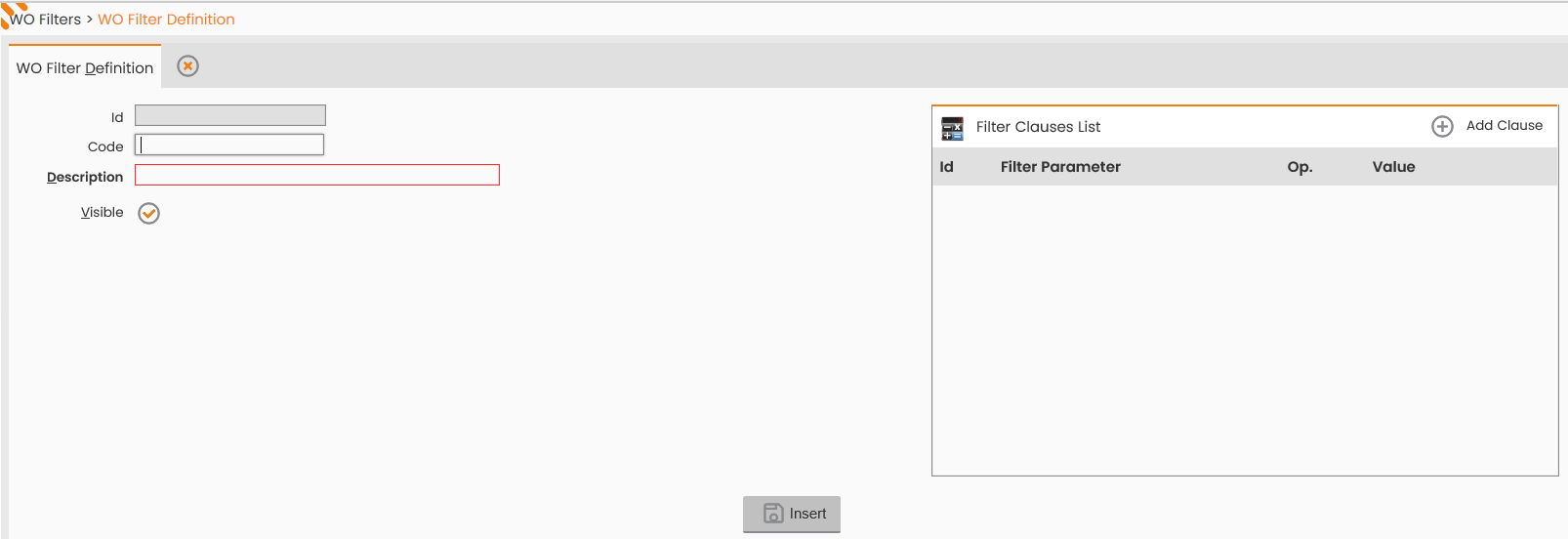
this function allows to define a new WO Filter, setting the information reported in the figure below:
|
|
|---|
|
Figure - WO Filter Definition |
-
Code;
-
Description;
-
Visible, flag;
-
Reason, through the ‘Add Clause’ function previously detailed.
To confirm the insertion of the WO Filter, click the 'INSERT’ button; to close the window, click the 'CLOSE' button in the Operations sub-menu.
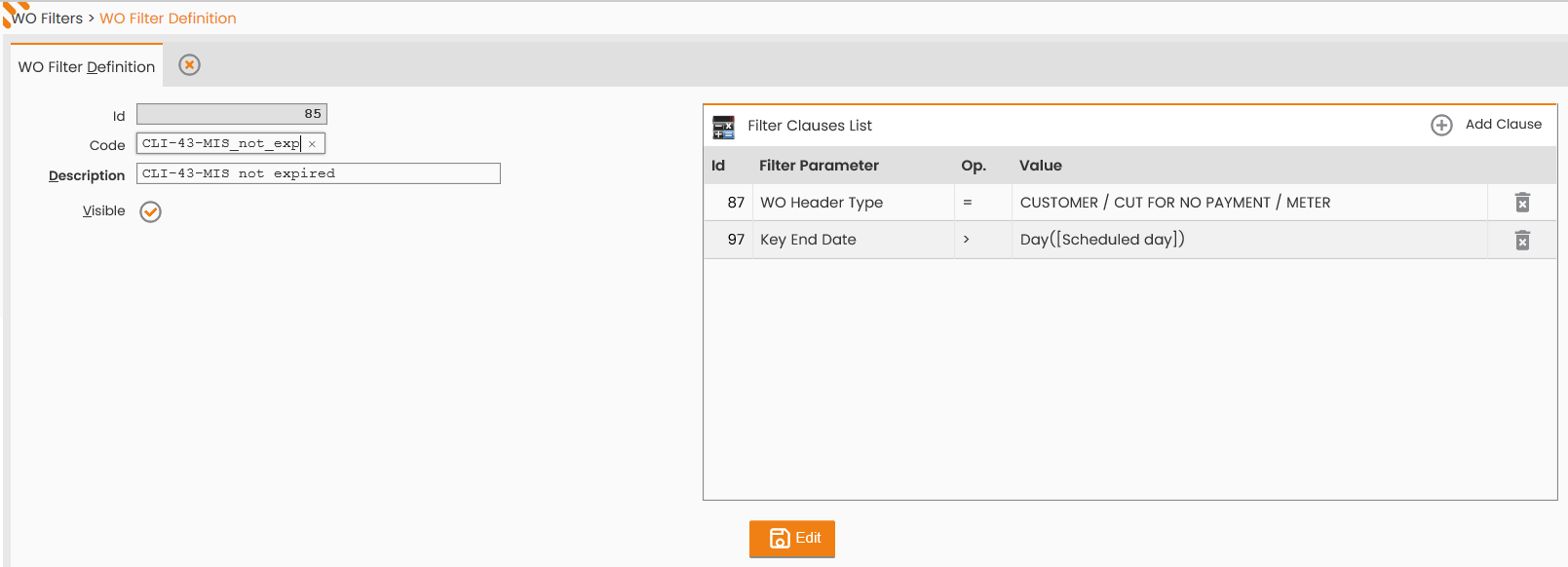
As detailed in the previous paragraph, a given rule/filter may be associated with a set of different conditions. The example shows two clauses: one referring to the WO Header Type and the other to the Reference End Date; the rule will allow to give scheduling priority to the orders having that specific header and with reference end date following to the scheduling date.
|
|
|---|
|
Figure - Filter with two clauses |
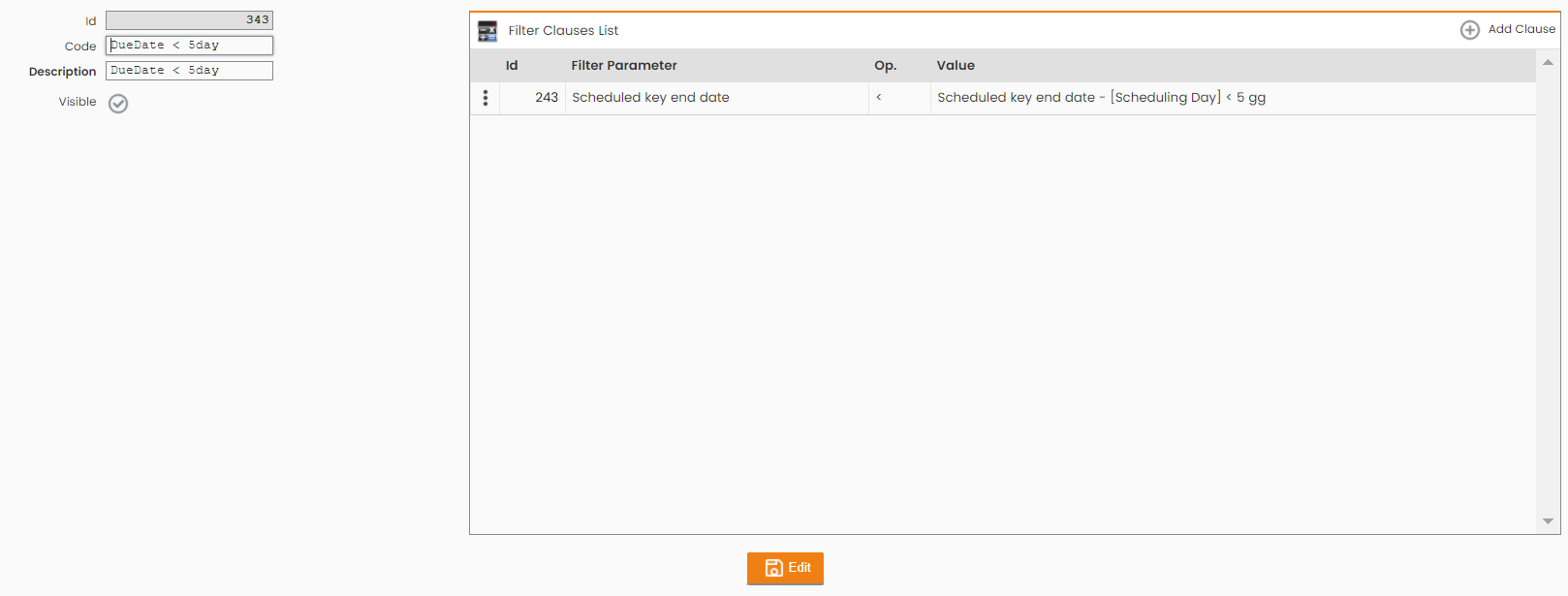
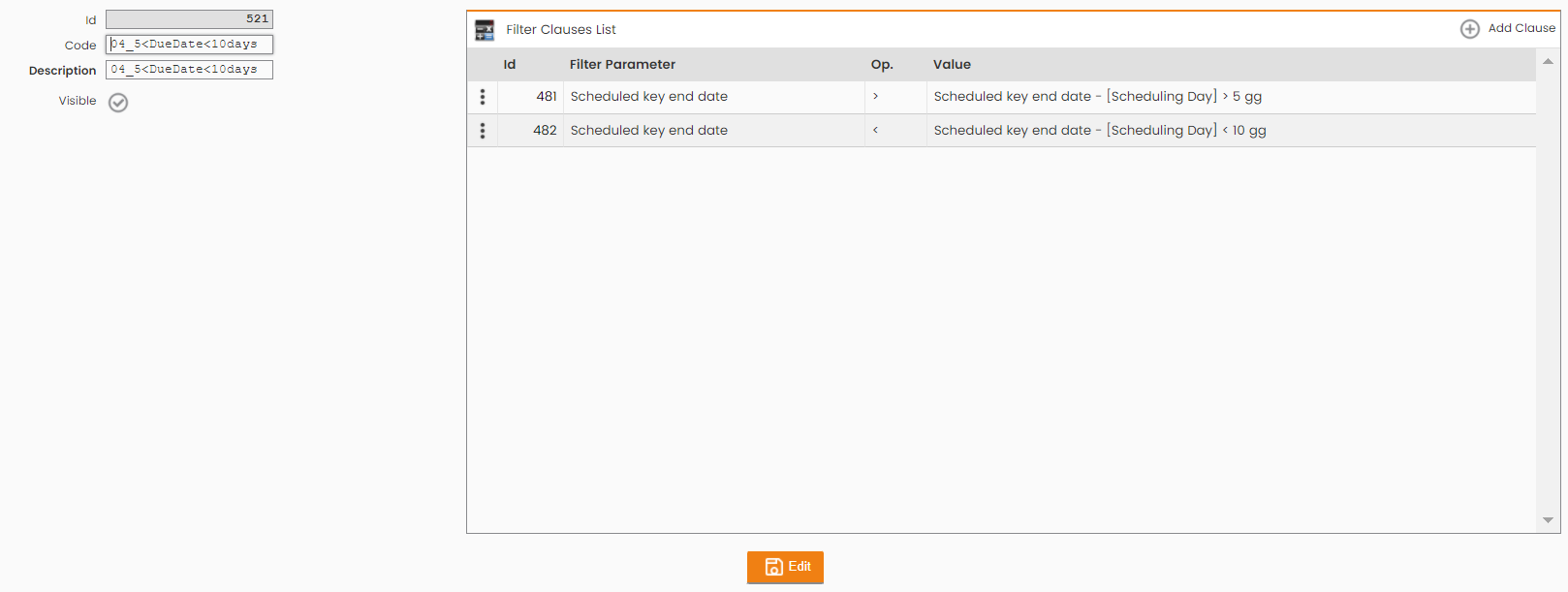
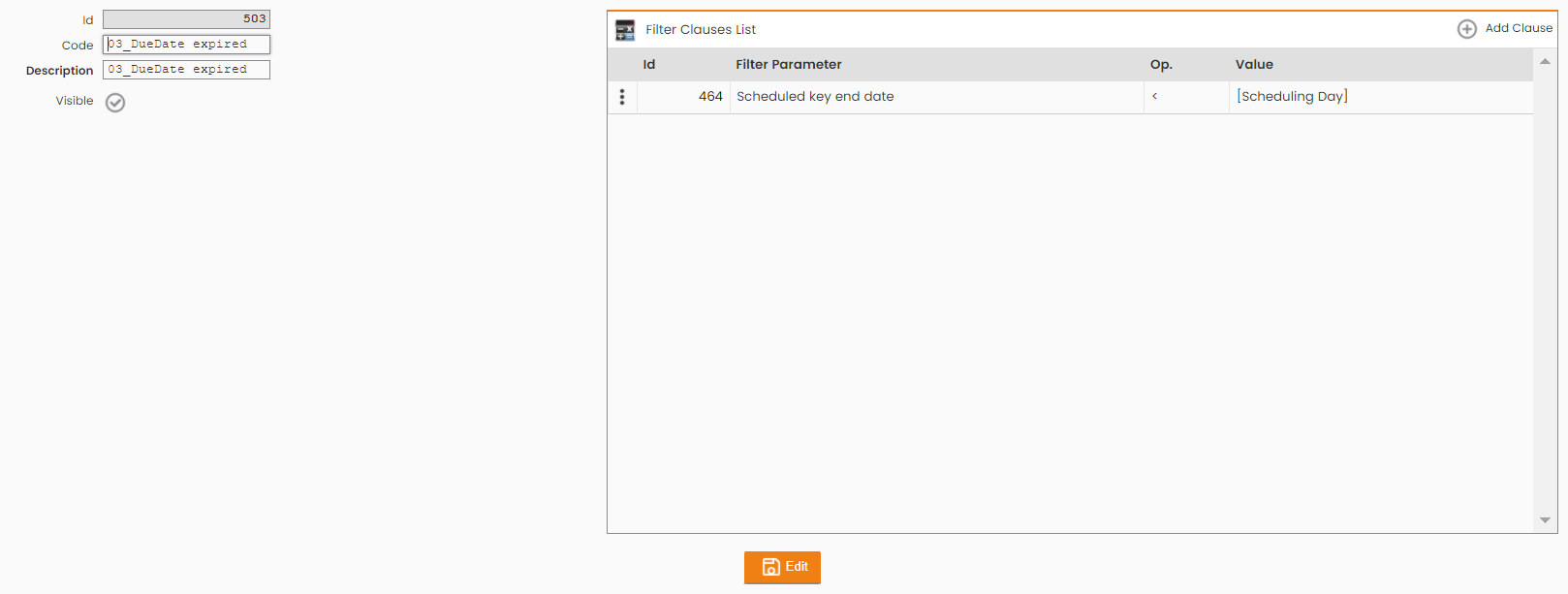
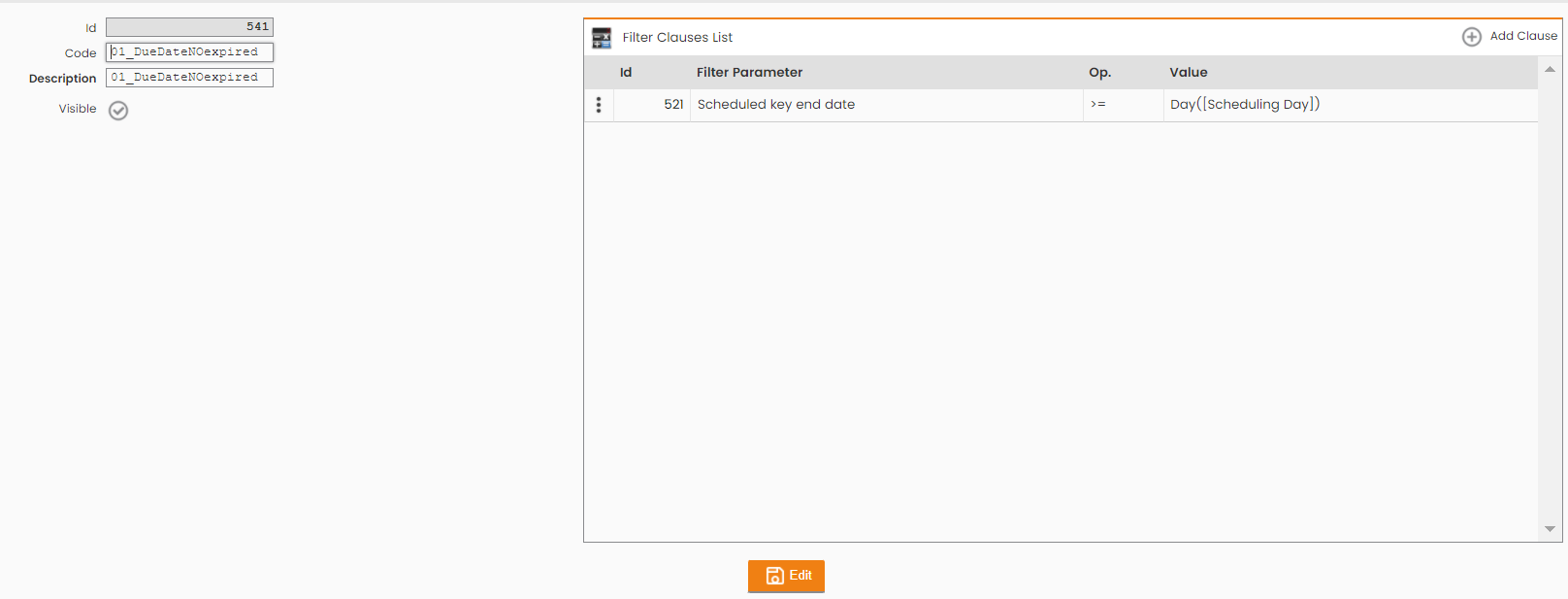
Herein other useful examples:
|
|
|---|
|
Figure - example DueDate < 5 days |
|
|
|---|
|
Figure - example 5 < DueDate < 10 days |
|
|
|---|
|
Figure - example DueDate expired |
|
|
|---|
|
Figure - example DueDate Not expired |
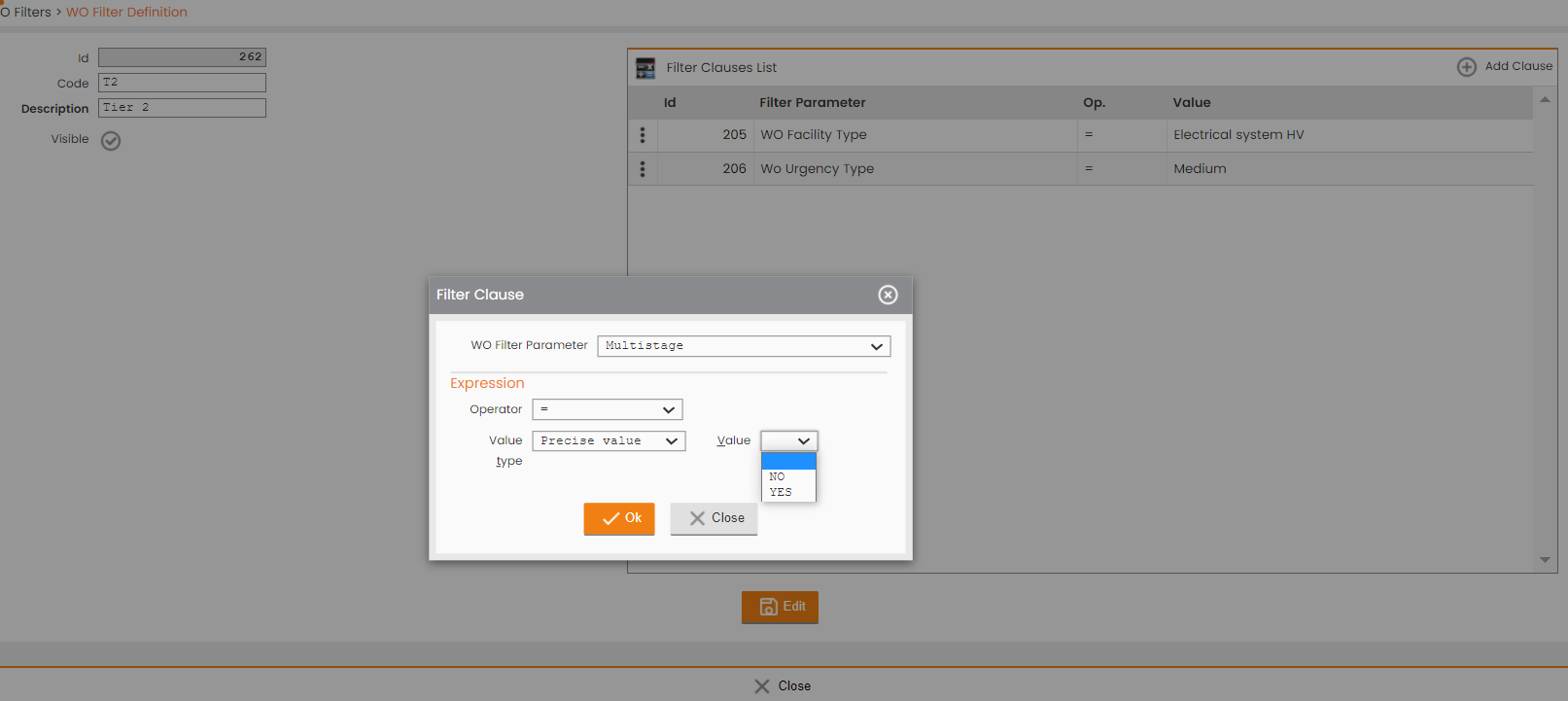
Furthermore, It's possible to filter or not multi-stage activities:
|
|
|---|
|
Figure - Filtering Multistage activities |