
What’s new
-
New interface of TOC toolbar
TOC is structured in three main parts:
-
Toolbar: containing the main widgets to use on the services, described in the next paragraph
-
Services: there is the list of all the services loaded on the map
-
Legend: small legend of the icons present on the services.
For all logic and tools, use the guide of previous release: Table of Contents 1.0.*
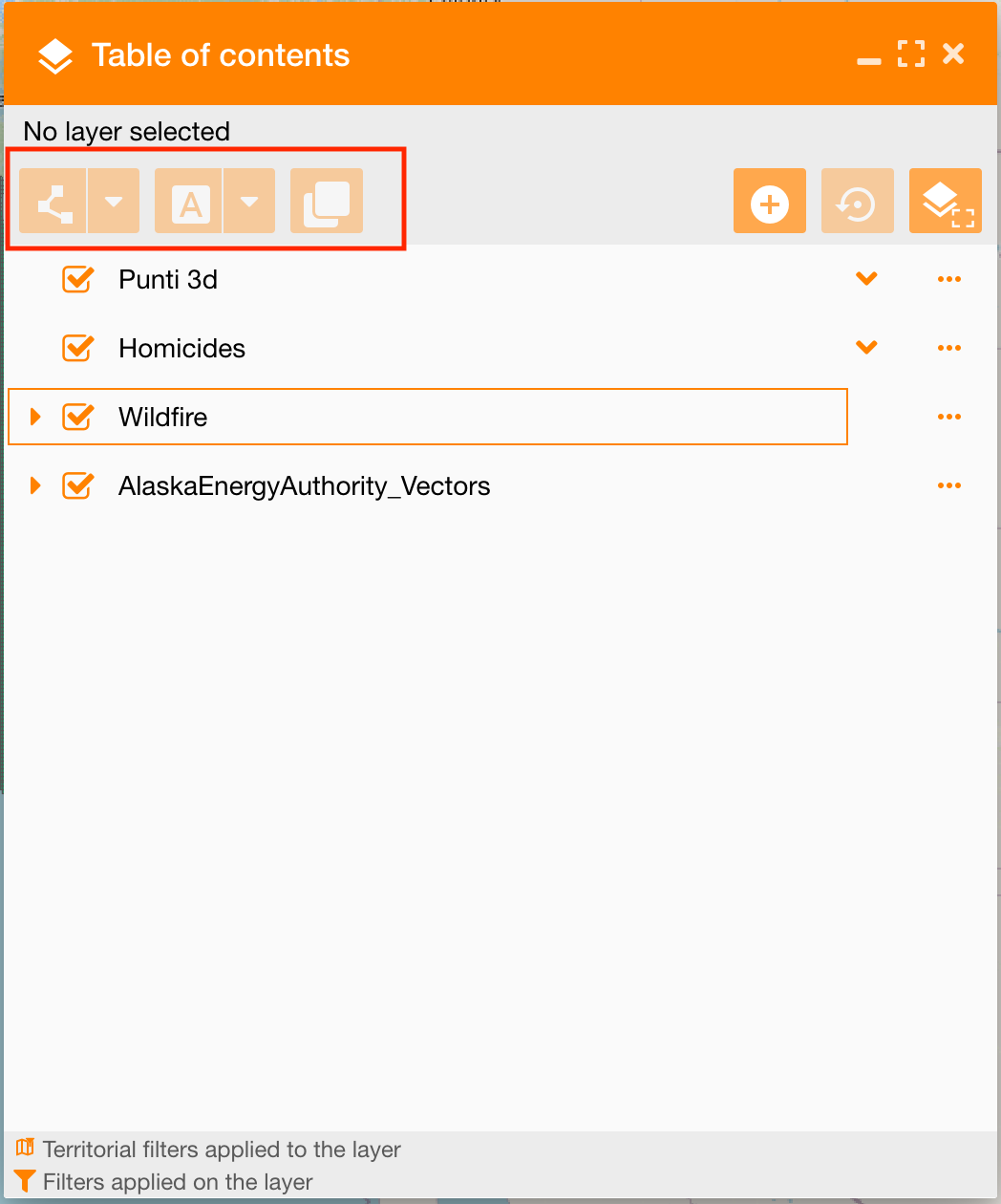
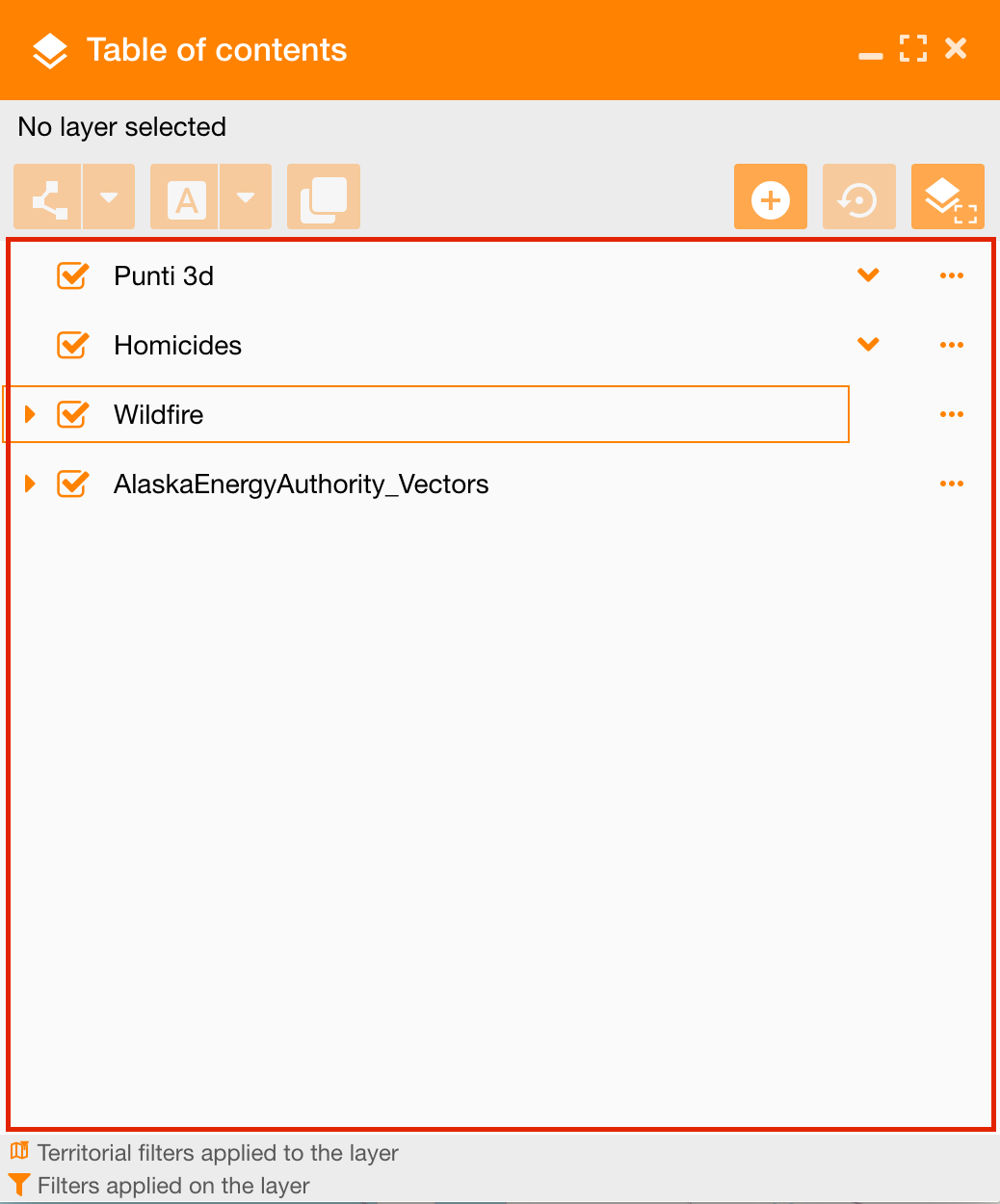
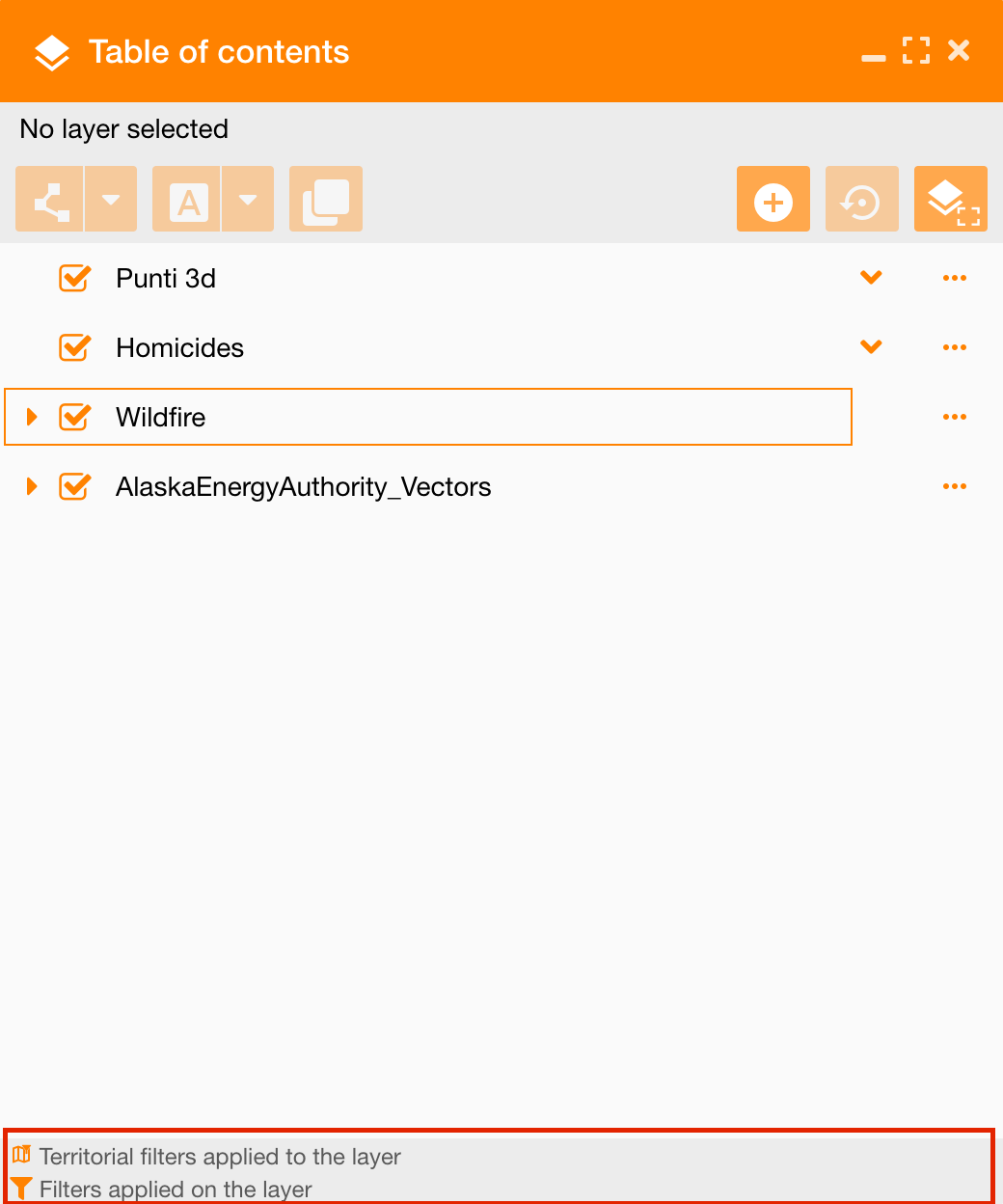
Toolbar
The toolbar contains more widgets to search assets and data using the TOC and to configure services on the map, described in the table below:
|
|
|
|---|---|
|
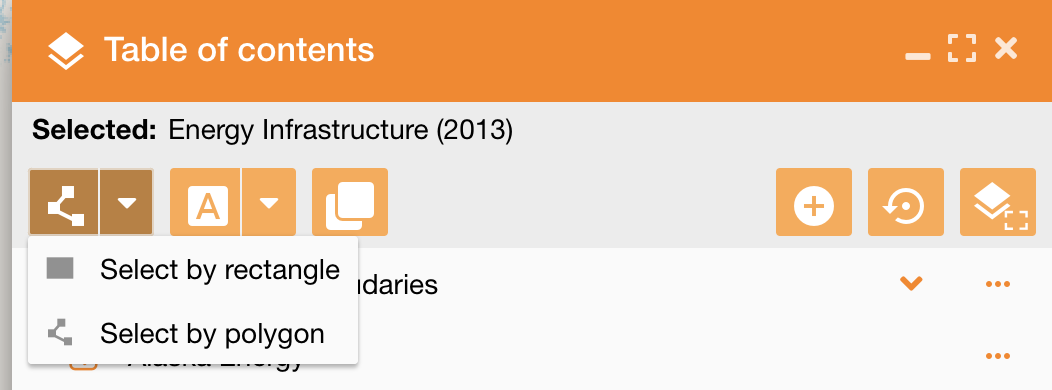
|
They allow to search all layer’s data in a selected area drawn by hand or using a rectangle |
|
|
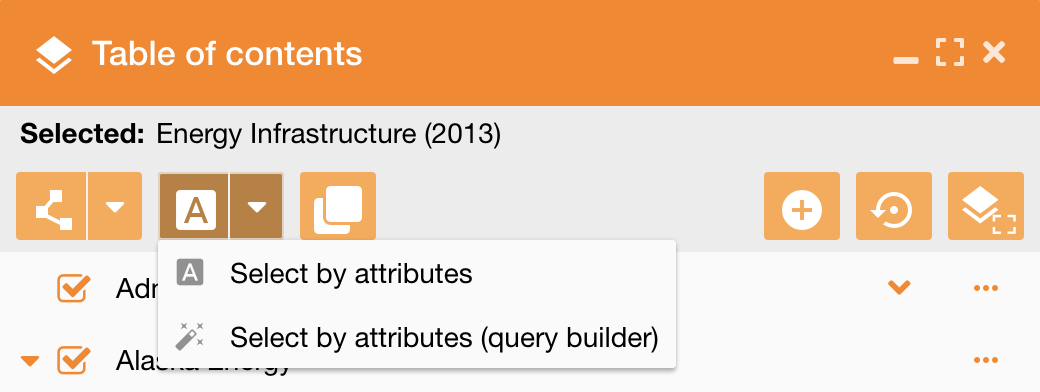
They allow to search layer’s data on the map using attributes and values, or query syntax, providing a guided mask too. See reference: |
|
|
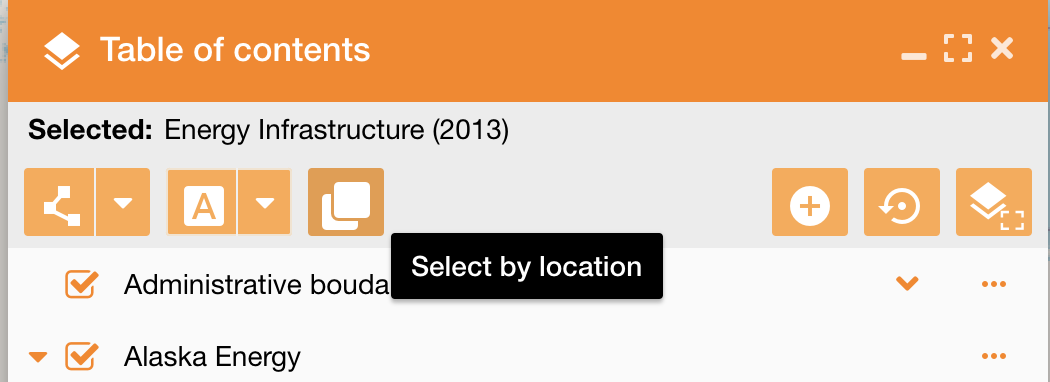
It allows to select assets based on their location relative to assets in another layer. See reference:
|
|
|
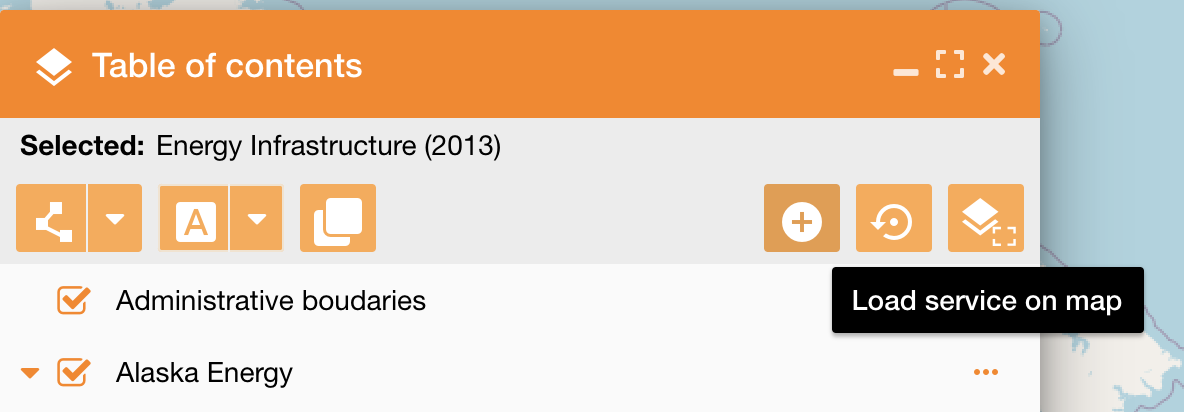
Load Service on map To add a service (+ icon): https://overit-spa.atlassian.net/wiki/spaces/NEXTGENGEO/pages/103375340343/Map+configuration#Associate-services-on-map-using-the-TOC Name: ui_simpleaddlayer |
|
|
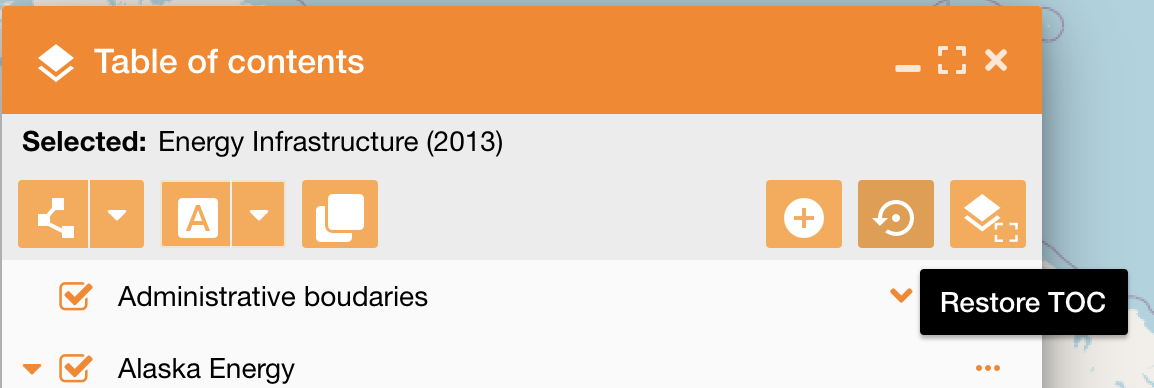
Restore TOC To reset all operation made on the TOC and come back to the initial situation Name: ui_restoretoc |
|
|
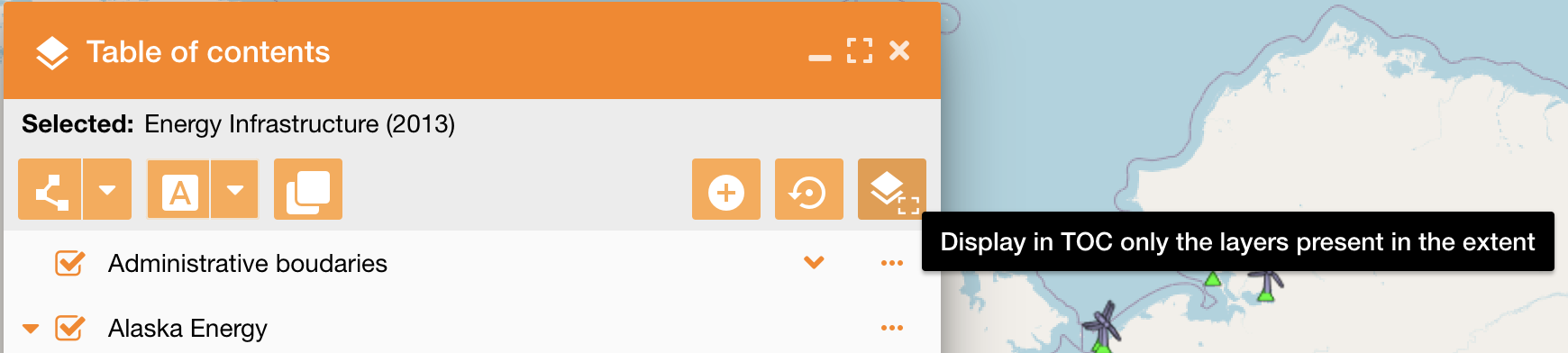
Display only layers in extent
This tool allows you to filter the TOC store by keeping in the list only the services with the extent intersected with the extent of the map being displayed. Name: ui_displaylayersinextent |