
On the first access, you will be categorized as profile “Viewer”, so you will not be able to see configuration panel or to use some tools. Ask to the system administrator to change your group according to your needs.
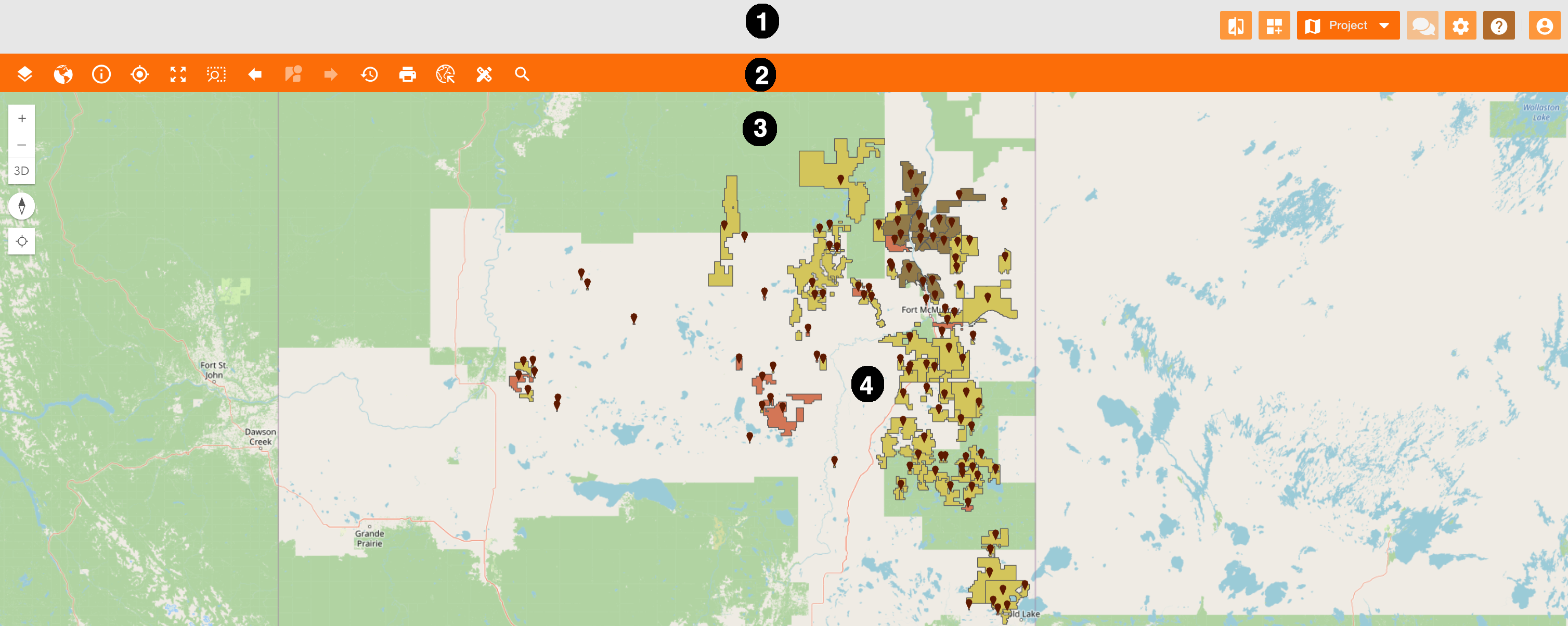
At the first access, you can see the home page on NextGen Geo, composed by these elements:
-
Navigation bar (Figure 1 - Home Page - icon 1) : Principal toolbar of the home page containing widgets to use on the platform Toolbar management
-
Principal map toolbar (Figure 1 - Home Page - icon 2): Toolbar of principal map containing widgets to use on the principal map Toolbar management
-
Map (Figure 1 - Home Page - icon 3): the map is the core element that visually represents geographic information. Map configuration
-
Data layers (Figure 1 - Home Page - icon 4): a service makes geographic information accessible over the map, and it can be composed by more layers, that are slices of information you can add to your map. Service Configuration
|
|
|
Figure 1 - Home Page |
On the bottom-right of the page, there are coordinates, scale and zoom info.
On the top-left of the page, there are some navigation tools such as, zooming-in and out, find your current position with the gps detection, orient the map with the compass icon.