
Name: ui_saveproject
Icon:

Available in toolbars: navigation
See reference: https://overit-spa.atlassian.net/wiki/spaces/NEXTGENGEO/pages/103375340676/Toolbar+management#Pre-defined-toolbars
A project is essentially a container that holds all the elements working towards a specific goal or analysis. It provides a way to organize and manage your work on your personal maps.
Manage projects helps to:
-
Organize: Keep all your work related to a specific task in one place, making it easier to find and manage information. Moreover, each projects can have different map so you can switch between more maps only changing the project
-
Collaborate: projects can be shared with colleagues, allowing for teamwork on complex tasks.
How to use
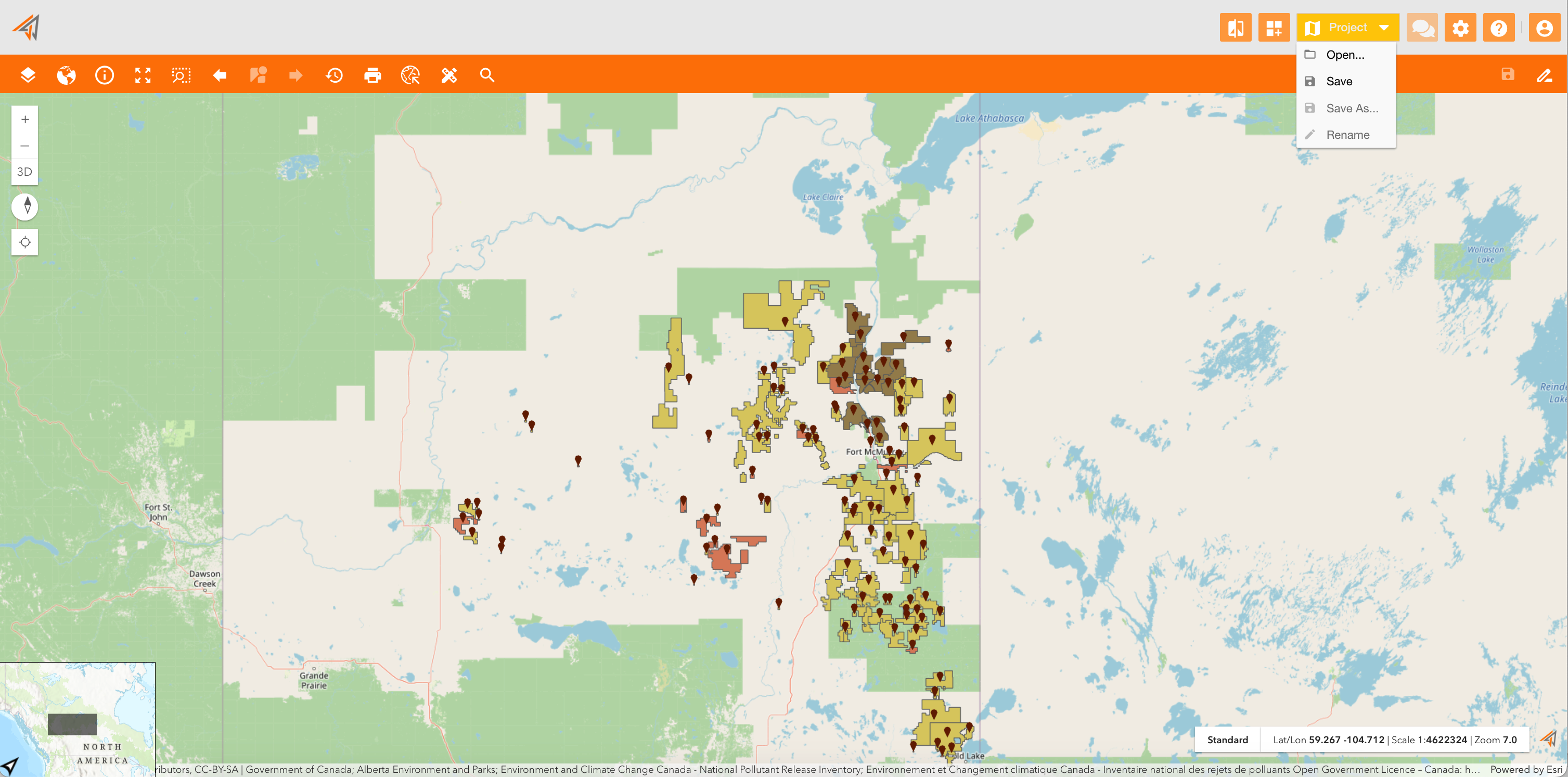
Going on the related button from the home page, you can see the project menu
-
Open: opens a mask containing all the projects to which the current user has access.
-
Save: Allows the current map to be saved, defining name, description and category
-
Save as: Allows you to save a copy of the current project (map with layers, current extent, annotations, ...) in case you want to change the configuration without losing the original
-
Rename: allows you to rename the current project.
|
|
Figure 1 - Project menu |
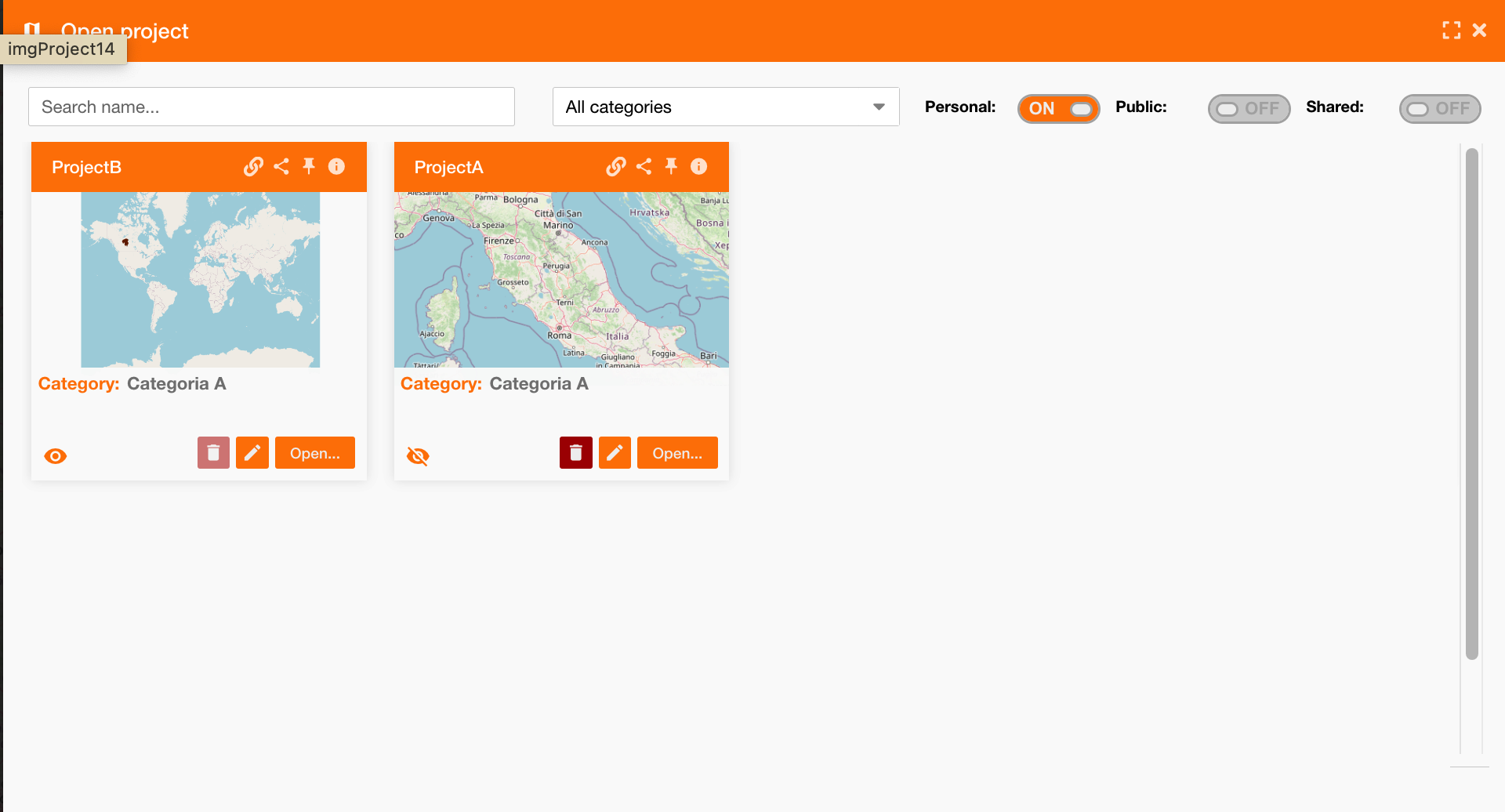
Projects can be defined and filtered by:
-
Project name
-
Category type: used to categorize projects according to customer needs - not used
-
Personal: view only your projects
-
Public: view all projects made public by other colleagues too
-
Shared: view projects in collaboration with other colleagues
|
|---|
|
Figure 2 - Projects panel |
For each project you can:
-

Share it with an URL: you can send the URL to a colleague in order to redirect him directly on the project clicking on a link with this structure: <environment name>/?mapId?<mapId>
-

Share the project with a colleagues: you can collaborate on the project with another colleague assigning him to it.
-

Make the project as default: use the project as a default project in order to open it when you load the system
-

Read info about the project, such as creation date and owner.
-

To make public the project (if you are enabled with the permissions gsp.main.project.openproject.map_publishing)
-

Delete it
-

Edit name, description and category
-

Open it
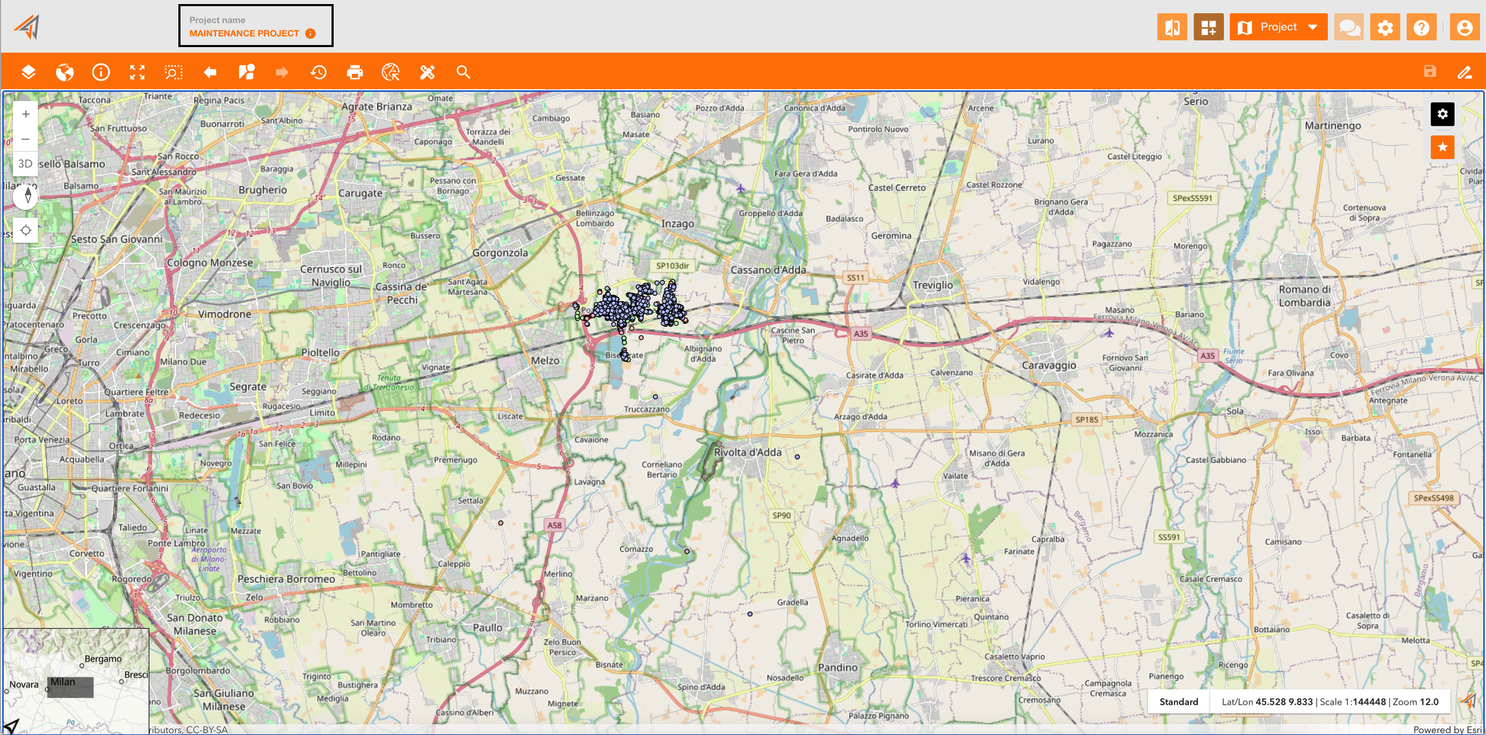
Opening a project, you can see the project name on the top-left of the page, and you can see that if you were on another map, the map will changes according to the related map of the project.
Starting from now, you can start to work on this map, and if you need you can switch it opening another project.
|
|---|
|
Figure 3 - Projects opening |