
Legend
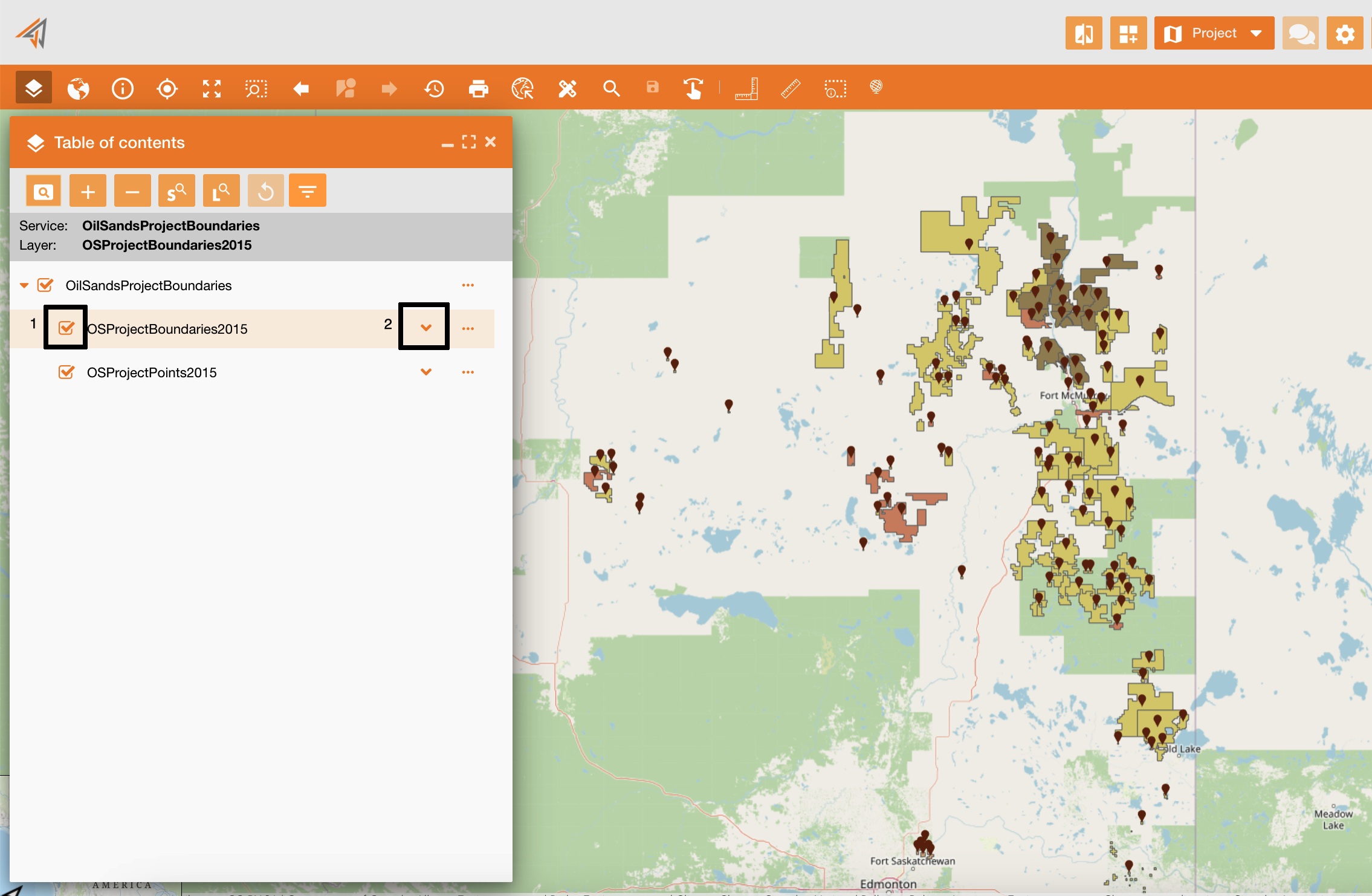
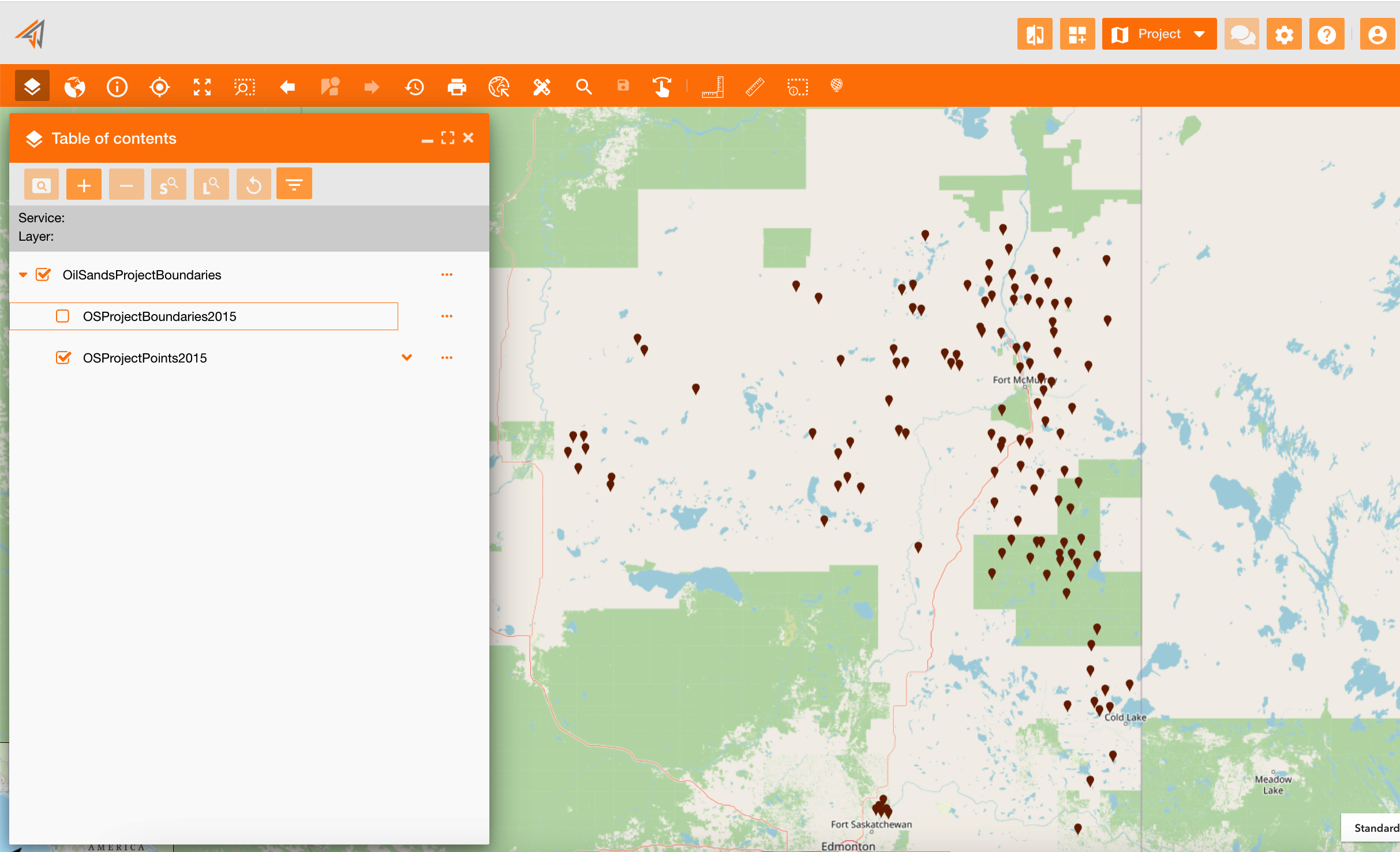
The TOC is a tool of the principal mal toolbar. On the panel there is the tree of each service including its layers. Clicking the checkbox near each layer (icon 1), you can show it on the map or not.
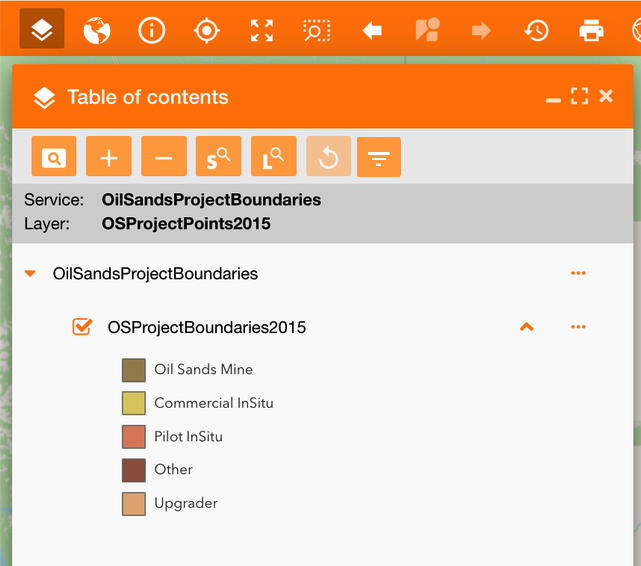
Clicking the dropdown icon (icon 2), you can see the color legend of the selected layer
|
|---|
|
Figure 2 - Layer legend |
The selection icon on the TOC’s service does not work ad a “select all / deselect all”, but it works as a “visible / not visible”.
TOC contextual menu
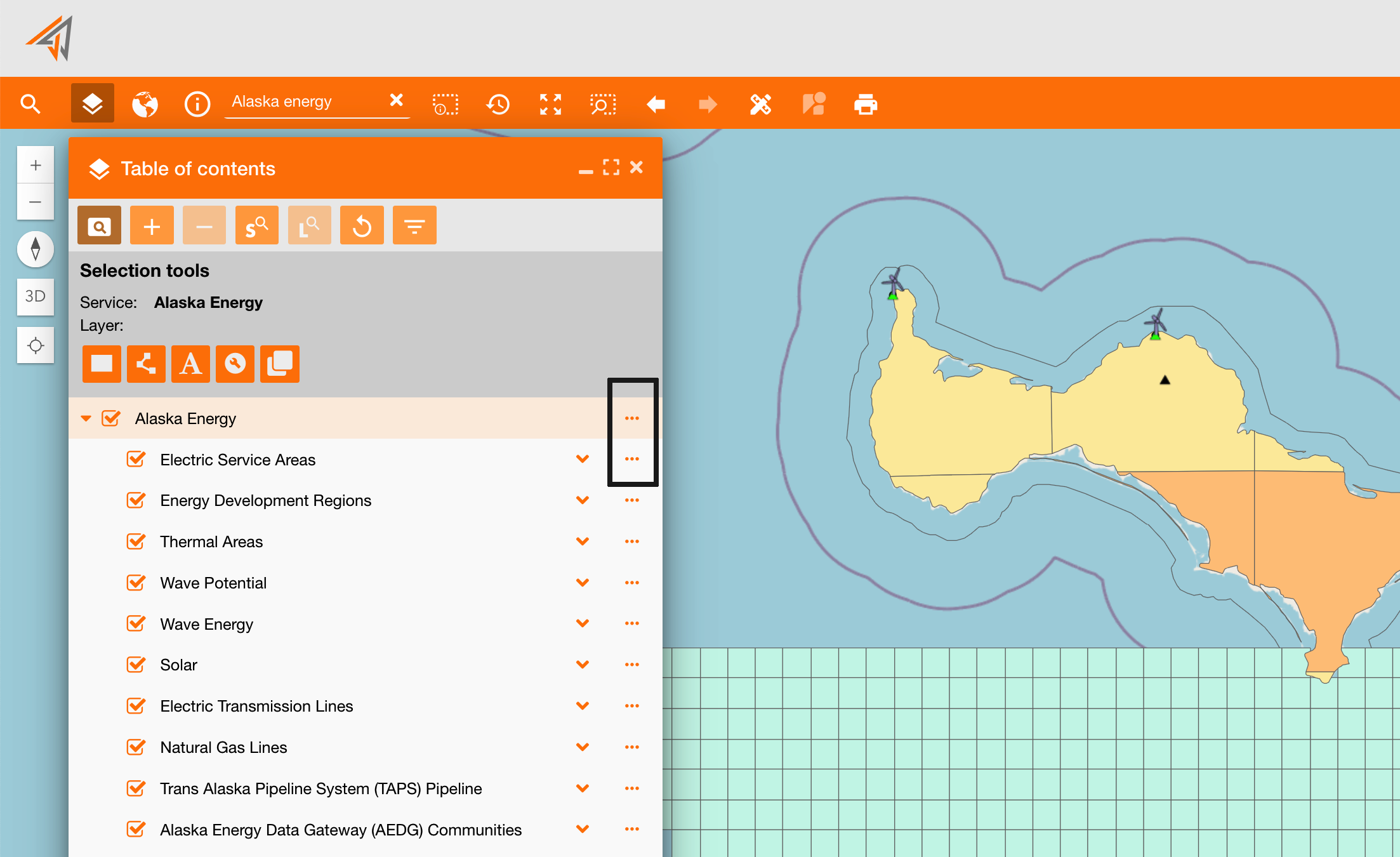
Clicking on the contextual menu of each layer (Figure 3 - TOC contextual menu) you can see all widgets associated to the contextual menu toolbar toc_ctxmenu (see reference: https://overit-spa.atlassian.net/wiki/spaces/NEXTGENGEO/pages/103375340676/Toolbar+management#Pre-defined-toolbars ). You can access to different widget if you are opening the menu at service’s level or layer’s level.
|
|---|
|
Figure 3 - TOC contextual menu |
Navigate on services and layers
-
Zoom to extent (name: toc_zoomto): it zooms centering on all data of that layer
-
Attribute table (name: toc_attributetable): it shows all layers data based on filters applied
-
Definition query (only layer): if present, it shows the query used to filter the service, i.e. zone filters.
-
Clear filter: if some filters are applied in the map, they will be removed
-
Turn on/off all layers (only service): it is used to turn on or turn off all layers in a single step
-
Remove (only service): remove a service from the map and from the TOC
-
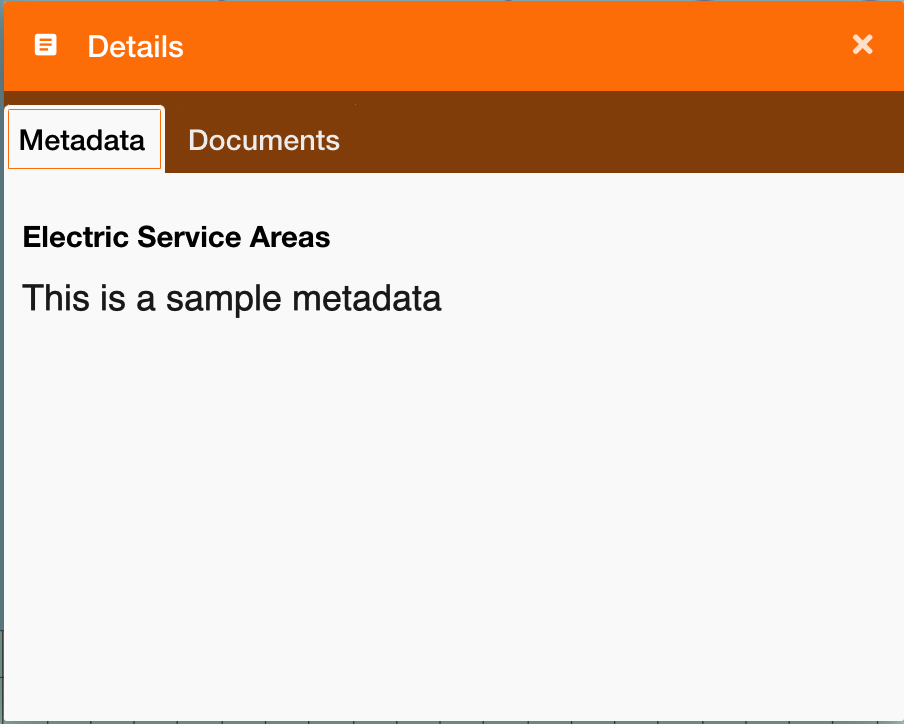
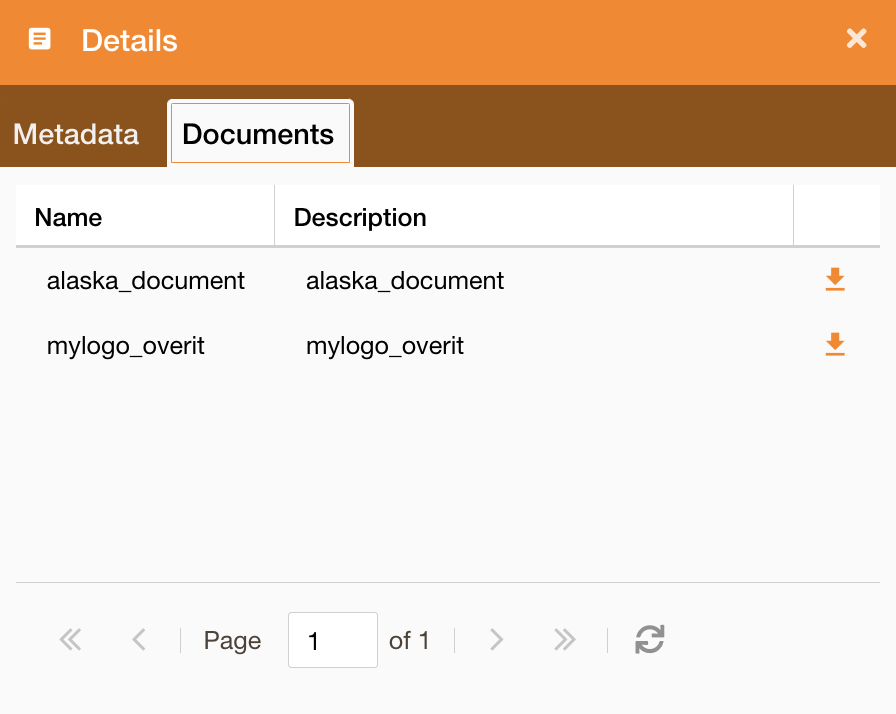
Details (name: toc_metadata):
-
Metadata: It shows a panel with all metadata firstly retrieved on the db, then if not present, retrieved on the service. (you can configure metadata here: https://overit-spa.atlassian.net/wiki/spaces/NEXTGENGEO/pages/103375340160/Service+Configuration#Service-Metadata )
-
Documents: It shows a panel with all documents associated to the service. (you can configure documents here: Documents configuration )
-
Change service style
-
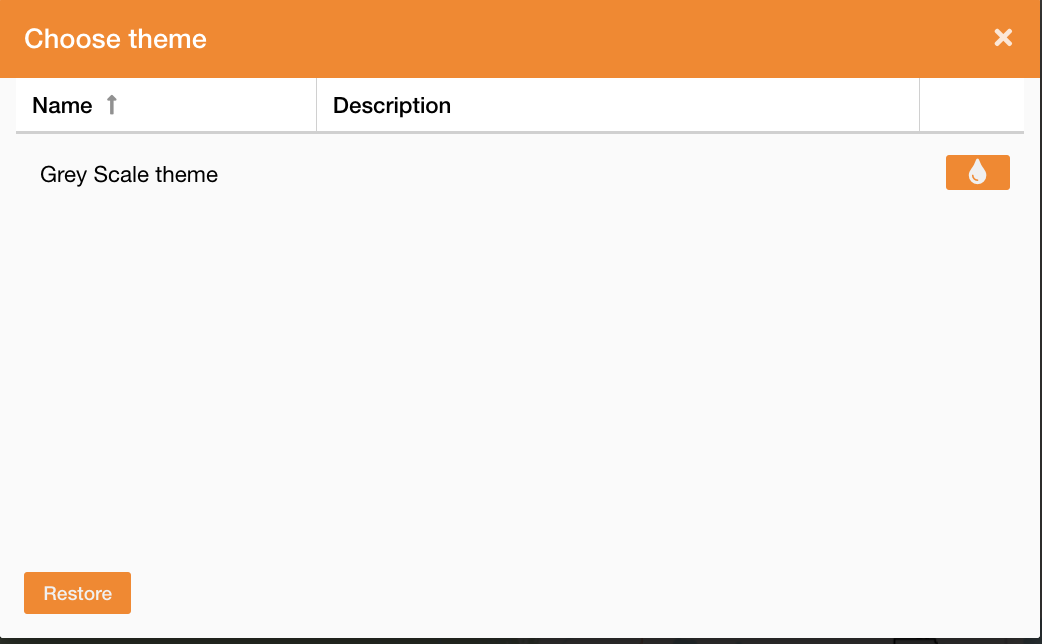
Choose theme (name: toc_settheme): It allows to change service theme and it works only at service level (not layer). In this panel are showed only themes previously configured on the service https://overit-spa.atlassian.net/wiki/spaces/NEXTGENGEO/pages/103375340160/Service+and+Server+configuration#Service-theme . It is possibile to restore the starting theme clicking the Restore button.
|
|---|
-
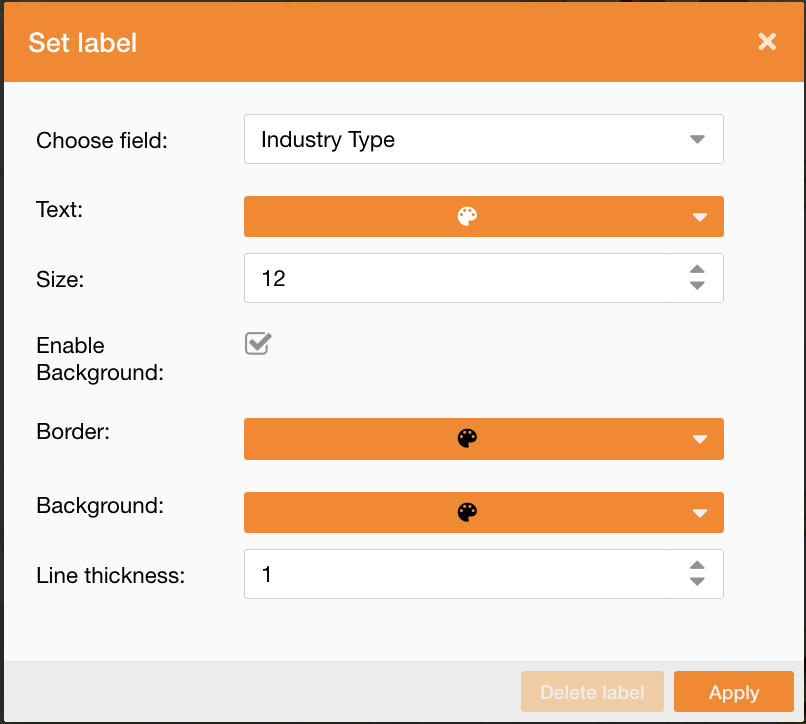
Set label (name: toc_setlabel): It allows to add labels to the map to identify some assets attributes. You can define which field will be the label and its style, such as text color, size, and background style.
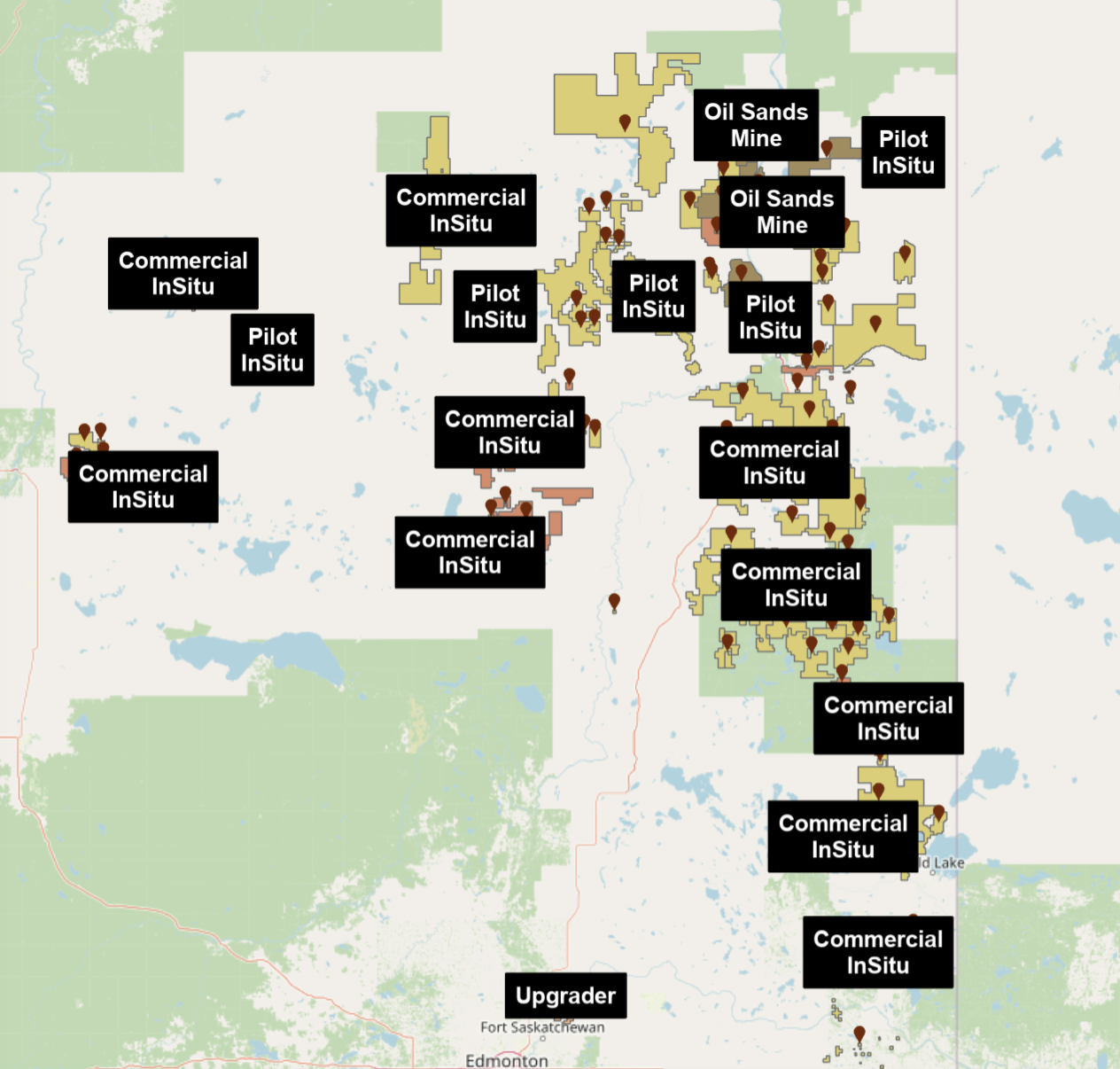
-
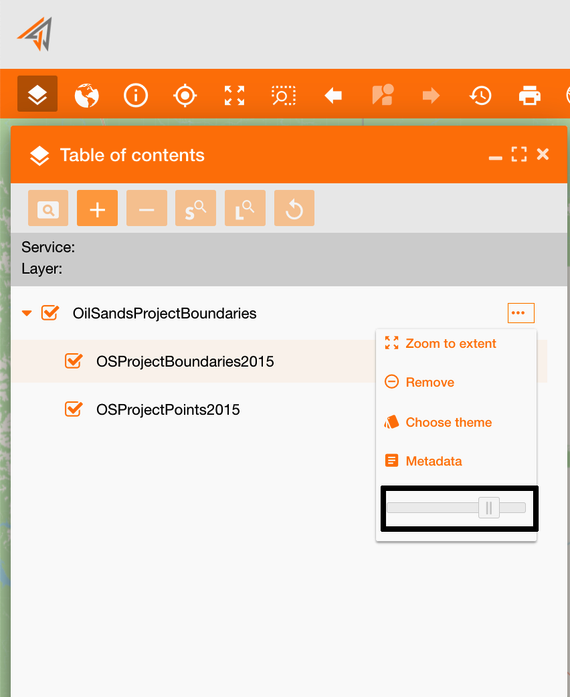
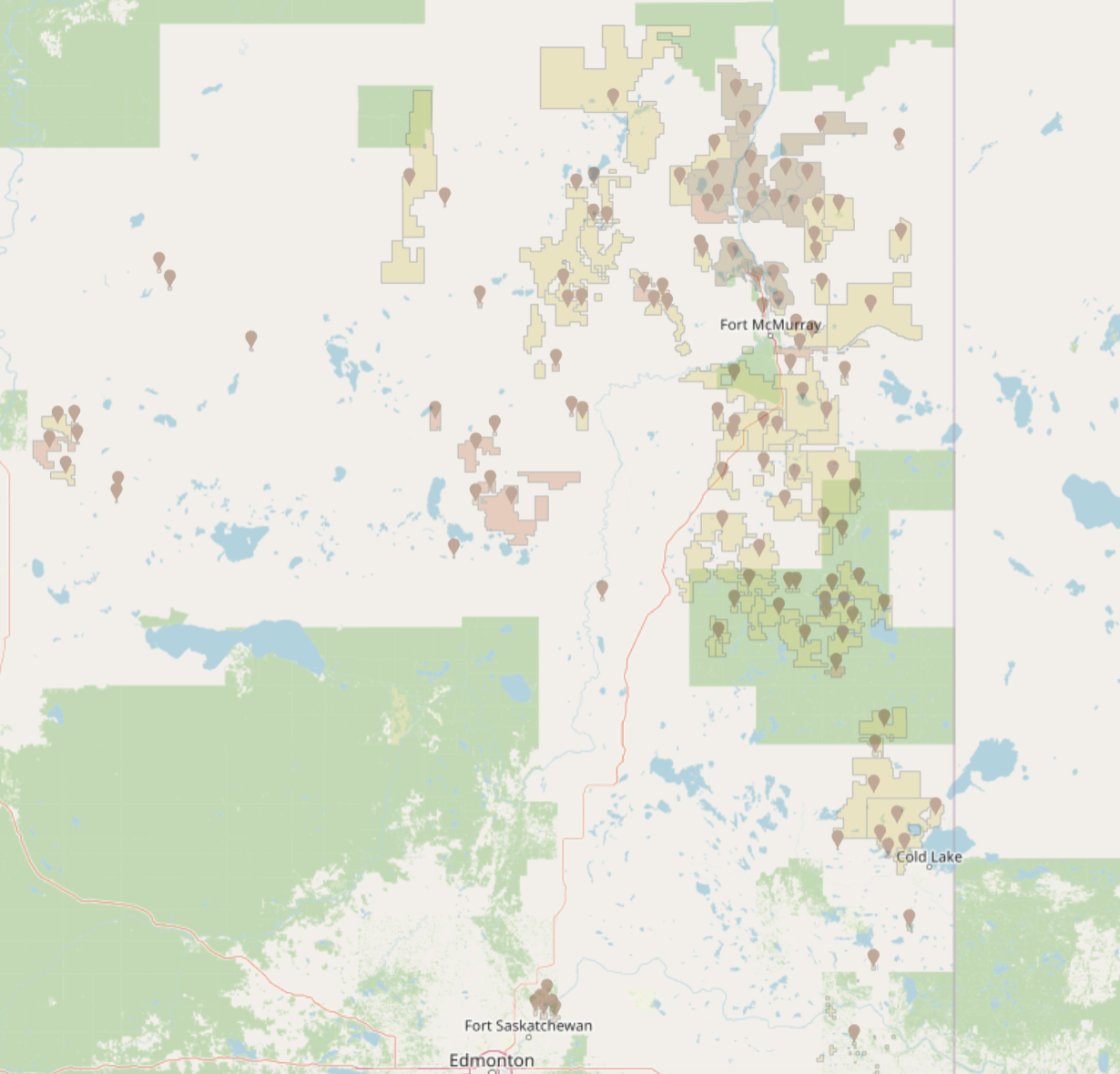
Opacity slider (name: toc_opacityslider). It is a slide to change the opacity of all service’s data:
Editing feature
-
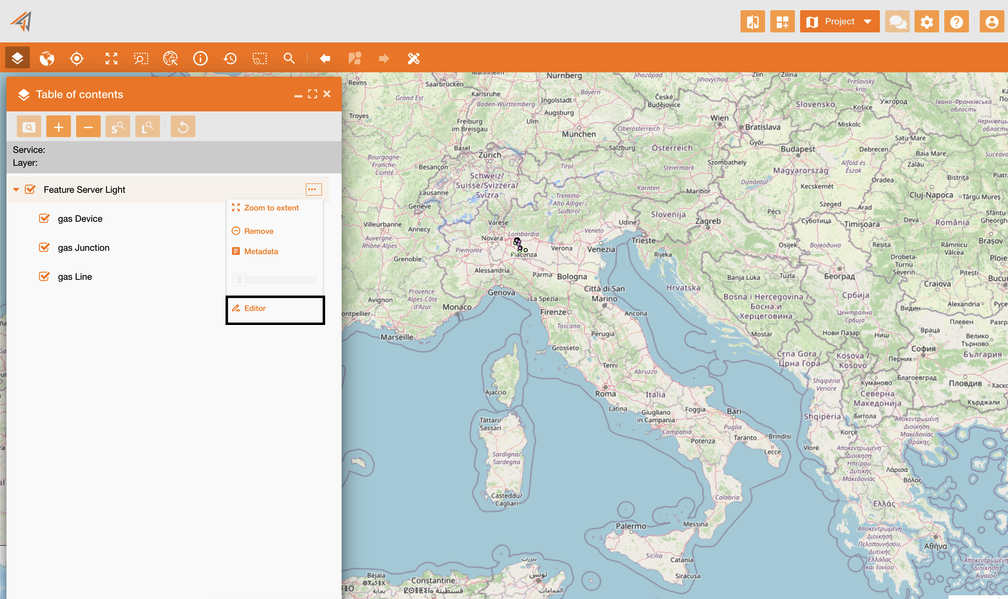
Editor (name: ui_editor): It allows to change geodata on the map. Editor widget
|
|---|
TOC toolbar
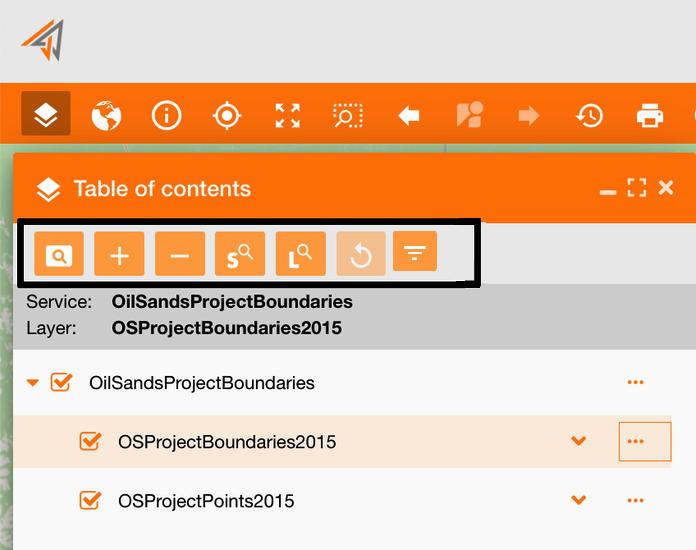
At the top of the TOC panel, there is the toc toolbar (see reference: https://overit-spa.atlassian.net/wiki/spaces/NEXTGENGEO/pages/103375340676/Toolbar+management#Pre-defined-toolbars ).
|
|---|
This toolbar contains more widgets to search assets and data using the TOC and to configure services on the map, described in the table below:
|
Widget |
Description |
|---|---|

|
Available only at layer level, it shows all selection tools, see reference: Selection tools by TOC 3.0.* 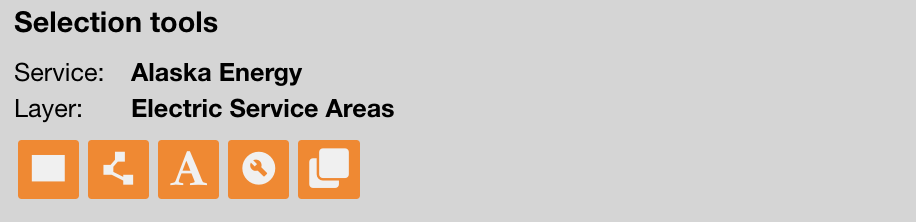
Name: ui_selectiontoc |

|
To add a service (+ icon): https://overit-spa.atlassian.net/wiki/spaces/NEXTGENGEO/pages/103375340343/Map+configuration#Associate-services-on-map-using-the-TOC Name: ui_simpleaddlayer |
|

|
To remove on the map the selected service Name: ui_removelayer |

|
To zoom in at service level (S-icon) or to zoom in at selected layer level (L-icon). Name: ui_zoom2service, ui_zoom2layer |
|

|
To reset all operation made on the TOC and come back to the initial situation Name: ui_restoretoc |
|

|
To show in the TOC only services and layers that intersect the current map’s extent. Name: ui_displaylayersinextent |