
The Secondary map is a functionality that allows to have on the same screen two independent map views, the principal map and another one.
It is useful to load different data or to have different view of the same data in order to compare them. Moreover, if your data covers a large geographic territory, having two map views can help to focus your analysis on specific areas while maintaining context in the other view.
Available in toolbars: navigation
See reference: https://overit-spa.atlassian.net/wiki/spaces/NEXTGENGEO/pages/103375340676/Toolbar+management#Pre-defined-toolbars
Name: ui_secondarymap
Icon:

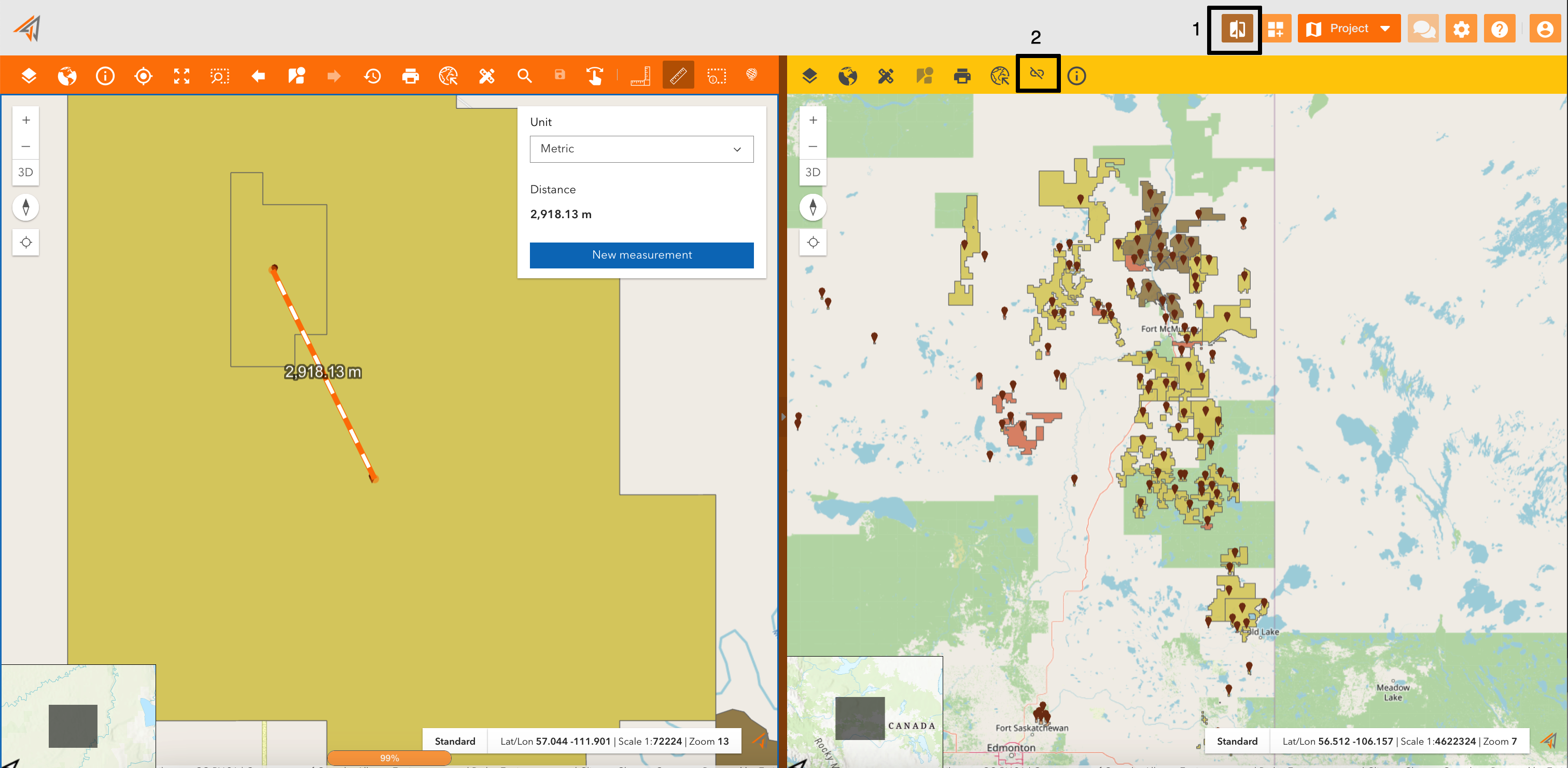
Clicking on the related icon (Figure 1 - Secondary map - icon 1), the screen will be splitted in two maps. For example in the image below, the user can have the total view of the assets on the map using the secondary map, and can work on assets using the principal map.
The secondary map is exactly another map, so you can find it in the map configuration menu and configure it with:
-
different services
-
different properties
-
different toolbar
In fact, as you can see, the two maps have different toolbar.
You can also work synchronizing maps using the “Synchronize map” tool assigned to the related icon (Figure 1 - Secondary map - icon 2), so zoom tools will operate in both maps in the same way.
|
|
|---|
|
Figure 1 - Secondary map |