
Available in toolbars: maps
See reference: Toolbar management | Pre defined toolbars
Info tools allow to view detailed information about a specific selected map feature or area.
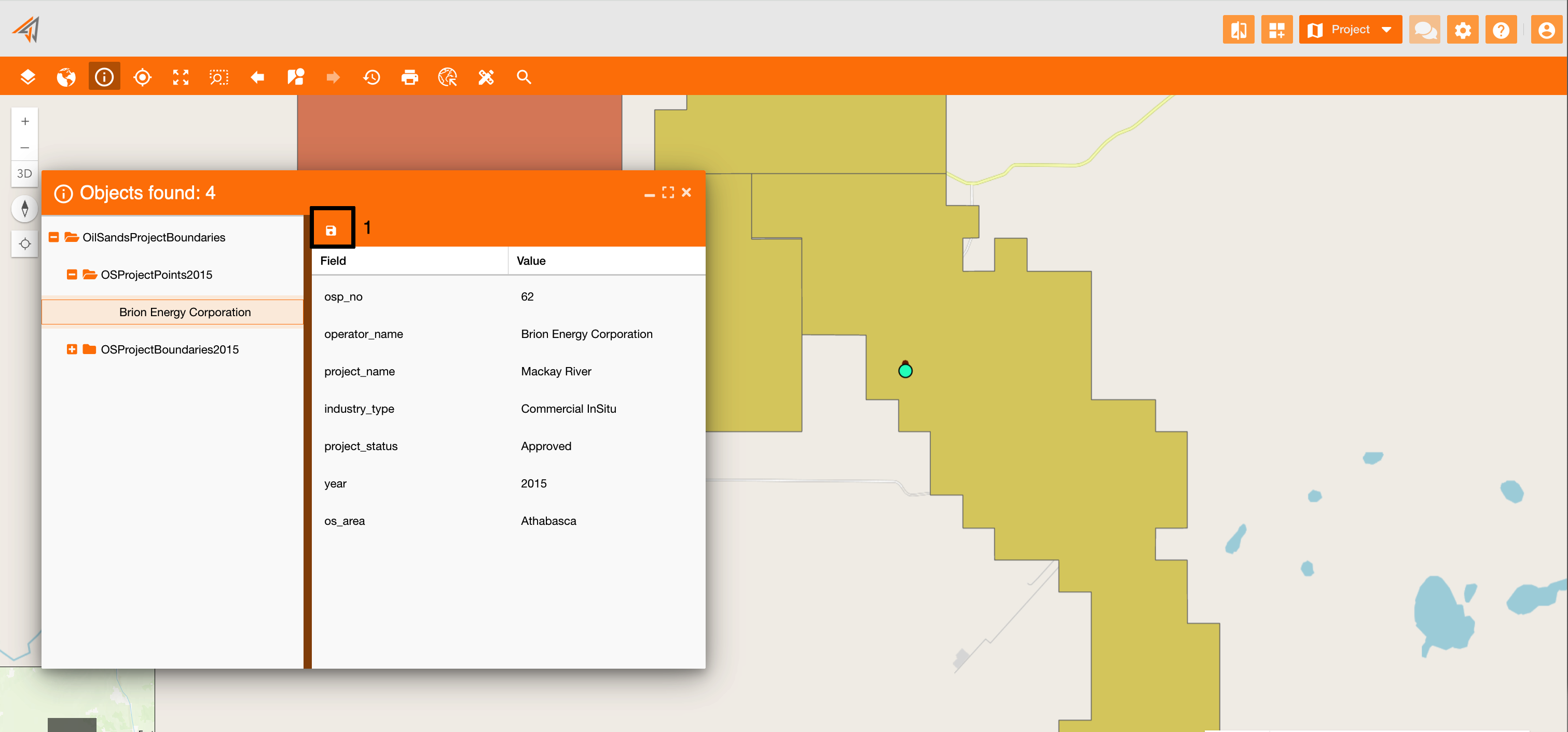
Using info tools, a new panel will appear showing information about all objects found in that point or area. In the image below (Figure 1 - Info panel), the user clicked on a point (green circle on the map) and the system found 4 objects in the panel. Clicking a single object from the panel, on the right there are all fields related to it and their values.
To save this data you can use the save button (Figure 1 - Info panel - icon 1), in order to have a faster access to this result, using the Historical Information widget (see reference: Historical information ).
The save button is configured in the info toolbar, that now contains only this widget.
You can use two type of info tools:
|
|---|
|
Figure 1 - Info panel |
Info on single point
Name: ui_identify
Description: Show information about a single point selected on the map.
Icon:

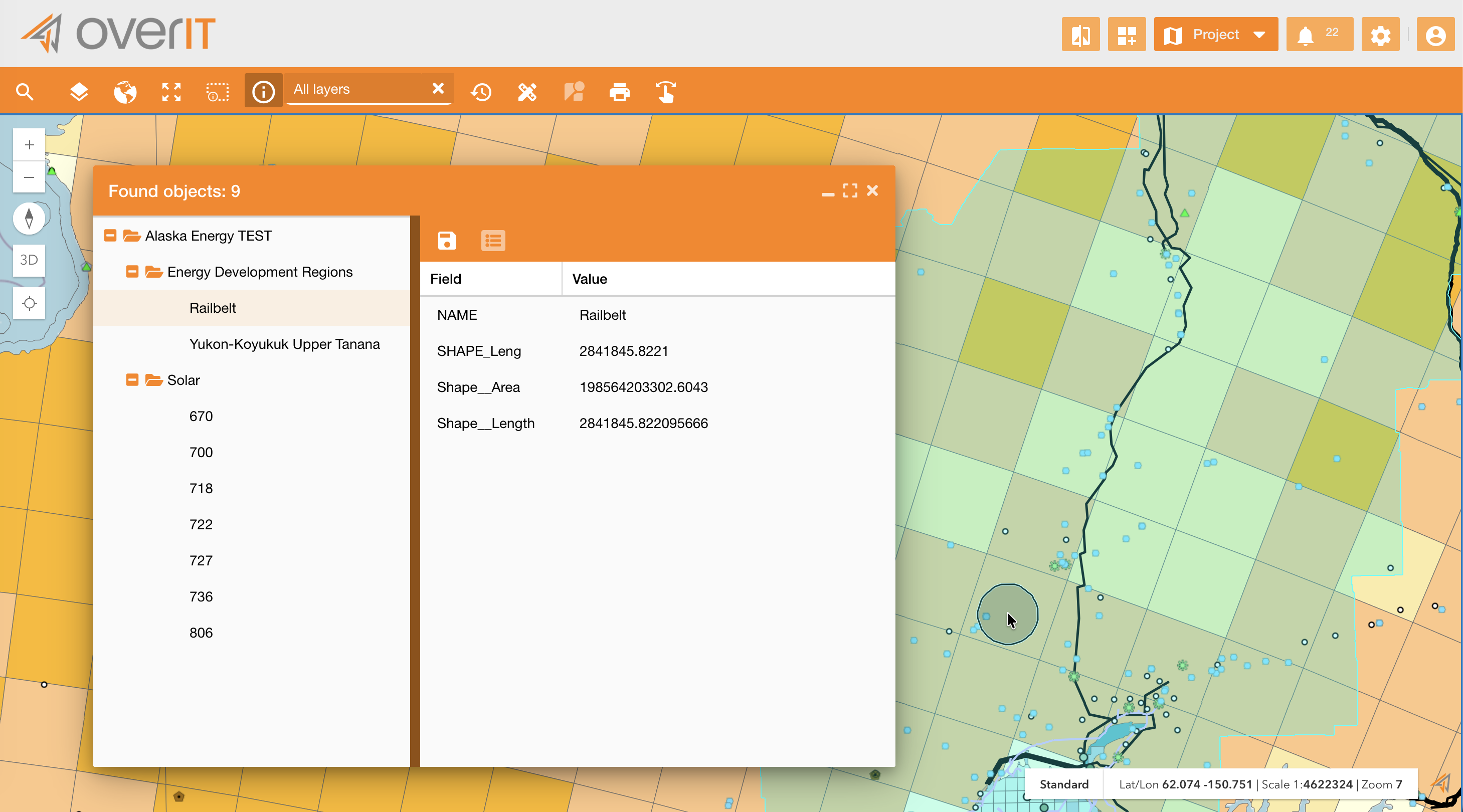
Clicking on the info icon on the map toolbar (Figure 2 - Info on single point - icon 1) , and then clicking on a point, the info panel will appear showing all objects found in that point. In this case there are two objects, the single asset point and the related yellow boundary.
Users can adjust the accuracy of the info tool by right-clicking and scrolling with the mouse wheel. This action expands or shrinks the selection area, changing the accuracy accordingly.
By default the info functionality works on all layers, but it can be applied also on single layers or services selecting them on the TOC.
On the info panel you can (Figure 2 - Info on single point - icon 2):
-
Show all assets' fields if only some of them are visible. (which fields make visible in this panel are configurable at layer’s level, see reference: Service Configuration | Service Layers Attribute table )
-
Save data using the save icon. They are visible on the historical widget Historical information
|
|---|
|
Figure 2 - Info on single point |
Info on selected area
Name: ui_identifyarea
Description: Show information about all features in an area drawn by hand on the map.
Icon:

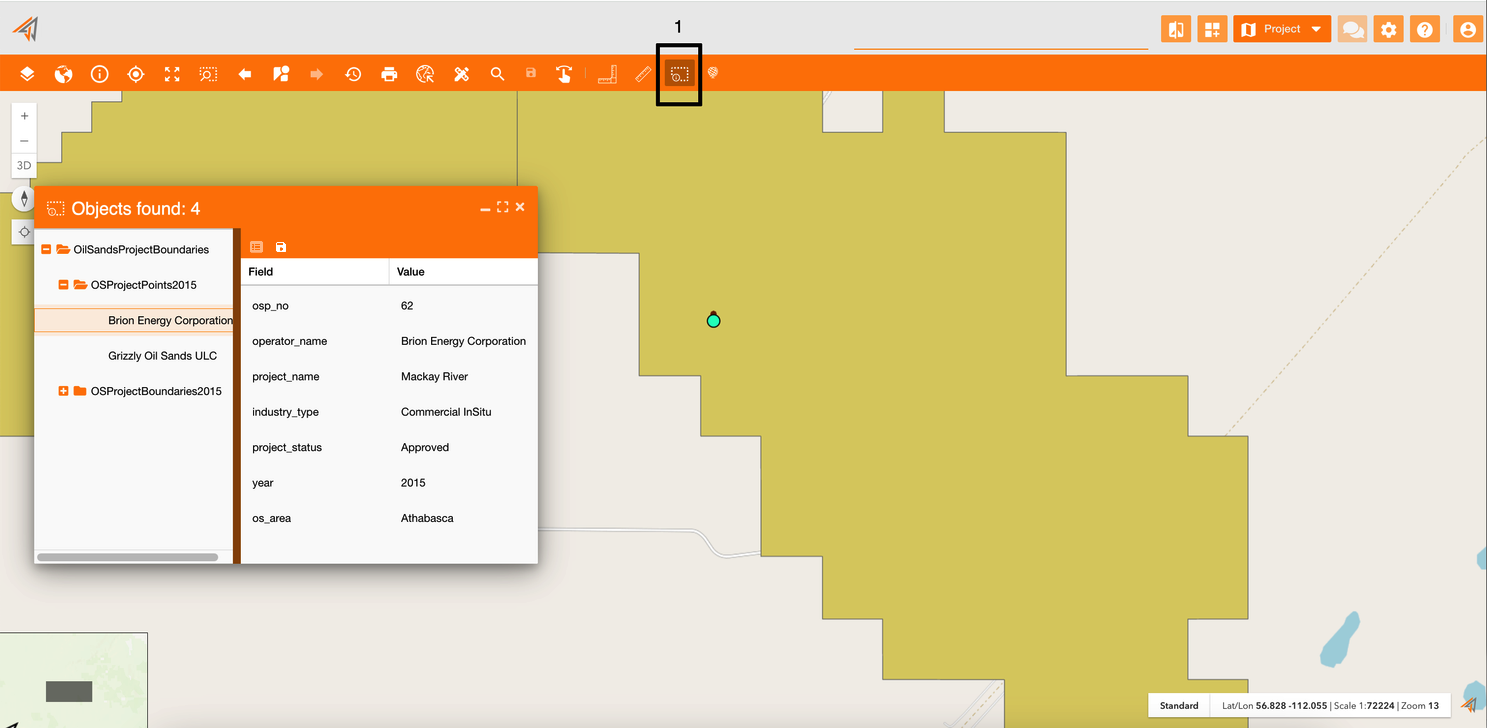
Clicking on the related info icon on the principal map toolbar (Figure 3 - Info on selected area - icon 1), you can draw an area by hand and then the info panel will appear showing all objects found in that area.
|
|---|
|
Figure 3 - Info on selected area |