
Available in toolbars: maps
See reference: https://overit-spa.atlassian.net/wiki/spaces/NEXTGENGEO/pages/103375340676/Toolbar+management#Pre-defined-toolbars
Name: ui_coordinate
Description: Allow to retrieve coordinate of a point using different spatial references and formats.
Icon:

A field service manager who works on a map, in any moment could need to have coordinates of a point on the map.
|
|---|
|
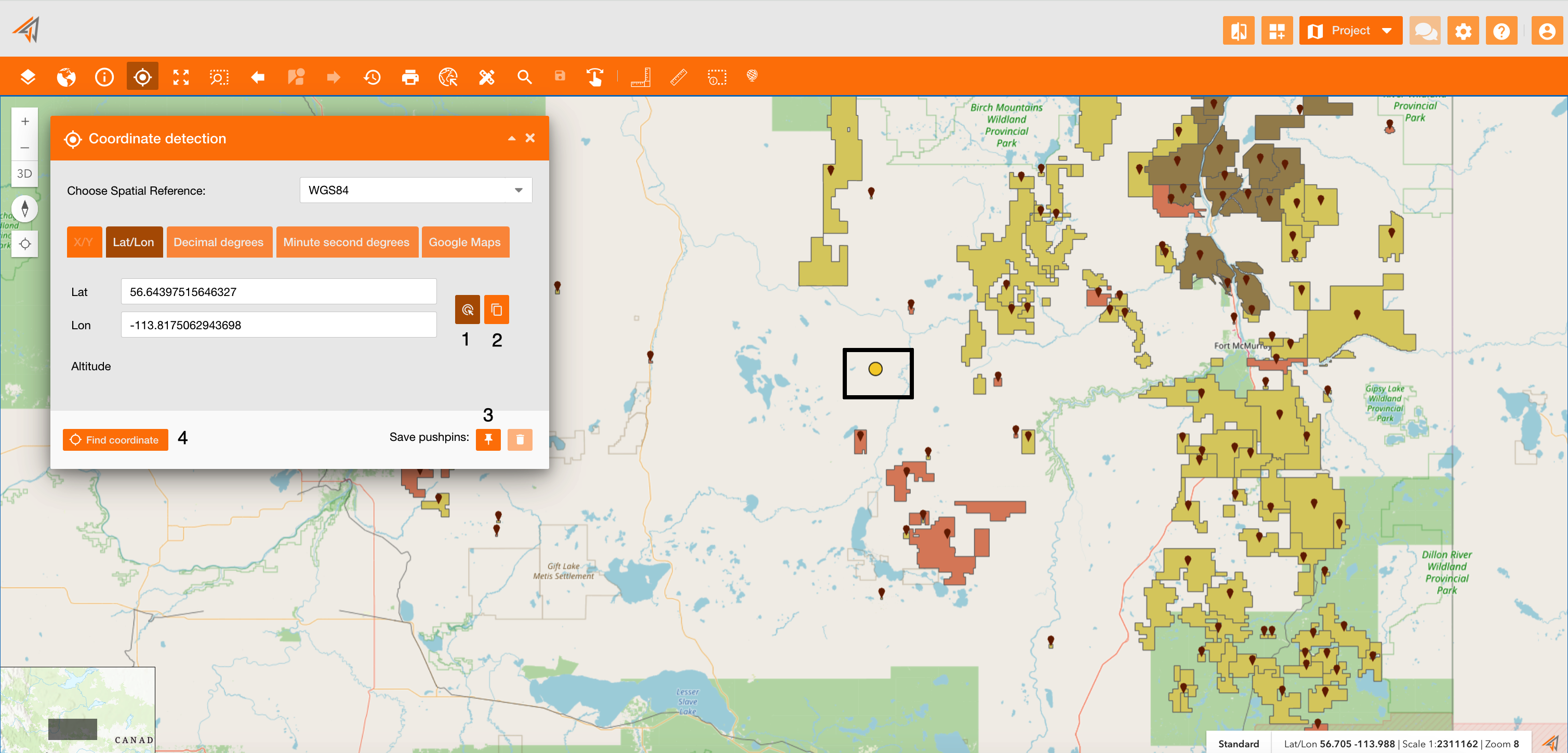
Figure 1 - Find coordinate tool |
Clicking the coordinate icon, a new panel will allow to find coordinates of a point or to manually input coordinates to find a point in the map.
You can change the spatial reference, and then you can choose the input/output coordinates' format between:
-
Latitude, Longitude
-
Decimal Degrees
-
Minute second degrees
-
Google Maps URL
If you need to find coordinates of a point in the map, you can use the “Get coordinate on map” button (Figure 1 - Find coordinate tool - icon 1), before clicking on it and then clicking a point on the map (yellow point in the black square, in Figure 1 - Find coordinate tool).
If you need to copy coordinates, you can use the copy button (Figure 1 - Find coordinate tool - icon 2).
If you need to save the point you can pin it using the pushpins button (Figure 1 - Find coordinate tool - icon 3). To delete saved points you can use the delete button.
If you need to find a point on the map using coordinates, you can enter coordinates and then click the “Finds coordinates” button (Figure 1 - Find coordinate tool - icon 4).