
Introduction
Toolbars and widgets are both user interface elements that help you interact with functionalities. However, they serve different purposes:
A toolbar is a strip of icons that provides quick access to frequently used functions.
Example:
-
Zoom in/out and pan widgets for navigating the map.
-
Widgets for adding data layers, searching for locations, or measuring distances.
-
Buttons for editing maps
A widget is a more modular element that offers specific functionalities. Widgets can be much more diverse in their function compared to toolbars.
Example:
-
Search widget: Lets you find locations or data based on keywords or addresses.
-
Basemap gallery widget: Provides a selection of different base maps to choose from (like satellite imagery or topographic maps).
-
Measurement widget: Offers widgets for measuring distances, areas, or perimeters on the map.
It’s possibile to customize the layout and add or remove widgets based on your specific needs and workflows. This flexibility lets you create a personalized workspace tailored to your project requirements.
How to configure
Only System_admin group can access to this tab
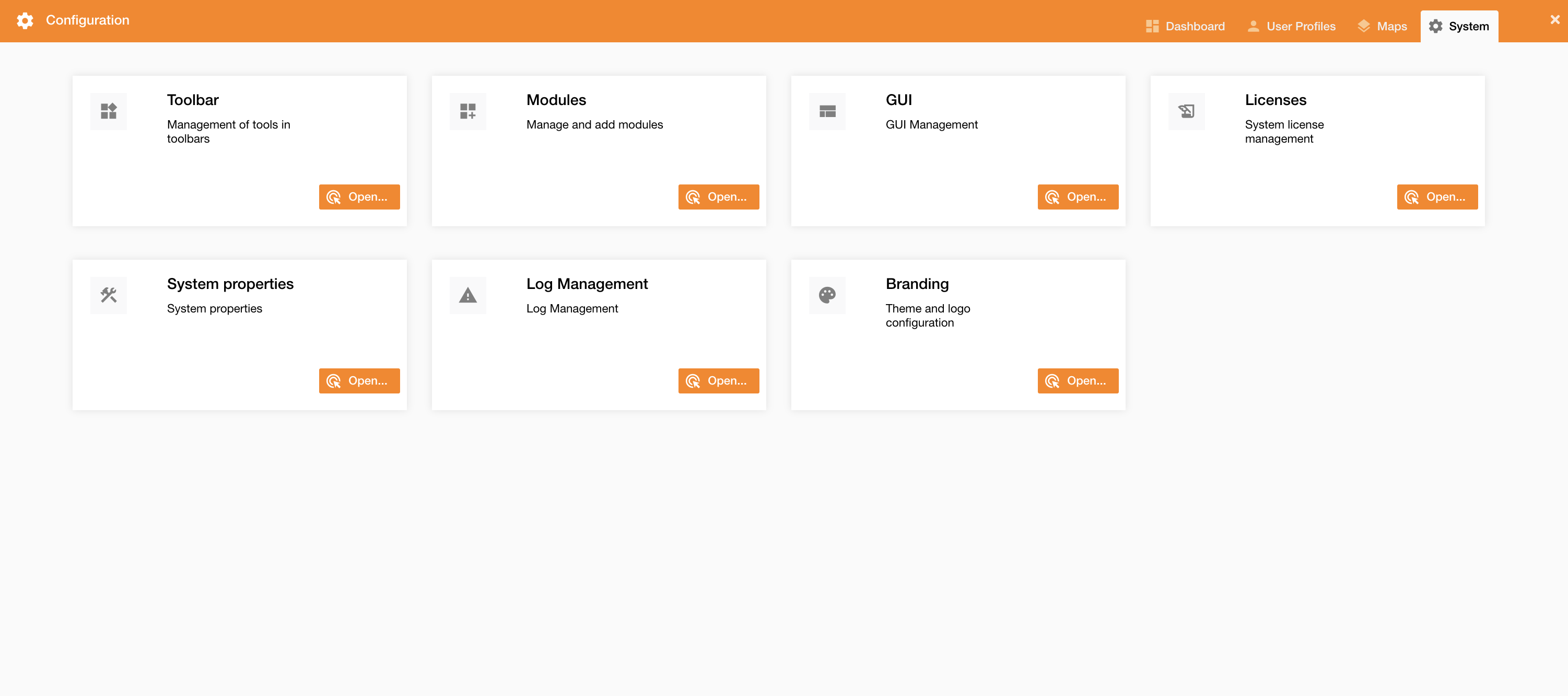
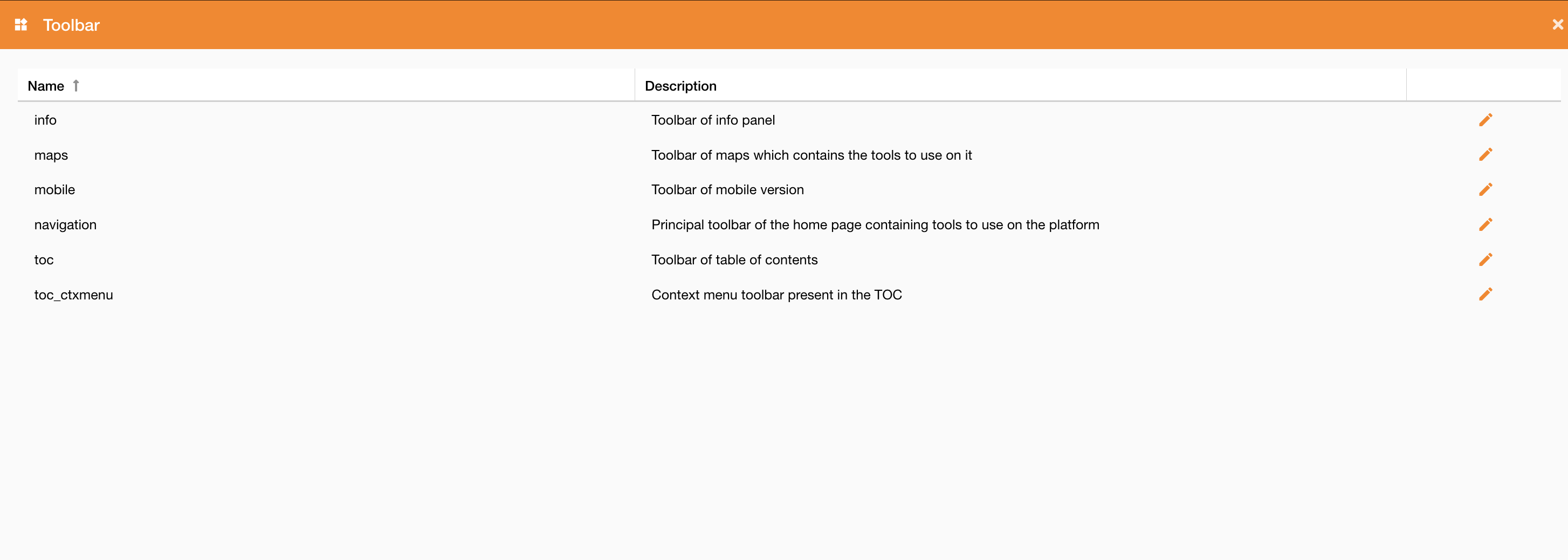
Going on Control Panel > System > Toolbar (Figure 1 - Control Panel), you can see the list of all existing toolbars (Figure 2 - Toolbar view).
|
|
|---|
|
Figure 1 - Control Panel |
|
|
|---|
|
Figure 2 - Toolbar view |
Here you can see the description of the pre-defined toolbars and where to find them on the system https://overit-spa.atlassian.net/wiki/spaces/NEXTGENGEO/pages/103375340676/Toolbar+management#Pre-defined-toolbars .
Near each toolbar there is and edit icon which allow to open that selected toolbar.
|
|
|---|
|
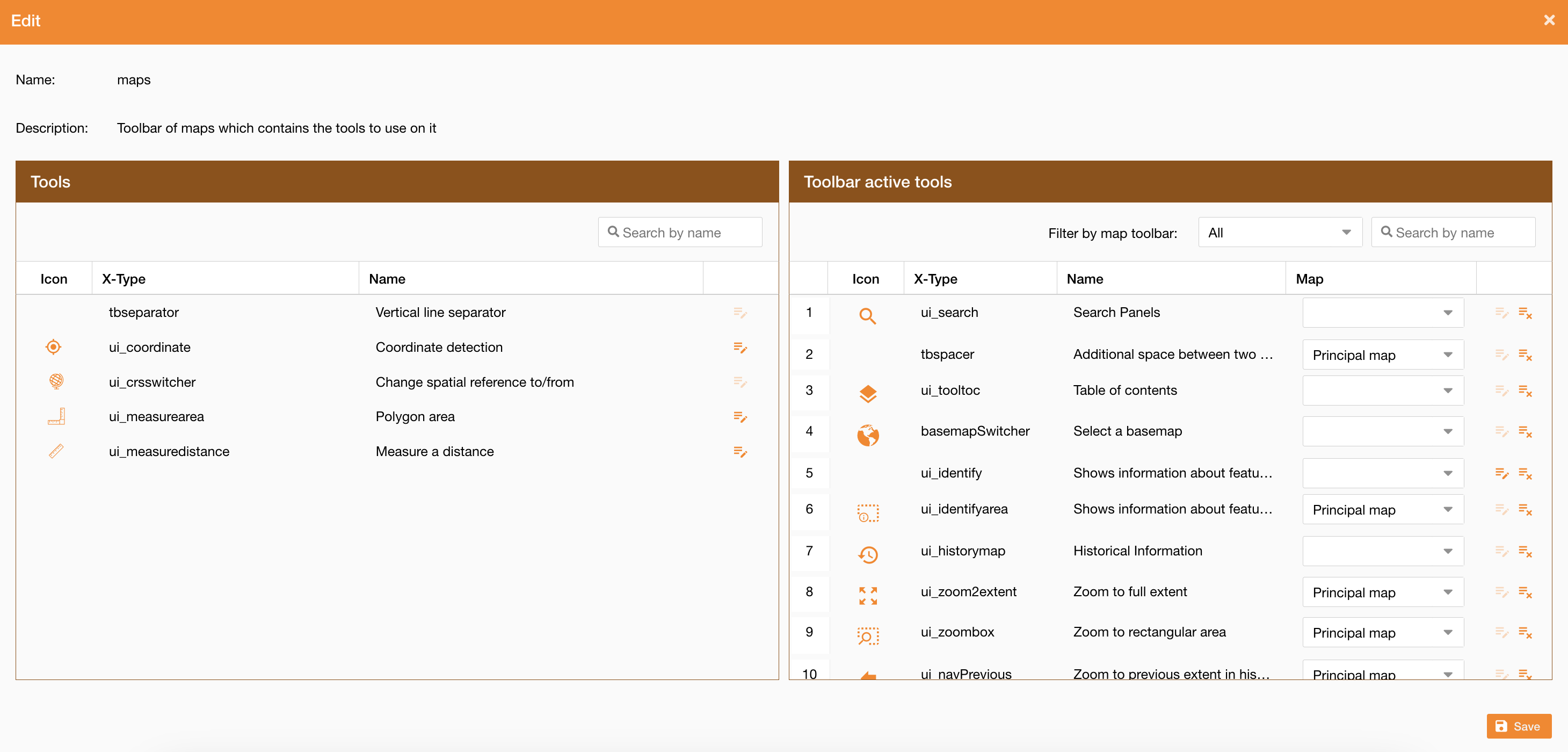
Figure 3 - Toolbar configuration |
Opening a toolbar, there is a table containing on the left all tools assignable to the toolbar.
On the right of the page there is a panel containing all tools assigned to the toolbar, ordered according to user’s needs. Each tool can be sorted or assigned only to principal, secondary map or both.
To configure a toolbar you can:
-
Search tool by its name
-
Assign a tool to the toolbar using the drag and drop
-
Remove a tool from the toolbar using the remove icon
-
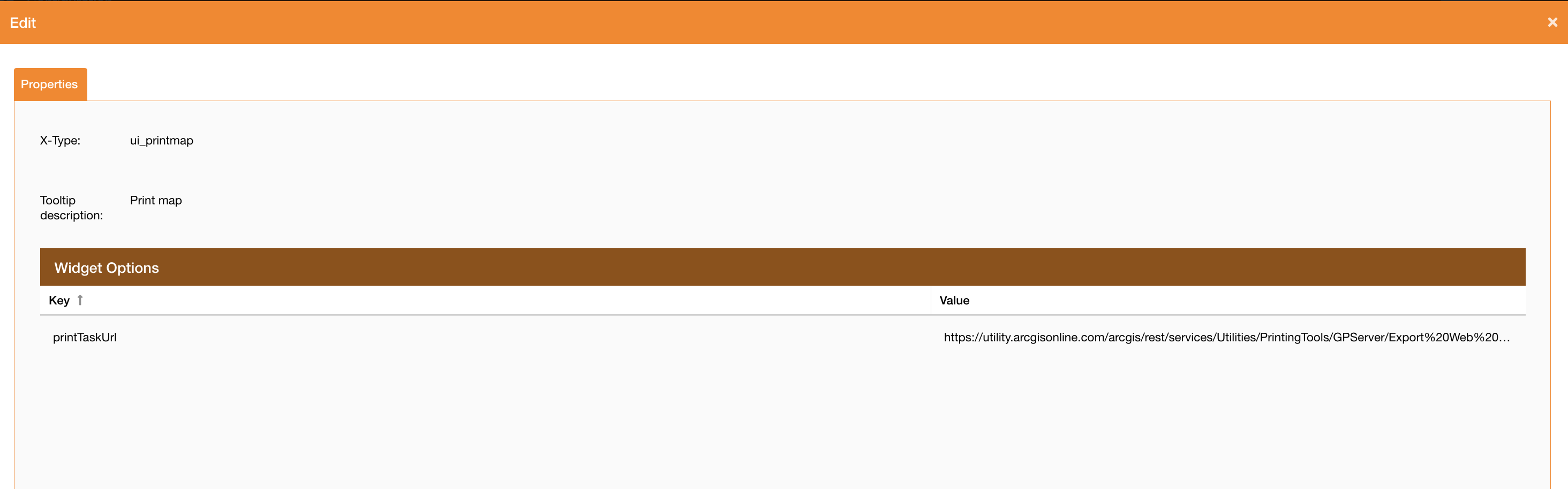
Configure tool properties using the edit icon near each tool (if properties are not available the icon is turned off) (Figure 4 - Widget configuration). The widget options are predefined and it is not possibile to create new one in order to avoid to generate error in the system.
-
Sort tools using the drag and drop
-
Define map of a tool on the Principal map, Secondary map or both (empty value)
Example: The “Print map” widget allows to define the printing service to invoke to complete the printing task
|
|---|
|
Figure 4 - Widget configuration |
Pre-defined toolbars
|
Preview |
Description |
|---|---|
|

|
navigation Principal toolbar of the home page containing widgets to use on the platform |
|
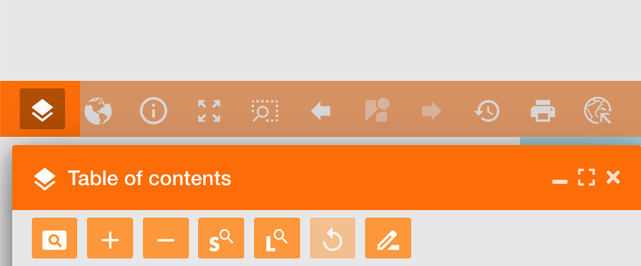
toc Toolbar of table of contents [Note: No more configurable in Release 3.0.*] |
|

|
maps Toolbar of map containing widgets to use on the principal map / secondary map |
|
|
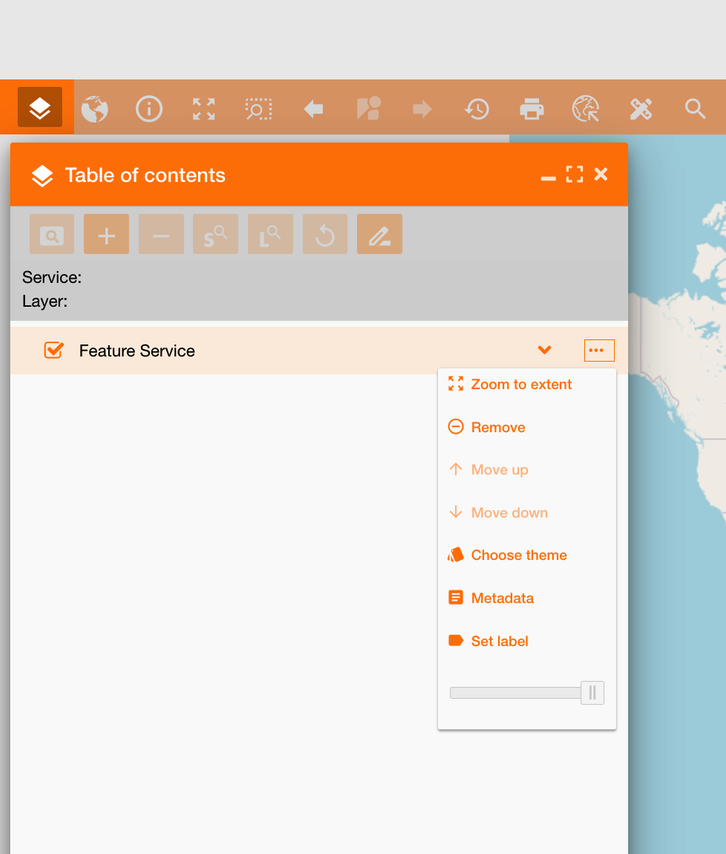
toc_ctxmenu Toolbar containing widgets to use on the contextual menu of table of contents. |
|
|
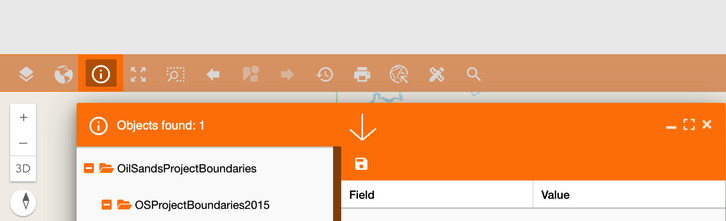
info Toolbar of info panel |
|
mobile |
Toolbar of mobile version - not used |