Overview
Through the Notification and WO Monitor page in FSM (Features > Core > Work Order Management) you can monitor Work Order (WO) Operations. This functionality is enhanced by a dedicated layer for WO Operations, which you must enable by activating the Double Location feature.
The WO Operations layer provides several key features:
-
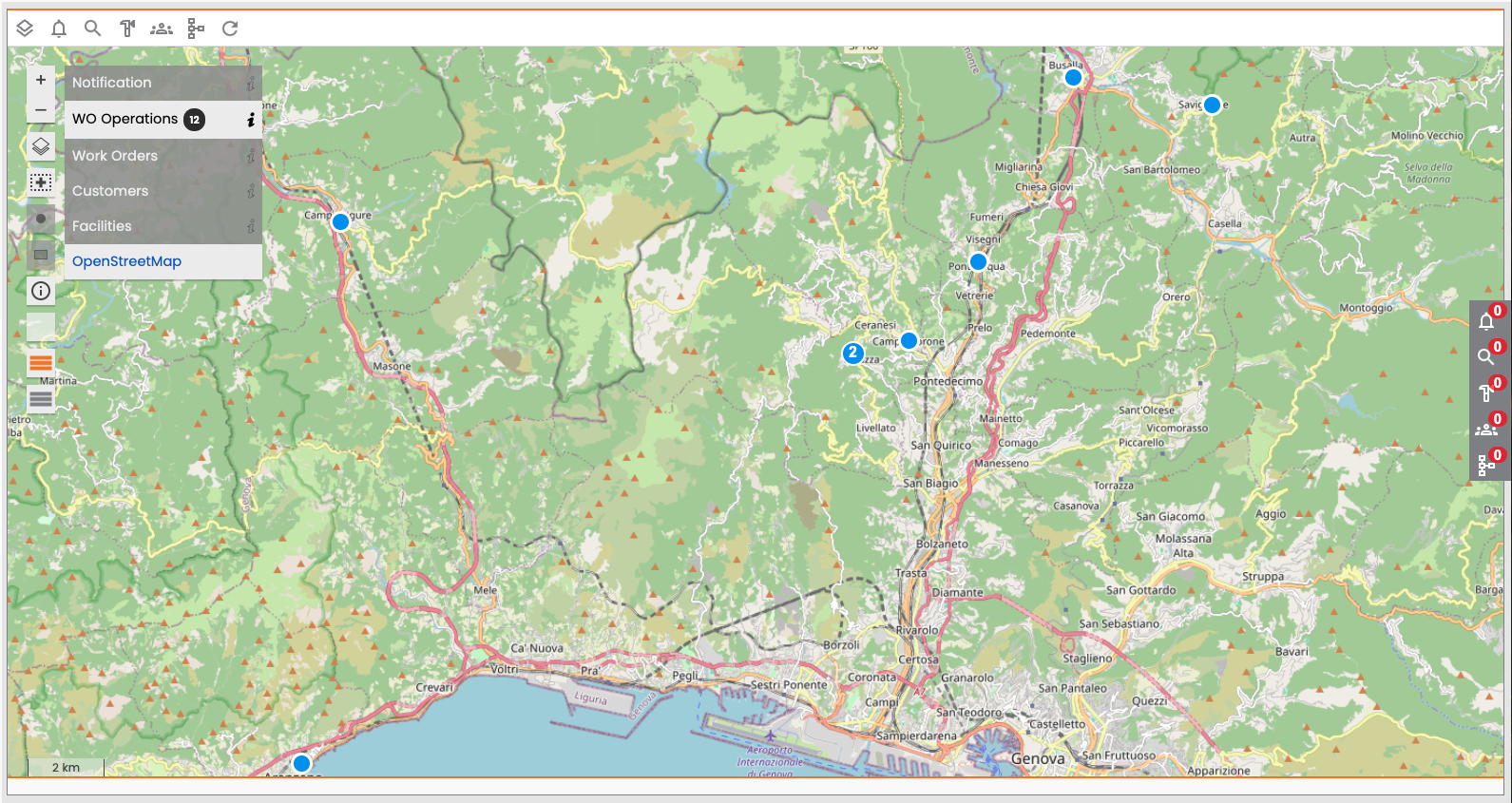
Map Display: View WO Operations directly on the map.
-
Search Panel: Use a dedicated search panel to locate specific WO Operations.
-
Lateral Panel: View the details of selected WO Operations.
-
Pop-up Details: See a brief preview of WO Operation details when you click on their position on the map.
-
Location Choice: Display WO Operations using either their activity address or the facility address.
Enable the WO Operations layer
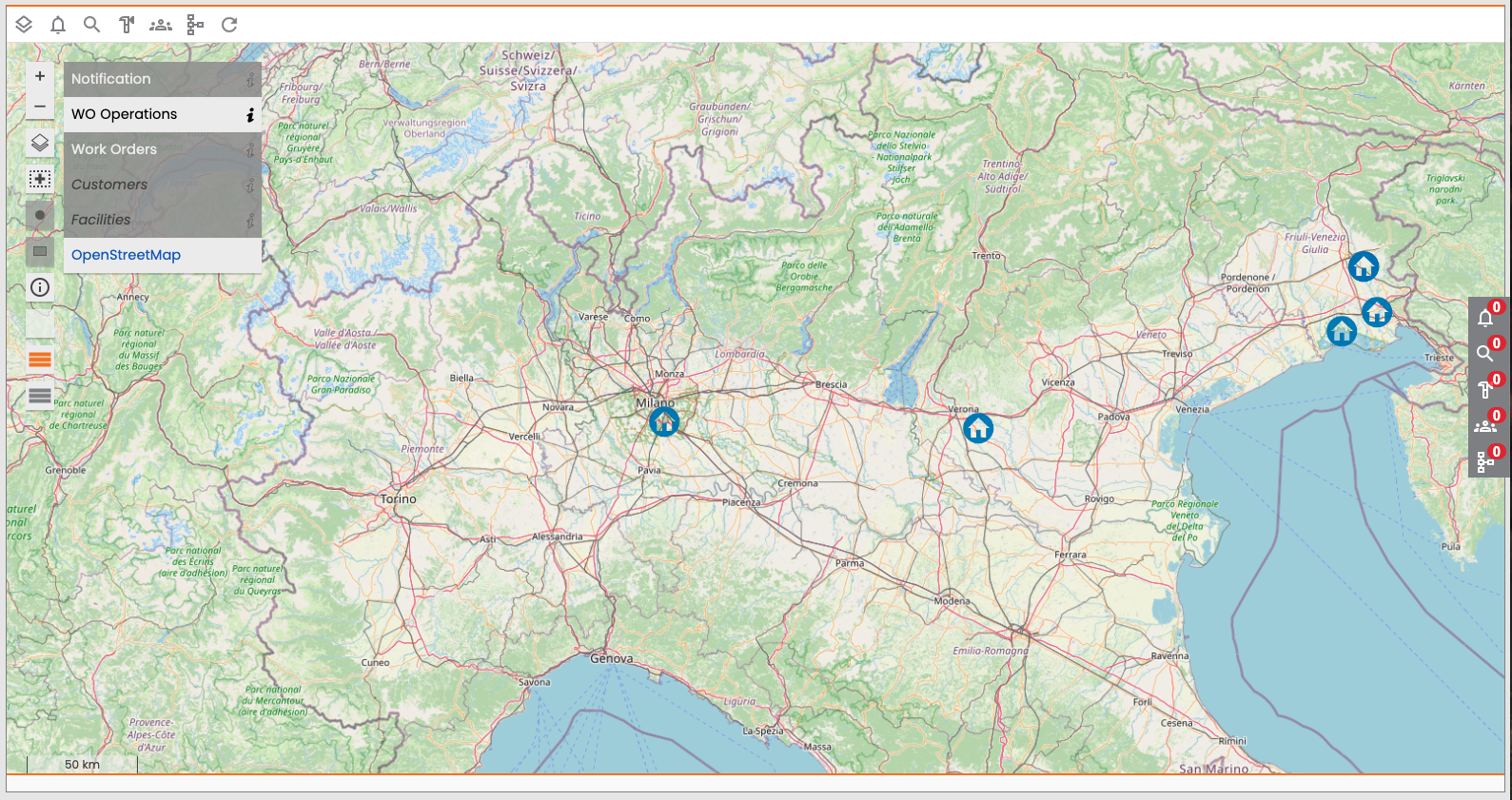
Enable the WO Operations layer by selecting the layer in the legend.
Search WO Operations
Select the Search Operations icon to open the search menu.
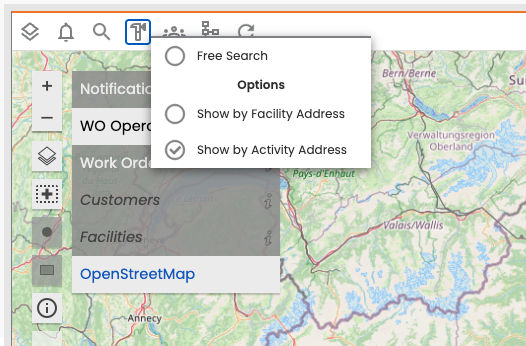
Before you select Free Search, select one of the following address options:
-
Show by facility address
-
Show by activity address
Important to note:
-
If you select Show by activity address, but a specific WO Operation does not have an activity address, the system will not display it on the map.
-
All WO Operations appear with the same symbol and color on the map, regardless of the location option you select, there is no specific theming for these options.
To search for specific WO Operations:
-
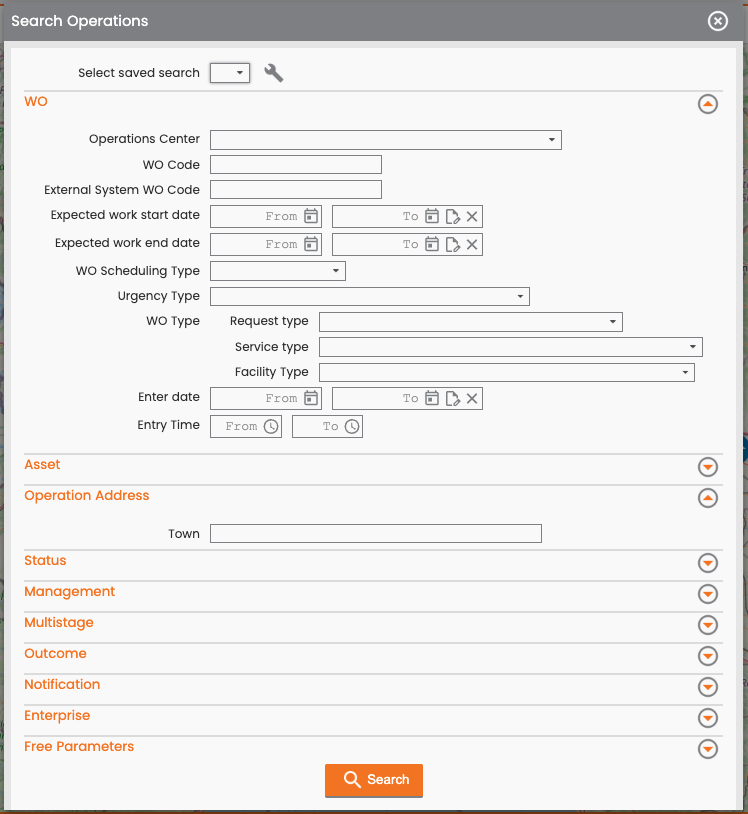
From the search menu, select Free Search.
-
Enter the desired criteria. You can search by the activity address's town field.
-
Select Search. The system displays the WO Operations on the map using the address information from the option you selected (activity or facility address).
Lateral Panel
When you select one or more WO Operations, the dedicated lateral panel displays their data. This panel offers the same features as described in the FSM documentation for the Search WO lateral panel.
Within the WO Operation details, the activity address information (if present) is displayed before the facility information.
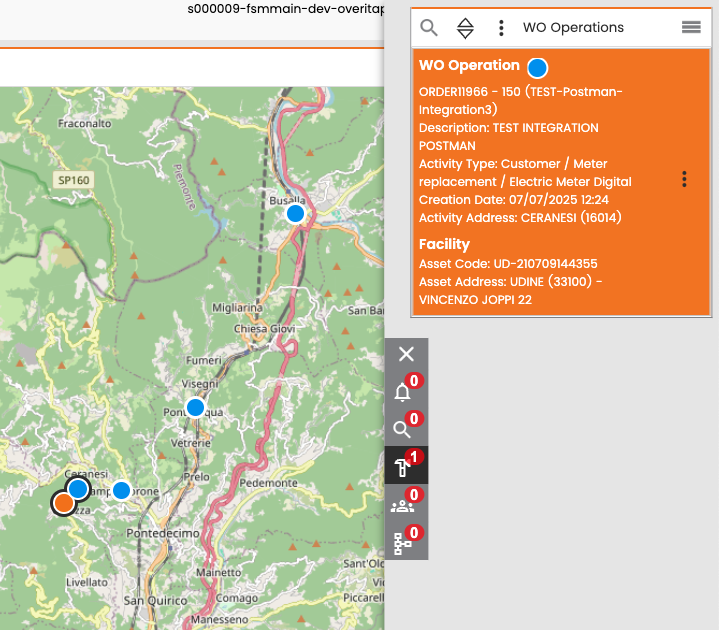
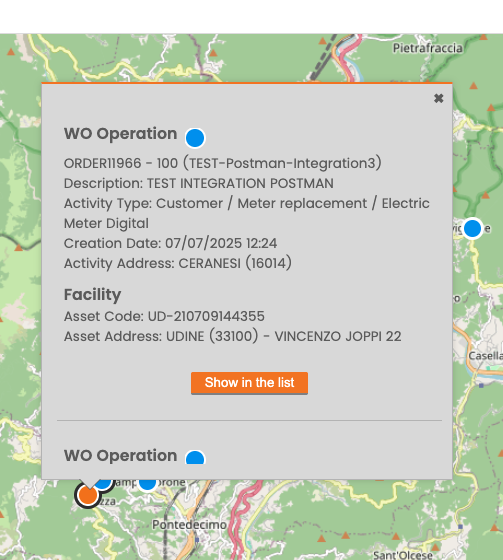
Pop-up on Map Positions
When you click on a position on the map, a pop-up opens, providing a preview of the WO Operation data. Click Show in the list to view the full WO Operation details in the lateral panel.
Similar to the lateral panel, the pop-up displays the activity address (if available) before the facility information.
If multiple WO Operations share the same location, you can scroll within the pop-up to view the information for all of them.