
This topic defines the Daily Plan, a core interface within the FSM product, and explains its purpose and key components. Understanding the Daily Plan is fundamental for dispatchers and planners to effectively view and manage the commitment state of operational resources, including scheduled and executed activities, based on their defined availability.
What is the Daily Plan?
The Daily Plan is the primary working interface for planners in the FSM product. It provides a comprehensive view of a single day's activities for each resource within an Operations Center (OC). This includes both scheduled and completed activities, aligned with the resource's availability calendar and the actual temporal distribution of interventions throughout the day.
While the FSM product also features a Multi-day Plan for managing activities over several days (typically up to five), both interfaces share the same user experience and core functionalities. This document focuses on the Daily Plan to provide a foundational understanding.
Key Components and Features
The Daily Plan interface is designed to provide a holistic view and management capabilities for scheduling activities. It is accessible from the MAIN MENU by navigating to FEATURES > CORE > DAILY AND MULTI-DAILY PLAN > DAILY PLAN.
The interface is organized into several main sections:
Main Menu
The Main Menu is consistently visible across all application windows. It allows users to easily navigate and browse through various sections of the FSM application.
Operations Submenu
The Operations Submenu appears only when there are available operations within a given window, providing quick access to related features specific to the Daily Plan. This submenu includes functions such as:
-
Work Calendars: Used for defining and managing the work schedules of resources within the selected Operations Center.
-
Messages: Allows users to search for sent and received messages or notifications, and to send new messages to one or more system users.
-
Work Orders: Provides functionality to generate PDF documents related to work orders scheduled for the day.
-
Daily Materials Report: Enables filtering and extraction of documents detailing materials required for scheduled interventions, with options to group by Team, Work Order (WO), or provide a summary by WO.
-
Tools Handling: Offers a view of the availability of generic tools within the system.
-
Activity Report: Generates an XLS document summarizing work orders scheduled for the day.
-
Search WO: Allows direct searching of work orders from within the Daily Plan, offering an alternative to the main WO List.
-
New WO: Facilitates the creation of new work orders directly from the Daily Plan interface.
-
Work Teams Monitor: Used for viewing and managing teams for the specific day.
-
Change Area/Operations Center: Enables users to set their default Area or Operations Center.
-
Daily Plan Snapshot: Provides a way to compare the current state of the Daily Plan with a previous snapshot, useful for tracking changes after reprocessing.
-
View Clocking In/Out: Displays clocking records based on search criteria and acts as a monitor for back-office approval if manual validation is required.
-
Search Facility: Offers access to master data for consumers and facilities, and allows for the creation of new consumers or facilities directly from the Daily Plan.
-
Dashboard: Provides access to various reports on work order management.
Daily Plan Tabs
The central area of the interface features several tabs that provide access to different aspects of the daily planning window:
-
Daily Plan: The main view displaying scheduled activities.
-
Clipboard: A temporary holding area for activities.
-
Schedulable Activities: Lists activities that are ready to be scheduled.
-
Urgent Activities: Highlights high-priority work orders.
-
Schedulable Bundles: Displays groups of activities that can be scheduled together.
-
Search Planning: A dedicated search function for planning elements.
-
Reprocessing: Functionality to reprocess the Daily Plan.
-
Daily Impact: Provides an overview of the day's operational impact.
Daily Plan Bar
Located within the central Daily Plan area, this bar contains buttons for customizing the display and managing daily actions (As shown in Figure 1, Icon #1):
-
Column Selection: Opens a submenu allowing users to choose which columns are displayed in the resource plan. Options include:
-
Resource Selection: Displays a checkbox next to each resource for team assignment.
-
Resource Name: Shows the name of the specific resource.
-
Summary: Displays a column summarizing scheduling for each resource.
-
Progress Status: Shows the progress status of activities in each resource's plan.
-
-
Resource Organization: Allows users to sort resources in the Daily Plan (As shown in Figure 1, Icon #2) by:
-
Resource’s Organization: Ascending or descending order based on the 'Organization' value in the master data.
-
Resource’s Surname: Alphabetical order (ascending or descending).
-
Organization by Shift Start Schedule: Ascending or descending order based on shift start times.
-
-
Configure Monitor: The three dots (As shown in Figure 1, Icon #1), opens a submenu for advanced Daily Plan configuration (e.g., themes, alerts).
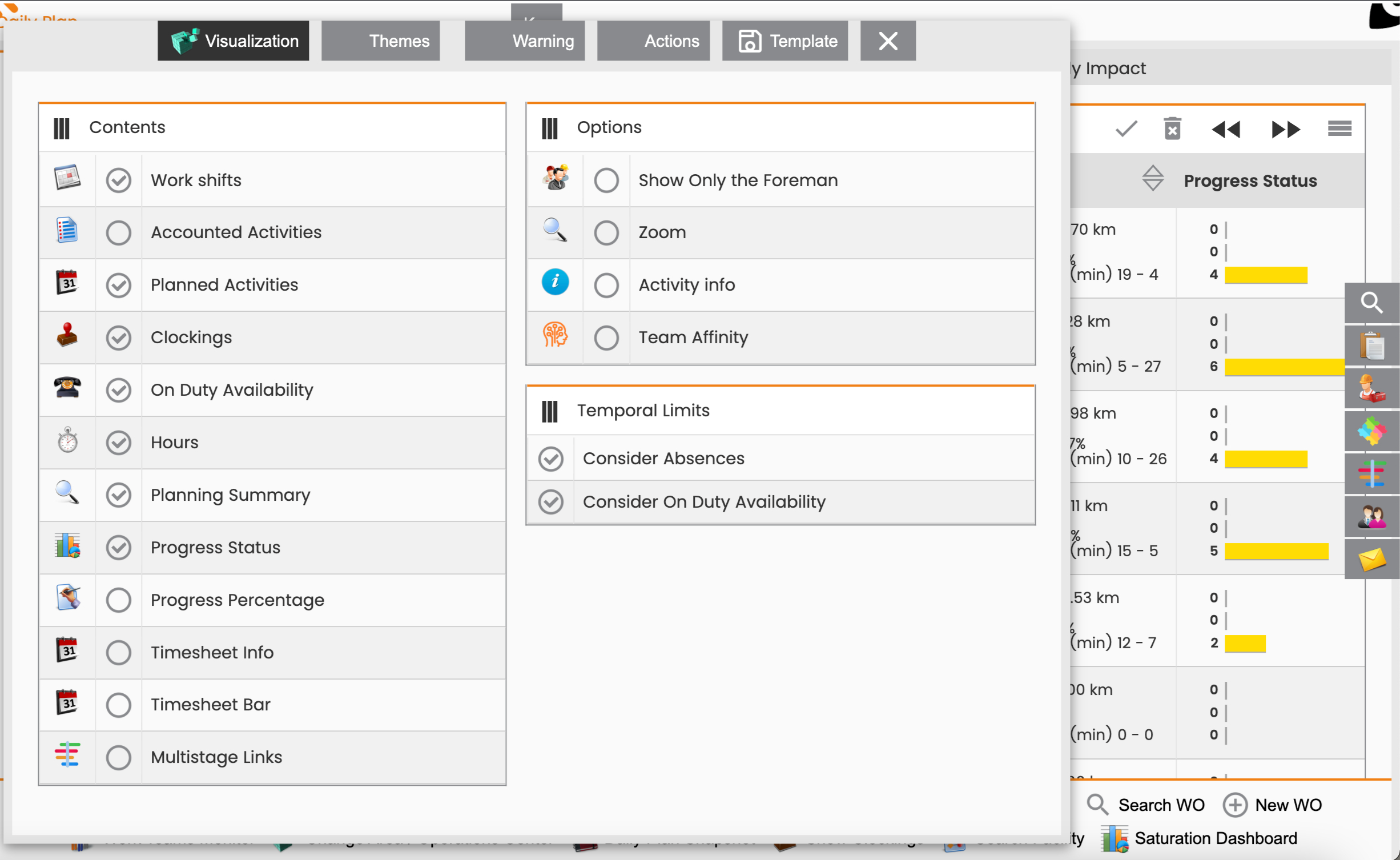
Figure 2: Configuration Screen -
Daily Actions: Provides a button (As shown in Figure 1, Icon #4) to apply actions to the displayed day, including:
-
Open Map: Displays the map view with relevant data (As shown in Figure 3, Icon #1).
-
Refresh: Updates the Daily Plan window As shown in Figure 3, Icon #2).
-
Validate Daily Scheduling: Confirms scheduled activities, making them available on mobile devices upon synchronization.
-
Cancel Daily Scheduling: Cancels scheduled activities.
-
Navigation Buttons: Allows moving to the previous or next day.
-
Deselect All Activities: Clears any previously selected activities.
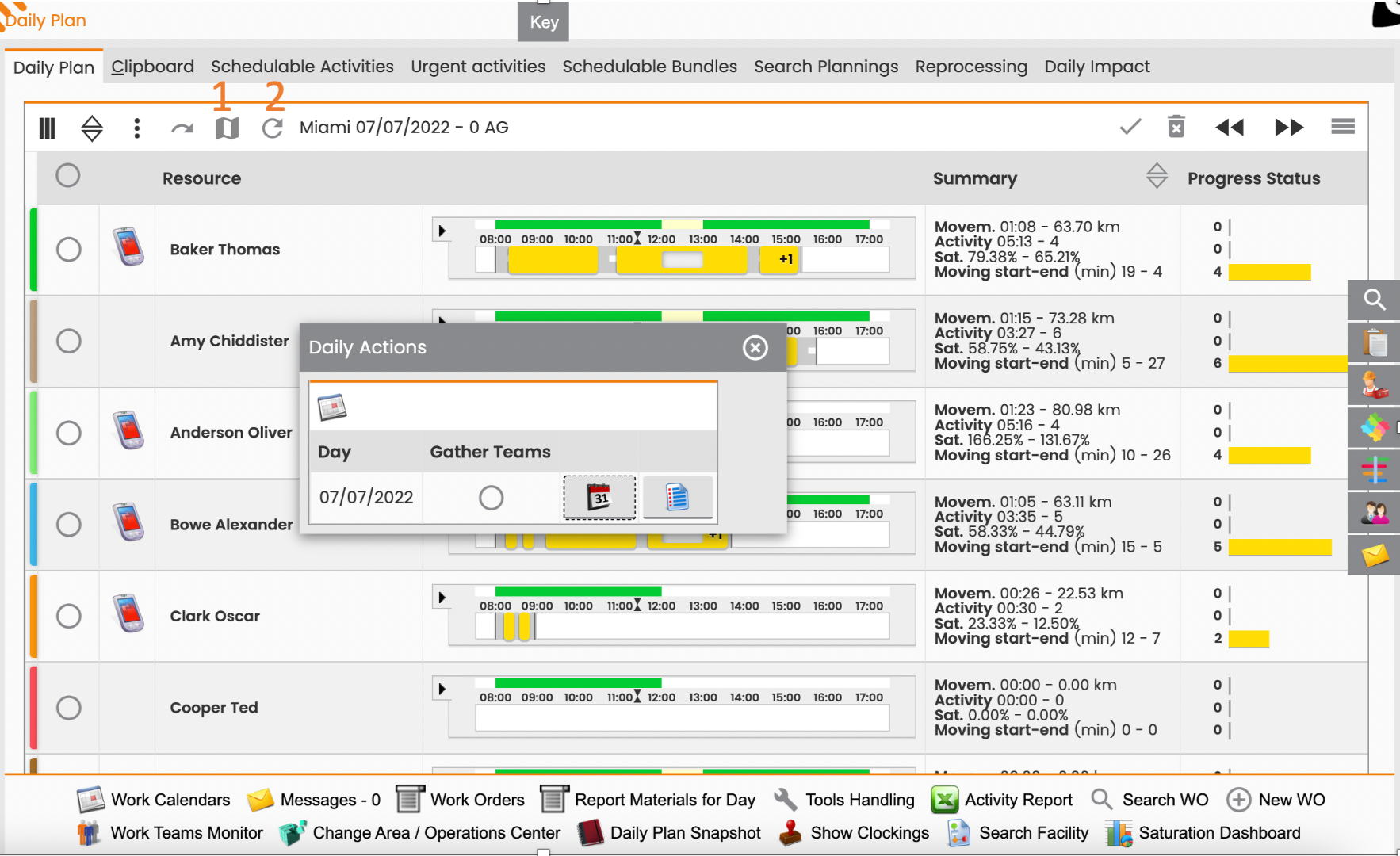
Figure 3: Daily Actions
-
Daily Plans of Resources
Displayed in the central 'Daily Plan' box, this section lists active resources and teams for the selected day. It shows corresponding planning bars that highlight availability hours (typically in green, but also gray, blue, or dark green). Users can right-click on specific elements to access submenus:
-
Resource Name: Provides options related to the individual resource.

Figure 4: Individual Resource options -
Availability Bar: Offers options for managing any point within the resource's availability.
-
Planning Bar: Provides options related to the overall planning bar.
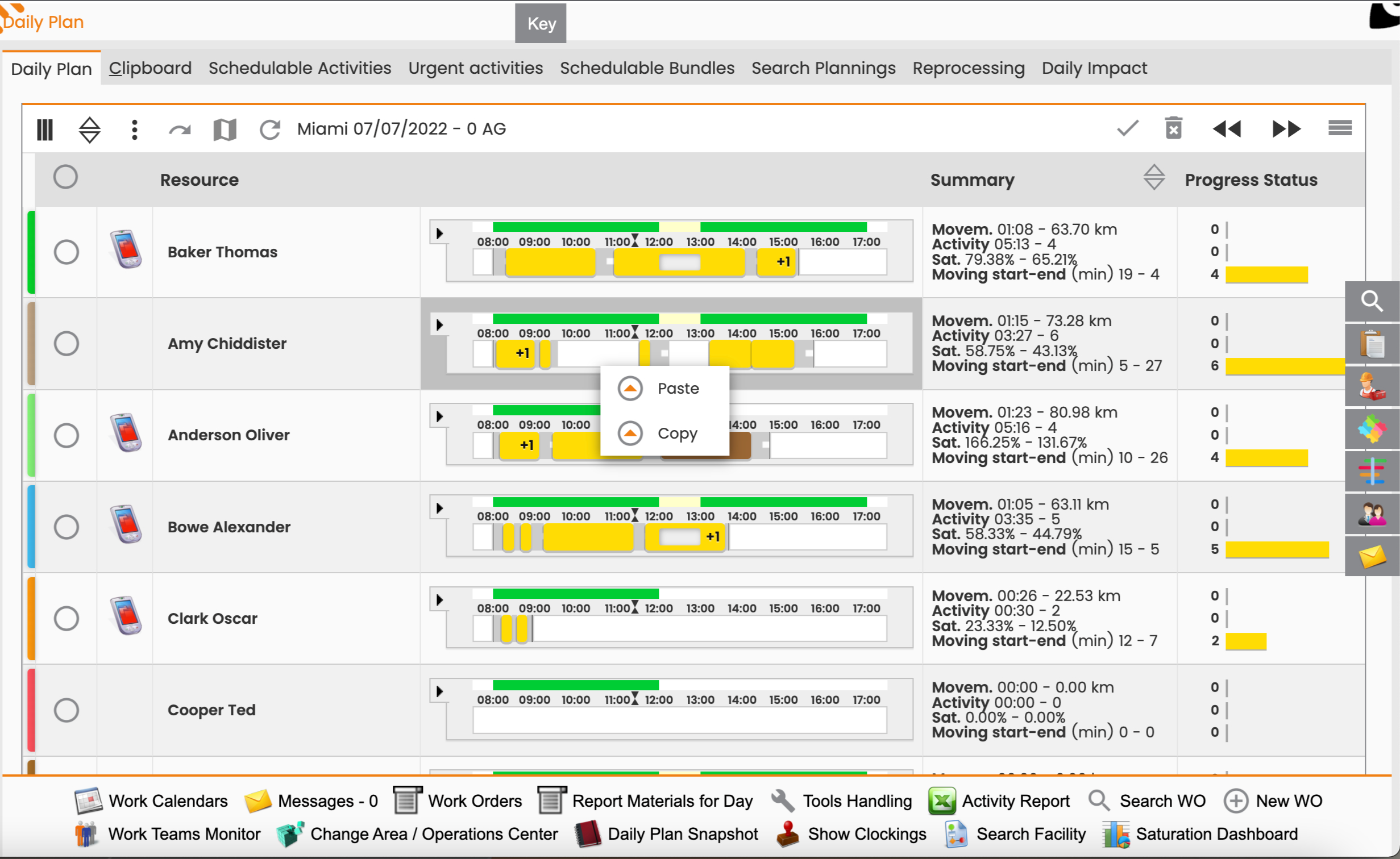
Figure 5: Resource Planning Bar -
Scheduled Activity: Offers options specific to a planned activity.
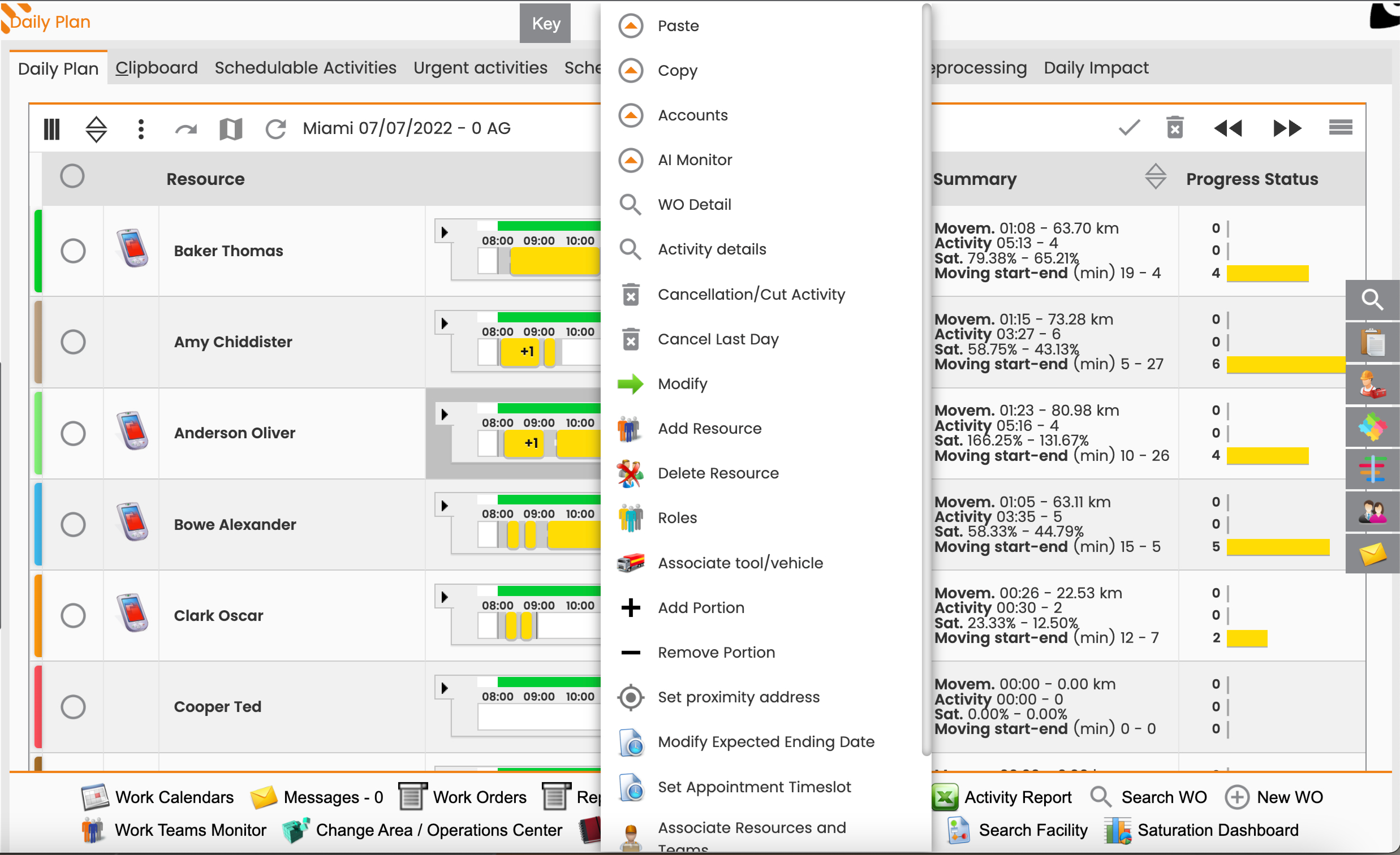
Figure 6: Options for a scheduled activity
Map
The Map section displays a geographical representation of activities and any other relevant data configured by the user.
Quick Menus
These menus offer quick access to frequently used tabs while maintaining focus on the Daily Plan:
-
Filter: For applying filters to the displayed data.
-
Clipboard: For managing copied activities.
-
Schedulable Activities: For quick access to the list of activities ready for scheduling.
-
Schedulable Bundles: For managing groups of schedulable activities.
-
Schedulable Multistage: For managing multi-stage activities.
-
Resources: For quick access to resource-related information.
-
Messages: For quick access to messages and notifications.
Legend
The Legend, always visible in every Daily Plan tab, opens a slide-out menu. This menu explains the main colors and symbols used to represent activities and their statuses within the Daily Plan.
What Understanding This Concept Enables
Understanding the Daily Plan allows planners to efficiently manage and optimize field operations. By grasping how the interface displays resource commitment, activity statuses, and available tools, users can make informed decisions regarding scheduling, resource allocation, and real-time adjustments. This knowledge is crucial for performing tasks such as Scheduling Activities, Configuring Themes for Daily Plan, and Managing Work Order Alerts.
Further Reading
For more detailed information on specific functionalities within the Daily Plan, refer to the following topics:
-
Configuring Work Calendars
-
Managing Messages and Notifications
-
Advanced WO Filtering Concepts