Overview
This guide explains how the Double Location feature works throughout the FSM mobile application. This feature ensures the app always uses the most appropriate location, either the activity address or the technical object address, for scheduling, mapping, and navigation.
View the Agenda
The Agenda section uses the location you need to go to for the service intervention. The system prioritizes the activity address. If it is missing, it uses the technical object address.
Preview To-Do and Done Interventions
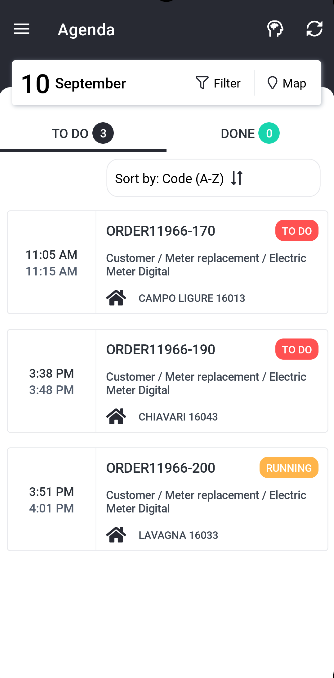
The intervention preview displays the address used for scheduling, which is where you must start the intervention.
If the activity address is present, the app shows it in the preview. Otherwise, the app displays the technical object address.
Filter Interventions
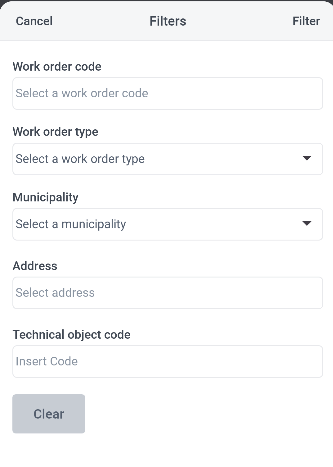
When you filter interventions, the Double Location logic applies to the following fields:
-
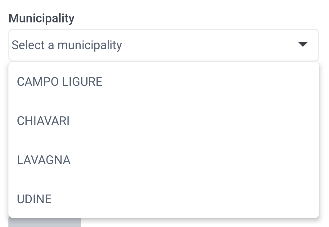
Municipality: This dropdown lists all available municipalities from all intervention addresses in your agenda (including both activity and technical object addresses).
-
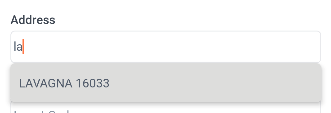
Address: As you type, this text field suggests addresses from your agenda that match your input.
Sort Interventions
Sorting options use the scheduled address to determine the order.
-
Address (A–Z)
-
Address (Z–A)
-
Distance (nearest)
-
Distance (farthest)
The app evaluates the activity address first for sorting. If it is not available, it uses the technical object address.
View Interventions on Map
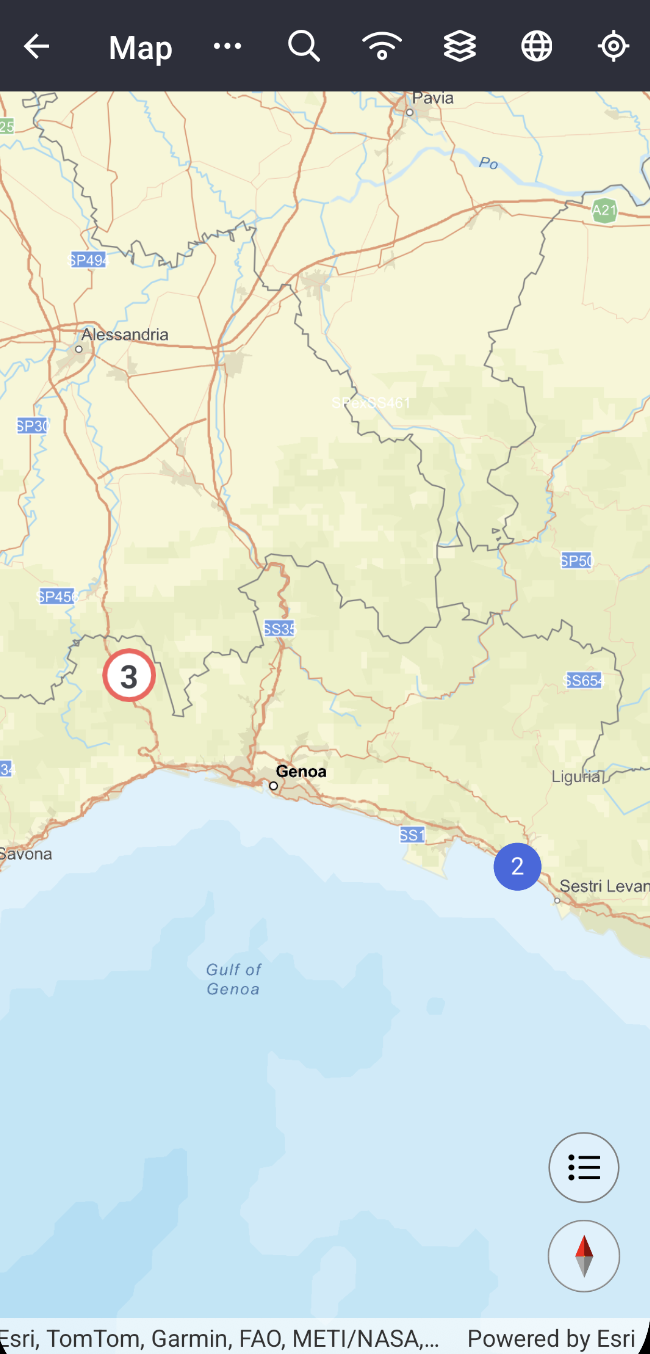
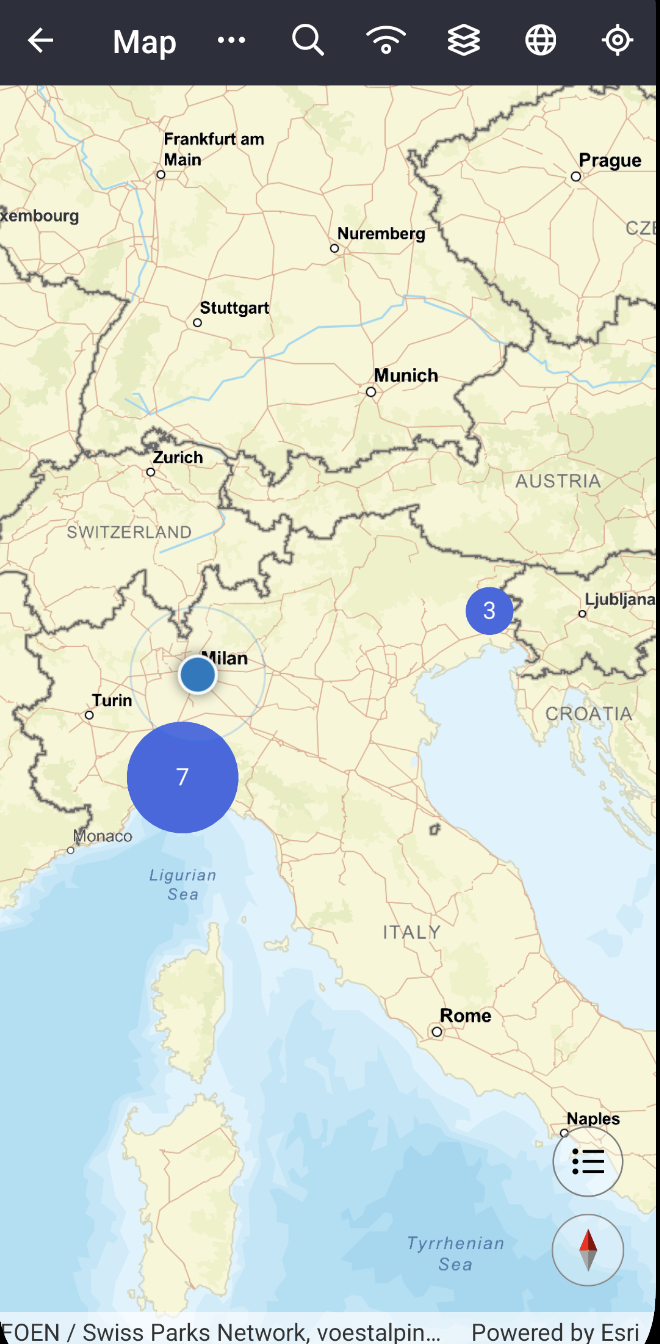
When you open the map from the agenda, the app displays interventions based on the Double Location logic. If the activity address is present, the app shows the activity at this location. Otherwise, the app shows the activity at the technical object address.
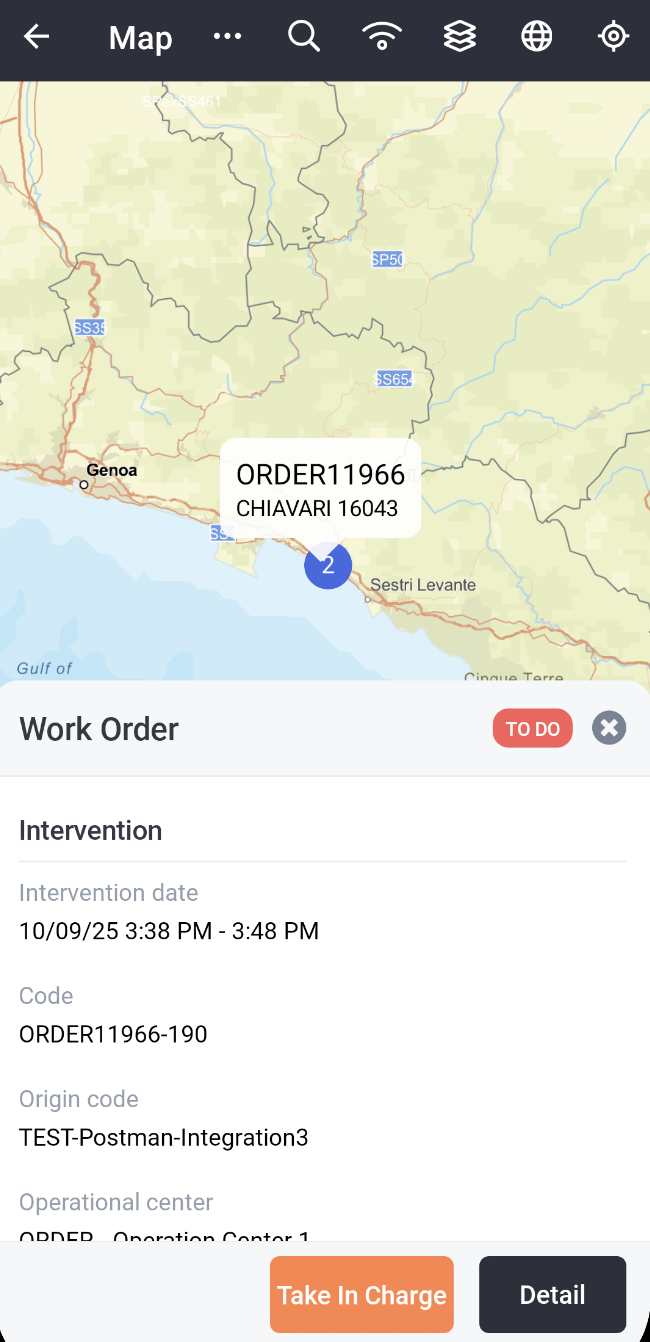
This same logic applies to both the Work Orders and My Work Orders map layers. Selecting an activity on the map shows its position in the preview, although the pop-up window does not repeat the address data.
Preview Intervention on Map and Navigate to Location
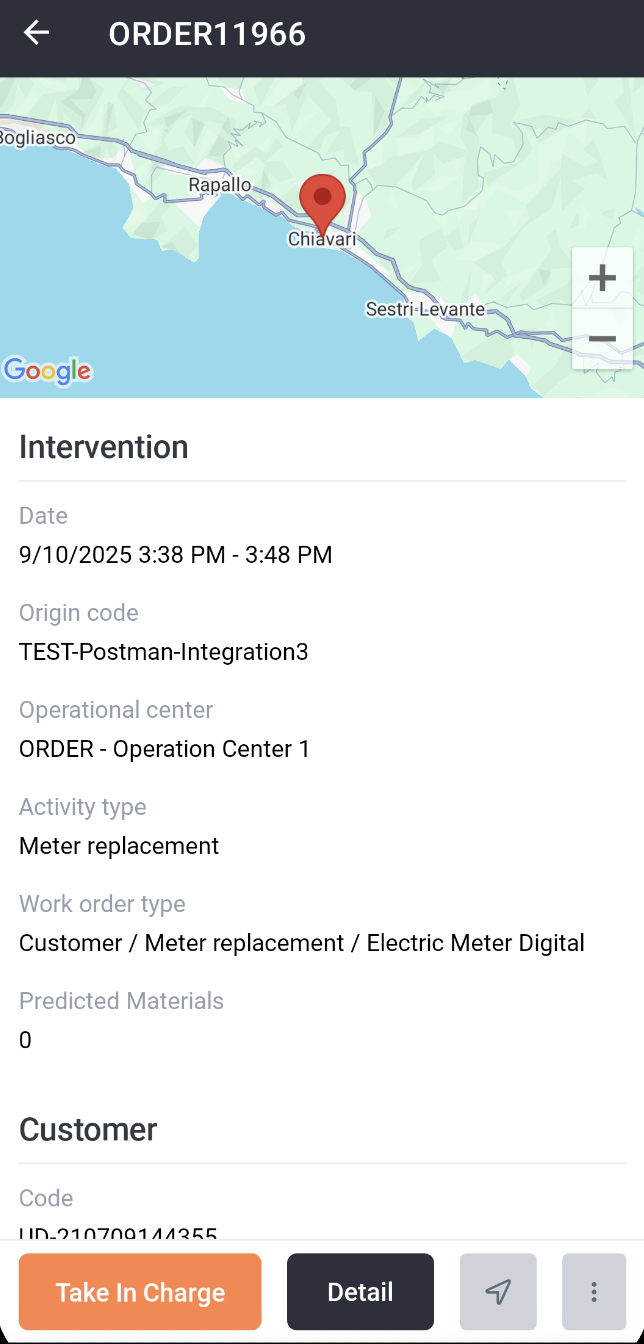
The map on the intervention preview shows the position used for scheduling. If the activity address is present, the app displays this location. Otherwise, the app displays the technical object address location.
Select the navigation icon, to send the scheduled position to your navigation app. The same logic as above applies.
View Intervention Details
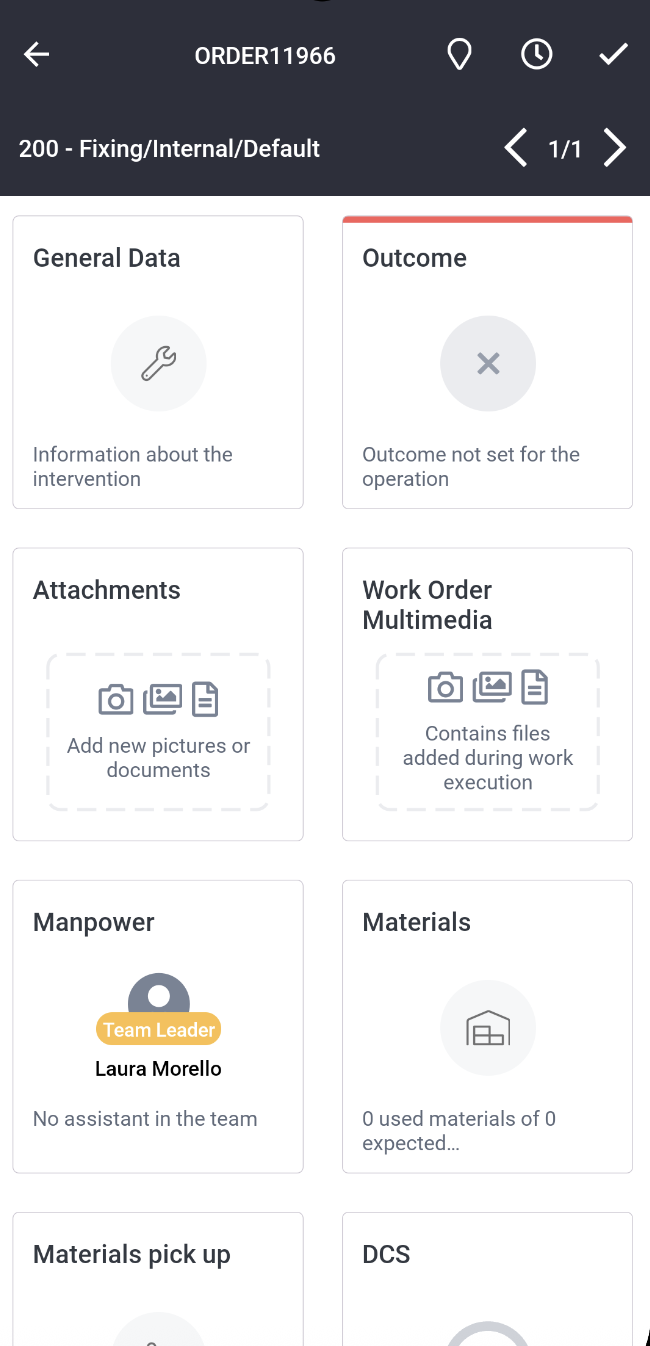
The Double Location feature is only involved in the map that you can access from the Intervention Detail screen.
If the activity address is present, the app shows the intervention at this position. Otherwise, the app shows the intervention at the technical object address position.
Select a task to view the intervention address in a pop-up window.
Search Work Orders
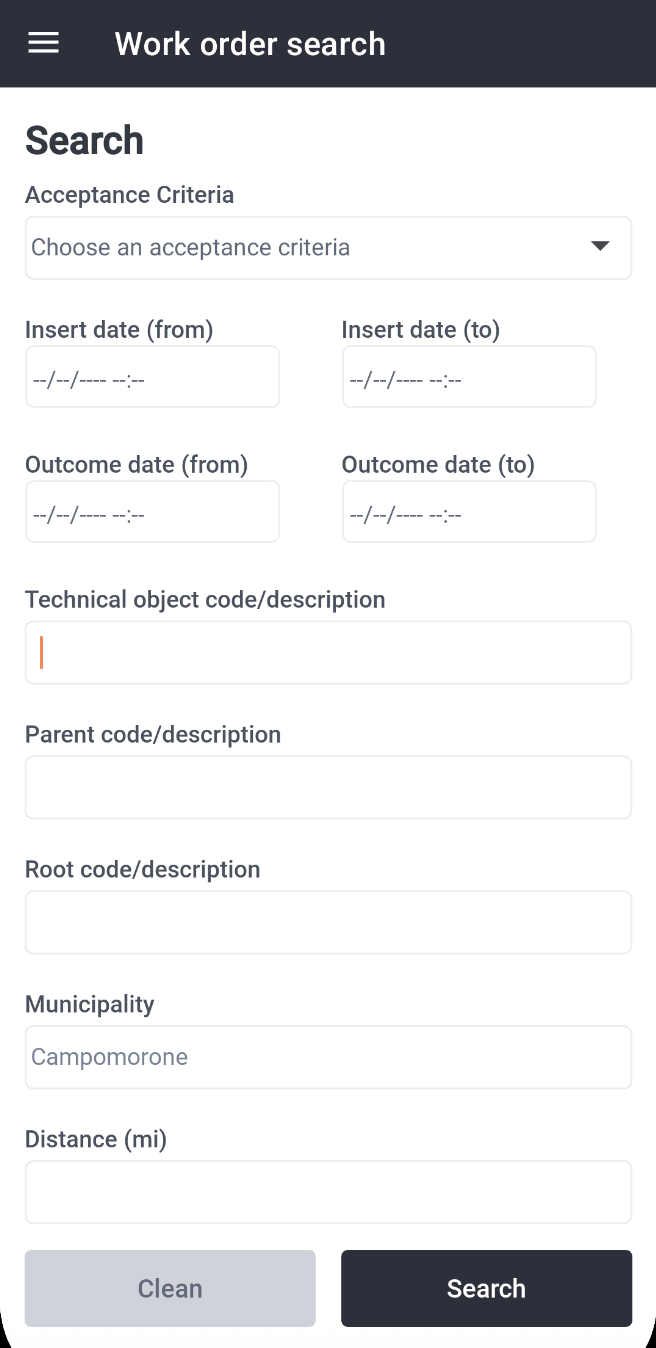
Go to Work order search to search for interventions.
Search Parameters
You can search interventions by location using the Municipality field. This text field suggests values from the mobile database and you can also enter any text.
The search uses the scheduled address (activity address first, then technical object address) to find all interventions located in the desired municipality.
Intervention Preview
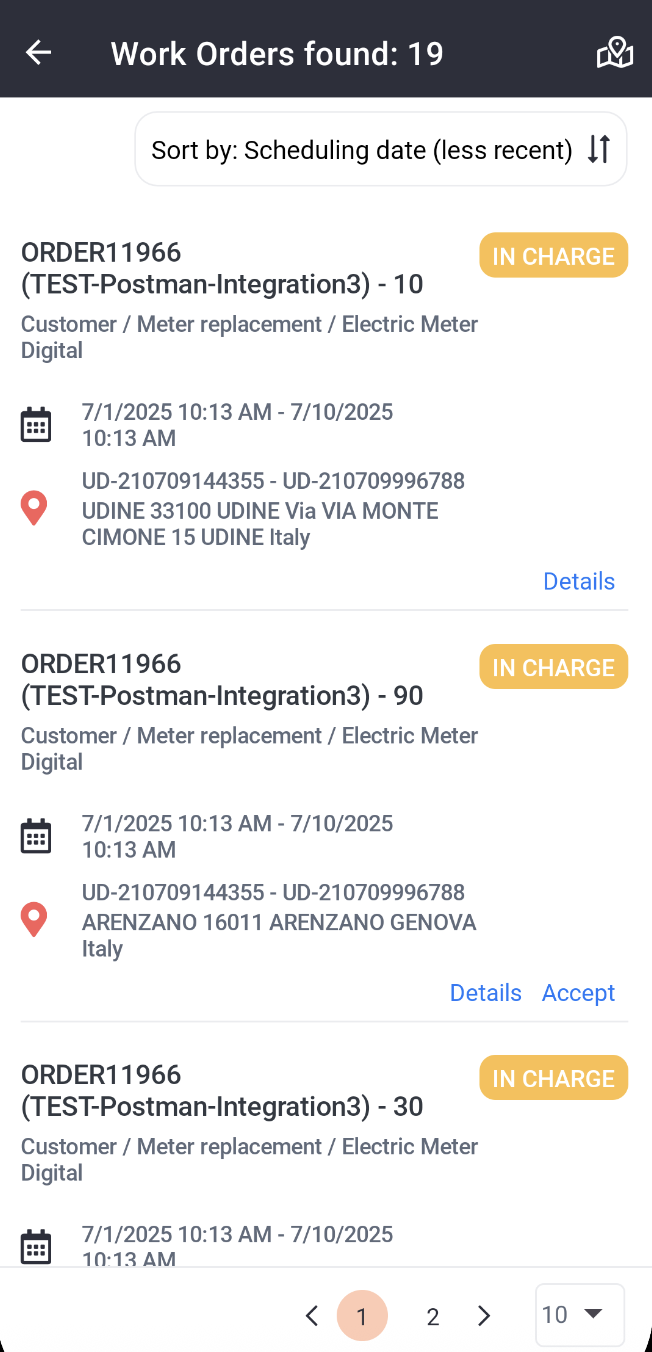
After you run a search, the app lists the results and provides options for viewing details and navigation using the scheduled address. The app uses the activity address if present, or the technical object address otherwise.
-
View location in preview: The preview for every intervention shows the scheduled address.
-
Navigate to location: Select Details for an intervention, then select the navigation icon. The app opens your external navigation app and sets the destination address.
-
Check history locations: Select History to view the location for every past activity.
Map View
When you select the map icon, the app displays the search results using the scheduled address. The app shows the activities at the activity address if present, or the technical object address otherwise.
Select a task to view details with the scheduled address.
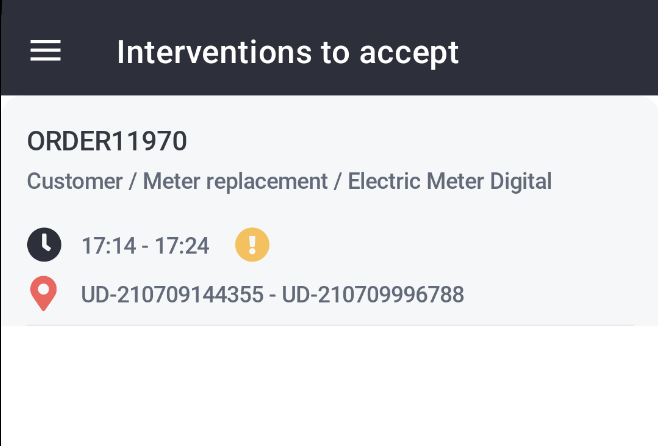
Interventions to Accept
The Interventions to accept page lists available interventions for you to accept.
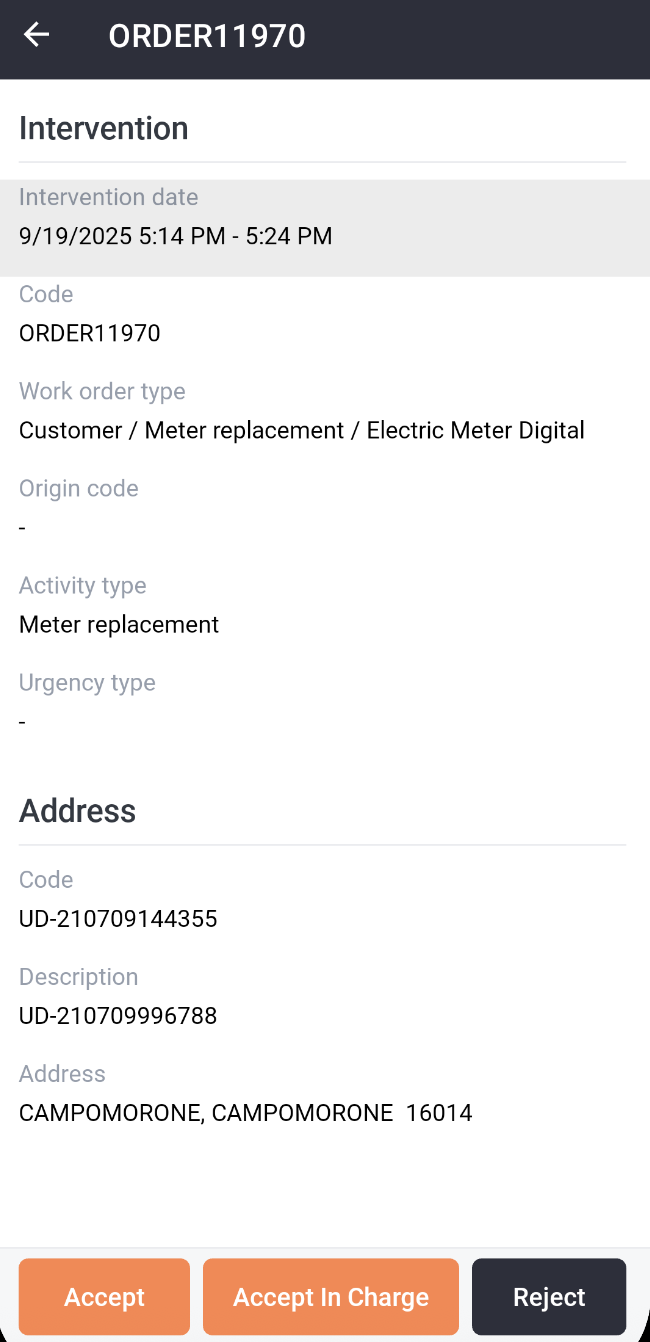
To view a preview of the details, select an intervention. In the Address section, the Technical Object Code and Description are shown, together with the scheduling address. If the Activity address is present, this information is displayed. Otherwise, the technical object address is displayed.