
Overview
The notification object serves as a key communication tool to report issues, request maintenance, or document completed work within the system.
It is a flexible object whose structure (type, flow, and attributes) is configurable to meet specific project needs. Every notification consists of a header (for general identification and management) and one or more rows or positions (for detailed information).
Notifications rely on catalogs to standardize data entry and classification.
Primary Use Cases for Notifications
You use the notification object for three main purposes.
|
Notification type |
Purpose |
Typical scenario |
|---|---|---|
|
Breakdown notification |
To report an issue, breakdown, or malfunctioning that impacts performance (for example, machine downtime or reduced performance). |
A production line employee logs a breakdown to notify the maintenance task force. |
|
Maintenance request |
To register an extraordinary request for the maintenance task force to perform an activity. |
Used to request ad hoc work or to manage preventive maintenance activities. |
|
Notification for debriefed activities |
To describe an already completed maintenance or service activity for filing and archiving purposes. |
Used for the technical confirmation of work, specifying the time slot and outcome. |
Notification Management Flows
After you create a notification, one of two main scenarios occurs:
Scenario 1: Notification Does Not Require a Work Order
The warning is managed solely as a notification:
-
You can cancel or close the notification.
-
If closed, you may also validate the notification.
Scenario 2: Notification Requires a Work Order
The notification must be processed in association with a work order (WO):
-
Association: You either associate the notification with an existing WO in the system or generate a new WO from the notification.
-
Scheduling: The system generates and schedules the WO and notification (or the technician immediately takes over the generated WO).
-
Life cycle link: The notification's life cycle then follows the WO's life cycle:
-
The WO is scheduled to solve the warning.
-
The technician takes charge of both the WO and the notification.
-
WO accounting involves recording data that refers back to the notification.
-
The notification can be validated after the WO is closed.
-
-
Validation authority: The user who created the notification, or another user enabled for the action, can perform the final validation.
Functions for Managing Notifications
You can manage notifications using functions available on both the server and mobile components.
Server Component Functions
-
Generate a notification:
-
From scratch.
-
Based on a source WO.
-
Through integration with SAP (either by receiving a notification from an external system through web service or by the NewGen Platform requesting notification generation in the ERP system).
-
-
Associate one or more notifications with a WO.
-
Generate a WO from a notification.
-
Manage notification status changes up to completion.
-
Forward emails related to the notification workflow (based on General Application Engine (GAE) rules).
-
View notifications on a map.
Mobile Component Functions
-
Display and complete a notification associated with a WO during the WO accounting process.
-
Generate a notification:
-
From scratch.
-
Based on the assigned WO.
-
Notification Status and Life Cycle
The notification object life cycle moves through various statuses, driven by manual actions and automated changes tied to WO association.
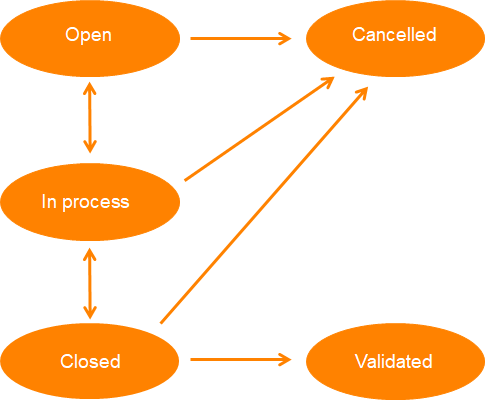
Available Statuses
The following statuses are available:
-
Open: The initial status upon creation.
-
In process: The status when the notification is confirmed "to execute" and is being processed or managed.
-
Canceled: The status when the notification is canceled (for example, due to an invalid warning).
-
Closed: The status when processing is finalized.
-
Validated: The final status after processing is finalized and approved as effective and conclusive.
The only final status is validated, which prevents further editing of the content or status.
Status Automation
Transactions between statuses can be triggered manually or automatically concurrent with specific actions on the notification or its related WO.
-
When you associate a notification with a WO:
-
The status automatically updates to in process if it was open.
-
It remains in process if it already had that status.
-
-
When you remove a notification association from a WO:
-
The status automatically updates to open if it was in process.
-
It remains open if it already had that status.
-
If the notification is closed, it either remains closed or becomes available for re-opening.
-
-
Upon technical or administrative closure of the associated WO:
-
The notification status can change from in process to closed or canceled.
-
The notification status can change from open to closed or canceled.
-
The NextGen Platform manages a default status automation, but you can define additional or replacement automations. The system can manage multiple automations simultaneously, applying the correct one based on the notification type, your user profile, or a match between the editing user and the user who entered the notification.
Notification Structure
Notification Header Data
The header identifies and manages the notification as a whole. Key elements include:
-
Notification type: Defines the nature of the notification, ruling the management process and required data.
-
Status: The current status (see Notification Status and Life Cycle).
-
Priority: Classifies the urgency or severity of the warning.
-
Technical object or customer: The asset, user address, or dummy facility that the notification is created for.
-
Attachments: Photos, videos, or documents to provide additional information.
-
Reporter: The user who created the notification. The system fills this field based on your user type:
-
Generic User: The system prompts you to enter the operator's data when opening the notification.
-
Non-Generic User: The system automatically fills this with your logged-in user data.
-
-
Description: A mandatory text field for the written description of the notification.
-
Downtime indication: A flag determining whether the issue caused the downtime of the technical object.
-
The system sets this flag automatically based on the priority's Check downtime setting. If Check downtime is true, the Downtime flag is automatically set to true and is not editable.
-
-
Time-lapse/events: Critical dates and times that characterize the notification:
-
Reporting date: Date and time as the start of the criticality entered by the user who created the notification (or the system automatically uses the notification creation date and time if none is specified).
-
System insert date: Date and time when the server receives and creates the notification, typically upon synchronization if created on a mobile device while offline.
-
Breakdown start/end: The machine downtime time frame.
-
Required start/end date: The time frame for processing the corresponding intervention.
-
Closing date: The date a user enters to close the notification (changing the status from in process to closed).
-
System completion date: The system's notification validation date and time.
-
-
Possibly associated WO: The WO identifying the intervention to perform for the notification.
-
Possible source WO: The WO that the notification originated from (for example, a notification created after an inspection activity). Note that a WO may be associated with multiple notifications, but a notification is associated with only one source WO.
Notification Positions Data
Positions allow you to detail the request or the issue(s) at the core of the notification, using written descriptions and organized catalogs.
Catalogs
Catalogs standardize data reporting for classification and analysis of the notification positions.
The system provides the following default catalogs for a specific notification position:
-
Object part: Clarifies the component of the technical object that the notification addresses.
-
Anomaly: Identifies the symptom detected on the subject.
-
Causes: The cause of the issue or the request (a position can be associated with different causes).
-
Activities: The actions taken to solve the notification (a single position can specify one or many activities).
You can supplement each of these four elements with a written description.
Catalog Profile
The profile catalog specifies restrictions on the available catalog values for filling out notification data.
The system evaluates the profile catalog associated with a notification in the following order:
-
Notification technical object
-
Notification technical object type
-
Notification type
If the system identifies a profile catalog, the available values for the object, anomaly, causes, or activities catalogs will only be those belonging to that profile.
Other Framework Elements
-
Notes: You can enter a set of notes related to the notification, such as opening, processing, and closure notes. Notes can be generic (related to the header) or refer to a specific notification position.
-
Possible related notifications:
-
Parent notification: A previous, related notification.
-
Child notification: A following notification created from the current one.
-
Connected notification: Notifications that list the same notification in their parent notification section.
-