
The Crew Shell Calendar is a menu that displays the Crew Shells associated with an Operations Center, along with their upcoming Work Shifts. From this view, an FSM user can assign and modify Work Shifts, assign Resources, and validate Crew Shell compositions.
This page describes the basics of the Crew Shell Calendar interface, and it links to pages that describe the tasks that are associated with this menu.
The Crew Shell Calendar is located in the following FSM menu:
FEATURES → CORE → RESOURCE MANAGEMENT → CREW SHELL → CREW SHELL CALENDAR
Crew Shell Calendar Layout
The Crew Shell Calendar menu is composed of two main items. The Calendar is the main table in the menu. The Filter drawer is the collapsible form at the right of the menu. These filters allow you to view select Crew Shells in the calendar, based on the filter criteria that you provide. The drawer can be manually collapsed or exposed by clicking “Filters.”
By default, when you arrive at the menu, the Calendar should be empty and the Filter drawer should already be open. Search for Crew Shells to populate the Crew Shell Calendar.
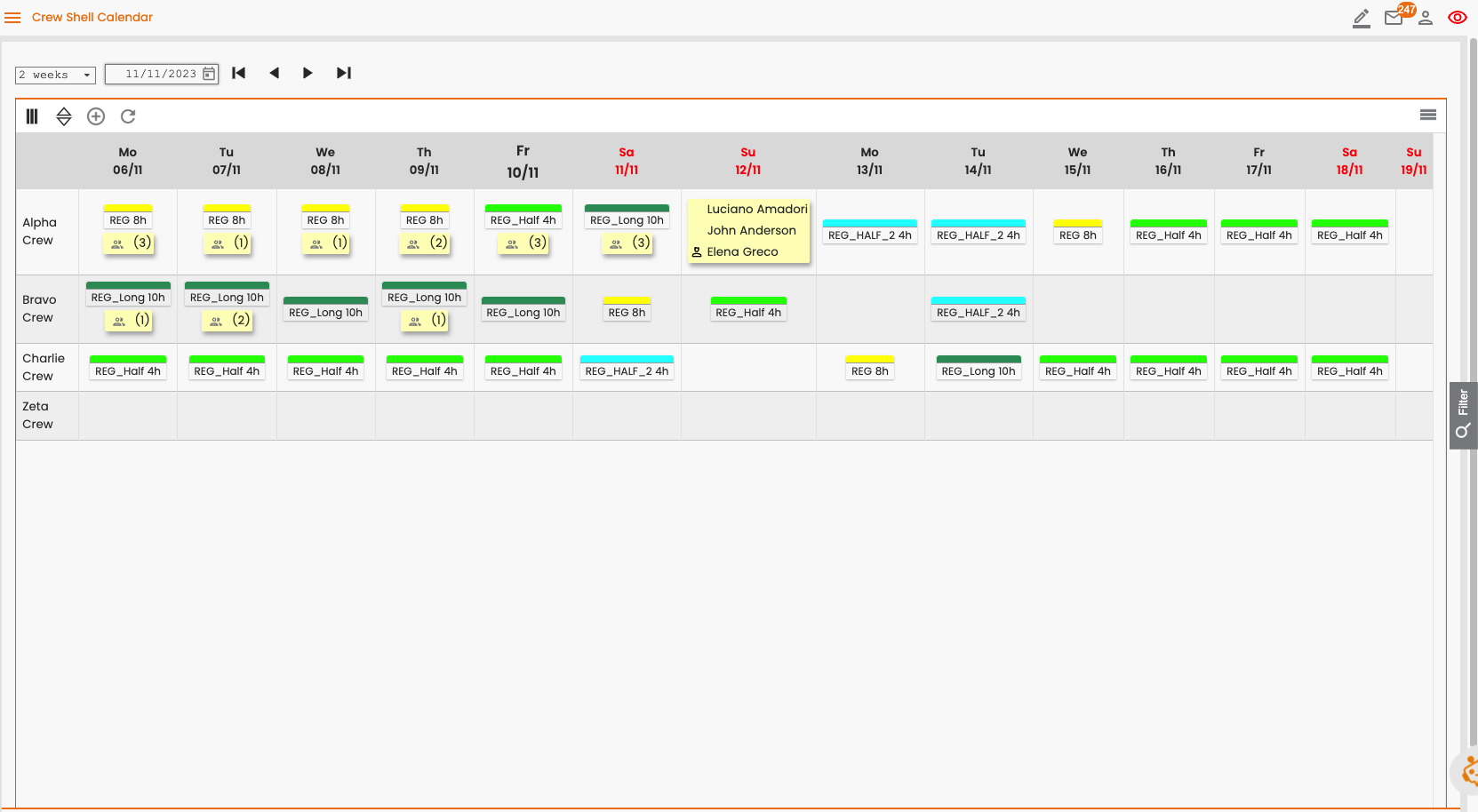
Here’s what the calendar looks like once it’s populated:
Time Span Selection
The inputs at the top left of the calendar include determine the span of the Work Shifts that are shown by each Crew Shell.

This area includes:
-
A dropdown that determines the time span of the calendar (1 week, 2 weeks… up to 2 months).
-
A date selector that determines the start date of the calendar.
-
Arrow buttons that allow a user to navigate the time span.
Calendar Settings
The options below the Time Span Selection inputs are the Crew Shell Calendar’s settings.

The functionality of each button is described below:

Arrange Columns
A dropdown menu that allows a user to select/deselect the columns that are shown in the calendar, or rearrange their order by dragging-and-dropping.

Sort Crew Shells
A dropdown menu that allows a user to sort the calendar rows based on the values of particular fields.

Add Shift
A menu that a user can access to drag-and-drop Work Shifts into the calendar. Learn how to Assign a Work Shift to a Crew Shell.

Reload
A button that reloads the calendar with the latest data.
Expand Crews: A toggle that, when activated, expands the Resource names in all Crew Shell cards.
Automatic Confirmation of Drag and Drop Workshift Composition: A toggle that, when activated, allows a user to add Work Shifts without needing them to be validated in a separate step.
The default option for this toggle is determined by the “Automatic Confirmation of Composition” configuration parameter, described in the Configure and Activate Crew Shells page.

Deselect Cells
A button that deselects all cells in the calendar.
Crew Shell Rows
Each row of the calendar shows a the work schedule of one Crew Shell, whose name is listed in the Crew Shell Description column (by default, the leftmost column).
Each cell, to the right of that name, describes a single work day for that Crew. The number of cells corresponds to the time span selection at the top of the menu.
Each cell contains, at most, two items: a Work Shift Card and a Crew Shell Composition Card.
Work Shift Card

Crew Shell Composition Card

If neither card appears in a calendar cell, it means that no Work Shift and no Resources have been assigned to the Crew Shell for that day.
Work Shift Card
This card shows the Work Shift assigned to the Crew Shell on this date. It shows the Work Shift code (e.g. REG_HALF - Regular Half Day Shift) and the Work Shift duration (e.g. 4h). The colored bar at the top makes it easy to recognize the different types of shifts.
Each Crew Shell can only have one assigned Work Shift per calendar day. Learn how to Assign a Work Shift to a Crew Shell.
Crew Shell Composition Card
This card shows information about the team assigned to the Crew Shell on that date. By default it just shows the number of team members (e.g. 3). By clicking on the card, you can expand it to display the Resource names and indicate who, if anyone is the crew foreman.
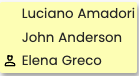
In the example above, the symbol to the left of Elena’s name indicates that she is the foreman. Crew Shell Composition Cards can all be expanded/collapsed together with the Expand Crews toggle at the top of the calendar.
The color of the Crew Shell Composition Card indicates its status. The yellow card (shown above) indicates that the crew members have been confirmed. An orange card (shown below) indicates that the Crew Shell composition is in a Draft status, which must be validated before the schedule can reflect the draft composition.

Learn how to Validate a Crew Shell composition.
Cell Operations
By right-clicking on a cell in the calendar, a user can perform various tasks related to that Crew Shell’s day of work. Learn how to Assign a Resource to a Crew Shell or Edit a Work Shift.