
This topic provides instructions on how to configure the "Urgent" flag for Work Orders (WOs) in FSM. This flag ensures that high-priority WOs are prominently displayed in the multi-day plan and trigger an audible alert.
When to Perform This Task
You should configure urgency settings when you need to categorize and highlight critical work orders based on their priority. This is essential for ensuring that urgent tasks are immediately recognized and addressed by dispatchers and field technicians.
Prerequisites
To configure urgency types, you must have access to the "Urgency Type" section within the FSM Configuration settings. You should also have a clear understanding of your organization's work order priority definitions.
Step-by-Step Instructions
1. Access Urgency Type Configuration
-
From the MAIN MENU, navigate to CONFIGURATION > CORE > DAILY AND MULTI DAY PLAN > URGENCY TYPE.
-
The "Urgency Type" page displays a list of existing urgency configurations.
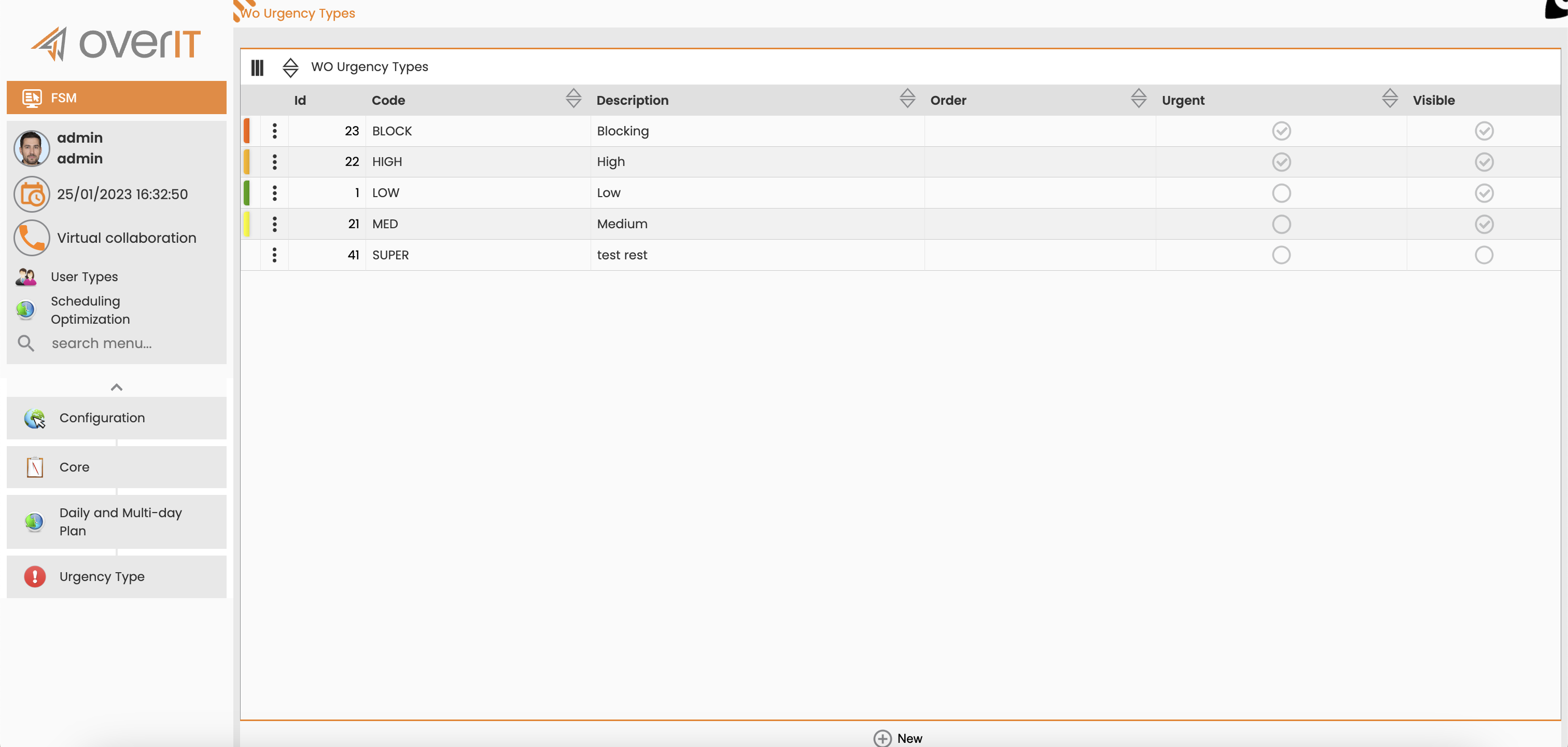
Urgency Types
2. Configure Urgent Flag Association
The "Urgent" flag is automatically assigned to a work order based on its priority level. All work orders marked with "High" priority will automatically have the "Urgent" flag activated.
-
Review Existing Configurations: On the "Urgency Type" page, review the existing entries to understand how different priority levels are currently associated with the "Urgent" flag.
-
Modify Associations (if necessary): If your organization's priority definitions change, you may need to modify these associations. This typically involves adjusting the priority level that triggers the "Urgent" flag.
-
Select the specific urgency type you wish to modify.
-
Adjust the priority level associated with the "Urgent" flag as required.
-
Save your changes.
-
What This Configuration Enables
Once configured, the "Urgent" flag enables the following functionalities in FSM:
-
Dedicated "Urgent Activities" Section: Urgent work orders are displayed in a dedicated "Urgent Activities" tab within the multi-day plan. This tab allows users to easily search for and manually schedule urgent activities.
-
Audible and Visual Alerts: If the "Urgent Activities" tab contains urgent work orders, the FSM platform will generate a sound signal and display a flashing icon to alert the user.
-
Quick Menu Access: A quick menu for "Urgent Activities" is displayed in the Daily Plan monitor, alongside other essential tools like the Clipboard, Schedulable Activities, and Messages.
Next Steps
After configuring urgency types, you may want to:
-
Review the "Urgency Activities" Tab: Familiarize yourself with this tab in the Daily Plan to understand how urgent work orders are presented and managed.
-
Configure Alert Monitor: Explore the "Alert Monitor Configuration" to set up additional alerts and notifications for various work order conditions.