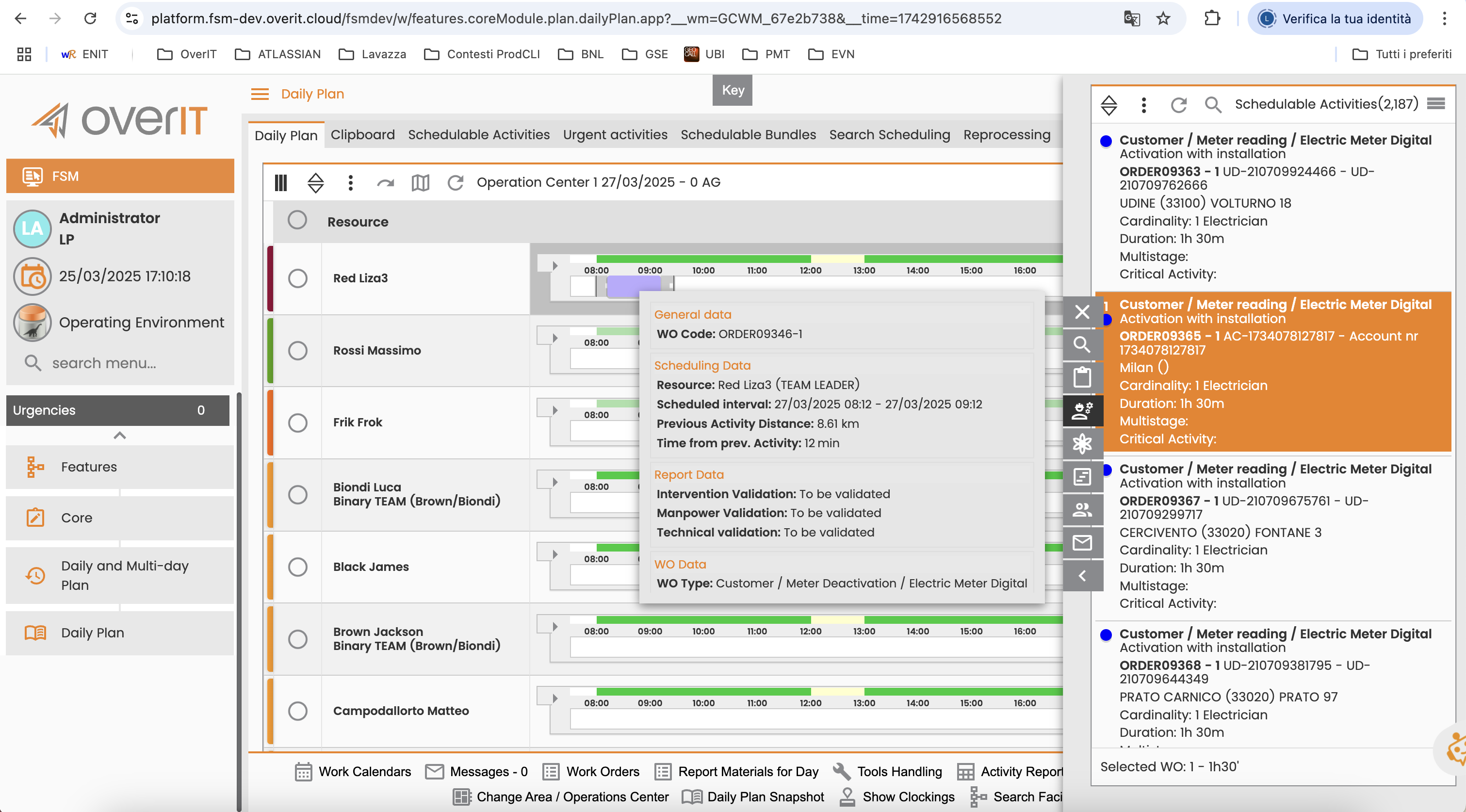
Daily/Multi-day Plan: "Detachable filter panel"
We are pleased to announce that, starting with this release, users can now detach and reposition the previously fixed collapsible filter panel, allowing it to be moved freely within the window for enhanced workspace flexibility.
Where to see the change?
This enhancement is applicable to both the Daily Plan and Multi-day Plan interfaces. The filter panel in question is to be found on the very right side of the screen and it contains multiple sections (eg. Clipboard, Schedulable Activities, Urgent Activities), each with a corresponding button. When the user select one of them, the panel slides out from the right page border and the corresponding section is opened. In that moment a new “Unlock Panel” button, distinguishable by its arrow icon, appears under the previously visible ones. It was added in this release and is used to activate the functionality described in this point.
Why was the change introduced?
This update addresses the limitations of the previous fixed layout, enhancing both usability and flexibility. With the previous layout, when the panel was open, certain elements of the Daily/Multi-day Plan Gantt were obscured, rendering them neither visible nor usable. As a result, users had to constantly open and close the panel. The introduced changes provide a more tailored and customizable workspace, improving task management efficiency for both daily and multi-day planning.
What has changed?
By clicking the new dedicated “Unlock Panel” button, the panel will undock and move to the center of the window. From there, users can drag and reposition it freely within the window. The floatable panel offers the same functionality as the fixed one. Clicking the “Lock Panel” button again will return the panel to its original position.
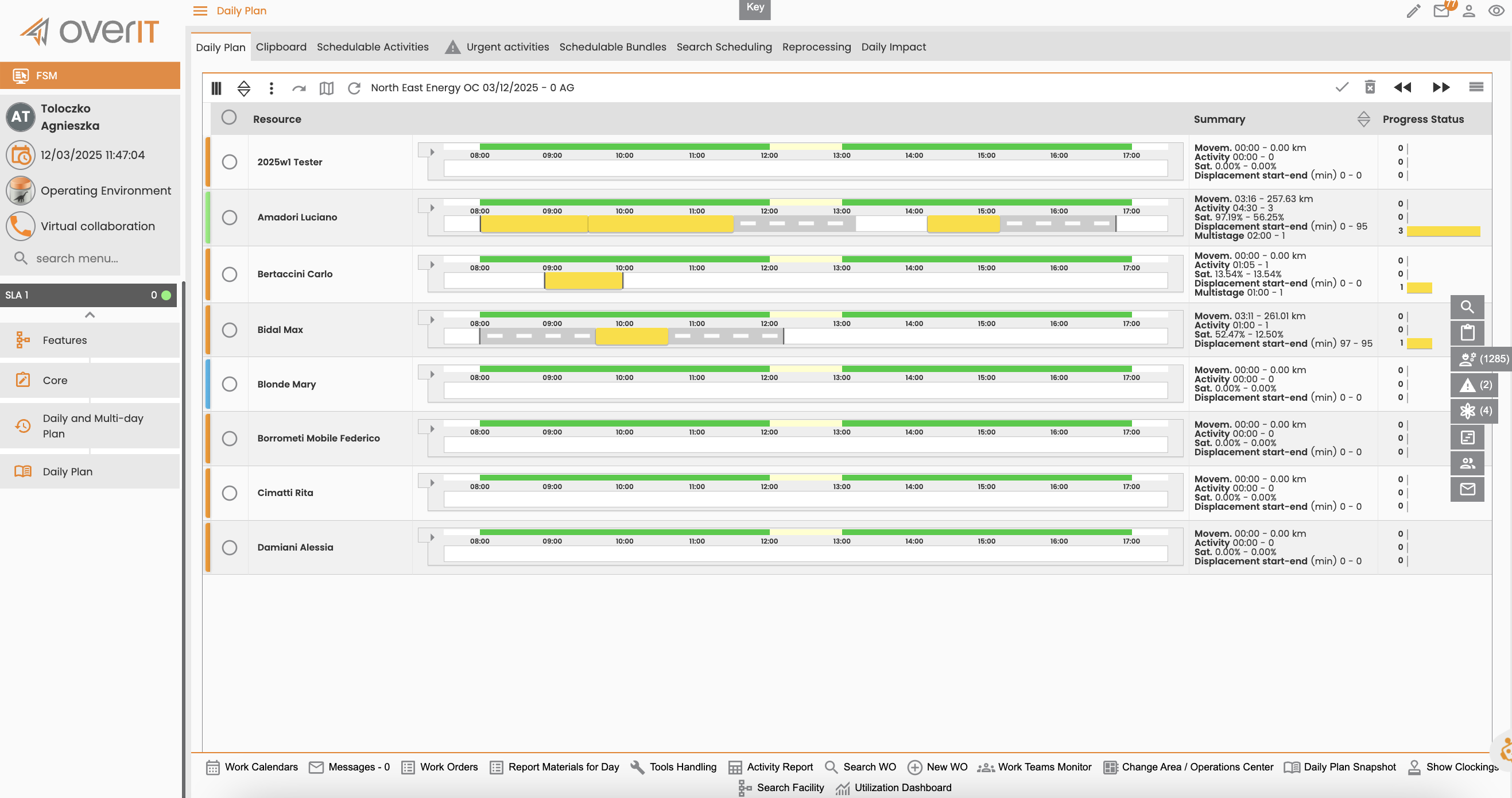
Figure 1 - Daily Plan with the panel closed - The new button is not visible |
|---|
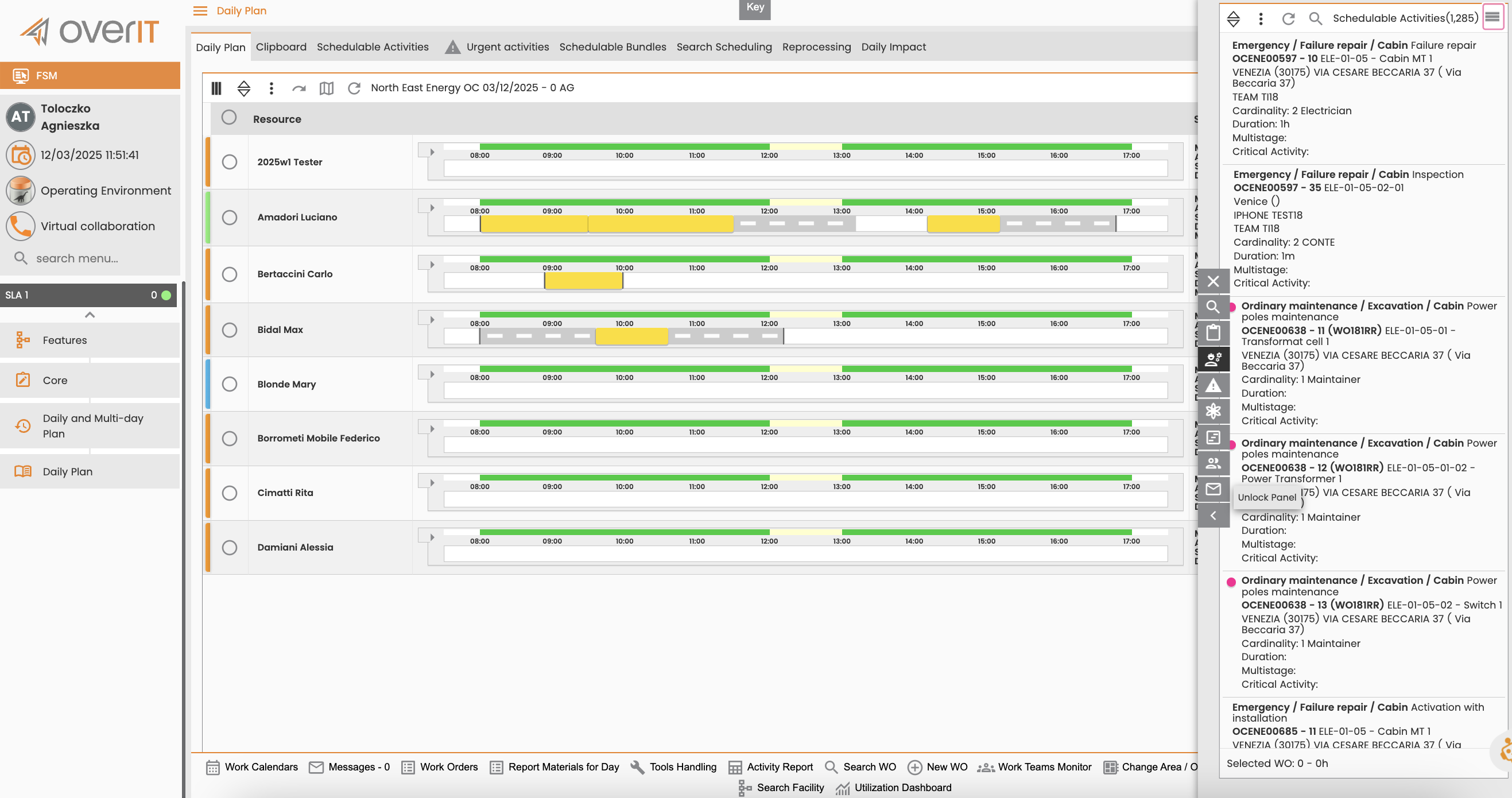
Figure 2 - Daily Plan with the panel open - Original position and new “Unlock Panel” button |
|---|
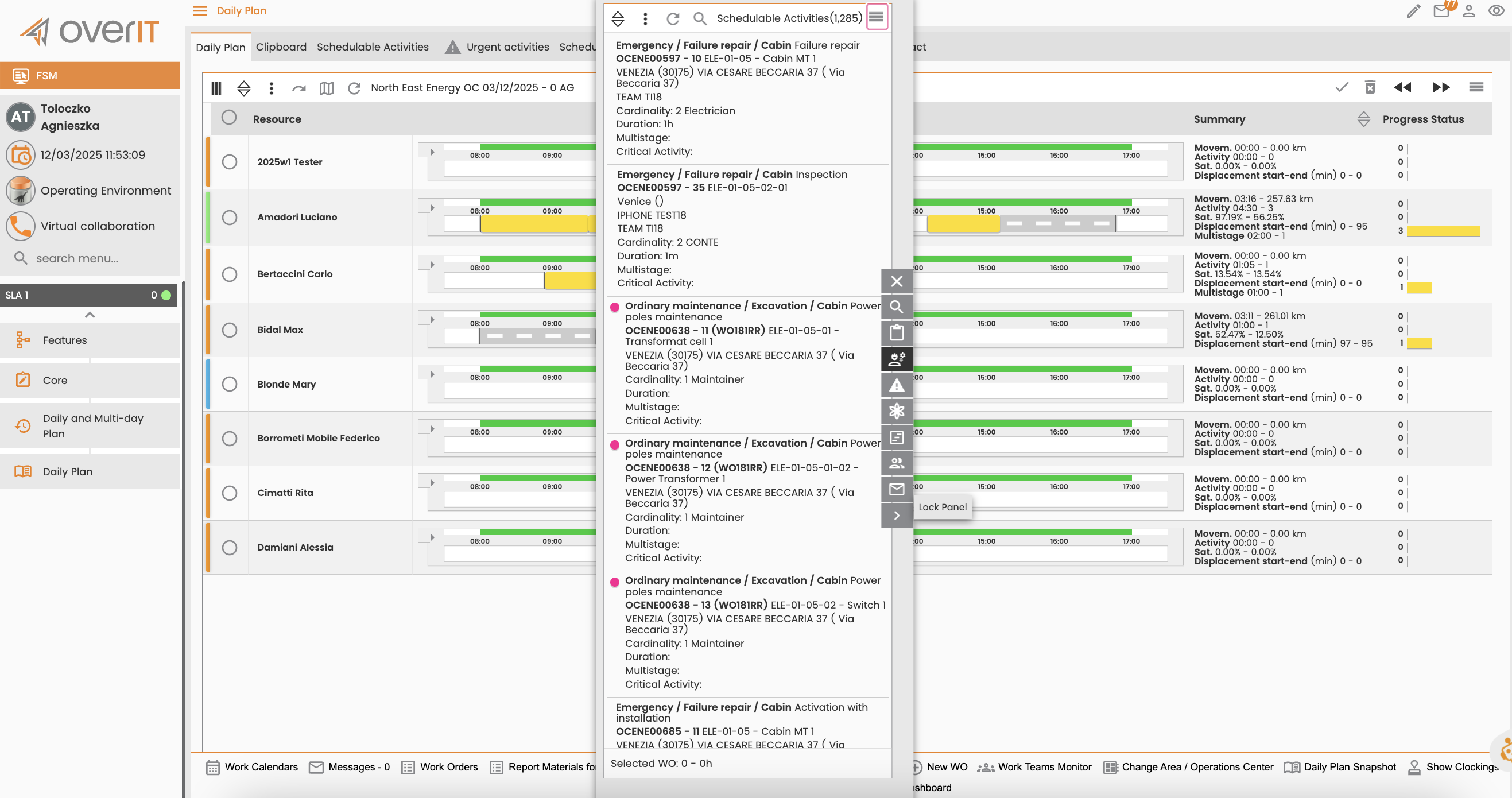
Figure 3 - Daily Plan with the panel open - Floating position and new “Lock Panel” button |
|---|
Daily/Multi-day Plan: “Smarter Search Insights” in Collapsible Panel - now also for Clipboard
This improvement relates to the functionality introduced in the ‘NextGen Platform 2025 Wave One' and described here: “Smarter Search Insights” in the Collapsible Panel for Daily/Multiday Planner. The goal of this feature—displaying the total number of records matching filter criteria prominently on the tab page label in parentheses—has now been extended to include the Clipboard tab.
What was the concern?
In the ‘NextGen Platform 2025 Wave One' the counter was available only for the following tabs:
-
Schedulable Activities
-
Urgent Activities
-
Schedulable Bundles
-
Multistage Activities
The Clipboard tab did not include a counter, resulting in a lack of consistency and a visually uneven experience across tabs.
Description of the applied solution
With this update, the 'Clipboard’ counter has been added to standardize the user experience. The system now displays the total number of retrieved records on the Clipboard tab, consistently with the other WO tabs. The counter is dynamically updated as records are added or removed, providing users with real-time information. When the record count is not visible, it indicates that no actions (e.g., ‘Schedulable Activities’ tab - search using filters, ‘Clipboard’ tab - arrival of a canceled WO) have been performed on the tab yet, giving users clear feedback on their status.
Daily/Multi-day Plan: Standarization of “operations bar" position - extension
This improvement relates to the activity started in the ‘NextGen Platform 2025 Wave One' and described here: Standardised UI/UX for Saved Search and Filter within Schedulable Activities (...). The standarization activity was completed in this wave, extending the uniformed interface look to include also the correct position of the operations bar within ‘Search Scheduling’ and ‘Reprocessing’ tabs.
What was the motivation for the change?
Daily and Multi-day Plans are among the most important and frequently used interfaces of the NextGen Platform. Therefore, it was crucial to make them as user-friendly as possible. To achieve this, one of the planned activities was the normalization of the interfaces for the tabs accessible through the top horizontal commands panel (e.g., the ‘Schedulable Activities’ tab, ‘Urgent Activities’ tab). The majority of the work in the previous wave focused on standardizing the look of their corresponding filters and ‘saved search’ menus, as well as improving the overall page layout.
What has changed?
The final adjustment made in this wave involved the positioning of the operations bar within the ‘Search Scheduling’ and ‘Reprocessing’ tabs. Previously, the operations bar on both of these tabs was placed at the top of the page. This has now been corrected, and the bar is positioned at the bottom of the page, consistent with the rest of the platform’s pages. As a result, all interfaces accessible from the command bar are now aligned.
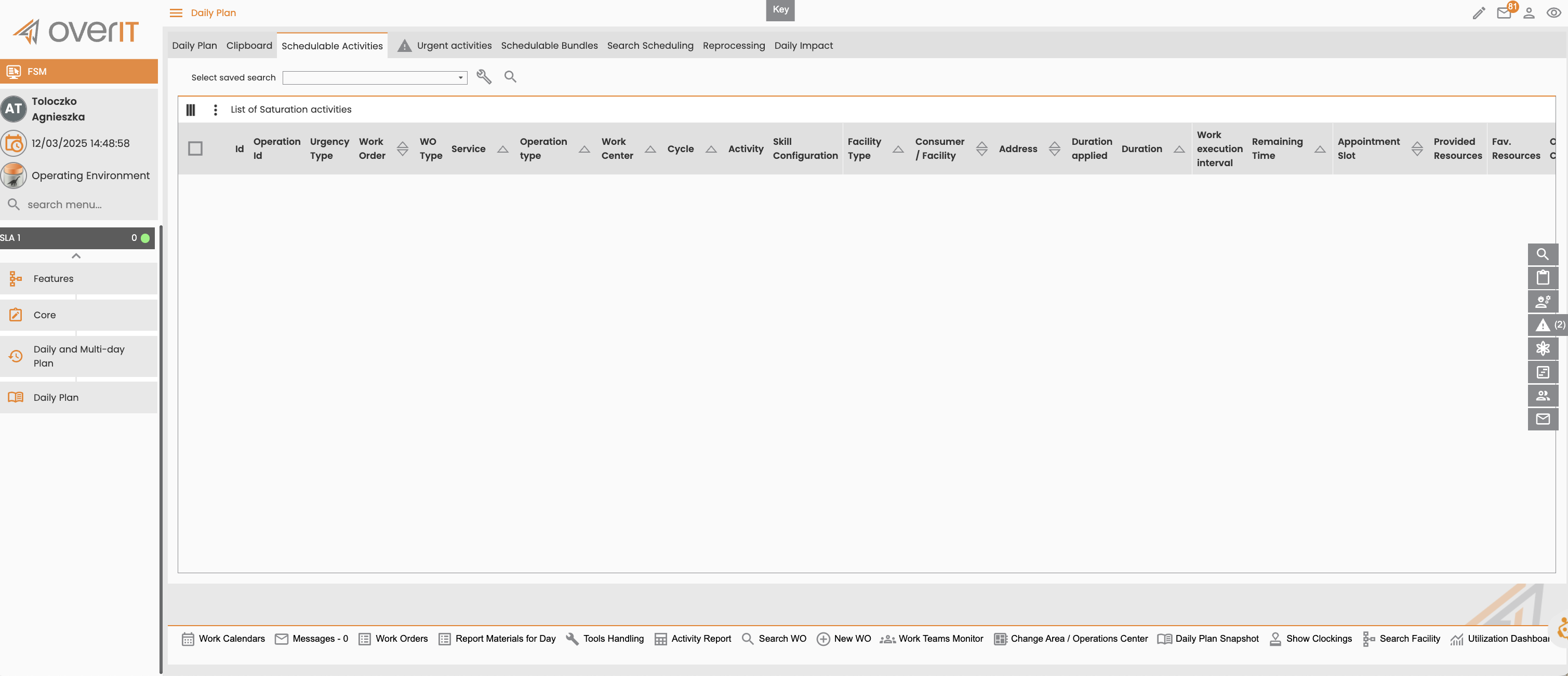
Figure 1 - 'Schedulable Activities' tab - operations bar placed on the bottom |
|---|
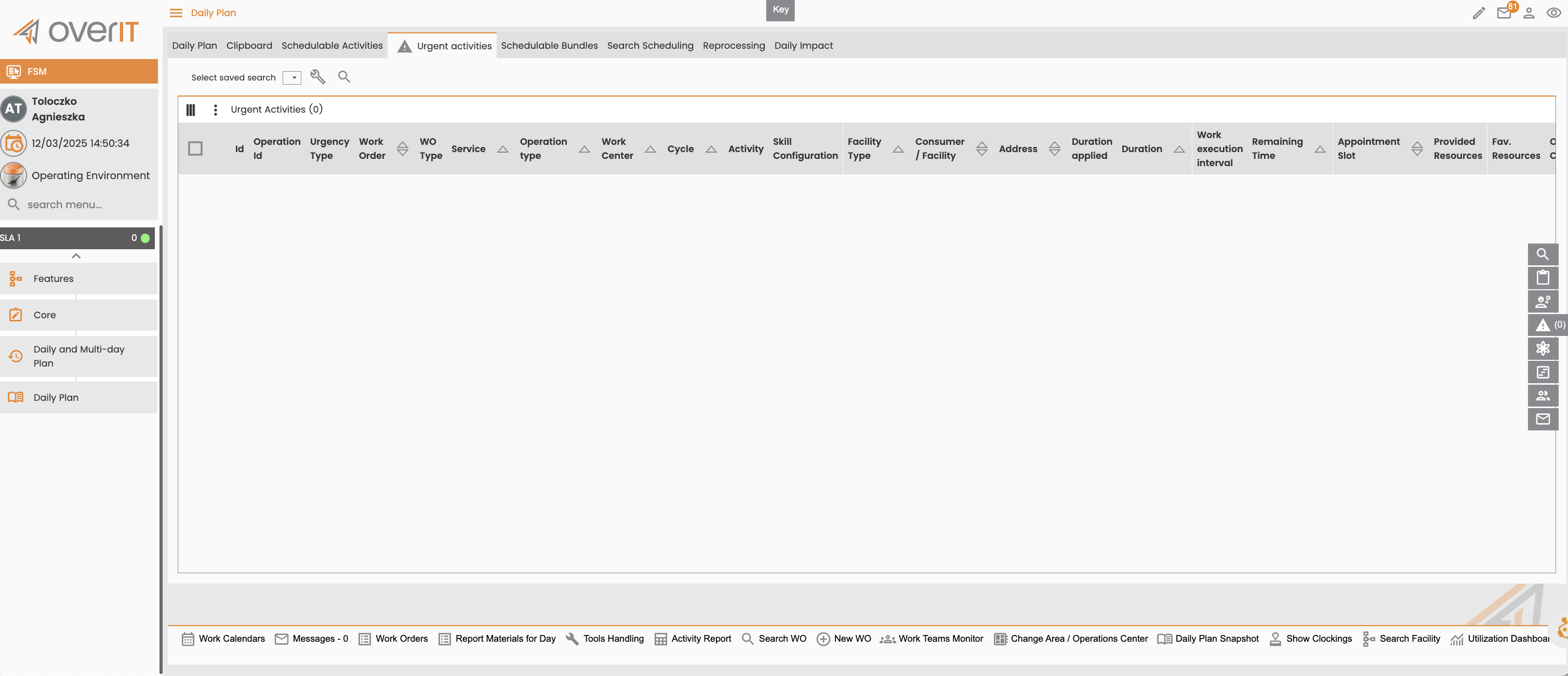
Figure 2 - 'Urgent Activities' tab - operations bar placed on the bottom |
|---|
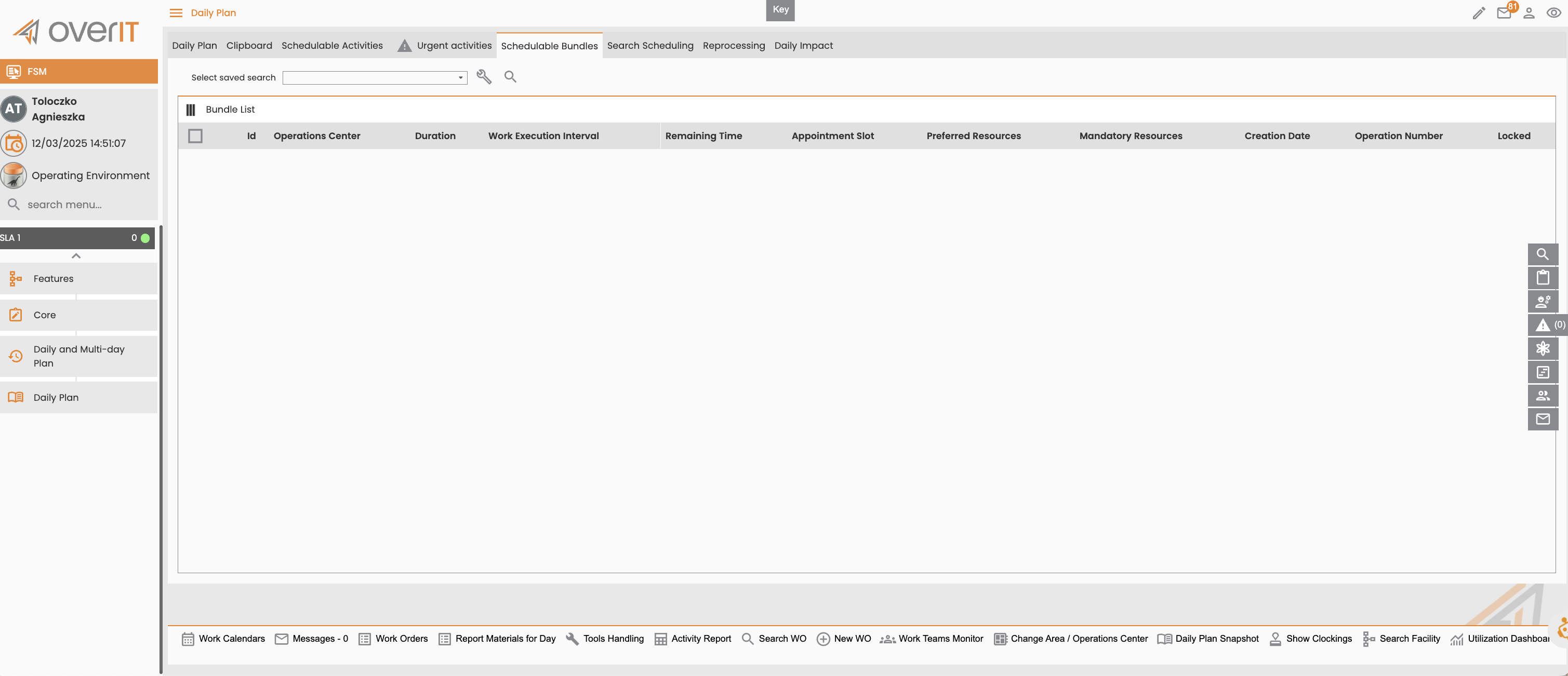
Figure 3 - 'Schedulable Bundles' tab - operations bar placed on the bottom |
|---|
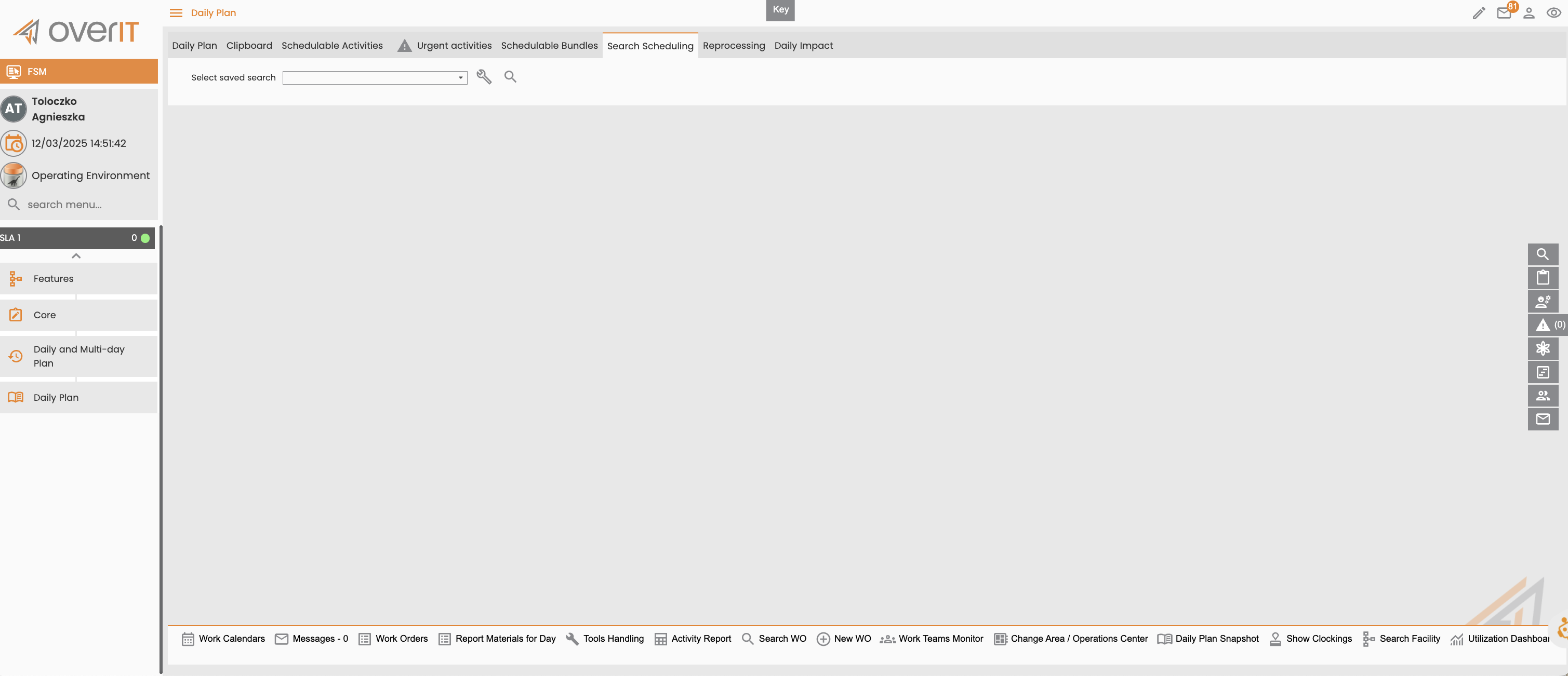
Figure 4 - 'Search Scheduling' tab - operations bar placed on the bottom |
|---|
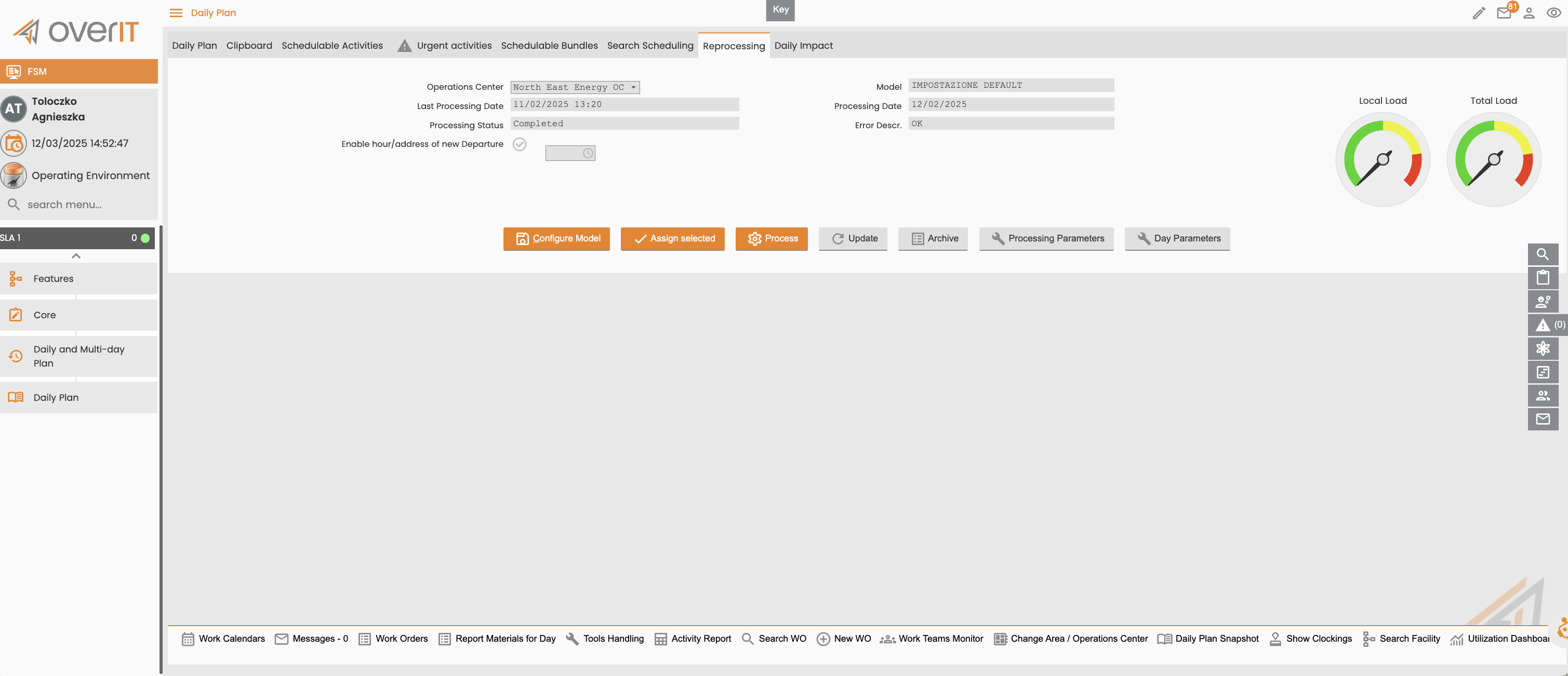
Figure 5 - 'Reprocessing' tab - operations bar placed on the bottom |
|---|
Daily/Multi-day Plan: Configurability of pop-ups for planned activities
We are pleased to announce that, starting with this release, users can now configure the information displayed in the tooltip that appears for scheduled activities in the daily and multi-day plans, allowing users to display the information needed for the specific process. This feature gives a greater flexibility in configuring tooltips by allowing customization at both the section and field levels.
Where to see the change?
The configurability of the list of information shown is defined here: Configuration > Core > Daily and Multi-daily plan > Dynamic Tooltips. In this section, a new menù is available "Dynamic Tooltips Configuration" allowing the web user to define:
-
the list of the tooltip configured
-
the list of rules to apply for each tooltip (by activity/by user type)
When the user define a tooltip, for each of them it’s possible to:
-
access to the details
-
delete the tooltip
-
view the rules configured
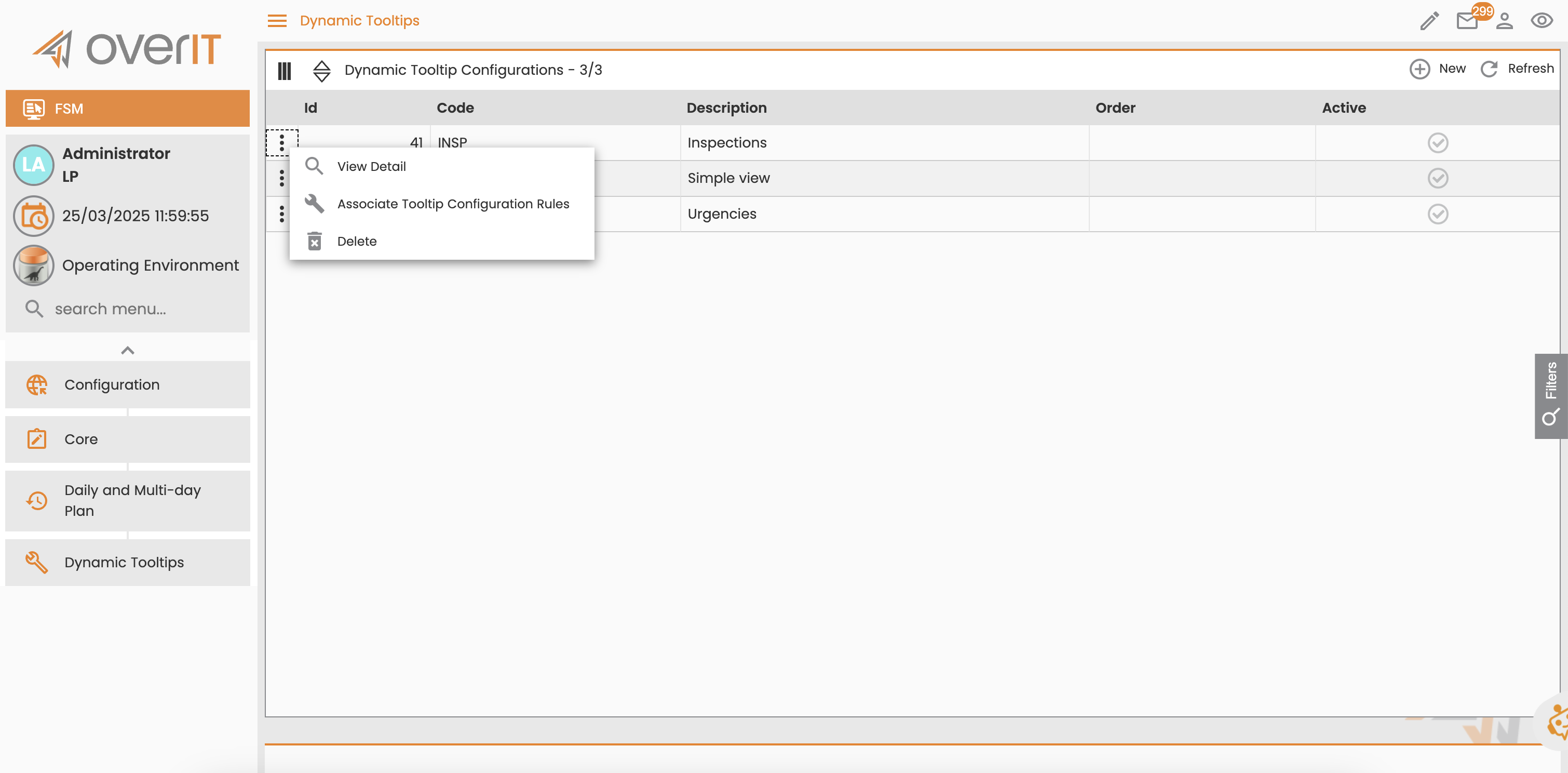
Why was the change introduced?
The web user needs to view the list of information defined as “important” for the process. So, this feature allows user to define the information to show for each process in order to give to the user an overview of the data present for each scheduled activity, process depending. The customization of the tooltip should be based on Process or Role-based settings or both. The scope of this configuration is to show/hide and reorder sections and items for a tailored user experience.
Description of the applied solution
With this release, the ‘tooltip’ of the scheduled activities has been improved to help the user to view the important information in the Daily and Multi-daily plan.
The configuration of the structure of the tooltip is defined in different steps:
-
Activate the new functionality by setting to “true” the parameter “company.fsm.dailyplan.dynamicTooltips=true” in the Company Settings ( Technical Settings > Company).

-
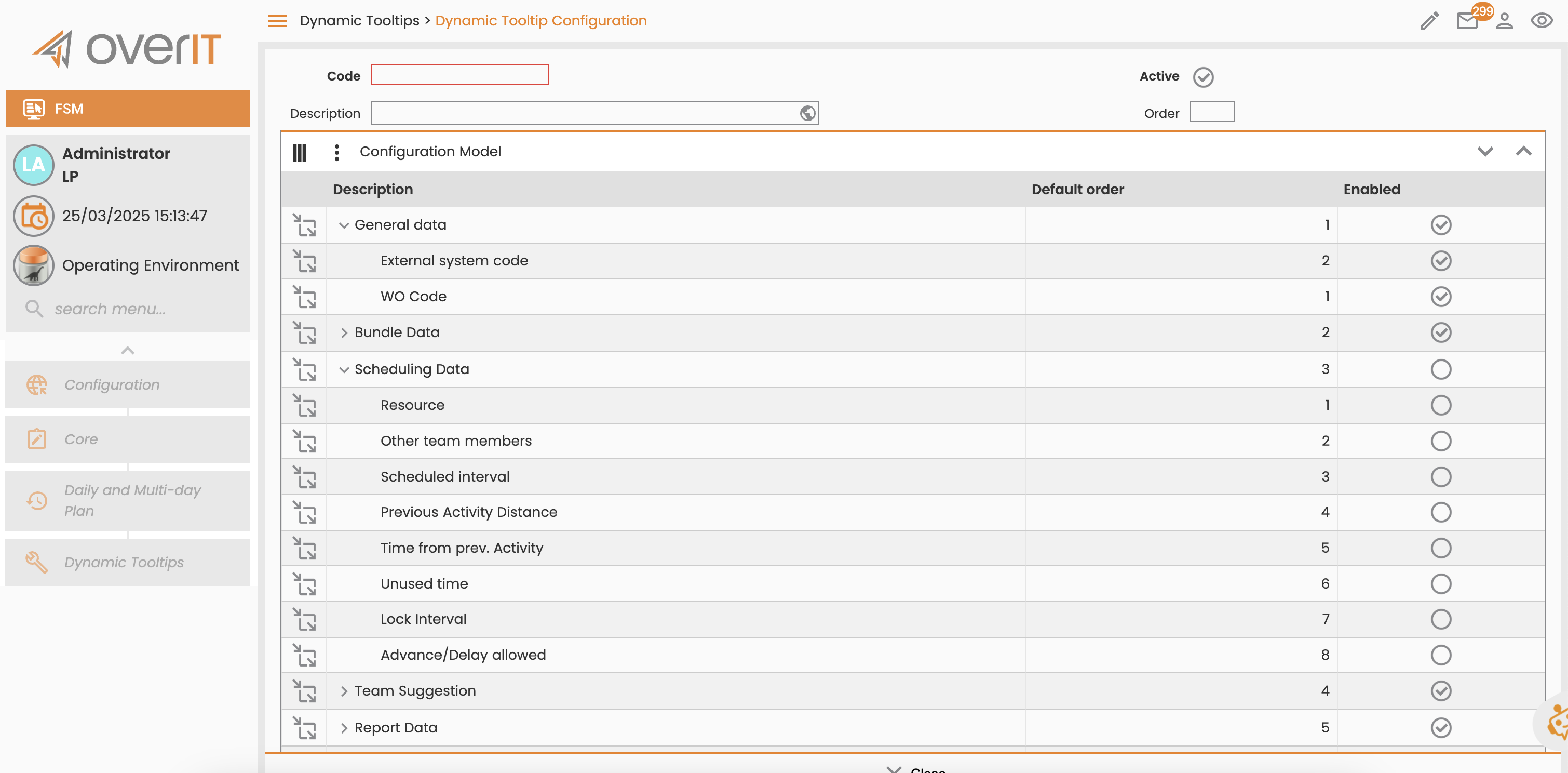
definition of the configuration (Configuration > Core > Daily and Multi-daily plan > Dynamic Tooltips > Dynamic Tooltips Configuration). In this page, the user can define a specific configuration record with:
-
Code-Description (configuration name)
-
order (1-999)
-
order
-
active/not active
-
2.In the same page it’s possible to:
-
search a specific configuration using some filters: Code-description-activity type-user type- active/not active
-
view a specific configuration
-
edit/remove a configuration
-
association of the tooltip to a specific rule: activity type and/or user type.
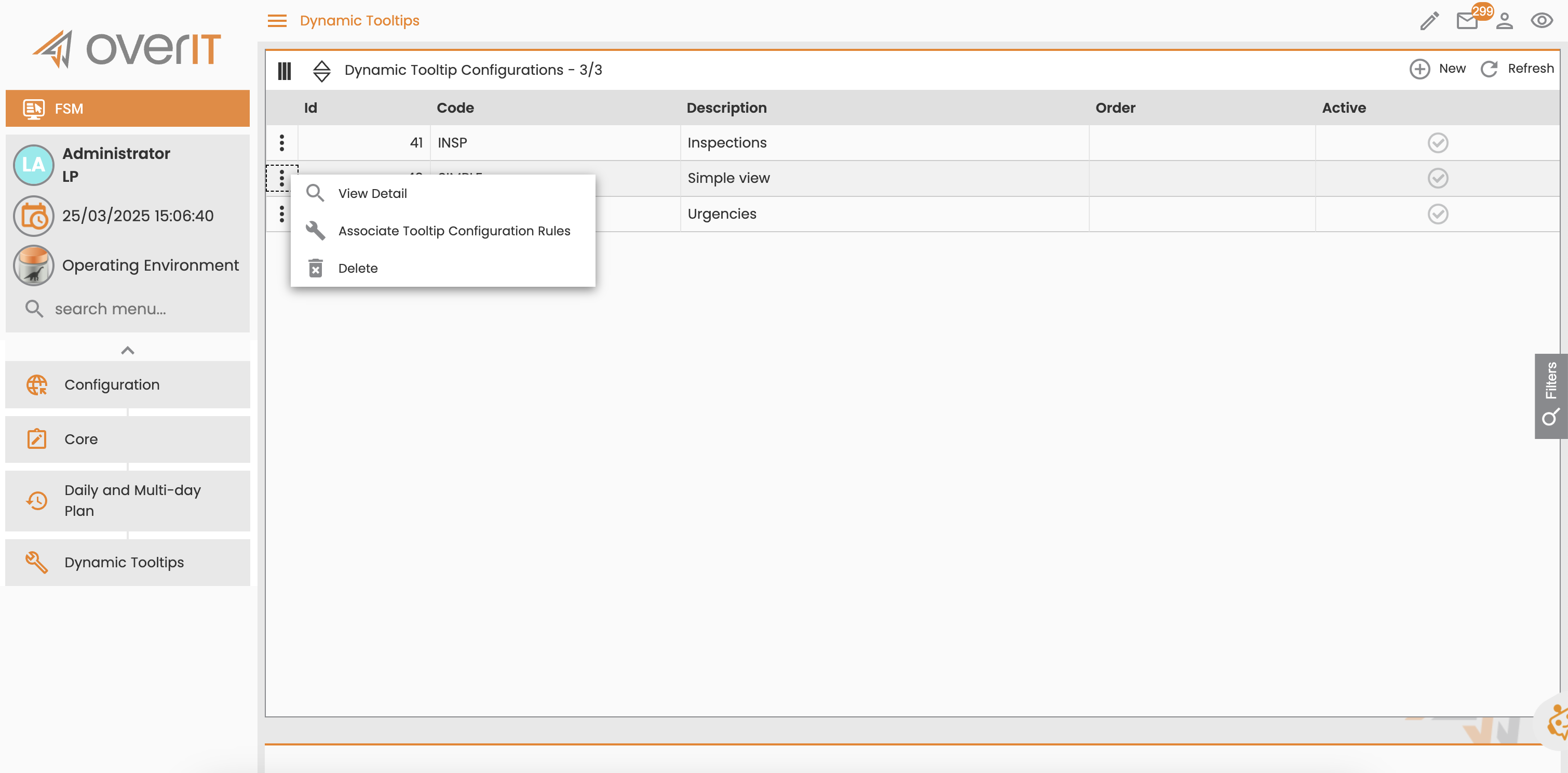
The creation of the new Dynamic Tooltip is available by clicking on the icon “New”. The follow page is displayed:
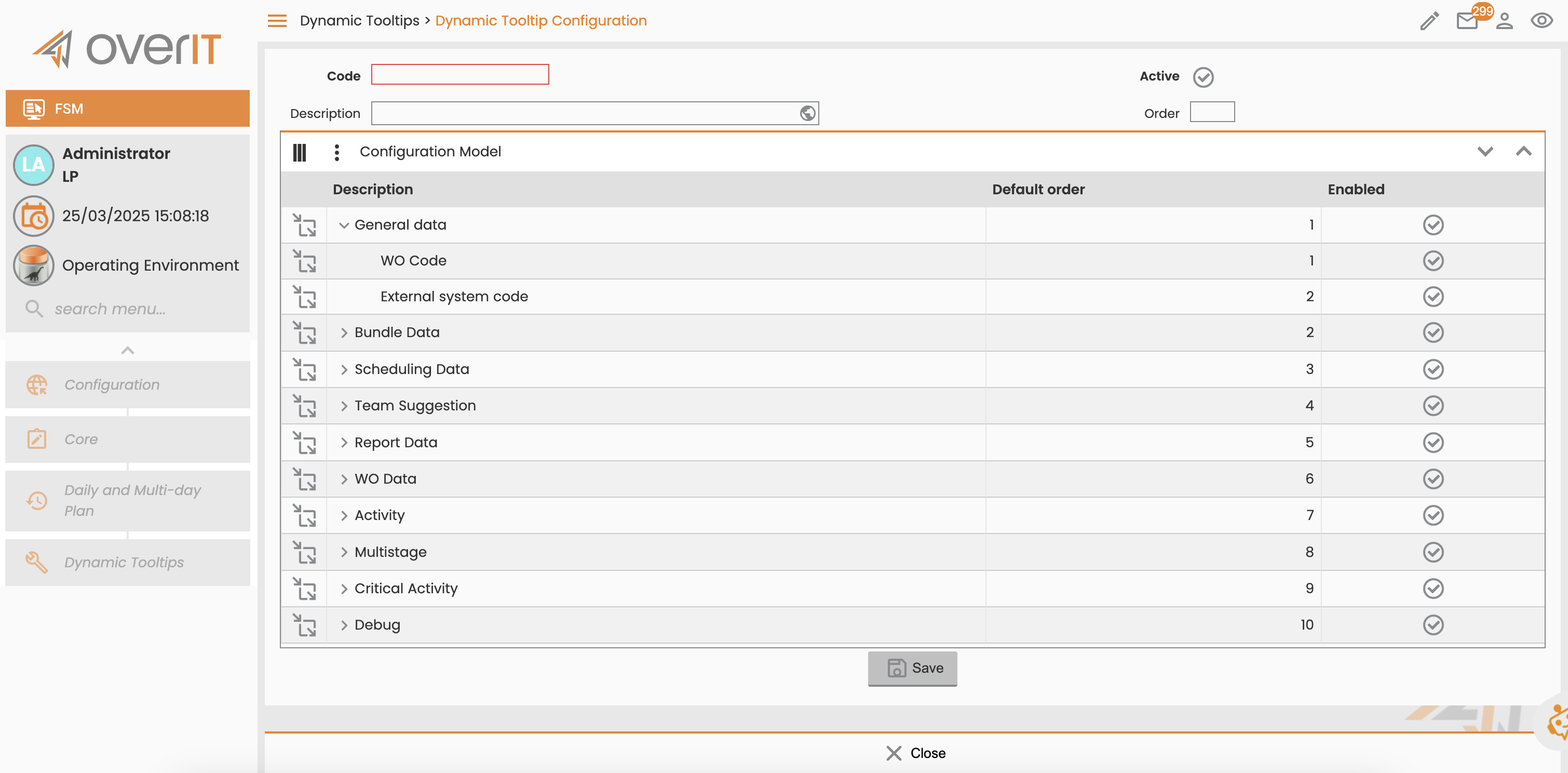
This page allows user to define:
-
the configuration header data (Code, description, order)
-
the order and the list of the data to display. For each tooltip configuration it’s possible to define the order and the list of the fields to show at section and row level.
Tooltip Sections
-
Ability to show or hide specific sections for users.
-
Control over the order in which sections are displayed.
-
Customization of section names.
Fields/Rows within Sections
-
Ability to show or hide specific fields/rows for users.
-
Control over the order in which fields/rows are presented.
-
Customization of field/row labels within each section.
By selecting each record, the user can:
-
change the order of the items with the drag and drop option
-
activate and de-active the single section/item. If the user de-activate a single section, all items below are deactivated
3.For each configuration, the option “ Association Tooltip configuration Rules” is available and the user can define the rules of applying the configuration considering:
-
activity type
-
user type
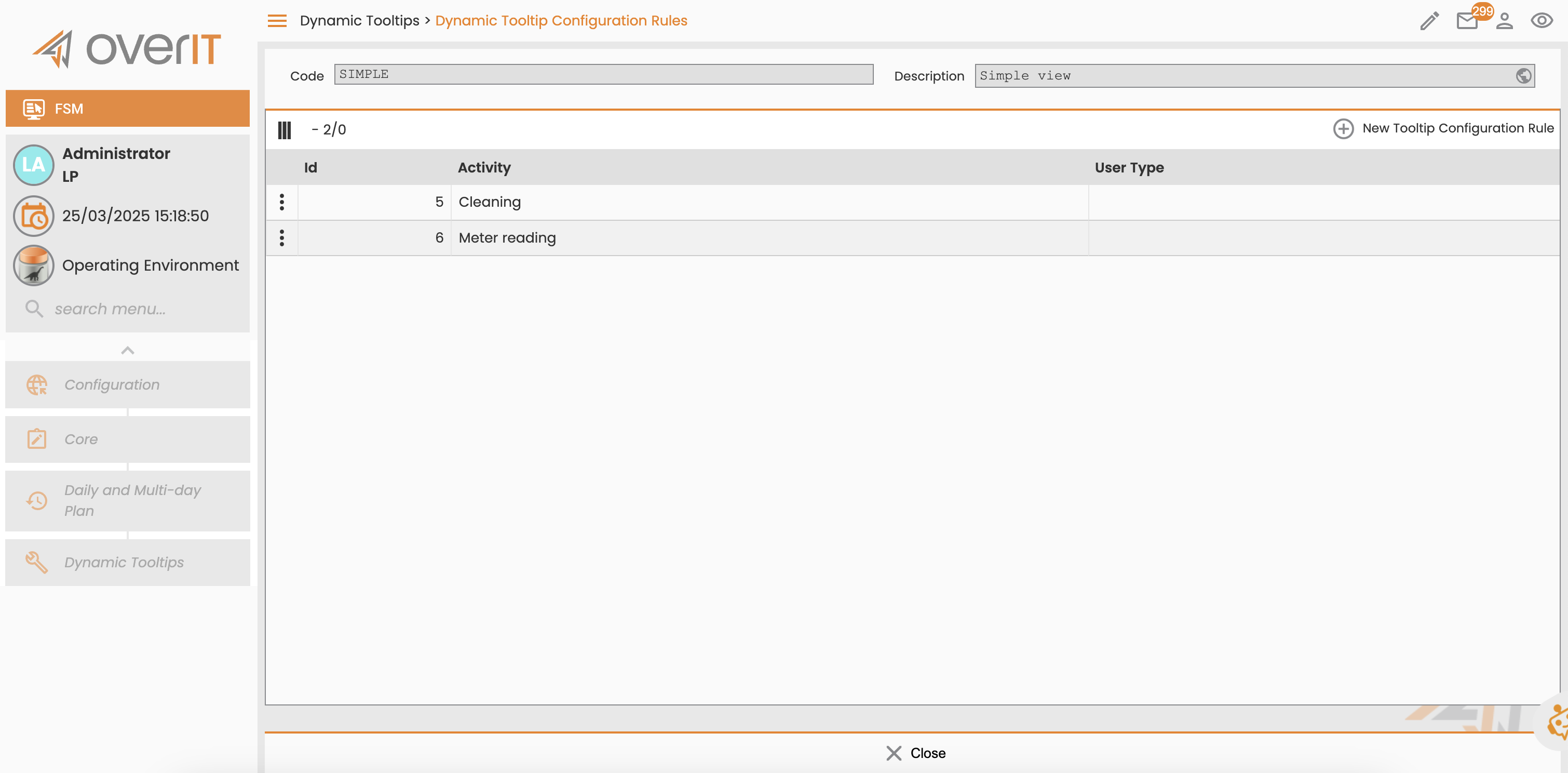
If the user has defined some rules, the configuration is available considering the activity type defined and the user type listed. If there isn’t a configuration rule for a specific tooltip configuration, the configuration is available for all user types and activity types. The button “New Tooltip Configuration Rule” allows user to define the rule to apply.
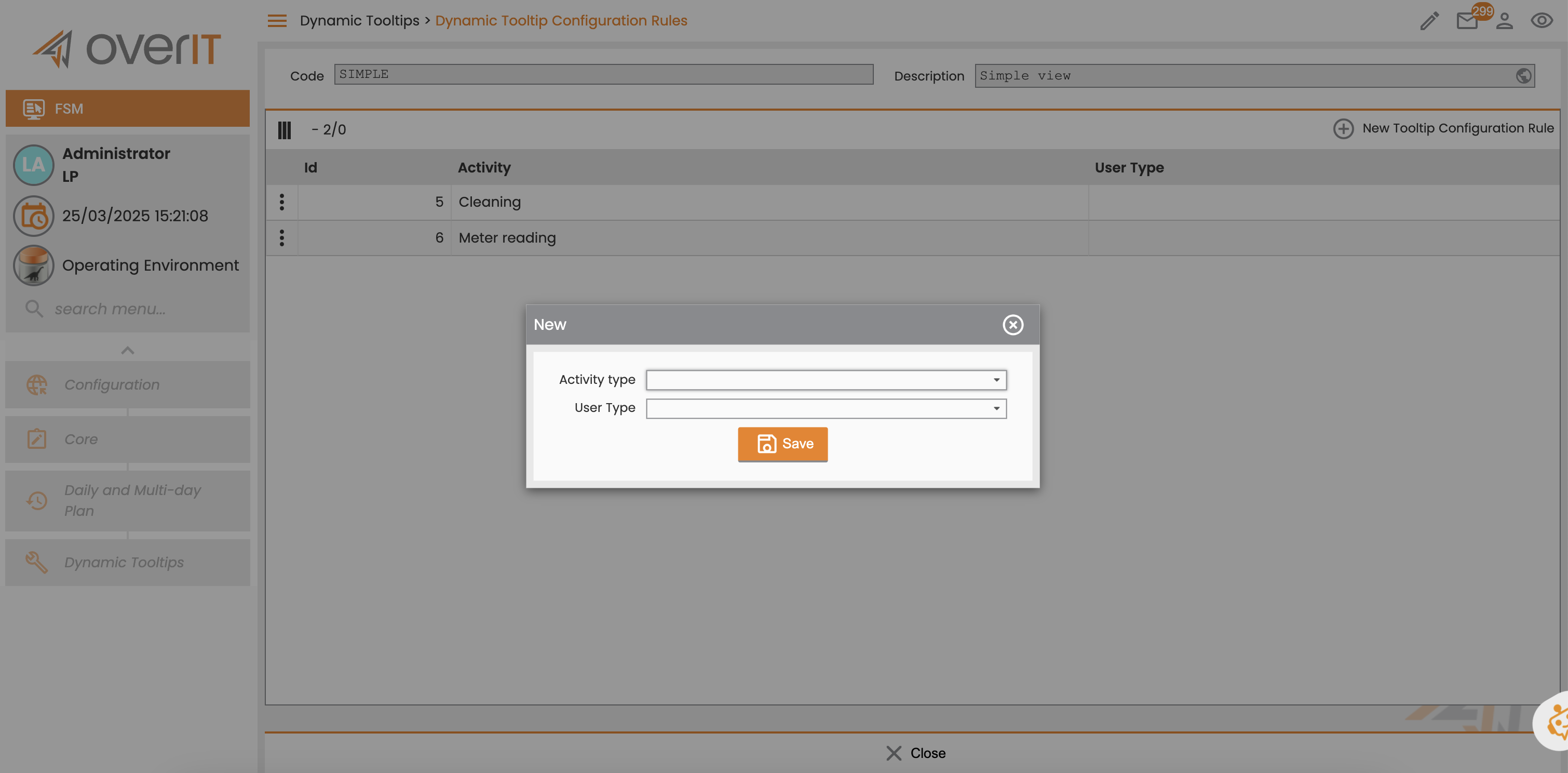
After the definition of this configuration, the user can view the tooltip structured as the configuration set: