
A service makes geographic information accessible over the map, and it can be composed by more layers, that are slices of information you can add to your map.
There are several main types of GIS services, each offering different functionalities for working with geospatial data.
How to configure
Only Configurator group can access to this configuration
Before to configure services, you need to configure the server on which services are managed, see reference here: Server Configuration
Going on Control Panel > Maps > Service, you can find the list of all existing services, or you can create a new one clicking on the “Add service” button.
To create a new service you have define properties, layers and theme.
|
|
|
Figure 1 - Service creation |
Service properties
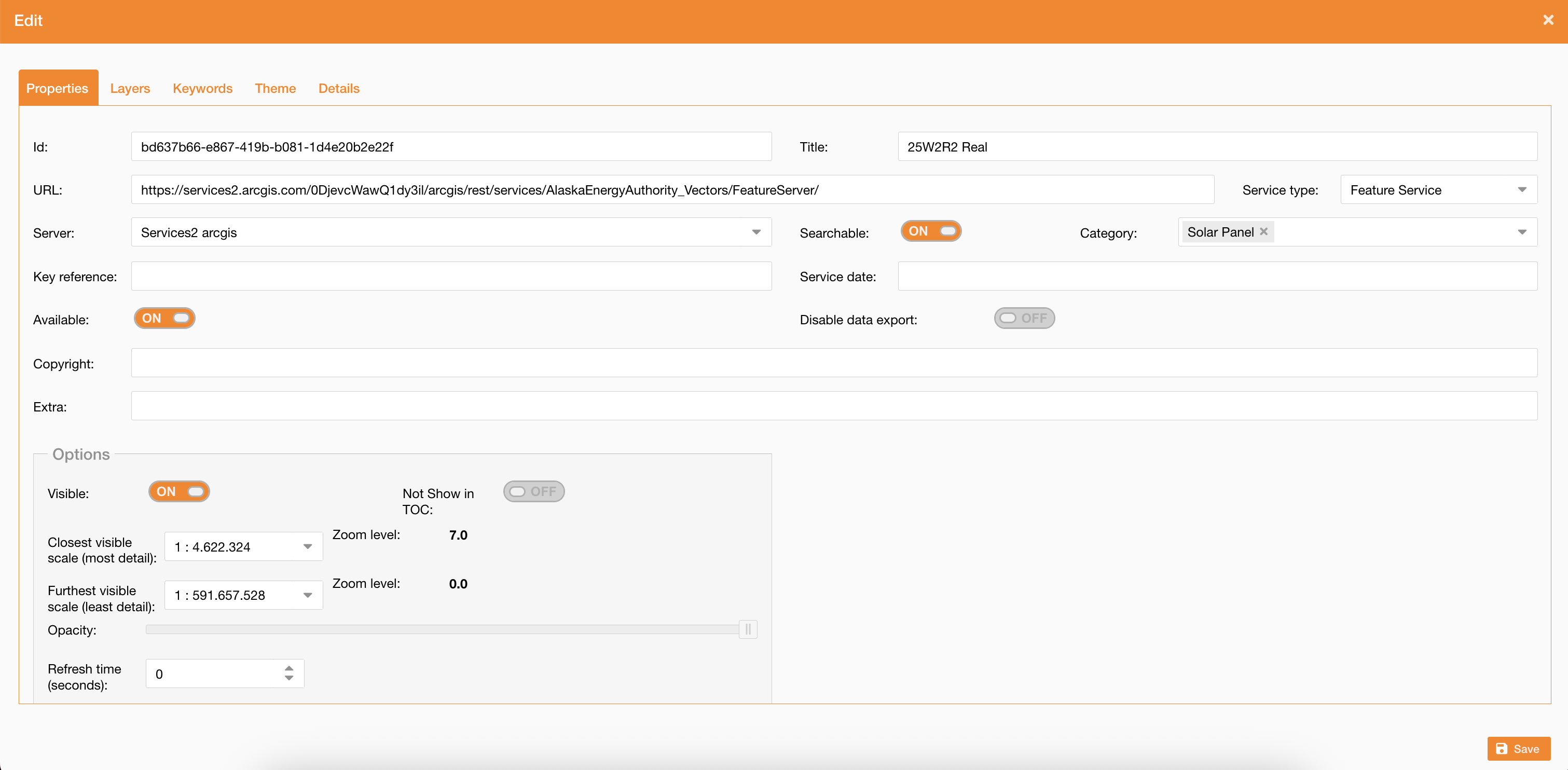
The Properties tab allows to define general settings of the service, listed below:
|
Field |
Description |
|---|---|
|
Title (mandatory) |
Service’s name (mandatory) |
|
Service Type |
Service’s type (mandatory) |
|
Searchable |
If true, the service is searchable through this widget: Search widget |
|
Category |
Service’s categories, used to filter the service on the search widget Search widget (it requires searchable) |
|
URL |
Service’s URL (mandatory) |
|
Server |
Server previously configured (mandatory) |
|
Key reference |
|
|
Service date |
|
|
Copyright |
|
|
Extra |
|
|
Available |
It is used to set if the service is available or not. If true, the service is not showed in the map even if it is associated to the map. |
|
Disable data export |
Ability to disable Excel export from the Attribute Table based on service configuration |
|
Basemap only |
It is used to define the service is only for basemap composition |
In the Options section (Figure 5 - Service creation) you can define options properties of the service:
|
Field |
Description |
|---|---|
|
Visible |
If true service is checked on the TOC, if false it shows service in the TOC but not checked. |
|
Not Show in TOC: |
if true the service is not showed in the TOC |
|
Closest visible scale, Furthest visible scale |
it defines the min and max scale to visualize the service |
|
Opacity |
It changes the opacity of features on the map |
|
Refresh time |
To update service in real time. It is useful for service containing real time data (ship tracking, weather conditions). |
Service Layers - Attribute table
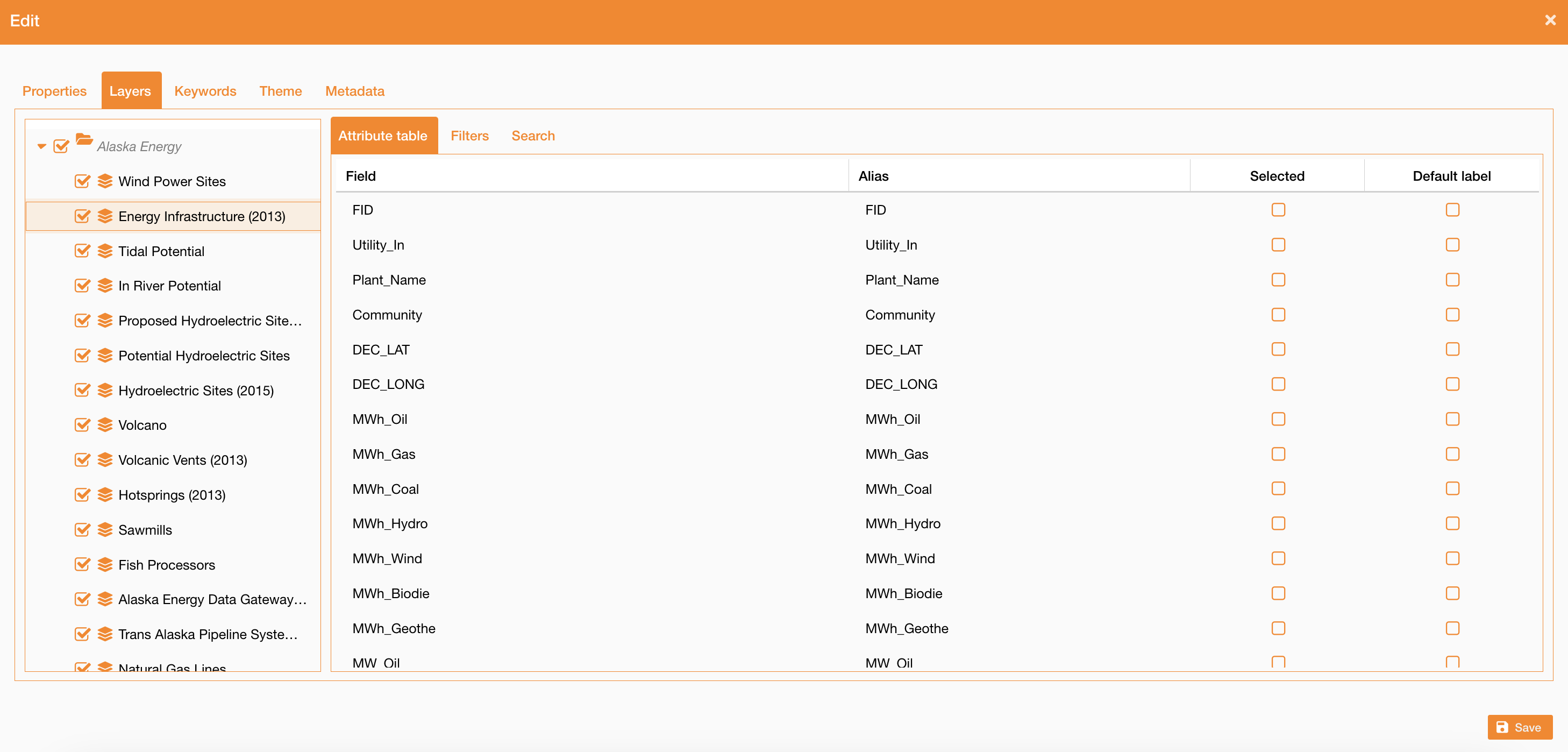
Going on the Layers tab, you can see all service’s layers and their fields. Selecting one layer at a time there is a table with the list of all available fields and their alias.
For each layer there is a flag field, if true the layer is visible on the TOC, otherwise it is turned off.
|
|
Figure 4 - Service creation |
For each field is possibile to define:
-
Selection: if true, the field will be showed in all map tools (attributes table, info panel, selection tools). If no field is selected, all fields will be showed
-
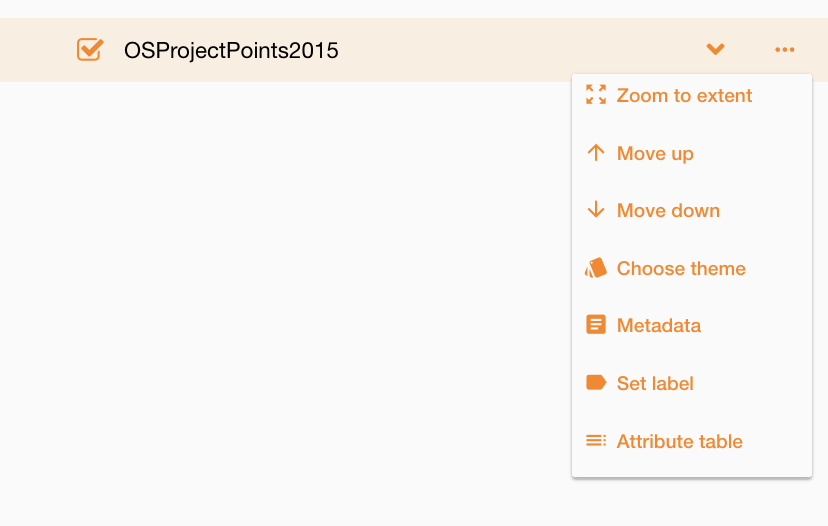
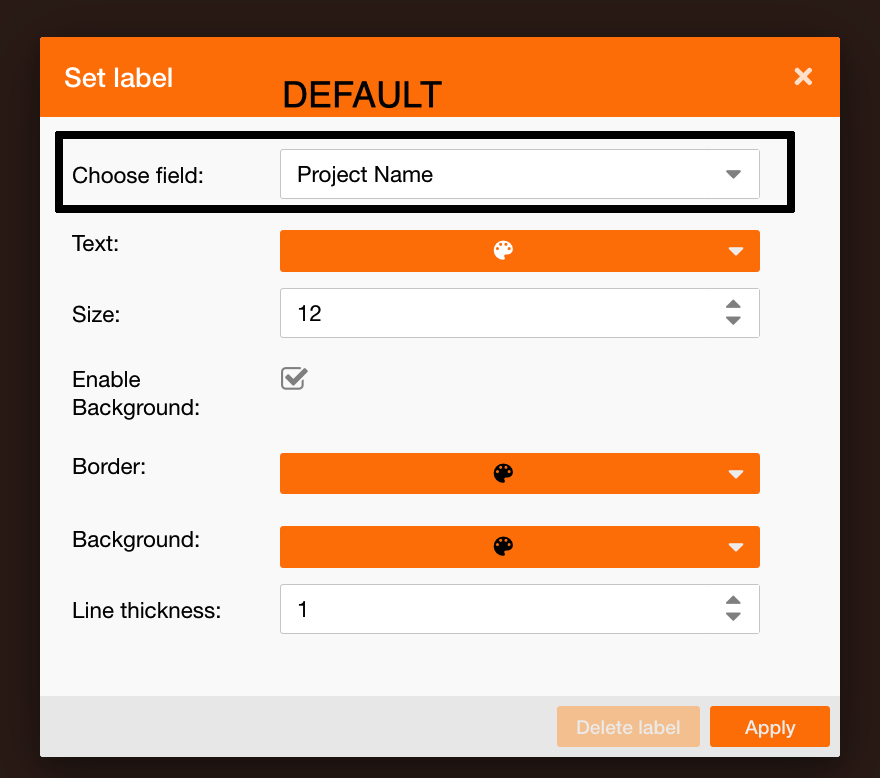
Default: if true, the field will be selected by default in the “Set label” tool of TOC. Only one field can be setted as “Default”.
Service Layers - Filters
Going on the Filters sub-tab, you can select which fields correspond to territory filters: Area, Operation Center and Structure.
To see how the territory is managed in NextGen Geo, see references here: Configure zones and areas , Users and permissions | Zones and Areas assignment
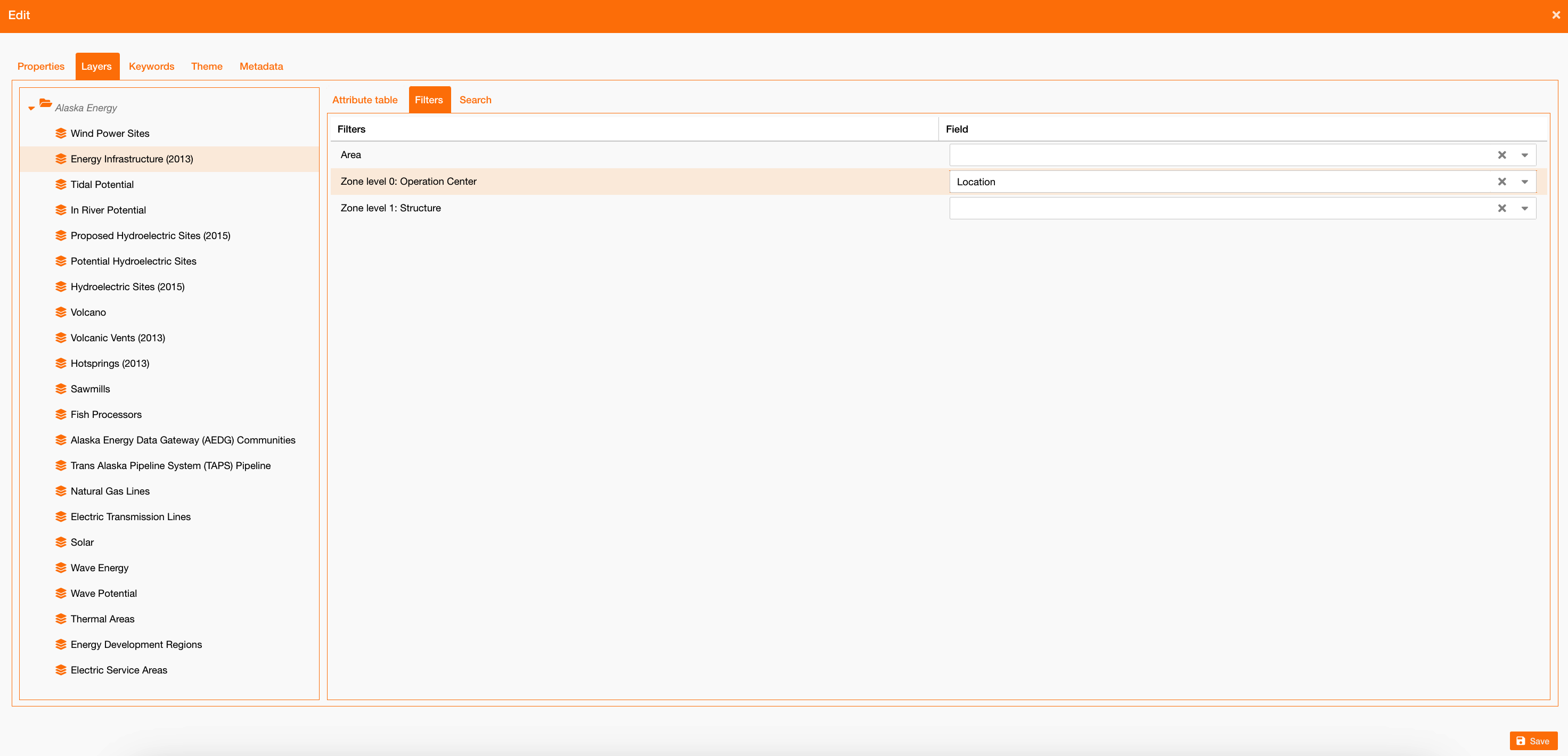
|
|
Figure 5 - Service territory filters |
Service Layers - Search
Going on the Search sub-tab, you can select on which fields you can search the service, and on which category.
To see how the search widget works, see reference here: Search widget
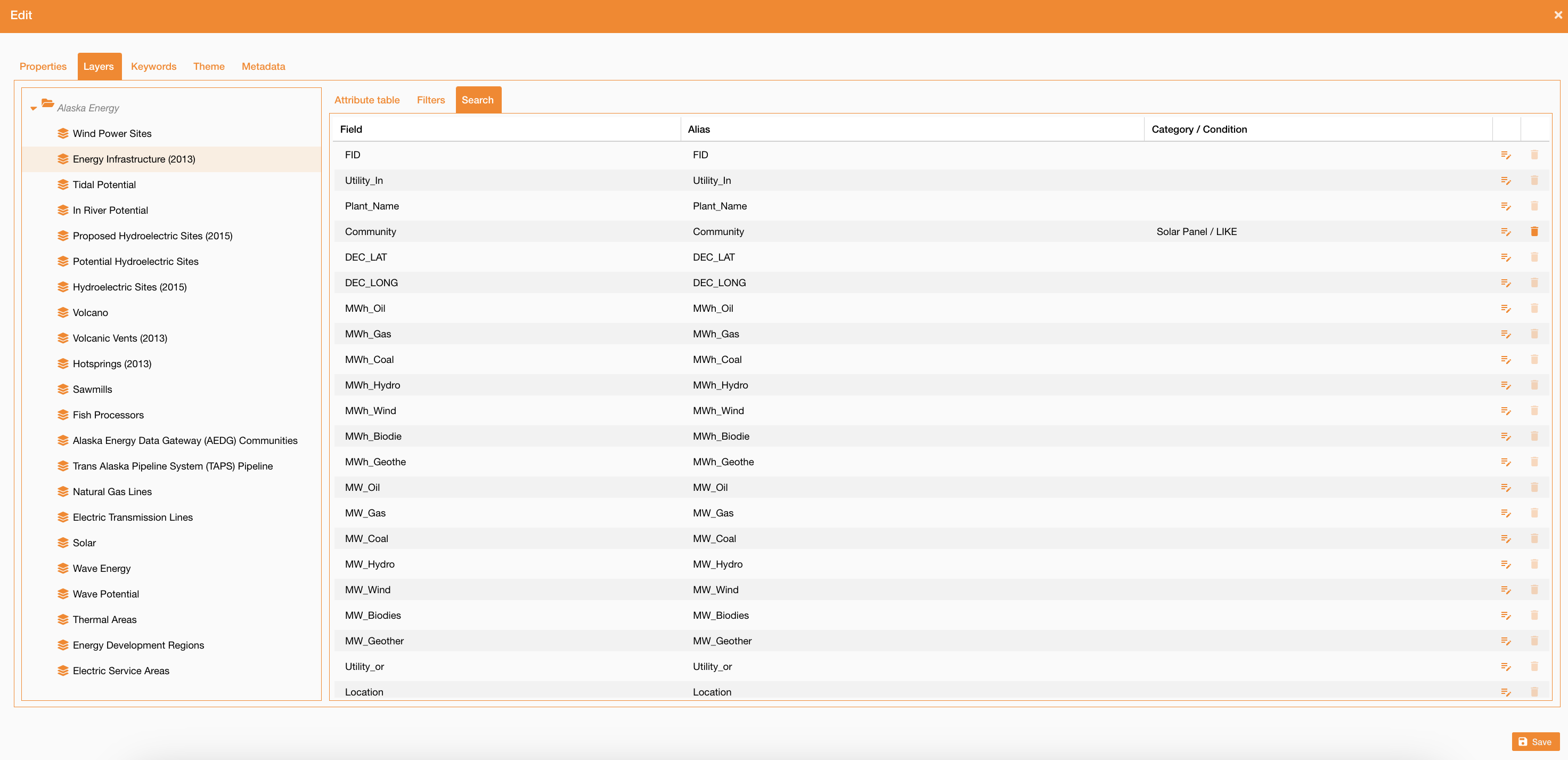
|
|
Figure 6 - Service search configuration |
For each field, you can click the edit icon and select:
-
Category on which apply the filter
-
Condition to apply on the search
Service Keywords
Going on the Keyword tab, you can select what are keywords to use to search the selected service. Using this configuration you can search services by their name and also by keywords associated.
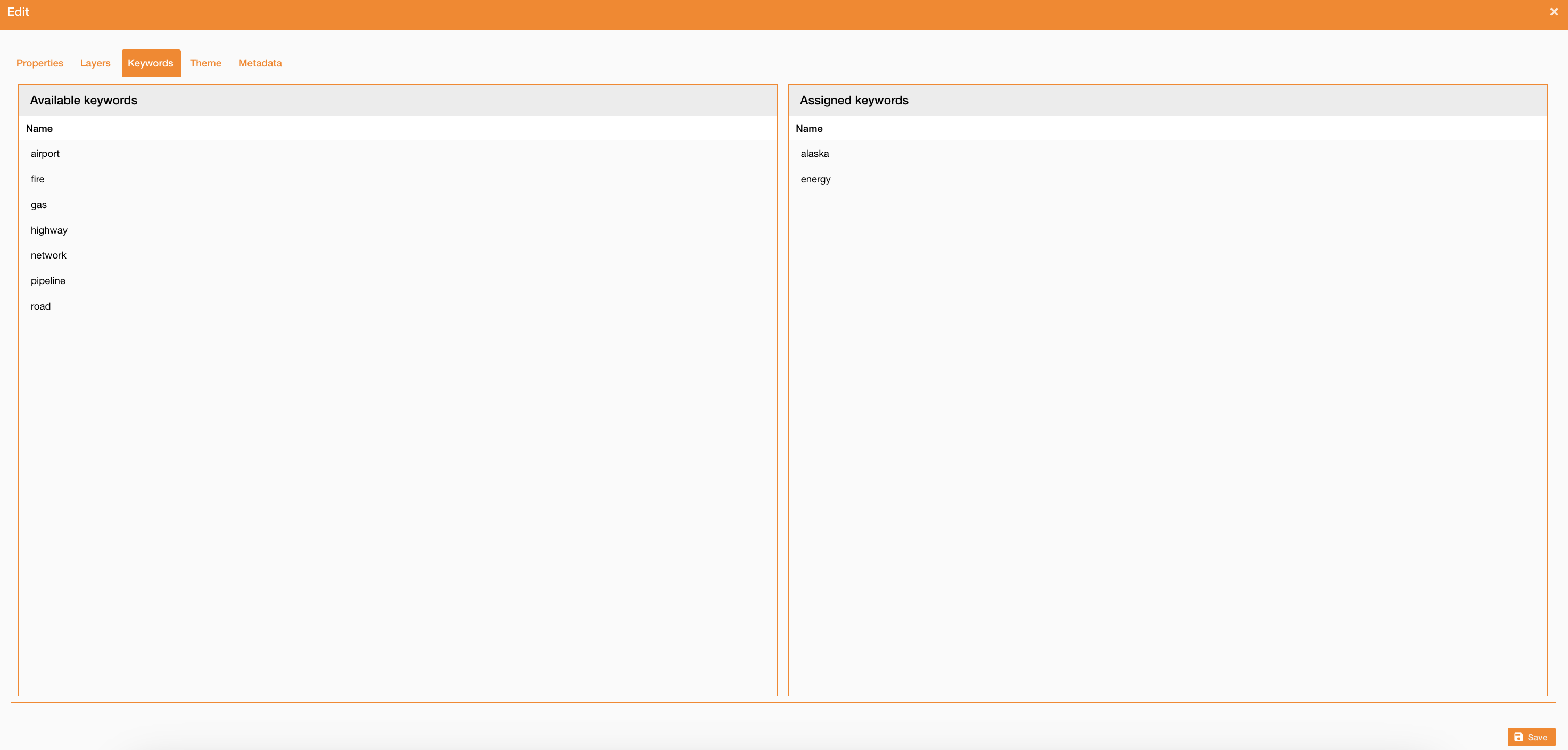
|
|
Figure 7 - Service keywords configuration |
Service theme
Going on the Theme tab, you can see all themes already configured or configure a new theme clicking the “new theme” button.
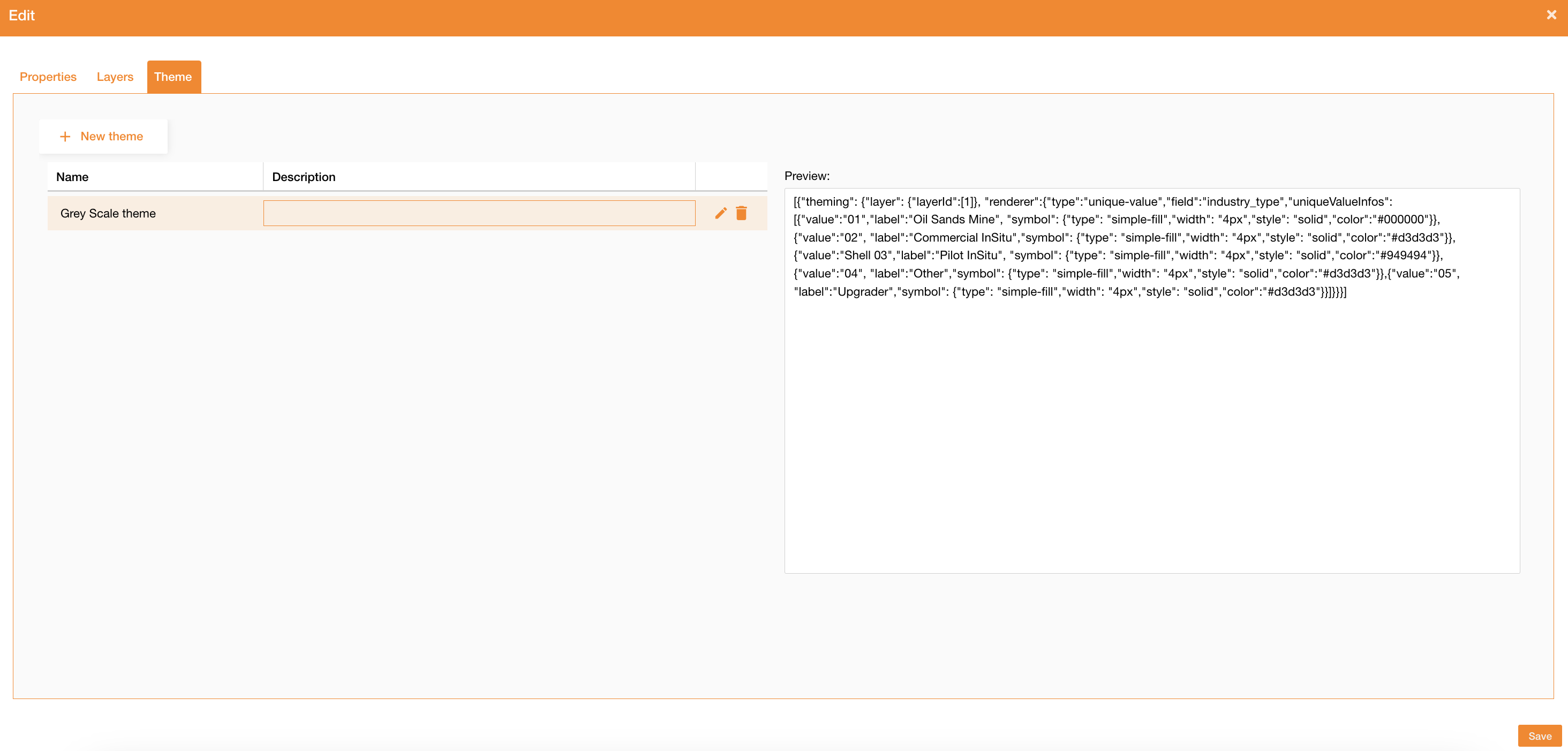
|
|
Figure 8 - Theme creation |
To add a new theme you have to define:
-
Name
-
Description
-
Theme: JSON structure to define the theme at service level
Example for a Grey Scale Theme on polygonal asset:
[{"theming": {"layer": {"layerId":[1]}, "renderer":{"type":"unique-value","field":"industry_type","uniqueValueInfos":[{"value":"01","label":"Oil Sands Mine", "symbol": {"type": "simple-fill","width": "4px","style": "solid","color":"#000000"}},{"value":"02", "label":"Commercial InSitu","symbol": {"type": "simple-fill","width": "4px","style": "solid","color":"#d3d3d3"}},{"value":"Shell 03","label":"Pilot InSitu", "symbol": {"type": "simple-fill","width": "4px","style": "solid","color":"#949494"}},{"value":"04", "label":"Other","symbol": {"type": "simple-fill","width": "4px","style": "solid","color":"#d3d3d3"}},{"value":"05", "label":"Upgrader","symbol": {"type": "simple-fill","width": "4px","style": "solid","color":"#d3d3d3"}}]}}}]
-
layerId: id of service's layer on which apply the new theme -
field:layer's field to use as criteria to apply the theme -
uniqueValueInfos:list that defines which color apply to each value
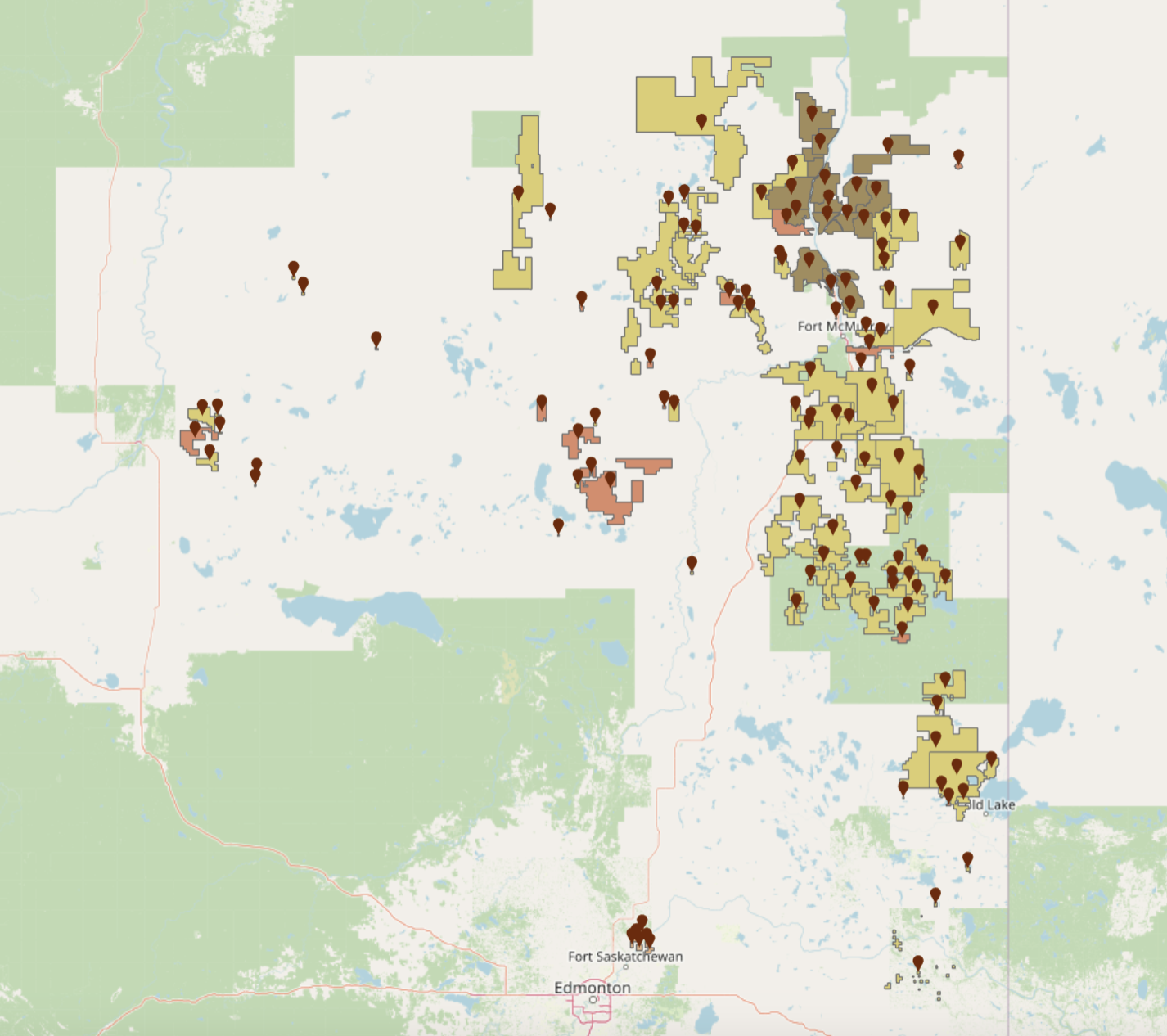
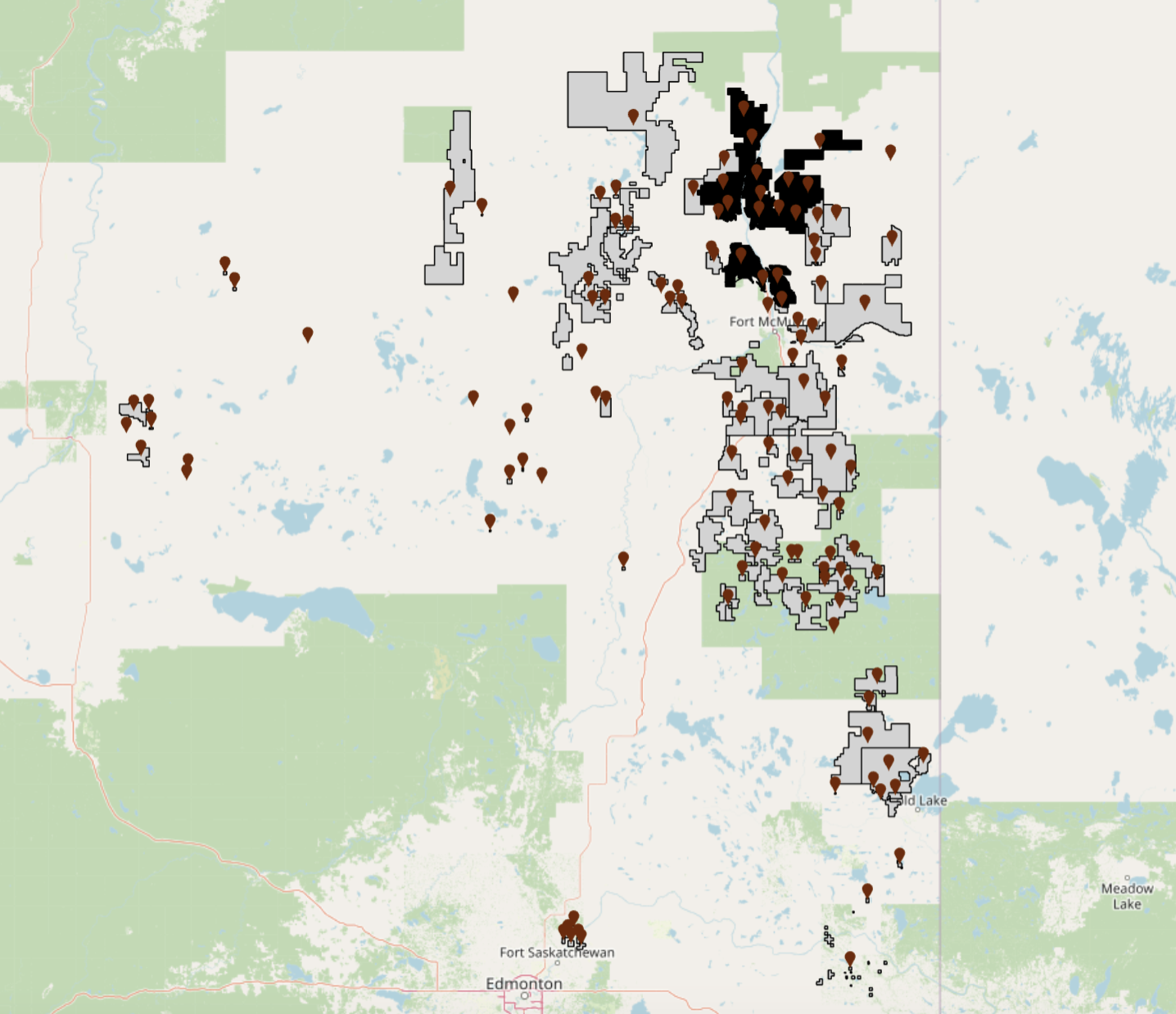
Service Details
Going on the Details tab, you can write some relevant information about the service that you can consult when you search or use them on the map.
This information is available on the Metadata widget, described here: Table of Contents 1.0.* | Navigate on layers
Service Editing
Going on the Editing tab, you can configure settings about the editing, described here: Editing settings
Service Attachments
Going on the Attachments tab, you can attach documents from the DocShare o create a new one addign a direct url. When a layer or feature has linked documents, the Details → Documents tab must retrieve and display them through the Documents API.
This information is available on the Metadata widget, described here: Table of Contents 1.0.* | Navigate on layers
See reference about map configuration: Map configuration