
Introduction
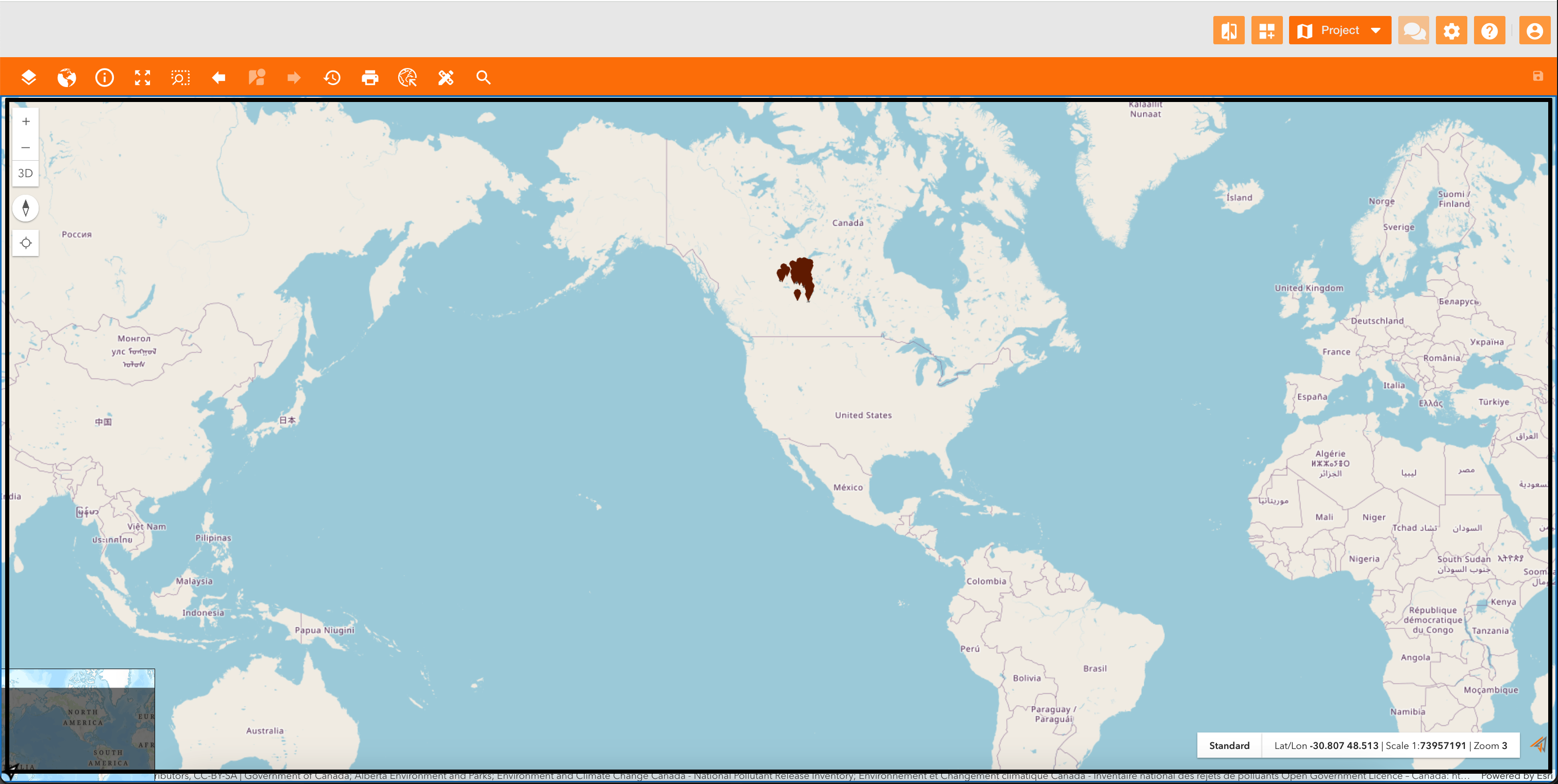
A map is the core element that visually represents geographic information.
|
|
|
Figure 1 - Example of a map configured with one service |
How to configure
Only Configurator group can access to this configuration
Before to configure a map, you have to configure basemap.
See reference: Create and manage basemap compositions
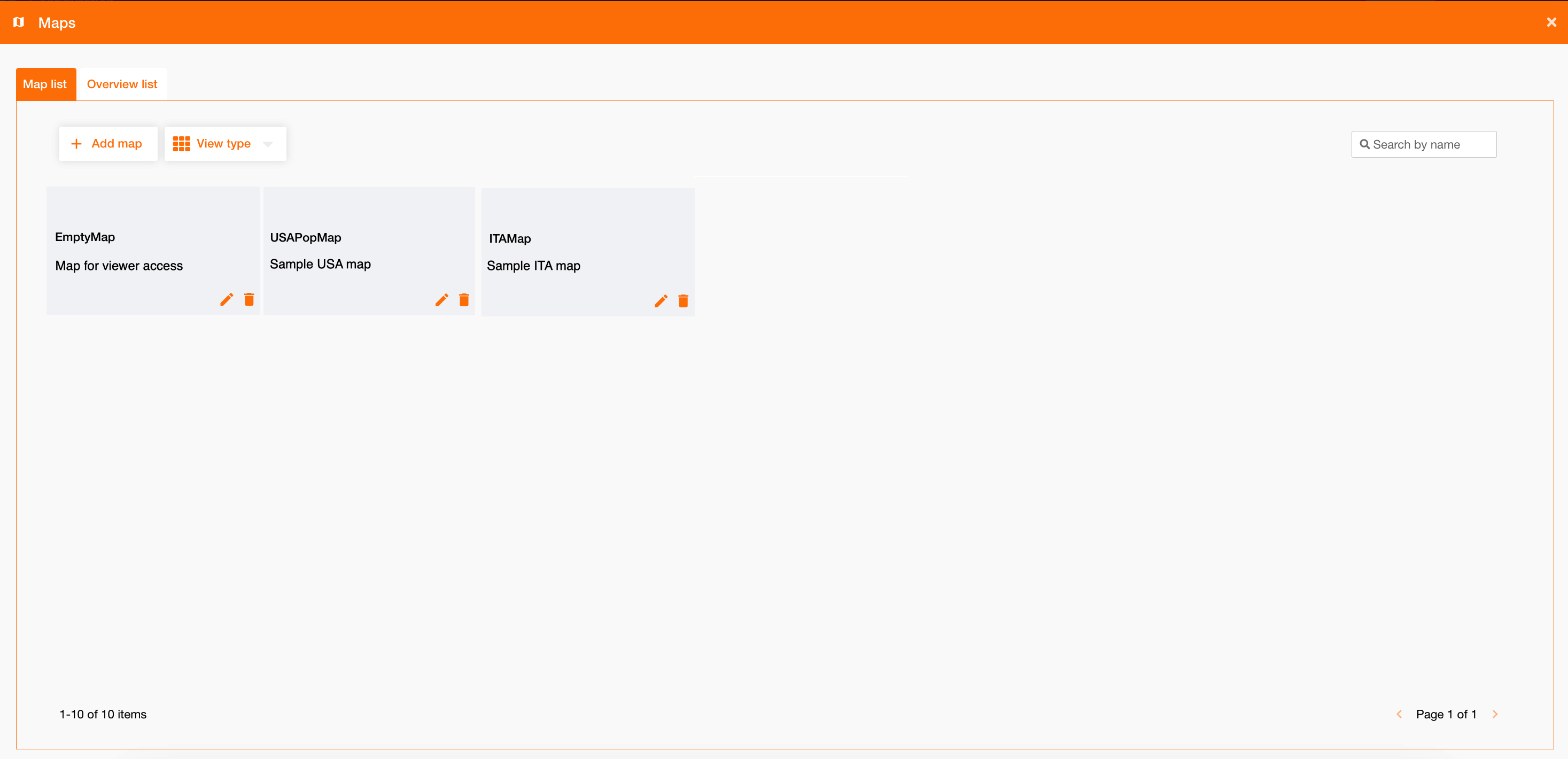
Going on Control Panel > Maps > Maps tab, you can see the list of all existing map. You can search map using the “Search by name” field at the top-right of the page.
|
|
Figure 2 - Map menu |
Clicking the “Add map” button at the top-left of the page, you can create a new map.
|
|
|
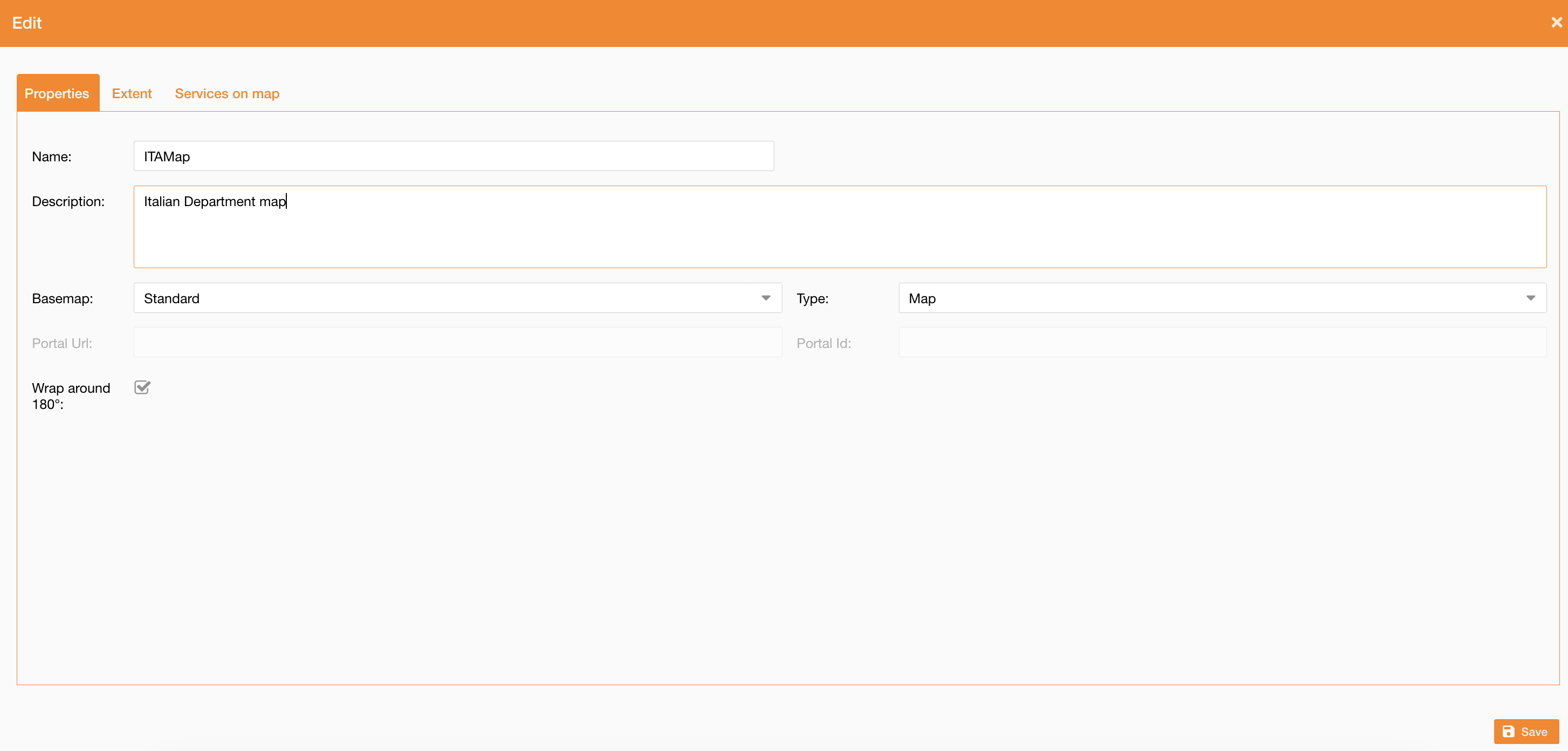
Figure 3 - Map configuration |
These are fields to configure and their descriptions.
|
Field |
Description |
|---|---|
|
Name |
Map’s name (mandatory) |
|
Description |
Map’s description |
|
Basemap |
Basemap to use for the map (previously configured) (mandatory). It shows only services already associated to a basemap category. |
|
Type |
Map type (mandatory)
|
|
Portal Url |
It is enabled only for “WebMap” type. |
|
Portal Id |
It is enabled only for “WebMap” type. |
|
Wrap around 180° |
|
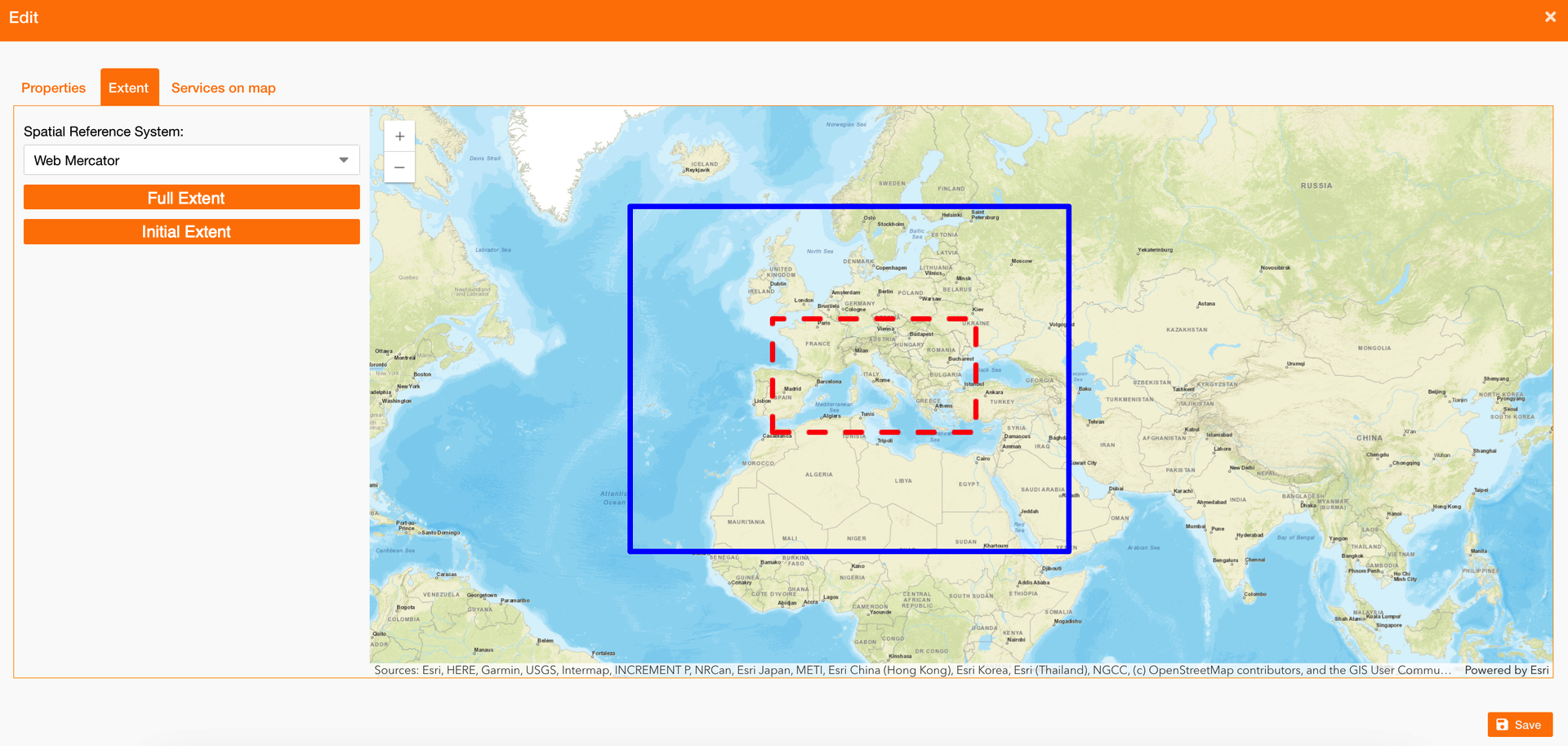
For each map it’s mandatory to define also the spatial reference system and the initial extent and full extent boxes
|
|
|---|
Associate services on map using the control panel
Before to add services to a map, you have to configure server and service
See reference: Service Configuration
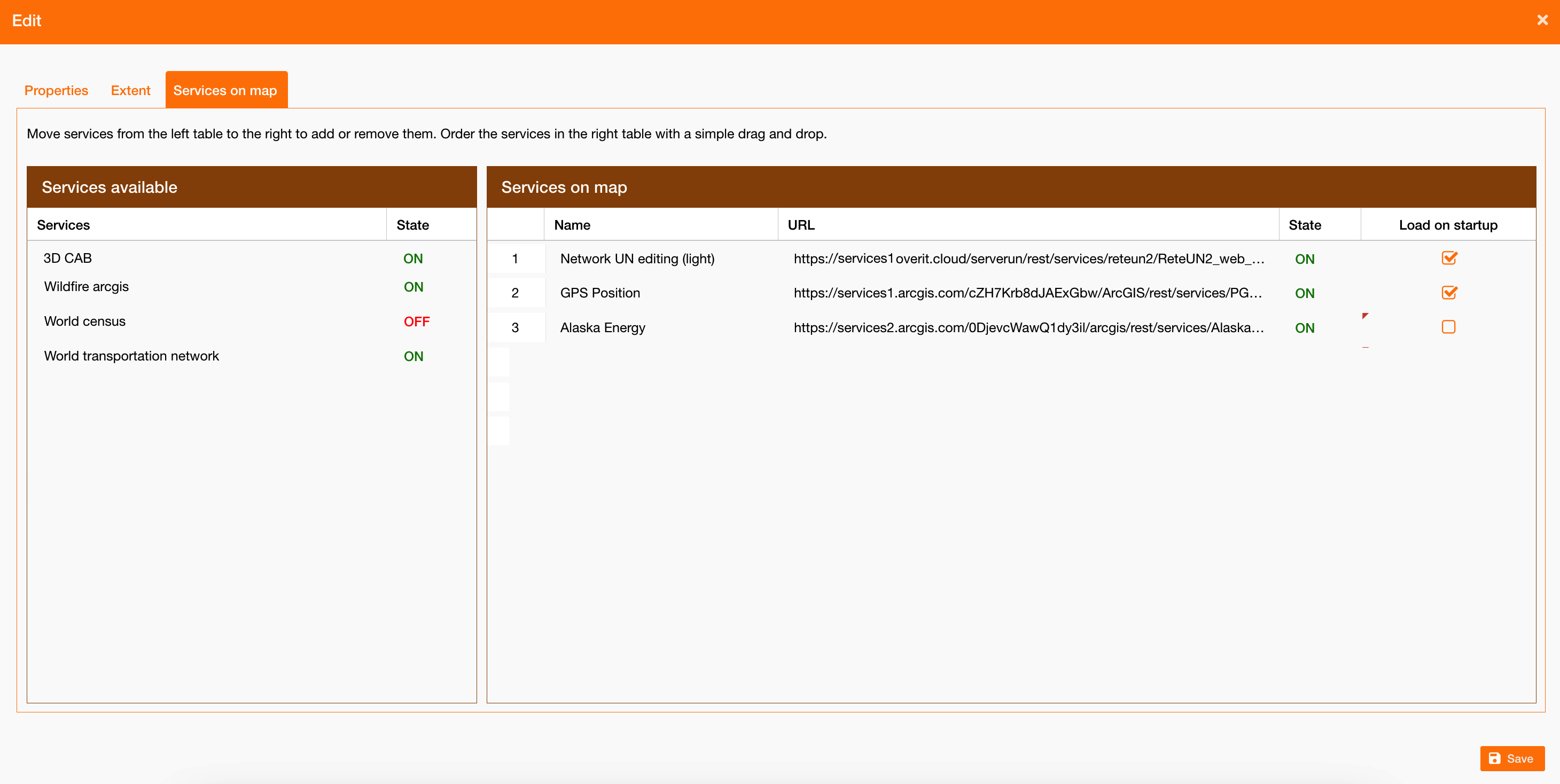
Going on the “Services on map” tab you can associate services to a map using the drag an drop, in order to see them in the TOC and on the map, according to services configuration.
The services' order depends from the order defined in the right-table of the page.
The “Load on startup” flag allows to associate the service on the map, but don’t load it at the startup. It is a useful feature when you need a lot of services but you don’t want to slow down the map loading too much, and use them only if needed. You can then load services using the TOC: https://overit-spa.atlassian.net/wiki/spaces/NEXTGENGEO/pages/edit-v2/103375340343#Associate-services-on-map-using-the-TOC
|
|
|
Figure 4 - Associate service to map |
Associate services on map using the TOC
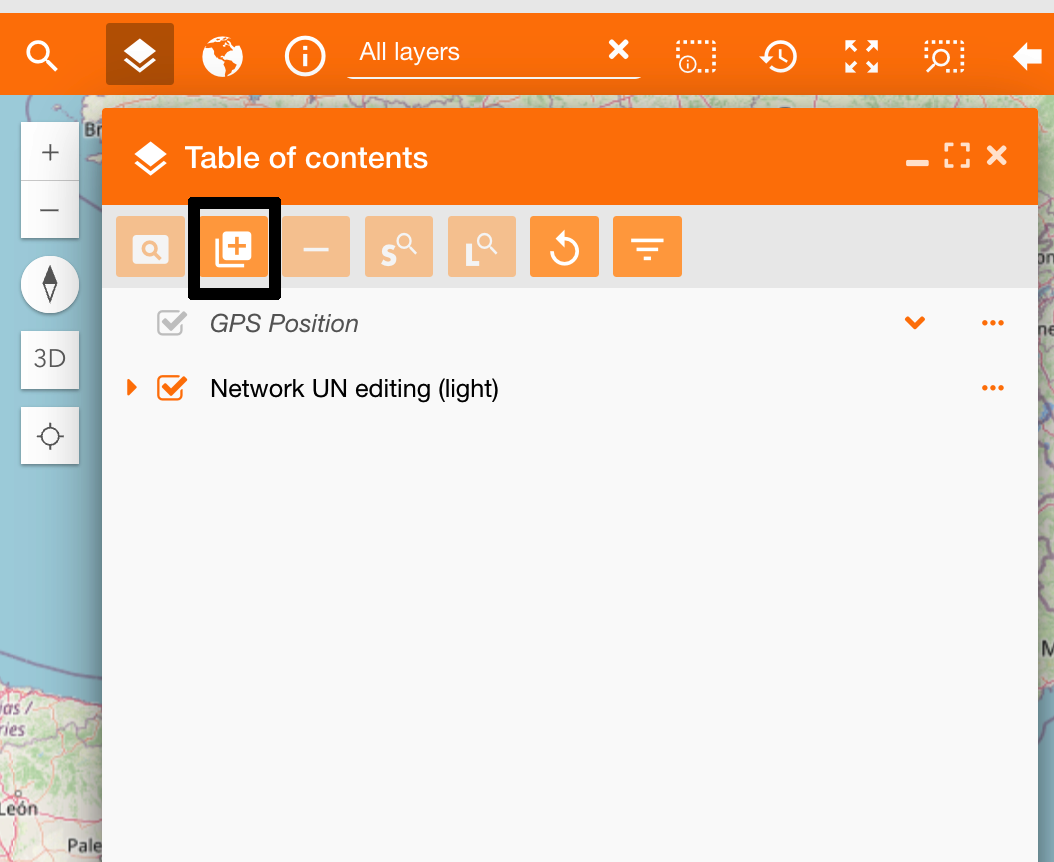
You can also add a service to a map using the Table of contents, using only the service’s URL or services available
Going on the home page and opening the Table of contents, there is the add service icon (figure below).
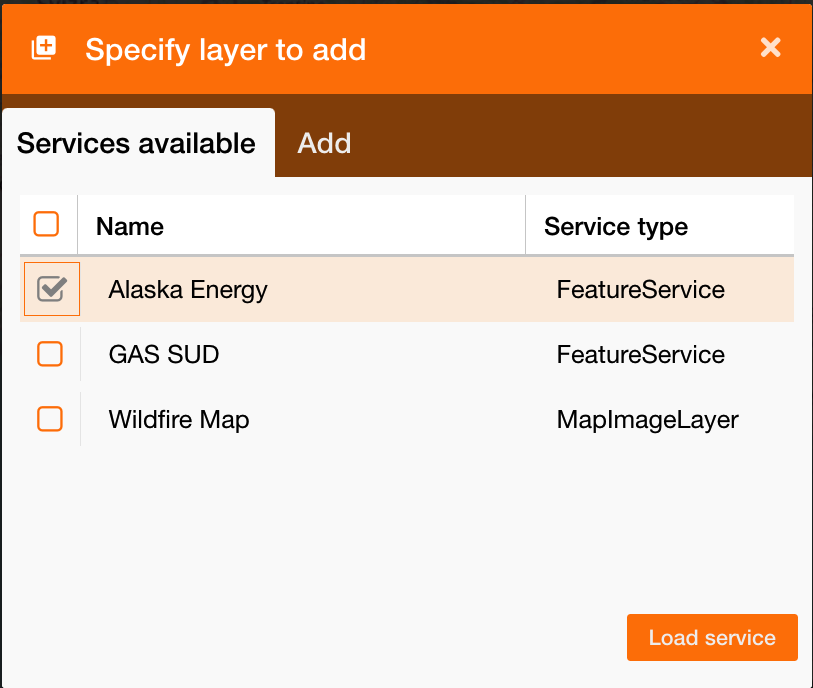
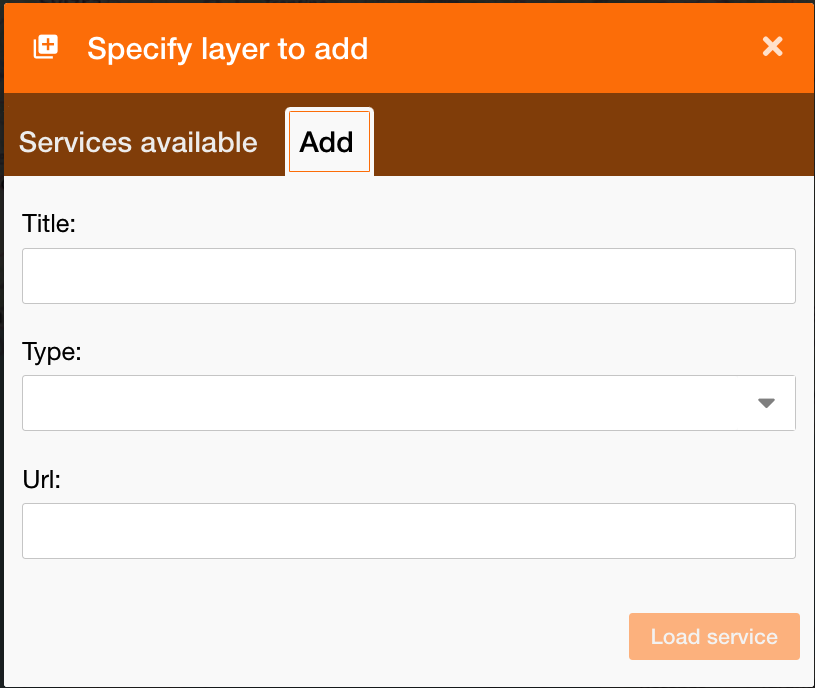
Clicking on it a new pop-up will show a panel with two tabs:
-
Services Available, on which you can add services configured on the map with the “Load on startup” false
-
Add by URL, on which define the new layer or service to add using:
-
Title: service’s title
-
Type: service’s type
-
URL: service’s url
-
|
|