
|
Using ArcGIS-specific features and profiling requires that NextGen Geo users are also ArcGIS valid users. Note that ESRI licensing may change over time. Please refer to these pages for more information: https://www.esri.com/en-us/arcgis/products/user-types/overview https://enterprise.arcgis.com/en/portal/latest/administer/windows/license-user-type-extensions.htm |
|---|
The permissions management is crucial for several reasons:
-
Data Security: GIS data can be sensitive. It might include information about infrastructure, property lines, or even environmental hazards. Permissions ensure that only authorized users can view, edit, or delete this data.
-
Collaboration Control: GIS platforms are often used collaboratively. Permissions allow you to define what each user can do with shared data.
-
Data Access: Permissions help prevent unauthorized edits to data. This is especially important for maintaining the accuracy of critical infrastructure or environmental data.
Only Configurator group can access to this configuration
Access Control Panel > User Profiles tab to find more tabs for user configuration and management.
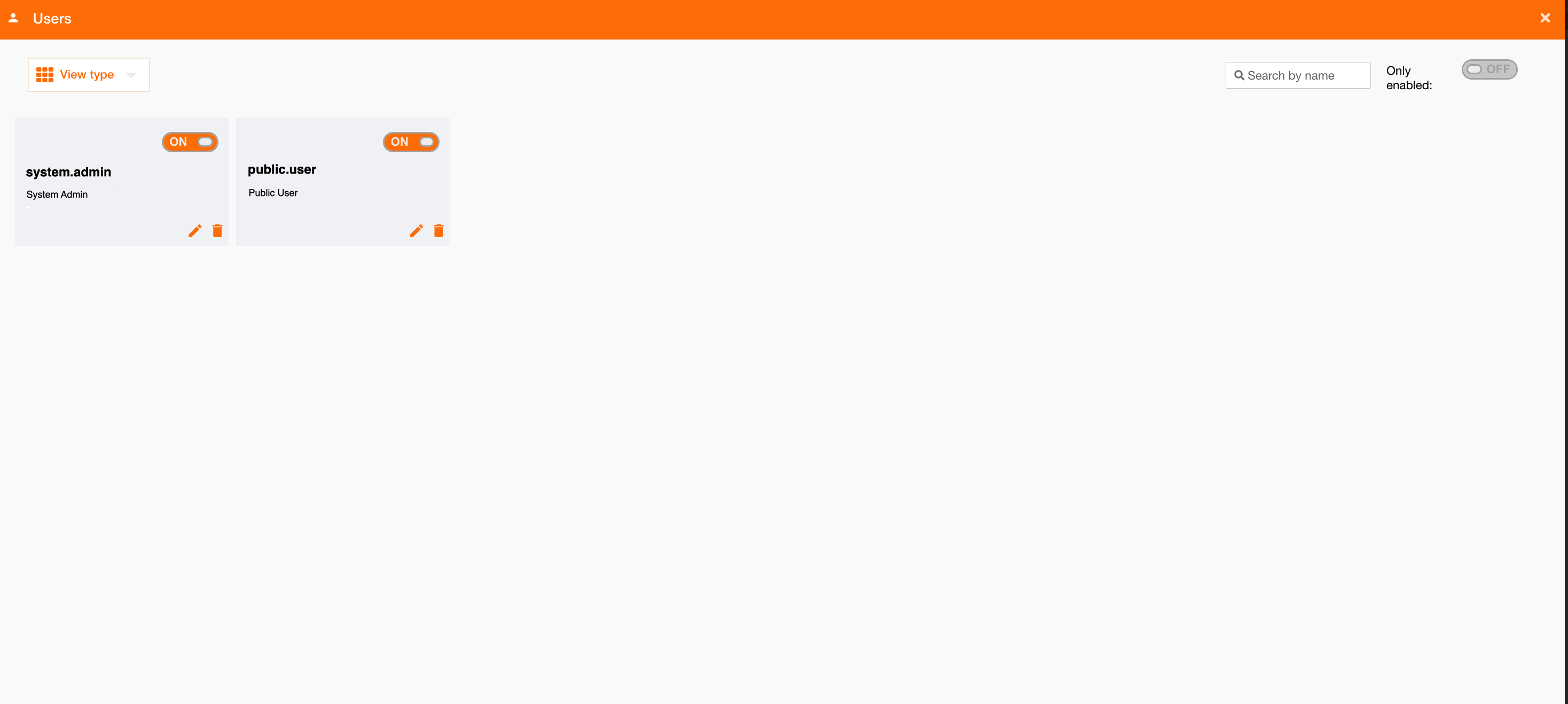
The “Users” tab manages users and their permissions.
|
|
|
Figure 1 - Users management |
The view lists existing users and their roles.
At the top-right, a search field lets you find users by name, and a toggle filters enabled users.
For each user, you can:
-
Enable or disable using the toggle button
-
Delete using the bin icon
-
Edit using the pencil icon
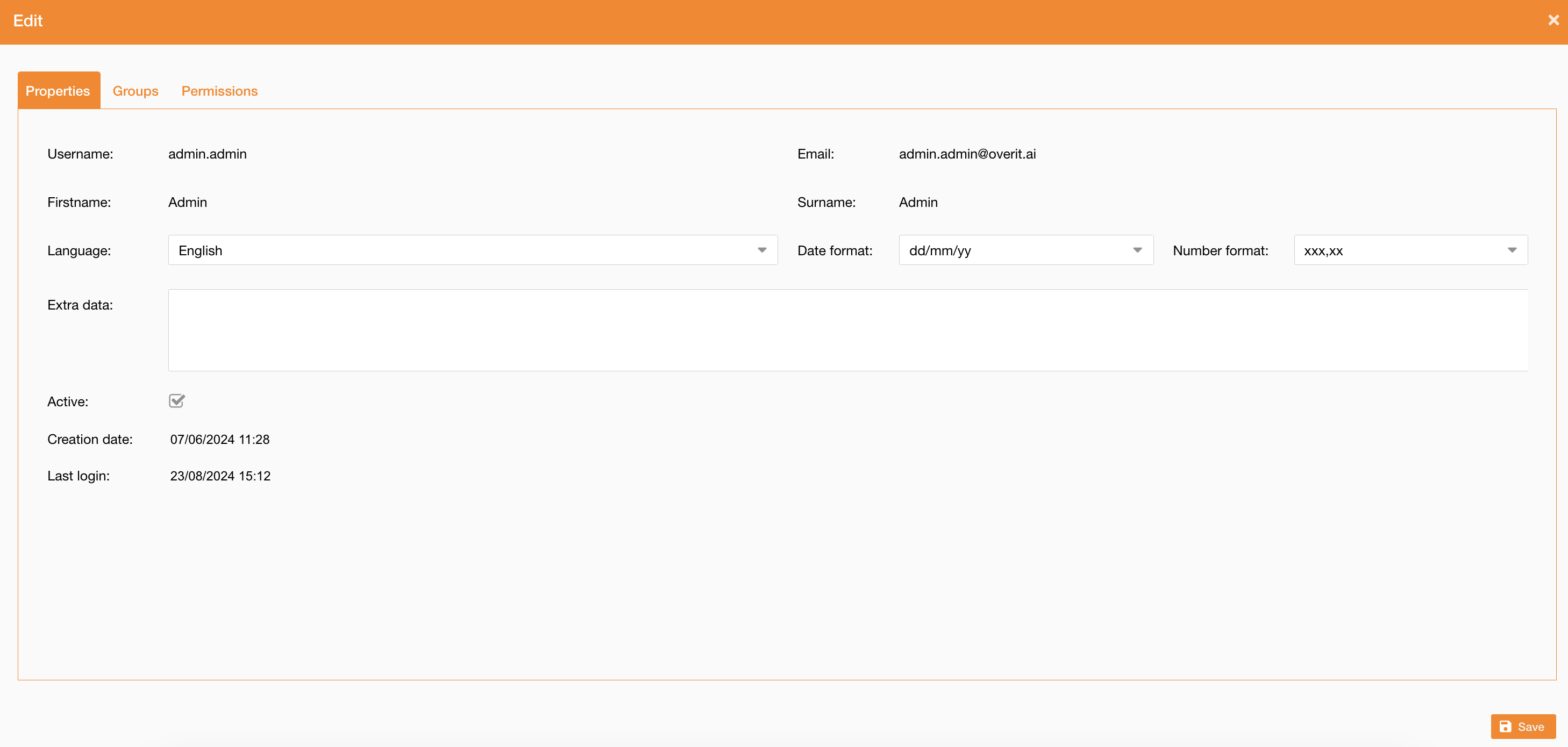
Click the edit icon to update user details like username, name, surname, email, language, number format, and date format. Use Extra data format to add more user settings in JSON.
|
|
|
Figure 2 - Users configuration |
Clicking the delete icon opens a modal window to confirm deletion:
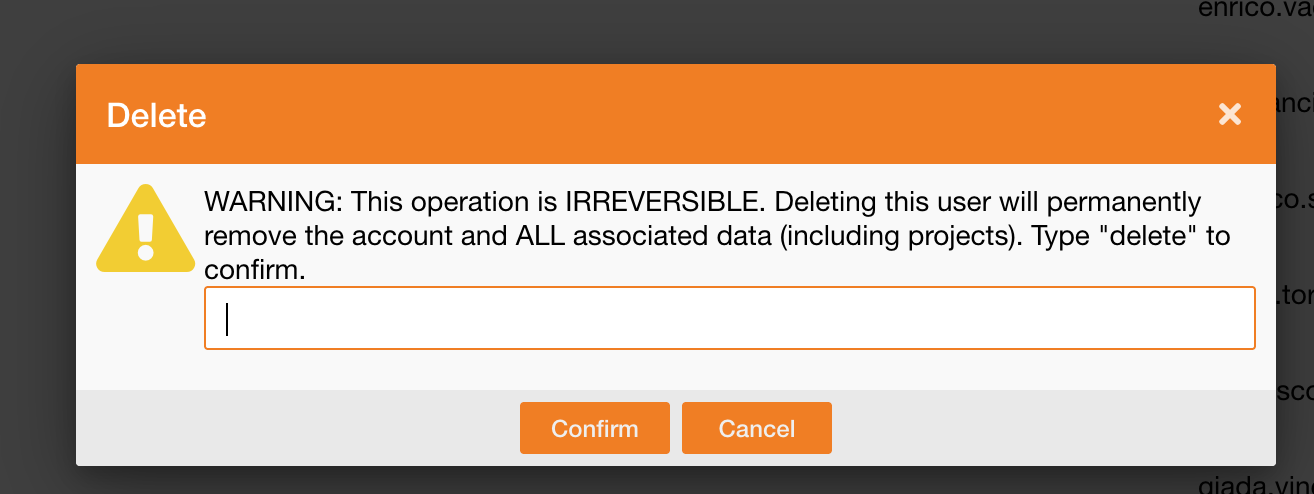
After deletion, shared items linked to the user (such as projects and annotations) remain accessible to users with prior permissions but become orphaned. Data not shared with anyone will be deleted in cascade.
Group assignments
Assign a user to a functional group, allow to categorize user type in order to manage their permissions in the same way.
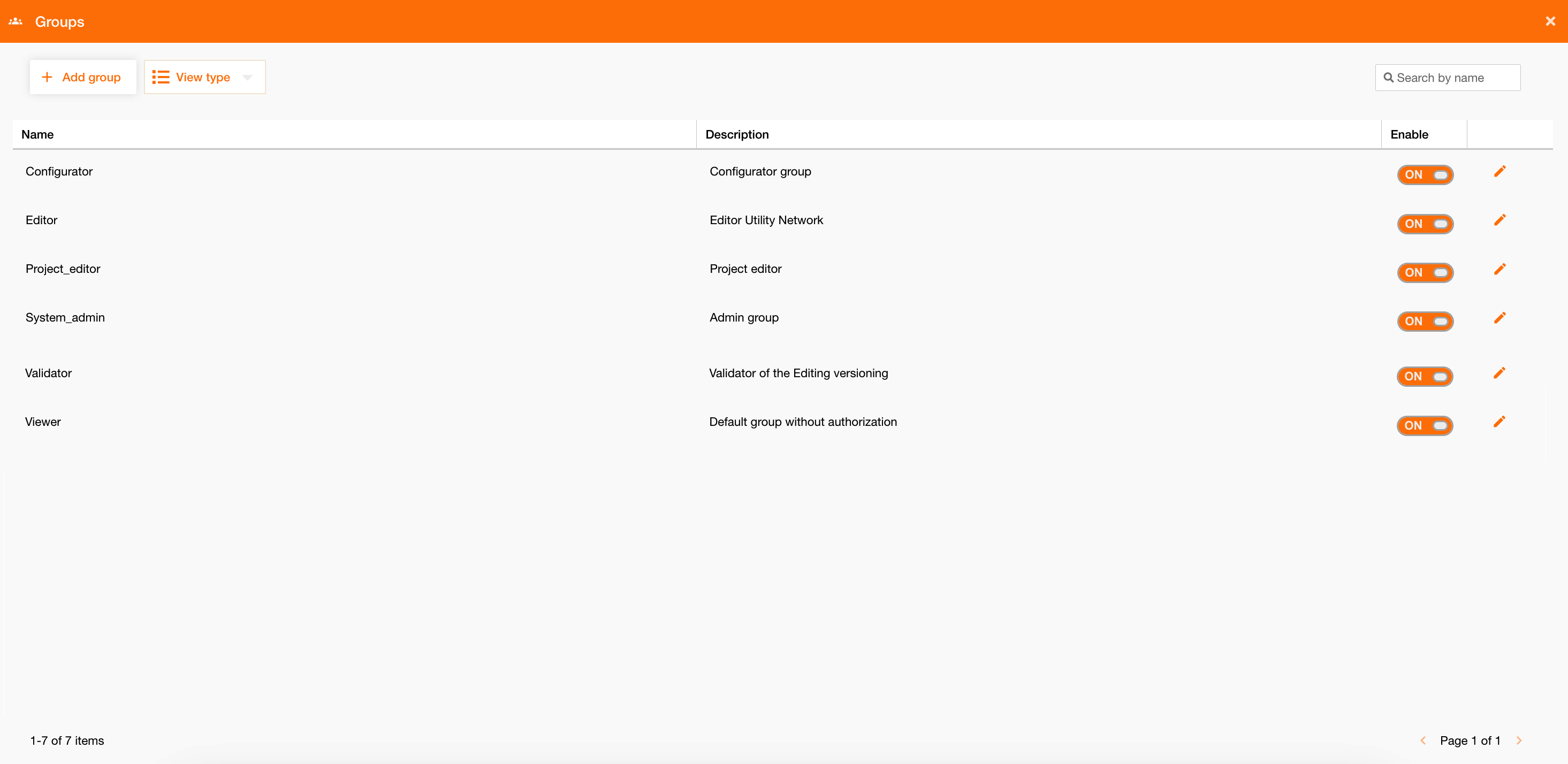
Going on the groups tab, it is possibile to assign one or more functional groups to the user.
Each group is described by its name, description and state. The “Active” field is used to assign it to the user.
|
|
|
Figure 4 - Assign groups to user |
Functional groups are used to give to the user access to one or more functionalities.
For more information about how functional groups work, go on this page: Functional Groups
Zones and Areas assignment
Assign a user to a zone or to an area means that the user can read or edit related service’s layers on those zones.
The “Read” permission means that the user can see service’s layers and their information and data, but can’t edit them.
The “Edit” permission means that the user is enabled for the “Free Editing” feature, so the user can edit service’s layers information and data too.
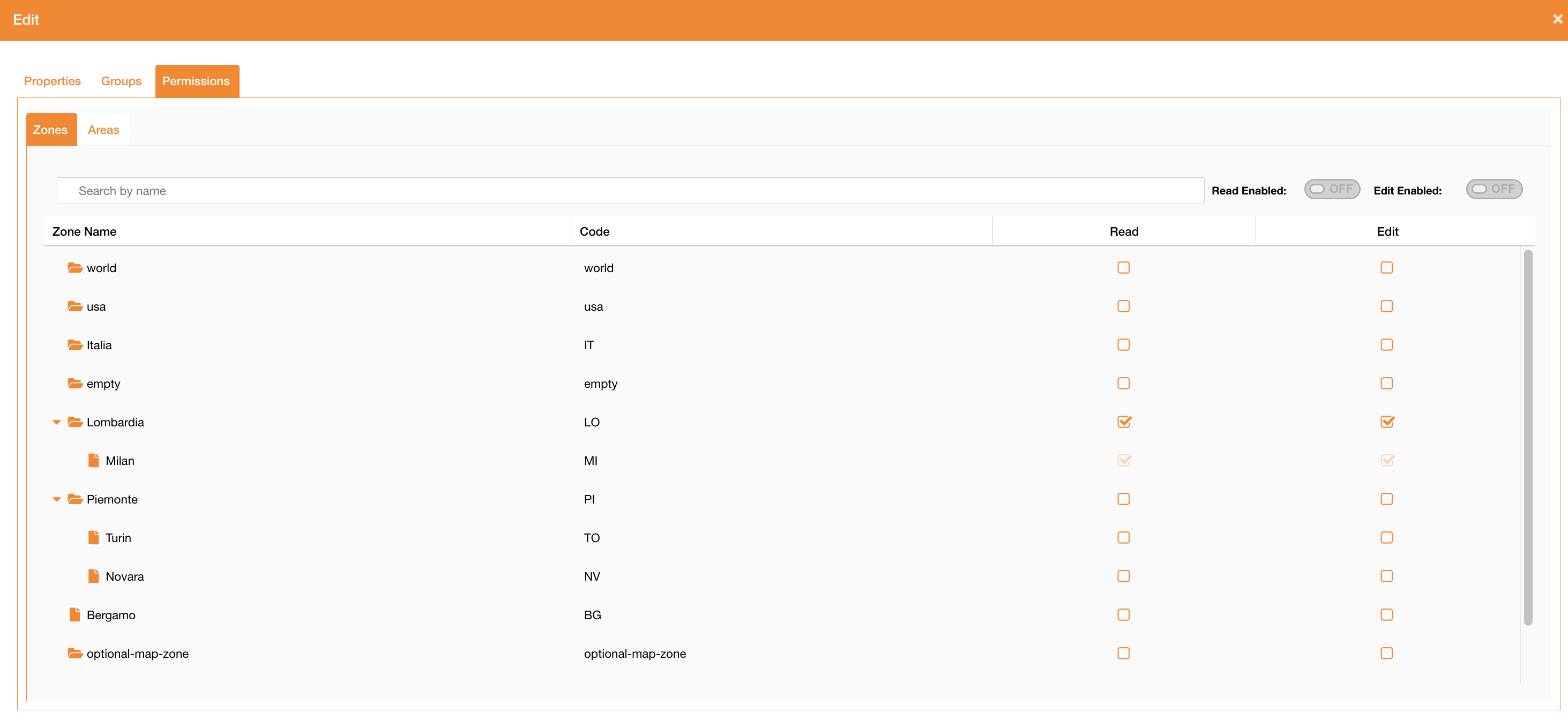
Going on Permissions tab, it’s possibile to define assignment for zones and areas.
|
|
|
Figure 5 - Zone’s permissions |
In the “Zones” tab there is the list of all existing zones, and it’s possibile to enable the user for read or for edit permissions.
Enable a user to a “parent” zone, it means to enable it to all zone children too, and at DB level will be saved a record for the parent and a record for each children.
In the example above (Figure 5 - Zone’s permission), the user is enabled on “Lombardia” zone, and automatically it is enabled to “Milan” zone too.
The saved associations are:
|
username |
zoneid |
canread |
canedit |
|---|---|---|---|
|
USER1 |
Lombardia |
true |
true |
|
USER1 |
Milan |
true |
true |
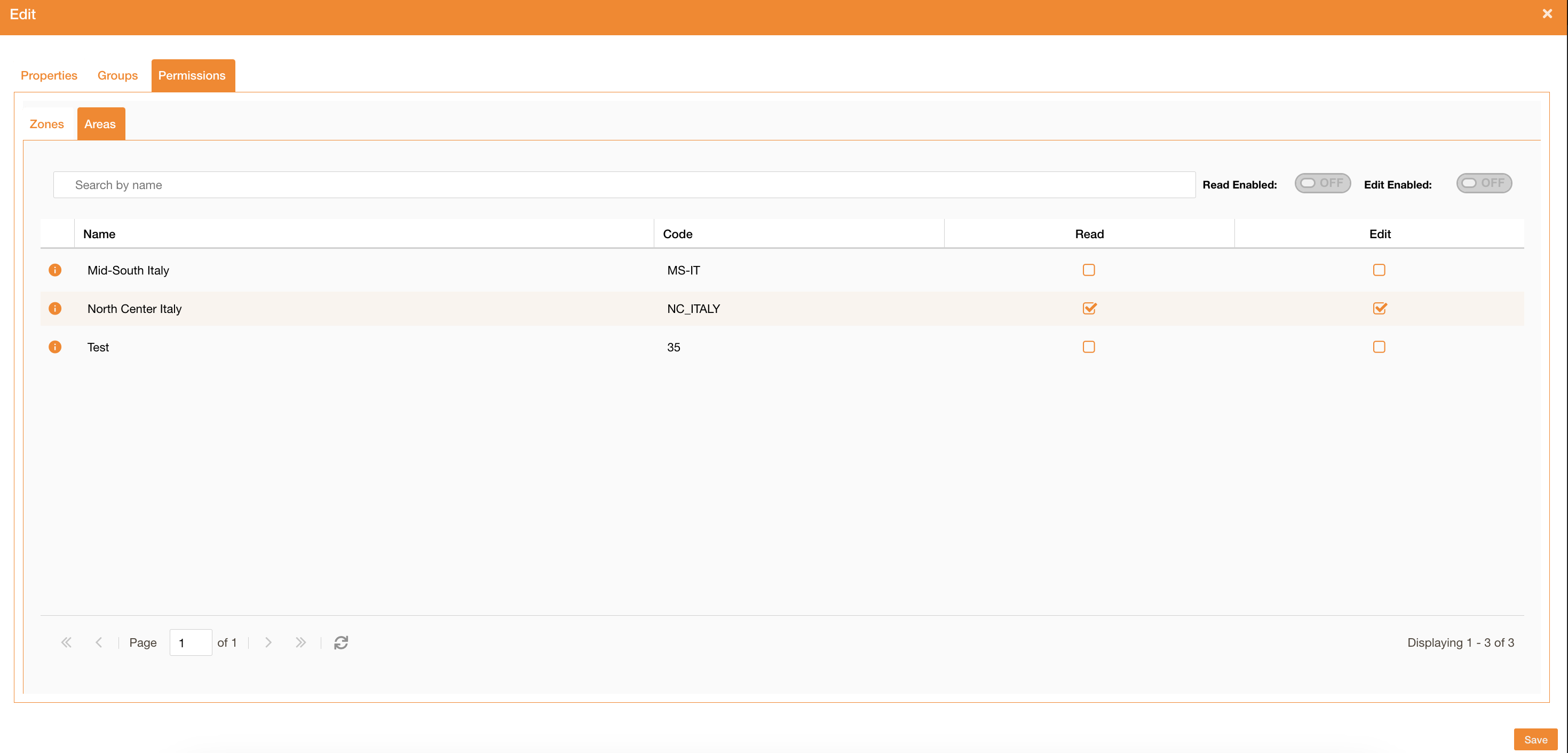
Each user can be enabled to a single zone hierarchy at a time, but if there is the need to manage an exception on which the user should be enabled to another zone, it is possibile to use Area's permissions.
Switching on the Area tab, there is the list of all existing areas, and it is possibile to enable a user to a single area.
In the “info” icon near each area is possible to read the list of zones belonging to the area.
For more information about how area work, go on this page: https://overit-spa.atlassian.net/wiki/spaces/NEXTGENGEO/pages/103375340446/Zones+and+Areas+configuration#Area-configuration
|
|
|
Figure 6 - Area’s permissions |