
Name: ui_search
Description: The search widget allows to search information about specific assets or service and to locate an address on the map
Icon:

Available in toolbars: navigation, maps
See reference: https://overit-spa.atlassian.net/wiki/spaces/NEXTGENGEO/pages/103375340676/Toolbar+management#Pre-defined-toolbars
Before to use the search panel, you have to configure a service with a category
See reference: Category configuration
FSM companies often deal with complex operations involving a wide range of assets and services. Effectively locating and managing these elements is crucial for efficient service delivery and customer satisfaction. NextGen Geo provides a valuable tool for this task, and the Search by Services/Assets feature is a fundamental component of such a system.
This feature allows users to quickly and easily find specific assets or services within NextGen Geo based on various criteria. This might include:
-
Asset-based search
-
Service-based search
-
Address-based search
Benefits:
-
Improved Efficiency: Technicians can rapidly locate assets or services, reducing travel time and increasing productivity.
-
Enhanced Customer Service: Faster response times and more accurate information lead to improved customer satisfaction.
-
Better Resource Management: By understanding the location and status of assets and services, companies can optimize resource allocation and scheduling.
Use Case
Consider a scenario where a manager needs to identify all electrical that require maintenance due to recent storms.
The user needs to search all assets filtering them by “Electrical Pole”. The platform would search for all electrical poles in all system’s services and the results would be displayed on the system, allowing the user to load them on the map.
The Search tool is composed by three main tools: the Search Service, the Search by Content and the Search Address.
The widget searches on all services associated to a category, even if they are not associated to the map. If the user search information about an asset not loaded on the map, the system will ask to load it.
Search Service
The Search Service is a functionality that allows you to search all services saved in the system and add them on the map. If you are enabled on a service catalogue, you will be able to search only on that catalogue. To configure service catalogue, see reference: Service Catalogue Configuration
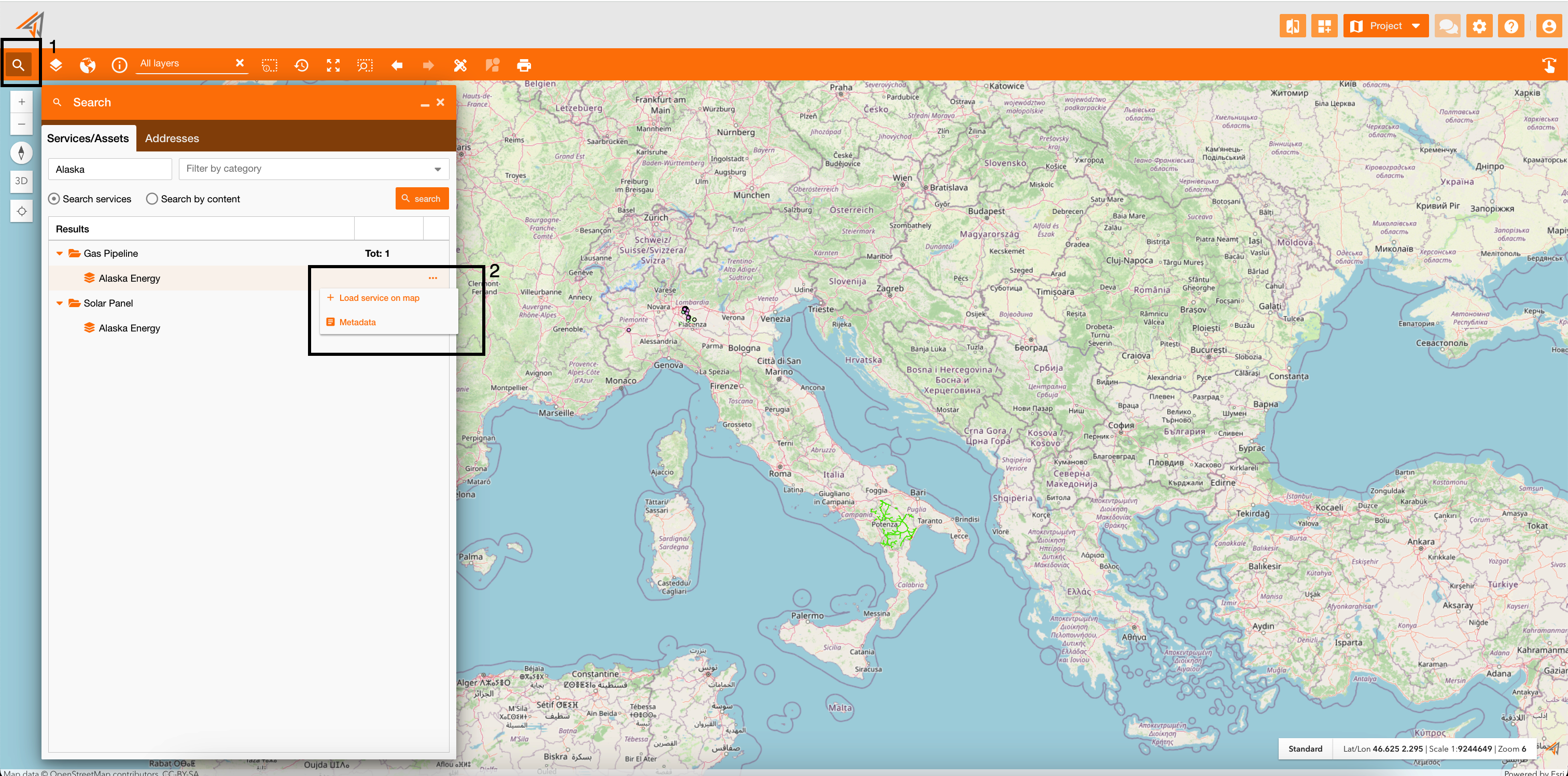
Clicking the related icon (Figure 1 - Search service - icon 1), a new panel will appear on the home page.
On the panel you can search services by:
-
Name (textbox)
-
Category (dropdown menu). To configure service category, see reference: Category configuration
-
Keywords (textbox), which help to optimize the service’s search using other keywords instead of the full service’s name. To configure service keyword, see reference: Keywords Configuration
Clicking the search button, the panel will show a list of services grouped by categorie. For each service, you can click the option button (Figure 1 - Search service - icon 2), to load the service on the map, or to view the metadata info panel to read information about the selected service. https://overit-spa.atlassian.net/wiki/spaces/NEXTGENGEO/pages/103374586502/Table+of+Contents#Navigate-on-layers
|
|
|---|
|
Figure 1 - Search service |
Search by Content
On the search panel, you can change the search type clicking on “Search by content”. This is a functionality that allows you to locate and retrieve information about specific assets.
The search by content widget streamlines the process of finding specific assets within the platform and allows users to quickly access their associated information without manually navigating the map or the system.
The search by content widget allows to identify the asset you're looking for, based on the configured fields and category.
To configure fields on which search each service, see reference: https://overit-spa.atlassian.net/wiki/spaces/NEXTGENGEO/pages/103375340160/Service+configuration#Service-Layers---Search
In the text box you can insert the value to search for the configured field, and on the dropdown menu you can select one or more categories.
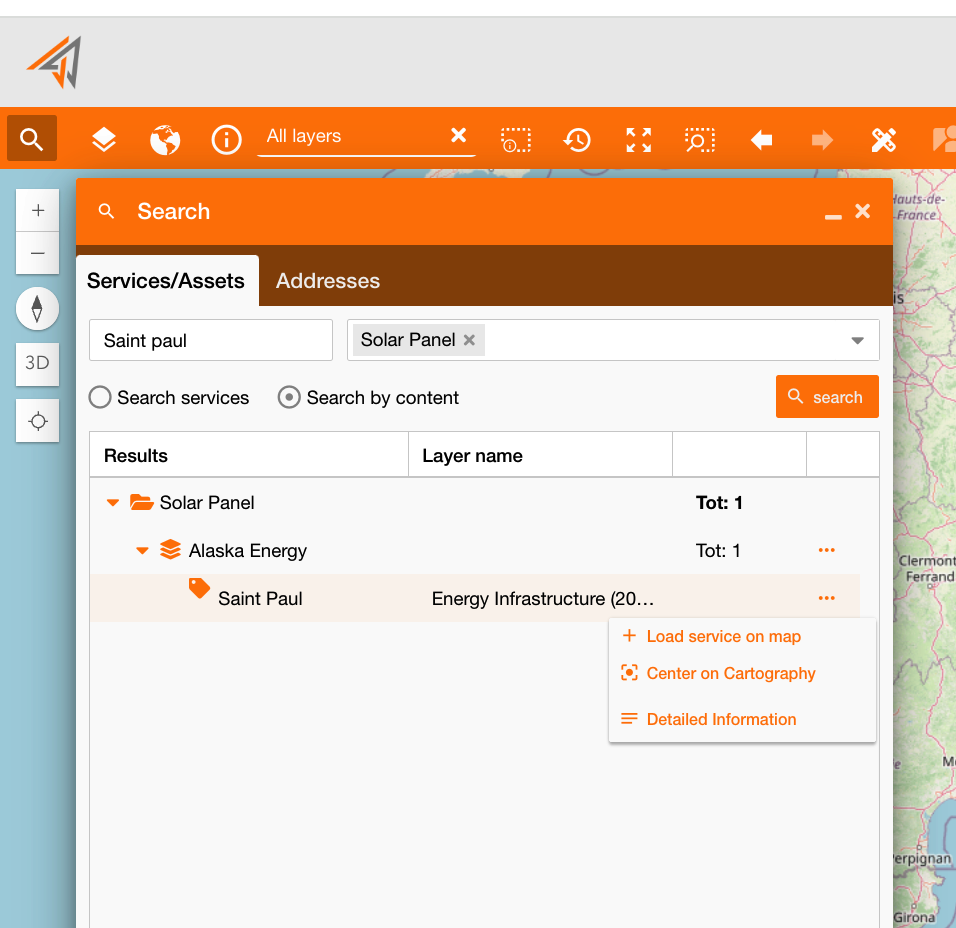
Clicking the search button, the panel will show a list of services grouped by category. For each asset, you can use the visualization option buttons (Figure 2 - Search by content) and select different options:
-
Load service on map: add the service on the map if not present
-
Center on Cartography: zoom the map on the asset (before the system will ask to load the service on the map)
-
Detailed information: see info about the selected asset (info widget reference: Info widgets )
|
|
|---|
|
Figure 2 - Search by content |
Search Address
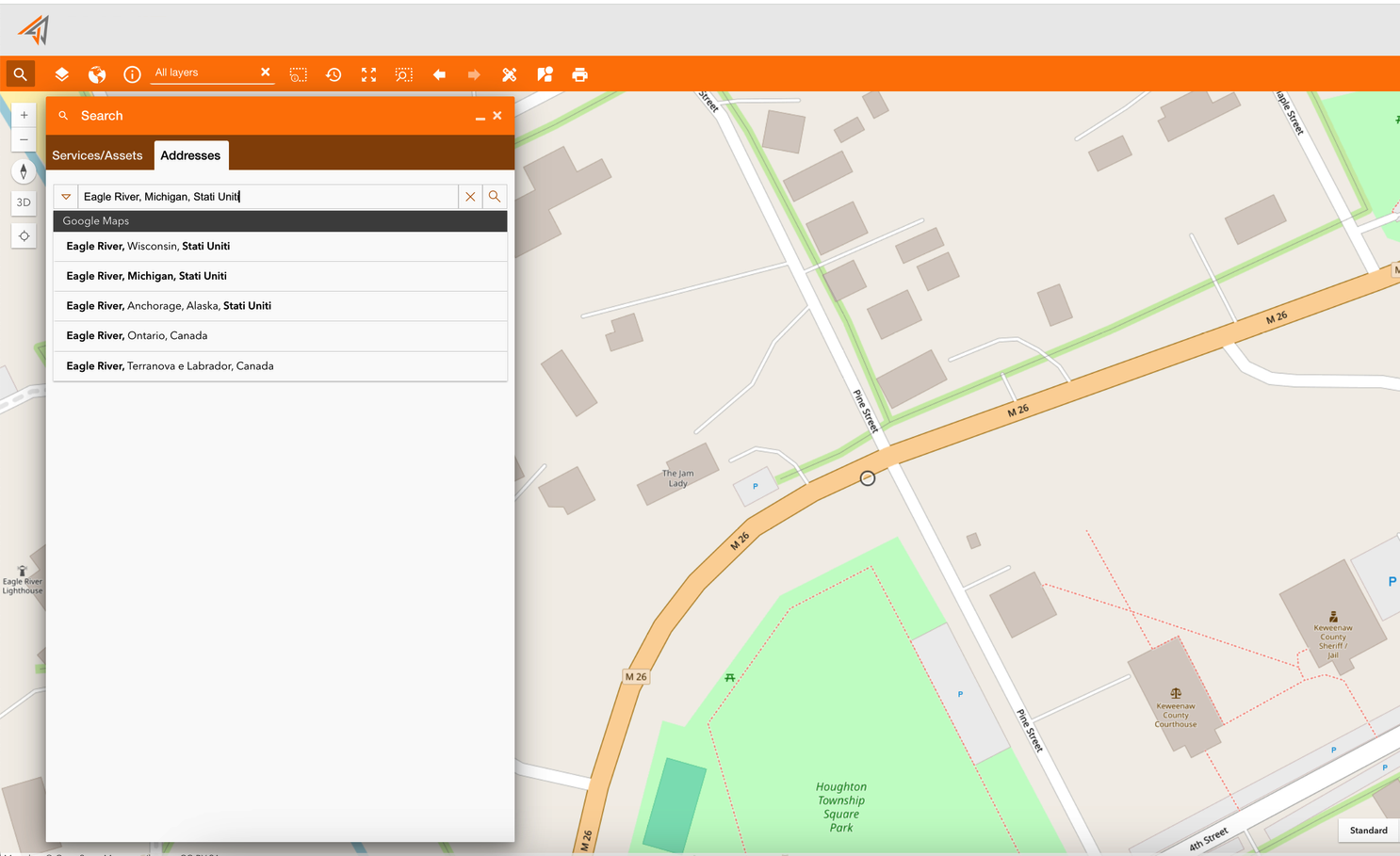
The address search can use different geocoding sources to perform geocoding and reverse geocoding operations.
It’s currently set up to perform searches with the following services:
-
ArcGIS World Geocoding service
-
Google Maps
To determine which service to use, the widget checks the presence of the corresponding license key among the system environment variables.
|
|
|---|
The geocoding widget uses the Search Widget of the Esri’s API v. 4.x.