
Editing tool allow to manage the ever-changing field service operations, allowing to update information in real-time, flagging faulty equipment, or adding notes about specific locations, reflecting these changes on the map for improved visibility and communication.
A service’s layer is composed by a lot of fields and it is important define which fields edit or hide, in order to always have clear and consistent data.
Only Configurator group can access to this configuration.
The widget is available only on Feature Service and Feature Layer.
|
|
|
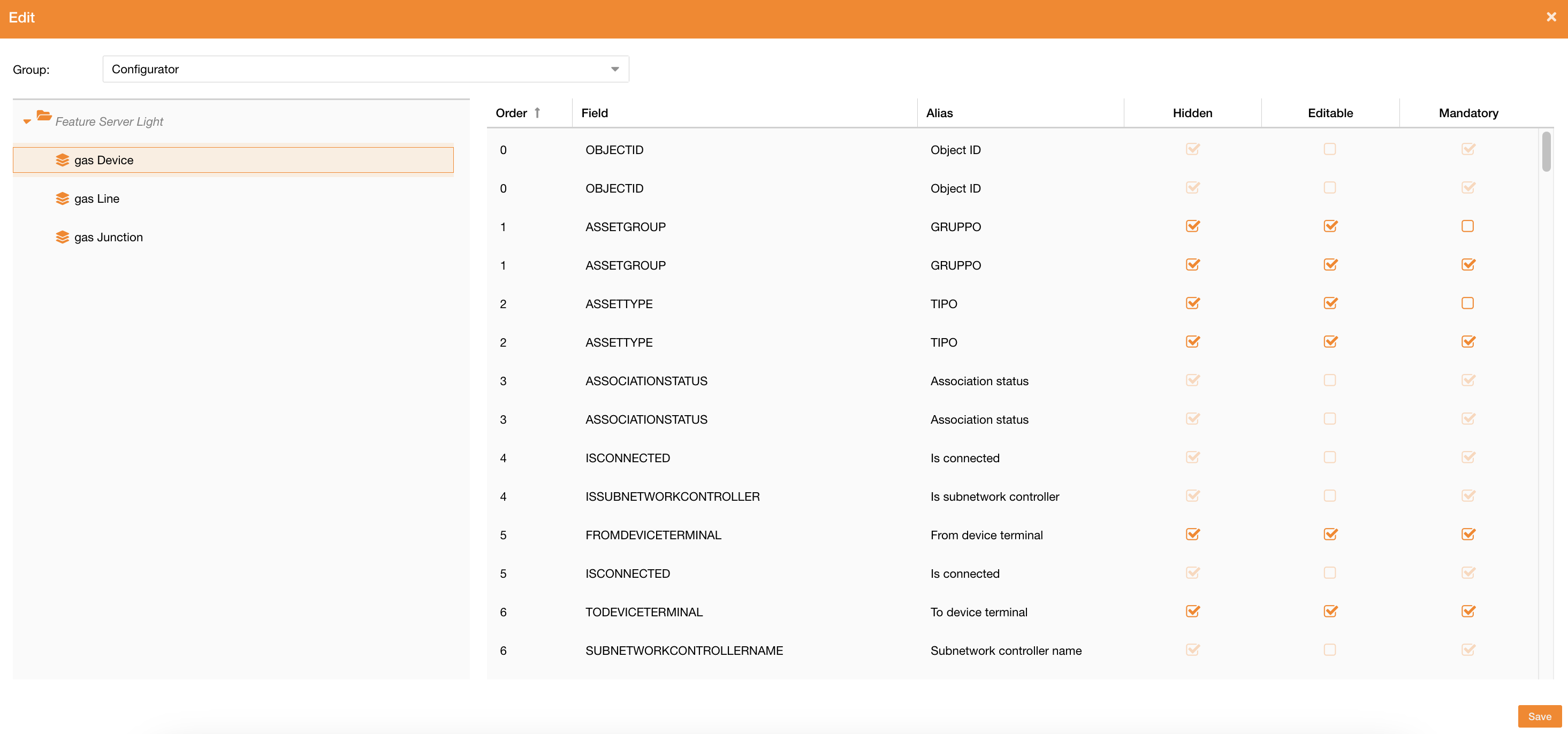
Figure 1 - Editing settings |
You can manage fields' permissions and visibility for each group and for each layer of a service.
At the top of the page there is a dropdown menu to select the functional group, and in the center section of the page there is the configuration mask.
There are three type of permissions for each field:
-
Hidden: if true, the field is not visible in the editor widget and automatically Editable and Mandatory will be false.
-
Editable: if true, it allows to show the field and edit it.
-
Mandatory: if true, the field is editable and mandatory.
-
If mandatory is true, automatically Editable flag will be true.
-
Deactivating Editable, automatically Mandatory will change to False
-
Deactivating Mandatory, the Editable flag will not change
-
All fields are pre-filled based on service’s configuration, and not accessible fields are showed in gray.
You can change the fields' sorting using the drag and drop, and the Order column will change.
Currently, if a user belongs to two functional groups with different fields' sorting, the system will get the first one without any logic.
This configuration impacts fields you can see, edit or hide in the editor widget, described here: Editor widget