
Name: ui_module
Description: It allows to access to all existing modules
Icon:

Introduction
A module is a functional component designed to perform specific tasks. Modules can be activated as needed to carry out particular functions, such as network management, editing, flow tracing, and network validation. Once the module is no longer needed, it can be deactivated, allowing users to return to other tasks within the system.
The access to modules depends from permissions configured on your functional group, see reference: Functional Groups
Available in toolbars: navigation
See reference: https://overit-spa.atlassian.net/wiki/spaces/NEXTGENGEO/pages/103375340676/Toolbar+management#Pre-defined-toolbars
How to use
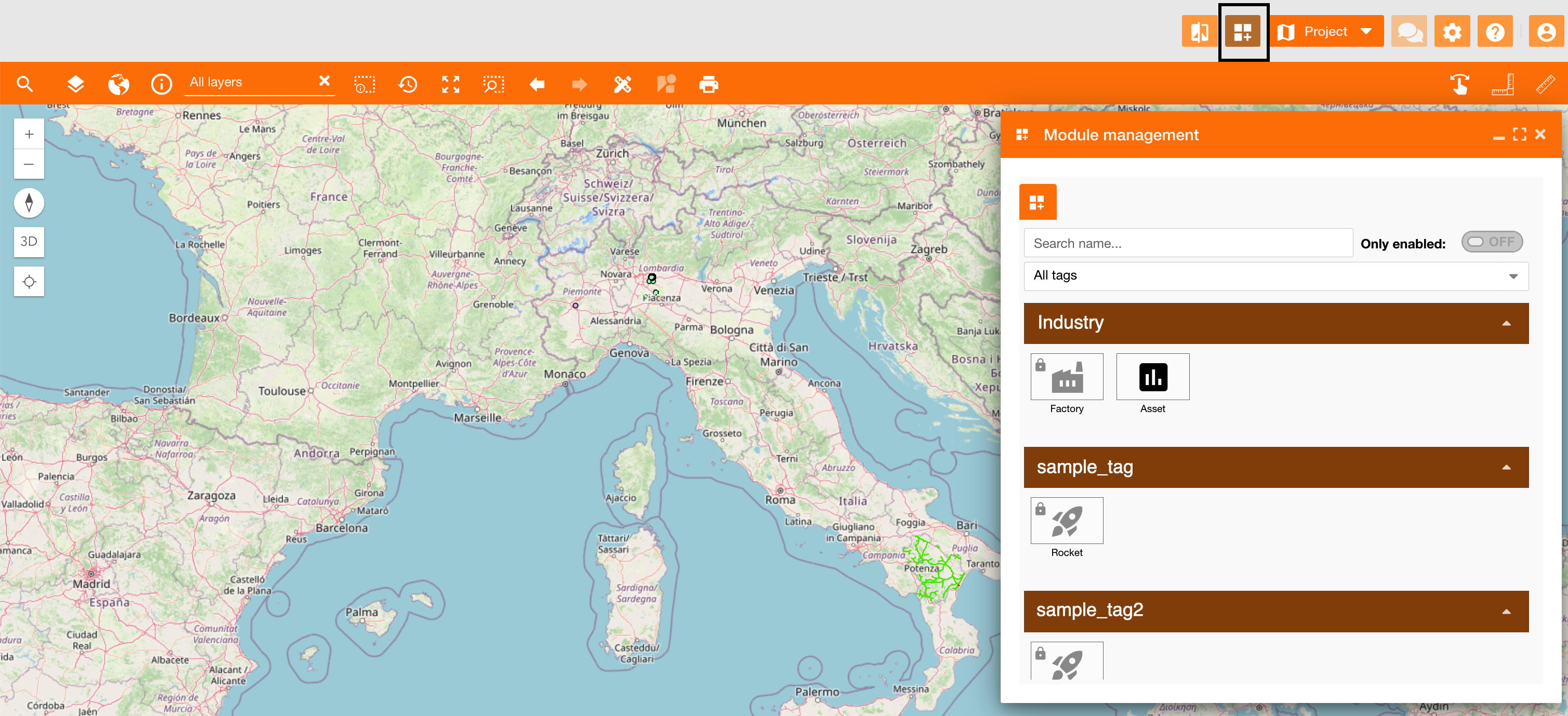
If you need to work with a module, you can click the related icon (Figure 1 - Access to User Manual - icon 1), the module widget will appear on the top-right of the map (Figure 1 - Access to User Manual - icon 2).
|
|
|---|
|
Figure 1 - Access to modules |
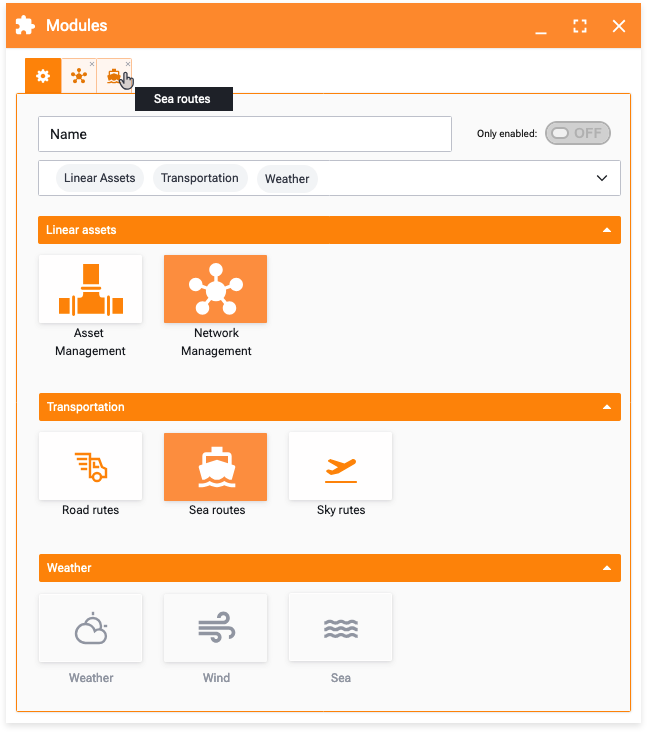
When a module is activated, a new container is displayed on the user interface. The first tab within this container is the module’s landing page, which provides an overview and allows the user to choose which module to activate.
|
|
|---|
|
Figure 2 - Module settings |
Modules that are currently active will be highlighted, and a corresponding tab will be added to the main container. Inactive modules will appear as plain tiles. If certain modules are not available due to licensing restrictions, they will be shown as disabled.
Modules can be grouped and filtered based on:
-
Name: Using a specific pattern defined by the user.
-
Tags: Grouping by relevant categories.
-
Enabled Status: Showing only the currently available modules.
Once activated, the module’s functionality and user interface are confined to its own tab, allowing users to focus on the specific task at hand. Modules can be deactivated by clicking the corresponding tile or the “x” button in the tab bar. Additionally, tooltips are available on tab bars to display the full module title.
Licensing
Each module requires a specific license to be activated. This ensures that only authorized users can access and use the modules within the NextGen Geo system.
Associated Maps
Modules are typically associated with specific maps, which must be loaded for the module to function correctly. This ensures that the module operates within the appropriate spatial context.
Refer to Modules management for more details on associated maps and loading.
Open module by URL
You can open a specific module directly from a URL, enabling immediate access to the desired module upon application startup.
Simply include the module parameter in the URL request, using the module name:
-
/?module=<module_name>
Note: Access to the module is granted only if the user's group is associated with the module, see reference: Functional Groups
If the user does not have access, an error message will be displayed: