
Introduction
Functional groups are used to group by users with similar roles, that should have same type of permissions and enablement on the platform.
As a configurator user, I want to enable a functional group to a subset of functionalities or to a one or more modules, in order to define who role can do different actions on the platform.
There are 5 default groups:
-
Editor: used for Editing
-
Validator: validator of the Editing
-
Configurator: to configure users and map section
-
Project_editor: to manage project
-
Viewer: default group without authorization. It is used for self-censored users
-
System admin: to access to system properties configuration
How to configure
Only Configurator group can access to this configuration
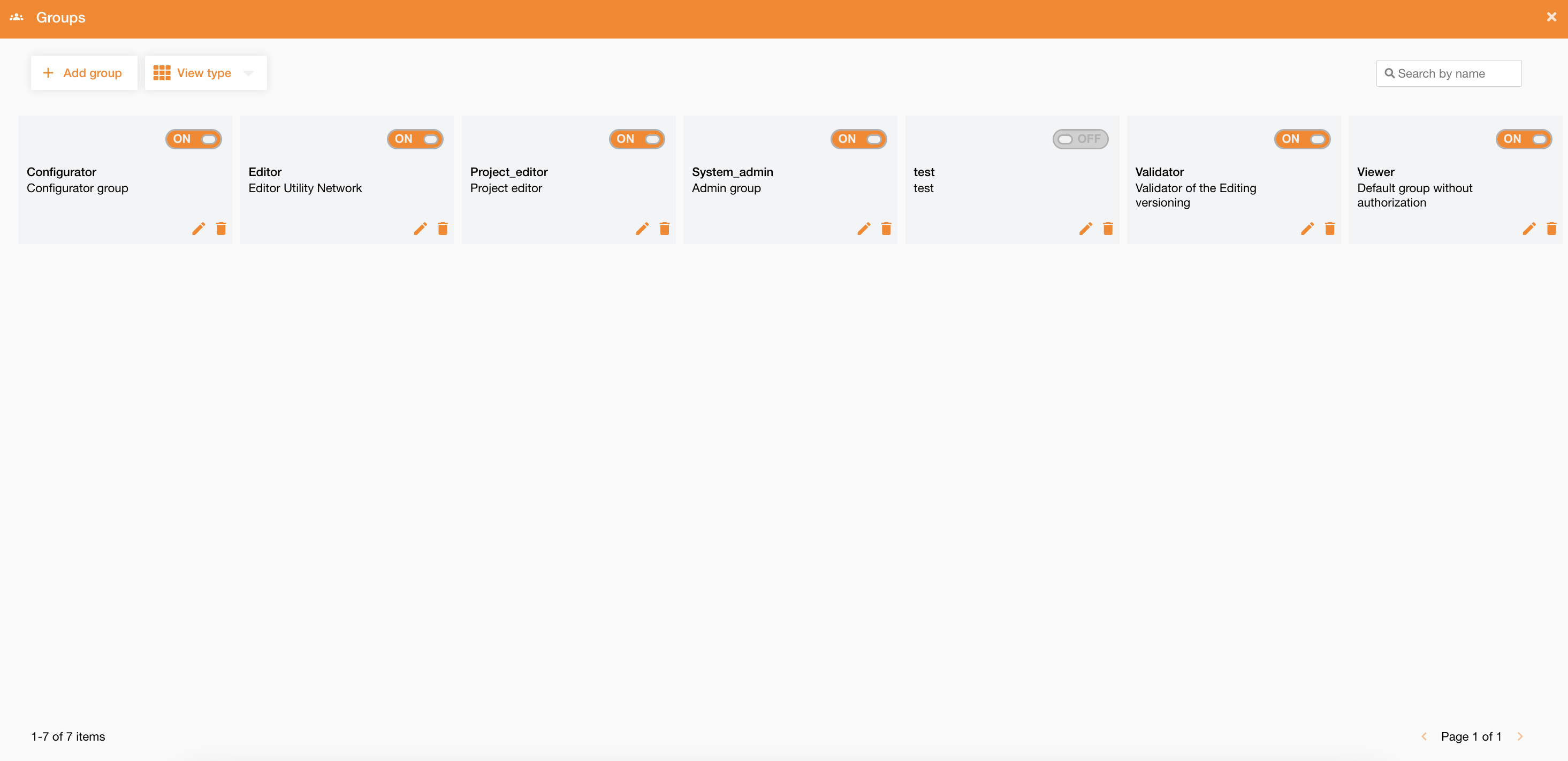
Accessing to Control Panel > User Profiles > Groups tab, the view contains the list of all existing groups.
|
|
|
Figure 1 - Groups management |
At the top-right of the page there is a search field to search groups by their name.
For each group it’s possibile to do these operations:
-
enable/disable: using the toogle button
-
deletion: using the bin icon
-
editing: using the pencil icon
At the top-left of the page there is the “Add group” button to add a new group (Figure 1 - Groups management).
Clicking on it, to define a new group it needs to define name and description, and set permissions on functionalities and modules.
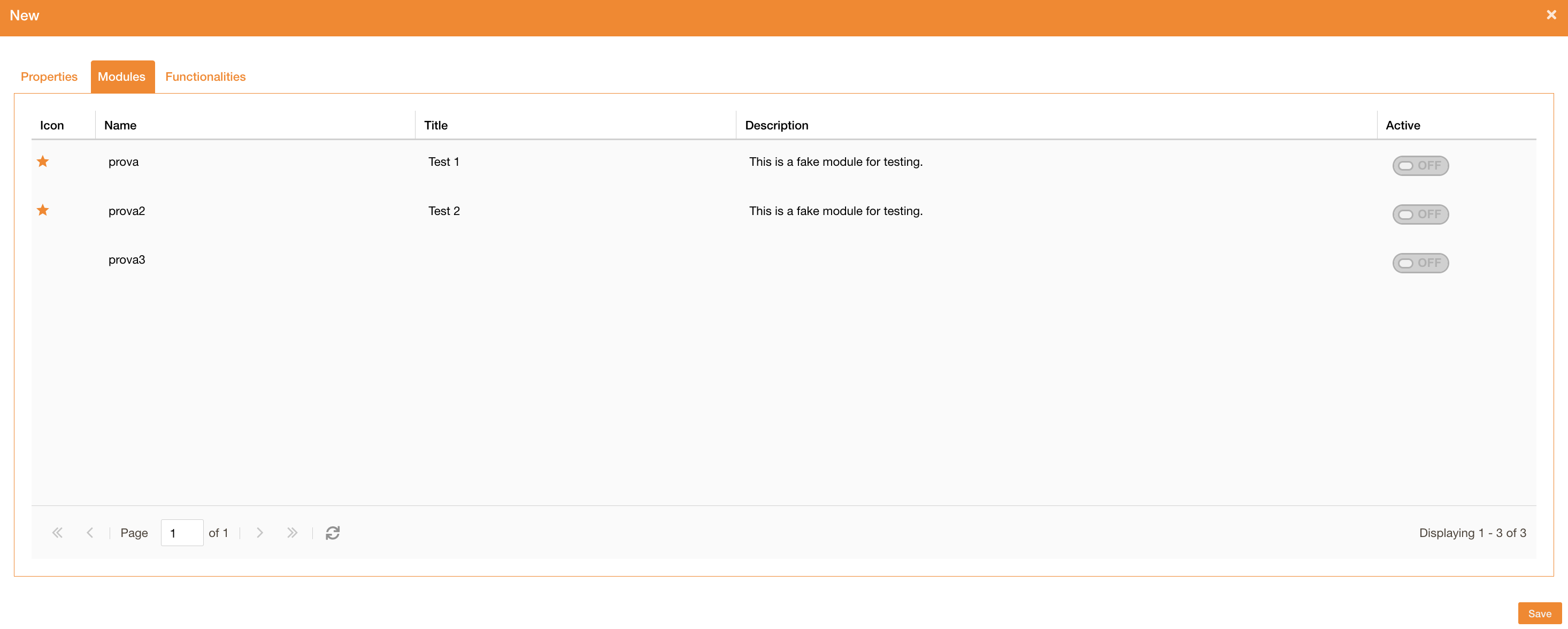
In the modules tab, there are all existing modules and the group can be enabled to one or more module.
Going on the functionalities tab there is the list of all available functionalities. For each of them, there is the name, description, and the “Active” toggle button to assign them to the group.
|
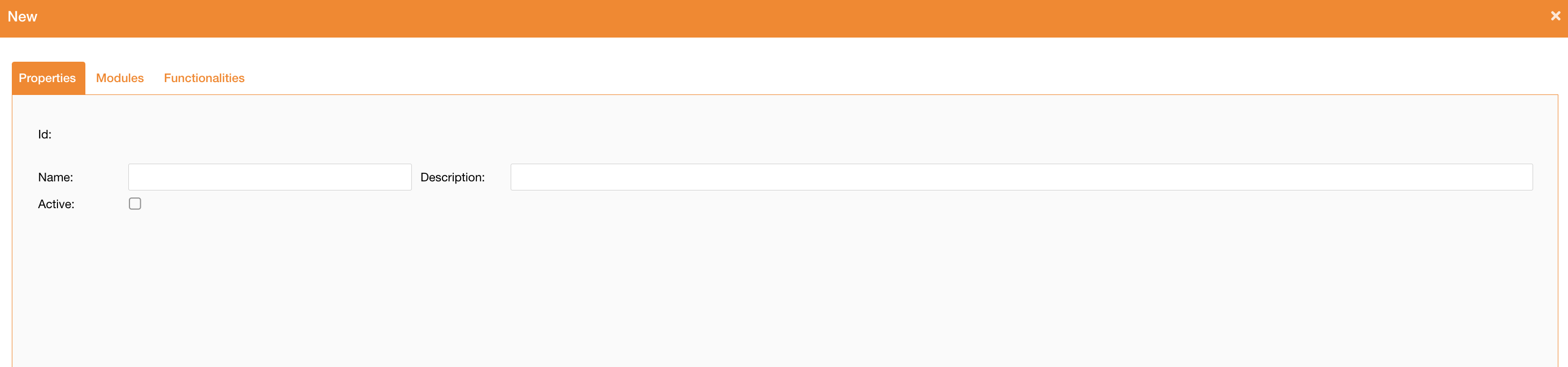
Add group panel |
|
|
|
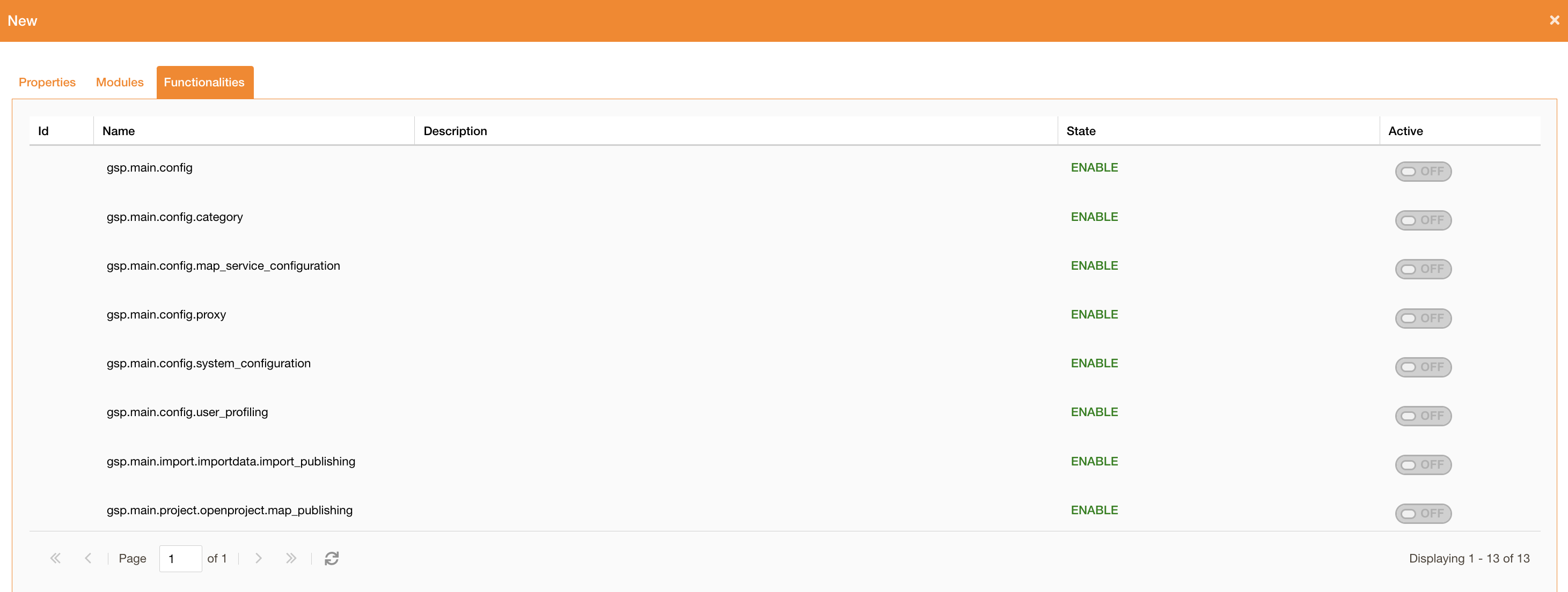
Functionalities permissions |
|
Figure 3 - Groups management |
Pre-defined functionalities
|
Name |
Description |
Related tab and icon |
|---|---|---|
|
gsp.main.project.openproject.map_publishing |
To make public projects Project Management |
|
|
gsp.main.config |
Access to the configuration panel Control Panel |

|
|
gsp.main.config.system_configuration |
System tab’s functionalities in the configuration panel (ll sub-tabs, except for Proxy tab) System configuration |

|
|
gsp.main.config.user_profiling |
Users tab’s functionalities in the configuration panel (and all sub-tabs) User Profiles configuration |

|
|
gsp.main.config.map_service_configuration |
Map tab’s functionalities in the configuration panel (all sub-tabs, except for Category tab) |

|
|
gsp.main.config.category |
Access to the category management tab Category configuration |

|
|
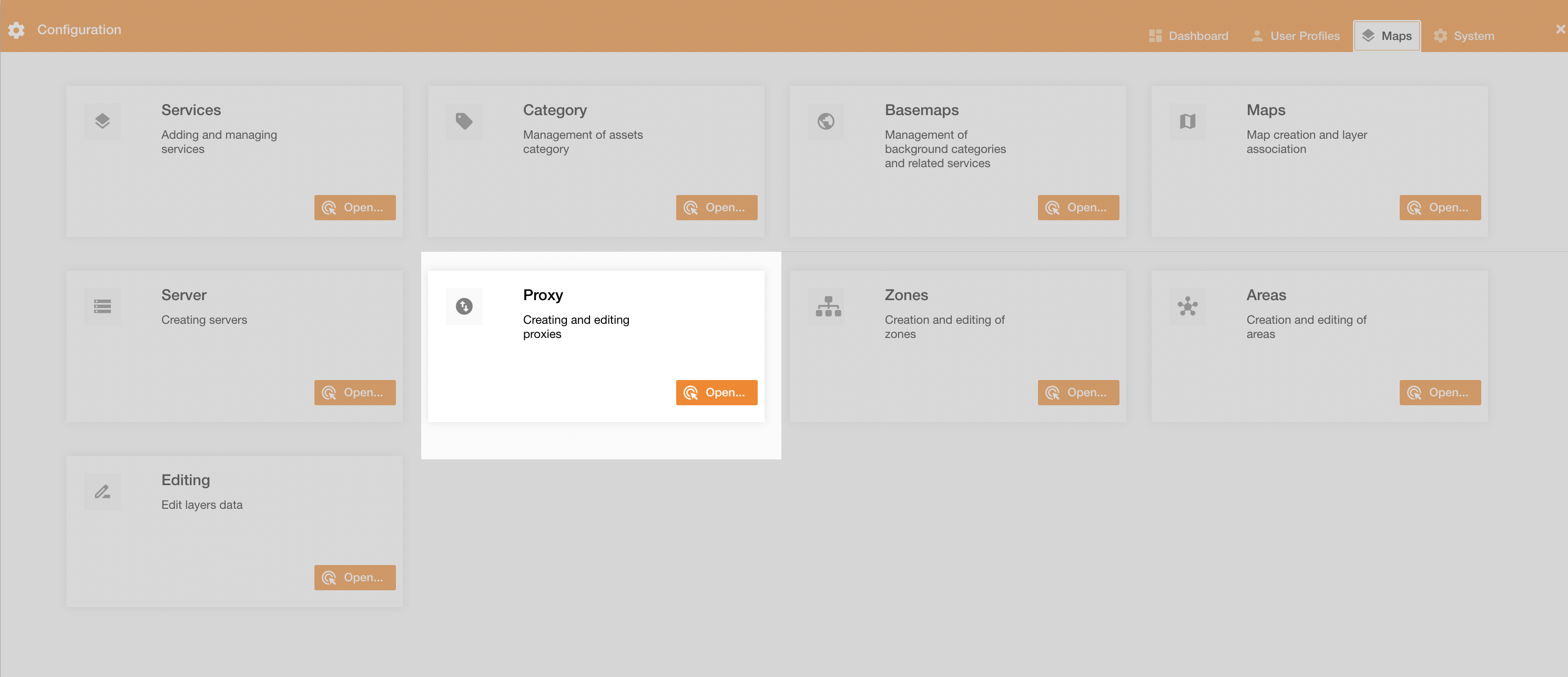
gsp.main.config.proxy |
Access to the proxy management tab Proxy configuration |
|
|
gsp.main.toc.selection.by_polygon |
Access to the TOC’s selection tool by polygon Selection tools by TOC 3.0.* |
|
|
gsp.main.toc.selection.by_attributes |
Access to the TOC’s selection tool by attributes Selection tools by TOC 3.0.* |
|
|
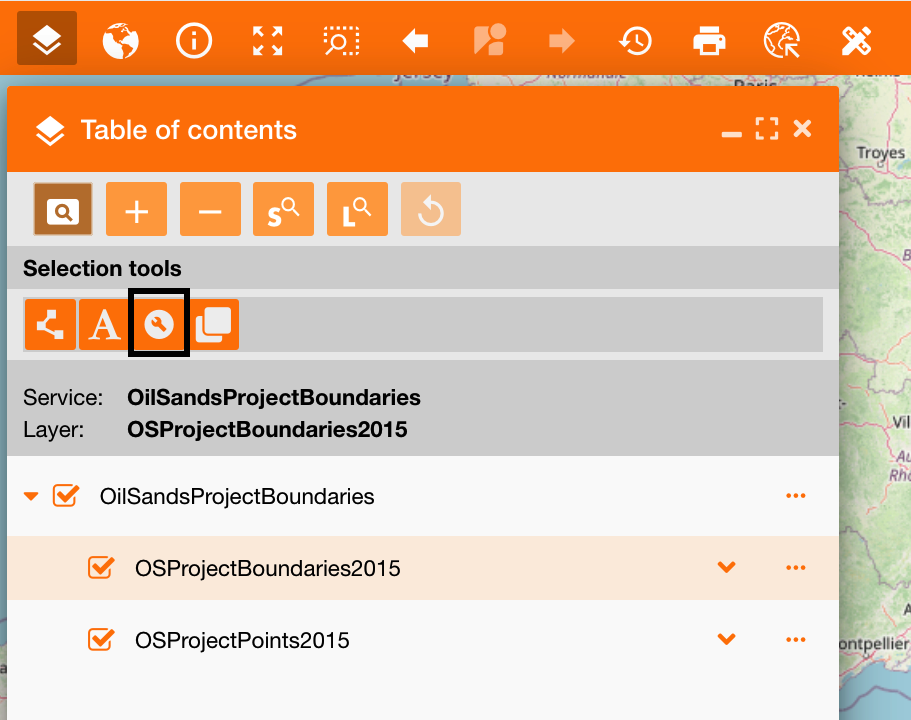
gsp.main.toc.selection.by_query_builder |
Access to the TOC’s selection tool by query builder Selection tools by TOC 3.0.* |
|
|
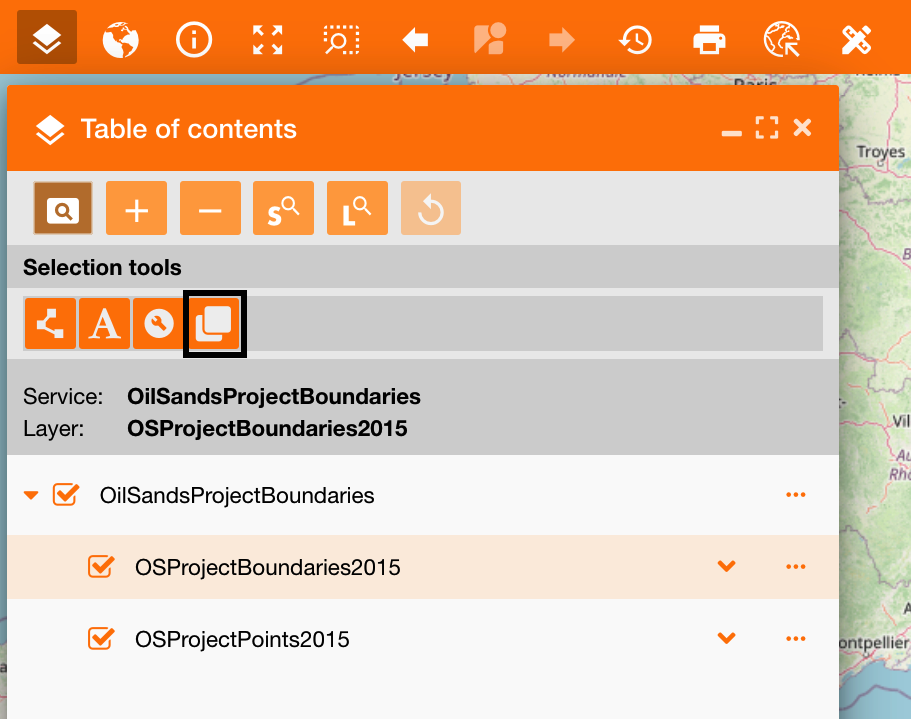
gsp.main.toc.selection.by_location |
Access to the TOC’s selection tool by location Selection tools by TOC 3.0.* |
|
|
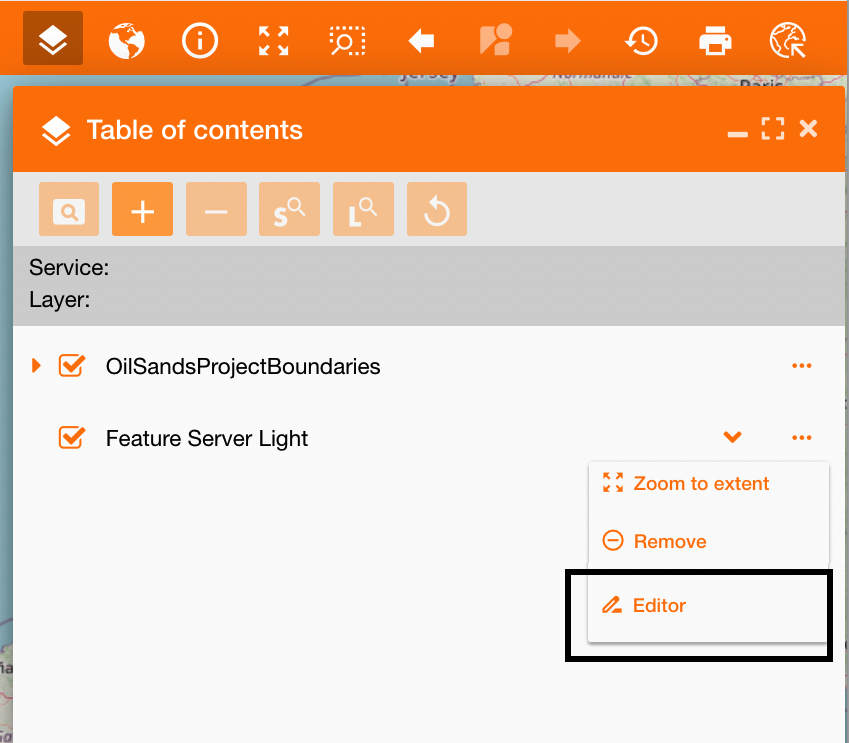
gsp.main.toc.editing.editor |
Access to the editing functionality Editor widget |
|
|
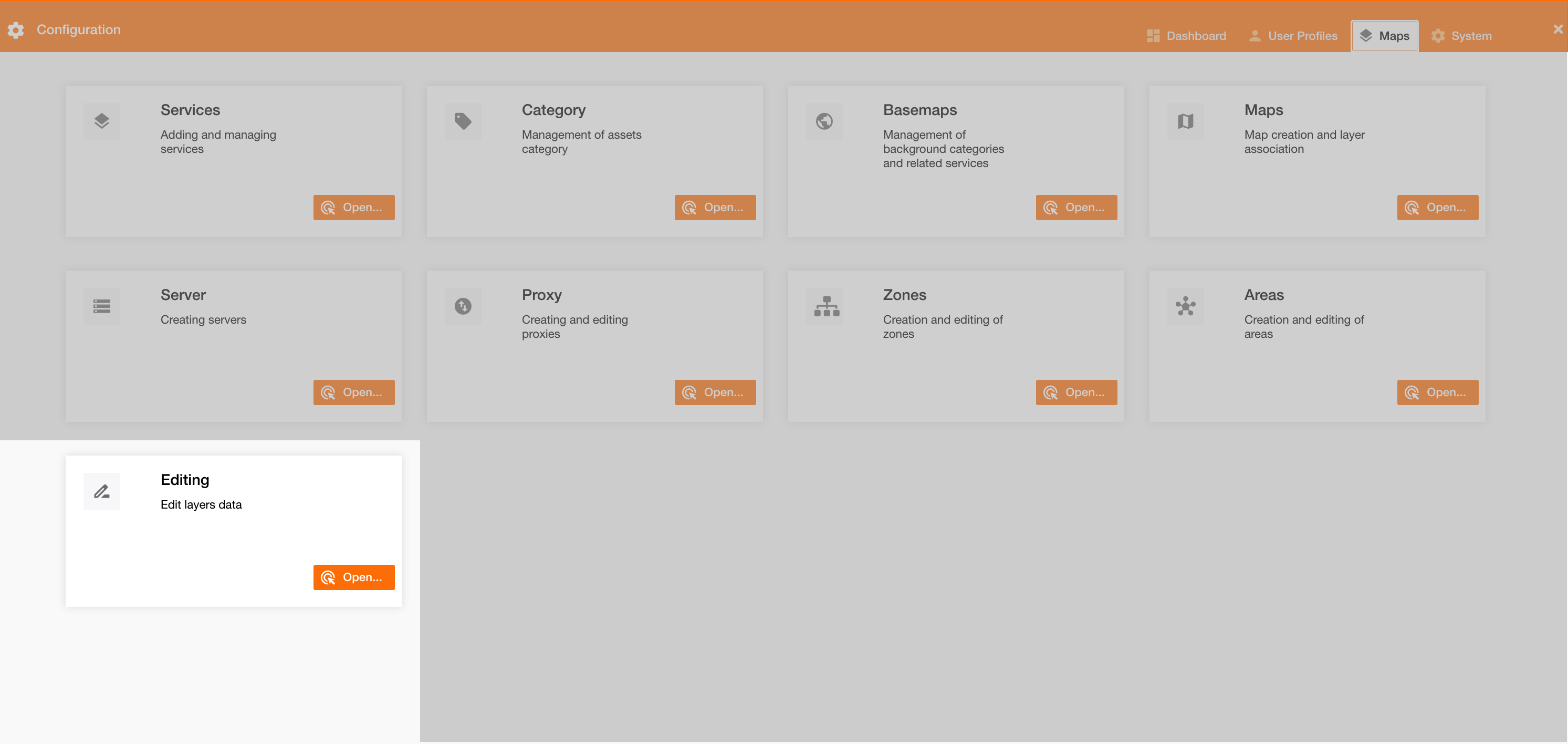
gsp.main.config.editing.settings |
Access to the editing setting tab Editor widget |
|
|
gsp.main.toc.editing.validator |
Access to the editing validation |
not used |
|
gsp.main.selection.selectedfeaturespop.file_download |
|
not used |
|
gsp.main.import.importdata.import_publishing |
|
not used |
To configure users, go on this page: Users and permissions