Overview
Use the Work Order (WO) search function in the NextGen FSM platform to find specific WO based on various criteria. You can then use the WO List table to manage WOs by setting display options and performing bulk actions like validating, closing, or exporting the records.
To search for WOs, navigate to Features > Core > Work Order Management > Search WO.
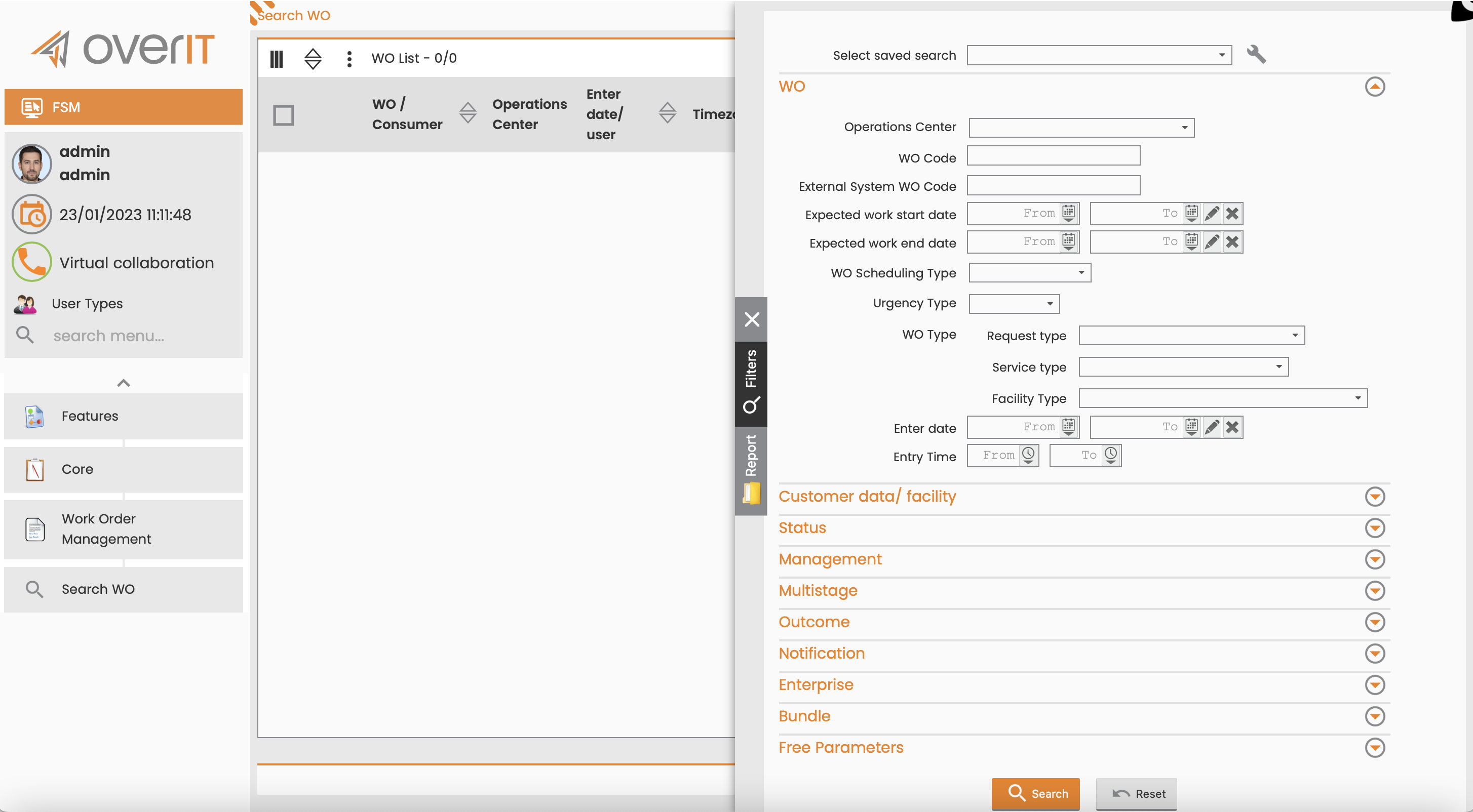
Manage Saved Search Filters
You can save search filters and retrieve previously saved filters.
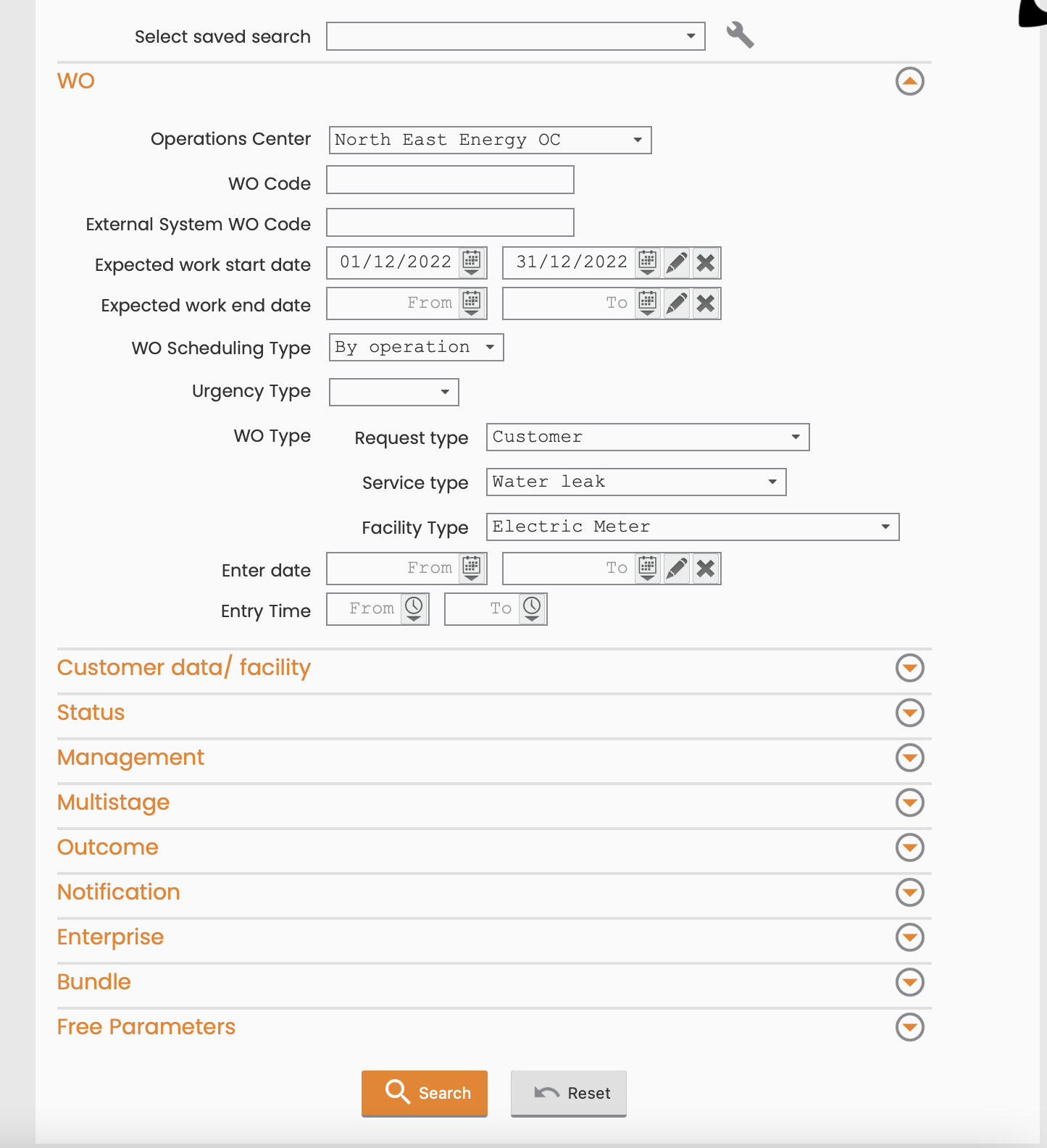
Search Filters
You can use a variety of filters to narrow your search.
-
WO
-
Operation Centers
-
WO code external system
-
WO code
-
WO Scheduling Type
-
Urgency Type
-
Expected starting work date
-
Expected end work date
-
WO Type
-
Insert Date
-
Insert Time
-
System
-
Origin
-
-
Customer Data
-
Code
-
Name
-
Town
-
-
Status:
-
WO Status
-
Operations Status
-
Validated
-
Sending Status: Status related to the communication with external systems
-
-
Management
-
Underway Authorizations: With authorization process
-
Row Scheduling Dates
-
Accounting Sending Dates
-
User Insertion
-
Assignee / Executor User
-
WO Release Date: date of order validation
-
Customer Appointment Date
-
Date of administrative closure
-
User Last Change
-
-
Outcome
-
Partial outcome
-
Outcome causes
-
Encoded Notes
-
Row Outcome Date
-
-
Notification
-
With Linked Notification
-
Type
-
Code
-
External Code
-
-
Enterprise
-
Code: Code of the Contractor
-
Supplier
-
Agreement
-
-
Free Parameters: Use this section to add some clauses using all WO properties and Logical Operators
Manage WOs in the WO List Table
After you set your search criteria, you can view the results and the number of extracted records in the WO List table The table’s menu provides display options and management features.
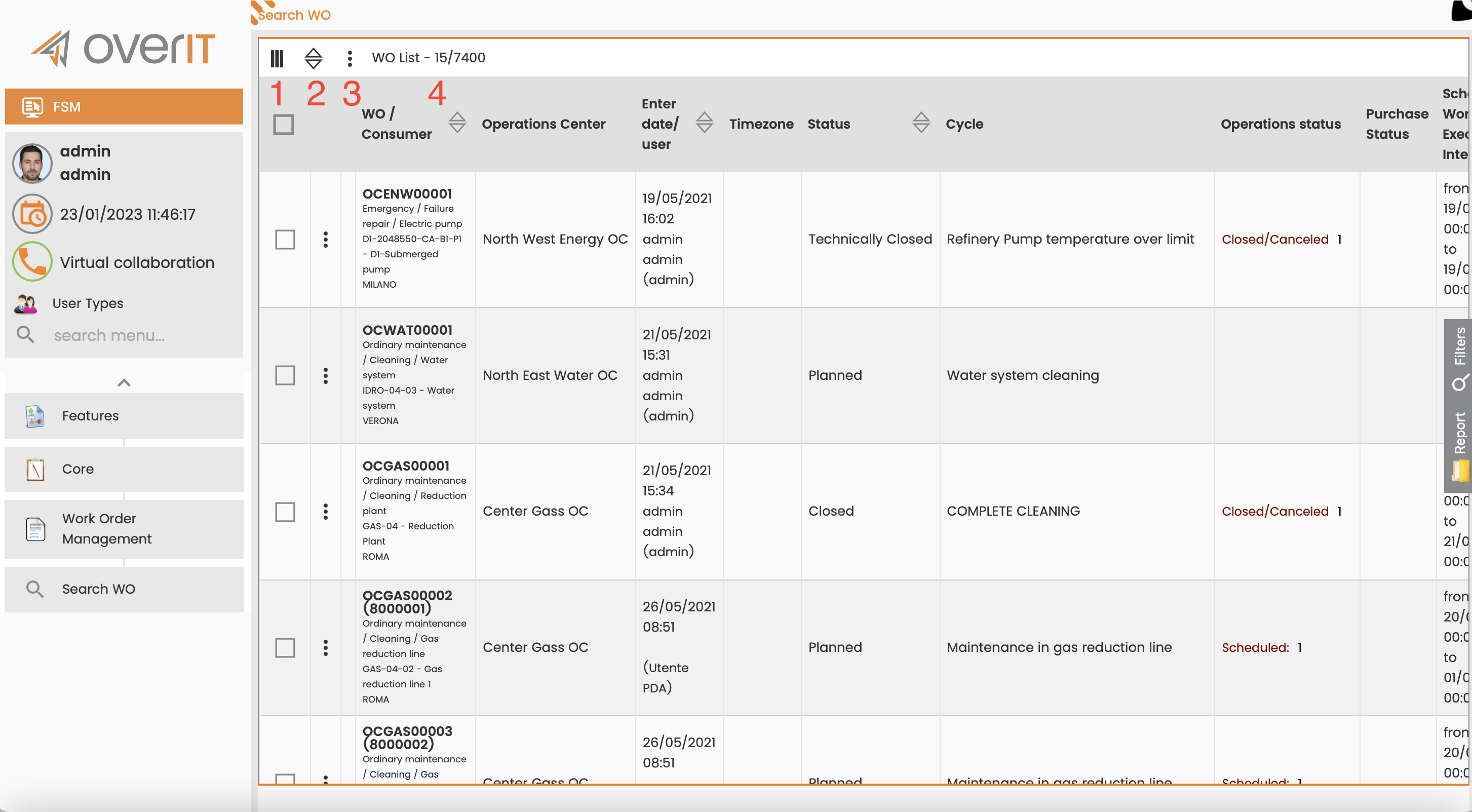
Customize the Display
You can customize how the WOs are displayed.
-
Set columns: Select <placeholder> to set which columns are displayed and their order.
-
Sort records: Select <placeholder> to organize records in ascending or descending order based on a selected field.
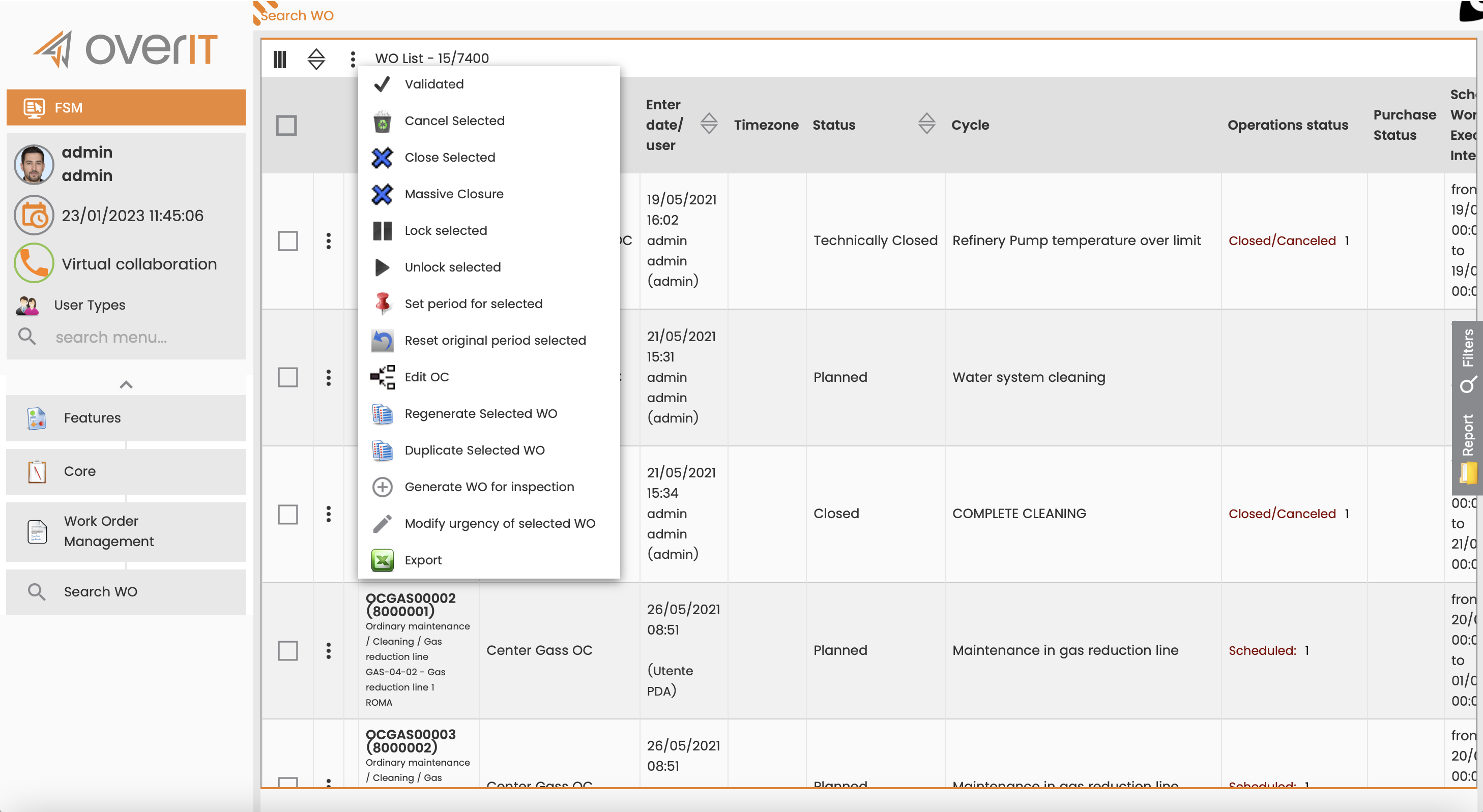
Perform Bulk Actions
From the table’s menu, select an action to perform on the extracted or selected WOs:
-
Validate: Change the status of the selected WOs from open to schedulable.
-
Cancel Selected: Cancel the selected WOs.
-
Close Selected: Perform an administrative closure for the selected WOs.
-
Massive Closure: Perform an administrative closure for all WOs extracted using the filters.
-
Lock Selected: Lock the selected WOs.
-
Unlock Selected: Unlock the selected WOs.
-
Set selected period: Define the start and end cardinal date for the selected WOs.
-
Reset original period selected: Update the cardinal start and end date by resetting it from the original date.
-
Edit OC: Edit the operations center for the set of selected WOs.
-
Regenerate selected WO: Create a WO based on the current work cycle.
-
Duplicate selected WO: Create a WO that duplicates the structure (operations, materials, tools) of the selected reference order.
-
Generate WO for Inspection: Create inspection WOs for the technical objects related to the initially selected WOs. You can select the WO type and work cycle, set the expected work interval, and assign the responsible operation center.
Note: For this solution, you must set the TWORTYPE field to 1 to set inspection WO types.
-
Modify Urgency of selected wo: Change the urgency of the selected WOs.
-
Export to xls: Create an xls file containing all extracted WO.
Tip: Consider the file format when exporting to Excel. The .xls format has a limit of 65,536 lines per sheet, while the .xlsx format supports up to 1,048,576 lines per sheet.