
Overview
Sometimes, a Work Order (WO) is not linked correctly to an OC because the address is not normalized, or it links to the wrong OC due to an incorrect normalization level.
To fix this, you must normalize the address and then assign it to the correct OC.
Normalize and Correct WO Address
-
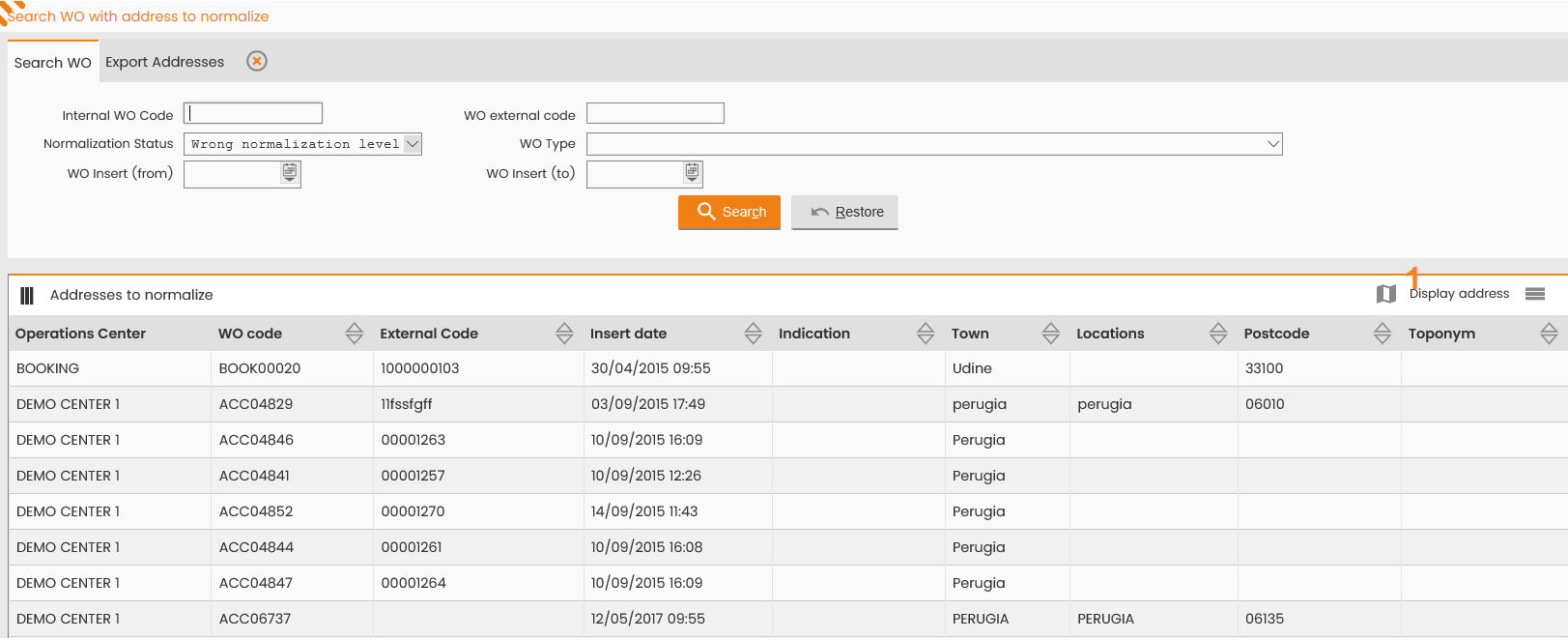
Find the WO.
-
Navigate to Features > Core > Work Order Management > WO with address to be geocoded.
-
In the Search WO tab from the Normalization Status, select Wrong Normalization Level.
-
Select Search.
-
Select the address you wish to normalize.
-
-
Define the correct map point.
-
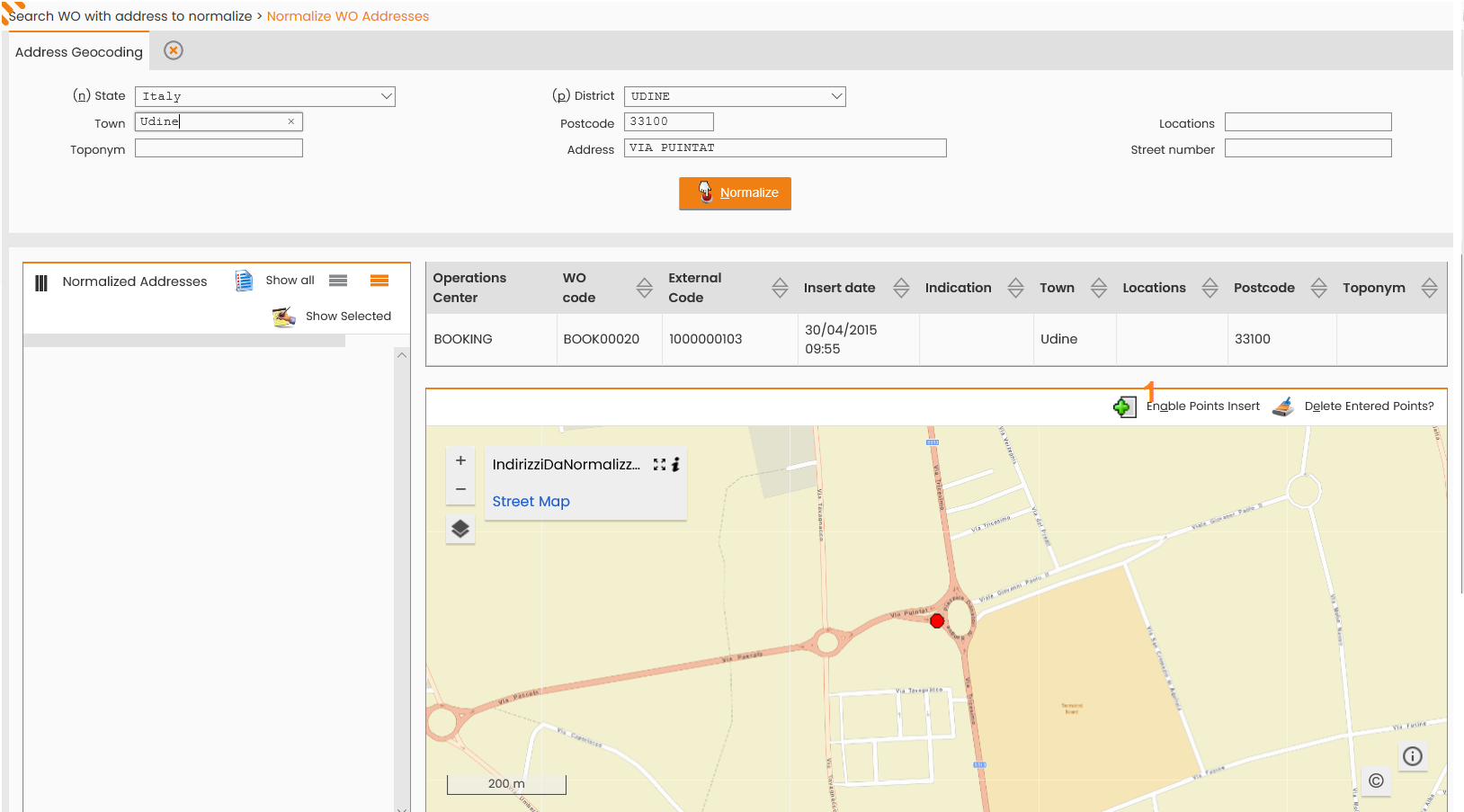
Select Display address (map icon). The address is displayed on the map.
-
Select Enable Points Insert.
-
To define the right location, select the correct point in the map.
-
-
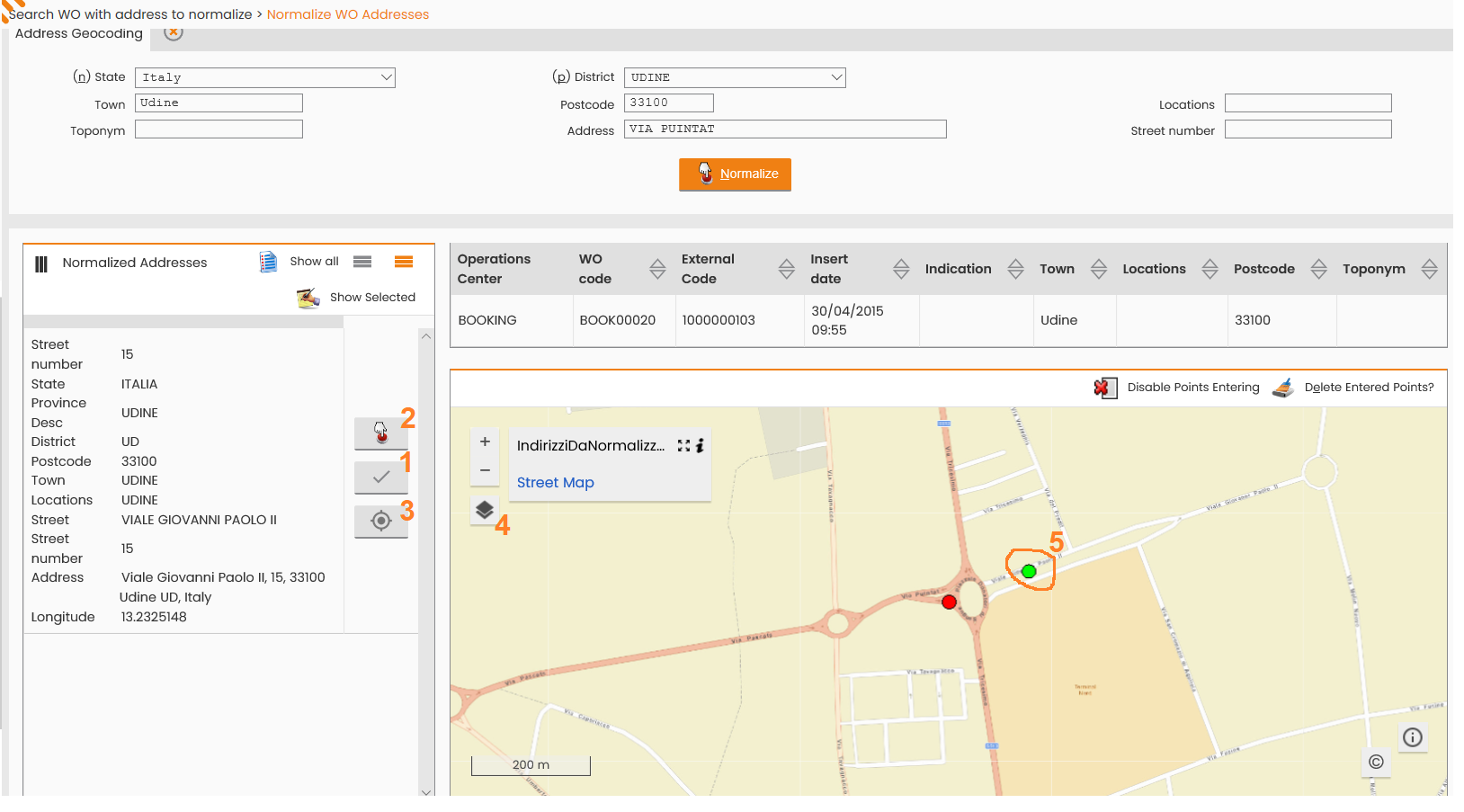
Validate the location.
-
View the normalized address in the Normalized Address panel.
-
Select Select Address and Validate (checkmark icon).
-
Google API Firewall Configuration
To ensure proper function, your firewall must allow communication with Google APIs. All communications happen over HTTPS (TCP port 443). We recommend that you whitelist the following domains:
-
*.http://google.com/
-
google-apis.com
-
apps-apis.google.com
-
maps.googleapis.com