
The table of contents (TOC) helps you to search data, using different search and selection tools to search all assets contained in an area and their information.
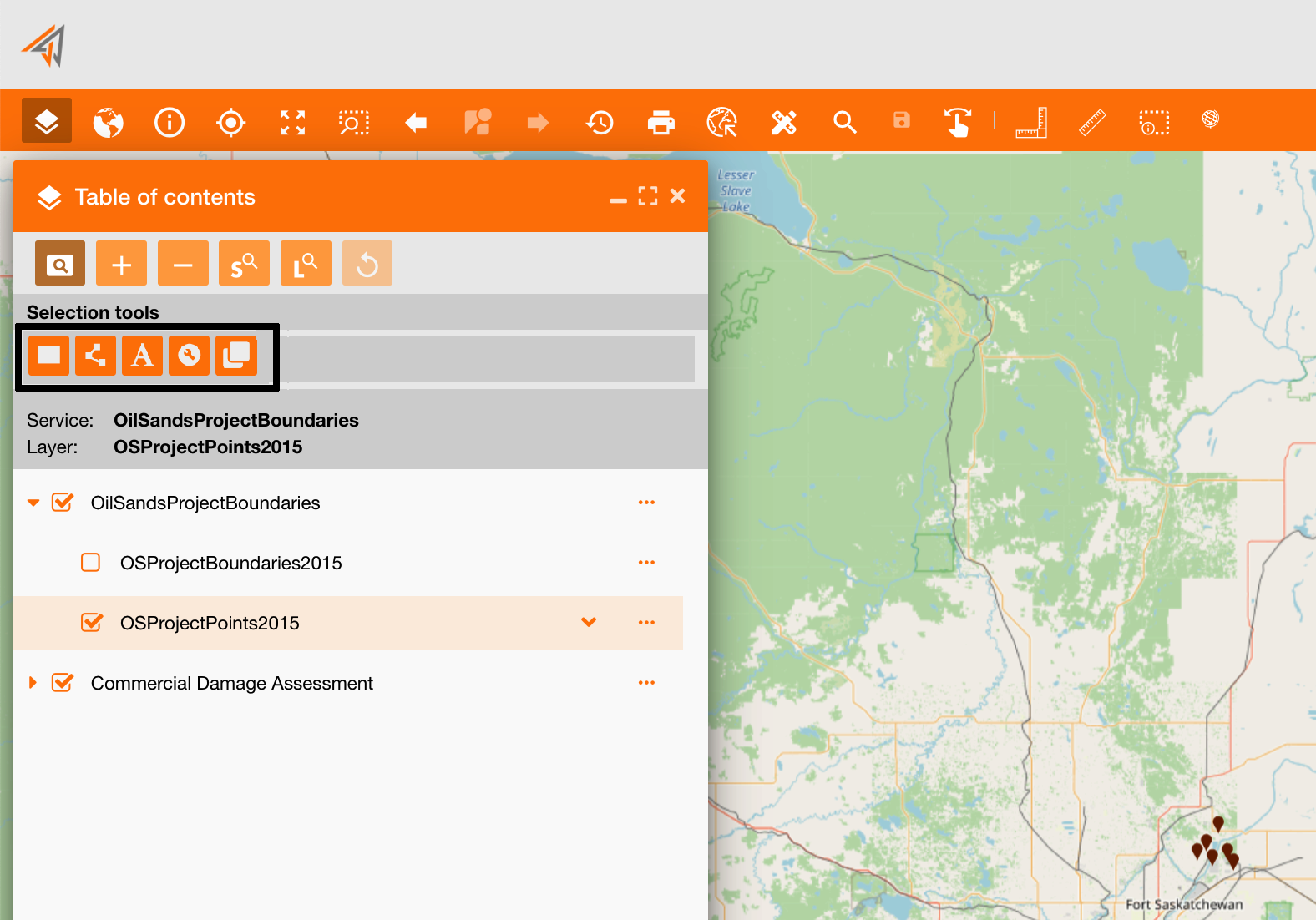
From the main TOC toolbar, clicking the search icon, a new section will show all available selection tools:
|
|---|
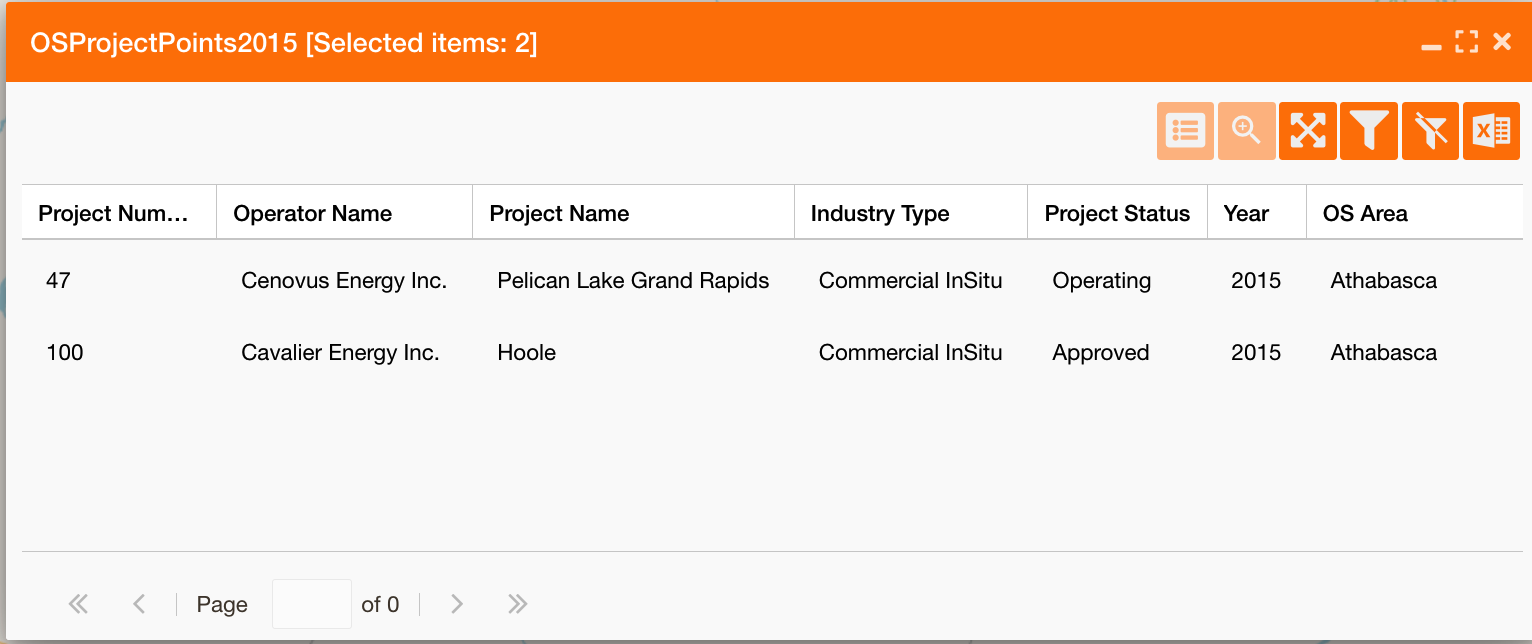
Using these tools, the system will always show a report with all selected assets' data and some functionalities at the top-right of the panel to manage the report (described below):

|
Show all assets fields. It is deactivated if all fields are already showed. To configure which fields shows you can do it at layer’s level: https://overit-spa.atlassian.net/wiki/spaces/NEXTGENGEO/pages/103375340160/Service+Configuration#Service-Layers---Attribute-table |
|---|---|

|
zoom the map on the selected point |

|
full extent the report panel |

|
filter the map showing only selected points |

|
remove the filter applied |

|
export the report in an excel file |
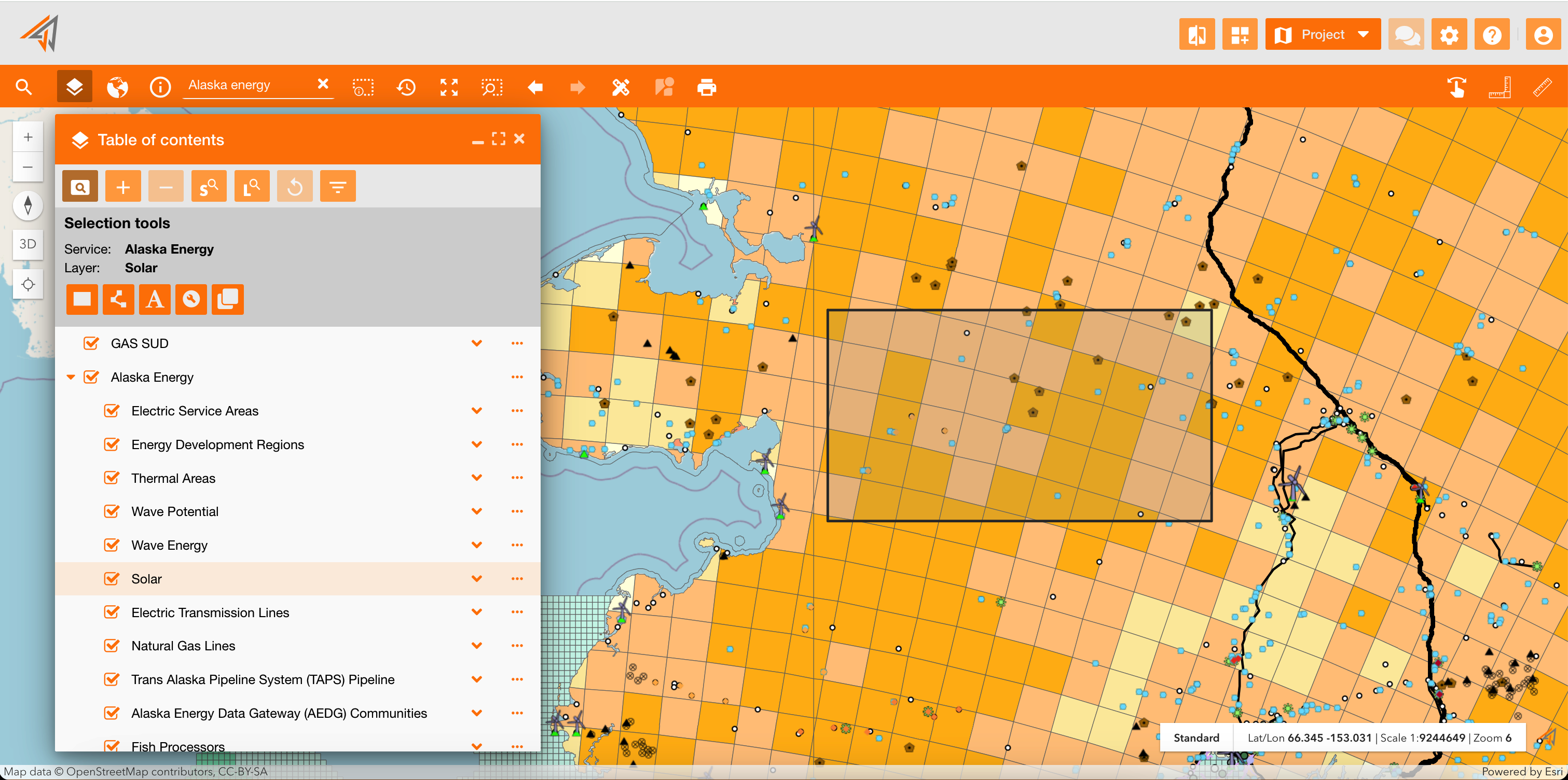
Select by rectangle
Only groups with assigned functionality gsp.main.toc.selection.by_polygon can use this tool
It allows to search all layer’s data in a selected area drawn by hand.
|
|---|
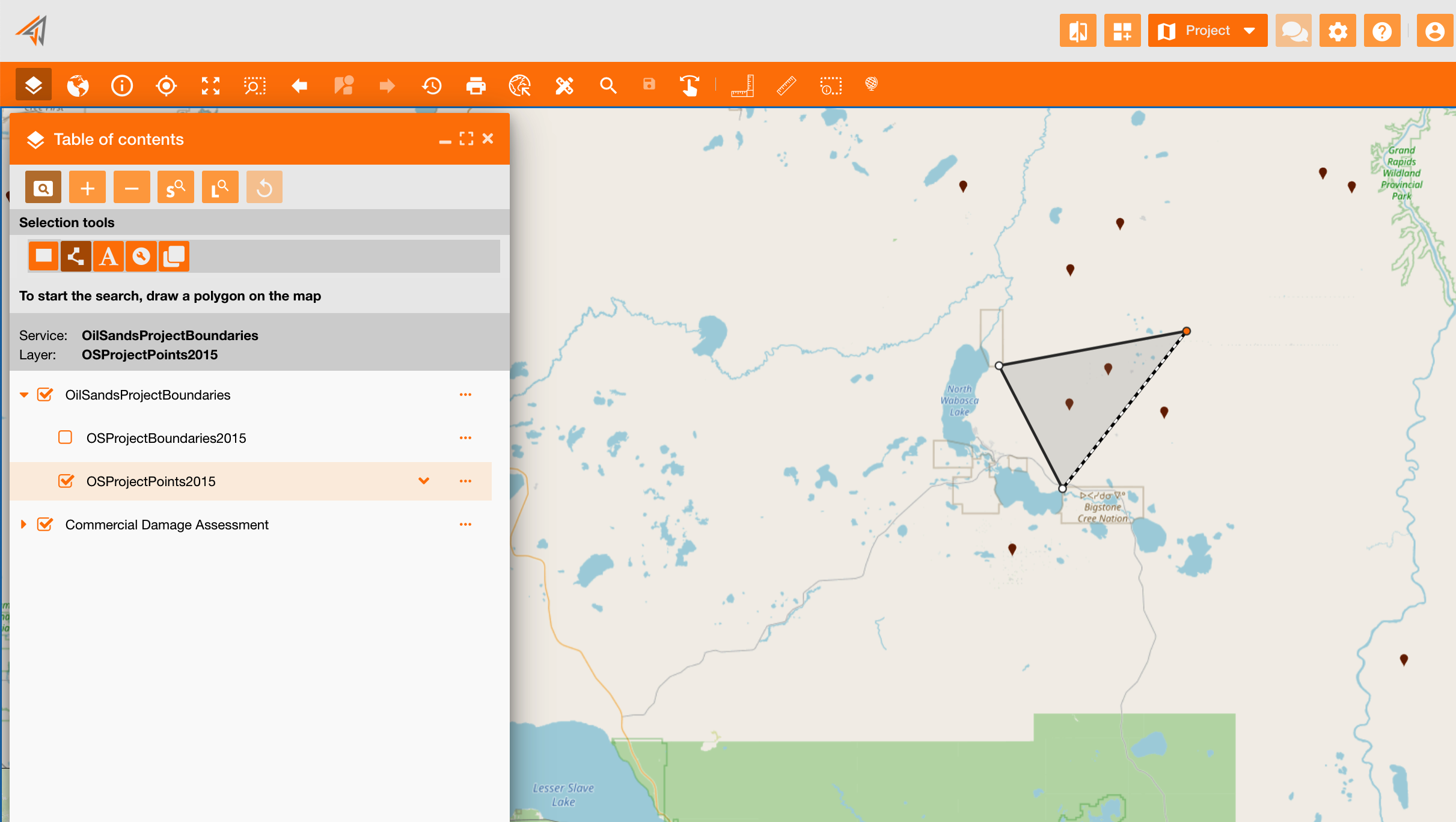
Select by polygon
Only groups with assigned functionality gsp.main.toc.selection.by_polygon can use this tool
It allows to search all layer’s data in a selected area drawn by hand.
|
|---|
Select by attributes
Only groups with assigned functionality gsp.main.toc.selection.by_attributes can use this tool
It allows to search all layer’s data based on their attributes and values.
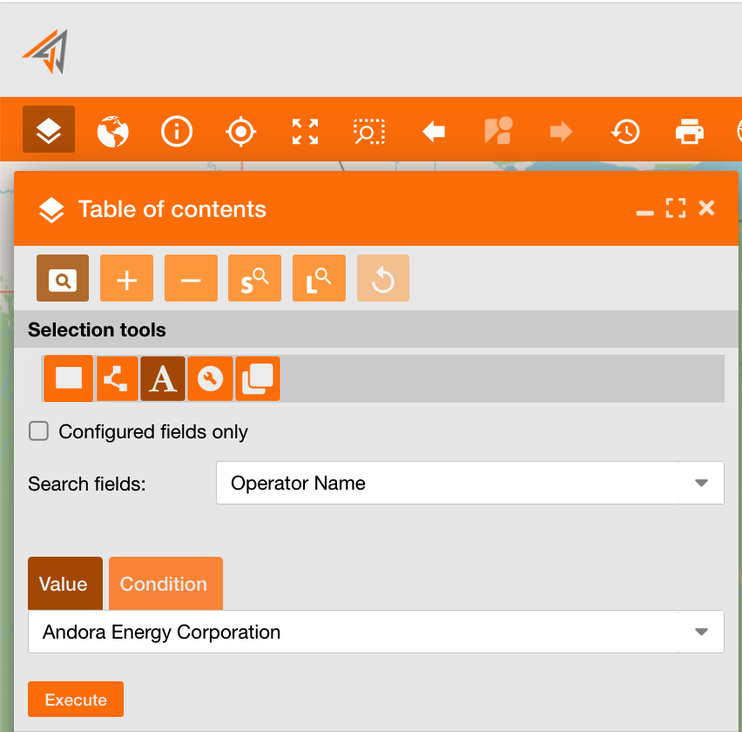
Example: As a user, I want to search all assets with the related Operator Name = “Andora Energy Corporation”.
So, I can select a field using the “Search fields” dropdown menu and select “Operator Name” field, choosing between all available fields of the selected layer.
-
Use “Configured fields only” to search only between configured fields on the service layer (see reference: https://overit-spa.atlassian.net/wiki/spaces/NEXTGENGEO/pages/103375340160/Service+and+Server+configuration#Service-Layers )
After, I can enter the value using:
-
a “Value” (value tab): selecting the value “Andora Energy Corporation” in the dropdown field choosing between all available values of the selected field.
-
a “Condition” (condition tab): using a query condition clicking on the “condition” tab.
Clicking the “Execute” button the report will be generated.
|
|---|
Select by attributes (query builder)
Only groups with assigned functionality gsp.main.toc.selection.by_query_builder can use this tool
It allows to search layer’s data on the map using a query syntax, providing a guided mask too.
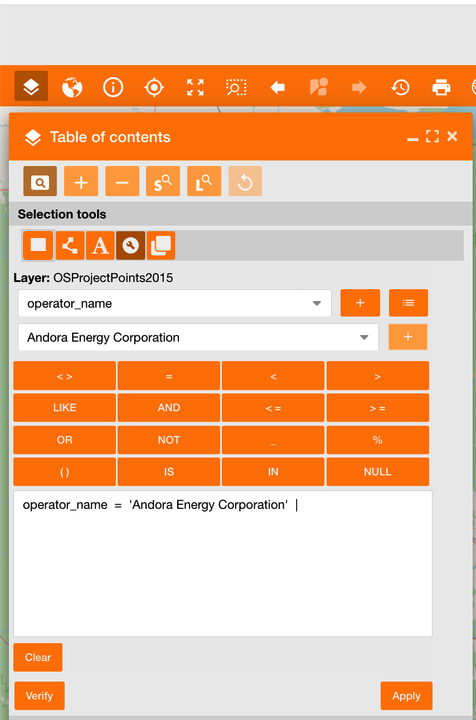
Example: As a user, I want to search all assets with the related Operator Name = “Andora Energy Corporation”.
-
So, I can select the field using the first dropdown menu and select “operator_name” field, choosing between all available fields of the selected layer.
-
After I have to add it in the text box using the '+' icon
-
Now I can choose the query operation, in this case '=' selecting it from the keyboard
-
Clicking the menu button on the right of the ‘+' icon, all field’s values will be retrieved and showed in the field below
-
So, I can select the value using the second dropdown menu and select “Andora Energy Corporation”, choosing between all available values of the selected field.
-
After I have to add it in the text box using the '+' icon
-
Clicking the “Apply” button the report will be generated.
It is also possible write the query in the text box instead of use the guided mask
|
|---|
Select by location
Only groups with assigned functionality gsp.main.toc.selection.by_location can use this tool
It allows to select assets based on their location relative to assets in another layer.
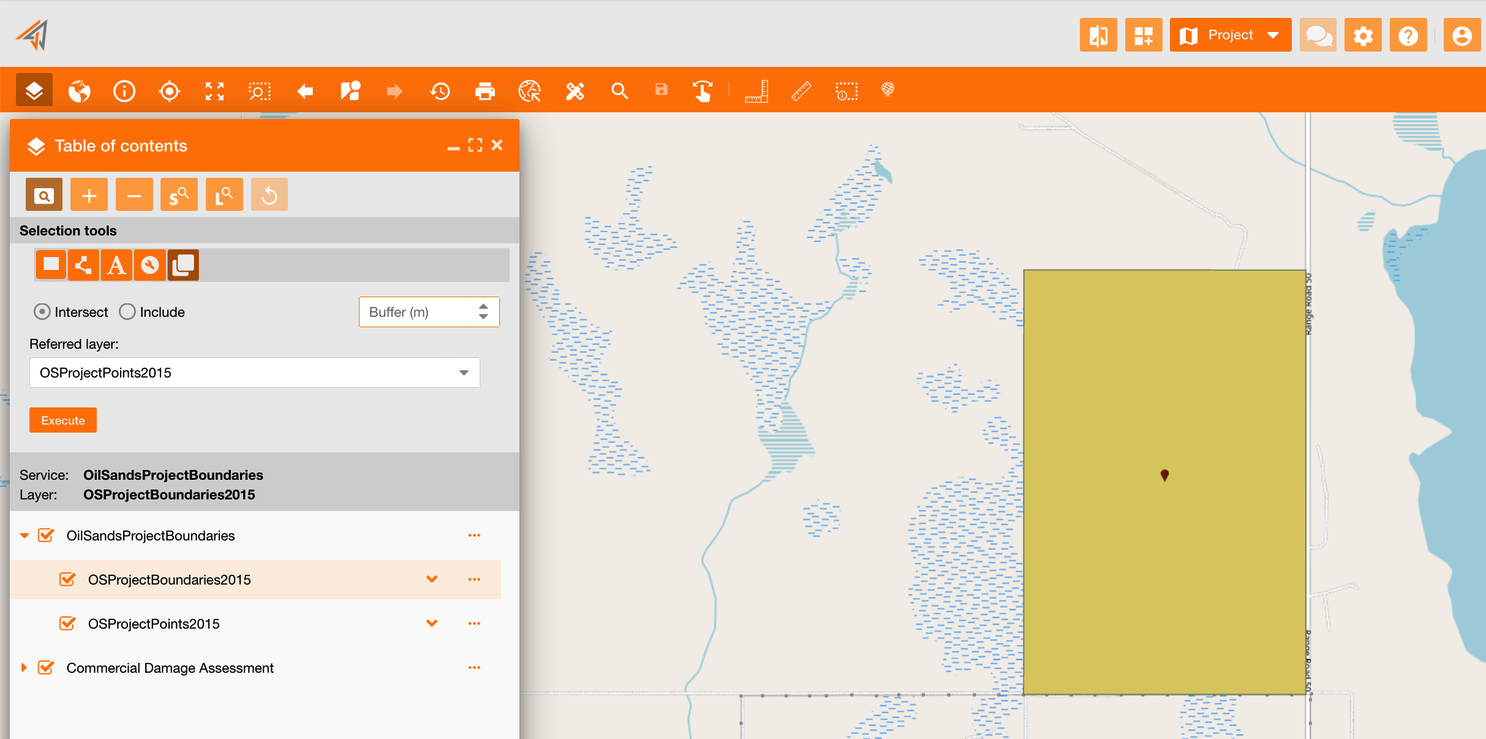
Example: As a user, I want to know how many oil sands points are contained in all oil sands boundaries.
-
So, I can select the first layer on the TOC related to the boundaries
-
Then, I can select the “Referred layer” choosing the layer related to oil sands points
-
Now, I can choose the operation between “intersect” and “include”
-
Clicking the “Execute” button the report will be generated.
|
|---|