
Overview
We added double location information to the view on the Search WO page (Features > Core > Work Order Management).
This update includes three key changes:
-
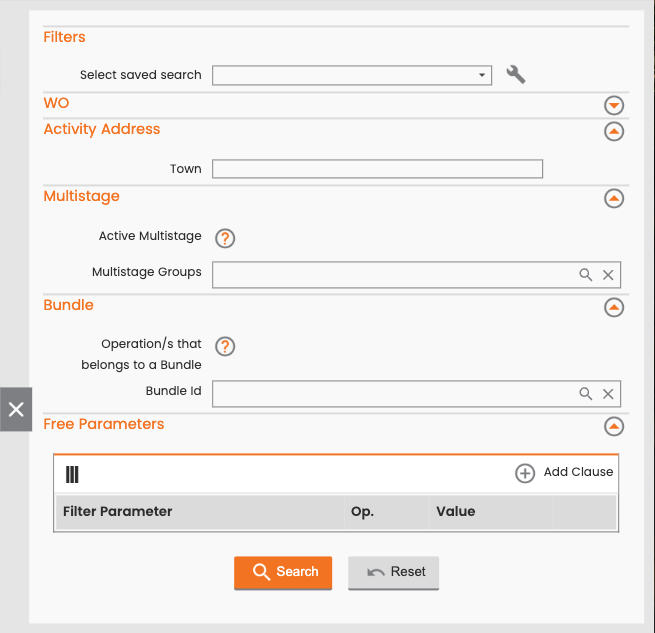
A filter to search for Work Orders (WOs) based on the activity address.
-
Updates to the WO Operation detail page to allow you to view, add, modify, and delete the activity address.
-
Save logic to ensure all saved activity addresses are properly normalized.
The main Work Order table view on the Search WO page remains unchanged.
Search by Activity Address
You can search for Work Orders by filtering on the activity address associated with their operations.
-
Navigate to the Features > Core > Work Order Management > Search WO page.
-
Within the filter panel, find the section titled Activity Address.
-
Enter a town name.
-
The system retrieves all Work Orders that include at least one Operation whose Activity Address matches the town you entered.
Add and Manage the Activity Address in WO Operation
In the main table on the WO Operation detail page, the activity address is displayed in the Address column if one is present.
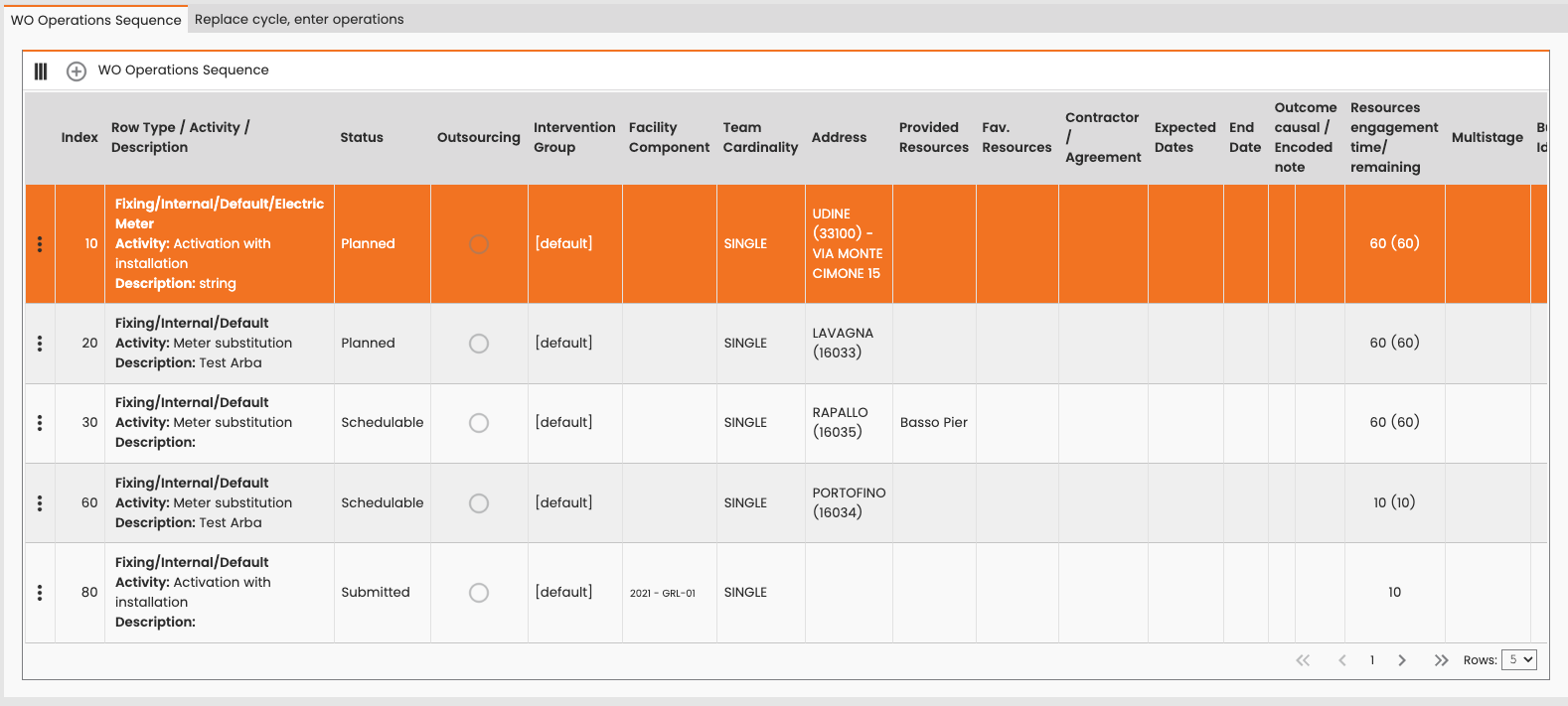
To add or modify the activity address for a WO Operation, follow these steps:
-
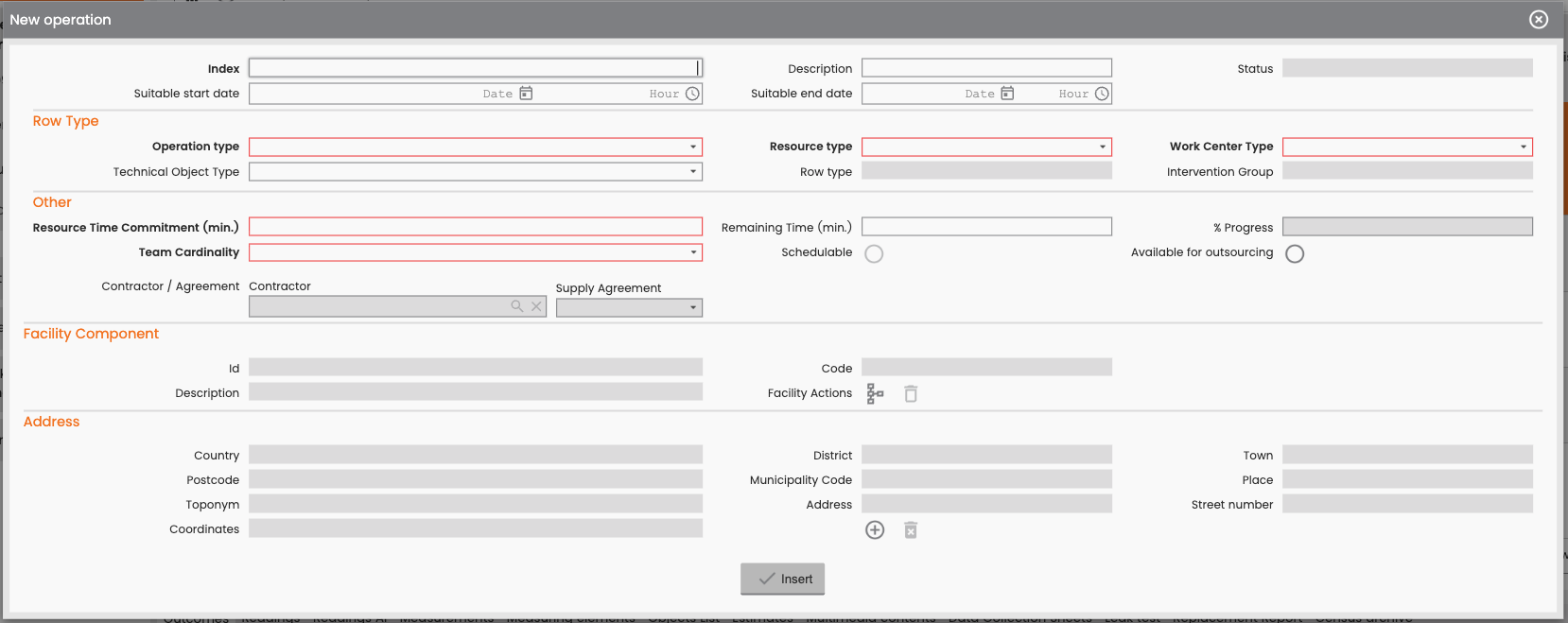
In the Operation details page, find the Address section and click the add or edit icon.
-
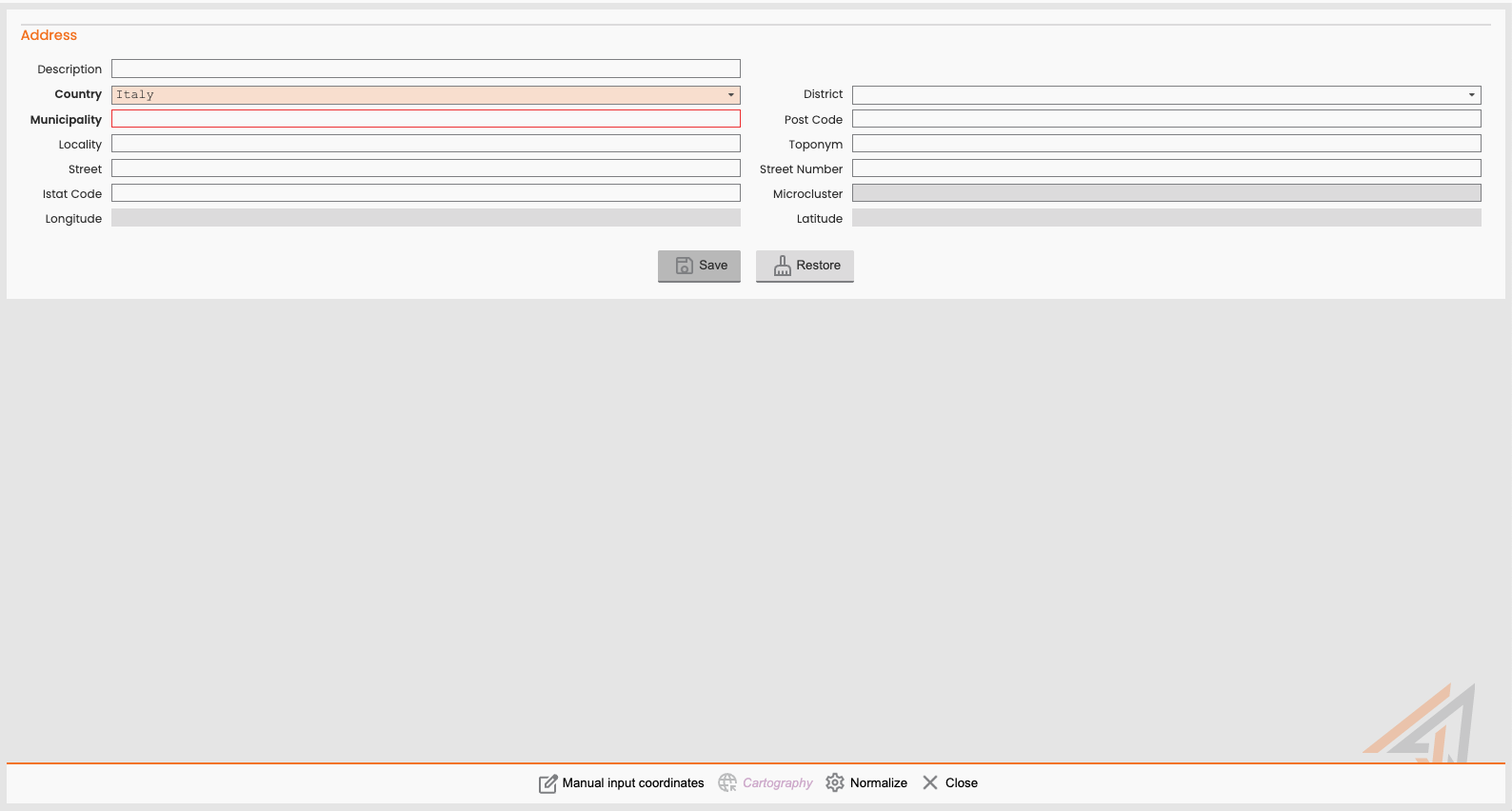
In the pop-up, enter the address information into the provided fields. If you are editing an existing address, the pop-up will pre-fill with the available details.
-
Country
-
District
-
Town
-
Postcode
-
Municipality Code
-
Place
-
Toponym
-
Address
-
Street Number
-
Coordinates
-
-
Click Normalize, to normalize the address.
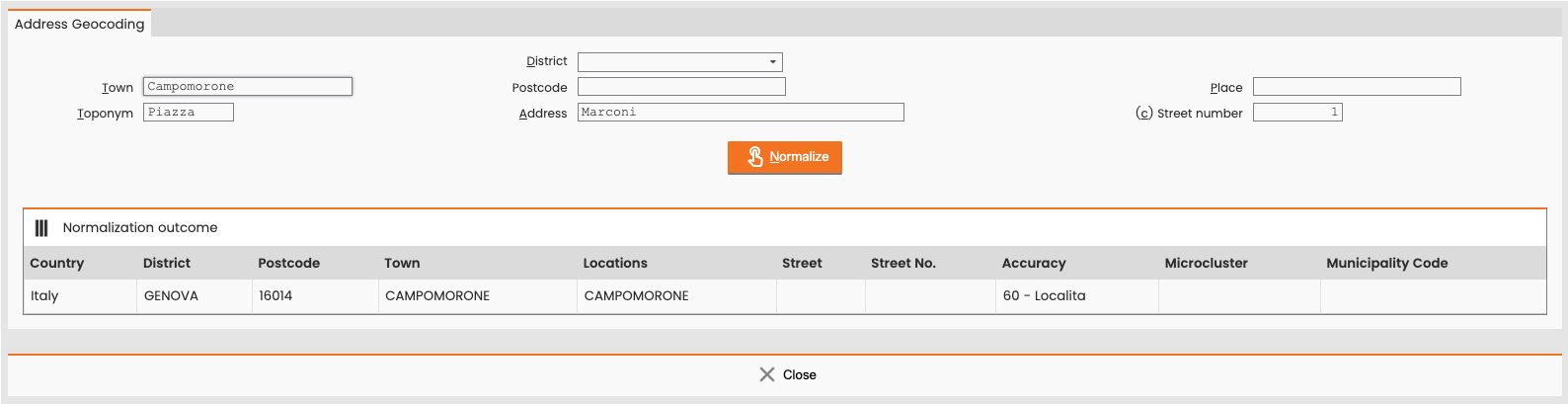
-
Click the normalized address.
Important: The system requires the address to meet the minimum normalization level for dispatching (Municipality). Ensure the selected result meets this level to avoid a blocking error later.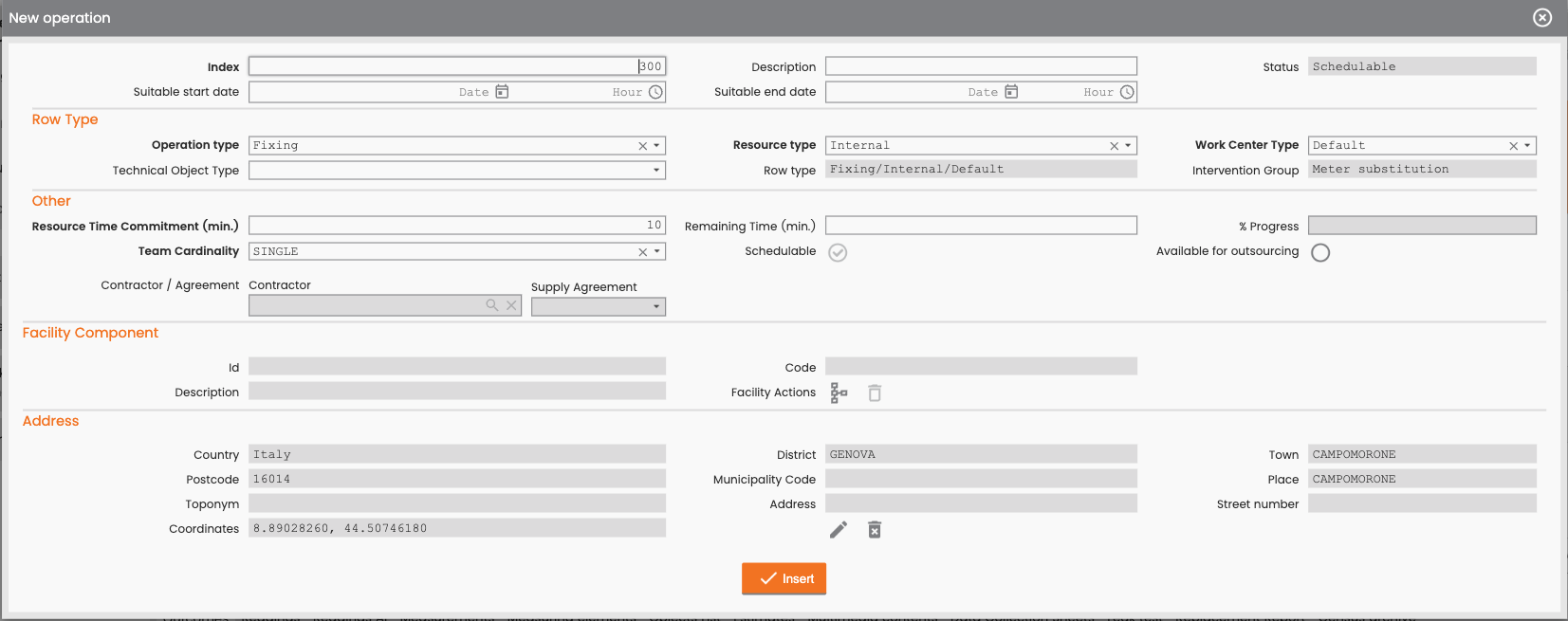
-
Click Save. The system performs a check:
-
At least one location must exist: A Facility Component or an Address.
-
If both are present, the system saves them separately.
-
If only the Facility Component is present, the Address field can be empty.
-
If only the Address is present, the system automatically assigns the Technical Object from the Work Order header to the Operation.
-
-
Return to the WO detail page and click Save. The system checks that the normalized address meets the minimum required normalization level for dispatching, which is the Municipality level. If the address does not meet this requirement, the operation data will not be saved.