The Activity Forecast feature allows you to simulate demand by configuring various types of tasks.
You can create forecasts based on either:
-
Real activities and operations already present in the system.
-
Simulated activities
A significant advantage of using activity forecasts is their complete independence from actual activities and work-orders data. This means any adjustments or edits made within the forecast simulation will not impact the live operational data in your system.
Before you start
-
Create the activity forecast
-
Learn how to add also activities: Add activities
Add activities from Work Order Operations
-
In the FSM App, navigate to FEATURES → FORECASTING & CAPACITY PLANNING → ACTIVITY FORECAST
-
Use the filter panel to search for existing forecast records
-
Clicking the option button related to the Activity Forecast, going on “Detail” option the configuration page will be showed as a gantt view.
-
Click on the option button on the top-left of the page
-
Click “Import from WO”
A new page will be opened with a panel’s filters allowing to filter WO by operation type, activity, start date, end date, status and other fields.
Set Target Period
The "Set Target Period" section allows users to define how much to shift the imported orders forward. This is useful when the user creates a future plan that includes a set of activities already known or completed in the past. Instead of manually entering them into the system or the activity forecast, this feature enables the user to set:
-
New Expected work start date: the new start date from which all orders will be shifted.
-
Target Unit: shift by day, week, month
-
Target Quantity: define the shift quantity
Example:
-
Current Start Date: 01/03/2024
-
Current End Date: 15/03/2024
|
|
Imported Start Date |
Imported End Date |
|---|---|---|
|
Target Unit = Month Target Quantity = 2 |
01/05/2024 |
15/05/2024 |
|
New Expected work start date = 01/06/2024 |
01/06/2024 |
15/06/2024 |
Set Grouping Period
When importing real data, there is often the risk of bringing in a large number of orders, which can be difficult for a planner to manage when trying to understand the future workload. To address this, imported orders can be grouped by type, allowing the planner to view a single, consolidated activity instead of each individual order. The advantage of this solution is that it provides the same volume of data while making it easier to manage. To use this features, the user can go on “Set Grouping Type” section and define:
-
Grouping Type: by day, week or month
-
Grouped Activity: activity types on which apply the grouping
Example:
|
|
Imported Start Date |
Imported End Date |
Duration (h) |
|---|---|---|---|
|
FAILURE REPAIR |
01/05/2024 |
15/05/2024 |
1 |
|
FAILURE REPAIR |
10/05/2024 |
20/05/2024 |
3 |
|
FAILURE REPAIR |
01/06/2024 |
15/06/2024 |
2 |
The grouped result will be:
|
|
Imported Start Date |
Imported End Date |
Duration (h) |
|---|---|---|---|
|
FAILURE REPAIR |
01/05/2024 |
20/05/2024 |
4 |
|
FAILURE REPAIR |
01/06/2024 |
15/06/2024 |
2 |
Preview of the import
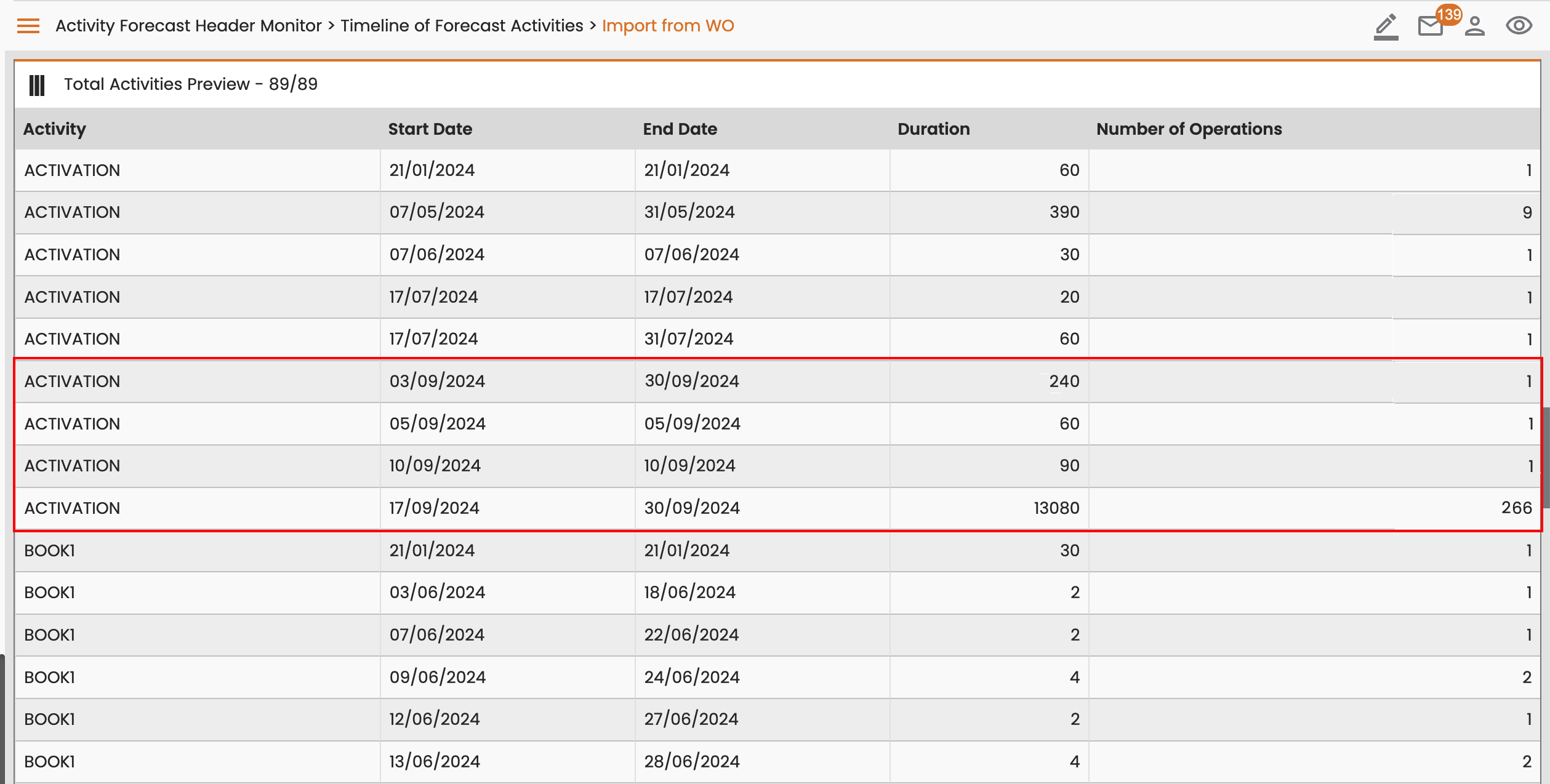
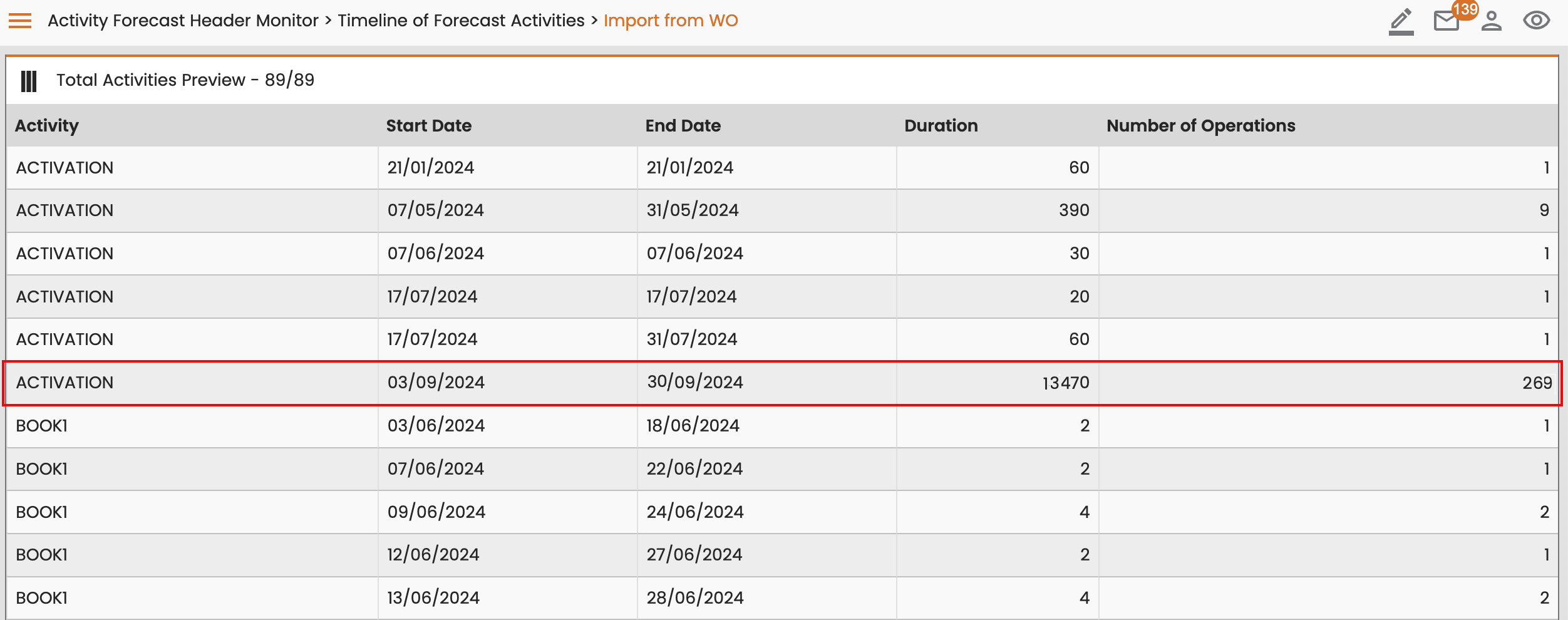
Once the user completes the import, the system generates a preview containing all timeframes will be imported in the Gantt.
Without grouping type, the output will be a row containing the sum of operations for each work order with same activity, start date, end date and duration.
In the image on the left, the “ACTIVATION” activity is composed by 4 timeframes in September, but applying the grouping type (image on the right), the result will be a single row, starting from 03/09/2024, ending to 30/09/2024, containing the sum of all durations and operations.