
Introduction
In a GIS platform, as a Configurator user, you need to divide a geographic territory into specific zones, in order to analyze, edit information of set different access level, services or maps..
If a service provides data and information on more zones, but some users work only on a sub-set of zones, I can limit the visibility, in order to avoid to access to something they don’t need to see or edit.
For this reason, the territory is divided in zones named “Structure” (upper level) and each zone is composed by other sub-zones named “Operation Center” (lower level). This is an hierarchical structure, and it is not possibile belong to more than one hierarchy.
But what if another Structure for shortly needs to borrow an operator from a different Structure?
There is the possibility to break the hierarchy using the Area entity, which allows to puts together more zones of different structure.
Example in the image below:
-
Structure North-East Italy has 2 Operation center:
-
Turin
-
Novara
-
-
Structure North-West Italy ha 2 Operation center:
-
Milan
-
Bergamo
-
An operator work on the Novara zone, but shortly is needed to work in Milan too. It is not possibile assign the operator to the Novara and Milan zone, because they belong to different structure, but it is possibile to create the Area “North-Center Italy” and assign it to the operator.
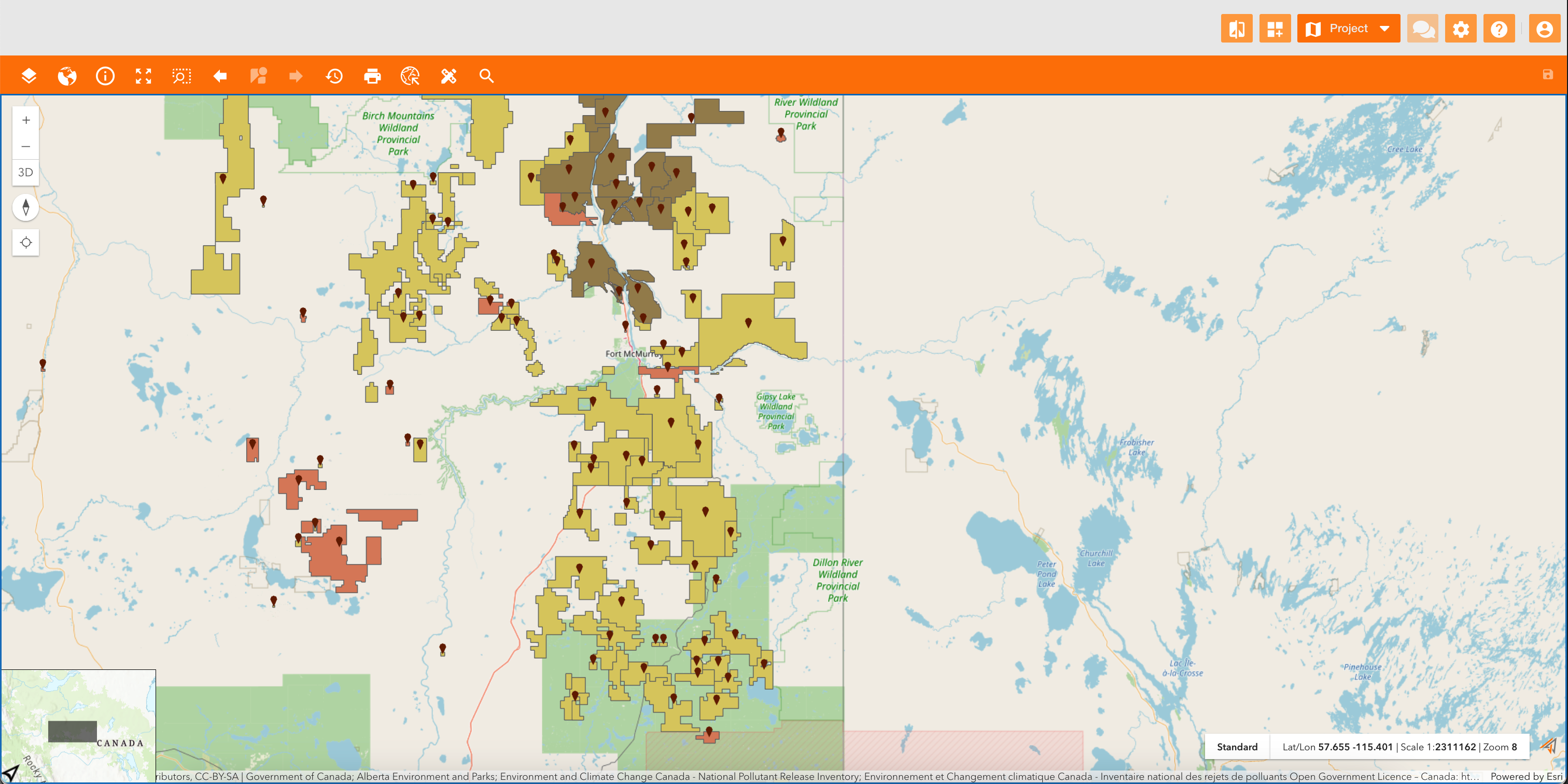
In the map below you can see that the logged-in user sees data only on a portion of the map caused by its zones' permissions.
The map visibility is managed through zones, because each zone is assigned to a principal and a double map, and automatically if a user is enabled on a zone, is also enabled to the map.
|
|
|---|
|
Example |
How to configure
Only Configurator group can access to this configuration
Accessing to Control Panel > Maps tab, the view contains tabs:
-
Zones: related to the https://overit-spa.atlassian.net/wiki/spaces/NEXTGENGEO/pages/103375340446/Zones+and+Areas+configuration#Zone-configuration
-
Area: related to the https://overit-spa.atlassian.net/wiki/spaces/NEXTGENGEO/pages/103375340446/Zones+and+Areas+configuration#Area-configuration
Zone configuration
Going on the Maps tab of the control panel and clicking the Zones tab, the system will display the hierarchy of structures and zones.
At the top-left of the page there is the “Add Zone” button to create a new zone, and near each zone there is the pencil icon to edit it.
|
|
|
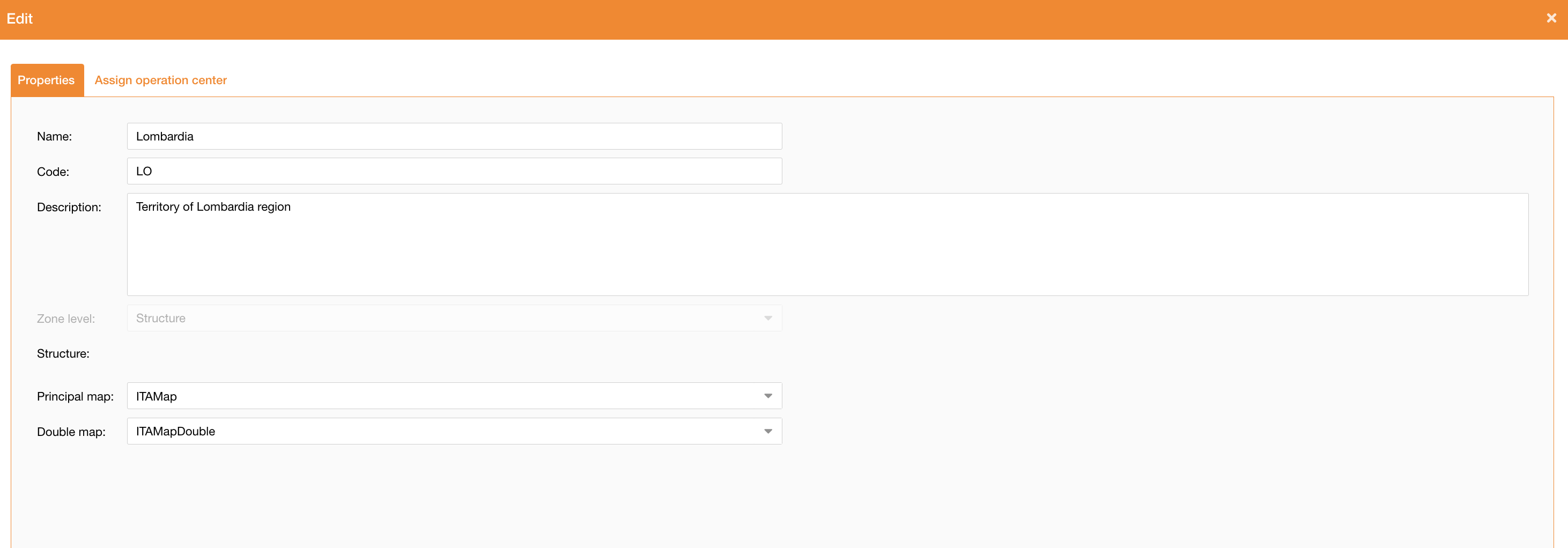
Figure 2 - Zones properties |
In the New/Edit Panel it’s possibile to define:
|
Field |
Description |
|---|---|
|
Name |
Zone’s name (mandatory) |
|
Code |
Zone’s code, used by the service to filter data (mandatory) |
|
Description |
Zone’s description |
|
Zone level |
It can be Structure of Operation Center, and it is related to the zone level entity (mandatory). In case of Structure it is not possibile change the zone level if there are Operation Center assigned to it. |
|
Structure |
It is automatically filled with the name of Structure if the current zone is an Operation Center. It is empty in case of Structure. |
|
Principal map |
Map to use as principal map for users with access on the selected zone |
|
Double map |
Map to use as double map for users with access on the selected zone |
Assign Operation Center to a Structure
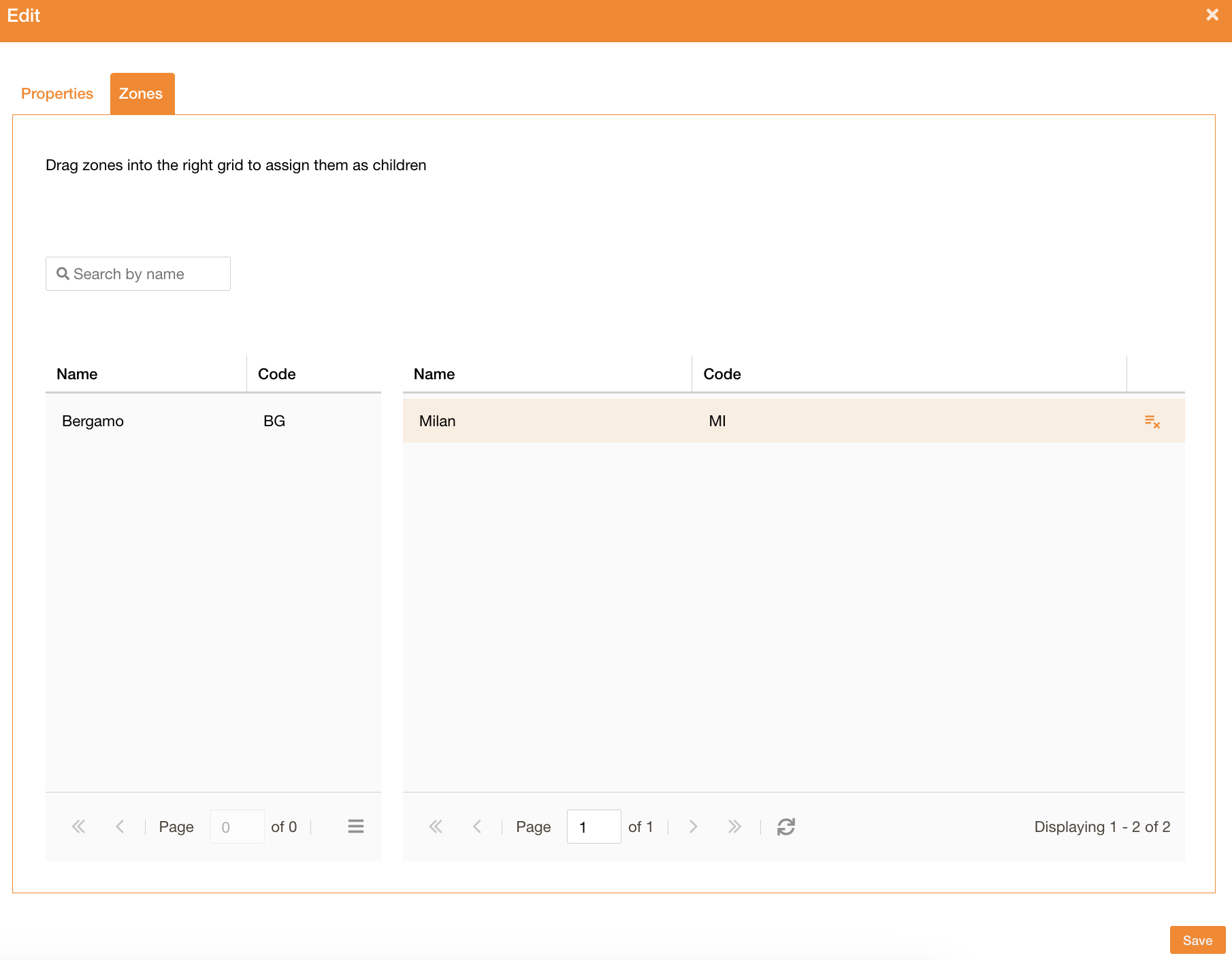
Going on the Zones tab, in case of a Structure, it’s possibile to assign one or more Operation Center, using the drag and drop table.
On the left of the table there will be all “Operation Center” not assigned to a Structure.
It’s possibile to filter them using the “Search by name” field.
|
|
Figure 3 - Zones assignment |
Area configuration
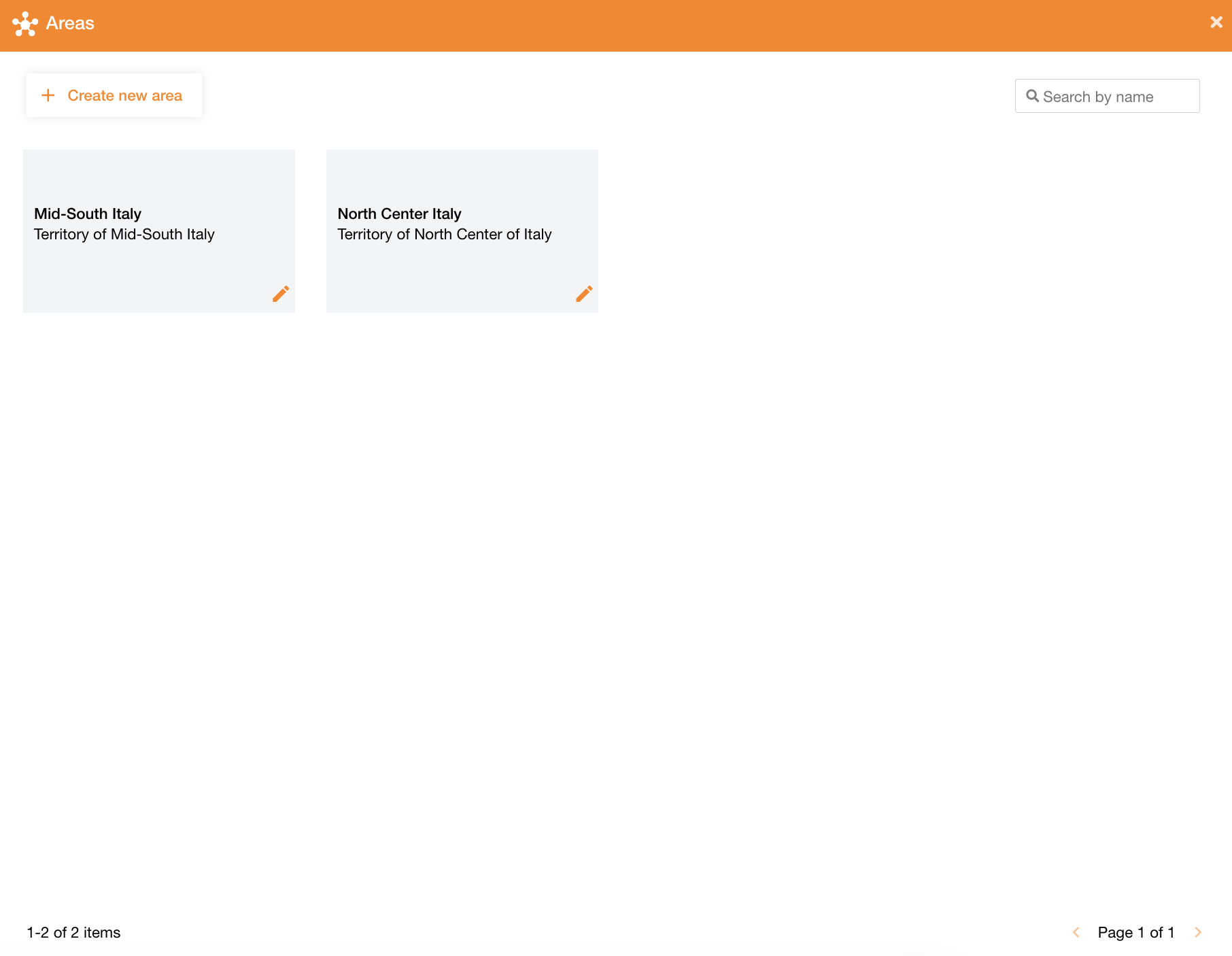
Going on the Maps tab of the control panel and clicking the Areas tab, the system will display the list of all available areas.
At the top-right of the page there is a search field to search areas by their name.
|
|
Figure 4 - Areas view |
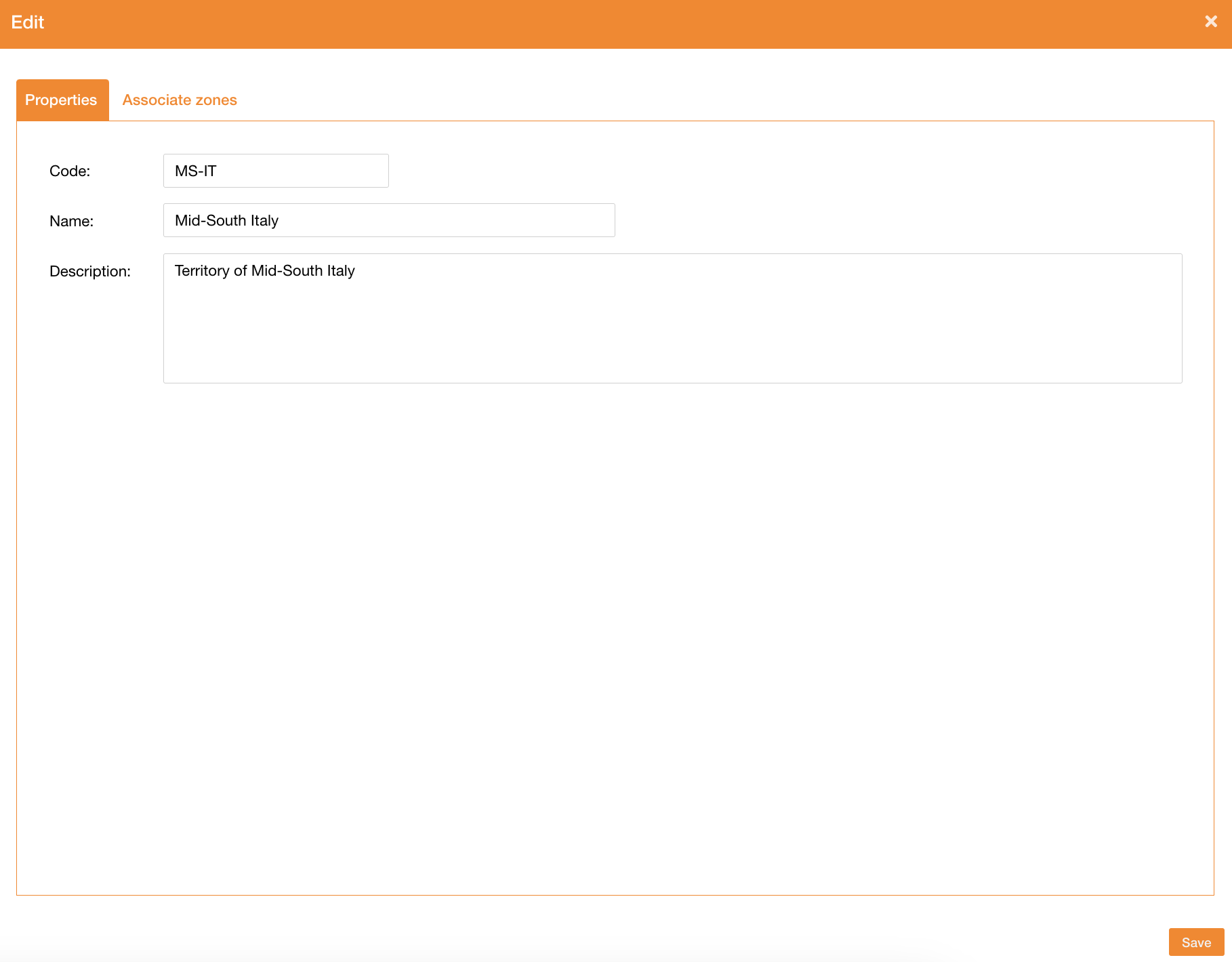
At the top-left of the page there is the “Create new area” button to create a new area, and near each area there is the pencil icon to edit it.
|
|
Figure 5 - Areas properties |
In the New/Edit panel it’s possibile to define:
|
Field |
Description |
|---|---|
|
Name |
Area’s name (mandatory) |
|
Code |
Area’s code, used by the service to filter data (mandatory) |
|
Description |
Area’s description |
Assign zones to an Area
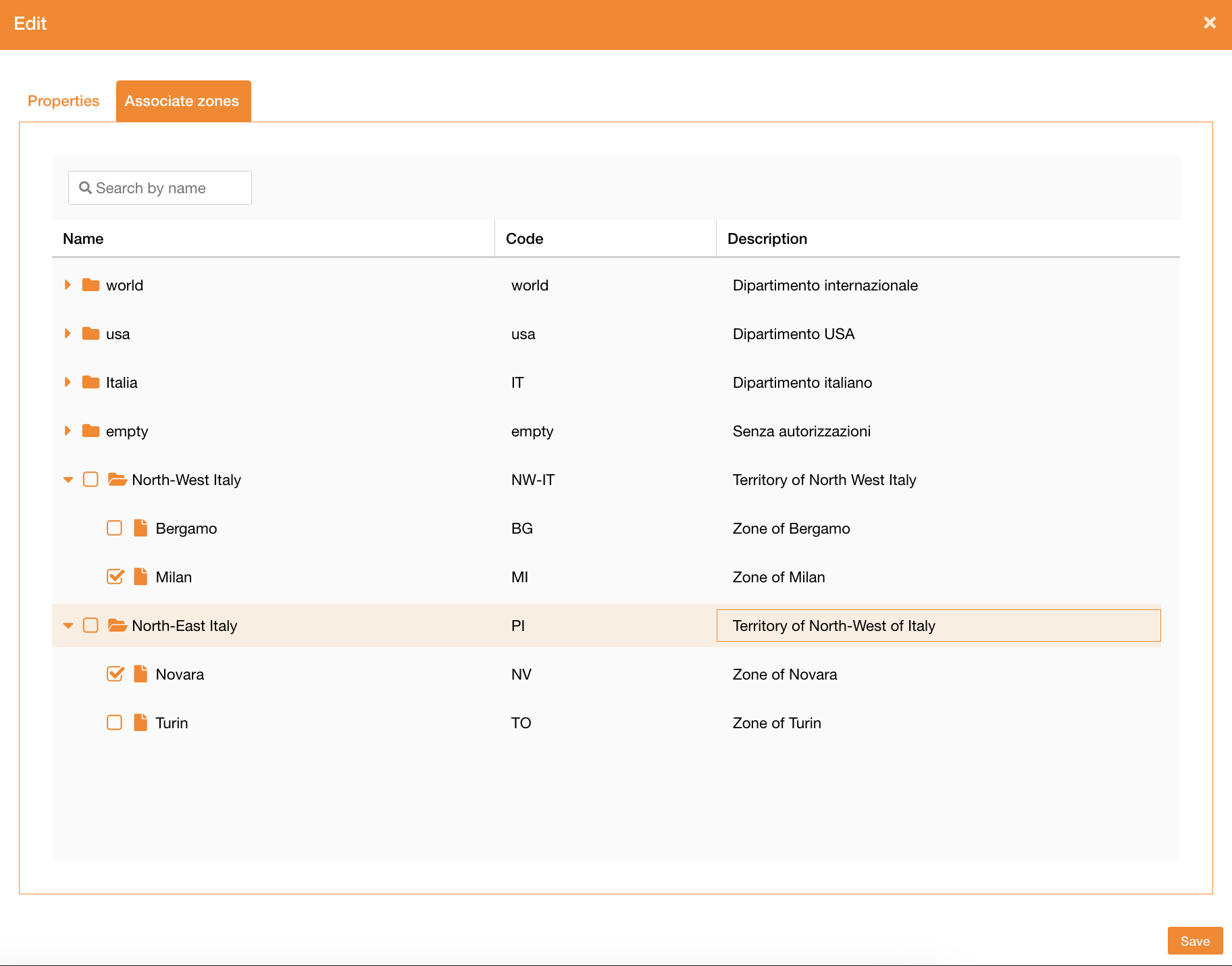
Going on the Associate zones tab, there will be the list of all existing zones, showing the hierarchy too. Using the checkbox it’s possibile to add a zone to the current area.
The field “Search by name” is used to filter zones by their name.
|
|
Figure 6 - Area assignment |