Overview
When you create a node, you can add a placeholder to help identify that node. Placeholders display a short, descriptive hint within the input field, which clarifies the expected input format and helps complete forms more efficiently and accurately. As soon as you begin typing, the placeholder text disappears.
How It Works
Placeholders provide immediate guidance to help you fill out forms correctly and efficiently.
-
Purpose: Shows a brief example or description of the required information inside an input field.
-
Behavior: The placeholder text is only visible when the field is empty and automatically disappears as soon as you interact with the field.
-
Customization: A back-office member can set specific placeholder text for each field to match the context of the required input.
Accessing the Placeholder Field
To access and configure the placeholder field, follow these steps:
-
Go to the Data Collection section.
-
Click Templates.
-
Click View Details to select the desired template.
-
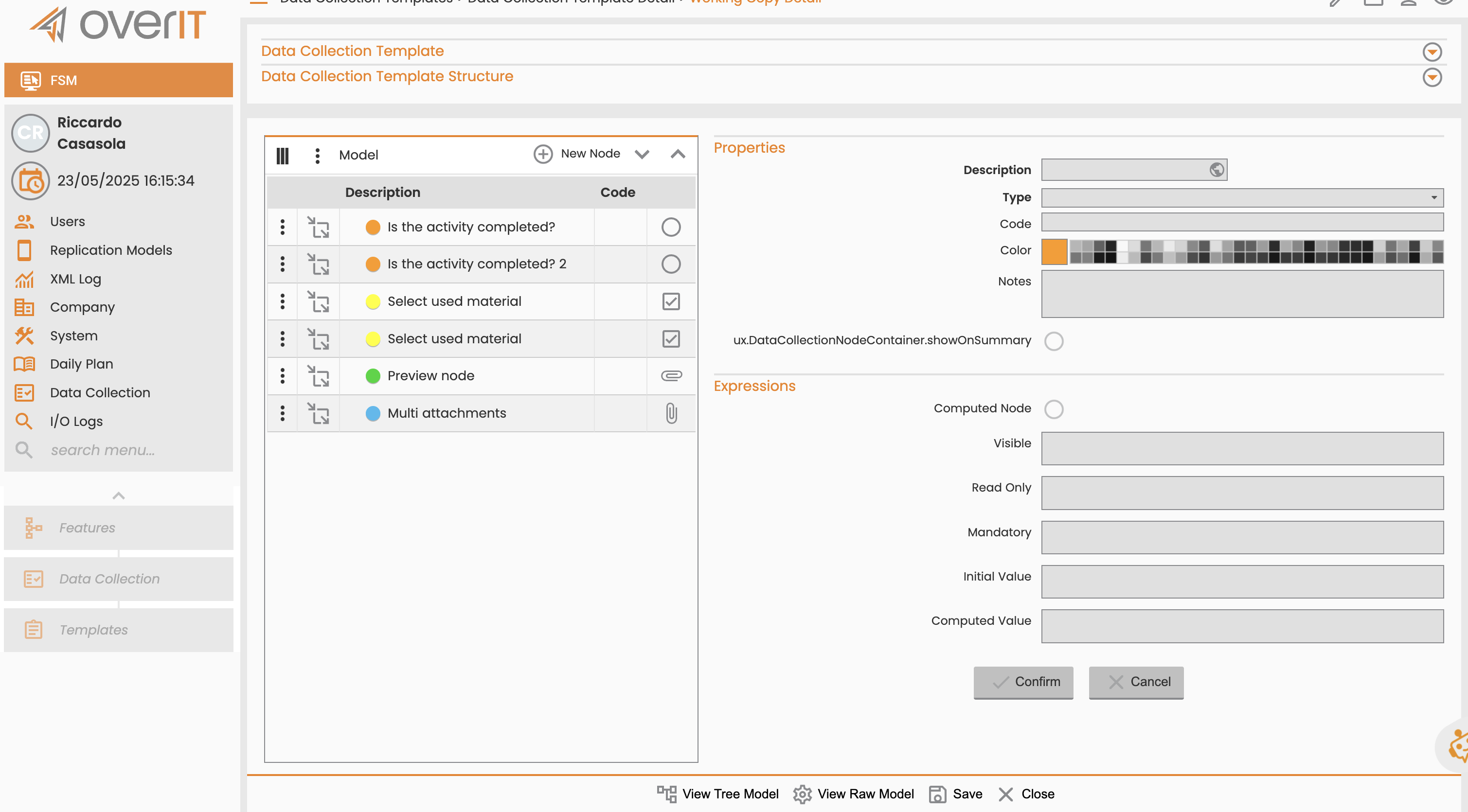
Go to the Data Collection Template Structure tab.
-
Locate and select the ID of the field you want to edit or add.
-
Click Create a New Node.
After you create a new node, the Placeholder field becomes visible and editable. You can enter the appropriate placeholder text for that specific input field.