Overview
In the context of work order management, an activity is a task to be performed, generally by the field technician.
Before you start
<TBD>
Create an Activity
To create an activity, follow these steps:
-
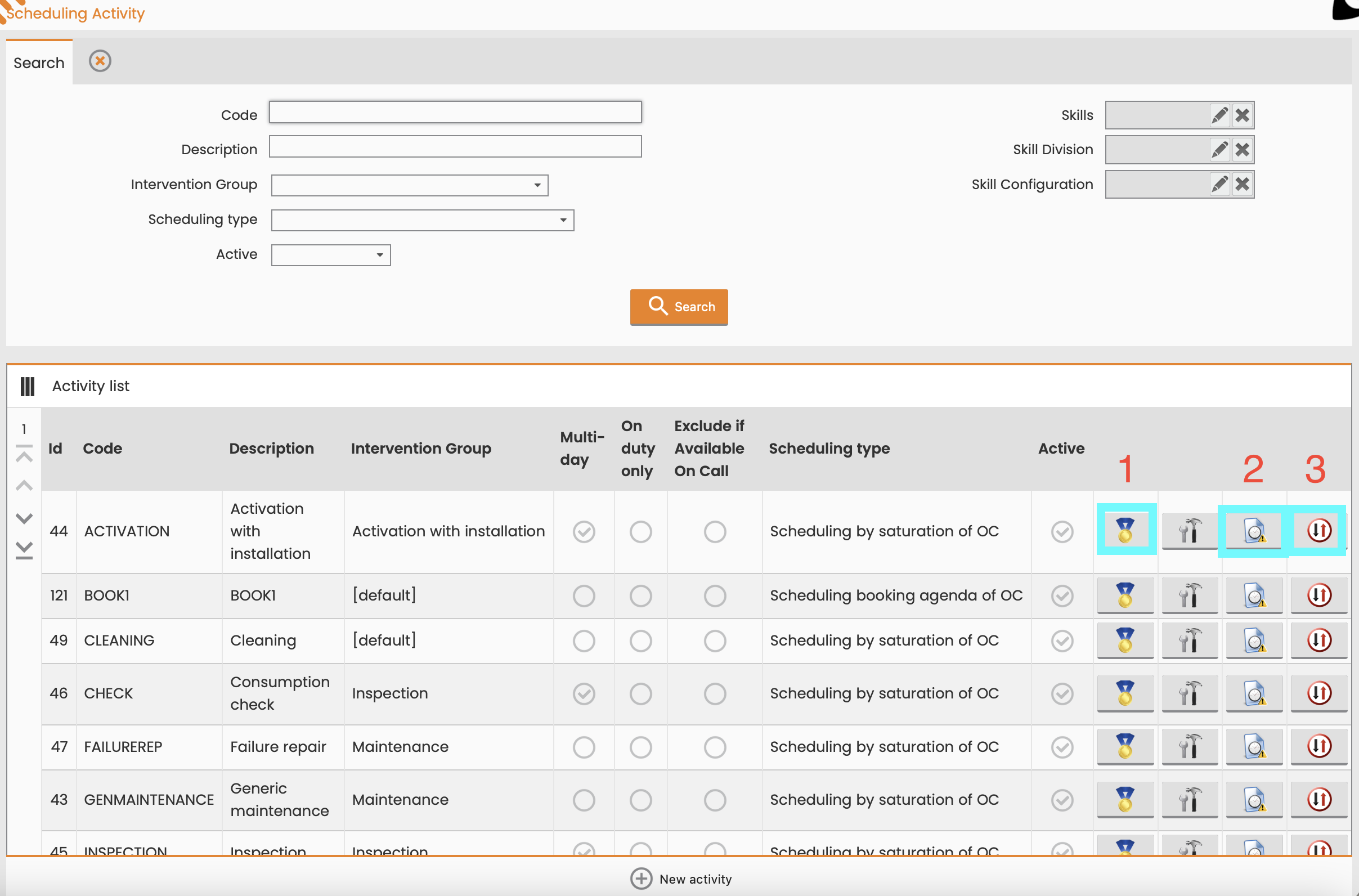
Navigate to Configuration > Core > Work Order Management > Activity
-
Select New activity.
-
Configure the mandatory activity parameters.
-
Enter a Code and Description.
-
Select an Intervention group and Scheduling type.
-
-
(Optional) Provide optional parameters.
-
Multi-day: Select if the activity can be scheduled across multiple working days.
-
On duty only: Select if the activity has to be scheduled in an on-duty time frame (working shift).
-
Exclude if Available On Call: Select if to be excluded during overtime.
-
Minimum Daily Time: Define the minimum assignment time (in minutes) you can schedule on any single day for an activity that spans multiple days.
-
Minimum Time for Suspension: Define the minimum activity duration (in minutes) required before a technician can suspend the intervention during the accounting phase.
-
Default Outcome Causal: Default outcome causal to be considered during the accounting phase.
-
Priority on overlapped times distribution: Not used.
-
-
Select Insert.
-
Assign skills to the activity by clicking the Associate skill icon.
-
Assign outcomes to the activity by clicking the Associate outcomes icon.
-
Assign an intervention group to the activity by clicking Intervention Group icon.
-
Continue with Create an Activity | Associate the Activity with Work Groups.
Associate the Activity with a Work Group
After you created an activity, you must associate it with a work group.
-
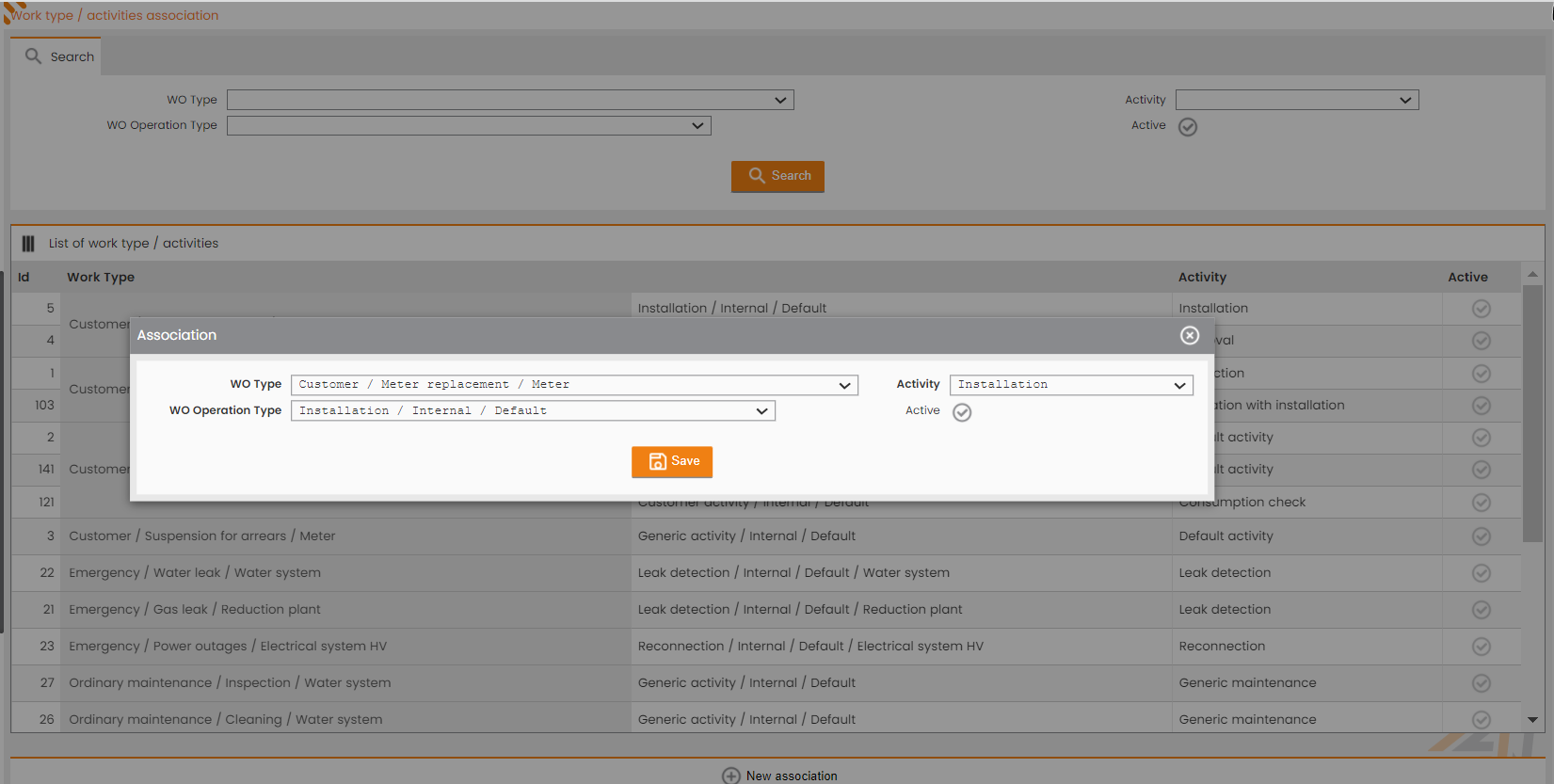
Navigate to Configuration > Core > Work Order Management > WO Type / Activities.
-
Select New association.
-
Select an option for each of the following components from the respective dropdown list:
-
WO Type
-
WO Operation Type
-
Activity
-
-
Select Save.