
This topic explains how to add and consult documents connected to a simulation or to a specific hypothesis.
Before you start
-
Create at least one hypothesis if you want to attach documents to a hypothesis.
Attach a document to a simulation
Use simulation attachments to store documents that are relevant to the whole simulation scenario.
-
Open a simulation.
-
Go to the Attachments tab.
-
Click Add document to add a document from the knowledge repository.
-
Or click Add url to add a document from a URL.
-
Fill in the required information and save.
The document is added to the simulation attachment list.
Attach a document to a hypothesis
Use hypothesis attachments to store documents that are specific to one hypothesis alternative.
-
Open a simulation.
-
Select the hypothesis you want to work on.
-
Go to the Attachments tab.
-
Click Add document to add a document from the knowledge repository.
-
Or click Add url to add a document from a URL.
-
Fill in the required information and save.
The document is added to the selected hypothesis attachment list.
Consult attached documents
You can consult documents from both the simulation and hypothesis Attachments tabs.
-
Open the simulation or the hypothesis that contains the document you want to consult.
-
Go to the Attachments tab.
-
In the list, find the document by name or description.
-
Use the available action to open or consult the document.
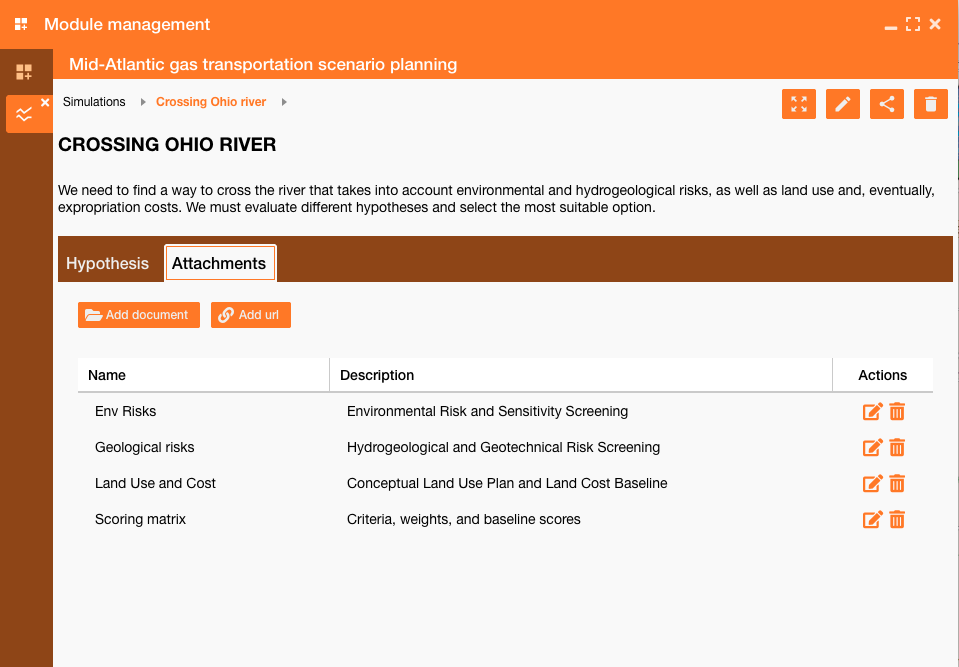
From the same list, you can also edit or remove an attachment when the simulation or hypothesis is still editable.
Note: Simulation attachments and hypothesis attachments are managed separately. A document attached to a simulation is available from the simulation attachment list, while a document attached to a hypothesis is available from that hypothesis attachment list.
Related task:
-
Manage knowledge repository.