
Audience: Administrators
This topic explains how to define the attribute a layer is labelled with, and the style those labels are drawn in, so that users see meaningful labels without configuring them themselves.
Available starting from NextGen Geo 5.0.0
Prerequisites
Before you start:
-
Ensure the service is configured and its layers are available. See Configure a service.
Understand default labels
A label is the text drawn on the map next to a feature. Users can turn labels on for a layer from the Table of Contents and choose what they show, but that choice is personal and has to be repeated on every session.
A default label moves that choice into the configuration: the administrator states, once, which attribute of the layer is used as its label and how the label is drawn. Every user who displays labels for that layer starts from that definition.
Configure the default label of a layer
To define the default label of a layer:
-
On the main page, click Open configuration window.
-
In the header, click Maps, then open the service that owns the layer.
-
Click the Layers tab and select the layer.
-
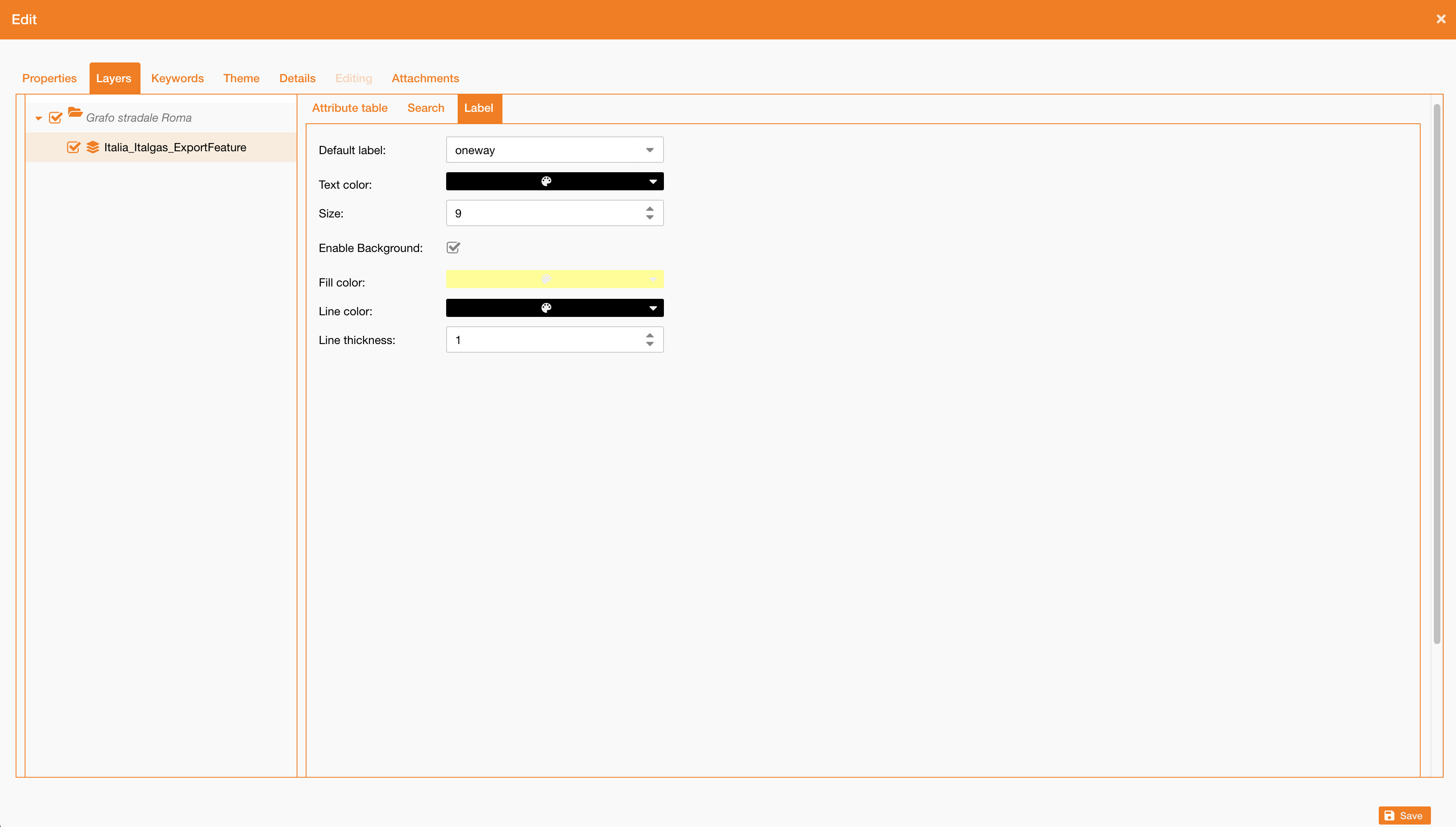
Click the Label sub-tab.
-
In Default label, select the attribute whose value is drawn as the label. The list contains the attributes of the selected layer.
-
Set the style of the label.
-
Click Save.
|
Field |
Input type |
Mandatory |
Description |
|---|---|---|---|
|
Default label |
Drop-down |
No |
Attribute of the layer drawn as the label. Leave it empty to leave the layer without a default label. |
|
Text color |
Colour picker |
No |
Colour of the text. |
|
Size |
Numeric |
No |
Size of the text, from 1 to 100. |
|
Enable Background |
Checkbox |
No |
Draws a background box behind the text. The fields below appear only when it is selected. |
|
Fill color |
Colour picker |
No |
Colour of the background box. |
|
Line color |
Colour picker |
No |
Colour of the border of the background box. |
|
Line thickness |
Numeric |
No |
Thickness of the border, from 0 to 100. Set it to 0 for a box with no border. |
Note: The label style is stored with the layer configuration, so it applies to every user and survives the session.
Understand how users see labels
Users display labels from the Table of Contents, with the label tool of the layer. What they see depends on the configuration:
-
A layer with a default label opens the tool already filled in with the configured attribute and style.
-
A layer without one opens the tool on the standard style — white text on a background box — drawn in the font of the interface theme, so that labels stay legible over both light and dark cartography.
Two sliders, Background intensity and Border intensity, set how opaque the background box and its border are, from transparent to solid. They are available only while Enable Background is selected.
Note: Labels configured before this release are displayed at full intensity, as they were.
What's next
-
To let users switch between prepared symbologies for a service, see Manage thematic maps.
-
To review how users turn labels on and off, see Table of Contents.