
Audience: Administrators
This topic explains how to describe the customer-specific fields (Extra Data Management, EDM) that NextGen Geo inherits from NextGen FSM, so that they can be displayed, searched, and indexed like any standard attribute.
Available starting from NextGen Geo 5.0.0
Prerequisites
Before you start:
-
Ensure your user profile grants the
gsp.main.config.system_configurationfunctionality. See Users and permissions. -
Ensure at least one import from NextGen FSM has run, so that the extension fields exist in NextGen Geo. See Configure the Field Execution module.
Understand entity metadata
NextGen FSM lets each customer add their own fields to an entity — a work order, an operation, a technical object. NextGen Geo imports those fields together with the records that carry them and stores them natively, without a database change for every new field.
Two things travel from NextGen FSM:
-
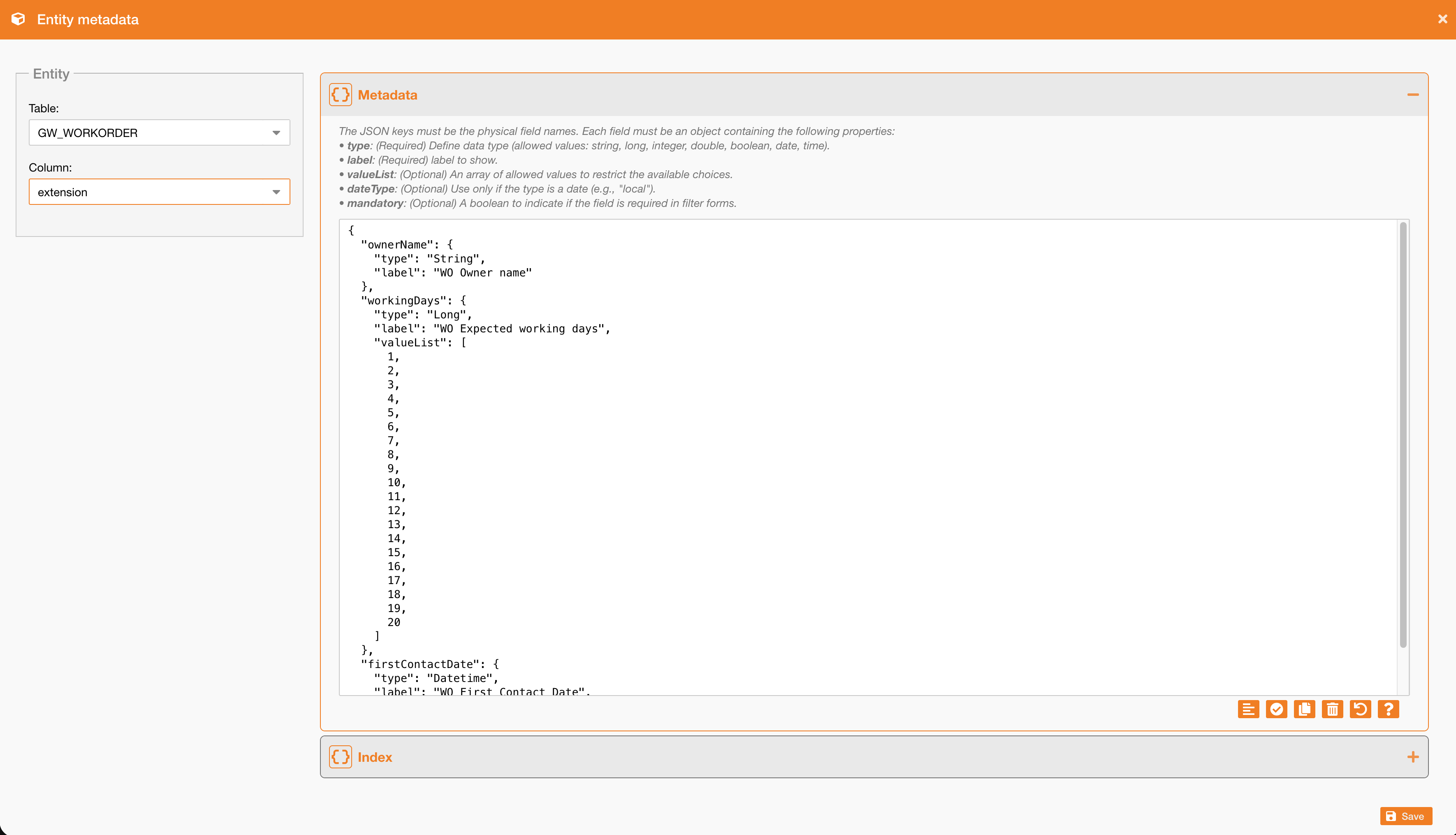
The extension fields, one per customer-specific column of an entity. They are listed in the Entity metadata window, grouped by the table that owns them.
-
The values, imported with the records themselves and kept in the local cache.
What NextGen Geo cannot infer is how a field has to be treated: its data type, the label to show, the values it accepts, and whether it is worth indexing. That is what the metadata declares. A field without metadata is stored and imported, but is not offered to the configuration of the modules and is not rendered in the interface.
Note: The declaration is central. It is written once per field and every part of the application that needs it — persistence, search engine, popups, information panels, and the configurable widgets of the Field Execution module — reads it from there.
Open the entity metadata window
-
On the main page, click Open configuration window.
-
In the header, click System.
-
Click the Entity metadata tile.
The window is divided in two areas:
|
Area |
Content |
|---|---|
|
Entity |
The Table and Column drop-downs that select the extension field to describe. |
|
Metadata / Index |
Two collapsible panels holding the JSON declaration of the selected field and of its indexes. |
Both JSON panels stay disabled until a column is selected.
Declare the metadata of an extension field
To describe an extension field:
-
In the Table drop-down, select the table that owns the field. The list contains only the tables that have at least one imported extension field.
-
In the Column drop-down, select the field. The list is restricted to the extension fields of the selected table, and the saved declaration is loaded in both panels.
-
In the Metadata panel, type or paste the JSON declaration of the field.
-
Optional: In the Index panel, declare the indexes to create on the declared fields.
-
Click Save.
Note: Saving replaces both declarations of the selected column with what the two panels contain. Clearing a panel and saving removes that declaration.
Metadata reference
The keys of the JSON object are the physical field names. Each field is an object supporting the following properties:
|
Property |
Input type |
Mandatory |
Description |
|---|---|---|---|
|
|
String |
Yes |
Data type of the field. Allowed values: |
|
|
String |
Yes |
Label to show in the interface. It is resolved against the platform dictionaries, so it can be either a dictionary key or literal text. |
|
|
Array |
No |
Allowed values. Restricts the field to a list of choices instead of free input. |
|
|
String |
No |
Use only when the type is a date, for example |
|
|
Boolean |
No |
Set to |
Example:
{
  "ownerName": {
    "type": "String",
    "label": "WO Owner name"
  },
  "workingDays": {
    "type": "Long",
    "label": "WO Expected working days",
    "valueList": [1, 2, 3]
  }
}
Index reference
The indexes property contains an array of indexes to create on the fields declared in the metadata. Each index is an object supporting the following properties:
|
Property |
Input type |
Mandatory |
Description |
|---|---|---|---|
|
|
Array |
Yes |
Names of the declared fields to index. |
|
|
String |
No |
Search operator supported by the index. Only |
Optional: Declare an index on the extension fields users filter on most often. Fields that are only displayed do not need one.
Work on the JSON content
Both panels carry the same toolbar:
|
Control |
Description |
|---|---|
|
Format |
Re-indents the content. Reports an error when the content is not valid JSON. |
|
Validate JSON |
Checks the content and reports whether it is valid. |
|
Copy |
Copies the content to the clipboard. |
|
Clear |
Empties the panel. Saving an empty panel removes that declaration. |
|
Reset |
Restores the last saved content, discarding the changes made since. |
|
Example |
Displays a complete example of the declaration expected by the panel. |
Note: The content is validated again on the server when you save. A declaration that is syntactically valid but not accepted — an unknown type, an index on a field that is not declared — is refused, and the reason is displayed.
What's next
-
To expose the declared fields in the filters, the grid, and the detail view of a module, see Configure the Field Execution module.
-
To follow the import of the work orders that carry the extension values, see Monitor tasks.