
Audience: All users
Icon: 
This topic explains how to review your account information and set your interface preferences from the Account widget.
|
Name |
|
|
Description |
Gives access to the account information and to the user settings. |
|
Available in toolbars |
navigation |
See reference: Toolbar management | Pre defined toolbars
Understand the account panel
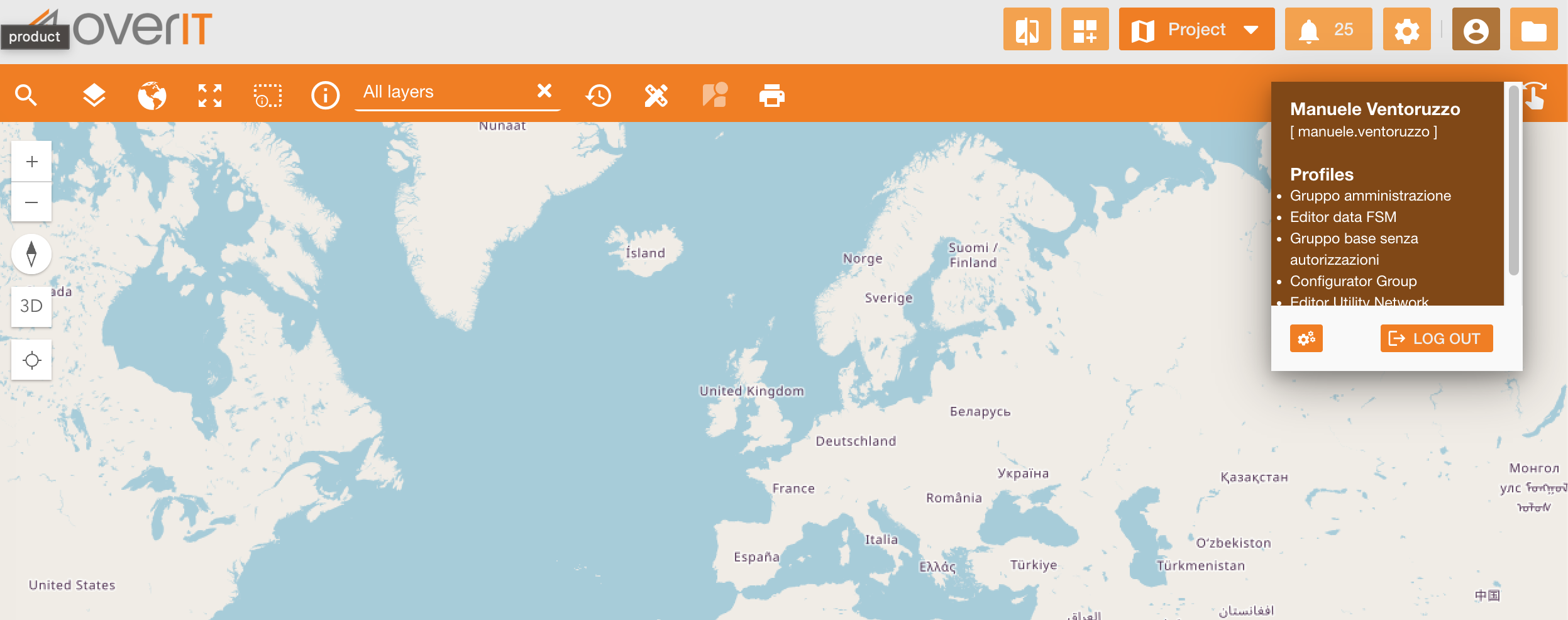
Click the account icon in the navigation bar to open the panel. It reports the first name, last name, and username of the logged user, together with the profiles assigned to the account.
The panel carries two controls:
|
Control |
Description |
|---|---|
|
Settings (gear icon) |
Opens the User settings window. |
|
Log out (bottom-right of the panel) |
Ends the session. |
Set your interface preferences
To change your preferences:
-
In the navigation bar, click the account icon.
-
Click the settings icon.
-
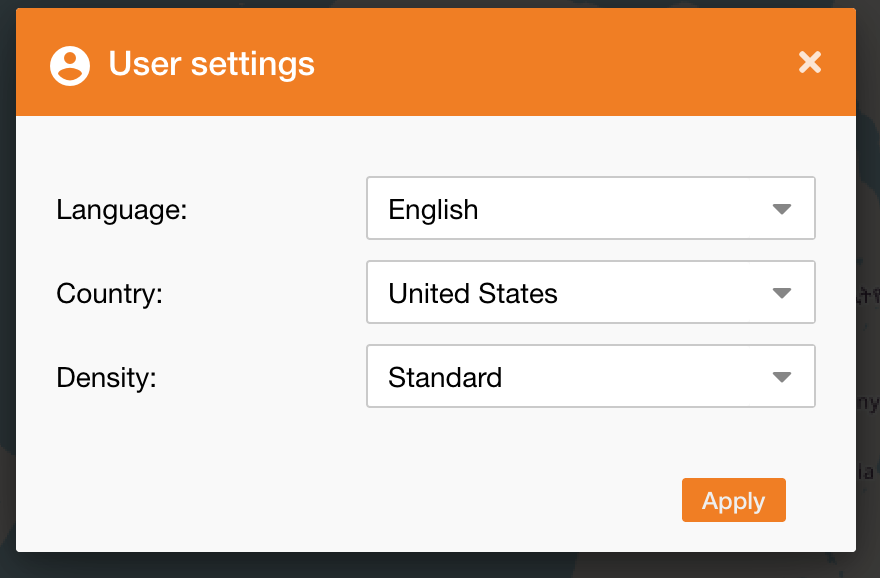
In the User settings window, set the preferences you want to change.
-
Click Apply.
|
Field |
Input type |
Mandatory |
Description |
|---|
|
Field |
Input type |
Mandatory |
Description |
|---|---|---|---|
|
Language |
Drop-down |
Yes |
Language of the interface. The list offers the languages enabled for the installation. |
|
Country |
Drop-down |
Yes |
Regional format applied to dates and numbers. The list depends on the selected language. |
|
Density |
Drop-down |
Yes |
Amount of space the interface uses. See the table below. |
Note: Language and country are stored on your user account and follow you to any workstation you log in from.
Choose the interface density
The density setting decides how much vertical space rows, form fields, tabs, and panels take, so that the same screen can be tuned for an operator working all day on dense lists or for a control room using a large display.
|
Density |
Description |
|---|---|
|
Compact |
Fits the largest number of rows and controls into the available space. |
|
Standard |
The default arrangement. |
|
Comfortable |
Gives controls and rows more space, at the cost of what fits on screen. |
Note: A new density takes effect the next time the page is loaded. Refresh the browser when it suits you — the application does not reload on its own, so nothing you are working on is interrupted.
Note: The density is stored in the browser you are using, not on your user account. It therefore applies to that browser on that workstation, and a different workstation keeps its own choice.
What's next
-
To change what the navigation bar contains, see Toolbar management.
-
To review the permissions attached to your profiles, see Users and permissions.